display CHEVROLET EQUINOX 2022 User Guide
[x] Cancel search | Manufacturer: CHEVROLET, Model Year: 2022, Model line: EQUINOX, Model: CHEVROLET EQUINOX 2022Pages: 360, PDF Size: 14.71 MB
Page 83 of 360
Chevrolet Equinox Owner Manual (GMNA-Localizing-U.S./Canada-
16540728) - 2023 - crc - 6/16/22
82 Instruments and Controls
1:Push the windshield wiper lever
forward to spray washer fluid on the rear
window. The lever automatically returns to
its original position when released.
{Warning
In freezing weather, do not use the
washer until the windshield is warmed.
Otherwise the washer fluid can form ice
on the windshield, blocking your vision.
Rear Wiper Arm Assembly Protection
When using an automatic car wash, move
the rear wiper control to OFF to disable the
rear wiper. In some vehicles, if the
transmission is in N (Neutral) and the
vehicle speed is very slow, the rear wiper
will automatically park.
The wiper operations return to normal when
the transmission is no longer in N (Neutral)
or the vehicle speed has increased.
Reverse Gear Wipes
If the rear wiper control is off, the rear
wiper will automatically operate
continuously when the transmission is in
R (Reverse), and the front windshield wiper
is performing low or high speed wipes.
If the rear wiper control is off, the transmission is in R (Reverse), and the front
windshield wiper is performing interval
wipes, then the rear wiper automatically
performs interval wipes.
This feature can be turned on or off. Go to
Settings > Vehicle > Comfort and
Convenience > Auto Wipe in Reverse Gear >
Select ON or OFF.
The windshield washer reservoir is used for
the windshield and rear window. Check the
fluid level if either washer is not working.
See
Washer Fluid 0260.
Compass
The vehicle may have a compass display on
the Driver Information Center (DIC). The
compass receives its heading and other
information from the Global Positioning
System (GPS) antenna, StabiliTrak/Electronic
Stability Control (ESC), and vehicle speed
information.
The compass system is designed to operate
for a certain number of miles or degrees of
turn before needing a signal from the GPS
satellites. When the compass display shows
CAL, drive the vehicle for a short distance in
an open area where it can receive a GPS signal. The compass system will
automatically determine when a GPS signal
is restored and provide a heading again.
Clock
Set the time and date using the
infotainment system. See "Time/Date" under
Settings
0155.
Power Outlets
The vehicle has two 12-volt accessory power
outlets, which can be used to plug in
electrical equipment, such as a cell phone or
MP3 player.
There are power outlets:
.On the center stack below the climate
control system.
.In the rear cargo area.
To use the outlet, remove the cover.
Caution
Leaving electrical equipment plugged in
for an extended period of time while the
vehicle is off will drain the battery.
Always unplug electrical equipment when
(Continued)
Page 85 of 360
Chevrolet Equinox Owner Manual (GMNA-Localizing-U.S./Canada-
16540728) - 2023 - crc - 6/16/22
84 Instruments and Controls
.Medical equipment.
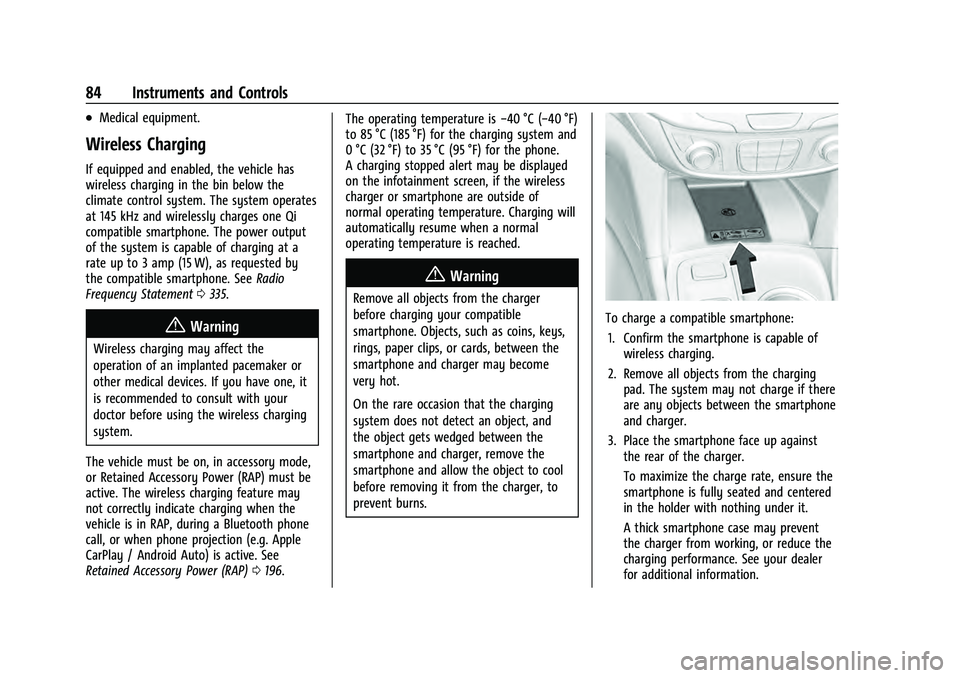
Wireless Charging
If equipped and enabled, the vehicle has
wireless charging in the bin below the
climate control system. The system operates
at 145 kHz and wirelessly charges one Qi
compatible smartphone. The power output
of the system is capable of charging at a
rate up to 3 amp (15 W), as requested by
the compatible smartphone. SeeRadio
Frequency Statement 0335.
{Warning
Wireless charging may affect the
operation of an implanted pacemaker or
other medical devices. If you have one, it
is recommended to consult with your
doctor before using the wireless charging
system.
The vehicle must be on, in accessory mode,
or Retained Accessory Power (RAP) must be
active. The wireless charging feature may
not correctly indicate charging when the
vehicle is in RAP, during a Bluetooth phone
call, or when phone projection (e.g. Apple
CarPlay / Android Auto) is active. See
Retained Accessory Power (RAP) 0196. The operating temperature is
−40 °C (−40 °F)
to 85 °C (185 °F) for the charging system and
0 °C (32 °F) to 35 °C (95 °F) for the phone.
A charging stopped alert may be displayed
on the infotainment screen, if the wireless
charger or smartphone are outside of
normal operating temperature. Charging will
automatically resume when a normal
operating temperature is reached.
{Warning
Remove all objects from the charger
before charging your compatible
smartphone. Objects, such as coins, keys,
rings, paper clips, or cards, between the
smartphone and charger may become
very hot.
On the rare occasion that the charging
system does not detect an object, and
the object gets wedged between the
smartphone and charger, remove the
smartphone and allow the object to cool
before removing it from the charger, to
prevent burns.
To charge a compatible smartphone:
1. Confirm the smartphone is capable of wireless charging.
2. Remove all objects from the charging pad. The system may not charge if there
are any objects between the smartphone
and charger.
3. Place the smartphone face up against the rear of the charger.
To maximize the charge rate, ensure the
smartphone is fully seated and centered
in the holder with nothing under it.
A thick smartphone case may prevent
the charger from working, or reduce the
charging performance. See your dealer
for additional information.
Page 86 of 360
![CHEVROLET EQUINOX 2022 User Guide Chevrolet Equinox Owner Manual (GMNA-Localizing-U.S./Canada-
16540728) - 2023 - crc - 6/16/22
Instruments and Controls 85
4. A green]will appear on the
infotainment display, next to the phone
icon. Th](/img/24/55817/w960_55817-85.png "CHEVROLET EQUINOX 2022 User Guide Chevrolet Equinox Owner Manual (GMNA-Localizing-U.S./Canada-
16540728) - 2023 - crc - 6/16/22
Instruments and Controls 85
4. A green]will appear on the
infotainment display, next to the phone
icon. Th")
Chevrolet Equinox Owner Manual (GMNA-Localizing-U.S./Canada-
16540728) - 2023 - crc - 6/16/22
Instruments and Controls 85
4. A green]will appear on the
infotainment display, next to the phone
icon. This indicates that the smartphone
is detected.
5. If a smartphone is placed on the charger and
]turns off or turns yellow, remove
the smartphone and any objects from
the pad. Turn the smartphone
180 degrees and wait a few seconds
before placing/aligning it on the pad
again.
6. If a smartphone is placed on the charger and
]turns red, the charger and/or the
smartphone is overheated. Remove the
smartphone and any objects from the
charger in order to cool the system.
The smartphone may become warm during
charging. This is normal. In warmer
temperatures, the speed of charging may be
reduced.
For vehicles with wireless phone projection,
the smartphone may overheat during
wireless charging. The smartphone may slow
down, stop charging, or shut down to
protect the battery. The phone may need to
be removed from its case to prevent
overheating. The
]may flash while the
phone is cooling down enough for wireless charging to automatically resume. This is
normal. Individual phone performance
may vary.
Software Acknowledgements
Certain Wireless Charging Module product
from LG Electronics, Inc. ("LGE") contains the
open source software detailed below. Refer
to the indicated open source licenses (as are
included following this notice) for the terms
and conditions of their use.
OSS Notice Information
To obtain the source code that is contained
in this product, please visit https://
opensource.lge.com. In addition to the
source code, all referred license terms,
warranty disclaimers and copyright notices
are available for download. LG Electronics
will also provide open source code to you
on CD-ROM for a charge covering the cost of
performing such distribution (such as the
cost of media, shipping, and handling) upon
email request to [email protected]. This
offer is valid for three (3) years from the
date on which you purchased the product.
Freescale-WCT library
Copyright (c) 2012-2014 Freescale
Semiconductor, Inc.. All rights reserved.
Redistribution and use in source and binary
forms, with or without modification, are
permitted provided that the following
conditions are met:
1. Redistributions of source code must retain the above copyright notice, this
list of conditions and the following
disclaimer.
2. Redistributions in binary form must reproduce the above copyright notice,
this list of conditions and the following
disclaimer in the documentation and/or
other materials provided with the
distribution.
3. Neither the name of the copyright holder nor the names of its contributors may be
used to endorse or promote products
derived from this software without
specific prior written permission.
Page 89 of 360
Chevrolet Equinox Owner Manual (GMNA-Localizing-U.S./Canada-
16540728) - 2023 - crc - 6/16/22
88 Instruments and Controls
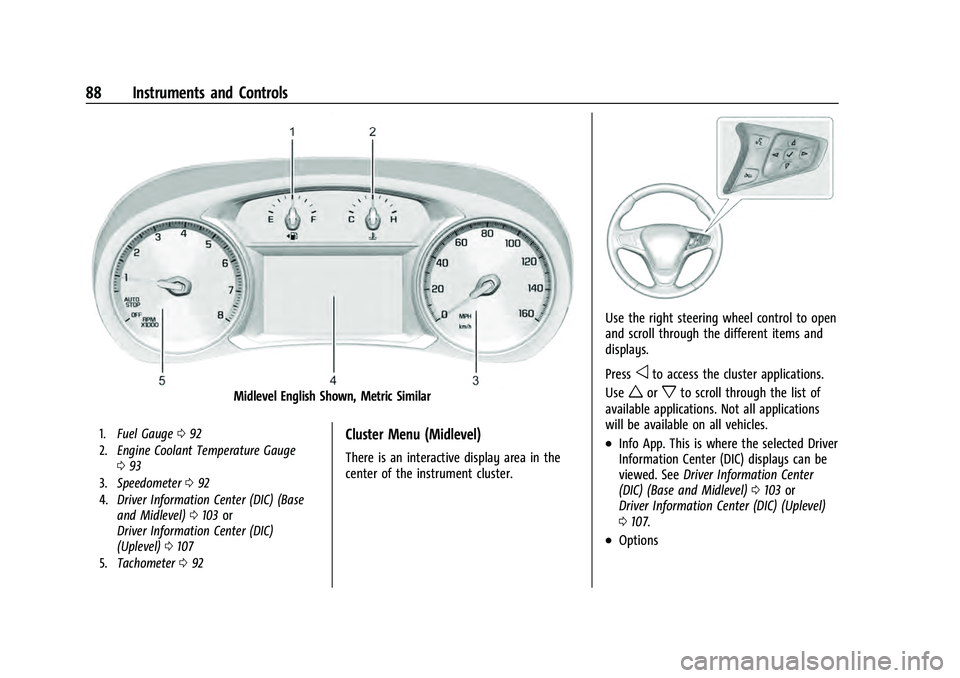
Midlevel English Shown, Metric Similar
1.Fuel Gauge 092
2. Engine Coolant Temperature Gauge
093
3. Speedometer 092
4. Driver Information Center (DIC) (Base
and Midlevel) 0103 or
Driver Information Center (DIC)
(Uplevel) 0107
5. Tachometer 092Cluster Menu (Midlevel)
There is an interactive display area in the
center of the instrument cluster.
Use the right steering wheel control to open
and scroll through the different items and
displays.
Press
oto access the cluster applications.
Use
worxto scroll through the list of
available applications. Not all applications
will be available on all vehicles.
.Info App. This is where the selected Driver
Information Center (DIC) displays can be
viewed. See Driver Information Center
(DIC) (Base and Midlevel) 0103 or
Driver Information Center (DIC) (Uplevel)
0 107.
.Options
Page 90 of 360
Chevrolet Equinox Owner Manual (GMNA-Localizing-U.S./Canada-
16540728) - 2023 - crc - 6/16/22
Instruments and Controls 89
Options
Press
Vto select the Options app, then
press
pto enter the Options menu. Usew
orxto scroll through items in the
Options menu.
Units : Press
pwhile Units is displayed to
enter the Units menu. Choose English or
Metric units by pressing
Vwhile the
desired item is highlighted. A checkmark will
be displayed next to the selected item.
Info Pages : Press
pwhile Info Pages is
displayed to enter the Info Pages menu and
select the items to be displayed in the Info
app. See Driver Information Center (DIC)
(Base and Midlevel) 0103 or
Driver Information Center (DIC) (Uplevel)
0 107.
Speed Warning : The Speed Warning display
allows the driver to set a speed that they
do not want to exceed. To set the Speed
Warning press
Vwhen Speed Warning is
displayed. Press
worxto adjust the
value. Press
Vto set the speed. Once the speed is set, this feature can be
turned off by pressing
Vwhile viewing this
page. If the selected speed limit is exceeded,
a pop-up warning is displayed with a chime.
Traction and Stability : Press
pto enter the
Traction and Stability menu. To turn the
Traction Control System (TCS) on or off,
choose Traction. To turn StabiliTrak/
Electronic Stability Control (ESC) on or off,
choose Stability. See Traction Control/
Electronic Stability Control 0204.
Page 91 of 360
Chevrolet Equinox Owner Manual (GMNA-Localizing-U.S./Canada-
16540728) - 2023 - crc - 6/16/22
90 Instruments and Controls
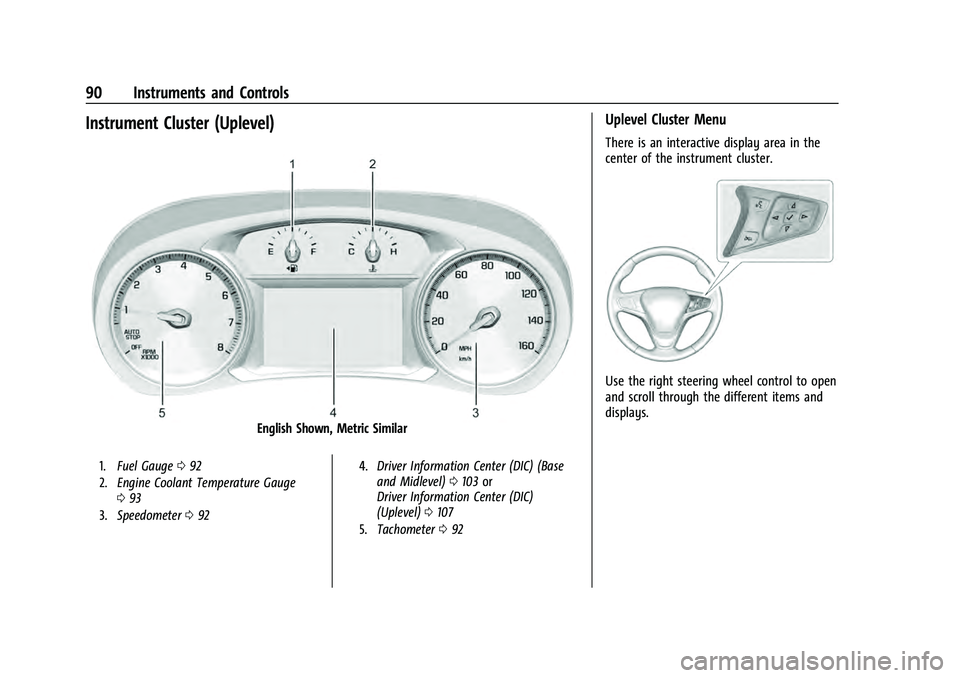
Instrument Cluster (Uplevel)
English Shown, Metric Similar
1.Fuel Gauge 092
2. Engine Coolant Temperature Gauge
093
3. Speedometer 092 4.
Driver Information Center (DIC) (Base
and Midlevel) 0103 or
Driver Information Center (DIC)
(Uplevel) 0107
5. Tachometer 092
Uplevel Cluster Menu
There is an interactive display area in the
center of the instrument cluster.
Use the right steering wheel control to open
and scroll through the different items and
displays.
Page 92 of 360
Chevrolet Equinox Owner Manual (GMNA-Localizing-U.S./Canada-
16540728) - 2023 - crc - 6/16/22
Instruments and Controls 91
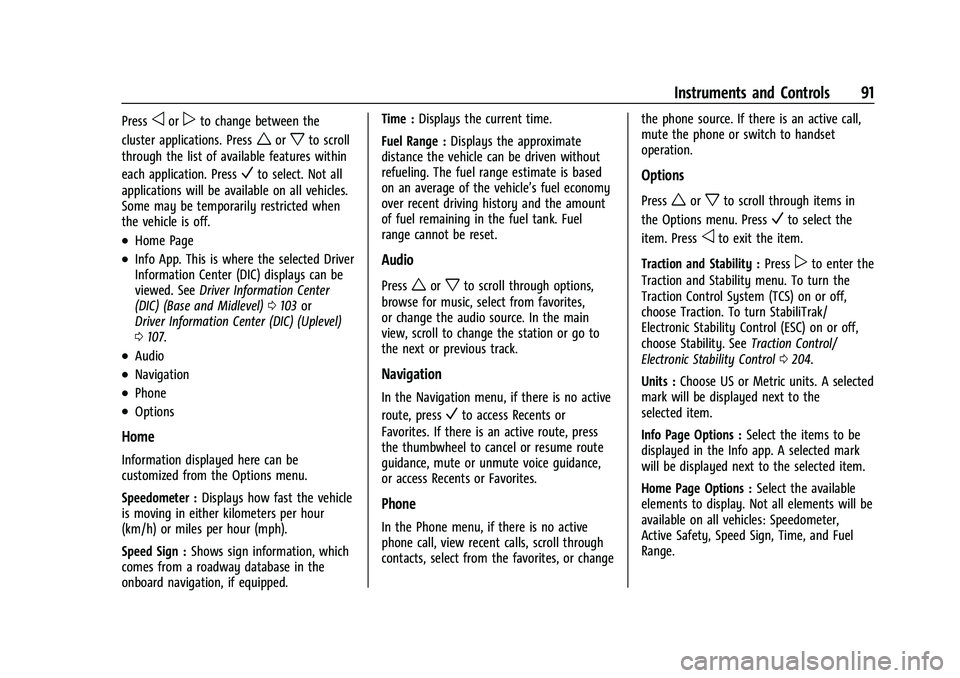
Pressoorpto change between the
cluster applications. Press
worxto scroll
through the list of available features within
each application. Press
Vto select. Not all
applications will be available on all vehicles.
Some may be temporarily restricted when
the vehicle is off.
.Home Page
.Info App. This is where the selected Driver
Information Center (DIC) displays can be
viewed. See Driver Information Center
(DIC) (Base and Midlevel) 0103 or
Driver Information Center (DIC) (Uplevel)
0 107.
.Audio
.Navigation
.Phone
.Options
Home
Information displayed here can be
customized from the Options menu.
Speedometer : Displays how fast the vehicle
is moving in either kilometers per hour
(km/h) or miles per hour (mph).
Speed Sign : Shows sign information, which
comes from a roadway database in the
onboard navigation, if equipped. Time :
Displays the current time.
Fuel Range : Displays the approximate
distance the vehicle can be driven without
refueling. The fuel range estimate is based
on an average of the vehicle’s fuel economy
over recent driving history and the amount
of fuel remaining in the fuel tank. Fuel
range cannot be reset.
Audio
Pressworxto scroll through options,
browse for music, select from favorites,
or change the audio source. In the main
view, scroll to change the station or go to
the next or previous track.
Navigation
In the Navigation menu, if there is no active
route, press
Vto access Recents or
Favorites. If there is an active route, press
the thumbwheel to cancel or resume route
guidance, mute or unmute voice guidance,
or access Recents or Favorites.
Phone
In the Phone menu, if there is no active
phone call, view recent calls, scroll through
contacts, select from the favorites, or change the phone source. If there is an active call,
mute the phone or switch to handset
operation.
Options
Pressworxto scroll through items in
the Options menu. Press
Vto select the
item. Press
oto exit the item.
Traction and Stability : Press
pto enter the
Traction and Stability menu. To turn the
Traction Control System (TCS) on or off,
choose Traction. To turn StabiliTrak/
Electronic Stability Control (ESC) on or off,
choose Stability. See Traction Control/
Electronic Stability Control 0204.
Units : Choose US or Metric units. A selected
mark will be displayed next to the
selected item.
Info Page Options : Select the items to be
displayed in the Info app. A selected mark
will be displayed next to the selected item.
Home Page Options : Select the available
elements to display. Not all elements will be
available on all vehicles: Speedometer,
Active Safety, Speed Sign, Time, and Fuel
Range.
Page 93 of 360
Chevrolet Equinox Owner Manual (GMNA-Localizing-U.S./Canada-
16540728) - 2023 - crc - 6/16/22
92 Instruments and Controls
Speed Warning :Allows the driver to set a
speed that they do not want to exceed. To
set the Speed Warning, press
Vwhen
Speed Warning is displayed. Use
worx
to adjust the value. PressVto set the
speed. Once the speed is set, this feature
can be turned off by pressing the
thumbwheel while viewing this page. If the
selected speed limit is exceeded, a pop-up
warning is displayed with a chime.
Software Information : Displays open source
software information.
Speedometer
The speedometer shows the vehicle speed in
either kilometers per hour (km/h) or miles
per hour (mph).
Odometer
The odometer shows how far the vehicle has
been driven, in either kilometers or miles.
Trip Odometer
The trip odometer shows how far the
vehicle has been driven since the trip
odometer was last reset. The trip odometer is accessed and reset
through the Driver Information Center (DIC).
See
Driver Information Center (DIC) (Base
and Midlevel) 0103 or
Driver Information Center (DIC) (Uplevel)
0 107.
Tachometer
The tachometer displays the engine speed in
revolutions per minute (rpm).
For vehicles with the Stop/Start system,
when the ignition is on, the tachometer
indicates the vehicle status. When pointing
to AUTO STOP, the engine is off but the
vehicle is on and can move. The engine
could auto start at any time. When the
indicator points to OFF, the vehicle is off.
When the engine is on, the tachometer will
indicate the engine’s revolutions per minute
(rpm). The tachometer may vary by several
hundred rpm, during Auto Stop mode, when
the engine is shutting off and restarting.
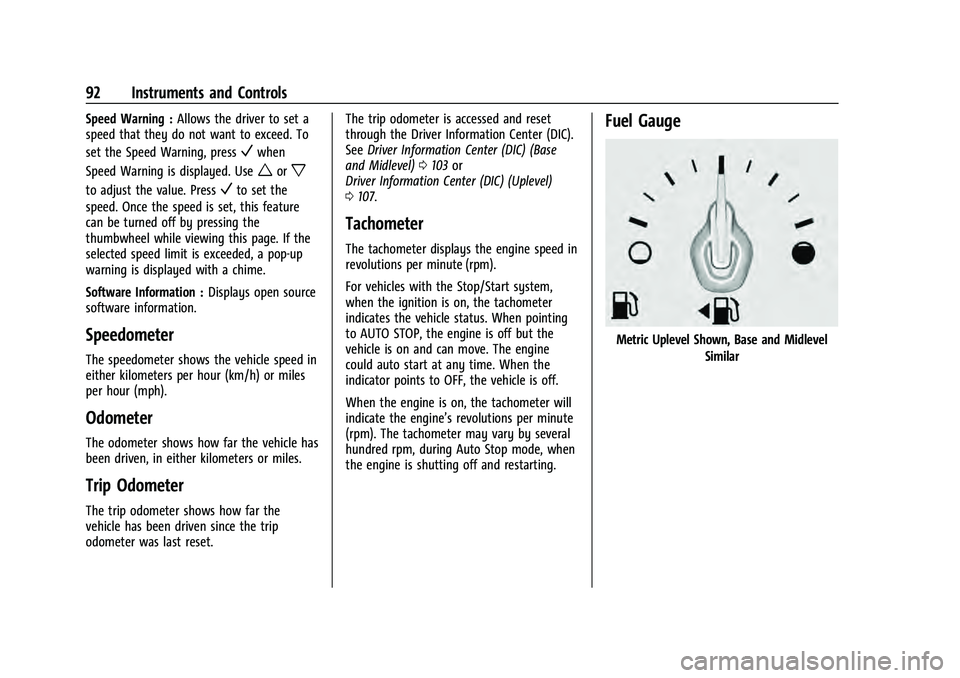
Fuel Gauge
Metric Uplevel Shown, Base and Midlevel
Similar
Page 96 of 360
Chevrolet Equinox Owner Manual (GMNA-Localizing-U.S./Canada-
16540728) - 2023 - crc - 6/16/22
Instruments and Controls 95
If there is a problem with the airbag
system, a Driver Information Center (DIC)
message may also come on.
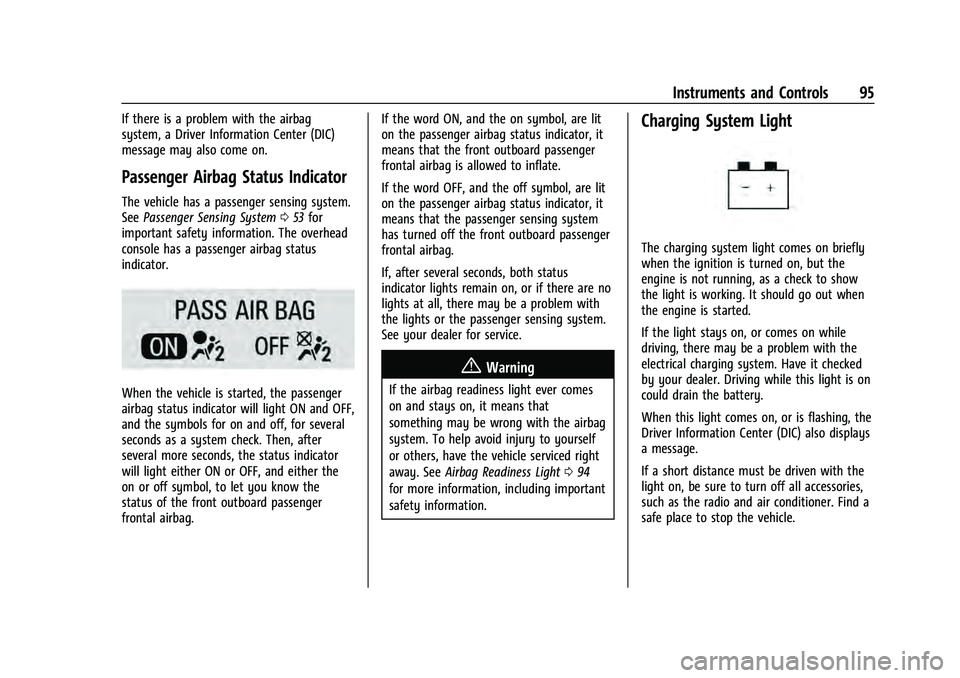
Passenger Airbag Status Indicator
The vehicle has a passenger sensing system.
SeePassenger Sensing System 053 for
important safety information. The overhead
console has a passenger airbag status
indicator.
When the vehicle is started, the passenger
airbag status indicator will light ON and OFF,
and the symbols for on and off, for several
seconds as a system check. Then, after
several more seconds, the status indicator
will light either ON or OFF, and either the
on or off symbol, to let you know the
status of the front outboard passenger
frontal airbag. If the word ON, and the on symbol, are lit
on the passenger airbag status indicator, it
means that the front outboard passenger
frontal airbag is allowed to inflate.
If the word OFF, and the off symbol, are lit
on the passenger airbag status indicator, it
means that the passenger sensing system
has turned off the front outboard passenger
frontal airbag.
If, after several seconds, both status
indicator lights remain on, or if there are no
lights at all, there may be a problem with
the lights or the passenger sensing system.
See your dealer for service.
{Warning
If the airbag readiness light ever comes
on and stays on, it means that
something may be wrong with the airbag
system. To help avoid injury to yourself
or others, have the vehicle serviced right
away. See
Airbag Readiness Light 094
for more information, including important
safety information.
Charging System Light
The charging system light comes on briefly
when the ignition is turned on, but the
engine is not running, as a check to show
the light is working. It should go out when
the engine is started.
If the light stays on, or comes on while
driving, there may be a problem with the
electrical charging system. Have it checked
by your dealer. Driving while this light is on
could drain the battery.
When this light comes on, or is flashing, the
Driver Information Center (DIC) also displays
a message.
If a short distance must be driven with the
light on, be sure to turn off all accessories,
such as the radio and air conditioner. Find a
safe place to stop the vehicle.
Page 99 of 360
Chevrolet Equinox Owner Manual (GMNA-Localizing-U.S./Canada-
16540728) - 2023 - crc - 6/16/22
98 Instruments and Controls
Warning (Continued)
been pulled off the road and carefully
stopped, have the vehicle towed for
service.
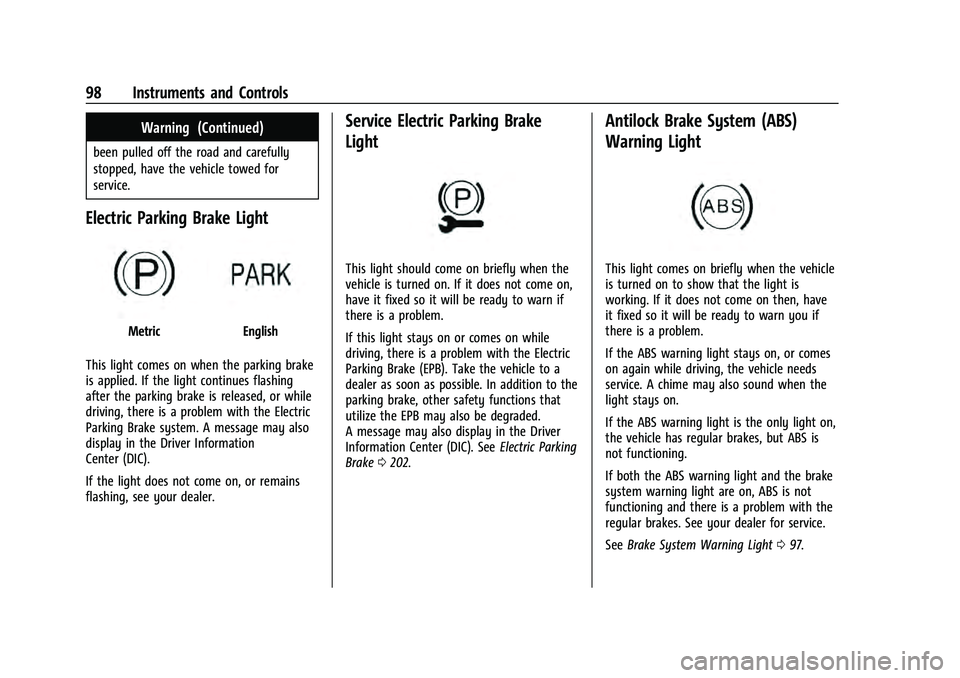
Electric Parking Brake Light
MetricEnglish
This light comes on when the parking brake
is applied. If the light continues flashing
after the parking brake is released, or while
driving, there is a problem with the Electric
Parking Brake system. A message may also
display in the Driver Information
Center (DIC).
If the light does not come on, or remains
flashing, see your dealer.
Service Electric Parking Brake
Light
This light should come on briefly when the
vehicle is turned on. If it does not come on,
have it fixed so it will be ready to warn if
there is a problem.
If this light stays on or comes on while
driving, there is a problem with the Electric
Parking Brake (EPB). Take the vehicle to a
dealer as soon as possible. In addition to the
parking brake, other safety functions that
utilize the EPB may also be degraded.
A message may also display in the Driver
Information Center (DIC). See Electric Parking
Brake 0202.
Antilock Brake System (ABS)
Warning Light
This light comes on briefly when the vehicle
is turned on to show that the light is
working. If it does not come on then, have
it fixed so it will be ready to warn you if
there is a problem.
If the ABS warning light stays on, or comes
on again while driving, the vehicle needs
service. A chime may also sound when the
light stays on.
If the ABS warning light is the only light on,
the vehicle has regular brakes, but ABS is
not functioning.
If both the ABS warning light and the brake
system warning light are on, ABS is not
functioning and there is a problem with the
regular brakes. See your dealer for service.
See Brake System Warning Light 097.