wheel CHEVROLET EQUINOX 2022 User Guide
[x] Cancel search | Manufacturer: CHEVROLET, Model Year: 2022, Model line: EQUINOX, Model: CHEVROLET EQUINOX 2022Pages: 360, PDF Size: 14.71 MB
Page 91 of 360
Chevrolet Equinox Owner Manual (GMNA-Localizing-U.S./Canada-
16540728) - 2023 - crc - 6/16/22
90 Instruments and Controls
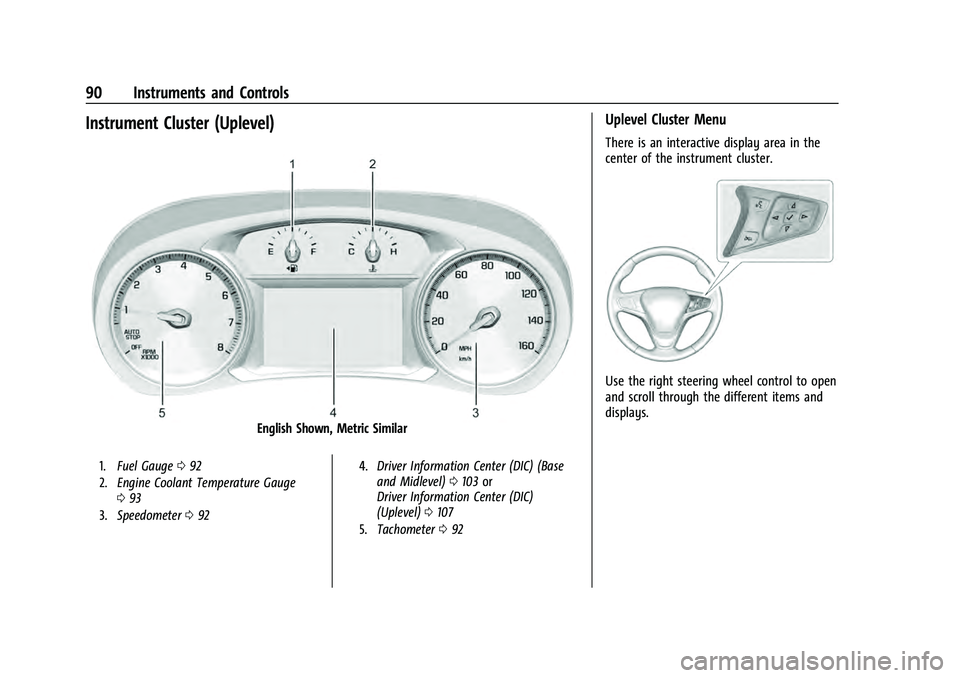
Instrument Cluster (Uplevel)
English Shown, Metric Similar
1.Fuel Gauge 092
2. Engine Coolant Temperature Gauge
093
3. Speedometer 092 4.
Driver Information Center (DIC) (Base
and Midlevel) 0103 or
Driver Information Center (DIC)
(Uplevel) 0107
5. Tachometer 092
Uplevel Cluster Menu
There is an interactive display area in the
center of the instrument cluster.
Use the right steering wheel control to open
and scroll through the different items and
displays.
Page 92 of 360
Chevrolet Equinox Owner Manual (GMNA-Localizing-U.S./Canada-
16540728) - 2023 - crc - 6/16/22
Instruments and Controls 91
Pressoorpto change between the
cluster applications. Press
worxto scroll
through the list of available features within
each application. Press
Vto select. Not all
applications will be available on all vehicles.
Some may be temporarily restricted when
the vehicle is off.
.Home Page
.Info App. This is where the selected Driver
Information Center (DIC) displays can be
viewed. See Driver Information Center
(DIC) (Base and Midlevel) 0103 or
Driver Information Center (DIC) (Uplevel)
0 107.
.Audio
.Navigation
.Phone
.Options
Home
Information displayed here can be
customized from the Options menu.
Speedometer : Displays how fast the vehicle
is moving in either kilometers per hour
(km/h) or miles per hour (mph).
Speed Sign : Shows sign information, which
comes from a roadway database in the
onboard navigation, if equipped. Time :
Displays the current time.
Fuel Range : Displays the approximate
distance the vehicle can be driven without
refueling. The fuel range estimate is based
on an average of the vehicle’s fuel economy
over recent driving history and the amount
of fuel remaining in the fuel tank. Fuel
range cannot be reset.
Audio
Pressworxto scroll through options,
browse for music, select from favorites,
or change the audio source. In the main
view, scroll to change the station or go to
the next or previous track.
Navigation
In the Navigation menu, if there is no active
route, press
Vto access Recents or
Favorites. If there is an active route, press
the thumbwheel to cancel or resume route
guidance, mute or unmute voice guidance,
or access Recents or Favorites.
Phone
In the Phone menu, if there is no active
phone call, view recent calls, scroll through
contacts, select from the favorites, or change the phone source. If there is an active call,
mute the phone or switch to handset
operation.
Options
Pressworxto scroll through items in
the Options menu. Press
Vto select the
item. Press
oto exit the item.
Traction and Stability : Press
pto enter the
Traction and Stability menu. To turn the
Traction Control System (TCS) on or off,
choose Traction. To turn StabiliTrak/
Electronic Stability Control (ESC) on or off,
choose Stability. See Traction Control/
Electronic Stability Control 0204.
Units : Choose US or Metric units. A selected
mark will be displayed next to the
selected item.
Info Page Options : Select the items to be
displayed in the Info app. A selected mark
will be displayed next to the selected item.
Home Page Options : Select the available
elements to display. Not all elements will be
available on all vehicles: Speedometer,
Active Safety, Speed Sign, Time, and Fuel
Range.
Page 93 of 360
Chevrolet Equinox Owner Manual (GMNA-Localizing-U.S./Canada-
16540728) - 2023 - crc - 6/16/22
92 Instruments and Controls
Speed Warning :Allows the driver to set a
speed that they do not want to exceed. To
set the Speed Warning, press
Vwhen
Speed Warning is displayed. Use
worx
to adjust the value. PressVto set the
speed. Once the speed is set, this feature
can be turned off by pressing the
thumbwheel while viewing this page. If the
selected speed limit is exceeded, a pop-up
warning is displayed with a chime.
Software Information : Displays open source
software information.
Speedometer
The speedometer shows the vehicle speed in
either kilometers per hour (km/h) or miles
per hour (mph).
Odometer
The odometer shows how far the vehicle has
been driven, in either kilometers or miles.
Trip Odometer
The trip odometer shows how far the
vehicle has been driven since the trip
odometer was last reset. The trip odometer is accessed and reset
through the Driver Information Center (DIC).
See
Driver Information Center (DIC) (Base
and Midlevel) 0103 or
Driver Information Center (DIC) (Uplevel)
0 107.
Tachometer
The tachometer displays the engine speed in
revolutions per minute (rpm).
For vehicles with the Stop/Start system,
when the ignition is on, the tachometer
indicates the vehicle status. When pointing
to AUTO STOP, the engine is off but the
vehicle is on and can move. The engine
could auto start at any time. When the
indicator points to OFF, the vehicle is off.
When the engine is on, the tachometer will
indicate the engine’s revolutions per minute
(rpm). The tachometer may vary by several
hundred rpm, during Auto Stop mode, when
the engine is shutting off and restarting.
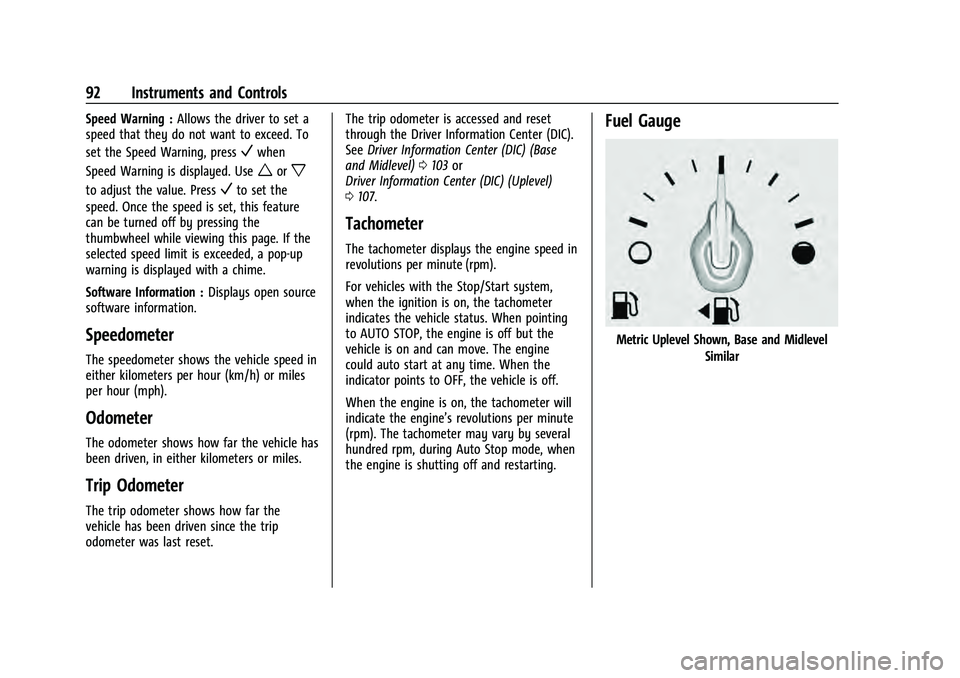
Fuel Gauge
Metric Uplevel Shown, Base and Midlevel
Similar
Page 98 of 360
Chevrolet Equinox Owner Manual (GMNA-Localizing-U.S./Canada-
16540728) - 2023 - crc - 6/16/22
Instruments and Controls 97
.Poor fuel quality can cause inefficient
engine operation and poor driveability,
which may go away once the engine is
warmed up. If this occurs, change the fuel
brand. It may require at least one full
tank of the proper fuel to turn the light
off. SeeRecommended Fuel 0235.
If the light remains on, see your dealer.
Emissions Inspection and Maintenance
Programs
If the vehicle requires an Emissions
Inspection/Maintenance test, the test
equipment will likely connect to the
vehicle's Data Link Connector (DLC).
The DLC is under the instrument panel to
the left of the steering wheel. Connecting
devices that are not used to perform an
Emissions Inspection/Maintenance test or to
service the vehicle may affect vehicle operation. See
Add-On Electrical Equipment
0 246. See your dealer if assistance is
needed.
The vehicle may not pass inspection if:
.The light is on when the engine is
running.
.The light does not come on when the
ignition is in Service Mode.
.Critical emission control systems have not
been completely diagnosed. If this
happens, the vehicle would not be ready
for inspection and might require
several days of routine driving before the
system is ready for inspection. This can
happen if the 12-volt battery has recently
been replaced or run down, or if the
vehicle has been recently serviced.
See your dealer if the vehicle will not pass
or cannot be made ready for the test.
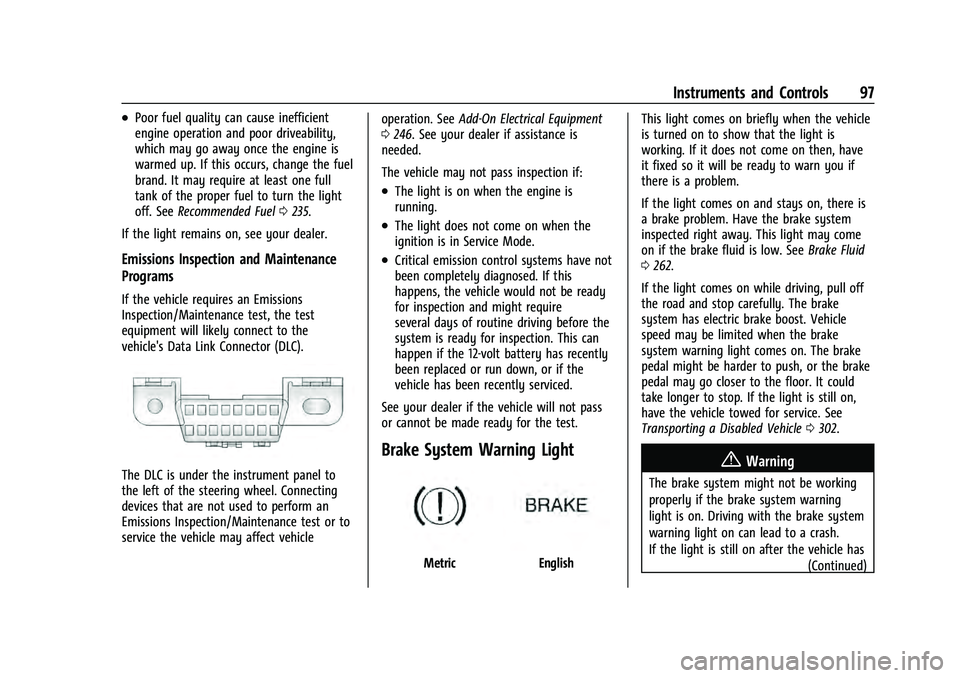
Brake System Warning Light
MetricEnglish This light comes on briefly when the vehicle
is turned on to show that the light is
working. If it does not come on then, have
it fixed so it will be ready to warn you if
there is a problem.
If the light comes on and stays on, there is
a brake problem. Have the brake system
inspected right away. This light may come
on if the brake fluid is low. See
Brake Fluid
0 262.
If the light comes on while driving, pull off
the road and stop carefully. The brake
system has electric brake boost. Vehicle
speed may be limited when the brake
system warning light comes on. The brake
pedal might be harder to push, or the brake
pedal may go closer to the floor. It could
take longer to stop. If the light is still on,
have the vehicle towed for service. See
Transporting a Disabled Vehicle 0302.
{Warning
The brake system might not be working
properly if the brake system warning
light is on. Driving with the brake system
warning light on can lead to a crash.
If the light is still on after the vehicle has
(Continued)
Page 100 of 360
Chevrolet Equinox Owner Manual (GMNA-Localizing-U.S./Canada-
16540728) - 2023 - crc - 6/16/22
Instruments and Controls 99
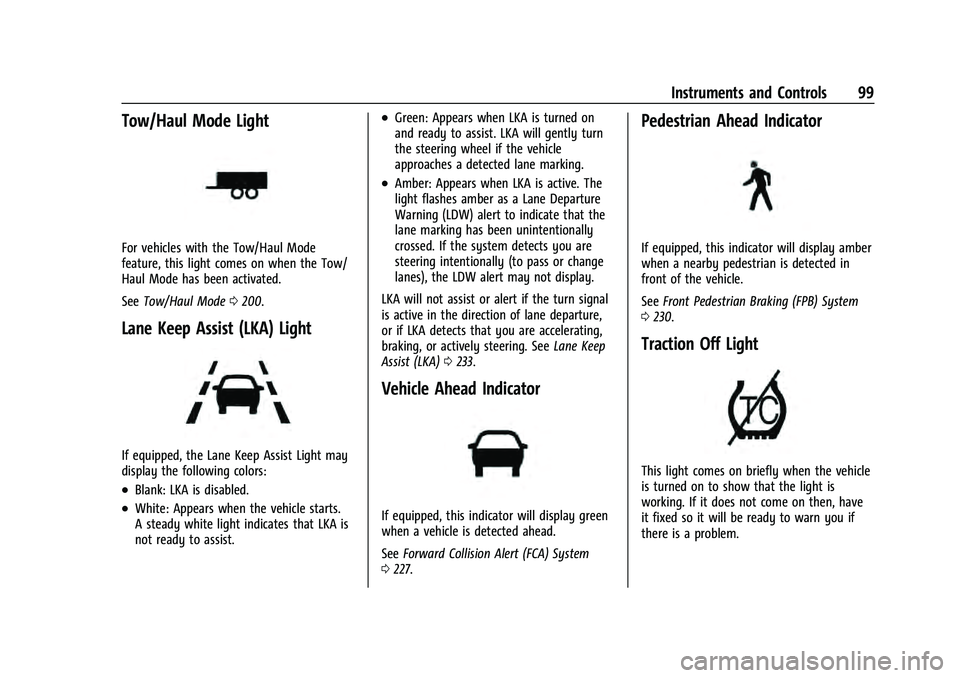
Tow/Haul Mode Light
For vehicles with the Tow/Haul Mode
feature, this light comes on when the Tow/
Haul Mode has been activated.
SeeTow/Haul Mode 0200.
Lane Keep Assist (LKA) Light
If equipped, the Lane Keep Assist Light may
display the following colors:
.Blank: LKA is disabled.
.White: Appears when the vehicle starts.
A steady white light indicates that LKA is
not ready to assist.
.Green: Appears when LKA is turned on
and ready to assist. LKA will gently turn
the steering wheel if the vehicle
approaches a detected lane marking.
.Amber: Appears when LKA is active. The
light flashes amber as a Lane Departure
Warning (LDW) alert to indicate that the
lane marking has been unintentionally
crossed. If the system detects you are
steering intentionally (to pass or change
lanes), the LDW alert may not display.
LKA will not assist or alert if the turn signal
is active in the direction of lane departure,
or if LKA detects that you are accelerating,
braking, or actively steering. See Lane Keep
Assist (LKA) 0233.
Vehicle Ahead Indicator
If equipped, this indicator will display green
when a vehicle is detected ahead.
See Forward Collision Alert (FCA) System
0 227.
Pedestrian Ahead Indicator
If equipped, this indicator will display amber
when a nearby pedestrian is detected in
front of the vehicle.
See Front Pedestrian Braking (FPB) System
0 230.
Traction Off Light
This light comes on briefly when the vehicle
is turned on to show that the light is
working. If it does not come on then, have
it fixed so it will be ready to warn you if
there is a problem.
Page 101 of 360
Chevrolet Equinox Owner Manual (GMNA-Localizing-U.S./Canada-
16540728) - 2023 - crc - 6/16/22
100 Instruments and Controls
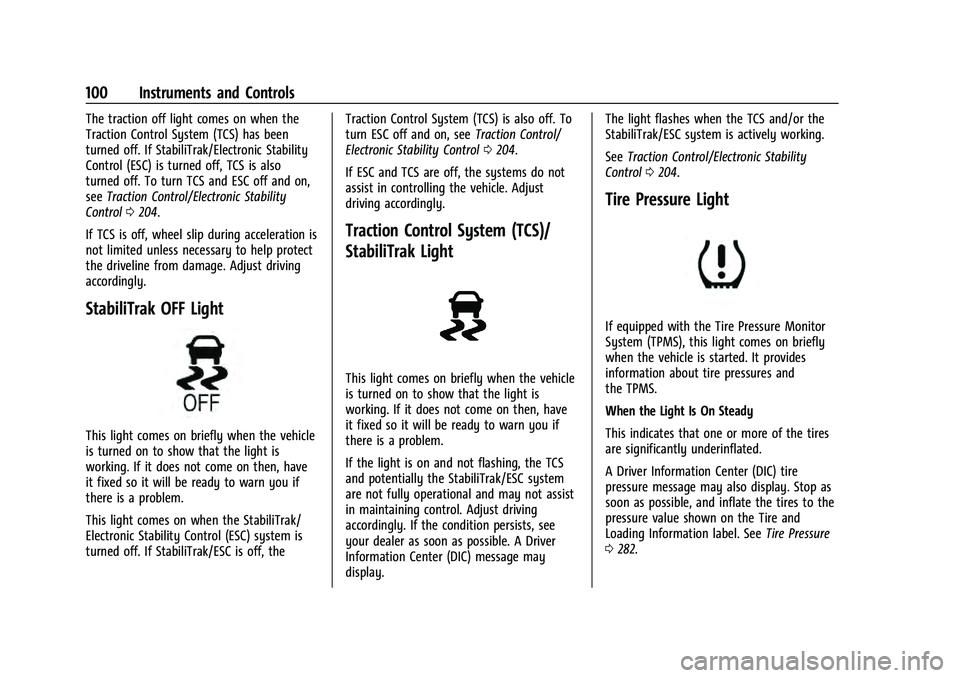
The traction off light comes on when the
Traction Control System (TCS) has been
turned off. If StabiliTrak/Electronic Stability
Control (ESC) is turned off, TCS is also
turned off. To turn TCS and ESC off and on,
seeTraction Control/Electronic Stability
Control 0204.
If TCS is off, wheel slip during acceleration is
not limited unless necessary to help protect
the driveline from damage. Adjust driving
accordingly.
StabiliTrak OFF Light
This light comes on briefly when the vehicle
is turned on to show that the light is
working. If it does not come on then, have
it fixed so it will be ready to warn you if
there is a problem.
This light comes on when the StabiliTrak/
Electronic Stability Control (ESC) system is
turned off. If StabiliTrak/ESC is off, the Traction Control System (TCS) is also off. To
turn ESC off and on, see
Traction Control/
Electronic Stability Control 0204.
If ESC and TCS are off, the systems do not
assist in controlling the vehicle. Adjust
driving accordingly.
Traction Control System (TCS)/
StabiliTrak Light
This light comes on briefly when the vehicle
is turned on to show that the light is
working. If it does not come on then, have
it fixed so it will be ready to warn you if
there is a problem.
If the light is on and not flashing, the TCS
and potentially the StabiliTrak/ESC system
are not fully operational and may not assist
in maintaining control. Adjust driving
accordingly. If the condition persists, see
your dealer as soon as possible. A Driver
Information Center (DIC) message may
display. The light flashes when the TCS and/or the
StabiliTrak/ESC system is actively working.
See
Traction Control/Electronic Stability
Control 0204.
Tire Pressure Light
If equipped with the Tire Pressure Monitor
System (TPMS), this light comes on briefly
when the vehicle is started. It provides
information about tire pressures and
the TPMS.
When the Light Is On Steady
This indicates that one or more of the tires
are significantly underinflated.
A Driver Information Center (DIC) tire
pressure message may also display. Stop as
soon as possible, and inflate the tires to the
pressure value shown on the Tire and
Loading Information label. See Tire Pressure
0 282.
Page 122 of 360
Chevrolet Equinox Owner Manual (GMNA-Localizing-U.S./Canada-
16540728) - 2023 - crc - 6/16/22
Infotainment System 121
Infotainment System
Introduction
Introduction . . . . . . . . . . . . . . . . . . . . . . . . . . . . 121
Overview . . . . . . . . . . . . . . . . . . . . . . . . . . . . . . 122
Steering Wheel Controls . . . . . . . . . . . . . . . 123
Using the System . . . . . . . . . . . . . . . . . . . . . 124
Software Updates . . . . . . . . . . . . . . . . . . . . . . 127
Radio
AM-FM Radio . . . . . . . . . . . . . . . . . . . . . . . . . . 127
Radio Data System (RDS) . . . . . . . . . . . . . . 128
Satellite Radio . . . . . . . . . . . . . . . . . . . . . . . . . 129
Radio Reception . . . . . . . . . . . . . . . . . . . . . . . 129
Multi-Band Antenna . . . . . . . . . . . . . . . . . . . 130
Audio Players
Avoiding Untrusted Media Devices . . . . 130
USB Port . . . . . . . . . . . . . . . . . . . . . . . . . . . . . . 130
Auxiliary Jack . . . . . . . . . . . . . . . . . . . . . . . . . . 132
Bluetooth Audio . . . . . . . . . . . . . . . . . . . . . . . 133
Navigation
Using the Navigation System . . . . . . . . . . 133
Maps . . . . . . . . . . . . . . . . . . . . . . . . . . . . . . . . . . 136
Navigation Symbols . . . . . . . . . . . . . . . . . . . . 137
Destination . . . . . . . . . . . . . . . . . . . . . . . . . . . . 138
Global Positioning System (GPS) . . . . . . . 143
Vehicle Positioning . . . . . . . . . . . . . . . . . . . . 143
Problems with Route Guidance . . . . . . . . 144
If the System Needs Service . . . . . . . . . . . 144Map Data Updates . . . . . . . . . . . . . . . . . . . . 144
Database Coverage Explanations . . . . . . . 144
Voice Recognition
Voice Recognition . . . . . . . . . . . . . . . . . . . . . . 145
Phone
Bluetooth (Overview) . . . . . . . . . . . . . . . . . . 150
Bluetooth (Pairing and Using a
Phone) . . . . . . . . . . . . . . . . . . . . . . . . . . . . . . . 151
Apple CarPlay and Android Auto . . . . . . . 154
Settings
Settings . . . . . . . . . . . . . . . . . . . . . . . . . . . . . . . . 155
Teen Driver . . . . . . . . . . . . . . . . . . . . . . . . . . . . 159
Trademarks and License Agreements
Trademarks and License Agreements . . . . . . . . . . . . . . . . . . . . . . . . . . 162
Introduction
Read the following pages to become familiar
with the features.
{Warning
Taking your eyes off the road for too
long or too often while using any
infotainment feature can cause a crash.
You or others could be injured or killed.
Do not give extended attention to
infotainment tasks while driving. Limit
your glances at the vehicle displays and
focus your attention on driving. Use voice
commands whenever possible.
The infotainment system has built-in
features intended to help avoid distraction
by disabling some features when driving.
These features may gray out when they are
unavailable. Many infotainment features are
also available through the instrument cluster
and steering wheel controls.
Before driving:
.Become familiar with the operation,
center stack controls, steering wheel
controls, and infotainment display.
Page 123 of 360
Chevrolet Equinox Owner Manual (GMNA-Localizing-U.S./Canada-
16540728) - 2023 - crc - 6/16/22
122 Infotainment System
.Set up the audio by presetting favorite
stations, setting the tone, and adjusting
the speakers.
.Set up phone numbers in advance so they
can be called easily by pressing a single
control or by using a single voice
command.
See Distracted Driving 0178.
Active Noise Cancellation (ANC)
If equipped, ANC reduces engine noise in the
vehicle’s interior. ANC requires the
factory-installed audio system, radio,
speakers, amplifier (if equipped), induction
system, and exhaust system to work
properly. Deactivation is required by your
dealer if related aftermarket equipment is
installed.
Overview
Infotainment System
The infotainment system is controlled by
using the infotainment display, controls on
the center stack, steering wheel controls,
and voice recognition (if equipped).
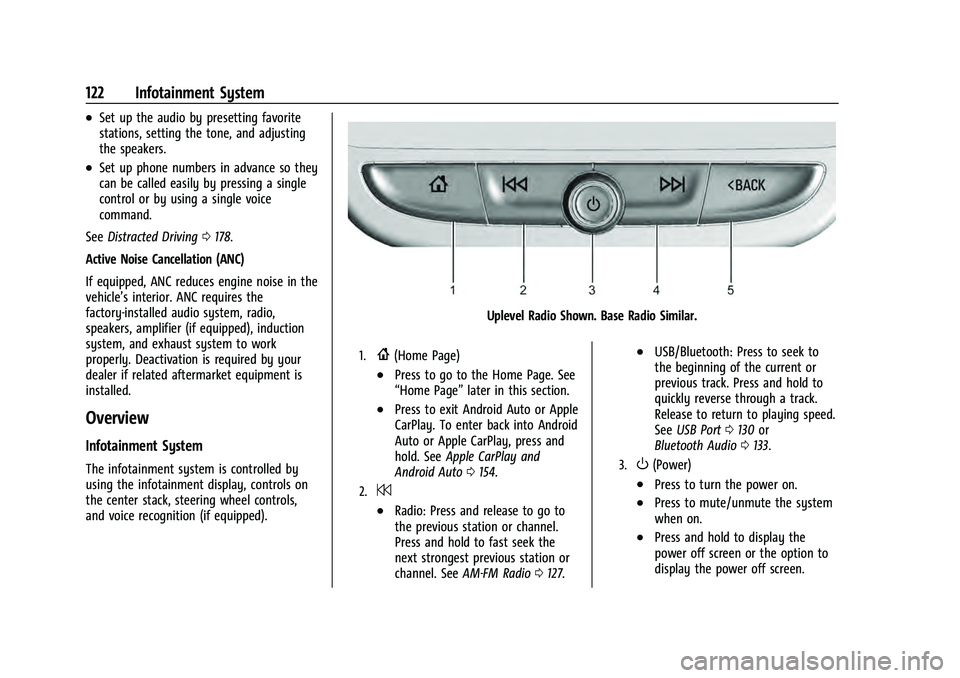
Uplevel Radio Shown. Base Radio Similar.
1.{(Home Page)
.Press to go to the Home Page. See
“Home Page” later in this section.
.Press to exit Android Auto or Apple
CarPlay. To enter back into Android
Auto or Apple CarPlay, press and
hold. SeeApple CarPlay and
Android Auto 0154.
2.7
.Radio: Press and release to go to
the previous station or channel.
Press and hold to fast seek the
next strongest previous station or
channel. See AM-FM Radio 0127.
.USB/Bluetooth: Press to seek to
the beginning of the current or
previous track. Press and hold to
quickly reverse through a track.
Release to return to playing speed.
See USB Port 0130 or
Bluetooth Audio 0133.
3.O(Power)
.Press to turn the power on.
.Press to mute/unmute the system
when on.
.Press and hold to display the
power off screen or the option to
display the power off screen.
Page 124 of 360
Chevrolet Equinox Owner Manual (GMNA-Localizing-U.S./Canada-
16540728) - 2023 - crc - 6/16/22
Infotainment System 123
.Turn to decrease or increase the
volume.
4.6
.Radio: Press and release to go to
the next station or channel. Press
and hold to fast seek the next
strongest station or channel.
.USB/Bluetooth: Press to seek the
next track. Press and hold to fast
forward through a track. Release to
return to playing speed. SeeUSB
Port 0130 or
Bluetooth Audio 0133.
5.SBACK or5
.PressSBACK to return to the
previous display in a menu.
.Press and release5to access the
phone display or answer an
incoming call.
Home Page
The Home Page is where vehicle application
icons are accessed. Some applications are
disabled when the vehicle is moving.
Swipe left or right across the display to
access the pages of icons. Managing Home Page Icons
1. Touch and hold any of the Home Page icons to enter edit mode.
2. Continue holding the icon and drag it to the desired position.
3. Release your finger to drop the icon in the desired position.
4. To move an application to another page, drag the icon to the edge of the display
toward the desired page.
5. Continue dragging and dropping application icons as desired.
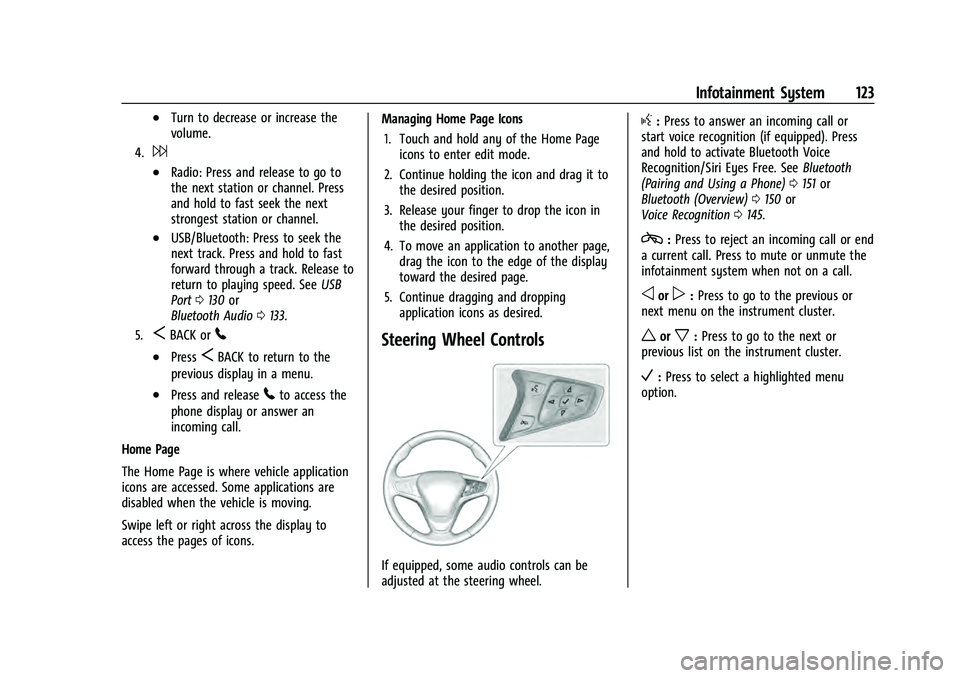
Steering Wheel Controls
If equipped, some audio controls can be
adjusted at the steering wheel.
g:Press to answer an incoming call or
start voice recognition (if equipped). Press
and hold to activate Bluetooth Voice
Recognition/Siri Eyes Free. See Bluetooth
(Pairing and Using a Phone) 0151 or
Bluetooth (Overview) 0150 or
Voice Recognition 0145.
c:Press to reject an incoming call or end
a current call. Press to mute or unmute the
infotainment system when not on a call.
oorp: Press to go to the previous or
next menu on the instrument cluster.
worx: Press to go to the next or
previous list on the instrument cluster.
V: Press to select a highlighted menu
option.
Page 125 of 360
Chevrolet Equinox Owner Manual (GMNA-Localizing-U.S./Canada-
16540728) - 2023 - crc - 6/16/22
124 Infotainment System
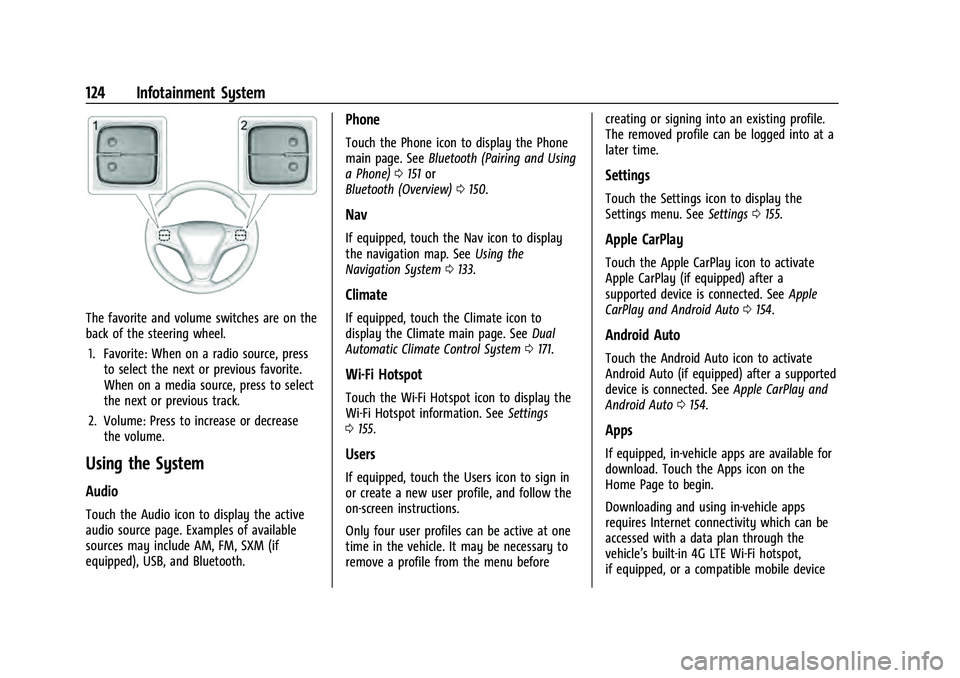
The favorite and volume switches are on the
back of the steering wheel.1. Favorite: When on a radio source, press to select the next or previous favorite.
When on a media source, press to select
the next or previous track.
2. Volume: Press to increase or decrease the volume.
Using the System
Audio
Touch the Audio icon to display the active
audio source page. Examples of available
sources may include AM, FM, SXM (if
equipped), USB, and Bluetooth.
Phone
Touch the Phone icon to display the Phone
main page. See Bluetooth (Pairing and Using
a Phone) 0151 or
Bluetooth (Overview) 0150.
Nav
If equipped, touch the Nav icon to display
the navigation map. See Using the
Navigation System 0133.
Climate
If equipped, touch the Climate icon to
display the Climate main page. See Dual
Automatic Climate Control System 0171.
Wi-Fi Hotspot
Touch the Wi-Fi Hotspot icon to display the
Wi-Fi Hotspot information. See Settings
0 155.
Users
If equipped, touch the Users icon to sign in
or create a new user profile, and follow the
on-screen instructions.
Only four user profiles can be active at one
time in the vehicle. It may be necessary to
remove a profile from the menu before creating or signing into an existing profile.
The removed profile can be logged into at a
later time.
Settings
Touch the Settings icon to display the
Settings menu. See
Settings0155.
Apple CarPlay
Touch the Apple CarPlay icon to activate
Apple CarPlay (if equipped) after a
supported device is connected. See Apple
CarPlay and Android Auto 0154.
Android Auto
Touch the Android Auto icon to activate
Android Auto (if equipped) after a supported
device is connected. See Apple CarPlay and
Android Auto 0154.
Apps
If equipped, in-vehicle apps are available for
download. Touch the Apps icon on the
Home Page to begin.
Downloading and using in-vehicle apps
requires Internet connectivity which can be
accessed with a data plan through the
vehicle’s built-in 4G LTE Wi-Fi hotspot,
if equipped, or a compatible mobile device