infotainment CHEVROLET EQUINOX 2023 User Guide
[x] Cancel search | Manufacturer: CHEVROLET, Model Year: 2023, Model line: EQUINOX, Model: CHEVROLET EQUINOX 2023Pages: 360, PDF Size: 14.71 MB
Page 83 of 360
Chevrolet Equinox Owner Manual (GMNA-Localizing-U.S./Canada-
16540728) - 2023 - crc - 6/16/22
82 Instruments and Controls
1:Push the windshield wiper lever
forward to spray washer fluid on the rear
window. The lever automatically returns to
its original position when released.
{Warning
In freezing weather, do not use the
washer until the windshield is warmed.
Otherwise the washer fluid can form ice
on the windshield, blocking your vision.
Rear Wiper Arm Assembly Protection
When using an automatic car wash, move
the rear wiper control to OFF to disable the
rear wiper. In some vehicles, if the
transmission is in N (Neutral) and the
vehicle speed is very slow, the rear wiper
will automatically park.
The wiper operations return to normal when
the transmission is no longer in N (Neutral)
or the vehicle speed has increased.
Reverse Gear Wipes
If the rear wiper control is off, the rear
wiper will automatically operate
continuously when the transmission is in
R (Reverse), and the front windshield wiper
is performing low or high speed wipes.
If the rear wiper control is off, the transmission is in R (Reverse), and the front
windshield wiper is performing interval
wipes, then the rear wiper automatically
performs interval wipes.
This feature can be turned on or off. Go to
Settings > Vehicle > Comfort and
Convenience > Auto Wipe in Reverse Gear >
Select ON or OFF.
The windshield washer reservoir is used for
the windshield and rear window. Check the
fluid level if either washer is not working.
See
Washer Fluid 0260.
Compass
The vehicle may have a compass display on
the Driver Information Center (DIC). The
compass receives its heading and other
information from the Global Positioning
System (GPS) antenna, StabiliTrak/Electronic
Stability Control (ESC), and vehicle speed
information.
The compass system is designed to operate
for a certain number of miles or degrees of
turn before needing a signal from the GPS
satellites. When the compass display shows
CAL, drive the vehicle for a short distance in
an open area where it can receive a GPS signal. The compass system will
automatically determine when a GPS signal
is restored and provide a heading again.
Clock
Set the time and date using the
infotainment system. See "Time/Date" under
Settings
0155.
Power Outlets
The vehicle has two 12-volt accessory power
outlets, which can be used to plug in
electrical equipment, such as a cell phone or
MP3 player.
There are power outlets:
.On the center stack below the climate
control system.
.In the rear cargo area.
To use the outlet, remove the cover.
Caution
Leaving electrical equipment plugged in
for an extended period of time while the
vehicle is off will drain the battery.
Always unplug electrical equipment when
(Continued)
Page 85 of 360
Chevrolet Equinox Owner Manual (GMNA-Localizing-U.S./Canada-
16540728) - 2023 - crc - 6/16/22
84 Instruments and Controls
.Medical equipment.
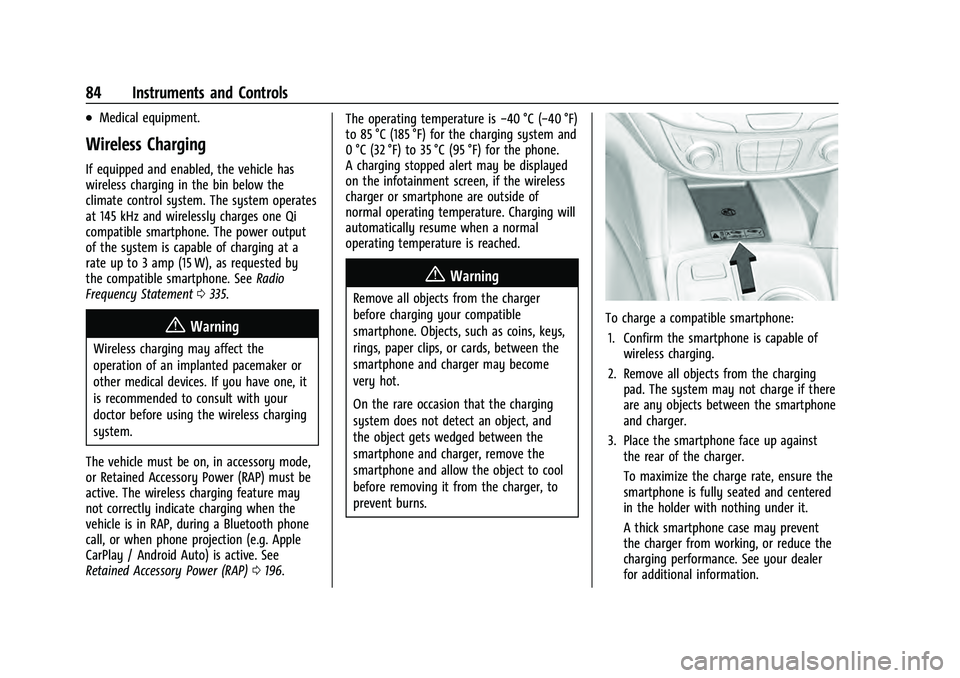
Wireless Charging
If equipped and enabled, the vehicle has
wireless charging in the bin below the
climate control system. The system operates
at 145 kHz and wirelessly charges one Qi
compatible smartphone. The power output
of the system is capable of charging at a
rate up to 3 amp (15 W), as requested by
the compatible smartphone. SeeRadio
Frequency Statement 0335.
{Warning
Wireless charging may affect the
operation of an implanted pacemaker or
other medical devices. If you have one, it
is recommended to consult with your
doctor before using the wireless charging
system.
The vehicle must be on, in accessory mode,
or Retained Accessory Power (RAP) must be
active. The wireless charging feature may
not correctly indicate charging when the
vehicle is in RAP, during a Bluetooth phone
call, or when phone projection (e.g. Apple
CarPlay / Android Auto) is active. See
Retained Accessory Power (RAP) 0196. The operating temperature is
−40 °C (−40 °F)
to 85 °C (185 °F) for the charging system and
0 °C (32 °F) to 35 °C (95 °F) for the phone.
A charging stopped alert may be displayed
on the infotainment screen, if the wireless
charger or smartphone are outside of
normal operating temperature. Charging will
automatically resume when a normal
operating temperature is reached.
{Warning
Remove all objects from the charger
before charging your compatible
smartphone. Objects, such as coins, keys,
rings, paper clips, or cards, between the
smartphone and charger may become
very hot.
On the rare occasion that the charging
system does not detect an object, and
the object gets wedged between the
smartphone and charger, remove the
smartphone and allow the object to cool
before removing it from the charger, to
prevent burns.
To charge a compatible smartphone:
1. Confirm the smartphone is capable of wireless charging.
2. Remove all objects from the charging pad. The system may not charge if there
are any objects between the smartphone
and charger.
3. Place the smartphone face up against the rear of the charger.
To maximize the charge rate, ensure the
smartphone is fully seated and centered
in the holder with nothing under it.
A thick smartphone case may prevent
the charger from working, or reduce the
charging performance. See your dealer
for additional information.
Page 86 of 360
![CHEVROLET EQUINOX 2023 User Guide Chevrolet Equinox Owner Manual (GMNA-Localizing-U.S./Canada-
16540728) - 2023 - crc - 6/16/22
Instruments and Controls 85
4. A green]will appear on the
infotainment display, next to the phone
icon. Th](/img/24/55816/w960_55816-85.png "CHEVROLET EQUINOX 2023 User Guide Chevrolet Equinox Owner Manual (GMNA-Localizing-U.S./Canada-
16540728) - 2023 - crc - 6/16/22
Instruments and Controls 85
4. A green]will appear on the
infotainment display, next to the phone
icon. Th")
Chevrolet Equinox Owner Manual (GMNA-Localizing-U.S./Canada-
16540728) - 2023 - crc - 6/16/22
Instruments and Controls 85
4. A green]will appear on the
infotainment display, next to the phone
icon. This indicates that the smartphone
is detected.
5. If a smartphone is placed on the charger and
]turns off or turns yellow, remove
the smartphone and any objects from
the pad. Turn the smartphone
180 degrees and wait a few seconds
before placing/aligning it on the pad
again.
6. If a smartphone is placed on the charger and
]turns red, the charger and/or the
smartphone is overheated. Remove the
smartphone and any objects from the
charger in order to cool the system.
The smartphone may become warm during
charging. This is normal. In warmer
temperatures, the speed of charging may be
reduced.
For vehicles with wireless phone projection,
the smartphone may overheat during
wireless charging. The smartphone may slow
down, stop charging, or shut down to
protect the battery. The phone may need to
be removed from its case to prevent
overheating. The
]may flash while the
phone is cooling down enough for wireless charging to automatically resume. This is
normal. Individual phone performance
may vary.
Software Acknowledgements
Certain Wireless Charging Module product
from LG Electronics, Inc. ("LGE") contains the
open source software detailed below. Refer
to the indicated open source licenses (as are
included following this notice) for the terms
and conditions of their use.
OSS Notice Information
To obtain the source code that is contained
in this product, please visit https://
opensource.lge.com. In addition to the
source code, all referred license terms,
warranty disclaimers and copyright notices
are available for download. LG Electronics
will also provide open source code to you
on CD-ROM for a charge covering the cost of
performing such distribution (such as the
cost of media, shipping, and handling) upon
email request to [email protected]. This
offer is valid for three (3) years from the
date on which you purchased the product.
Freescale-WCT library
Copyright (c) 2012-2014 Freescale
Semiconductor, Inc.. All rights reserved.
Redistribution and use in source and binary
forms, with or without modification, are
permitted provided that the following
conditions are met:
1. Redistributions of source code must retain the above copyright notice, this
list of conditions and the following
disclaimer.
2. Redistributions in binary form must reproduce the above copyright notice,
this list of conditions and the following
disclaimer in the documentation and/or
other materials provided with the
distribution.
3. Neither the name of the copyright holder nor the names of its contributors may be
used to endorse or promote products
derived from this software without
specific prior written permission.
Page 120 of 360
Chevrolet Equinox Owner Manual (GMNA-Localizing-U.S./Canada-
16540728) - 2023 - crc - 6/16/22
Lighting 119
Press the lamp lenses to turn the front
reading lamps on or off.
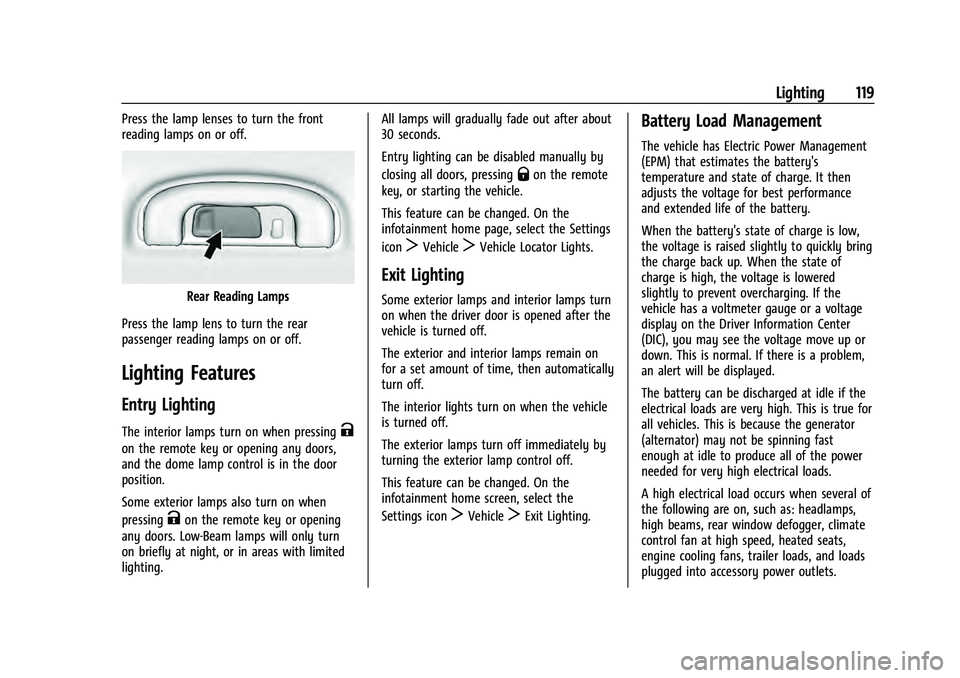
Rear Reading Lamps
Press the lamp lens to turn the rear
passenger reading lamps on or off.
Lighting Features
Entry Lighting
The interior lamps turn on when pressingK
on the remote key or opening any doors,
and the dome lamp control is in the door
position.
Some exterior lamps also turn on when
pressing
Kon the remote key or opening
any doors. Low-Beam lamps will only turn
on briefly at night, or in areas with limited
lighting. All lamps will gradually fade out after about
30 seconds.
Entry lighting can be disabled manually by
closing all doors, pressing
Qon the remote
key, or starting the vehicle.
This feature can be changed. On the
infotainment home page, select the Settings
icon
TVehicleTVehicle Locator Lights.
Exit Lighting
Some exterior lamps and interior lamps turn
on when the driver door is opened after the
vehicle is turned off.
The exterior and interior lamps remain on
for a set amount of time, then automatically
turn off.
The interior lights turn on when the vehicle
is turned off.
The exterior lamps turn off immediately by
turning the exterior lamp control off.
This feature can be changed. On the
infotainment home screen, select the
Settings icon
TVehicleTExit Lighting.
Battery Load Management
The vehicle has Electric Power Management
(EPM) that estimates the battery's
temperature and state of charge. It then
adjusts the voltage for best performance
and extended life of the battery.
When the battery's state of charge is low,
the voltage is raised slightly to quickly bring
the charge back up. When the state of
charge is high, the voltage is lowered
slightly to prevent overcharging. If the
vehicle has a voltmeter gauge or a voltage
display on the Driver Information Center
(DIC), you may see the voltage move up or
down. This is normal. If there is a problem,
an alert will be displayed.
The battery can be discharged at idle if the
electrical loads are very high. This is true for
all vehicles. This is because the generator
(alternator) may not be spinning fast
enough at idle to produce all of the power
needed for very high electrical loads.
A high electrical load occurs when several of
the following are on, such as: headlamps,
high beams, rear window defogger, climate
control fan at high speed, heated seats,
engine cooling fans, trailer loads, and loads
plugged into accessory power outlets.
Page 122 of 360
Chevrolet Equinox Owner Manual (GMNA-Localizing-U.S./Canada-
16540728) - 2023 - crc - 6/16/22
Infotainment System 121
Infotainment System
Introduction
Introduction . . . . . . . . . . . . . . . . . . . . . . . . . . . . 121
Overview . . . . . . . . . . . . . . . . . . . . . . . . . . . . . . 122
Steering Wheel Controls . . . . . . . . . . . . . . . 123
Using the System . . . . . . . . . . . . . . . . . . . . . 124
Software Updates . . . . . . . . . . . . . . . . . . . . . . 127
Radio
AM-FM Radio . . . . . . . . . . . . . . . . . . . . . . . . . . 127
Radio Data System (RDS) . . . . . . . . . . . . . . 128
Satellite Radio . . . . . . . . . . . . . . . . . . . . . . . . . 129
Radio Reception . . . . . . . . . . . . . . . . . . . . . . . 129
Multi-Band Antenna . . . . . . . . . . . . . . . . . . . 130
Audio Players
Avoiding Untrusted Media Devices . . . . 130
USB Port . . . . . . . . . . . . . . . . . . . . . . . . . . . . . . 130
Auxiliary Jack . . . . . . . . . . . . . . . . . . . . . . . . . . 132
Bluetooth Audio . . . . . . . . . . . . . . . . . . . . . . . 133
Navigation
Using the Navigation System . . . . . . . . . . 133
Maps . . . . . . . . . . . . . . . . . . . . . . . . . . . . . . . . . . 136
Navigation Symbols . . . . . . . . . . . . . . . . . . . . 137
Destination . . . . . . . . . . . . . . . . . . . . . . . . . . . . 138
Global Positioning System (GPS) . . . . . . . 143
Vehicle Positioning . . . . . . . . . . . . . . . . . . . . 143
Problems with Route Guidance . . . . . . . . 144
If the System Needs Service . . . . . . . . . . . 144Map Data Updates . . . . . . . . . . . . . . . . . . . . 144
Database Coverage Explanations . . . . . . . 144
Voice Recognition
Voice Recognition . . . . . . . . . . . . . . . . . . . . . . 145
Phone
Bluetooth (Overview) . . . . . . . . . . . . . . . . . . 150
Bluetooth (Pairing and Using a
Phone) . . . . . . . . . . . . . . . . . . . . . . . . . . . . . . . 151
Apple CarPlay and Android Auto . . . . . . . 154
Settings
Settings . . . . . . . . . . . . . . . . . . . . . . . . . . . . . . . . 155
Teen Driver . . . . . . . . . . . . . . . . . . . . . . . . . . . . 159
Trademarks and License Agreements
Trademarks and License Agreements . . . . . . . . . . . . . . . . . . . . . . . . . . 162
Introduction
Read the following pages to become familiar
with the features.
{Warning
Taking your eyes off the road for too
long or too often while using any
infotainment feature can cause a crash.
You or others could be injured or killed.
Do not give extended attention to
infotainment tasks while driving. Limit
your glances at the vehicle displays and
focus your attention on driving. Use voice
commands whenever possible.
The infotainment system has built-in
features intended to help avoid distraction
by disabling some features when driving.
These features may gray out when they are
unavailable. Many infotainment features are
also available through the instrument cluster
and steering wheel controls.
Before driving:
.Become familiar with the operation,
center stack controls, steering wheel
controls, and infotainment display.
Page 123 of 360
Chevrolet Equinox Owner Manual (GMNA-Localizing-U.S./Canada-
16540728) - 2023 - crc - 6/16/22
122 Infotainment System
.Set up the audio by presetting favorite
stations, setting the tone, and adjusting
the speakers.
.Set up phone numbers in advance so they
can be called easily by pressing a single
control or by using a single voice
command.
See Distracted Driving 0178.
Active Noise Cancellation (ANC)
If equipped, ANC reduces engine noise in the
vehicle’s interior. ANC requires the
factory-installed audio system, radio,
speakers, amplifier (if equipped), induction
system, and exhaust system to work
properly. Deactivation is required by your
dealer if related aftermarket equipment is
installed.
Overview
Infotainment System
The infotainment system is controlled by
using the infotainment display, controls on
the center stack, steering wheel controls,
and voice recognition (if equipped).
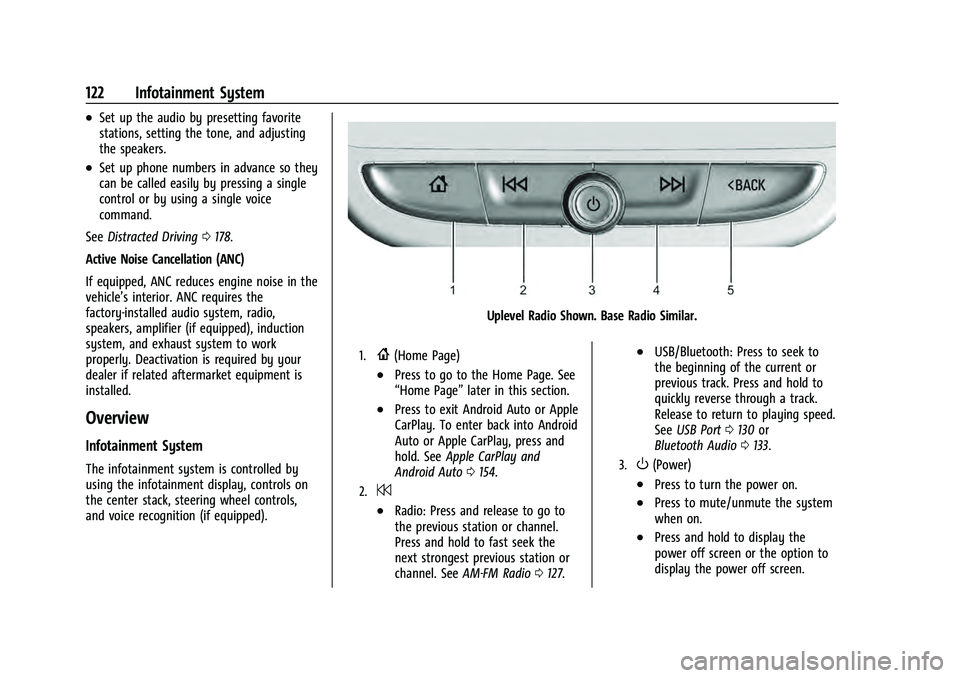
Uplevel Radio Shown. Base Radio Similar.
1.{(Home Page)
.Press to go to the Home Page. See
“Home Page” later in this section.
.Press to exit Android Auto or Apple
CarPlay. To enter back into Android
Auto or Apple CarPlay, press and
hold. SeeApple CarPlay and
Android Auto 0154.
2.7
.Radio: Press and release to go to
the previous station or channel.
Press and hold to fast seek the
next strongest previous station or
channel. See AM-FM Radio 0127.
.USB/Bluetooth: Press to seek to
the beginning of the current or
previous track. Press and hold to
quickly reverse through a track.
Release to return to playing speed.
See USB Port 0130 or
Bluetooth Audio 0133.
3.O(Power)
.Press to turn the power on.
.Press to mute/unmute the system
when on.
.Press and hold to display the
power off screen or the option to
display the power off screen.
Page 124 of 360
Chevrolet Equinox Owner Manual (GMNA-Localizing-U.S./Canada-
16540728) - 2023 - crc - 6/16/22
Infotainment System 123
.Turn to decrease or increase the
volume.
4.6
.Radio: Press and release to go to
the next station or channel. Press
and hold to fast seek the next
strongest station or channel.
.USB/Bluetooth: Press to seek the
next track. Press and hold to fast
forward through a track. Release to
return to playing speed. SeeUSB
Port 0130 or
Bluetooth Audio 0133.
5.SBACK or5
.PressSBACK to return to the
previous display in a menu.
.Press and release5to access the
phone display or answer an
incoming call.
Home Page
The Home Page is where vehicle application
icons are accessed. Some applications are
disabled when the vehicle is moving.
Swipe left or right across the display to
access the pages of icons. Managing Home Page Icons
1. Touch and hold any of the Home Page icons to enter edit mode.
2. Continue holding the icon and drag it to the desired position.
3. Release your finger to drop the icon in the desired position.
4. To move an application to another page, drag the icon to the edge of the display
toward the desired page.
5. Continue dragging and dropping application icons as desired.
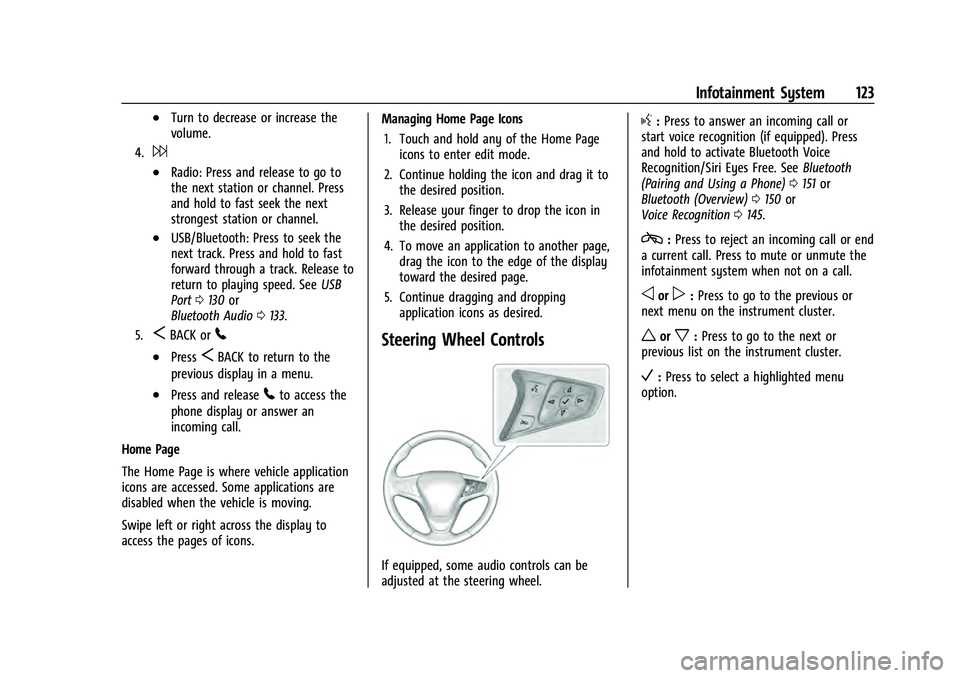
Steering Wheel Controls
If equipped, some audio controls can be
adjusted at the steering wheel.
g:Press to answer an incoming call or
start voice recognition (if equipped). Press
and hold to activate Bluetooth Voice
Recognition/Siri Eyes Free. See Bluetooth
(Pairing and Using a Phone) 0151 or
Bluetooth (Overview) 0150 or
Voice Recognition 0145.
c:Press to reject an incoming call or end
a current call. Press to mute or unmute the
infotainment system when not on a call.
oorp: Press to go to the previous or
next menu on the instrument cluster.
worx: Press to go to the next or
previous list on the instrument cluster.
V: Press to select a highlighted menu
option.
Page 125 of 360
Chevrolet Equinox Owner Manual (GMNA-Localizing-U.S./Canada-
16540728) - 2023 - crc - 6/16/22
124 Infotainment System
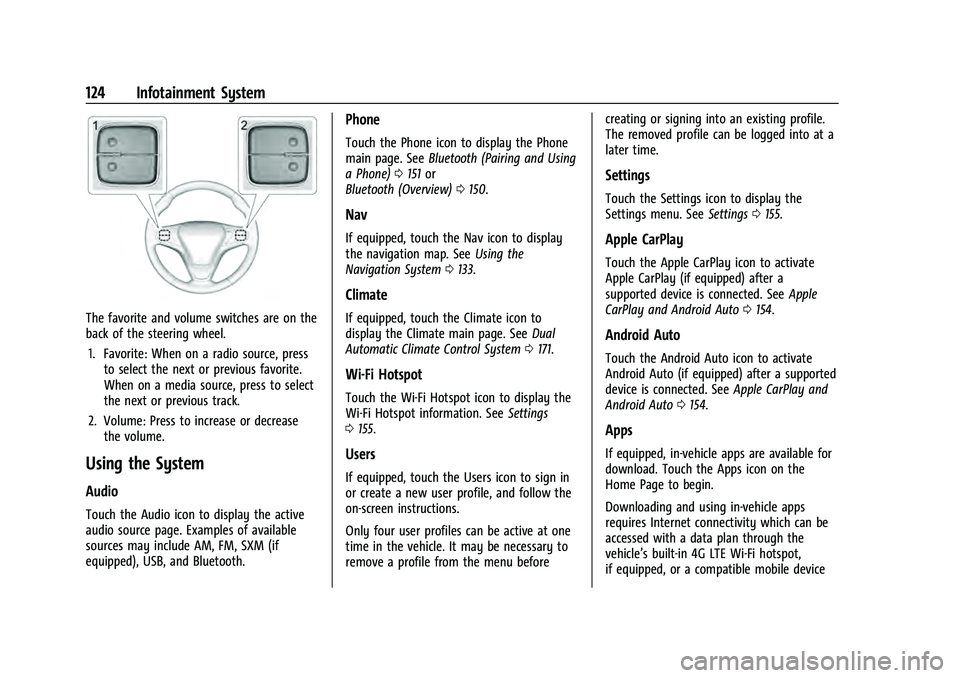
The favorite and volume switches are on the
back of the steering wheel.1. Favorite: When on a radio source, press to select the next or previous favorite.
When on a media source, press to select
the next or previous track.
2. Volume: Press to increase or decrease the volume.
Using the System
Audio
Touch the Audio icon to display the active
audio source page. Examples of available
sources may include AM, FM, SXM (if
equipped), USB, and Bluetooth.
Phone
Touch the Phone icon to display the Phone
main page. See Bluetooth (Pairing and Using
a Phone) 0151 or
Bluetooth (Overview) 0150.
Nav
If equipped, touch the Nav icon to display
the navigation map. See Using the
Navigation System 0133.
Climate
If equipped, touch the Climate icon to
display the Climate main page. See Dual
Automatic Climate Control System 0171.
Wi-Fi Hotspot
Touch the Wi-Fi Hotspot icon to display the
Wi-Fi Hotspot information. See Settings
0 155.
Users
If equipped, touch the Users icon to sign in
or create a new user profile, and follow the
on-screen instructions.
Only four user profiles can be active at one
time in the vehicle. It may be necessary to
remove a profile from the menu before creating or signing into an existing profile.
The removed profile can be logged into at a
later time.
Settings
Touch the Settings icon to display the
Settings menu. See
Settings0155.
Apple CarPlay
Touch the Apple CarPlay icon to activate
Apple CarPlay (if equipped) after a
supported device is connected. See Apple
CarPlay and Android Auto 0154.
Android Auto
Touch the Android Auto icon to activate
Android Auto (if equipped) after a supported
device is connected. See Apple CarPlay and
Android Auto 0154.
Apps
If equipped, in-vehicle apps are available for
download. Touch the Apps icon on the
Home Page to begin.
Downloading and using in-vehicle apps
requires Internet connectivity which can be
accessed with a data plan through the
vehicle’s built-in 4G LTE Wi-Fi hotspot,
if equipped, or a compatible mobile device
Page 126 of 360
Chevrolet Equinox Owner Manual (GMNA-Localizing-U.S./Canada-
16540728) - 2023 - crc - 6/16/22
Infotainment System 125
hotspot. On most mobile devices, activation
of the Wi-Fi hotspot is in the device’s
Settings menu under Mobile Network
Sharing, Personal Hotspot, Mobile Hotspot,
or similar.
Availability of apps and connectivity varies
by vehicle, conditions, and location. Data
plan rates apply. Features are subject to
change. For more information, seeOnline
Account 0329.
OnStar Services
If equipped, touch the OnStar Services icon
to display the OnStar Services and Account
pages. See OnStar Overview 0339.
Camera
If equipped, touch the Camera icon to access
the camera application. See Surround Vision
System 0221.
Shortcut Tray
The shortcut tray is near the bottom of the
display. It shows up to four applications.
Infotainment Display Features
Infotainment display features show on the
display when available. When a feature is
unavailable, it may gray out. When a
feature is touched, it may highlight.
Haptic Feedback
If equipped, haptic feedback is a pulse that
occurs when an icon or option is touched on
the display or when controls on the center
stack are pressed.
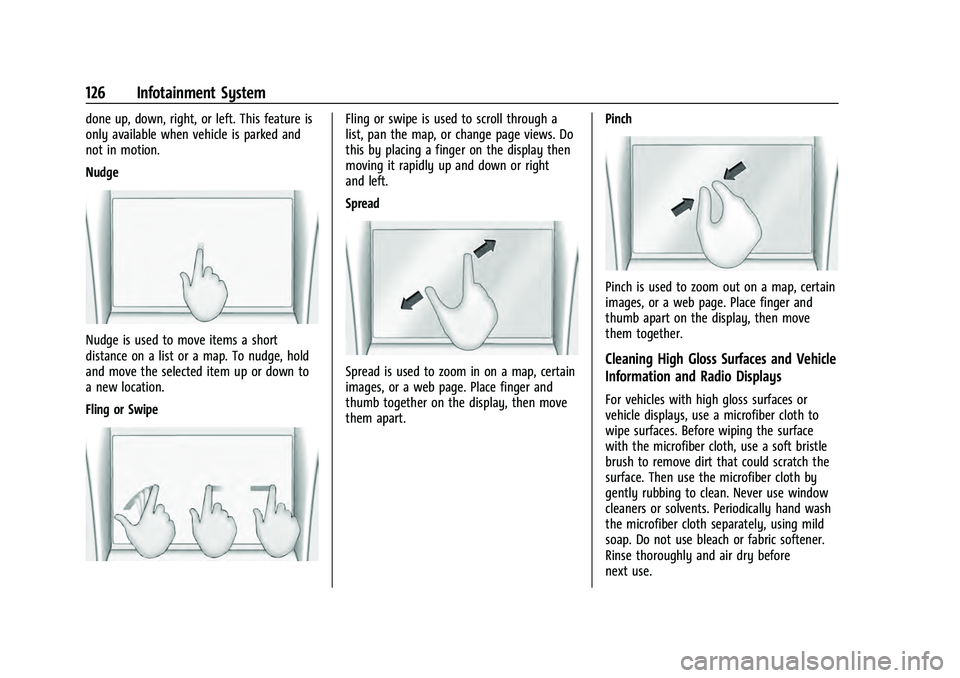
Infotainment Gestures
Use the following finger gestures to control
the infotainment system.
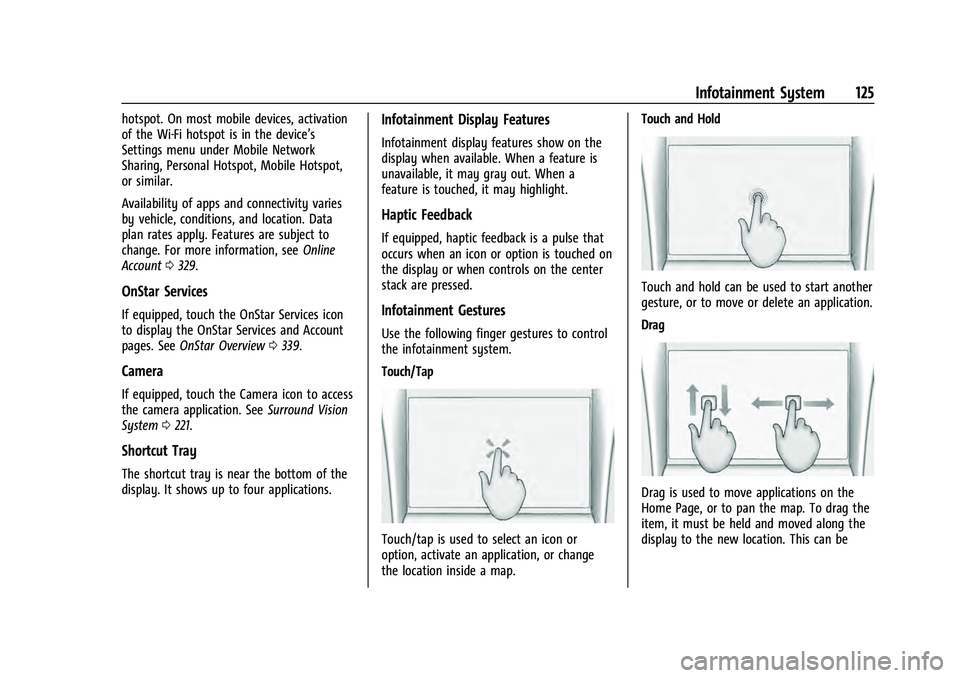
Touch/Tap
Touch/tap is used to select an icon or
option, activate an application, or change
the location inside a map. Touch and Hold
Touch and hold can be used to start another
gesture, or to move or delete an application.
Drag
Drag is used to move applications on the
Home Page, or to pan the map. To drag the
item, it must be held and moved along the
display to the new location. This can be
Page 127 of 360
Chevrolet Equinox Owner Manual (GMNA-Localizing-U.S./Canada-
16540728) - 2023 - crc - 6/16/22
126 Infotainment System
done up, down, right, or left. This feature is
only available when vehicle is parked and
not in motion.
Nudge
Nudge is used to move items a short
distance on a list or a map. To nudge, hold
and move the selected item up or down to
a new location.
Fling or Swipe
Fling or swipe is used to scroll through a
list, pan the map, or change page views. Do
this by placing a finger on the display then
moving it rapidly up and down or right
and left.
Spread
Spread is used to zoom in on a map, certain
images, or a web page. Place finger and
thumb together on the display, then move
them apart.Pinch
Pinch is used to zoom out on a map, certain
images, or a web page. Place finger and
thumb apart on the display, then move
them together.
Cleaning High Gloss Surfaces and Vehicle
Information and Radio Displays
For vehicles with high gloss surfaces or
vehicle displays, use a microfiber cloth to
wipe surfaces. Before wiping the surface
with the microfiber cloth, use a soft bristle
brush to remove dirt that could scratch the
surface. Then use the microfiber cloth by
gently rubbing to clean. Never use window
cleaners or solvents. Periodically hand wash
the microfiber cloth separately, using mild
soap. Do not use bleach or fabric softener.
Rinse thoroughly and air dry before
next use.