mode CHEVROLET EQUINOX 2023 Owner's Guide
[x] Cancel search | Manufacturer: CHEVROLET, Model Year: 2023, Model line: EQUINOX, Model: CHEVROLET EQUINOX 2023Pages: 360, PDF Size: 14.71 MB
Page 115 of 360
Chevrolet Equinox Owner Manual (GMNA-Localizing-U.S./Canada-
16540728) - 2023 - crc - 6/16/22
114 Lighting
Lighting
Exterior Lighting
Exterior Lamp Controls . . . . . . . . . . . . . . . . . 114
Headlamp High/Low-Beam Changer . . . . 115
Flash-to-Pass . . . . . . . . . . . . . . . . . . . . . . . . . . . 116
Daytime Running Lamps (DRL) . . . . . . . . . 116
Automatic Headlamp System . . . . . . . . . . 116
Hazard Warning Flashers . . . . . . . . . . . . . . . 117
Turn and Lane-Change Signals . . . . . . . . . . 117
Fog Lamps . . . . . . . . . . . . . . . . . . . . . . . . . . . . . 117
Interior Lighting
Instrument Panel IlluminationControl . . . . . . . . . . . . . . . . . . . . . . . . . . . . . . . 118
Courtesy Lamps . . . . . . . . . . . . . . . . . . . . . . . . 118
Dome Lamps . . . . . . . . . . . . . . . . . . . . . . . . . . . 118
Reading Lamps . . . . . . . . . . . . . . . . . . . . . . . . . 118
Lighting Features
Entry Lighting . . . . . . . . . . . . . . . . . . . . . . . . . 119
Exit Lighting . . . . . . . . . . . . . . . . . . . . . . . . . . . 119
Battery Load Management . . . . . . . . . . . . . 119
Battery Power Protection . . . . . . . . . . . . . . 120
Exterior Lighting Battery Saver . . . . . . . . 120
Exterior Lighting
Exterior Lamp Controls
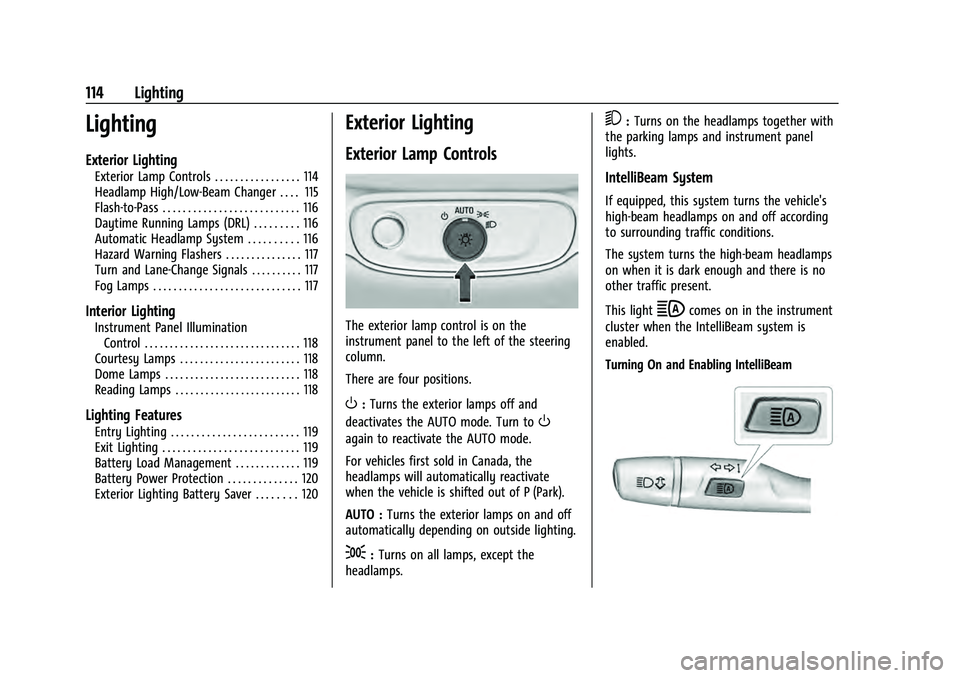
The exterior lamp control is on the
instrument panel to the left of the steering
column.
There are four positions.
O: Turns the exterior lamps off and
deactivates the AUTO mode. Turn to
O
again to reactivate the AUTO mode.
For vehicles first sold in Canada, the
headlamps will automatically reactivate
when the vehicle is shifted out of P (Park).
AUTO : Turns the exterior lamps on and off
automatically depending on outside lighting.
;: Turns on all lamps, except the
headlamps.
5: Turns on the headlamps together with
the parking lamps and instrument panel
lights.
IntelliBeam System
If equipped, this system turns the vehicle's
high-beam headlamps on and off according
to surrounding traffic conditions.
The system turns the high-beam headlamps
on when it is dark enough and there is no
other traffic present.
This light
bcomes on in the instrument
cluster when the IntelliBeam system is
enabled.
Turning On and Enabling IntelliBeam
Page 121 of 360
Chevrolet Equinox Owner Manual (GMNA-Localizing-U.S./Canada-
16540728) - 2023 - crc - 6/16/22
120 Lighting
EPM works to prevent excessive discharge of
the battery. It does this by balancing the
generator's output and the vehicle's
electrical needs. It can increase engine idle
speed to generate more power whenever
needed. It can temporarily reduce the power
demands of some accessories.
Normally, these actions occur in steps or
levels, without being noticeable. In rare
cases at the highest levels of corrective
action, this action may be noticeable to the
driver. If so, a DIC message might be
displayed and it is recommended that the
driver reduce the electrical loads as much as
possible.
Battery Power Protection
This feature helps prevent the battery from
being drained, if the interior courtesy lamps
or reading lamps are accidentally left on.
If any of these lamps are left on, they
automatically turn off after 10 minutes,
if the ignition is off. The lamps will not
come back on again until one of the
following occurs:
.The ignition is turned on.
.The doors are closed and then re-opened.
Exterior Lighting Battery Saver
The exterior lamps turn off about 10 minutes
after the vehicle is turned off, if the parking
lamps or headlamps have been manually
left on. This protects against draining the
battery. To restart the 10-minute timer, turn
the exterior lamp control to the
Oposition
and then back to the
;or2position.
To keep the lamps on for more than
10 minutes, the vehicle must be on or in
accessory mode.
Page 124 of 360
Chevrolet Equinox Owner Manual (GMNA-Localizing-U.S./Canada-
16540728) - 2023 - crc - 6/16/22
Infotainment System 123
.Turn to decrease or increase the
volume.
4.6
.Radio: Press and release to go to
the next station or channel. Press
and hold to fast seek the next
strongest station or channel.
.USB/Bluetooth: Press to seek the
next track. Press and hold to fast
forward through a track. Release to
return to playing speed. SeeUSB
Port 0130 or
Bluetooth Audio 0133.
5.SBACK or5
.PressSBACK to return to the
previous display in a menu.
.Press and release5to access the
phone display or answer an
incoming call.
Home Page
The Home Page is where vehicle application
icons are accessed. Some applications are
disabled when the vehicle is moving.
Swipe left or right across the display to
access the pages of icons. Managing Home Page Icons
1. Touch and hold any of the Home Page icons to enter edit mode.
2. Continue holding the icon and drag it to the desired position.
3. Release your finger to drop the icon in the desired position.
4. To move an application to another page, drag the icon to the edge of the display
toward the desired page.
5. Continue dragging and dropping application icons as desired.
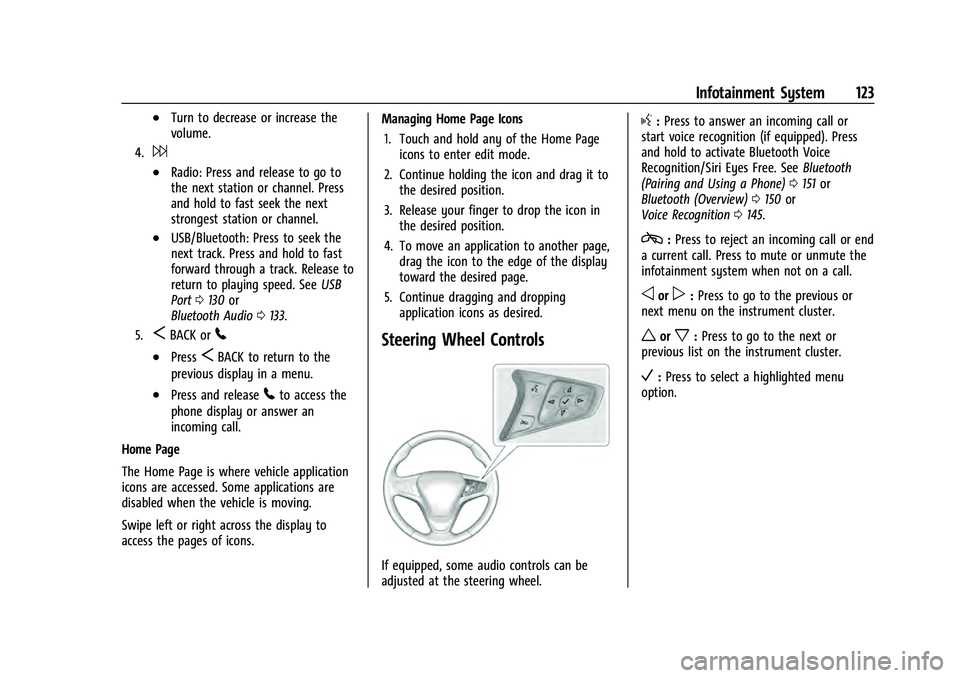
Steering Wheel Controls
If equipped, some audio controls can be
adjusted at the steering wheel.
g:Press to answer an incoming call or
start voice recognition (if equipped). Press
and hold to activate Bluetooth Voice
Recognition/Siri Eyes Free. See Bluetooth
(Pairing and Using a Phone) 0151 or
Bluetooth (Overview) 0150 or
Voice Recognition 0145.
c:Press to reject an incoming call or end
a current call. Press to mute or unmute the
infotainment system when not on a call.
oorp: Press to go to the previous or
next menu on the instrument cluster.
worx: Press to go to the next or
previous list on the instrument cluster.
V: Press to select a highlighted menu
option.
Page 130 of 360
Chevrolet Equinox Owner Manual (GMNA-Localizing-U.S./Canada-
16540728) - 2023 - crc - 6/16/22
Infotainment System 129
The following core and region specific RDS
features may be supported by radio
broadcasters in your listening area:
Core RDS features
.Display radio station call letters
.Display messages from radio stations
.Provide radio station category information
(when available)
Region Specific RDS features
.Support Traffic Program (TP) Alerts
.Support Alternate Frequency (AF)
Switching
.Support Region Switching
Satellite Radio
SiriusXM Radio Service
If equipped, vehicles with a valid SiriusXM
radio subscription can receive SiriusXM
programming.
SiriusXM radio has a wide variety of
programming and commercial-free music,
coast to coast, in digital-quality sound. In
the U.S., see www.siriusxm.com or call
1-888-601-6296. In Canada, see
www.siriusxm.ca or call 1-877-438-9677. When SiriusXM is active, the channel name,
number, song title, and artist appear on the
display.
SiriusXM with 360L
SiriusXM with 360L interface has enhanced
in-vehicle listening experience for
subscribers. The experience now offers more
categories and system learned
recommendations toward discovering more
personalized content.
To use the full SiriusXM 360L program,
including streaming content and listening
recommendations, OnStar Connected Access
is required. Connected vehicle services vary
by model and require a complete working
electrical system, cell reception, and GPS
signal. An active connected plan is required.
Reference the SiriusXM user guide for use
and subscription information.
Radio Reception
Unplug electronic devices from the accessory
power outlets if there is interference or
static in the radio.
FM
FM signals only reach about 16 to 65 km (10
to 40 mi). Although the radio has a built-in
electronic circuit that automatically works to
reduce interference, some static can occur,
especially around tall buildings or hills,
causing the sound to fade in and out.
AM
The range for most AM stations is greater
than for FM, especially at night. The longer
range can cause station frequencies to
interfere with each other. Static can also
occur when things like storms and power
lines interfere with radio reception. When
this happens, try reducing the treble on the
radio.
SiriusXM Satellite Radio Service
If equipped, SiriusXM Satellite Radio Service
provides digital radio reception. Tall
buildings or hills can interfere with satellite
radio signals, causing the sound to fade in
and out. In addition, traveling or standing
under heavy foliage, bridges, garages,
or tunnels may cause loss of the SiriusXM
signal for a period of time. Some cellular
services may interfere with SXM reception
causing loss of signal.
Page 134 of 360
Chevrolet Equinox Owner Manual (GMNA-Localizing-U.S./Canada-
16540728) - 2023 - crc - 6/16/22
Infotainment System 133
This jack is not an audio output. Do not
plug headphones into the auxiliary input
jack. Set up an auxiliary device while the
vehicle is in P (Park).
Connect a 3.5 mm (1/8 in) cable from the
auxiliary device to the auxiliary input jack.
When a device is connected, the system can
play audio from the device over the vehicle
speakers.
If an auxiliary device has already been
connected, but a different source is currently
active, touch More and then touch AUX to
make the source active.
Shuffle and Browse are not available in the
AUX source menu.
Bluetooth Audio
Music may be played from a paired
Bluetooth device. SeeBluetooth (Pairing and
Using a Phone) 0151 or
Bluetooth (Overview) 0150 for help pairing
a device.
Volume and song selection may be
controlled by using the infotainment
controls or the mobile device. If Bluetooth is
selected and no volume is present, check the
volume setting on the infotainment system. Music can be launched by touching
Bluetooth from the recent sources list on
the left of the display or by touching the
More option and then touching the
Bluetooth device.
To play music via Bluetooth:
1. Power on the device, and pair to connect the device.
2. Once paired, touch Audio from the Home Page, then touch Bluetooth from the
recent sources list on the left of the
display.
Bluetooth Sound Menu
See “Infotainment System Sound Menu”
under AM-FM Radio 0127.
Manage Bluetooth Devices
From the Home Page: 1. Touch Audio.
2. Touch Devices to add or delete devices.
When touching Bluetooth, the radio may
not be able to launch the audio player on
the connected device to start playing. When
the vehicle is not moving, use the mobile
device to begin playback. All devices launch audio differently. When
selecting Bluetooth as a source, the radio
may show as paused on the display. Press
play on the device or touch
pon the
vehicle display to begin playback.
Browse functionality will be provided where
supported by the Bluetooth device. This
media content will not be part of the
MyMedia source mode.
Some smartphones support sending
Bluetooth music information to display on
the radio. When the radio receives this
information, it will check to see if any is
available and display it. For more
information about supported Bluetooth
features, visit your brand website. See
Online Account 0329 for details.
See Radio Frequency Statement 0335.
Navigation
Using the Navigation System
If equipped, launch the Nav application by
touching the Nav icon on the Home Page or
on the shortcut tray near the bottom of the
infotainment display.
Page 136 of 360
Chevrolet Equinox Owner Manual (GMNA-Localizing-U.S./Canada-
16540728) - 2023 - crc - 6/16/22
Infotainment System 135
.Edit Destination (if a route has been set)
.Avoid on Route (if a route has been set)
Touch Settings to view Map and Navigation
Settings. The following may display:
.Destination Card Preferences
.Map Preferences
.Route Preferences
.Navigation Voice Control
.Traffic Preferences
.Alert Preferences
.Fuel Grade Preferences
.Manage History
.Predictive Navigation: See “Predictive
Navigation (If Equipped)” previously in
this section.
.About
To exit a list, touch
zin the top right
corner to return to the main map view.
Make sure to set up preferences before
setting a destination and starting active
guidance. Map Preferences
Touch to choose between basic map feature
configurations:
Map Colors
.Auto
–Touch to automatically change
modes based on lighting conditions.
.Day (Light)
.Night (Dark)
3D Landmarks (Default is On) : Touch On or
Off. When turned on, the system will
display all 3D Landmarks on the map
depending on the zoom level.
3D Buildings (Default is Off) : Touch On or
Off. When turned on, the system will
display all of the possible 3D building shapes
on the map depending on the zoom level.
Show Terrain in 3D (Default is Off) :
If equipped, touch On or Off. When turned
on, the system will display terrain
information on the map in 3D view.
Auto-Zoom (Default is On) : Touch On or
Off. When turned on, the system will
automatically adjust the zoom level when
the vehicle is approaching a turn. After the
turn is completed, the system automatically
brings the zoom back to the originally set
level. If the vehicle is approaching a turn with the next turn occurring shortly after,
the Auto-Zoom will remain on until both
turns are completed.
Route Preferences
Touch to access the Route Preferences. The
choices are:
.Preferred Route
–Choose from two
different route options: Fastest or
Eco-Friendly.
‐ Fastest would be the route with the
shortest drive time.
‐ Eco-Friendly would be the most
fuel-efficient route.
.Avoid on Route –Choose any of the road
features to avoid while on route:
‐ Highways
‐ Unpaved Roads
‐ Ferries
‐ Carpool Lanes
‐ Toll Roads
‐ Tunnels
‐ Country Borders
Navigation Voice Control
Touch to access the voice control setting
display.
Page 137 of 360
Chevrolet Equinox Owner Manual (GMNA-Localizing-U.S./Canada-
16540728) - 2023 - crc - 6/16/22
136 Infotainment System
.Navigation Volume–To adjust the
volume level, touch the up and down
arrows. If the voice guidance prompt is
being heard, volume can also be adjusted
using the knob on the center stack or the
volume switch on the steering wheel.
.Navigation Voice Prompt Level During a
Call. Options available are:
‐ Full Prompt (Selected by default)
‐ Tone Only
‐ None
Traffic Events (If Equipped)
This feature provides a list of events that
are on the route or nearby. Touch
Aand
then select Traffic Events. A connected
Navigation service plan is required.
Traffic Preferences (If Equipped)
While in Map View, touch
A, then Settings
and then Map and Navigation Settings to
access Traffic Preferences. When Show
Traffic on Map is turned on, the feature
provides an overview of the traffic flow
using different coded colors. The following
options are available for rerouting:
.Auto Reroute to Better Route –The
system will automatically reroute if the
system detects there is a traffic issue
ahead.
.Ask Before Rerouting (Default) –If the
system detects there is a traffic issue
ahead, it will display a pop-up with
details about the issue. Choose to reroute
or cancel the alert.
.Never Search for Better Route –The
system will not check for a better route
until one of the above options is selected.
Alert Preferences
Set alerts on or off during both inactive and
active guidance views. The following alerts
may be available:
.Road Safety Alerts –Touch to display
upcoming School Zones.
.Traffic Camera Alerts
Manage History
Touch Manage History to access the History
options:
.Clear Recent Destinations –Touch\to
clear the recent destinations.
.Clear Search History –Touch\to clear
the search history. About
Touch to display software information,
such as:
.Telenav Terms and Conditions
.Telenav Privacy Statement
.Navigation Version
Maps
The Navigation application requires a map
database to run. It is stored on an SD card
that is connected to the infotainment
system. If the map database is not available,
a missing SD card error message will be
displayed.
SD Card Error Messages
The SD card only works for one unique
vehicle. The SD card must pass
authentication verification to be used for
that specific vehicle. If the SD card has a
switch that can be set to read-only mode,
ensure that it is in the upward position and
not in read-only.
Potential error scenarios and messages
include:
Page 138 of 360
Chevrolet Equinox Owner Manual (GMNA-Localizing-U.S./Canada-
16540728) - 2023 - crc - 6/16/22
Infotainment System 137
.The SD card has initialized for the first
time:“Once initialized, this SD card can
only be used for navigation in this
vehicle.”
.The SD card is not working properly: “SD
card is not functioning properly.
(Error Code).”
See your dealer if this message appears.
.The SD card is not paired with the
existing system: “This SD card is not valid
in this vehicle for navigation. See Owner’s
Manual for more detail or visit your
dealer. (Error Code).”
.The SD card has been removed from the
slot: “SD card has been removed.
(Error Code).”
Make sure the SD card is in the slot. If it
was removed and inserted and you still
receive an error code, see your dealer.
Touch Confirm to resume after the
initialization error message. For the other
messages, touch OK to return to the
Home Page.
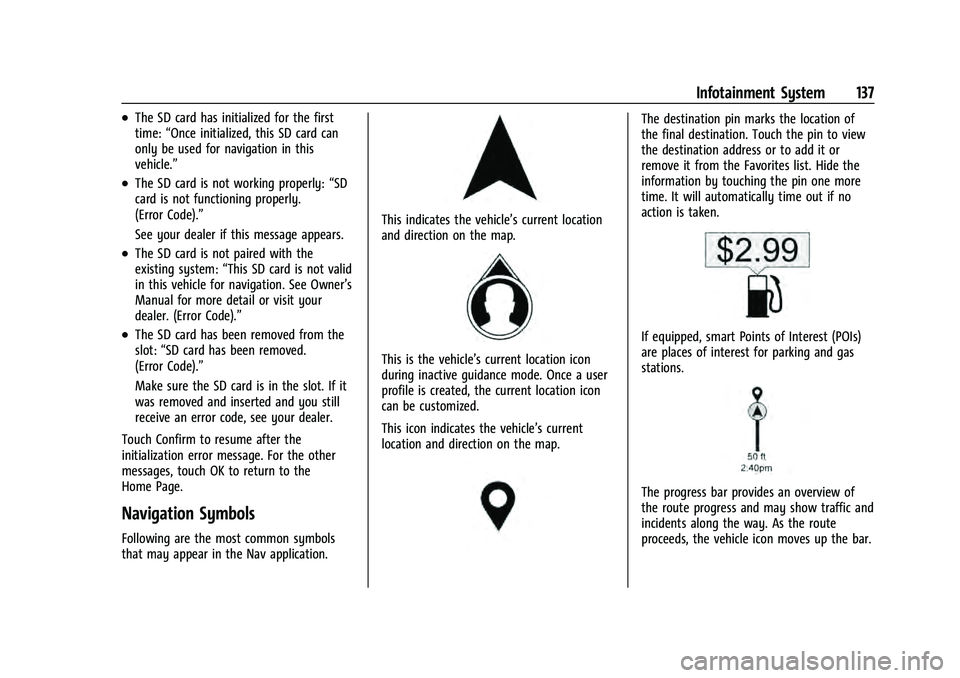
Navigation Symbols
Following are the most common symbols
that may appear in the Nav application.
This indicates the vehicle’s current location
and direction on the map.
This is the vehicle’s current location icon
during inactive guidance mode. Once a user
profile is created, the current location icon
can be customized.
This icon indicates the vehicle’s current
location and direction on the map.
The destination pin marks the location of
the final destination. Touch the pin to view
the destination address or to add it or
remove it from the Favorites list. Hide the
information by touching the pin one more
time. It will automatically time out if no
action is taken.
If equipped, smart Points of Interest (POIs)
are places of interest for parking and gas
stations.
The progress bar provides an overview of
the route progress and may show traffic and
incidents along the way. As the route
proceeds, the vehicle icon moves up the bar.
Page 140 of 360
Chevrolet Equinox Owner Manual (GMNA-Localizing-U.S./Canada-
16540728) - 2023 - crc - 6/16/22
Infotainment System 139
names, street addresses, and turn
restrictions. A detailed area includes all
major highways, service roads, and
residential roads. The detailed areas include
Places of Interest (POIs) such as restaurants,
airports, banks, hospitals, police stations, gas
stations, tourist attractions, and historical
monuments.
If the vehicle does not have an applicable
service plan, the map database may not
include data for newly constructed areas or
map database corrections that are
completed after production. The navigation
system provides full route guidance in the
detailed map areas.
Zoom Control
The zoom control display is shown on the
map view. A few ways to zoom in or
out are:
.Touch + or–to zoom in or out on
the map.
.Double tap with one finger to zoom in or
single tap with two fingers to zoom out
on the map.
.Use the index finger and thumb to zoom
out by pinching and then zoom in by
spreading those two fingers on the map.
Map Gestures and Map Scale
Use the following gestures on the
infotainment display to adjust the map scale
and display options.
.Pinch to zoom in or out.
.Pan the map.
.Use two fingers to tilt down and change
from 2D to 3D. Tilt up to change back
to 2D.
.Rotate the map.
See Using the System 0124.
Mute
When in active guidance, the audio prompts
while using navigation can be muted. Touch
the speaker icon on the right side of the
upper bar. A slash will appear on the
speaker to indicate voice guidance is muted.
Active Guidance View
When a destination is chosen and a
navigation session is active, the navigation
system enters into an Active Guidance
View (AGV). Map Orientation
Touch
Aon the map to access map
orientation settings. Map orientation is 3D
Heading Up by default.
Available settings are:
.3D Heading Up (Default): 3D map with
the vehicle pointing up. In this mode, the
current location icon will always head up
and the map will rotate around it.
.2D Heading Up: 2D map with the vehicle
pointing up. In this mode, the current
location icon will always head up and the
map will rotate around it.
.2D North Up: 2D map with North pointing
up. In this mode, the current location icon
will shift as the vehicle turns left and
right.
Touch the icon to change the map type. The
icon and label will also update accordingly.
Depending on the zoom level of the 2D
Heading Up and 3D Heading Up maps, the
system may automatically switch to the 2D
North Up map.
When in AGV, the entire route can be
viewed in 2D North Up by touching the
traffic bar. The map will zoom out and
readjust to display the full route. When in
Page 141 of 360
Chevrolet Equinox Owner Manual (GMNA-Localizing-U.S./Canada-
16540728) - 2023 - crc - 6/16/22
140 Infotainment System
2D North Up Route View, the Recenter icon
will appear in the middle of the display.
Touch either the Recenter icon or the traffic
bar again to return to the previous view,
either 2D or 3D.
Lane Guidance
The map will display the lane information
for the upcoming maneuver if it is available.
Junction View
When a vehicle is on the highway and
approaching the exit, an image displays the
lane that the vehicle must stay in to
complete the next maneuver.
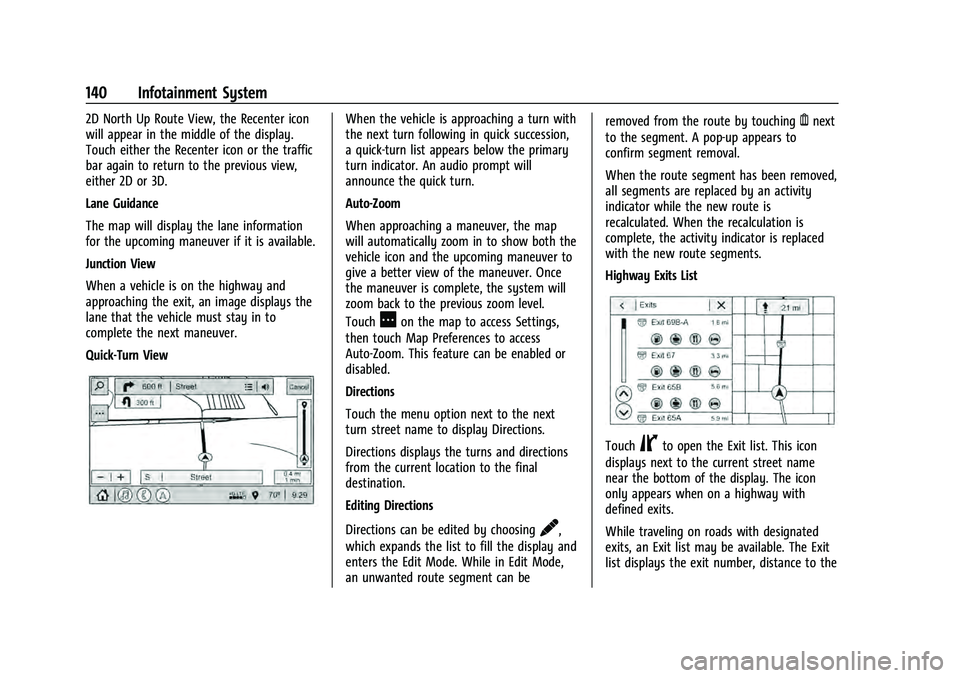
Quick-Turn ViewWhen the vehicle is approaching a turn with
the next turn following in quick succession,
a quick-turn list appears below the primary
turn indicator. An audio prompt will
announce the quick turn.
Auto-Zoom
When approaching a maneuver, the map
will automatically zoom in to show both the
vehicle icon and the upcoming maneuver to
give a better view of the maneuver. Once
the maneuver is complete, the system will
zoom back to the previous zoom level.
Touch
Aon the map to access Settings,
then touch Map Preferences to access
Auto-Zoom. This feature can be enabled or
disabled.
Directions
Touch the menu option next to the next
turn street name to display Directions.
Directions displays the turns and directions
from the current location to the final
destination.
Editing Directions
Directions can be edited by choosing
y,
which expands the list to fill the display and
enters the Edit Mode. While in Edit Mode,
an unwanted route segment can be removed from the route by touching
Ynext
to the segment. A pop-up appears to
confirm segment removal.
When the route segment has been removed,
all segments are replaced by an activity
indicator while the new route is
recalculated. When the recalculation is
complete, the activity indicator is replaced
with the new route segments.
Highway Exits List
TouchCto open the Exit list. This icon
displays next to the current street name
near the bottom of the display. The icon
only appears when on a highway with
defined exits.
While traveling on roads with designated
exits, an Exit list may be available. The Exit
list displays the exit number, distance to the