radio CHEVROLET EXPRESS 2009 Owner's Manual
[x] Cancel search | Manufacturer: CHEVROLET, Model Year: 2009, Model line: EXPRESS, Model: CHEVROLET EXPRESS 2009Pages: 440, PDF Size: 2.42 MB
Page 220 of 440
To use random on an Uplevel Radio with a Single CD
player, do the following:
1. Press the CD/AUX button, insert a disc partway into
the slot of the CD player. A RDM label displays.
2. To play the tracks in random order, press the
pushbutton positioned under the RDM label
until Random Current Disc displays. Press the
pushbutton again to turn off random play.
To use random on a Radio with a Six-Disc CD player,
do the following:
1. Press the CD/AUX button, press and hold
^.
A beep sounds and Load All Discs displays.
Insert one or more discs partway into the slot of the
CD player.
2. To play tracks from all CDs loaded in random order,
press the pushbutton positioned under the RDM
label until Randomize All Discs displays. Press the
same pushbutton again to turn off random play.
RPT (Repeat (Base Radio with CD):With the repeat
setting, one track can be repeated. To repeat the
track you are listening to, press and release the
RPT button. An arrow symbol displays. Press RPT
again to turn off repeat play.
4(Information) (Base Radio with CD):Press to switch
the display between the track number, elapsed time
of the track, and the time. When the ignition is off, press
to display the time.
BAND:Press to listen to the radio when a CD is
playing. The CD remains inside the radio for future
listening.
CD/AUX (CD/Auxiliary):Press to play a CD when
listening to the radio. The CD icon and a message
showing the disc and/or track number displays when a
CD is in the player. Press again and the system
automatically searches for an auxiliary input device,
such as a portable audio player. If a portable audio
player is not connected, “No Input Device Found” may
display.
Playing an MP3 CD-R or CD-RW Disc
The radio with a Single CD player or a Six-Disc CD
player has the capability of playing an MP3 CD-R or
CD-RW disc. For more information on how to play
an MP3 CD-R or CD-RW disc, see “Using an MP3” in
the index.
4-70
Page 221 of 440
CD Messages
REMOVE/CHECK DISC:Radios with a Single CD player
or radios with a Six-Disc player displays CHECK DISC
and/or ejects the CD if an error occurs.
ERR (Error):If this message displays and/or the CD
comes out, it could be for one of the following reasons:
•It is very hot. When the temperature returns to
normal, the CD should play.
•You are driving on a very rough road. When the
road becomes smoother, the CD should play.
•The CD is dirty, scratched, wet, or upside down.
•The air is very humid. If so, wait about an hour and
try again.
•There could have been a problem while burning the
CD-R or CD-RW.
•The label could be caught in the CD player.NO:This message displays if the EJECT or CD/AUX
buttons are pressed and a CD has not been inserted into
the player.
If the CD is not playing correctly, for any other reason,
try a known good CD.
If any error occurs repeatedly or if an error cannot be
corrected, contact your dealer/retailer. If the radio
displays an error message, write it down and provide it
to your dealer/retailer while reporting the problem.
Using the Auxiliary Input Jack
Your radio system has an auxiliary input jack located
on the lower right side of the faceplate. This is not an
audio output; do not plug the headphone set into the front
auxiliary input jack. An external audio device such as an
iPod, laptop computer, MP3 player, CD changer, etc. can
be connected to the auxiliary input jack for use as another
source for audio listening.
4-71
Page 222 of 440
Drivers are encouraged to set up any auxiliary device
while the vehicle is in P (Park). SeeDefensive
Driving on page 5-2for more information on driver
distraction.
To use a portable audio player, connect a 3.5 mm
(1/8 inch) cable to the radio’s front auxiliary input jack.
When a device is connected, press the radio CD/AUX
button to begin playing audio from the device over
the vehicle speakers.
O(Power/Volume):Turn clockwise or counterclockwise
to increase or decrease the volume of the portable
player. You might need to do additional volume
adjustments from the portable device if the volume
is not loud or soft enough.
BAND:Press to listen to the radio while a portable
audio device is playing. The portable audio device
continues playing, so you might want to stop it or turn
it off.
CD/AUX (CD/Auxiliary):Press to play a CD while a
portable audio device is playing. Press again and
the system begins playing audio from the connected
portable audio player. If a portable audio player is
not connected, the message No Aux Input Device
displays.
Using an MP3
MP3 CD-R or CD-RW Disc
The radio plays MP3 files that were recorded on a
CD-R or CD-RW disc. The files can be recorded with
the following fixed bit rates: 32 kbps, 40 kbps, 56 kbps,
64 kbps, 80 kbps, 96 kbps, 112 kbps, 128 kbps,
160 kbps, 192 kbps, 224 kbps, 256 kbps, and 320 kbps
or a variable bit rate. Song title, artist name, and
album are available for display by the radio when
recorded using ID3 tags version 1 and 2.
Compressed Audio
The radio also plays discs that contain both
uncompressed CD audio (.CDA files) and MP3 files.
By default the radio shows the MP3 label on the left side
of the screen but plays both file formats in the order
in which they were recorded to the disc.
MP3 Format
If you burn your own MP3 disc on a personal computer:
•Make sure the MP3 files are recorded on a CD-R
or CD-RW disc.
•Do not mix standard audio and MP3 files on
one disc.
4-72
Page 224 of 440
No Folder
When the CD contains only compressed files, the files
are located under the root folder. The next and previous
folder function does not display on a CD that was
recorded without folders or playlists.
When the CD contains only playlists and compressed
audio files, but no folders, all files are located under the
root folder. The folder down and up buttons search
playlists (Px) first and then goes to the root folder.
Order of Play
Tracks recorded to the CD-R or CD-RW are played in
the following order:
•Play begins from the first track in the first playlist
and continues sequentially through all tracks in
each playlist. When the last track of the last playlist
has played, play continues from the first track of
the first playlist.
•Play begins from the first track in the first folder and
continues sequentially through all tracks in each
folder. When the last track of the last folder has
played, play continues from the first track of the
first folder.
When play enters a new folder, the display does not
automatically show the new folder name unless you have
chosen the folder mode as the default display. The new
track name displays.
File System and Naming
The song name that displays is the song name that is
contained in the ID3 tag. If the song name is not present
in the ID3 tag, then the radio displays the file name
without the extension (such as .mp3) as the track name.
Track names longer than 32 characters or four pages
are shortened. Parts of words on the last page of
text and the extension of the filename does not display.
Preprogrammed Playlists
Preprogrammed playlists that were created using
WinAmp™, MusicMatch™, or Real Jukebox™ software
can be accessed, however, they cannot be edited
using the radio. These playlists are treated as special
folders containing compressed audio song files.
Playing an MP3
Insert a CD-R or CD-RW partway into the slot (Single
CD Player), or press the load button and wait for the
message to insert disc (Six-Disc CD Player), label side
up. The player pulls it in, and the CD-R or CD-RW should
begin playing.
If the ignition or radio is turned off with a CD-R or
CD-RW in the player, it stays in the player. When the
ignition or radio is turned on, the CD-R or CD-RW starts
to play where it stopped, if it was the last selected audio
source.
4-74
Page 226 of 440
h(Music Navigator):Use the music navigator
feature to play MP3 files on the CD-R or CD-RW in order
by artist or album. Press the pushbutton located below
the music navigator label. The player scans the disc to
sort the files by artist and album ID3 tag information. It
could take several minutes to scan the disc depending on
the number of MP3 files recorded to the CD-R or CD-RW.
The radio can begin playing while it is scanning the disc
in the background. When the scan is finished, the CD-R
or CD-RW begins playing again.
Once the disc has scanned, the player defaults to playing
MP3 files in order by artist. The current artist playing is
shown on the second line of the display between the
arrows. Once all songs by that artist are played, the
player moves to the next artist in alphabetical order on
the CD-R/CD-RW and begins playing MP3 files by that
artist. If you want to listen to MP3 files by another artist,
press the pushbutton located below either arrow button.
You will go to the next or previous artist in alphabetical
order. Continue pressing either button until the desired
artist is displayed.To change from playback by artist to playback by album,
press the pushbutton located below the Sort By label.
From the sort screen, push one of the buttons below the
album button. Press the pushbutton below the back label
to return to the main music navigator screen. Now the
album name is displayed on the second line between the
arrows and songs from the current album begins to play.
Once all songs from that album are played, the player
moves to the next album in alphabetical order on the
CD-R/CD-RW and begins playing MP3 files from that
album.
To exit music navigator mode, press the pushbutton
below the Back label to return to normal MP3 playback.
BAND:Press this button to listen to the radio when a
CD is playing. The inactive CD remains inside the radio
for future listening.
CD/AUX (CD/Auxiliary):Press this button to play a CD
when listening to the radio. The CD icon and a message
showing disc and/or track number displays when a CD is
in the player. Press this button again and the system
automatically searches for an auxiliary input device such
as a portable audio player. If a portable audio player is
not connected, “No Input Device Found” displays.
4-76
Page 227 of 440
Theft-Deterrent Feature
Non-RDS Radios
THEFTLOCK®is designed to discourage theft of your
vehicle’s radio. The feature works automatically by
learning a portion of the Vehicle Identification
Number (VIN). If the radio is moved to a different
vehicle, it does not operate and LOC displays.
With THEFTLOCK
®activated, the radio does not
operate if stolen.
RDS Radios
THEFTLOCK®is designed to discourage theft of your
vehicle’s radio. The feature works automatically by
learning a portion of the Vehicle Identification
Number (VIN). If the radio is moved to a different
vehicle, it does not operate and LOCKED displays.
When the radio and vehicle are turned off, the blinking
red light indicates that THEFTLOCK
®is armed.
With THEFTLOCK
®activated, the radio does not
operate if stolen.
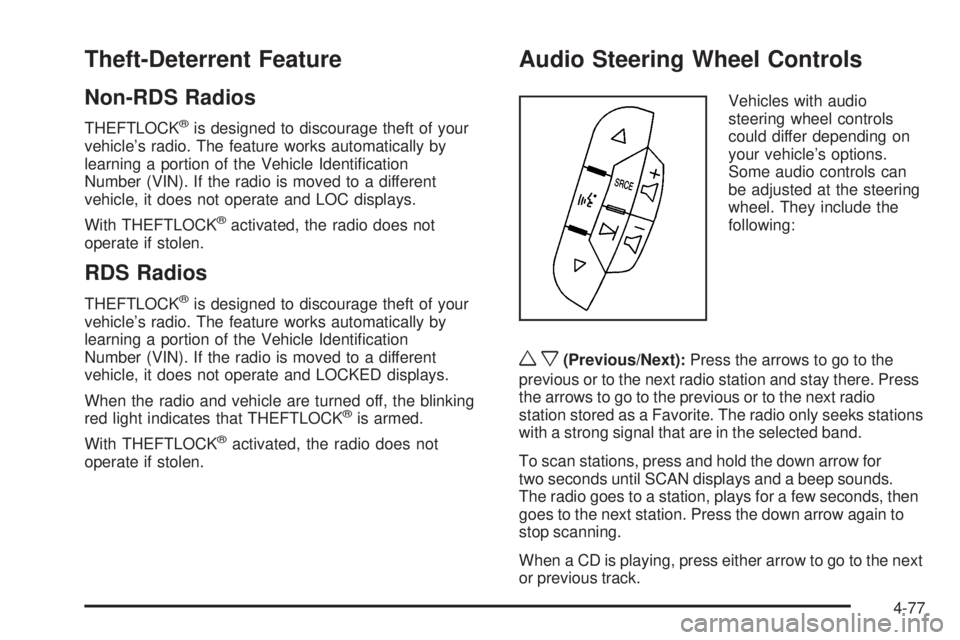
Audio Steering Wheel Controls
Vehicles with audio
steering wheel controls
could differ depending on
your vehicle’s options.
Some audio controls can
be adjusted at the steering
wheel. They include the
following:
wx(Previous/Next):Press the arrows to go to the
previous or to the next radio station and stay there. Press
the arrows to go to the previous or to the next radio
station stored as a Favorite. The radio only seeks stations
with a strong signal that are in the selected band.
To scan stations, press and hold the down arrow for
two seconds until SCAN displays and a beep sounds.
The radio goes to a station, plays for a few seconds, then
goes to the next station. Press the down arrow again to
stop scanning.
When a CD is playing, press either arrow to go to the next
or previous track.
4-77
Page 228 of 440
g(Mute):Press this button to silence the system.
Press this button again, to turn the sound on.
SRCE (Source):Press this button to switch between
the radio, CD, and auxiliary input jack.
+
e−e(Volume):Press the plus or minus volume
button to increase or to decrease the volume.
¨(Seek):Press the seek arrow to go to the next radio
station while in AM or FM. Press the seek arrow to go
to the next track while sourced to the CD.
Radio Reception
Frequency interference and static can occur during
normal radio reception if items such as cell phone
chargers, vehicle convenience accessories, and external
electronic devices are plugged into the accessory
power outlet. If there is interference or static, unplug the
item from the accessory power outlet.
AM
The range for most AM stations is greater than for FM,
especially at night. The longer range can cause station
frequencies to interfere with each other. For better radio
reception, most AM radio stations boost the power levels
during the day, and then reduce these levels during thenight. Static can also occur when things like storms and
power lines interfere with radio reception. When this
happens, try reducing the treble on your radio.
FM Stereo
FM stereo gives the best sound, but FM signals reach
only about 10 to 40 miles (16 to 65 km). Tall buildings or
hills can interfere with FM signals, causing the sound
to fade in and out.
Cellular Phone Usage
Cellular phone usage may cause interference with the
vehicle’s radio. This interference may occur when
making or receiving phone calls, charging the phone’s
battery, or simply having the phone on. This interference
causes an increased level of static while listening to
the radio. If static is received while listening to the radio,
unplug the cellular phone and turn it off.
Fixed Mast Antenna
The fixed mast antenna can withstand most car washes
without being damaged as long as it is securely attached
to the base. If the mast becomes slightly bent, straighten
it out by hand. If the mast is badly bent, replace it.
Occasionally check to make sure the antenna is
tightened to its base. If tightening is required, tighten
by hand.
4-78
Page 315 of 440
Notice:Ignoring these steps could result in costly
damage to the vehicle that would not be covered
by the warranty.
Trying to start the vehicle by pushing or pulling it
will not work, and it could damage the vehicle.
1. Check the other vehicle. It must have a 12-volt
battery with a negative ground system.
Notice:If the other vehicle’s system is not a 12-volt
system with a negative ground, both vehicles can
be damaged. Only use vehicles with 12-volt systems
with negative grounds to jump start your vehicle.
2. Get the vehicles close enough so the jumper cables
can reach, but be sure the vehicles are not touching
each other. If they are, it could cause a ground
connection you do not want. You would not be
able to start your vehicle, and the bad grounding
could damage the electrical systems.To avoid the possibility of the vehicles rolling, set
the parking brake firmly on both vehicles involved
in the jump start procedure. Put an automatic
transmission in P (Park) or a manual transmission
in N (Neutral) before setting the parking brake.
Notice:If you leave the radio or other accessories
on during the jump starting procedure, they could
be damaged. The repairs would not be covered by
the warranty. Always turn off the radio and other
accessories when jump starting the vehicle.
3. Turn off the ignition on both vehicles. Unplug
unnecessary accessories plugged into the cigarette
lighter or the accessory power outlet. Turn off the
radio and all lamps that are not needed. This will
avoid sparks and help save both batteries. And it
could save the radio!
6-45
Page 340 of 440
Dual Tire Operation
When the vehicle is new, or whenever a wheel, wheel bolt
or wheel nut is replaced, check the wheel nut torque after
100, 1,000 and 6,000 miles (160, 1 600 and 10 000 km)
of driving. For proper wheel nut tightening information,
see “Removing the Flat Tire and Installing the Spare
Tire” later in this section, underChanging a Flat Tire
on page 6-86. Also see “Wheel Nut Torque” under
Capacities and Specications on page 6-116.
The outer tire on a dual wheel setup generally wears
faster than the inner tire. Your tires will wear more
evenly and last longer if you rotate the tires periodically.
SeeTire Inspection and Rotation on page 6-75. Also
seeScheduled Maintenance on page 7-3.
{WARNING:
If you operate your vehicle with a tire that is badly
underinflated, the tire can overheat. An overheated
tire can lose air suddenly or catch fire. You or
others could be injured. Be sure all tires (including
the spare) are properly inflated.
SeeTires on page 6-60andInation - Tire Pressure on
page 6-68for more information on proper tire inflation.
Tire Pressure Monitor System
The Tire Pressure Monitor System (TPMS) uses radio
and sensor technology to check tire pressure levels.
The TPMS sensors monitor the air pressure in
your vehicle’s tires and transmit tire pressure readings
to a receiver located in the vehicle.
Each tire, including the spare (if provided), should be
checked monthly when cold and inflated to the inflation
pressure recommended by the vehicle manufacturer
on the vehicle placard or tire inflation pressure label.
(If your vehicle has tires of a different size than the
size indicated on the vehicle placard or tire inflation
pressure label, you should determine the proper
tire inflation pressure for those tires.)
As an added safety feature, your vehicle has been
equipped with a tire pressure monitoring system (TPMS)
that illuminates a low tire pressure telltale when one
or more of your tires is significantly under-inflated.
6-70
Page 341 of 440
Accordingly, when the low tire pressure telltale
illuminates, you should stop and check your tires
as soon as possible, and inflate them to the proper
pressure. Driving on a significantly under-inflated
tire causes the tire to overheat and can lead to tire
failure. Under-inflation also reduces fuel efficiency and
tire tread life, and may affect the vehicle’s handling
and stopping ability.
Please note that the TPMS is not a substitute for proper
tire maintenance, and it is the driver’s responsibility to
maintain correct tire pressure, even if under-inflation
has not reached the level to trigger illumination of
the TPMS low tire pressure telltale.
Your vehicle has also been equipped with a TPMS
malfunction indicator to indicate when the system is
not operating properly. The TPMS malfunction indicator
is combined with the low tire pressure telltale. When
the system detects a malfunction, the telltale will flash
for approximately one minute and then remain
continuously illuminated. This sequence will continue
upon subsequent vehicle start-ups as long as the
malfunction exists.When the malfunction indicator is illuminated, the system
may not be able to detect or signal low tire pressure as
intended. TPMS malfunctions may occur for a variety of
reasons, including the installation of replacement or
alternate tires or wheels on the vehicle that prevent the
TPMS from functioning properly. Always check the TPMS
malfunction telltale after replacing one or more tires or
wheels on your vehicle to ensure that the replacement or
alternate tires and wheels allow the TPMS to continue to
function properly.
SeeTire Pressure Monitor Operation on page 6-72for
additional information.
Federal Communications
Commission (FCC) and Industry
and Science Canada
SeeRadio Frequency Statement on page 8-20
for information regarding Part 15 of the Federal
Communications Commission (FCC) Rules and
RSS-210/211 of Industry and Science Canada.
6-71