lock CHEVROLET EXPRESS 2018 Service Manual
[x] Cancel search | Manufacturer: CHEVROLET, Model Year: 2018, Model line: EXPRESS, Model: CHEVROLET EXPRESS 2018Pages: 356, PDF Size: 5.14 MB
Page 109 of 356
Chevrolet Express Owner Manual (GMNA-Localizing-U.S./Canada/Mexico-
11374212) - 2018 - crc - 2/2/18
108 Instruments and Controls
If both the ABS and the brake
system warning light are on, the
vehicle's antilock brakes are not
functioning and there is a problem
with the regular brakes. See your
dealer for service.
SeeBrake System Warning Light
0 107.
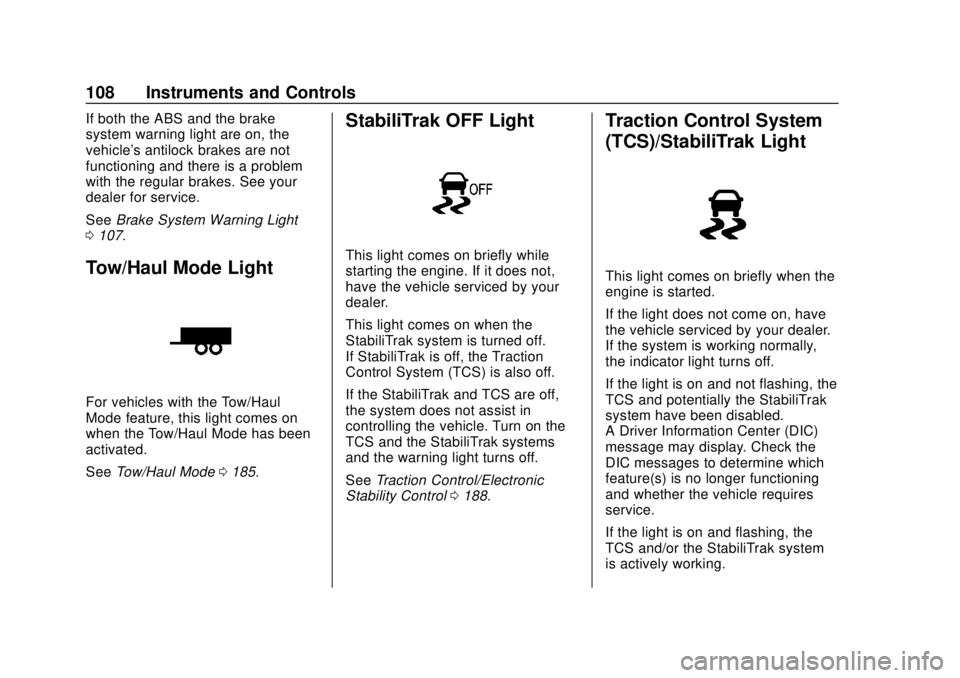
Tow/Haul Mode Light
For vehicles with the Tow/Haul
Mode feature, this light comes on
when the Tow/Haul Mode has been
activated.
See Tow/Haul Mode 0185.
StabiliTrak OFF Light
This light comes on briefly while
starting the engine. If it does not,
have the vehicle serviced by your
dealer.
This light comes on when the
StabiliTrak system is turned off.
If StabiliTrak is off, the Traction
Control System (TCS) is also off.
If the StabiliTrak and TCS are off,
the system does not assist in
controlling the vehicle. Turn on the
TCS and the StabiliTrak systems
and the warning light turns off.
See Traction Control/Electronic
Stability Control 0188.
Traction Control System
(TCS)/StabiliTrak Light
This light comes on briefly when the
engine is started.
If the light does not come on, have
the vehicle serviced by your dealer.
If the system is working normally,
the indicator light turns off.
If the light is on and not flashing, the
TCS and potentially the StabiliTrak
system have been disabled.
A Driver Information Center (DIC)
message may display. Check the
DIC messages to determine which
feature(s) is no longer functioning
and whether the vehicle requires
service.
If the light is on and flashing, the
TCS and/or the StabiliTrak system
is actively working.
Page 118 of 356

Chevrolet Express Owner Manual (GMNA-Localizing-U.S./Canada/Mexico-
11374212) - 2018 - crc - 2/2/18
Instruments and Controls 117
Entering the Feature
Settings Menu
1. Turn the ignition on and placethe vehicle in P (Park).
To avoid excessive drain on
the battery, it is recommended
that the headlamps are
turned off.
2. Press
Uto enter the feature
settings menu.
If the menu is not available,
FEATURE SETTINGS
AVAILABLE IN PARK will
display. Before entering the
menu, make sure the vehicle is
in P (Park).
Feature Settings Menu Items
The following are customization
features that allow you to program
settings to the vehicle:
DISPLAY IN ENGLISH
This feature will only display if a
language other than English has
been set. This feature allows you to
change the language in which the
DIC messages appear to English. Press
Uuntil the PRESSVTO
DISPLAY IN ENGLISH screen
appears on the DIC display. Press
the set/reset button once to display
all DIC messages in English.
LANGUAGE
This feature allows you to select the
language in which the DIC
messages will appear.
Press
Uuntil the LANGUAGE
screen appears on the DIC display.
Press
Vonce to access the settings
for this feature. Then press
Uto
scroll through the following settings:
ENGLISH (default) : All messages
will appear in English.
FRANCAIS : All messages will
appear in French.
ESPANOL : All messages will
appear in Spanish.
ARABIC : All messages will appear
in Arabic.
NO CHANGE : No change will be
made to this feature. The current
setting will remain. To select a setting, press
Vwhile
the desired setting is displayed on
the DIC. A beep will sound once a
language has been selected.
AUTO DOOR LOCK
This feature allows you to select
when the doors will
automatically lock.
Press
Uuntil AUTO DOOR LOCK
appears on the DIC display. Press
Vonce to access the settings for
this feature. Then press
Uto scroll
through the following settings:
SHIFT OUT OF PARK (default) :
The doors will automatically lock
when the vehicle is shifted out of
P (Park).
AT VEHICLE SPEED : The doors
will automatically lock when the
vehicle speed is above 13 km/h
(8 mph) for three seconds.
NO CHANGE : No change will be
made to this feature. The current
setting will remain.
Page 119 of 356
Chevrolet Express Owner Manual (GMNA-Localizing-U.S./Canada/Mexico-
11374212) - 2018 - crc - 2/2/18
118 Instruments and Controls
To select a setting, pressVwhile
the desired setting is displayed on
the DIC.
AUTO DOOR UNLOCK
This feature allows you to select
whether or not to turn off the
automatic door unlocking feature.
It also allows you to select which
doors and when the doors will
automatically unlock.
Press
Uuntil AUTO DOOR
UNLOCK appears on the DIC
display. Press
Vonce to access the
settings for this feature. Then press
Uto scroll through the following
settings:
OFF : None of the doors will
automatically unlock.
DRIVER AT KEY OUT : Only the
driver door will unlock when the key
is taken out of the ignition.
DRIVER IN PARK : Only the driver
door will unlock when the vehicle is
shifted into P (Park). ALL AT KEY OUT :
All of the doors
will unlock when the key is taken
out of the ignition.
ALL IN PARK (default) : All of the
doors will unlock when the vehicle is
shifted into P (Park).
NO CHANGE : No change will be
made to this feature. The current
setting will remain.
To select a setting, press
Vwhile
the desired setting is displayed on
the DIC.
REMOTE DOOR LOCK
This feature allows you to select the
type of feedback you will receive
when locking the vehicle with the
Remote Keyless Entry (RKE)
transmitter. You will not receive
feedback when locking the vehicle
with the RKE transmitter if the doors
are open. See Remote Keyless
Entry (RKE) System Operation 026. Press
Uuntil REMOTE DOOR
LOCK appears on the DIC display.
Press
Vonce to access the settings
for this feature. Then press
Uto
scroll through the following settings:
OFF : There will be no feedback
when you press
Qon the RKE
transmitter.
LIGHTS ONLY : The exterior lamps
will flash when you press
Qon the
RKE transmitter.
HORN ONLY : The horn will sound
on the second press of
Qon the
RKE transmitter.
HORN & LIGHTS (default) : The
exterior lamps will flash when you
press
Qon the RKE transmitter, and
the horn will sound when
Qis
pressed again within five seconds of
the previous command.
NO CHANGE : No change will be
made to this feature. The current
setting will remain.
Page 120 of 356
Chevrolet Express Owner Manual (GMNA-Localizing-U.S./Canada/Mexico-
11374212) - 2018 - crc - 2/2/18
Instruments and Controls 119
To select a setting, pressVwhile
the desired setting is displayed on
the DIC.
REMOTE DOOR UNLOCK
This feature allows you to select the
type of feedback you will receive
when unlocking the vehicle with the
Remote Keyless Entry (RKE)
transmitter. You will not receive
feedback when unlocking the
vehicle with the RKE transmitter if
the doors are open. See Remote
Keyless Entry (RKE) System
Operation 026.
Press
Uuntil REMOTE DOOR
UNLOCK appears on the DIC
display. Press
Vonce to access the
settings for this feature. Then press
Uto scroll through the following
settings:
LIGHTS OFF : The exterior lamps
will not flash when you press
Kon
the RKE transmitter.
LIGHTS ON (default) : The exterior
lamps will flash when you press
K
on the RKE transmitter. NO CHANGE :
No change will be
made to this feature. The current
setting will remain.
To select a setting, press
Vwhile
the desired setting is displayed on
the DIC.
DELAY DOOR LOCK
This feature allows you to select
whether or not the locking of the
doors will be delayed. When locking
the doors with the power door lock
switch and a door is open, this
feature will delay locking the doors
until five seconds after the last door
is closed. You will hear three chimes
to signal that the delayed locking
feature is in use. The key must be
out of the ignition for this feature to
work. You can temporarily override
delayed locking by pressing the
power door lock switch twice or
Q
on the RKE transmitter twice. See
Delayed Locking 030. Press
Uuntil DELAY DOOR LOCK
appears on the DIC display. Press
Vonce to access the settings for
this feature. Then press
Uto scroll
through the following settings:
OFF : There will be no delayed
locking of the vehicle's doors.
ON (default) : The doors will not
lock until five seconds after the last
door is closed.
NO CHANGE : No change will be
made to this feature. The current
setting will remain.
To select a setting, press
Vwhile
the desired setting is displayed on
the DIC.
EXIT LIGHTING
This feature allows you to select the
amount of time you want the
exterior lamps to remain on when it
is dark enough outside. This
happens after the key is turned from
on to off.
Page 121 of 356
Chevrolet Express Owner Manual (GMNA-Localizing-U.S./Canada/Mexico-
11374212) - 2018 - crc - 2/2/18
120 Instruments and Controls
PressUuntil EXIT LIGHTING
appears on the DIC display. Press
Vonce to access the settings for
this feature. Then press
Uto scroll
through the following settings:
OFF : The exterior lamps will not
turn on.
10 SECONDS (default) : The
exterior lamps will stay on for
10 seconds.
1 MINUTE : The exterior lamps will
stay on for one minute.
2 MINUTES : The exterior lamps will
stay on for two minutes.
NO CHANGE : No change will be
made to this feature. The current
setting will remain.
To select a setting, press
Vwhile
the desired setting is displayed on
the DIC.
APPROACH LIGHTING
This feature allows you to select
whether or not to have the exterior
lamps turn on briefly during low light periods after unlocking the vehicle
using the Remote Keyless
Entry (RKE) transmitter.
Press
Uuntil APPROACH
LIGHTING appears on the DIC
display. Press
Vonce to access the
settings for this feature. Then press
Uto scroll through the following
settings:
OFF : The exterior lamps will not
turn on when you unlock the vehicle
with the RKE transmitter.
ON (default) : If it is dark enough
outside, the exterior lamps will turn
on briefly when you unlock the
vehicle with the RKE transmitter.
The lamps will remain on for
20 seconds or until
Qon the RKE
transmitter is pressed, or the vehicle
is no longer off. See Remote
Keyless Entry (RKE) System
Operation 026.
NO CHANGE : No change will be
made to this feature. The current
setting will remain. To select a setting, press
Vwhile
the desired setting is displayed on
the DIC.
CHIME VOLUME
This feature allows you to select the
volume level of the chime.
Press
Uuntil CHIME VOLUME
appears on the DIC display. Press
Vonce to access the settings for
this feature. Then press
Uto scroll
through the following settings:
NORMAL : The chime volume will
be set to a normal level.
LOUD : The chime volume will be
set to a loud level.
NO CHANGE : No change will be
made to this feature. The current
setting will remain.
There is no default for chime
volume. The volume will stay at the
last known setting.
To select a setting, press
Vwhile
the desired setting is displayed on
the DIC.
Page 127 of 356
Chevrolet Express Owner Manual (GMNA-Localizing-U.S./Canada/Mexico-
11374212) - 2018 - crc - 2/2/18
126 Lighting
Interior Lighting
Instrument Panel
Illumination Control
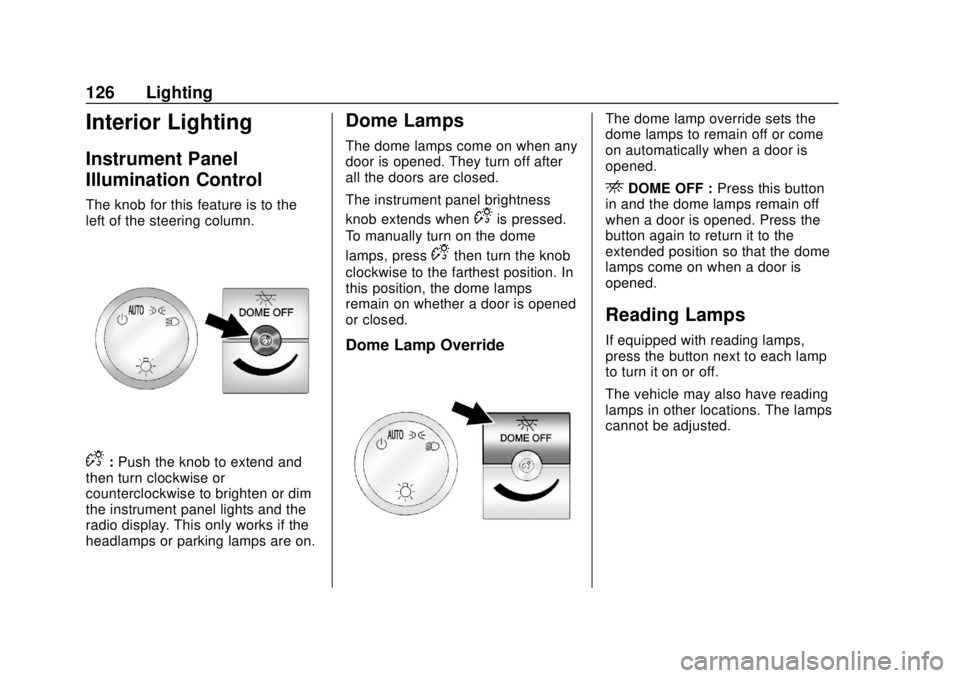
The knob for this feature is to the
left of the steering column.
D:Push the knob to extend and
then turn clockwise or
counterclockwise to brighten or dim
the instrument panel lights and the
radio display. This only works if the
headlamps or parking lamps are on.
Dome Lamps
The dome lamps come on when any
door is opened. They turn off after
all the doors are closed.
The instrument panel brightness
knob extends when
Dis pressed.
To manually turn on the dome
lamps, press
Dthen turn the knob
clockwise to the farthest position. In
this position, the dome lamps
remain on whether a door is opened
or closed.
Dome Lamp Override
The dome lamp override sets the
dome lamps to remain off or come
on automatically when a door is
opened.
EDOME OFF : Press this button
in and the dome lamps remain off
when a door is opened. Press the
button again to return it to the
extended position so that the dome
lamps come on when a door is
opened.
Reading Lamps
If equipped with reading lamps,
press the button next to each lamp
to turn it on or off.
The vehicle may also have reading
lamps in other locations. The lamps
cannot be adjusted.
Page 132 of 356

Chevrolet Express Owner Manual (GMNA-Localizing-U.S./Canada/Mexico-
11374212) - 2018 - crc - 2/2/18
Infotainment System 131
.Press to turn Auto Page
Text Information on or off.
4. Buttons 1 - 6 .Press to save and select
favorite stations.
5. EQ .Press to adjust the
equalizer.
6.
f
. Press to set the bass,
midrange, treble, fade, and
balance.
. Turn to manually select
radio stations.
7. CAT .Press to display a list of
SXM categories,
if equipped. 8. Auxiliary Input Jack (If
Equipped)
.Use to connect external
audio devices.
9. SRCE .Press to scroll through
auxiliary devices, AM, FM,
or SXM if equipped.
10.
\FWD
. Press and hold to fast
forward through a track.
11.
sREV
. Press and hold to go
backward fast through a
track. 12.
P
.
Press to turn the
infotainment system on
or off.
. Turn to adjust the volume.
13.
¨SEEK
. Seeks or scans to the next
station.
14.
©SEEK
. Seeks or scans to the
previous station.
15.
H
. Press to set the clock
and date.
Page 134 of 356
Chevrolet Express Owner Manual (GMNA-Localizing-U.S./Canada/Mexico-
11374212) - 2018 - crc - 2/2/18
Infotainment System 133
9. Auxiliary Input Jack (IfEquipped)
.Use to connect external
audio devices.
10. CD/AUX .Press to scroll through
selecting the CD or an
auxiliary device.
11.
\FWD
. Press and hold to fast
forward through a track.
12.
sREV
. Press and hold to go
backward fast through a
track.
13.
P
. Press to turn the
infotainment system on
or off.
. Turn to adjust the volume.
14.
¨SEEK
. Seeks or scans to the next
station. 15.
©SEEK
. Seeks or scans to the
previous station.
16. BAND .Press to scroll through the
available bands FM1, FM2,
AM, or SXM if equipped.
17.
H
. Press to set the clock
and date.
Operation
Using the Radio
O:Press to turn the system on
and off.
Turn clockwise or counterclockwise
to increase or decrease the volume.
4: Press to switch the display
between the radio station frequency
and the time. While the ignition is
off, press this button to display the
time. Press to display additional text
information related to the current
FM-RDS station or MP3 song.
A choice of additional information such as Channel, Song, Artist, and
CAT (category) can display.
Continue pressing to highlight the
desired tab, or press the softkey
under any one of the tabs and the
information about that tab displays.
Speed Compensated Volume
(SCV) :
SCV automatically adjusts
the radio volume to compensate for
road and wind noise as the vehicle
speed changes while driving, so that
the volume level stays consistent.
To activate SCV:
1. Set the radio volume to the desired level.
2. Press the MENU button to display the radio setup menu.
3. Press the softkey under the AUTO VOLUM (automatic
volume) tab on the infotainment
display.
4. Press the softkey under the desired SCV setting (OFF, Low,
Med, or High) to select the
level of radio volume
compensation. The display
times out after approximately
Page 135 of 356
Chevrolet Express Owner Manual (GMNA-Localizing-U.S./Canada/Mexico-
11374212) - 2018 - crc - 2/2/18
134 Infotainment System
10 seconds. Each higher
setting allows for more radio
volume compensation at faster
vehicle speeds.
Setting the Tone (Bass/Treble)
To adjust the bass or treble:1. Press the
fknob until Bass or
Treble displays.
2. To adjust the setting, do one of the following:
.Turn the
fknob.
. Press
¨SEEK, or©SEEK.
EQ : Press this button to choose
bass and treble equalization
settings designed for different types
of music. Selecting MANUAL,
or changing bass or treble, returns
the EQ to the manual bass and
treble settings.
Unique EQ settings can be saved
for each source.
Adjusting the Speakers
(Balance/Fade)
BAL/FADE : To adjust the balance
or fade:
1. Press the
fknob until the
speaker control tabs display.
2. Highlight the desired speaker control tab by doing one of the
following:
.Press the
fknob.
. Press the softkey under the
desired tab.
3. Adjust the setting by doing one of the following:
.Turn the
fknob clockwise
or counterclockwise.
. Press
¨SEEK or©SEEK.
. Press
\FWD orsREV.
To quickly adjust all speaker and
tone controls to the middle position,
press the
fknob for more than
two seconds. If the Rear Seat Audio (RSA) is
turned on, the radio disables FADE
and mutes the rear speakers.
Radio Messages
Calibration Error :
The audio
system has been calibrated for the
vehicle from the factory.
If Calibration Error displays, it
means that the radio has not been
configured properly for the vehicle
and it must be returned to your
dealer for service.
VIN or NO VIN : One of these
messages will display when the
TheftLock system has locked up the
radio. Take the vehicle to your
dealer for service.
If any error occurs repeatedly or if
an error cannot be corrected,
contact your dealer.
Page 136 of 356
Chevrolet Express Owner Manual (GMNA-Localizing-U.S./Canada/Mexico-
11374212) - 2018 - crc - 2/2/18
Infotainment System 135
Radio
AM-FM Radio
Radio Data System (RDS)
The radio may have an RDS. The
RDS feature is available for use
only on FM stations that broadcast
RDS information. This system relies
upon receiving specific information
from these stations and only works
when the information is available.
While the radio is tuned to an
FM-RDS station, the station name
or call letters display. In rare cases,
a radio station could broadcast
incorrect information that causes the
radio features to work improperly.
If this happens, contact the radio
station.
Finding a Station
BAND or SRCE :Press to switch
between FM1, FM2, AM, and SXM if
equipped. The selection displays.
f: Turn clockwise or
counterclockwise to increase or
decrease the station frequency.
©SEEK or¨SEEK : Press©
SEEK to go to the previous or¨
SEEK to go to the next station and
stay there.
To scan stations, press and hold
either button for two seconds until a
beep sounds. The radio goes to a
station, plays for a few seconds,
then goes to the next station. For
AM-FM Radio and Radio with CD,
the station frequency flashes while
the radio is in the scan mode. Press
either button again to stop scanning.
The radio seeks and scans stations
only with a strong signal that are in
the selected band.
Scan presets within the current
selected band by pressing and
holding either SEEK button for
four seconds until a double beep
sounds. The radio goes to a stored
preset, plays for a few seconds if a
strong signal is present, then goes
to the next stored preset. The
station frequency flashes while the
radio is in the scan mode.
Storing a Radio Station as a
Favorite
You are encouraged to set up radio
station favorites while the vehicle is
parked. Tune to favorite stations
using the presets, favorites button,
and steering wheel controls,
if equipped. See Defensive Driving
0 163.
FAV : If equipped with a FAV button,
a maximum of 36 stations can be
programmed as favorites by using
the six softkeys below the radio
station frequency tabs and by using
the radio favorites page button (FAV
button). Press FAV to go through up
to six pages of favorites, each
having six favorite stations available
per page. Each page of favorites
can contain any combination of AM
and FM stations.
The balance/fade and tone settings
that were previously adjusted are
stored with the favorite stations.
To store a station as a favorite:
1. Tune to the desired radio station.