turn signal CHEVROLET EXPRESS 2023 User Guide
[x] Cancel search | Manufacturer: CHEVROLET, Model Year: 2023, Model line: EXPRESS, Model: CHEVROLET EXPRESS 2023Pages: 283, PDF Size: 16.23 MB
Page 94 of 283
Chevrolet Express Owner Manual (GMNA-Localizing-U.S./Canada/Mexico-
16547501) - 2023 - CRC - 6/10/22
Lighting 93
The vehicle has a light sensor on the top of
the instrument panel. Do not cover the
sensor; otherwise the system will come on
whenever the ignition is on.
The system may also turn on the headlamps
when driving through a parking garage or
tunnel.
There is a delay in the transition between
the daytime and nighttime operation of the
Daytime Running Lamps (DRL) and the
automatic headlamp system so that driving
under bridges or bright overhead street
lights does not affect the system. The DRL
and automatic headlamp system are only
affected when the light sensor sees a
change in lighting lasting longer than the
delay.
If the vehicle is started in a dark garage, the
automatic headlamp system comes on
immediately. Once the vehicle leaves the
garage, it takes approximately 30 seconds
for the automatic headlamp system to
change to DRL if it is light outside. During
that delay, the instrument cluster may not
be as bright as usual. Make sure the
instrument panel brightness control is in the
full bright position. SeeInstrument Panel
Illumination Control 094. To idle the vehicle with the automatic
headlamp system off, turn the control off.
The headlamps will also stay on after
exiting the vehicle. This feature may be
programmable. See
Vehicle Personalization
0 87.
If the feature is not programmable, exit
lighting is automatic. When it is dark
enough outside, the exterior lamps remain
on for 30 seconds after the ignition is
turned off.
Lights On with Wipers
If the windshield wipers are activated in
daylight with the engine on, and the
exterior lamp control is in AUTO, the
headlamps, parking lamps, and other
exterior lamps come on. The transition time
for the lamps coming on varies based on
wiper speed. When the wipers are not
operating, these lamps turn off. Move the
exterior lamp control to
Por;to
disable this feature.
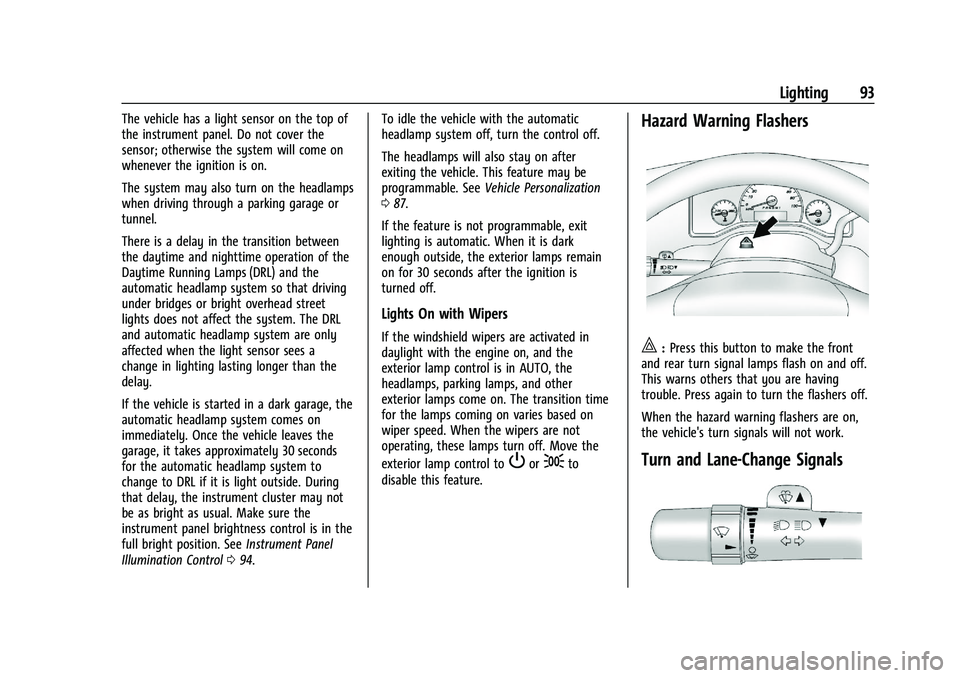
Hazard Warning Flashers
|: Press this button to make the front
and rear turn signal lamps flash on and off.
This warns others that you are having
trouble. Press again to turn the flashers off.
When the hazard warning flashers are on,
the vehicle's turn signals will not work.
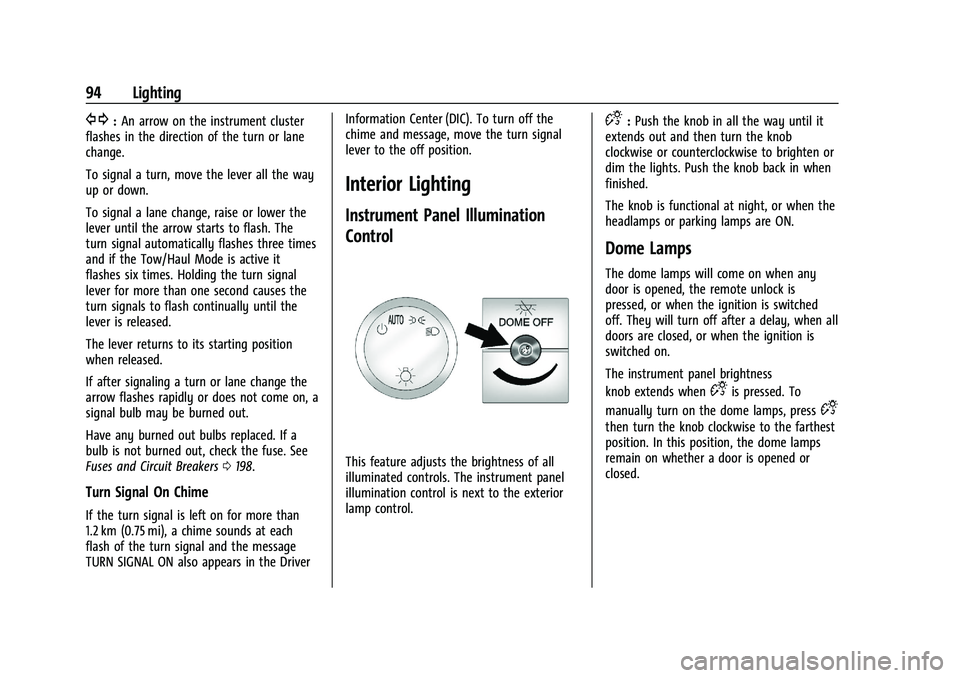
Turn and Lane-Change Signals
Page 95 of 283
Chevrolet Express Owner Manual (GMNA-Localizing-U.S./Canada/Mexico-
16547501) - 2023 - CRC - 6/10/22
94 Lighting
G:An arrow on the instrument cluster
flashes in the direction of the turn or lane
change.
To signal a turn, move the lever all the way
up or down.
To signal a lane change, raise or lower the
lever until the arrow starts to flash. The
turn signal automatically flashes three times
and if the Tow/Haul Mode is active it
flashes six times. Holding the turn signal
lever for more than one second causes the
turn signals to flash continually until the
lever is released.
The lever returns to its starting position
when released.
If after signaling a turn or lane change the
arrow flashes rapidly or does not come on, a
signal bulb may be burned out.
Have any burned out bulbs replaced. If a
bulb is not burned out, check the fuse. See
Fuses and Circuit Breakers 0198.
Turn Signal On Chime
If the turn signal is left on for more than
1.2 km (0.75 mi), a chime sounds at each
flash of the turn signal and the message
TURN SIGNAL ON also appears in the Driver Information Center (DIC). To turn off the
chime and message, move the turn signal
lever to the off position.
Interior Lighting
Instrument Panel Illumination
Control
This feature adjusts the brightness of all
illuminated controls. The instrument panel
illumination control is next to the exterior
lamp control.
D:
Push the knob in all the way until it
extends out and then turn the knob
clockwise or counterclockwise to brighten or
dim the lights. Push the knob back in when
finished.
The knob is functional at night, or when the
headlamps or parking lamps are ON.
Dome Lamps
The dome lamps will come on when any
door is opened, the remote unlock is
pressed, or when the ignition is switched
off. They will turn off after a delay, when all
doors are closed, or when the ignition is
switched on.
The instrument panel brightness
knob extends when
Dis pressed. To
manually turn on the dome lamps, press
D
then turn the knob clockwise to the farthest
position. In this position, the dome lamps
remain on whether a door is opened or
closed.
Page 102 of 283
Chevrolet Express Owner Manual (GMNA-Localizing-U.S./Canada/Mexico-
16547501) - 2023 - CRC - 6/10/22
Infotainment System 101
To scan stations, press and hold either
button for two seconds until a beep sounds.
The radio goes to a station, plays for a few
seconds, then goes to the next station. For
AM-FM Radio, the station frequency flashes
while the radio is in the scan mode. Press
either button again to stop scanning.
The radio seeks and scans stations only with
a strong signal that are in the
selected band.
Scan presets within the current selected
band by pressing and holding either SEEK
button for four seconds until a double beep
sounds. The radio goes to a stored preset,
plays for a few seconds if a strong signal is
present, then goes to the next stored preset.
The station frequency flashes while the
radio is in the scan mode.
Storing a Radio Station as a Favorite
You are encouraged to set up radio station
favorites while the vehicle is parked. Tune to
favorite stations using the presets, favorites
button, and steering wheel controls,
if equipped. SeeDefensive Driving 0121.
FAV : If equipped with a FAV button, a
maximum of 36 stations can be programmed
as favorites by using the six softkeys below
the radio station frequency tabs and by using the radio favorites page button (FAV
button). Press FAV to go through up to
six pages of favorites, each having
six favorite stations available per page. Each
page of favorites can contain any
combination of AM and FM stations.
The balance/fade and tone settings that
were previously adjusted are stored with the
favorite stations.
To store a station as a favorite:
1. Tune to the desired radio station.
2. Press FAV to display the page where the station is to be stored.
3. Press and hold one of the six softkeys until a beep sounds. When that softkey
is pressed and released, the station that
was set returns.
4. Repeat the steps for each softkey radio station to be stored as a favorite.
The number of favorites pages can be set up
using the MENU button. To set up the
number of favorites pages: 1. Press MENU to display the radio setup menu.
2. Press the softkey below the FAV 1-6 tab. 3. Select the desired number of favorites
pages by pressing the softkey below the
displayed page numbers.
4. Press FAV, or let the menu time out, to return to the original main radio screen
showing the radio station frequency tabs
and to begin the process of
programming favorites for the chosen
number of numbered pages.
Satellite Radio
SiriusXM, if equipped, is a satellite radio
service based in the United States and
Canada only.
Finding a Category (CAT) Station
CAT : The CAT button is used to find SXM
channels (if equipped) while the radio is in
the SXM mode.
Finding a Channel
BAND or SRCE : Press to switch between
FM1, FM2, AM, and SXM if equipped. The
selection displays.
f: Turn clockwise or counterclockwise to
increase or decrease the station frequency.
Page 103 of 283
Chevrolet Express Owner Manual (GMNA-Localizing-U.S./Canada/Mexico-
16547501) - 2023 - CRC - 6/10/22
102 Infotainment System
©SEEK or¨SEEK :Press©SEEK to go to
the previous or
¨SEEK to go to the next
station and stay there.
To scan stations, press and hold either
button for two seconds until a beep sounds.
The radio goes to a station, plays for a few
seconds, then goes to the next station. The
station frequency flashes while the radio is
in the scan mode. Press either button again
to stop scanning.
The radio seeks and scans stations only with
a strong signal that are in the
selected band.
To scan presets within the current selected
band, press and hold either SEEK button for
four seconds until a double beep sounds. The
radio goes to a stored preset, plays for a
few seconds if a strong signal is present,
then goes to the next stored preset. The
station frequency flashes while the radio is
in the scan mode.
Storing a Radio Station as a Favorite
You are encouraged to set up radio station
favorites while the vehicle is parked. Tune to
favorite stations using the presets, favorites
button, and steering wheel controls,
if equipped. See Defensive Driving 0121. FAV :
If equipped with a FAV button, a
maximum of 36 stations can be programmed
as favorites using the six softkeys below the
radio station frequency tabs and by using
the radio favorites page button (FAV
button). Press FAV to go through up to
six pages of favorites, each having
six favorite stations available per page. Each
page of favorites can contain any
combination of AM, FM, or SXM stations.
The balance/fade and tone settings that
were previously adjusted are stored with the
favorite stations.
To store a station as a favorite:
1. Tune to the desired radio station.
2. Press FAV to display the page where the station is to be stored.
3. Press and hold one of the six softkeys until a beep sounds. When that softkey
is pressed and released, the station that
was set returns.
4. Repeat the steps for each softkey radio station to be stored as a favorite.
The number of favorites pages can be set up
using the MENU button. To set up the
number of favorites pages: 1. Press MENU to display the radio setup menu. 2. Press the softkey below the FAV 1-6 tab.
3. Select the desired number of favorites
pages by pressing the softkey below the
displayed page numbers.
4. Press FAV, or let the menu time out, to return to the original main radio screen
showing the radio station frequency tabs
and to begin the process of
programming favorites for the chosen
number of numbered pages.
Radio Reception
Unplug electronic devices from the accessory
power outlets if there is interference or
static in the radio.
FM
FM signals only reach about 16 to 65 km (10
to 40 mi). Although the radio has a built-in
electronic circuit that automatically works to
reduce interference, some static can occur,
especially around tall buildings or hills,
causing the sound to fade in and out.
AM
The range for most AM stations is greater
than for FM, especially at night. The longer
range can cause station frequencies to
interfere with each other. Static can also
Page 104 of 283
Chevrolet Express Owner Manual (GMNA-Localizing-U.S./Canada/Mexico-
16547501) - 2023 - CRC - 6/10/22
Infotainment System 103
occur when things like storms and power
lines interfere with radio reception. When
this happens, try reducing the treble on the
radio.
SiriusXM Satellite Radio Service
If equipped, SiriusXM Satellite Radio Service
provides digital radio reception. Tall
buildings or hills can interfere with satellite
radio signals, causing the sound to fade in
and out. In addition, traveling or standing
under heavy foliage, bridges, garages,
or tunnels may cause loss of the SiriusXM
signal for a period of time. Some cellular
services may interfere with SXM reception
causing loss of signal.
Mobile Device Usage
Mobile device usage, such as making or
receiving calls, charging, or just having the
mobile device on may cause static
interference in the radio. Unplug the mobile
device or turn it off if this happens.
Fixed Mast Antenna
The fixed mast antenna will go through
most car washes as long as it is securely
attached. If the antenna becomes slightly
bent, straighten it out by hand. If it is badly
bent, replace it.Occasionally check that the antenna is tight
at the base. If tightening is required, protect
the paint from damage.
Multi-Band Antenna
The roof antenna may be used for radio,
navigation, and OnStar, depending on the
equipped options. Keep clear of obstructions
for clear reception. If the vehicle has a
sunroof, and it is open, reception can also
be affected.
Audio Players
Avoiding Untrusted Media Devices
When using media devices such as CDs,
DVDs, Blu-ray Discs, SD cards, USB devices,
and mobile devices, consider the source.
Untrusted media devices could contain files
that affect system operation or performance.
Avoid use if the content or origin cannot be
trusted.
Auxiliary Devices
Using the Auxiliary Input Jack
Radios with an auxiliary input jack on the
lower right side can connect to an external
audio device such as an iPod, MP3 player,
or CD player for use as another source for
audio listening. This input jack is not an
audio output; do not plug headphones into
the front auxiliary input jack.
Drivers are encouraged to set up any
auxiliary device while the vehicle is in
P (Park). See
Defensive Driving 0121 for
more information on driver distraction.
To use a portable audio player, connect a
3.5 mm (1/8 in) cable to the radio's front
auxiliary input jack. When a device is
connected, press the radio CD/AUX button
to begin playing audio from the device over
the vehicle speakers.
For optimal sound quality, increase the
portable audio device's volume to the
loudest level.
It is always best to power the portable
audio device through its own battery while
playing.
O: Turn clockwise or counterclockwise to
increase or decrease the volume of the
portable player. Additional volume
adjustments might have to be made from
the portable device if the volume is not loud
or soft enough.
Page 126 of 283
Chevrolet Express Owner Manual (GMNA-Localizing-U.S./Canada/Mexico-
16547501) - 2023 - CRC - 6/10/22
Driving and Operating 125
{Warning
Using the brakes to slow the vehicle on a
long downhill slope can cause brake
overheating, can reduce brake
performance, and could result in a loss of
braking. Shift the transmission to a lower
gear to let the engine assist the brakes
on a steep downhill slope.
{Warning
Coasting downhill in N (Neutral) or with
the ignition off is dangerous. This can
cause overheating of the brakes and loss
of steering assist. Always have the engine
running and the vehicle in gear.
.Drive at speeds that keep the vehicle in
its own lane. Do not swing wide or cross
the center line.
.Be alert on top of hills; something could
be in your lane (e.g., stalled car, crash).
.Pay attention to special road signs (e.g.,
falling rocks area, winding roads, long
grades, passing or no-passing zones) and
take appropriate action.
Winter Driving
Driving on Snow or IceCaution
To avoid damage to the wheels and
brake components, always clear snow and
ice from inside the wheels and
underneath the vehicle before driving.
Snow or ice between the tires and the road
creates less traction or grip, so drive
carefully. Wet ice can occur at about 0 °C
(32 °F) when freezing rain begins to fall.
Avoid driving on wet ice or in freezing rain
until roads can be treated.
For Slippery Road Driving:
.Accelerate gently. Accelerating too quickly
causes the wheels to spin and makes the
surface under the tires slick.
.Turn on Traction Control. See Traction
Control/Electronic Stability Control 0142.
.The Antilock Brake System (ABS) improves
vehicle stability during hard stops, but
the brakes should be applied sooner than
when on dry pavement. See Antilock
Brake System (ABS) 0140.
.Allow greater following distance and
watch for slippery spots. Icy patches can
occur on otherwise clear roads in shaded
areas. The surface of a curve or an
overpass can remain icy when the
surrounding roads are clear. Avoid sudden
steering maneuvers and braking while
on ice.
.Turn off cruise control.
Blizzard Conditions
Stop the vehicle in a safe place and signal
for help. Stay with the vehicle unless there
is help nearby. If possible, use Roadside
Assistance. See Roadside Assistance Program
0 256. To get help and keep everyone in the
vehicle safe:
.Turn on the hazard warning flashers.
.Tie a red cloth to an outside mirror.
{Warning
Snow can trap engine exhaust under the
vehicle. This may cause exhaust gases to
get inside. Engine exhaust contains
carbon monoxide (CO), which cannot be
seen or smelled. It can cause
unconsciousness and even death.
(Continued)
Page 127 of 283

Chevrolet Express Owner Manual (GMNA-Localizing-U.S./Canada/Mexico-
16547501) - 2023 - CRC - 6/10/22
126 Driving and Operating
Warning (Continued)
If the vehicle is stuck in snow:
.Clear snow from the base of the
vehicle, especially any blocking the
exhaust pipe.
.Open a window about 5 cm (2 in) on
the vehicle side that is away from the
wind, to bring in fresh air.
.Fully open the air outlets on or under
the instrument panel.
.Adjust the climate control system to
circulate the air inside the vehicle and
set the fan speed to the highest
setting. See“Climate Control Systems.”
For more information about CO, see
Engine Exhaust 0136.
To save fuel, run the engine for short
periods to warm the vehicle and then shut
the engine off and partially close the
window. Moving about to keep warm also
helps.
If it takes time for help to arrive, when
running the engine, push the accelerator
pedal slightly so the engine runs faster than
the idle speed. This keeps the battery charged to restart the vehicle and to signal
for help with the headlamps. Do this as
little as possible, to save fuel.
If the Vehicle Is Stuck
Slowly and cautiously spin the wheels to
free the vehicle when stuck in sand, mud,
ice, or snow.
The Traction Control System (TCS) can often
help to free a stuck vehicle. See
Traction
Control/Electronic Stability Control 0142.
If TCS cannot free the vehicle, turn TCS off
and use the rocking method. See “Rocking
the Vehicle to Get it Out” following.
{Warning
If the vehicle's tires spin at high speed,
they can explode, and you or others
could be injured. The vehicle can
overheat, causing an engine compartment
fire or other damage. Spin the wheels as
little as possible and avoid going above
56 km/h (35 mph).
Rocking the Vehicle to Get it Out
Turn the steering wheel left and right to
clear the area around the front wheels. Turn
off any traction system. Shift back and forth between R (Reverse) and a low forward gear,
spinning the wheels as little as possible. To
prevent transmission wear, wait until the
wheels stop spinning before shifting gears.
Release the accelerator pedal while shifting,
and press lightly on the accelerator pedal
when the transmission is in gear. Slowly
spinning the wheels in the forward and
reverse directions causes a rocking motion
that could free the vehicle. If that does not
get the vehicle out after a few tries, it
might need to be towed out. If the vehicle
does need to be towed out, see
Transporting
a Disabled Vehicle 0231.
Vehicle Load Limits
It is very important to know how much
weight the vehicle can carry. This
weight is called the vehicle capacity
weight and includes the weight of all
occupants, cargo, and all
nonfactory-installed options. Two labels
on the vehicle may show how much
weight it was designed to carry, the
Tire and Loading Information label and
the Certification/Tire label.
Page 151 of 283

Chevrolet Express Owner Manual (GMNA-Localizing-U.S./Canada/Mexico-
16547501) - 2023 - CRC - 6/10/22
150 Driving and Operating
the alert will occur. Consider traffic and
weather conditions when selecting the alert
timing. The range of selectable alert timings
may not be appropriate for all drivers and
driving conditions.
Unnecessary Alerts
FCA may provide unnecessary alerts for
turning vehicles, vehicles in other lanes,
objects that are not vehicles, or shadows.
These alerts are normal operation and the
vehicle does not need service.
Cleaning the System
If the FCA system does not seem to operate
properly, this may correct the issue.
.Clean the outside of the windshield in
front of the rearview mirror.
.Clean the entire front of the vehicle.
.Clean the headlamps.
Side Blind Zone Alert (SBZA)
If equipped, the Side Blind Zone Alert (SBZA)
system is a lane-changing aid that assists
drivers with avoiding crashes that occur with
moving vehicles in the side blind zone,
or blind spot areas. The SBZA warningdisplay will light up in the corresponding
outside side mirror and will flash if the turn
signal in corresponding side is on.
{Warning
SBZA does not alert the driver to vehicles
rapidly approaching outside of the side
blind zones, pedestrians, bicyclists,
or animals. It may not provide alerts
when changing lanes under all driving
conditions. Failure to use proper care
when changing lanes may result in injury,
death, or vehicle damage. Before making
a lane change, always check mirrors,
glance over your shoulder, and use the
turn signals.
SBZA Detection Zones
The SBZA sensor covers a zone of
approximately one lane over from both
sides of the vehicle, or 3.5 m (11 ft). The
height of the zone is approximately between
0.5 m (1.5 ft) and 2 m (6 ft) off the ground.
This zone starts at approximately the middle
of the vehicle and goes back 5 m (16 ft).
How the System Works
The SBZA symbol lights up in the side
mirrors when the system detects a moving
vehicle in the next lane over that is in the
side blind zone. This indicates it may be
unsafe to change lanes. Before making a
Page 152 of 283

Chevrolet Express Owner Manual (GMNA-Localizing-U.S./Canada/Mexico-
16547501) - 2023 - CRC - 6/10/22
Driving and Operating 151
lane change, check the SBZA display, check
mirrors, glance over your shoulder, and use
the turn signals.
Left Side MirrorDisplayRight Side Mirror Display
When the vehicle is started, both outside
mirror SBZA displays will briefly come on to
indicate the system is operating. When the
vehicle is in a forward gear, the left or right
side mirror display will light up if a moving
vehicle is detected in that blind zone. If the
turn signal is activated in the same direction
as a detected vehicle, this display will flash
as an extra warning not to change lanes.
SBZA can be disabled through the Driver
Information Center (DIC). See Driver
Information Center (DIC) 082. If SBZA is
disabled by the driver, the SBZA mirror
displays will not light up.
When the System Does Not Seem to
Work Properly
SBZA displays may not come on when
passing a vehicle quickly, or for a stopped
vehicle. SBZA may alert to objects attached
to the vehicle, such as a bicycle, or object
extending out to either side of the vehicle.
This is normal system operation; the vehicle
does not need service.
SBZA may not always alert the driver to
vehicles in the side blind zone, especially in
wet conditions. The system does not need
to be serviced. The system may light up due
to guardrails, signs, trees, shrubs, and other
non-moving objects. This is normal system
operation; the vehicle does not need service.
SBZA may not operate when the SBZA
sensors in the left or right corners of the
rear bumper are covered with mud, dirt,
snow, ice, or slush, or in heavy rainstorms.
For cleaning instructions, see "Washing the
Vehicle" under Exterior Care0233. If the DIC
displays the system unavailable message
after cleaning both sides of the vehicle
toward the rear corners of the vehicle, see
your dealer. If the SBZA displays do not light up when
vehicles are in the blind zone and the
system is clean, the system may need
service. Take the vehicle to your dealer.
When SBZA is disabled for any reason other
than the driver turning it off, the Side Blind
Zone Alert On option will not be available
on the personalization menu.
Driving with a Trailer
Use caution while changing lanes when
towing a trailer.
Radio Frequency Information
See
Radio Frequency Statement 0260.
Lane Departure Warning (LDW)
If equipped, LDW may help avoid crashes
due to unintentional lane departures. LDW
uses a camera sensor to detect the lane
markings at speeds of 56 km/h (35 mph) or
greater. It may provide an alert if the
vehicle is crossing a lane without using a
turn signal in that direction. LDW light will
not alert if the turn signal is active in the
direction of lane departure, or if LDW
detects that you are accelerating, braking or
actively steering.
Page 153 of 283

Chevrolet Express Owner Manual (GMNA-Localizing-U.S./Canada/Mexico-
16547501) - 2023 - CRC - 6/10/22
152 Driving and Operating
{Warning
The LDW system does not steer the
vehicle. The LDW system may not:
.Provide enough time to avoid a crash.
.Detect lane markings under poor
weather or visibility conditions. This
can occur if the windshield or
headlamps are blocked by dirt, snow,
or ice; if they are not in proper
condition; or if the sun shines directly
into the camera.
.Detect road edges.
.Detect lanes on winding or hilly roads.
If LDW only detects lane markings on one
side of the road, it will only warn you
when departing the lane on the side
where it has detected a lane marking.
Always keep your attention on the road
and maintain proper vehicle position
within the lane, or vehicle damage,
injury, or death could occur. Always keep
the windshield, headlamps, and camera
sensors clean and in good repair. Do not
use LDW in bad weather conditions.
How the System Works
LDW utilizes a camera sensor installed on
the windshield ahead of the rearview mirror
to detect lane markings.
To turn LDW on and off, press
@on the
center stack. The control indicator will light
when LDW is on. When LDW is on,
@is
green if LDW is available to warn of a lane
departure. If the vehicle crosses a detected
lane marking without using the turn signal
in that direction,
@changes to amber and
flashes. Additionally, there will be three
beeps on the right or left, depending on the
lane departure direction. LDW will not alert
if the turn signal is active in the direction of
lane departure, or if LDW detects that you
are accelerating, braking or actively steering.
Fuel
Top Tier Fuel
GM recommends the use of TOP TIER
Detergent Gasoline to keep the engine clean,
reduce engine deposits, and maintain
optimal vehicle performance. Look for the
TOP TIER Logo or see www.toptiergas.com
for a list of TOP TIER Detergent Gasoline
marketers and applicable countries.
Recommended Fuel
Regular unleaded gasoline meeting ASTM
specification D4814 with a posted octane
rating (R+M)/2 of 87 or greater is
recommended. Do not use gasoline with a
posted octane rating of less than 87, as this
will result in reduced performance and
driveability. If heavy knocking is heard when
using gasoline rated at 87 or greater, the
engine needs service.