CD player CHEVROLET EXPRESS PASSANGER 2007 1.G User Guide
[x] Cancel search | Manufacturer: CHEVROLET, Model Year: 2007, Model line: EXPRESS PASSANGER, Model: CHEVROLET EXPRESS PASSANGER 2007 1.GPages: 458, PDF Size: 2.62 MB
Page 208 of 458
Playing a CD
Insert a CD part way into the slot, label side up. The
player pulls it in and the CD should begin playing. If
you want to insert a CD with the ignition off, first
press the eject button or the INFO knob.
If the ignition or radio is turned off with the CD in
the player, it stays in the player. When the
ignition or radio is turned on, the CD starts playing
where it stopped, if it was the last selected
audio source.
When a CD is inserted, the CD symbol appears
on the display. As each new track starts to
play, the track number appears on the display.
The CD player can play the smaller 3 inch (8 cm)
single CDs with an adapter ring. Full-size CDs
and the smaller CDs are loaded in the same
manner.
If playing a CD-R, the sound quality may be
reduced due to CD-R quality, the method of
recording, the quality of the music that has been
recorded, and the way the CD-R has been
handled. There may be an increase in skipping,difficulty in finding tracks, and/or difficulty in
loading and ejecting. If these problems occur,
check the bottom surface of the CD. If the surface
of the CD is damaged, such as cracked, broken,
or scratched, the CD will not play properly. If
the surface of the CD is soiled, seeCare of Your
CDs on page 225for more information.
If there is no apparent damage, try a known
good CD.
Do not add any label to a CD, it could get caught
in the CD player. If a CD is recorded on a
personal computer and a description label is
needed, try labeling the top of the recorded CD
with a marking pen.
Notice:If a label is added to a CD, or more
than one CD is inserted into the slot at a time,
or an attempt is made to play scratched or
damaged CDs, the CD player could be
damaged. While using the CD player, use only
CDs in good condition without any label,
load one CD at a time, and keep the CD player
and the loading slot free of foreign materials,
liquids, and debris.
208
Page 209 of 458
If an error appears on the display, see “CD
Messages” later in this section.
1 PREV (Previous):Press this pushbutton to go
to the beginning of the current track if more than
eight seconds have played. TRACK and the track
number appears on the display. If this pushbutton is
held or pressed more than once, the player
continues moving backward through the CD.
2 NEXT:Press this pushbutton to go to the next
track. TRACK and the track number appears
on the display. If this pushbutton is held or pressed
more than once, the player continues moving
forward through the CD.
3 REV (Reverse):Press and hold this pushbutton
to quickly reverse within a track. Press and hold
this pushbutton for less than two seconds to
reverse at six times the normal playing speed.
Press and hold it for more than two seconds
to reverse at 17 times the normal playing speed.
Release this pushbutton to play the passage.
ET and the elapsed time of the track appears on
the display.4 FWD (Forward):Press and hold this pushbutton
to quickly advance within a track. Press and
hold this pushbutton for less than two seconds to
advance at six times the normal playing speed.
Press and hold it for more than two seconds
to advance at 17 times the normal playing speed.
Release this pushbutton to play the passage.
ET and the elapsed time of the track appears on
the display.
6 RDM (Random):Press this pushbutton to hear
the tracks in random, rather than sequential,
order. RDM ON appears on the display. RDM T
and the track number appears on the display when
each track starts to play. Press this pushbutton
again to turn off random play. RDM OFF appears
on the display.
©SEEK¨:Press the left arrow to go to the
start of the current or to the previous track. Press
the right arrow to go to the start of the next
track. If either arrow is held or pressed more than
once, the player continues moving backward or
forward through the CD.
209
Page 210 of 458
©SCAN¨:Press and hold either the SCAN or
the TYPE arrows for more than two seconds
until SCAN appears on the display and you hear a
beep. The radio goes to the next track, plays for
10 seconds, then goes to the next track. Press
either the SCAN or the TYPE arrows again, to
stop scanning.
INFO (Information):Press this knob to see how
long the current track has been playing. ET
and the elapsed time appears on the display. To
change the default on the display, track or elapsed
time, press the knob until you see the desired
display, then hold the knob for two seconds. The
radio produces one beep and the selected
display is now the default.
BAND:Press this button to listen to the radio
when a cassette tape or CD is playing. The
inactive tape or CD remains safely inside the radio
for future listening.
TAPE DISC:Press this button to play a cassette
tape or CD when listening to the radio. The
inactive tape or CD remains safely inside the radio
for future listening.Z(Eject):Press this button to stop a CD when
it is playing or to eject a CD when it is not
playing. Eject may be activated with either the
ignition or radio off. CDs may be loaded with the
radio and ignition off if this button is pressed first.
If the CD is not removed after 25 seconds, the
CD automatically pulls back into the player. If the
CD is pushed back into the player, before the
25 second time period is complete, the player
senses an error and tries to eject the CD several
times before stopping.
Do not repeatedly press the CD eject button to eject
a CD after you have tried to push it manually. The
player’s 25-second eject timer resets at each press
of eject, causing the player to not eject the CD until
the 25-second time period has elapsed.
210
Page 211 of 458
CD Messages
If the CD comes out, it could be for one of the
following reasons:
•It is very hot. When the temperature returns to
normal, the CD should play.
•You are driving on a very rough road.
When the road becomes smoother, the CD
should play.
•The CD is dirty, scratched, wet, or
upside down.
•The air is very humid. If so, wait about an
hour and try again.
•There may have been a problem while
burning the CD.
•The label may be caught in the CD player.
If the CD is not playing correctly, for any other
reason, try a known good CD.
If any error occurs repeatedly or if an error cannot
be corrected, contact your dealer. If the radio
displays an error message, write it down
and provide it to your dealer when reporting the
problem.
Radio with Six-Disc CD
Playing the Radio
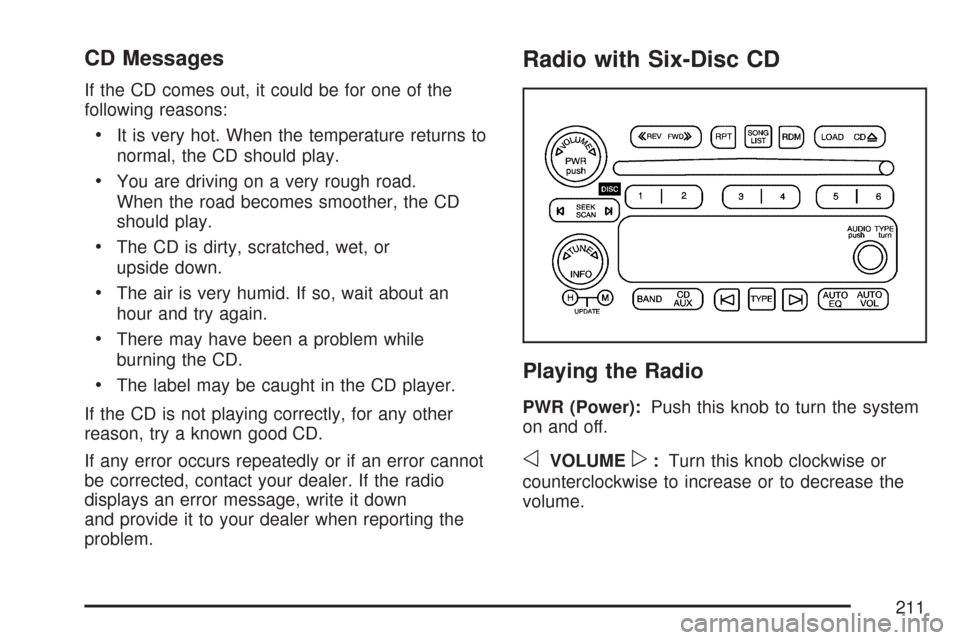
PWR (Power):Push this knob to turn the system
on and off.
oVOLUMEp:Turn this knob clockwise or
counterclockwise to increase or to decrease the
volume.
211
Page 217 of 458
Playing a CD
If the ignition or radio is turned off, with a CD in the
player, it stays in the player. When the ignition or
radio is turned on, the CD starts playing where it
stopped, if it was the last selected audio source.
When a CD is inserted, the CD symbol appears on
the display. As each new track starts to play,
the track number appears on the display.
The CD player can play the smaller 3 inch (8 cm)
single CDs with an adapter ring. Full-size CDs and
the smaller CDs are loaded in the same manner.
If playing a CD-R, the sound quality may be
reduced due to CD-R quality, the method of
recording, the quality of the music that has been
recorded, and the way the CD-R has been
handled. There may be an increase in skipping,
difficulty in finding tracks, and/or difficulty in loading
and ejecting. If these problems occur, check the
bottom surface of the CD. If the surface of the CD
is damaged, such as cracked, broken, or
scratched, the CD will not play properly. If the
surface of the CD is soiled, seeCare of Your CDs
on page 225for more information.If there is no apparent damage, try a known
good CD.
Do not add any label to a CD, it could get caught
in the CD player. If a CD is recorded on a
personal computer and a description label is
needed, try labeling the top of the recorded CD
with a marking pen.
Notice:If a label is added to a CD, or more
than one CD is inserted into the slot at a time,
or an attempt is made to play scratched or
damaged CDs, the CD player could be
damaged. While using the CD player, use only
CDs in good condition without any label,
load one CD at a time, and keep the CD player
and the loading slot free of foreign materials,
liquids, and debris.
If an error appears on the display, see “CD
Messages” later in this section.
217
Page 218 of 458
LOAD:Press this button to load CDs into the CD
player. This CD player holds up to six CDs.
To insert one CD, do the following:
1. Turn the ignition on.
2. Press and release the LOAD button.
3. Wait for the indicator light, located to the right
of the slot, to turn green.
4. Load a CD. Insert the CD partway into the slot,
label side up. The player pulls the CD in.
To insert multiple CDs, do the following:
1. Turn the ignition on.
2. Press and hold the LOAD button for
two seconds.
You will hear a beep and the indicator light,
located to the right of the slot, begins to flash
and MULTI LOAD # appears on the display.
3. Once the light stops flashing and turns green,
INSERT CD # appears on the display, load a
CD. Insert the CD partway into the slot,
label side up. The player pulls the CD in.
Once the CD is loaded, the indicator
light begins flashing again. Once the light
stops flashing and turns green, you can load
another CD. The CD player takes up to
six CDs. Do not try to load more than six.To load more than one CD but less than six,
complete Steps 1 through 3. When finished loading
CDs, press the LOAD button to cancel the
loading function. The radio begins to play the last
CD loaded.
If more than one CD has been loaded, a number
for each CD appears on the display.
Playing a Specic Loaded CD
For every CD loaded, a number appears on the
display. To play a specific CD, first press the
CD AUX button (if not already in CD mode), then
press the numbered pushbutton that corresponds
to the CD. A small bar appears under the CD
number that is playing and the track number
appears on the display.
If an error appears on the display, see “CD
Messages” later in this section.
218
Page 219 of 458
CDZ(Eject):Press this button to eject CD(s).
To eject the CD that is currently playing, press
and release this button.
To eject multiple CDs, do the following:
1. Press and hold the CD eject button for
five seconds.
You will hear a beep and the indicator light,
located to the right of the slot, begins to flash
and EJECT ALL appears on the display.
2. Once the light stops flashing, REMOVE CD #
appears on the display. The CD ejects and
can be removed.
Once the CD is removed, the indicator light
begins flashing again and another CD ejects.
To stop ejecting the CDs, press the LOAD
or the eject button.
If the CD is not removed, after 25 seconds, the
CD automatically pulls back into the player. If CD
is pushed back into the player, before the
25 second time period is complete, the player
senses an error and tries to eject the CD several
times before stopping.Do not repeatedly press the CD eject button to
eject a CD after you have tried to push it in
manually. The player’s 25-second eject timer
resets at each press of eject, causing the player to
not eject the CD until the 25-second time period
has elapsed.
{REV (Reverse):Press and hold this button to
reverse quickly within a track. You will hear
sound at a reduced volume. The elapsed time of
the track appears on the display. Release the
button to play the passage.
FWD
|(Forward):Press and hold this button to
advance quickly within a track. You will hear
sound at a reduced volume. The elapsed time of
the track appears on the display. Release the
button to play the passage.
219
Page 220 of 458
RPT (Repeat):With repeat, one track or an entire
CD can be repeated.
To use repeat, do the following:
•To repeat the track you are listening to, press
and release the RPT button. RPT appears on
the display. Press RPT again to turn off
repeat play.
•To repeat the CD you are listening to, press
and hold the RPT button for two seconds.
RPT appears on the display. Press RPT again
to turn off repeat play.
RDM (Random):With random, you can listen to
the tracks in random, rather than sequential,
order, on one CD or on all of the CDs. To use
random, do one of the following:
•To play the tracks on the CD you are listening
to in random order, press and release the
RDM button. RANDOM ONE appears on the
display. Press RDM again to turn off
random play.
•To play the tracks on all of the CDs that are
loaded in random order, press and hold RDM
for more than two seconds. You will hear a
beep and RANDOM ALL appears on the
display. Press RDM again to turn off
random play.AUTO EQ (Automatic Equalization):Press
AUTO EQ to select the equalization setting while
playing a CD. The equalization is stored
whenever a CD is played. For more information on
AUTO EQ, see “AUTO EQ” listed previously in
this section.
©SEEK¨:Press the left arrow to go to the start
of the current track (if more than 10 seconds have
played), or to go to the previous track (if less than
10 seconds have played). Press the right arrow to
go to the next track. If either arrow is held or
pressed more than once, the player continues
moving backward or forward through the CD.
©SCAN¨:To scan one CD, press and hold
either SCAN arrow for more than two seconds until
SCAN appears on the display and you hear a
beep. The radio goes to the next track, plays for
10 seconds, then goes to the next track. Press
either SCAN arrow again, to stop scanning.
To scan all loaded CDs, press and hold either
SCAN arrow for more than four seconds until CD
SCAN appears on the display and you hear a
beep. Use this feature to listen to 10 seconds of
the first track of each loaded CD. Press either
SCAN arrow again, to stop scanning.
220
Page 221 of 458
INFO (Information):Press this knob to see how
long the current track has been playing. To change
the default on the display, track or elapsed time,
press the knob until you see the desired display,
then press and hold the knob until the radio beeps.
The selected display is now the default.
BAND:Press this button to listen to the radio
when a CD is playing. The inactive CD(s) remains
safely inside the radio for future listening.
Using Song List Mode
The six-disc CD changer has a feature called
song list. This feature is capable of saving
20 track selections.
To save tracks into the song list feature, perform
the following steps:
1. Turn the CD player on and load it with at least
one CD. See “LOAD CD” listed previously in
this section for more information.
2. Check to see that the CD changer is not in
song list mode. S-LIST should not appear on
the display. If S-LIST is present, press the
SONG LIST button to turn it off.3. Select the desired CD by pressing the
numbered pushbutton and then use the SEEK
or TYPE right arrow to locate the track to
be saved. The track begins to play.
4. Press and hold the SONG LIST button to
save the track into memory. When SONG
LIST is pressed, one beep will sound.
After two seconds of continuously pressing
the SONG LIST button, two beeps will sound
to confirm the track has been saved.
5. Repeat Steps 3 and 4 for saving other
selections.
S-LIST FULL appears on the display if you try to
save more than 20 selections.
To play the song list, press the SONG LIST
button. One beep will sound and S-LIST appears
on the display. The recorded tracks begins to
play in the order they were saved.
Seek through the song list by using the SEEK or
TYPE arrows. Seeking past the last saved
track returns to the first saved track.
221
Page 222 of 458
To delete tracks from the song list, perform the
following steps:
1. Turn the CD player on.
2. Press the SONG LIST button to turn song list
on. S-LIST appears on the display.
3. Press either SEEK or TYPE arrow to select
the desired track to be deleted.
4. Press and hold the SONG LIST button for
two seconds. When SONG LIST is pressed,
one beep will sound. After two seconds
of continuously pressing the SONG LIST
button, two beeps will sound to confirm that
the track has been deleted.
After a track has been deleted, the remaining
tracks are moved up the list. When another track
is added to the song list, the track is added to
the end of the list.To delete the entire song list, perform the
following steps:
1. Turn the CD player on.
2. Press the SONG LIST button to turn song list
on. S-LIST appears on the display.
3. Press and hold the SONG LIST button for more
than four seconds. One beep will sound,
followed by two beeps after two seconds, and a
final beep will sound after four seconds. S-LIST
EMPTY appears on the display indicating the
song list has been deleted.
If a CD is ejected, and the song list contains
saved tracks from that CD, those tracks are
automatically deleted from the song list. Any tracks
saved to the song list again are added to the
bottom of the list.
To end song list mode, press the SONG LIST
button. One beep will sound and S-LIST is
removed from the display.
222