AUX CHEVROLET EXPRESS PASSANGER 2008 1.G Owners Manual
[x] Cancel search | Manufacturer: CHEVROLET, Model Year: 2008, Model line: EXPRESS PASSANGER, Model: CHEVROLET EXPRESS PASSANGER 2008 1.GPages: 414, PDF Size: 2.34 MB
Page 113 of 414
Mirrors
Manual Rearview Mirror
When you are sitting in a comfortable driving position,
adjust the mirror so you can see clearly behind your
vehicle. Grip the mirror in the center to move it up
or down and side to side. The day/night adjustment
allows you to adjust the mirror to avoid glare from the
lamps behind you. Push the tab forward for daytime use
and pull it for nighttime use.
If you have a cargo van without the rear door glass,
your vehicle may not have an inside rearview mirror.
Outside Manual Mirror
Adjust the mirrors by pressing the mirror up and down
and left and right so you can see a little of the side
of your vehicle, and have a clear view of objects behind
you. The mirrors can be folded in to enter narrow
passageways.
On the lower portion of each mirror is an auxiliary
convex mirror. A convex mirror’s surface is curved so
you can see more from the driver’s seat. The auxiliary
convex mirrors can be adjusted manually by pressing
the mirror.
Outside Camper-Type Mirrors
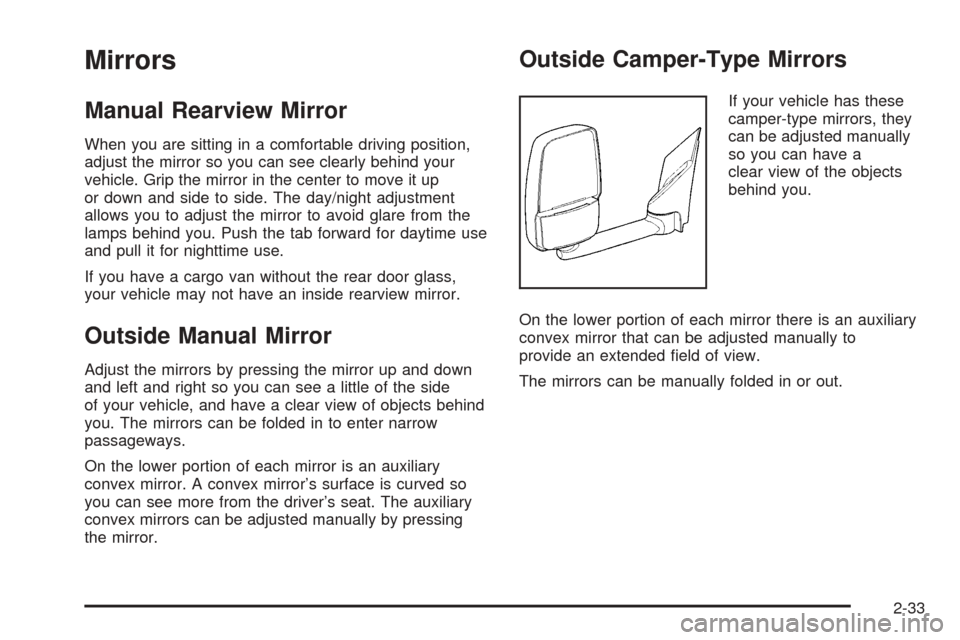
If your vehicle has these
camper-type mirrors, they
can be adjusted manually
so you can have a
clear view of the objects
behind you.
On the lower portion of each mirror there is an auxiliary
convex mirror that can be adjusted manually to
provide an extended field of view.
The mirrors can be manually folded in or out.
2-33
Page 114 of 414
Outside Power Mirrors
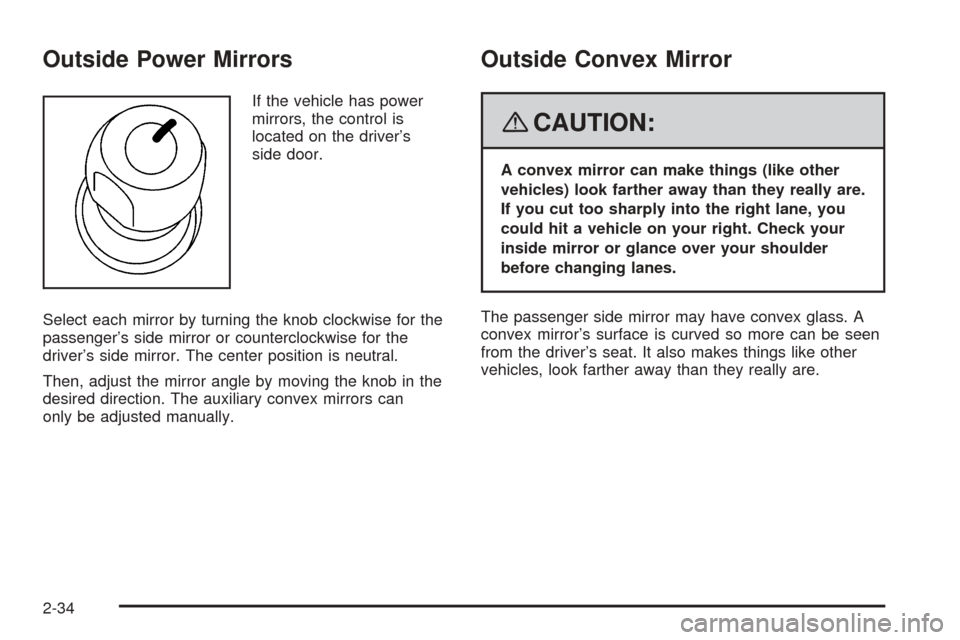
If the vehicle has power
mirrors, the control is
located on the driver’s
side door.
Select each mirror by turning the knob clockwise for the
passenger’s side mirror or counterclockwise for the
driver’s side mirror. The center position is neutral.
Then, adjust the mirror angle by moving the knob in the
desired direction. The auxiliary convex mirrors can
only be adjusted manually.
Outside Convex Mirror
{CAUTION:
A convex mirror can make things (like other
vehicles) look farther away than they really are.
If you cut too sharply into the right lane, you
could hit a vehicle on your right. Check your
inside mirror or glance over your shoulder
before changing lanes.
The passenger side mirror may have convex glass. A
convex mirror’s surface is curved so more can be seen
from the driver’s seat. It also makes things like other
vehicles, look farther away than they really are.
2-34
Page 138 of 414
Outlet Adjustment
Use the outlets located near the center and on the sides
of the instrument panel to change the direction of
airflow.
Operation Tips
•Clear away any ice, snow or leaves from the air
inlets at the base of the windshield that may
block the flow of air into your vehicle.
•Use of non-GM approved hood deflectors may
adversely affect the performance of the system.
•Keep the path under the front seats clear of objects
to help circulate the air inside of your vehicle more
effectively.
Rear Heating System
Your vehicle may have a rear heating system that
allows you to adjust the amount of air flowing into the
rear of the vehicle, from the front-seating area. This
feature works with the main climate-control system in
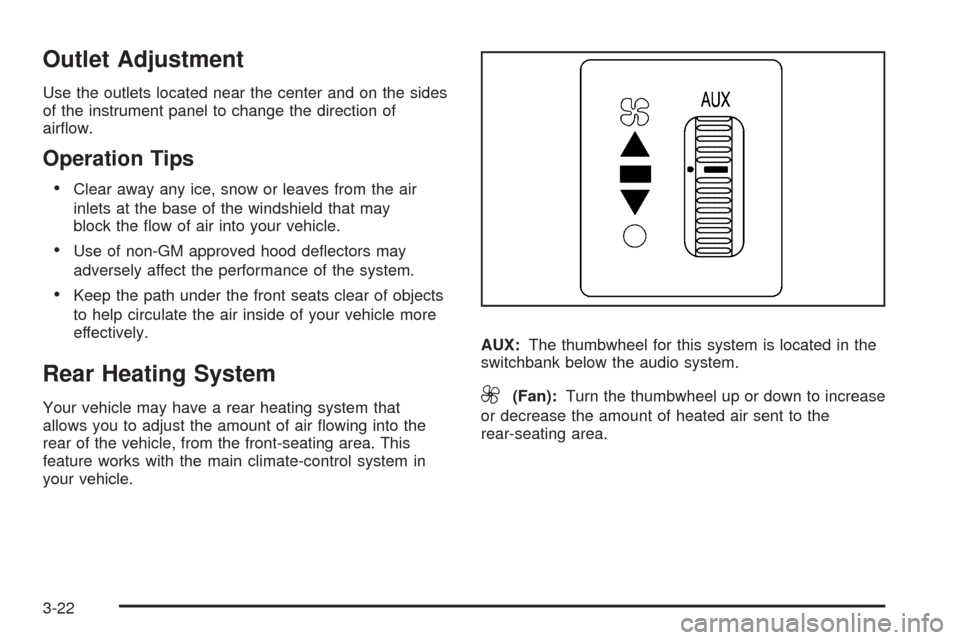
your vehicle.AUX:The thumbwheel for this system is located in the
switchbank below the audio system.9(Fan):Turn the thumbwheel up or down to increase
or decrease the amount of heated air sent to the
rear-seating area.
3-22
Page 140 of 414
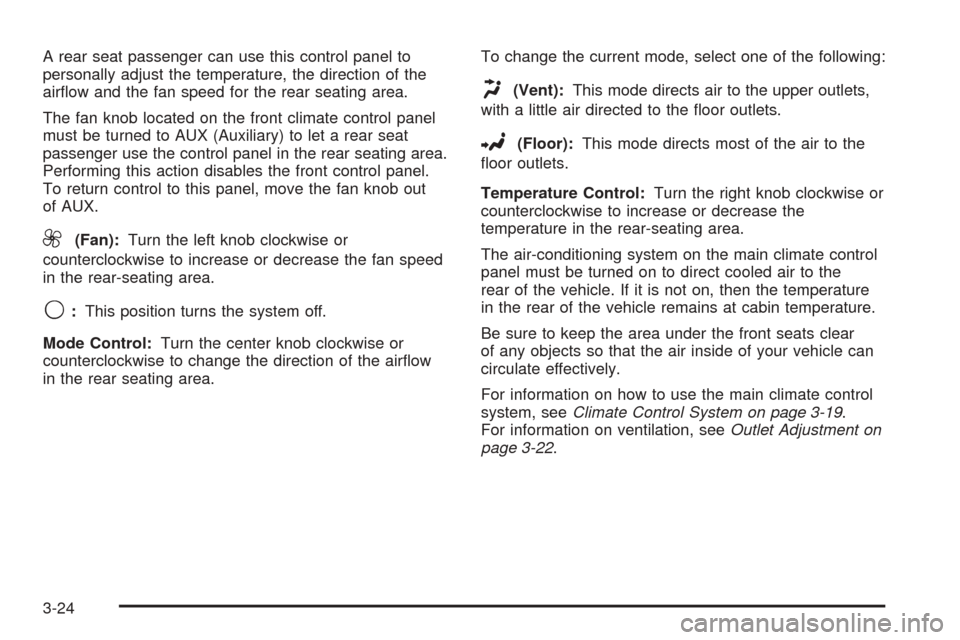
A rear seat passenger can use this control panel to
personally adjust the temperature, the direction of the
airflow and the fan speed for the rear seating area.
The fan knob located on the front climate control panel
must be turned to AUX (Auxiliary) to let a rear seat
passenger use the control panel in the rear seating area.
Performing this action disables the front control panel.
To return control to this panel, move the fan knob out
of AUX.
9(Fan):Turn the left knob clockwise or
counterclockwise to increase or decrease the fan speed
in the rear-seating area.
9:This position turns the system off.
Mode Control:Turn the center knob clockwise or
counterclockwise to change the direction of the airflow
in the rear seating area.To change the current mode, select one of the following:
H(Vent):This mode directs air to the upper outlets,
with a little air directed to the floor outlets.
2(Floor):This mode directs most of the air to the
floor outlets.
Temperature Control:Turn the right knob clockwise or
counterclockwise to increase or decrease the
temperature in the rear-seating area.
The air-conditioning system on the main climate control
panel must be turned on to direct cooled air to the
rear of the vehicle. If it is not on, then the temperature
in the rear of the vehicle remains at cabin temperature.
Be sure to keep the area under the front seats clear
of any objects so that the air inside of your vehicle can
circulate effectively.
For information on how to use the main climate control
system, seeClimate Control System on page 3-19.
For information on ventilation, seeOutlet Adjustment on
page 3-22.
3-24
Page 195 of 414
To use random on the Base Radio with Single CD
player, do the following:
•Press the RDM button to play tracks from a CD in
random order. The random icon displays. Press
again to turn off random play. The random
icon disappears from the display.
To use random on an Uplevel Radio with a Single CD
player, do the following:
1. Press the CD/AUX button, insert a disc partway into
the slot of the CD player. A RDM label displays.
2. To play the tracks in random order, press the
pushbutton positioned under the RDM label
until Random Current Disc displays. Press the
pushbutton again to turn off random play.
To use random on a Radio with a Six-Disc CD player,
do the following:
1. Press the CD/AUX button, press and hold
^.A
beep sounds and Load All Discs displays. Insert
one or more discs partway into the slot of the
CD player.
2. To play tracks from all CDs loaded in random order,
press the pushbutton positioned under the RDM
label until Randomize All Discs displays. Press the
same pushbutton again to turn off random play.RPT (Repeat (Base Radio with CD):With the repeat
setting, one track can be repeated. To repeat the
track you are listening to, press and release the RPT
button. An arrow symbol displays. Press RPT again
to turn off repeat play.
4(Information) (Base Radio with CD):Press to
switch the display between the track number, elapsed
time of the track, and the time. When the ignition is
off, press to display the time.
BAND:Press to listen to the radio when a CD is
playing. The CD remains inside the radio for future
listening.
CD/AUX (CD/Auxiliary):Press to play a CD when
listening to the radio. The CD icon and a message
showing the disc and/or track number displays when a
CD is in the player. Press again and the system
automatically searches for an auxiliary input device,
such as a portable audio player. If a portable audio
player is not connected, “No Input Device Found” may
display.
3-79
Page 196 of 414
Playing an MP3 CD-R or CD-RW Disc
Your radio with a Single CD player or a Six-Disc
CD player has the capability of playing an MP3 CD-R or
CD-RW disc. For more information on how to play an
MP3 CD-R or CD-RW disc, see “Using an MP3” in
the index.
CD Messages
REMOVE/CHECK DISC:Radios with a Single CD
player or radios with a Six-Disc player displays CHECK
DISC and/or ejects the CD if an error occurs.
ERR (Error):If this message displays and/or the CD
comes out, it could be for one of the following reasons:
•It is very hot. When the temperature returns to
normal, the CD should play.
•You are driving on a very rough road. When the
road becomes smoother, the CD should play.
•The CD is dirty, scratched, wet, or upside down.
•The air is very humid. If so, wait about an hour and
try again.
•There could have been a problem while burning the
CD-R or CD-RW.
•The label could be caught in the CD player.NO:This message displays if the EJECT or CD/AUX
buttons are pressed and a CD has not been inserted into
the player.
If the CD is not playing correctly, for any other reason,
try a known good CD.
If any error occurs repeatedly or if an error cannot be
corrected, contact your dealer/retailer. If the radio
displays an error message, write it down and provide it
to your dealer/retailer while reporting the problem.
Using the Auxiliary Input Jack
Your radio system has an auxiliary input jack located on
the lower right side of the faceplate. This is not an
audio output; do not plug the headphone set into the
front auxiliary input jack. An external audio device such
as an iPod, laptop computer, MP3 player, CD changer,
etc. can be connected to the auxiliary input jack for
use as another source for audio listening.
Drivers are encouraged to set up any auxiliary device
while the vehicle is in PARK (P). SeeDefensive Driving
on page 4-2for more information on driver distraction.
3-80
Page 197 of 414
To use a portable audio player, connect a 3.5 mm
(1/8 inch) cable to the radio’s front auxiliary input jack.
When a device is connected, press the radio CD/AUX
button to begin playing audio from the device over
the vehicle speakers.
O(Power/Volume):Turn clockwise or
counterclockwise to increase or decrease the volume of
the portable player. You might need to do additional
volume adjustments from the portable device if the
volume is not loud or soft enough.
BAND:Press to listen to the radio while a portable
audio device is playing. The portable audio device
continues playing, so you might want to stop it or turn
it off.
CD/AUX (CD/Auxiliary):Press to play a CD while a
portable audio device is playing. Press again and
the system begins playing audio from the connected
portable audio player. If a portable audio player is
not connected, the message No Aux Input Device
displays.
Using an MP3
MP3 CD-R or CD-RW Disc
The radio plays MP3 files that were recorded on a
CD-R or CD-RW disc. The files can be recorded
with the following fixed bit rates: 32 kbps, 40 kbps,
56 kbps, 64 kbps, 80 kbps, 96 kbps, 112 kbps,
128 kbps, 160 kbps, 192 kbps, 224 kbps, 256 kbps, and
320 kbps or a variable bit rate. Song title, artist name,
and album are available for display by the radio
when recorded using ID3 tags version 1 and 2.
Compressed Audio
The radio also plays discs that contain both
uncompressed CD audio (.CDA files) and MP3 files.
By default the radio shows the MP3 label on the left side
of the screen but plays both file formats in the order
in which they were recorded to the disc.
3-81
Page 202 of 414
To change from playback by artist to playback by
album, press the pushbutton located below the Sort By
label. From the sort screen, push one of the buttons
below the album button. Press the pushbutton below the
back label to return to the main music navigator
screen. Now the album name is displayed on the second
line between the arrows and songs from the current
album begins to play. Once all songs from that album
are played, the player moves to the next album in
alphabetical order on the CD-R/CD-RW and begins
playing MP3 files from that album.
To exit music navigator mode, press the pushbutton
below the Back label to return to normal MP3 playback.
BAND:Press this button to listen to the radio when
a CD is playing. The inactive CD remains inside
the radio for future listening.
CD/AUX (CD/Auxiliary):Press this button to play a CD
when listening to the radio. The CD icon and a
message showing disc and/or track number displays
when a CD is in the player. Press this button again and
the system automatically searches for an auxiliary
input device such as a portable audio player. If a
portable audio player is not connected, “No Input Device
Found” displays.Theft-Deterrent Feature
Non-RDS Radios
THEFTLOCK®is designed to discourage theft of your
vehicle’s radio. The feature works automatically by
learning a portion of the Vehicle Identification Number
(VIN). If the radio is moved to a different vehicle, it does
not operate and LOC displays.
With THEFTLOCK
®activated, the radio does not
operate if stolen.
RDS Radios
THEFTLOCK®is designed to discourage theft of your
vehicle’s radio. The feature works automatically by
learning a portion of the Vehicle Identification Number
(VIN). If the radio is moved to a different vehicle, it does
not operate and LOCKED displays.
When the radio and vehicle are turned off, the blinking
red light indicates that THEFTLOCK
®is armed.
With THEFTLOCK
®activated, the radio does not
operate if stolen.
3-86
Page 203 of 414
Audio Steering Wheel Controls
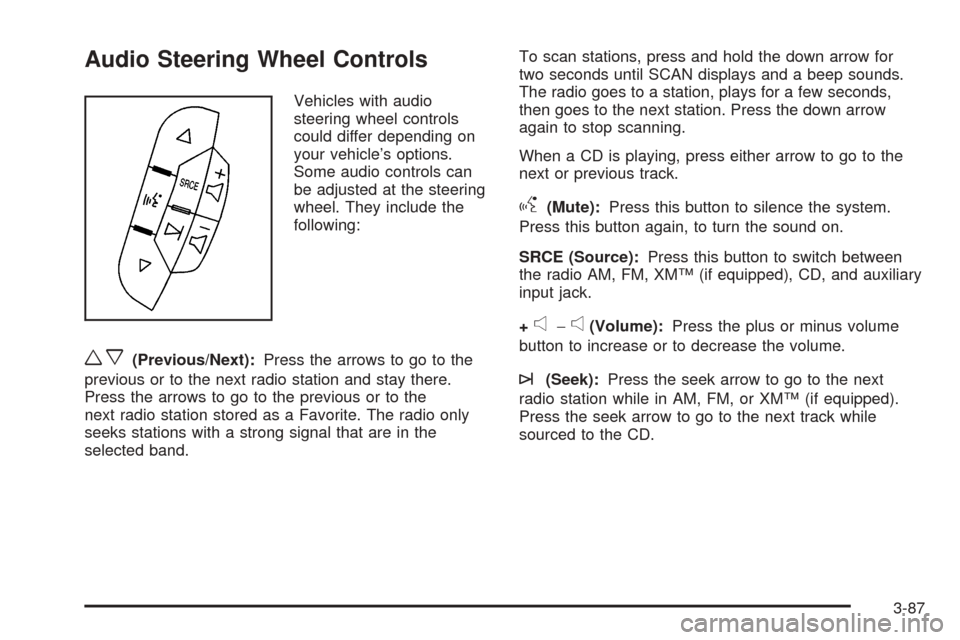
Vehicles with audio
steering wheel controls
could differ depending on
your vehicle’s options.
Some audio controls can
be adjusted at the steering
wheel. They include the
following:
wx(Previous/Next):Press the arrows to go to the
previous or to the next radio station and stay there.
Press the arrows to go to the previous or to the
next radio station stored as a Favorite. The radio only
seeks stations with a strong signal that are in the
selected band.To scan stations, press and hold the down arrow for
two seconds until SCAN displays and a beep sounds.
The radio goes to a station, plays for a few seconds,
then goes to the next station. Press the down arrow
again to stop scanning.
When a CD is playing, press either arrow to go to the
next or previous track.
g(Mute):Press this button to silence the system.
Press this button again, to turn the sound on.
SRCE (Source):Press this button to switch between
the radio AM, FM, XM™ (if equipped), CD, and auxiliary
input jack.
+
e−e(Volume):Press the plus or minus volume
button to increase or to decrease the volume.
¨(Seek):Press the seek arrow to go to the next
radio station while in AM, FM, or XM™ (if equipped).
Press the seek arrow to go to the next track while
sourced to the CD.
3-87
Page 357 of 414
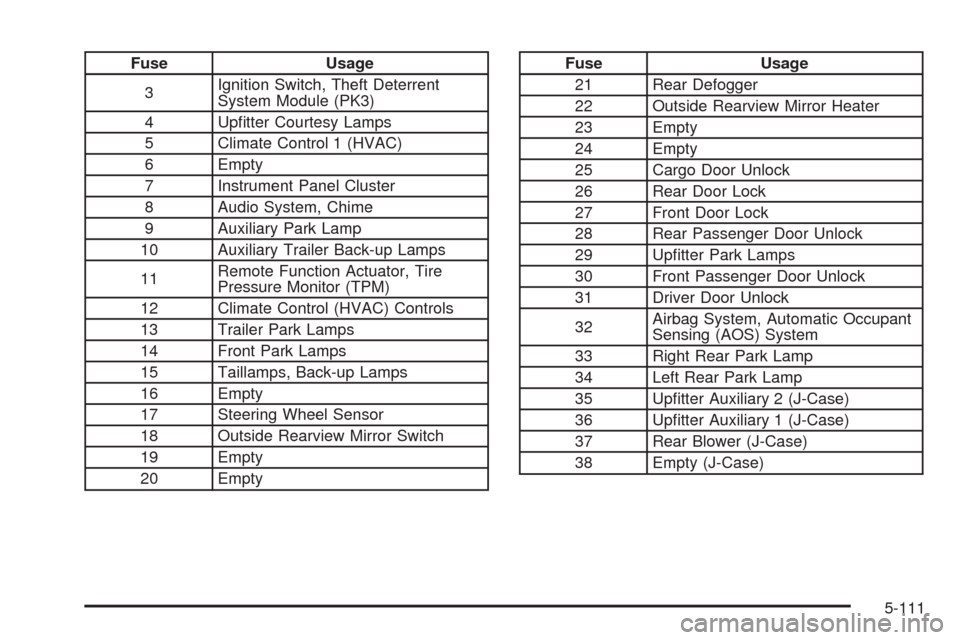
Fuse Usage
3Ignition Switch, Theft Deterrent
System Module (PK3)
4 Upfitter Courtesy Lamps
5 Climate Control 1 (HVAC)
6 Empty
7 Instrument Panel Cluster
8 Audio System, Chime
9 Auxiliary Park Lamp
10 Auxiliary Trailer Back-up Lamps
11Remote Function Actuator, Tire
Pressure Monitor (TPM)
12 Climate Control (HVAC) Controls
13 Trailer Park Lamps
14 Front Park Lamps
15 Taillamps, Back-up Lamps
16 Empty
17 Steering Wheel Sensor
18 Outside Rearview Mirror Switch
19 Empty
20 EmptyFuse Usage
21 Rear Defogger
22 Outside Rearview Mirror Heater
23 Empty
24 Empty
25 Cargo Door Unlock
26 Rear Door Lock
27 Front Door Lock
28 Rear Passenger Door Unlock
29 Upfitter Park Lamps
30 Front Passenger Door Unlock
31 Driver Door Unlock
32Airbag System, Automatic Occupant
Sensing (AOS) System
33 Right Rear Park Lamp
34 Left Rear Park Lamp
35 Upfitter Auxiliary 2 (J-Case)
36 Upfitter Auxiliary 1 (J-Case)
37 Rear Blower (J-Case)
38 Empty (J-Case)
5-111