reset CHEVROLET HHR 2010 1.G Owner's Manual
[x] Cancel search | Manufacturer: CHEVROLET, Model Year: 2010, Model line: HHR, Model: CHEVROLET HHR 2010 1.GPages: 480, PDF Size: 5.25 MB
Page 230 of 480
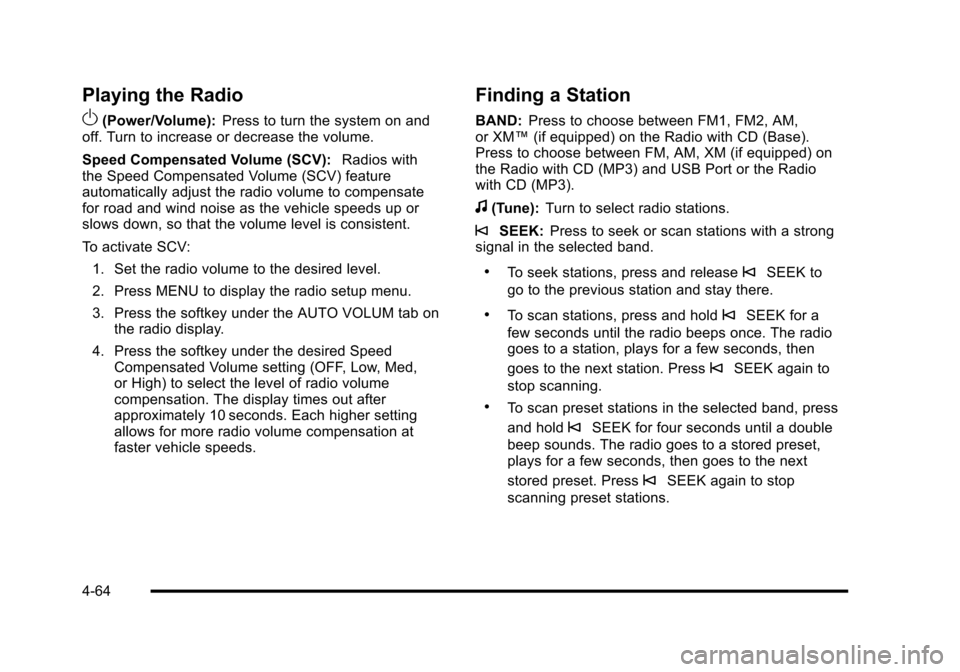
Playing the Radio
O
(Power/Volume):Press to turn the system on and
off. Turn to increase or decrease the volume.
Speed Compensated Volume (SCV): Radios with
the Speed Compensated Volume (SCV) feature
automatically adjust the radio volume to compensate
for road and wind noise as the vehicle speeds up or
slows down, so that the volume level is consistent.
To activate SCV:
1. Set the radio volume to the desired level.
2. Press MENU to display the radio setup menu.
3. Press the softkey under the AUTO VOLUM tab on the radio display.
4. Press the softkey under the desired Speed Compensated Volume setting (OFF, Low, Med,
or High) to select the level of radio volume
compensation. The display times out after
approximately 10 seconds. Each higher setting
allows for more radio volume compensation at
faster vehicle speeds.
Finding a Station
BAND: Press to choose between FM1, FM2, AM,
or XM™ (if equipped) on the Radio with CD (Base).
Press to choose between FM, AM, XM (if equipped) on
the Radio with CD (MP3) and USB Port or the Radio
with CD (MP3).
f(Tune): Turn to select radio stations.
©SEEK:Press to seek or scan stations with a strong
signal in the selected band.
.To seek stations, press and release©SEEK to
go to the previous station and stay there.
.To scan stations, press and hold©SEEK for a
few seconds until the radio beeps once. The radio
goes to a station, plays for a few seconds, then
goes to the next station. Press
©SEEK again to
stop scanning.
.To scan preset stations in the selected band, press
and hold
©SEEK for four seconds until a double
beep sounds. The radio goes to a stored preset,
plays for a few seconds, then goes to the next
stored preset. Press
©SEEK again to stop
scanning preset stations.
4-64
Page 231 of 480
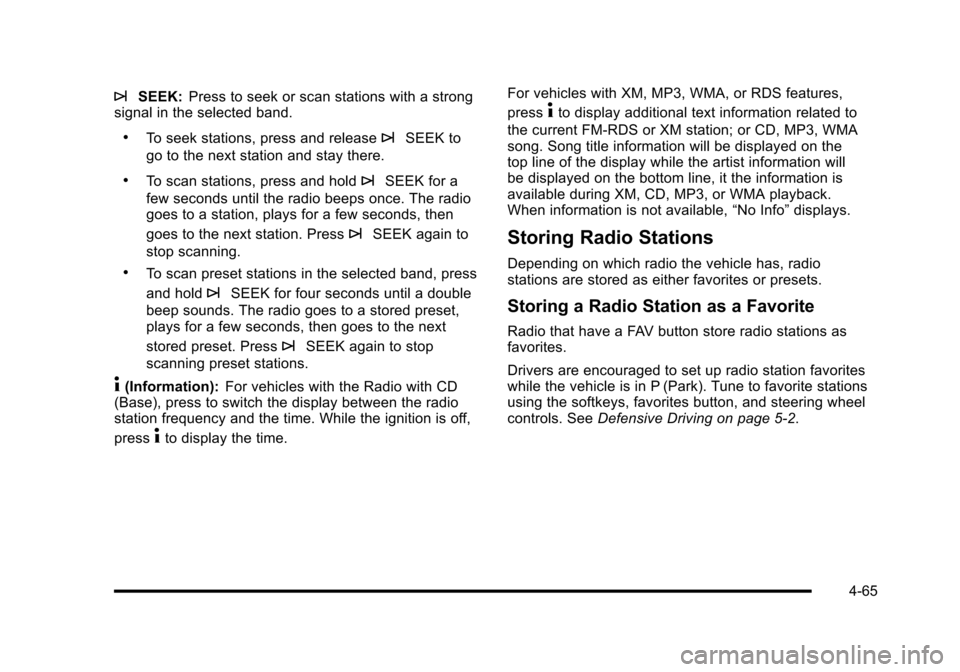
¨SEEK:Press to seek or scan stations with a strong
signal in the selected band.
.To seek stations, press and release¨SEEK to
go to the next station and stay there.
.To scan stations, press and hold¨SEEK for a
few seconds until the radio beeps once. The radio
goes to a station, plays for a few seconds, then
goes to the next station. Press
¨SEEK again to
stop scanning.
.To scan preset stations in the selected band, press
and hold
¨SEEK for four seconds until a double
beep sounds. The radio goes to a stored preset,
plays for a few seconds, then goes to the next
stored preset. Press
¨SEEK again to stop
scanning preset stations.
4(Information): For vehicles with the Radio with CD
(Base), press to switch the display between the radio
station frequency and the time. While the ignition is off,
press
4to display the time. For vehicles with XM, MP3, WMA, or RDS features,
press
4to display additional text information related to
the current FM-RDS or XM station; or CD, MP3, WMA
song. Song title information will be displayed on the
top line of the display while the artist information will
be displayed on the bottom line, it the information is
available during XM, CD, MP3, or WMA playback.
When information is not available, “No Info”displays.
Storing Radio Stations
Depending on which radio the vehicle has, radio
stations are stored as either favorites or presets.
Storing a Radio Station as a Favorite
Radio that have a FAV button store radio stations as
favorites.
Drivers are encouraged to set up radio station favorites
while the vehicle is in P (Park). Tune to favorite stations
using the softkeys, favorites button, and steering wheel
controls. See Defensive Driving on page 5‑2.
4-65
Page 232 of 480
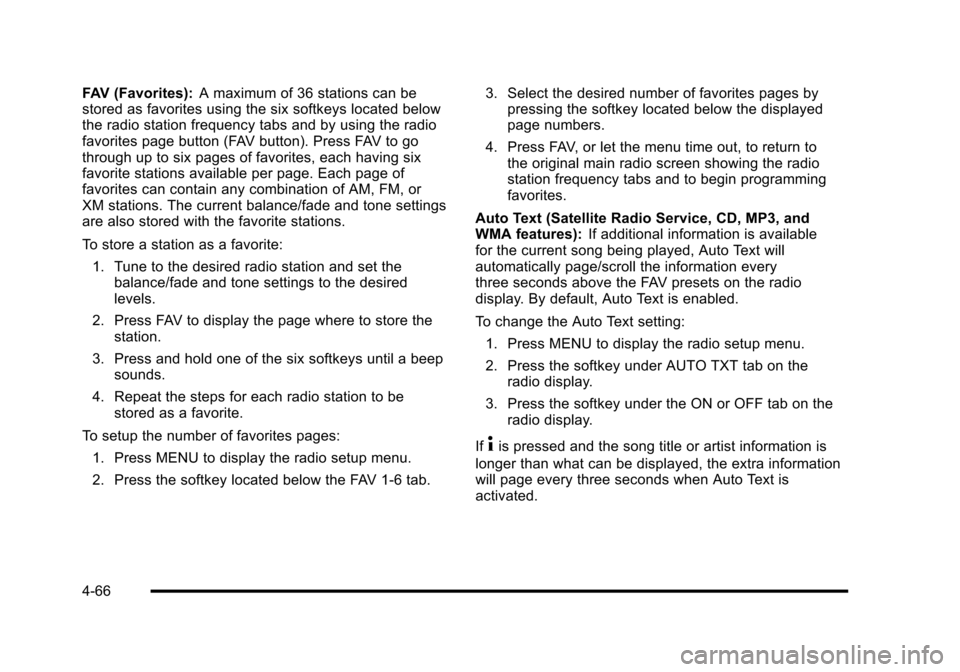
FAV (Favorites):A maximum of 36 stations can be
stored as favorites using the six softkeys located below
the radio station frequency tabs and by using the radio
favorites page button (FAV button). Press FAV to go
through up to six pages of favorites, each having six
favorite stations available per page. Each page of
favorites can contain any combination of AM, FM, or
XM stations. The current balance/fade and tone settings
are also stored with the favorite stations.
To store a station as a favorite:
1. Tune to the desired radio station and set the balance/fade and tone settings to the desired
levels.
2. Press FAV to display the page where to store the station.
3. Press and hold one of the six softkeys until a beep sounds.
4. Repeat the steps for each radio station to be stored as a favorite.
To setup the number of favorites pages: 1. Press MENU to display the radio setup menu.
2. Press the softkey located below the FAV 1-6 tab. 3. Select the desired number of favorites pages by
pressing the softkey located below the displayed
page numbers.
4. Press FAV, or let the menu time out, to return to the original main radio screen showing the radio
station frequency tabs and to begin programming
favorites.
Auto Text (Satellite Radio Service, CD, MP3, and
WMA features): If additional information is available
for the current song being played, Auto Text will
automatically page/scroll the information every
three seconds above the FAV presets on the radio
display. By default, Auto Text is enabled.
To change the Auto Text setting:
1. Press MENU to display the radio setup menu.
2. Press the softkey under AUTO TXT tab on the radio display.
3. Press the softkey under the ON or OFF tab on the radio display.
If
4is pressed and the song title or artist information is
longer than what can be displayed, the extra information
will page every three seconds when Auto Text is
activated.
4-66
Page 233 of 480
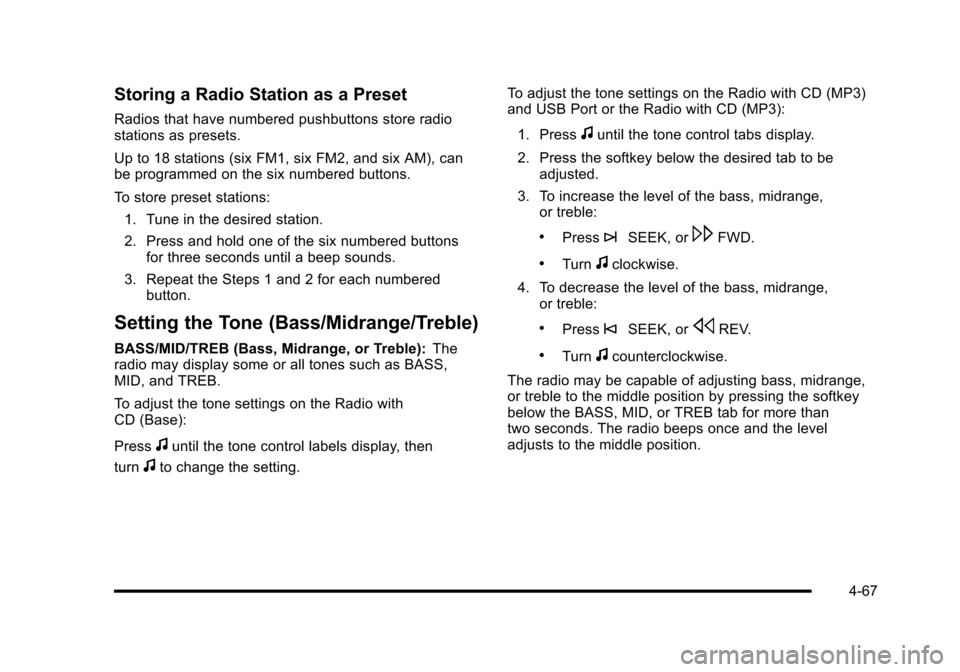
Storing a Radio Station as a Preset
Radios that have numbered pushbuttons store radio
stations as presets.
Up to 18 stations (six FM1, six FM2, and six AM), can
be programmed on the six numbered buttons.
To store preset stations:1. Tune in the desired station.
2. Press and hold one of the six numbered buttons for three seconds until a beep sounds.
3. Repeat the Steps 1 and 2 for each numbered button.
Setting the Tone (Bass/Midrange/Treble)
BASS/MID/TREB (Bass, Midrange, or Treble): The
radio may display some or all tones such as BASS,
MID, and TREB.
To adjust the tone settings on the Radio with
CD (Base):
Press
funtil the tone control labels display, then
turn
fto change the setting. To adjust the tone settings on the Radio with CD (MP3)
and USB Port or the Radio with CD (MP3):
1. Press
funtil the tone control tabs display.
2. Press the softkey below the desired tab to be adjusted.
3. To increase the level of the bass, midrange, or treble:
.Press¨SEEK, or\FWD.
.Turnfclockwise.
4. To decrease the level of the bass, midrange, or treble:
.Press©SEEK, orsREV.
.Turnfcounterclockwise.
The radio may be capable of adjusting bass, midrange,
or treble to the middle position by pressing the softkey
below the BASS, MID, or TREB tab for more than
two seconds. The radio beeps once and the level
adjusts to the middle position.
4-67
Page 234 of 480
The radio may also be capable of adjusting all tone
and speaker controls to the middle position by
pressing
ffor more than two seconds until the radio
beeps once.
If a station's frequency is weak, or has static, decrease
the treble.
EQ (Equalization): Press this button to select preset
equalization settings.
To return to the manual mode, press EQ until Manual
displays or start to manually adjust the bass, midrange,
or treble by pressing
f.
Adjusting the Speakers (Balance/Fade)
Depending on which radio the vehicle has, the Balance/
Fade can be adjusted using
for`.
To adjust balance or fade using
f:
1. Press
funtil the speaker control tabs display.
2. Press the softkey under the desired tab, or continue pressing
fto highlight the desired tab. 3. Turn
fto adjust the highlighted setting. The
highlighted setting can also be adjusted by
pressing either SEEK arrow.
On some radios,
\FWD andsREV can also
be used to adjust the highlighted level.
To adjust balance or fade using
`:
1. Press
`until the speaker control labels display.
2. Continue pressing
`until the desired speaker
control label displays.
3. Turn
fto adjust the setting. The setting can
also be adjusted by pressing either SEEK
arrow,
\FWD, orsREV.
The radio may be capable of adjusting balance or fade
to the middle position by pressing the softkey below the
BAL or FADE tab for more than two seconds. The radio
beeps once and the level adjusts to the middle position.
The radio may also be capable of adjusting all tone
and speaker controls to the middle position by
pressing
ffor more than two seconds until the radio
beeps once.
4-68
Page 247 of 480

Loading XM:The audio system is acquiring and
processing audio and text data. No action is needed.
This message should disappear shortly.
Channel Off Air: This channel is not currently in
service. Tune in to another channel.
Channel Unauth: This channel is blocked or cannot be
received with your XM Subscription package.
Channel Unavail: This previously assigned channel is
no longer assigned. Tune to another station. If this
station was one of the presets, choose another station
for that preset button.
No Artist Info: No artist information is available at this
time on this channel. The system is working properly.
No Title Info: No song title information is available at
this time on this channel. The system is working
properly.
No CAT Info: No category information is available at
this time on this channel. The system is working
properly.
No Information: No text or informational messages are
available at this time on this channel. The system is
working properly. CAT Not Found:
There are no channels available for
the selected category. The system is working properly.
XM Theftlocked: The XM receiver in the vehicle could
have previously been in another vehicle. For security
purposes, XM receivers cannot be swapped between
vehicles. If this message is received after having the
vehicle serviced, check with your dealer/retailer.
XM Radio ID: If tuned to channel 0, this message
alternates with the XM™ Radio 8 digit radio ID label.
This label is needed to activate the service.
Unknown: If this message is received when tuned to
channel 0, there could be a receiver fault. Consult with
your dealer/retailer.
Check Antenna: If this message does not clear within
a short period of time, the receiver or antenna could
have a fault. Consult with your dealer/retailer.
Check XM Receivr: If this message does not clear
within a short period of time, the receiver could have a
fault. Consult with your dealer/retailer.
XM Not Available: If this message does not clear
within a short period of time, the receiver could have a
fault. Consult with your dealer/retailer.
4-81
Page 259 of 480
To change radio stations:
.Press and releaseworxto go to the next or
previous radio station stored as a preset.
.Press and holdworxto go to the next or
previous radio station in the selected band with a
strong signal.
To select tracks on a CD:
Press and release
worxto go to the next or previous
track.
To select tracks on an iPod or USB device:
1. Press and hold
worxwhile listening to a song
until the contents of the current folder display on
the radio display.
2. Press and release
worxto scroll up or down the
list, then press and hold
wto play the highlighted
track. To navigate folders on an iPod or USB device:
1. Press and hold
worxwhile listening to a song
until the contents of the current folder display on
the radio display.
2. Press and hold
xto go back to the previous
folder list.
3. Press and release
worxto scroll up or down
the list.
.To select a folder, press and holdwwhen the
folder is highlighted.
.To go back further in the folder list, press and
hold
x.
c(End): Press to reject an incoming call, or end a
current call.
b g(Mute / Voice Recognition): Press to silence the
vehicle speakers only. Press again to turn the sound on.
For vehicles with Bluetooth
®or OnStar®systems press
and hold
b gfor longer than two seconds to interact
with those systems. See Bluetooth®on page 4‑82and
the OnStar Owner's Guide for more information.
4-93
Page 325 of 480
Cold Temperature Operation
For Vehicles With the 2.2L or
2.4L L4 Engine
If in an area of extreme cold, where the temperature
falls below−20°F (−29°C), use either an SAE 5W-30
synthetic oil or an SAE 0W-30 engine oil. Both provide
easier cold starting for the engine at extremely low
temperatures. Always use an oil that meets the required
specification, GM6094M. See “What Kind of Engine Oil
to Use” for more information.
Engine Oil Additives / Engine Oil
Flushes
Do not add anything to the oil. The recommended oils
with the starburst symbol that meet GM standards are
all that is needed for good performance and engine
protection.
Engine oil system flushes are not recommended and
could cause engine damage not covered by the vehicle
warranty.
Engine Oil Life System
When to Change Engine Oil
This vehicle has the Engine Oil Life System, a computer
system that indicates when to change the engine oil
and filter. This is based on engine revolutions and
engine temperature, and not on mileage. Based on
driving conditions, the mileage at which an oil change is
indicated can vary considerably. For the oil life system
to work properly, the system must be reset every time
the oil is changed.
When the system has calculated that oil life has been
diminished, it indicates that an oil change is necessary.
A CHANGE OIL SOON message comes on. See DIC
Warnings and Messages
on page 4‑48. Change the
oil as soon as possible within the next 600 miles
(1 000 km). It is possible that, if driving under the best
conditions, the oil life system might not indicate that an
oil change is necessary for over a year. However, the
engine oil and filter must be changed at least once a
year and at this time the system must be reset. Your
dealer/retailer has trained service people who will
perform this work using genuine parts and reset the
system. It is also important to check the oil regularly
and keep it at the proper level.
6-23
Page 326 of 480
If the system is ever reset accidentally, the oil must
be changed at 3,000 miles (5 000 km) since the last
oil change. Remember to reset the oil life system
whenever the oil is changed.
How to Reset the Engine Oil Life
System
The Engine Oil Life System calculates when to change
your engine oil and filter based on vehicle use.
Whenever the oil is changed, reset the system so it
can calculate when the next oil change is required. If a
situation occurs where the oil is changed prior to a
CHANGE OIL SOON message being turned on, reset
the system.
After changing the engine oil, the system must be reset:1. Turn the ignition to ON/RUN, with the engine off.
2. Press the information and reset buttons on the Driver Information Center (DIC) at the same time to
enter the personalization menu. See DIC Vehicle
Personalization on page 4‑54. 3. Press the information button to scroll through the
available personalization menu modes until the
DIC display shows OIL‐LIFE RESET.
4. Press and hold the reset button until the DIC display shows ACKNOWLEDGED. This will tell
you the system has been reset.
5. Turn the key to LOCK/OFF.
For vehicles with the 2.2L (VIN Code V) or 2.4L
(VIN Code B) engines, you can also reset the system
as follows: 1. Turn the ignition key to ON/RUN with the engine off.
2. Fully press and release the accelerator pedal slowly three times within five seconds.
3. Turn the key to LOCK/OFF, then start the engine.
If the CHANGE OIL SOON message comes back on
when the vehicle is started, the engine oil life system
has not reset. Repeat the reset procedure.
6-24
Page 347 of 480
To disconnect the jumper cables from both vehicles:1. Disconnect the black negative (−) cable from the vehicle that had the dead battery.
2. Disconnect the black negative (−) cable from the vehicle with the good battery.
3. Disconnect the red positive (+) cable from the vehicle with the good battery.
4. Disconnect the red positive (+) cable from the other vehicle.
5. Return the positive (+) terminal cover to its original position.
Headlamp Aiming
The vehicle has a visual optical headlamp aiming
system. The aim has been preset at the factory and
should need no further adjustment.
However, if the vehicle is damaged in a crash, the
headlamp aim may be affected and adjustment may be
necessary.
If oncoming vehicles flash their high beams at you, this
may also mean the vertical aim needs to be adjusted. It is recommended that the vehicle is taken to your
dealer/retailer for service if the headlamps need to be
re-aimed. It is possible however, to re-aim the
headlamps as described.
The vehicle should:
.Be placed so the headlamps are 25 ft. (7.6 m) from
a light colored wall.
.Have all four tires on a level surface which is level
all the way to the wall.
.Be placed so it is perpendicular to the wall or other
flat surface.
.Not have any snow, ice, or mud on it.
.Be fully assembled and all other work stopped
while headlamp aiming is being performed.
.Normally loaded with a full tank of fuel and one
person or 160 lbs (75 kg) sitting on the driver seat.
.Have all tires properly inflated.
.Have the spare tire is in its original location in the
vehicle.
6-45