buttons CHEVROLET HHR 2011 1.G User Guide
[x] Cancel search | Manufacturer: CHEVROLET, Model Year: 2011, Model line: HHR, Model: CHEVROLET HHR 2011 1.GPages: 430, PDF Size: 4.57 MB
Page 164 of 430
Black plate (8,1)Chevrolet HHR Owner Manual - 2011
Cruise Control
With cruise control, a speed of about 40 km (25 mph) or
more can be maintained without keeping your foot on
the accelerator. Cruise control does not work at speeds
below 40 km (25 mph).
The brake must be applied at least one time, after the
vehicle has been started, before cruise control will
function.
{WARNING:
Cruise control can be dangerous where you
cannot drive safely at a steady speed. So, do not
use the cruise control on winding roads or in
heavy traffic.
Cruise control can be dangerous on slippery
roads. On such roads, fast changes in tire traction
can cause excessive wheel slip, and you could
lose control. Do not use cruise control on slippery
roads.
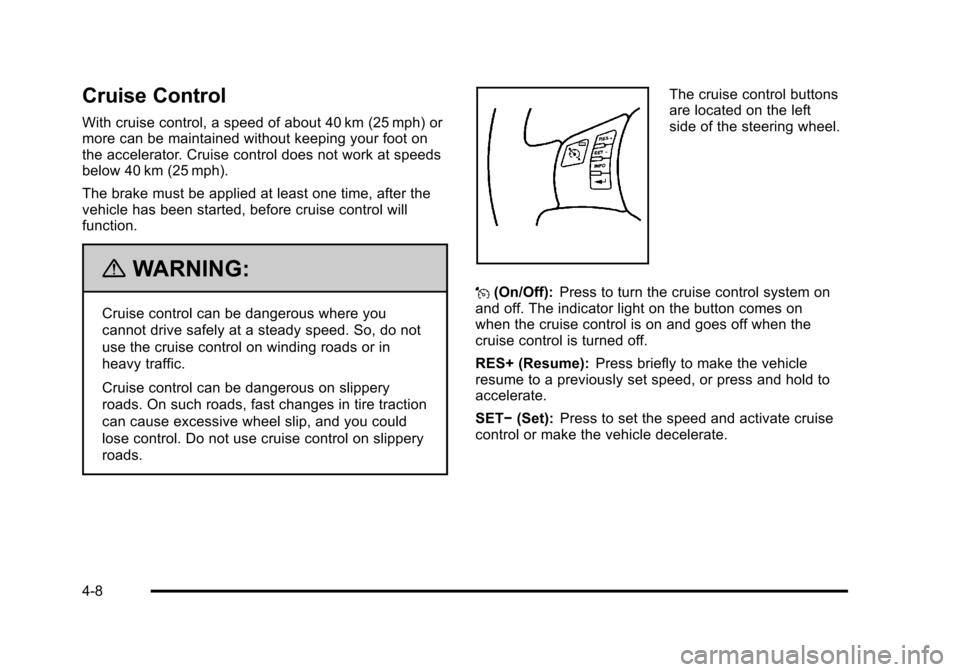
The cruise control buttons
are located on the left
side of the steering wheel.
J (On/Off): Press to turn the cruise control system on
and off. The indicator light on the button comes on
when the cruise control is on and goes off when the
cruise control is turned off.
RES+ (Resume): Press briefly to make the vehicle
resume to a previously set speed, or press and hold to
accelerate.
SET− (Set): Press to set the speed and activate cruise
control or make the vehicle decelerate.
4-8
Page 194 of 430
Black plate (38,1)Chevrolet HHR Owner Manual - 2011
Driver Information Center (DIC)
Your vehicle has a Driver Information Center (DIC). The
DIC display gives you the status of many of your
vehicle's systems. The DIC is also used to display
driver personalization menu modes and warning/status
messages. All messages will appear in the DIC display,
located at the bottom of the instrument panel cluster.
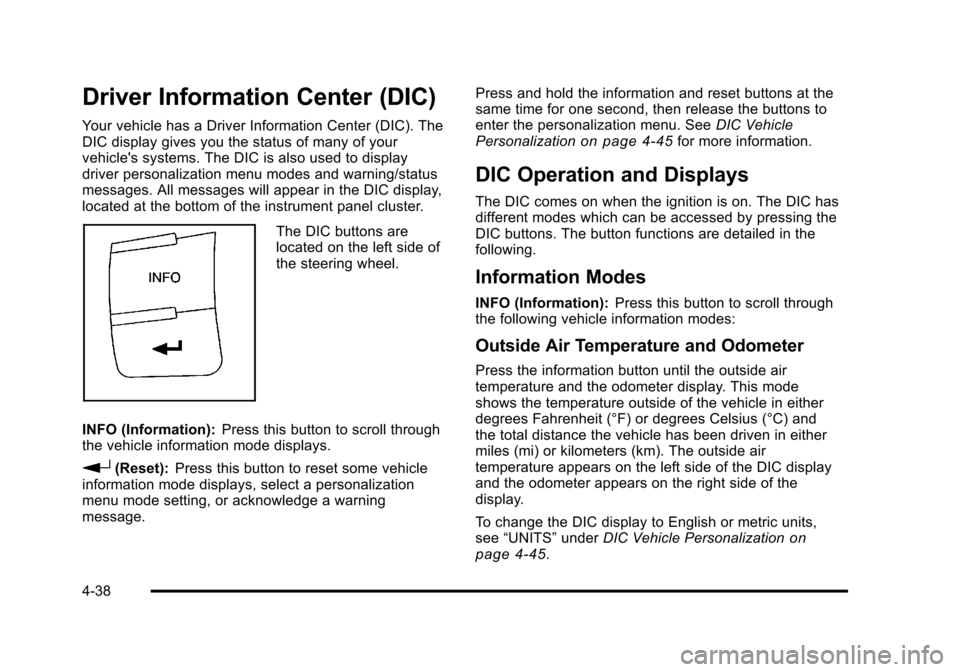
The DIC buttons are
located on the left side of
the steering wheel.
INFO (Information): Press this button to scroll through
the vehicle information mode displays.
r(Reset): Press this button to reset some vehicle
information mode displays, select a personalization
menu mode setting, or acknowledge a warning
message. Press and hold the information and reset buttons at the
same time for one second, then release the buttons to
enter the personalization menu. See
DIC Vehicle
Personalization
on page 4‑45for more information.
DIC Operation and Displays
The DIC comes on when the ignition is on. The DIC has
different modes which can be accessed by pressing the
DIC buttons. The button functions are detailed in the
following.
Information Modes
INFO (Information): Press this button to scroll through
the following vehicle information modes:
Outside Air Temperature and Odometer
Press the information button until the outside air
temperature and the odometer display. This mode
shows the temperature outside of the vehicle in either
degrees Fahrenheit (°F) or degrees Celsius (°C) and
the total distance the vehicle has been driven in either
miles (mi) or kilometers (km). The outside air
temperature appears on the left side of the DIC display
and the odometer appears on the right side of the
display.
To change the DIC display to English or metric units,
see “UNITS” underDIC Vehicle Personalization
on
page 4‑45.
4-38
Page 196 of 430
Black plate (40,1)Chevrolet HHR Owner Manual - 2011
AV (Average) SPEED
Press the information button until AV SPEED displays.
This mode shows the vehicle's average speed in miles
per hour (mph) or kilometers per hour (km/h).
To reset the average vehicle speed, press and hold the
reset button while AV SPEED is displayed.
OIL LIFE
Press the information button until OIL LIFE displays.
The engine oil life system shows an estimate of the oil's
remaining useful life. It shows 100% when the system is
reset after an oil change. It alerts you to change the oil
on a schedule consistent with your driving conditions.
In addition to the engine oil life system monitoring the
oil life, additional maintenance is recommended in the
Maintenance Schedule in this manual. SeeEngine Oil
on page 6‑16andScheduled Maintenanceon
page 7‑3.
Always reset the engine oil life system after an oil
change. See “How to Reset the Engine Oil Life System”
under Engine Oil Life System on page 6‑19.
COOLANT
Press the information button until COOLANT displays.
This mode shows the temperature of the engine coolant
in either degrees Fahrenheit (°F) or degrees
Celsius (°C).
Tire Pressure
If your vehicle has a Tire Pressure Monitor System
(TPMS), the pressure for each tire can be viewed in the
DIC. The tire pressure is shown in either pounds per
square inch (psi) or kilopascals (kPa). Press the
information button until LF ## PSI (kPa) ## RF displays
for the front tires. Press the information button again
until LR ## PSI (kPa) ## RR displays for the rear tires.
If a low tire pressure condition is detected by the
system while driving, a message advising you to check
the tire pressure appears in the display. See Inflation -
Tire Pressure
on page 6‑54and DIC Warnings and
Messageson page 4‑40for more information.
DIC Warnings and Messages
These messages appear if there is a problem detected
in one of your vehicle's systems.
A message clears when the vehicle's condition is no
longer present. To acknowledge a message and clear it
from the display, press and hold any of the DIC buttons.
If the condition is still present, the warning message
comes back on the next time the vehicle is turned off
and back on. With most messages, a warning chime
sounds when the message displays. Your vehicle may
have other warning messages.
4-40
Page 202 of 430
Black plate (46,1)Chevrolet HHR Owner Manual - 2011
To change feature settings, use the following procedure:
Entering Personalization Menu
1. Turn the ignition on while the vehicle is stopped.To avoid excessive drain on the battery, it is
recommended that the headlamps are turned off.
2. Press and hold the information and reset buttons at the same time for one second, then release to
enter the personalization menu.
If the vehicle speed is greater than 2 mph (3 km/h),
only the UNITS menu will be accessible.
3. Press the information button to scroll through the available personalization menu modes.
Press the reset button to scroll through the
available settings for each mode.
If you do not make a selection within ten seconds,
the display will go back to the previous information
displayed.
Personalization Menu Modes
OIL LIFE RESET
When this feature is displayed, you can reset the
engine oil life system. To reset the system, see Engine
Oil Life System
on page 6‑19. See “OIL LIFE” under
DIC Operation and Displayson page 4‑38for more
information.
UNITS
This feature allows you to select the units of
measurement in which the DIC will display the vehicle
information. When UNITS appears on the display, press
and hold the reset button for at least one second to
scroll through the available settings:
ENGLISH (default in United States): All information
will be displayed in English units.
METRIC (default in Canada): All information will be
displayed in metric units.
To select a setting and move on to the next feature,
press the information button while the desired setting is
displayed on the DIC.
LOCK HORN
This feature, which allows the vehicle's horn to chirp
every time the lock button on the Remote Keyless Entry
(RKE) transmitter is pressed, can be enabled or
disabled. When LOCK HORN appears on the display,
press and hold the reset button for at least one second
to scroll through the available settings:
OFF (default): The horn will not chirp on the first press
of the lock button on the RKE transmitter. The horn will
still chirp on the second press.
4-46
Page 213 of 430
Black plate (57,1)Chevrolet HHR Owner Manual - 2011
Storing a Radio Station as a Preset
Radios that have numbered pushbuttons store radio
stations as presets.
Up to 18 stations (six FM1, six FM2, and six AM),
can be programmed on the six numbered buttons.
To store preset stations:1. Tune in the desired station.
2. Press and hold one of the six numbered buttons for three seconds until a beep sounds.
3. Repeat the Steps 1 and 2 for each numbered button.
Setting the Tone (Bass/Midrange/Treble)
BASS/MID/TREB (Bass, Midrange, or Treble): The
radio may display some or all tones such as BASS,
MID, and TREB.
To adjust the tone settings on the Radio with
CD (Base):
Press
funtil the tone control labels display, then
turn
fto change the setting. To adjust the tone settings on the Radio with CD (MP3)
and USB Port or the Radio with CD (MP3):
1. Press
funtil the tone control tabs display.
2. Press the softkey below the desired tab to be adjusted.
3. To increase the level of the bass, midrange, or treble:
.Press¨SEEK, or\FWD.
.Turnfclockwise.
4. To decrease the level of the bass, midrange, or treble:
.Press©SEEK, orsREV.
.Turnfcounterclockwise.
The radio may be capable of adjusting bass, midrange,
or treble to the middle position by pressing the softkey
below the BASS, MID, or TREB tab for more than
two seconds. The radio beeps once and the level
adjusts to the middle position.
The radio may also be capable of adjusting all tone and
speaker controls to the middle position by pressing
f
for more than two seconds until the radio beeps once.
If a station's frequency is weak, or has static, decrease
the treble.
4-57
Page 219 of 430
Black plate (63,1)Chevrolet HHR Owner Manual - 2011
CD/AUX (CD/Auxiliary):Press to play a CD while a
portable audio device is connected to the auxiliary
input. Press again and the system begins playing audio
from the connected portable audio player. If a portable
audio player is not connected, No Aux Input Device
may display.
Using the USB Port
Radio's with a USB port can control a USB storage
device or an iPod®using the radio buttons and knobs.
See Using an MP3on page 4‑63for information about
how to connect and control a USB storage device or
an iPod.
USB Support
The USB connector is located on the front of the radio
and uses the USB 2.0 standard.
USB Supported Devices
.USB Flash Drives
.Portable USB Hard Drives
.Fifth generation or later iPod
.First, Second, or Third generation iPod nano
.iPod touch
.iPod classic Make sure the iPod has the latest firmware from Apple
®
for proper operation. iPod firmware can be updated
using the latest iTunes®application. See
www.apple.com/itunes.
For help with identifying your iPod, go to
www.apple.com/support.
Using an MP3
Format
Radios that have the capability of playing MP3's can
play .mp3 or .wma files that were recorded onto a
CD-R or CD-RW disc. Radios that have a USB port
can play .mp3 and .wma files that are stored on a
USB storage device as well as AAC files that are
stored on an iPod
®.
Compressed Audio
The radio can play discs that contain both
uncompressed CD audio and MP3 files. If both formats
are on the disc, the radio reads all MP3 files first, then
the uncompressed CD audio files.
4-63
Page 223 of 430
Black plate (67,1)Chevrolet HHR Owner Manual - 2011
Connecting a USB Storage Device
or iPod®
The USB Port can be used to control an iPod or a
USB storage device.
To connect a USB storage device, connect the device to
the USB port located on the front of the radio.
To connect an iPod, connect one end of the USB cable
that came with the iPod to the iPod’s dock connector
and connect the other end to the USB port located on
the front of the radio. If the vehicle is on and the
USB connection works, “OK to disconnect”and a
GM logo may appear on the iPod and iPod appears on
the radio's display. The iPod music appears on the
radio’s display and begins playing.
The iPod charges while it is connected to the vehicle if
the vehicle is in the ACC/ACCESSORY or ON/RUN
position. When the vehicle is turned off, the iPod
automatically powers off and will not charge or draw
power from the vehicle's battery.
If you have an older iPod model that is not supported, it
can still be used by connecting it to the Auxiliary Input
Jack using a standard 3.5 mm (1/8 in) stereo cable. See
“Using the Auxiliary Input Jack” earlier for more
information.
Using the Radio to Control a USB
Storage Device or iPod
The radio can control a USB storage device or an iPod
using the radio buttons and knobs and display song
information on the radio’s display.
f(Tune): Turn to select files.
©SEEK:Press to go to the start of the track, if more
than ten seconds have played. Press and hold or press
multiple times to continue moving backward through
tracks.
¨SEEK: Press to go to the next track. Press and hold
or press multiple times to continue moving forward
through tracks.
sREV (Reverse): Press and hold to reverse playback
quickly. Sound is heard at a reduced volume. Release
sREV to resume playing. The elapsed time of the file
displays.
\FWD (Fast Forward): Press and hold to advance
playback quickly. Sound is heard at a reduced volume.
Release
\FWD to resume playing. The elapsed time
of the file displays.
4(Information): Press to display additional information
about the selected track.
4-67
Page 228 of 430
Black plate (72,1)Chevrolet HHR Owner Manual - 2011
Audio System
When using the in‐vehicle Bluetooth system, sound
comes through the vehicle's front audio system
speakers and overrides the audio system. Use the
audio system volume knob, during a call, to change the
volume level. The adjusted volume level remains in
memory for later calls. To prevent missed calls, a
minimum volume level is used if the volume is turned
down too low.
Bluetooth Controls
Use the buttons located on the steering wheel to
operate the in‐vehicle Bluetooth system. SeeAudio
Steering Wheel Controls
on page 4‑79for more
information.
b g(Push To Talk) : Press to answer incoming calls,
to confirm system information, and to start speech
recognition.
c x(Phone On Hook): Press to end a call, reject a
call, or to cancel an operation.
Pairing
A Bluetooth cell phone must be paired to the Bluetooth
system and then connected to the vehicle before it can
be used. See your cell phone manufacturers user guide
for Bluetooth functions before pairing the cell phone. If a
Bluetooth phone is not connected, calls will be made
using OnStar
®Hands‐Free Calling, if available. Refer to
the OnStar owner's guide for more information.
Pairing Information
.Up to five cell phones can be paired to the
Bluetooth system.
.The pairing process is disabled when the vehicle is
moving.
.Pairing only needs to be completed once, unless
the pairing information on the cell phone changes
or the cell phone is deleted from the system.
.Only one paired cell phone can be connected to
the Bluetooth system at a time.
.If multiple paired cell phones are within range of
the system, the system connects to the first
available paired cell phone in the order that they
were first paired to the system. To link to a different
paired phone, see “Linking to a Different Phone”
later in this section.
4-72
Page 295 of 430
Black plate (19,1)Chevrolet HHR Owner Manual - 2011
Used oil can be a threat to the environment. If you
change your own oil, be sure to drain all the oil from the
filter before disposal. Never dispose of oil by putting it in
the trash or pouring it on the ground, into sewers,
or into streams or bodies of water. Recycle it by taking it
to a place that collects used oil.
Engine Oil Life System
When to Change Engine Oil
This vehicle has the Engine Oil Life System, a computer
system that indicates when to change the engine oil
and filter. This is based on engine revolutions and
engine temperature, and not on mileage. Based on
driving conditions, the mileage at which an oil change is
indicated can vary considerably. For the oil life system
to work properly, the system must be reset every time
the oil is changed.
When the system has calculated that oil life has been
diminished, it indicates that an oil change is necessary.
A CHANGE OIL SOON message comes on. SeeDIC
Warnings and Messages
on page 4‑40. Change the
oil as soon as possible within the next 600 miles
(1 000 km). It is possible that, if driving under the best
conditions, the oil life system might indicate that an oil
change is not necessary for up to a year. The engine oil
and filter must be changed at least once a year and, at
this time, the system must be reset. Your dealer has
trained service people who will perform this work and reset the system. It is also important to check the oil
regularly over the course of an oil drain interval and
keep it at the proper level.
If the system is ever reset accidentally, the oil must be
changed at 3,000 miles (5 000 km) since the last oil
change. Remember to reset the oil life system
whenever the oil is changed.
How to Reset the Engine Oil Life
System
Reset the system whenever the engine oil is changed
so that the system can calculate the next engine oil
change. To reset the system:
1. Turn the ignition to ON/RUN, with the engine off.
2. Press the information and reset buttons on the Driver Information Center (DIC) at the same time to
enter the personalization menu. See DIC Vehicle
Personalization on page 4‑45.
3. Press the information button to scroll through the available personalization menu modes until the
DIC display shows OIL‐LIFE RESET.
4. Press and hold the reset button until the DIC display shows ACKNOWLEDGED. This will tell you
the system has been reset.
5. Turn the key to LOCK/OFF.
6-19
Page 335 of 430
Black plate (59,1)Chevrolet HHR Owner Manual - 2011
TPMS Sensor Matching Process
Each TPMS sensor has a unique identification code.
Any time you replace one or more of the TPMS sensors
or rotate the vehicle's tires, the identification codes
need to be matched to the new tire/wheel location. The
sensors are matched, to the tire/wheel locations, in the
following order: driver side front tire, passenger side
front tire, passenger side rear tire, and driver side rear
tire using a TPMS diagnostic tool. See your dealer for
service.
The TPMS sensors can also be matched to each tire/
wheel position by increasing or decreasing the tire's air
pressure. When increasing the tire's pressure, do not
exceed the maximum inflation pressure indicated on the
tire's sidewall. To decrease the tire's air-pressure use
the pointed end of the valve cap, a pencil-style air
pressure gauge, or a key.
You have two minutes to match each tire and wheel
position. If it takes longer than two minutes to match
any tire and wheel position, the matching process stops
and you need to start over.
The TPMS matching process is outlined below:1. Set the parking brake.
2. Turn the ignition switch to ON/RUN with the engine off. 3. Press and hold the Remote Keyless Entry (RKE)
transmitter's LOCK and UNLOCK buttons, at the
same time, for about five seconds to start the
TPMS learn mode. The horn sounds twice
indicating the TPMS receiver is ready and in
learn mode.
4. Start with the driver side front tire. The driver side front turn signal also comes on to indicate that
corner's sensor is ready to be learned.
5. Remove the valve cap from the tire's valve stem. Activate the TPMS sensor by increasing or
decreasing the tire's air pressure for about
eight seconds. The horn chirp, can take up to
30 seconds to sound. It chirps one time and then
all the turn signals flash one time to confirm the
sensor identification code has been matched to the
tire/wheel position.
6. The passenger side front turn signal comes on to indicate that corner sensor is ready to be learned.
Proceed to the passenger side front tire and repeat
the procedure in Step 5.
7. The passenger side rear turn signal comes on to indicate that corner sensor is ready to be learned.
Proceed to the passenger side rear tire and repeat
the procedure in Step 5.
6-59