reset CHEVROLET IMPALA 2003 8.G User Guide
[x] Cancel search | Manufacturer: CHEVROLET, Model Year: 2003, Model line: IMPALA, Model: CHEVROLET IMPALA 2003 8.GPages: 408, PDF Size: 2.75 MB
Page 172 of 408

MODE:Press this button to cycle through three modes
of operation: Off, Compass/Temperature and Trip
Computer mode.
·Off:No driver information is displayed in this mode
of operation.
·Compass/Temperature Mode:One of eight
compass readings and the outside temperature are
displayed. If the temperature is below 38ÉF
(3ÉC), the word ICE is displayed for two minutes.
·Trip Computer:Pressing the MODE button cycles
through the ®ve displays. Press the MODE button
after the last Trip Computer display to return
the DIC to the OFF mode.
Compass Variance
Compass variance is the difference between magnetic
north and geographic north. In some areas of the
country, the difference is great enough to cause the
compass to give false readings. If this occurs, the
compass variance must be set.
Setting the Variance
Turn the ignition on and cycle the DIC to the
Compass/Temperature mode. Press the RESET button
for about ®ve seconds. The last entered variance
zone number and VAR will be displayed. Press the
MODE button until the proper variance zone number on
the map is shown. Press the RESET button to set
the new variance zone and resume normal operation.
3-50
Page 173 of 408

All the display segments will be illuminated brie¯y to
acknowledge the change in zone number. A chime will
sound to con®rm that the new zone number has
been set.
Automatic Compass Calibration
The compass is self-calibrating, which eliminates the
need to manually set the compass. When the vehicle is
new, the calibration process may not be complete. In
these cases CAL will be displayed, and all segments of
the compass will be illuminated where the compass
reading is normally displayed.
To calibrate the compass, in an area free from large
metal objects, make one to two 360É turns. The
calibration symbol will turn off and the compass reading
will be displayed.
Manual Compass Calibration
If the compass appears erratic and the calibration
symbol does not appear, you must manually put the
compass into the calibration mode.
Turn the ignition on and cycle the DIC to the
Compass/Temperature mode. Press the RESET button
for at least 10 seconds until the calibration symbol
appears and all segments of the compass display are
illuminated. A chime will sound to con®rm that the
calibration mode is active. Release the button and
complete two or three 360É turns in an area free from
large metal objects. The calibration symbol will turn
off and the compass reading will be displayed. A chime
will sound to verify that the calibration is complete.
Error Displays
·
An error of the speed sensor or fuel sender will
cause -E- to be displayed.
·In the absence of vehicle communications, a
dash Ð is displayed.
If one of these error messages appear, see your dealer.
3-51
Page 174 of 408

Trip Computer
There are ®ve trip computer displays which may be
stepped through by pushing the MODE button.
The information will appear in the following order:
AVG ECON (Average Fuel Economy):This shows the
average fuel economy since the last reset.
INST ECON (Instantaneous Fuel Economy):This
shows fuel economy for the most recent second
of driving.
RANGE (Trip Range):This shows the estimated
distance that can be traveled with the remaining fuel.
The fuel economy used to calculate range is based
on the last few hours of driving. When in a low
fuel condition, LO is displayed.FUEL USED (Trip Fuel Used):This shows the
accumulated fuel used since the last reset.
AVG SPEED (Average Speed):This shows the
average speed since the last reset.
Resetting the Trip Computer
Press and hold the RESET button for at least three
seconds. The reset is acknowledged with all segments
of the display lit brie¯y and a chime. A reset can
only be done in AVG ECON, FUEL USED and AVG
SPEED displays. Each setting must be reset individually.
3-52
Page 178 of 408

Finding a Station
BAND:Press this button to switch between FM1, FM2,
AM, or XM1 or XM2 (USA only, if equipped). The
display will show your selection.
TUNE:Turn this knob to choose radio stations.
qSEEKr:Press the right or the left arrow to seek
to the next or to the previous station and stay there.
The radio will seek only to stations that are in the
selected band and only to those with a strong signal.
qPSCAN (Preset Scan)r:Press and hold one of
the arrows for more than two seconds and the radio
will produce one beep. The radio will scan to the
®rst preset station stored on your pushbuttons, play for
a few seconds, then go on to the next preset station.
SCAN will appear on the display. Press one of the
arrows again or one of the pushbuttons to stop scanning
presets.
The radio will scan only to the preset stations that
are in the selected band and only to those with a
strong signal.
Setting Preset Stations
The six numbered pushbuttons let you return to your
favorite stations. You can set up to 30 stations (six FM1,
six FM2, and six AM, six XM1 and six XM2 (USA
only, if equipped), by performing the following steps:
1. Turn the radio on.
2. Press BAND to select FM1, FM2, AM, or XM1
or XM2.
3. Tune in the desired station.
4. Press AUTO TONE to choose the bass and treble
equalization that best suits the type of station you
are listening to.
5. Press and hold one of the six numbered
pushbuttons. The radio will produce one beep.
Whenever you press that numbered pushbutton, the
station you set will return and the bass and treble
equalization that you selected will also be
automatically selected for that pushbutton.
6. Repeat the steps for each pushbutton.
3-56
Page 182 of 408
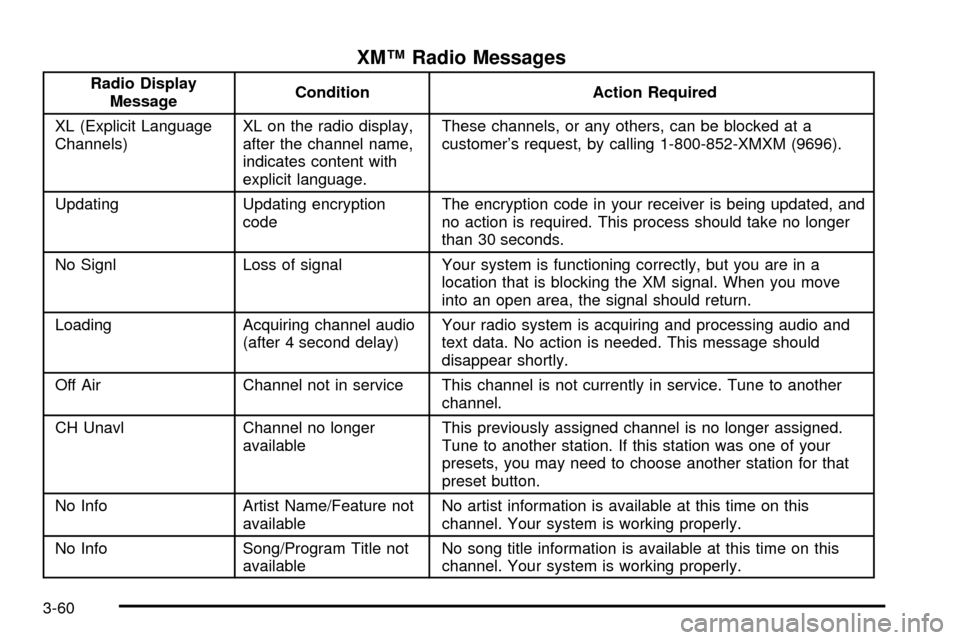
XMŸ Radio Messages
Radio Display
MessageCondition Action Required
XL (Explicit Language
Channels)XL on the radio display,
after the channel name,
indicates content with
explicit language.These channels, or any others, can be blocked at a
customer's request, by calling 1-800-852-XMXM (9696).
Updating Updating encryption
codeThe encryption code in your receiver is being updated, and
no action is required. This process should take no longer
than 30 seconds.
No Signl Loss of signal Your system is functioning correctly, but you are in a
location that is blocking the XM signal. When you move
into an open area, the signal should return.
Loading Acquiring channel audio
(after 4 second delay)Your radio system is acquiring and processing audio and
text data. No action is needed. This message should
disappear shortly.
Off Air Channel not in service This channel is not currently in service. Tune to another
channel.
CH Unavl Channel no longer
availableThis previously assigned channel is no longer assigned.
Tune to another station. If this station was one of your
presets, you may need to choose another station for that
preset button.
No Info Artist Name/Feature not
availableNo artist information is available at this time on this
channel. Your system is working properly.
No Info Song/Program Title not
availableNo song title information is available at this time on this
channel. Your system is working properly.
3-60
Page 188 of 408

Finding a Station
BAND:Press this button to switch between FM1, FM2,
AM, or XM1 or XM2 (USA only, if equipped). The
display will show your selection.
TUNE:Turn this knob to choose radio stations.
qSEEKr:Press the right or the left arrow to seek
to the next or to the previous station and stay there.
The radio will seek only to stations that are in the
selected band and only to those with a strong signal.
qPSCAN (Preset Scan)r:Press and hold one of
the arrows for more than two seconds and the radio
will produce one beep. The radio will scan to the
®rst preset station stored on the pushbuttons, play for a
few seconds and ¯ash the station frequency, then go
on to the next preset station. SCAN will be displayed.
Press one of the arrows again or one of the pushbuttons
to stop scanning presets.
The radio will scan only to the preset stations that
are in the selected band and only to those with a
strong signal.
Setting Preset Stations
The six numbered pushbuttons let you return to your
favorite stations. You can set up to 30 stations (six FM1,
six FM2, and six AM, six XM1 and six XM2 (USA
only, if equipped), by performing the following steps:
1. Turn the radio on.
2. Press BAND to select FM1, FM2, AM, or XM1 or
XM2.
3. Tune in the desired station.
4. Press AUTO TONE to choose the bass and treble
equalization that best suits the type of station you
are listening to.
5. Press and hold one of the six numbered
pushbuttons. The radio will produce one beep.
Whenever you press that numbered pushbutton, the
station you set will return and the bass and treble
equalization that you selected will also be
automatically selected for that pushbutton.
6. Repeat the steps for each pushbutton.
3-66
Page 193 of 408
XMŸ Radio Messages
Radio Display
MessageCondition Action Required
XL (Explicit Language
Channels)XL on the radio display,
after the channel name,
indicates content with
explicit language.These channels, or any others, can be blocked at a
customer's request, by calling 1-800-852-XMXM (9696).
Updating Updating encryption
codeThe encryption code in your receiver is being updated, and
no action is required. This process should take no longer
than 30 seconds.
No Signl Loss of signal Your system is functioning correctly, but you are in a
location that is blocking the XM signal. When you move
into an open area, the signal should return.
Loading Acquiring channel audio
(after 4 second delay)Your radio system is acquiring and processing audio and
text data. No action is needed. This message should
disappear shortly.
Off Air Channel not in service This channel is not currently in service. Tune to another
channel.
CH Unavl Channel no longer
availableThis previously assigned channel is no longer assigned.
Tune to another station. If this station was one of your
presets, you may need to choose another station for that
preset button.
No Info Artist Name/Feature not
availableNo artist information is available at this time on this
channel. Your system is working properly.
No Info Song/Program Title not
availableNo song title information is available at this time on this
channel. Your system is working properly.
3-71
Page 200 of 408

Finding a Station
BAND:Press this button to switch between FM1, FM2,
AM, or XM1 or XM2 (USA only, if equipped). The
display will show your selection.
TUNE:Turn this knob to choose radio stations.
qSEEKr:Press the right or the left arrow to seek
to the next or to the previous station and stay there.
The radio will seek only to stations that are in the
selected band and only to those with a strong signal.
qPSCAN (Preset Scan)r:Press and hold one of
the arrows for more than two seconds. The radio will
produce one beep. The radio will scan through each of
the preset stations stored on the pushbuttons, play
for a few seconds, then go on to the next preset station.
SCAN will be displayed. Press one of the arrows again or
one of the pushbuttons to stop scanning presets.
The radio will scan only to the preset stations that are
in the selected band and only to those with a
strong signal.
Setting Preset Stations
The six numbered pushbuttons let you return to your
favorite stations. You can set up to 30 stations (six FM1,
six FM2, and six AM, six XM1 and six XM2 (USA
only, if equipped), by performing the following steps:
1. Turn the radio on.
2. Press BAND to select FM1, FM2, AM, or XM1 or
XM2.
3. Tune in the desired station.
4. Press AUTO TONE to choose the bass and treble
equalization that best suits the type of station you
are listening to.
5. Press and hold one of the six numbered
pushbuttons. The radio will produce one beep.
Whenever you press that numbered pushbutton, the
station you set will return and the bass and treble
equalization that you selected will also be
automatically selected for that pushbutton.
6. Repeat the steps for each pushbutton.
3-78
Page 205 of 408
XMŸ Radio Messages
Radio Display
MessageCondition Action Required
XL (Explicit Language
Channels)XL on the radio display,
after the channel name,
indicates content with
explicit language.These channels, or any others, can be blocked at a
customer's request, by calling 1-800-852-XMXM (9696).
Updating Updating encryption
codeThe encryption code in your receiver is being updated, and
no action is required. This process should take no longer
than 30 seconds.
No Signl Loss of signal Your system is functioning correctly, but you are in a
location that is blocking the XM signal. When you move
into an open area, the signal should return.
Loading Acquiring channel audio
(after 4 second delay)Your radio system is acquiring and processing audio and
text data. No action is needed. This message should
disappear shortly.
Off Air Channel not in service This channel is not currently in service. Tune to another
channel.
CH Unavl Channel no longer
availableThis previously assigned channel is no longer assigned.
Tune to another station. If this station was one of your
presets, you may need to choose another station for that
preset button.
No Info Artist Name/Feature not
availableNo artist information is available at this time on this
channel. Your system is working properly.
No Info Song/Program Title not
availableNo song title information is available at this time on this
channel. Your system is working properly.
3-83
Page 212 of 408
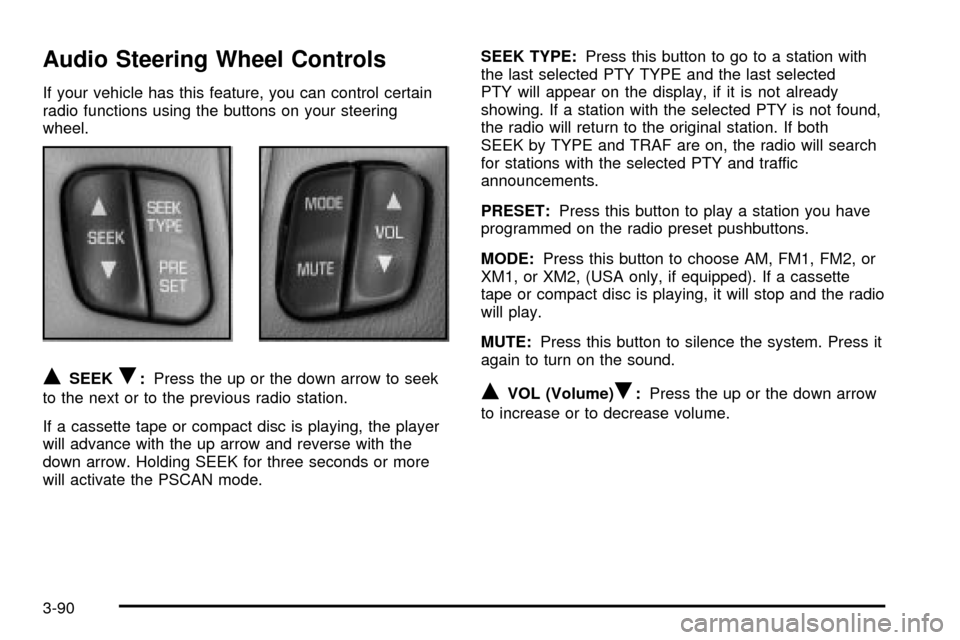
Audio Steering Wheel Controls
If your vehicle has this feature, you can control certain
radio functions using the buttons on your steering
wheel.
QSEEKR:Press the up or the down arrow to seek
to the next or to the previous radio station.
If a cassette tape or compact disc is playing, the player
will advance with the up arrow and reverse with the
down arrow. Holding SEEK for three seconds or more
will activate the PSCAN mode.SEEK TYPE:Press this button to go to a station with
the last selected PTY TYPE and the last selected
PTY will appear on the display, if it is not already
showing. If a station with the selected PTY is not found,
the radio will return to the original station. If both
SEEK by TYPE and TRAF are on, the radio will search
for stations with the selected PTY and traffic
announcements.
PRESET:Press this button to play a station you have
programmed on the radio preset pushbuttons.
MODE:Press this button to choose AM, FM1, FM2, or
XM1, or XM2, (USA only, if equipped). If a cassette
tape or compact disc is playing, it will stop and the radio
will play.
MUTE:Press this button to silence the system. Press it
again to turn on the sound.QVOL (Volume)R:Press the up or the down arrow
to increase or to decrease volume.
3-90