change time CHEVROLET IMPALA 2005 8.G User Guide
[x] Cancel search | Manufacturer: CHEVROLET, Model Year: 2005, Model line: IMPALA, Model: CHEVROLET IMPALA 2005 8.GPages: 398, PDF Size: 10.04 MB
Page 114 of 398

Message Center.............................................3-40
Service Traction System Warning Message......3-40
Traction Active Message................................3-41
Battery Warning Message..............................3-41
Hot Coolant Temperature Warning Message.....3-42
Low Oil Pressure Message............................3-42
Low Engine Oil Level Message.......................3-43
Change Engine Oil Message..........................3-44
Low Tire Message........................................3-44
Door Ajar Warning Message...........................3-45
Trunk Ajar Warning Message.........................3-45
Security Message.........................................3-46
Low Washer Fluid Warning Message...............3-46
Low Fuel Warning Message...........................3-47
Low Brake Fluid Warning Message.................3-47
Service Vehicle Soon Message.......................3-48
Highbeam Out Warning Message....................3-48Driver Information Center (DIC).......................3-49
Trip Computer................................................3-51
Audio System(s).............................................3-52
Setting the Time...........................................3-52
Radio with Cassette......................................3-53
Radio with CD..............................................3-64
Radio with Cassette and CD..........................3-74
Theft-Deterrent Feature..................................3-87
Audio Steering Wheel Controls.......................3-87
Radio Reception...........................................3-88
Care of the Cassette Tape Player...................3-88
Care of Your CDs.........................................3-90
Care of the CD Player...................................3-90
Backglass Antenna.......................................3-90
XM™ Satellite Radio Antenna System.............3-91
Vehicle Customization Settings.......................3-91
Chime Level Adjustment................................3-91
Section 3 Instrument Panel
3-2
Page 127 of 398

The exterior lamps control has three positions:
Off:Push the control all the way in to turn off the
exterior lamps.
Parking Lamps:Pull the control out halfway to turn on
the parking lamps together with the following:
Taillamps
License Plate Lamps
Instrument Panel Lights
Headlamps:Pull the control all the way out to turn on
the headlamps together with the previously listed
lamps and lights. A warning chime will sound if you
open the driver’s door when the ignition switch is off and
the headlamps are on.
Delayed Headlamps
The delayed headlamps feature provides a period of
exterior lighting as you leave the area around your
vehicle. The feature is activated when the headlamps
are on due to the automatic headlamps control
feature described previously in this section, and when
the ignition is turned off. Your headlamps will then
remain on until the exterior lamps control is moved to
the parking lamps position or until either a 30 second or
60 second lighting period has ended.
If you turn off the ignition with the headlamps switch in
the parking lamps or headlamps position, the delayed
headlamps cycle will not occur.
To disable the delayed headlamps feature or change
the time of delay, seeVehicle Customization Settings on
page 3-91.
3-15
Page 129 of 398

To turn the fog lamps on, press the FOG button. A light
will come on in the button to let you know that the
fog lamps are on. Press the FOG button again to turn
the fog lamps off.
The ignition must be ON and the parking lamps must be
on for your fog lamps to work.
The fog lamps will go off while you change to high-beam
headlamps.
Instrument Panel Brightness
The control for the instrument panel lights is located on
the exterior lamps control. Your parking lamps must
be on for this feature to work. Turn the control clockwise
to brighten the lights or counterclockwise to dim them.
Courtesy Lamps
When any door is opened, several lamps come on.
These lamps are courtesy lamps. They make it easy for
you to enter and leave your vehicle. You can also
turn these lamps on by turning the exterior lamps control
all the way clockwise.
Dome Lamp
If your vehicle has this feature, the dome lamp will
come on when you open a door. You can also turn this
lamp on by turning the exterior lamps control clockwise
as far as it will go. Vehicles that have the optional
sunroof do not have a dome lamp.
Entry Lighting
Your vehicle may be equipped with courtesy lamps that
will come on and stay on for a set time whenever
you press UNLOCK on the remote keyless entry
transmitter (if equipped).
If you open a door, the lamps will stay on while it’s open
and then turn off automatically about 25 seconds after
you close it. If you press UNLOCK and don’t open
a door, the lamps will turn off after about 40 seconds.
Entry lighting includes a feature called theater dimming.
With theater dimming, the lamps don’t just turn off at the
end of the delay time. Instead, they slowly dim after the
delay time until they go out. The delay time is canceled if
you turn the ignition key to ON or press the power door
lock switch. The lamps will dim right away.
When the ignition is on, illuminated entry is inactive,
which means the courtesy lamps won’t come on unless
a door is opened.
3-17
Page 136 of 398

Rear Window Defogger
The rear window defogger uses a warming grid to
remove fog from the rear window.
<:The rear window defogger will turn off
approximately 20 minutes after the button is pressed.
If turned on again, the defogger will run for the
same amount of time. The defogger can also be turned
off by pressing the button again or by turning off the
engine.
Do not drive the vehicle until all the windows are clear.
If your vehicle has heated outside rearview mirrors,
the mirrors will heat to help clear fog or frost from the
surface of the mirror when the rear window defog button
is pressed.
Notice:Do not use anything sharp on the inside
of the rear window. If you do, you could cut or
damage the warming grid, and the repairs would not
be covered by your warranty. Do not attach a
temporary vehicle license, tape, a decal or anything
similar to the defogger grid.
Outlet Adjustment
Use the knob located below or to the side of the outlet,
to change the direction of the air ow.
Operation Tips
Clear away any ice, snow or leaves from the air
inlets at the base of the windshield that may
block the ow of air into your vehicle.
Use of non-GM approved hood deectors may
adversely affect the performance of the system.
Keep the path under the front seats clear of objects
to help circulate the air inside your vehicle more
effectively.
If the airow seems low when the fan is at the
highest setting, the passenger compartment
air lter, if equipped, may need to replaced. For
more information, seePassenger Compartment Air
Filter on page 3-25andScheduled Maintenance
on page 6-4.
If fogging reoccurs while in vent or bi-level modes
with mild temperature throughout the vehicle, turn
on the air conditioner to reduce windshield fogging.
3-24
Page 156 of 398

Change Engine Oil Message
When this message comes on, it means that service is
required for your vehicle. It will appear for 60 seconds.
SeeScheduled Maintenance on page 6-4and
Engine Oil on page 5-18for more information.
Once the engine oil has been changed, the CHANGE
ENGINE OIL message must be reset. Until it is
reset, this message will be displayed for 60 seconds
each time you start the engine. For more information on
resetting the system, see “How to Reset the Change
Engine Oil Message” underEngine Oil on page 5-18.
Low Tire Message
Your vehicle may be equipped with the tire pressure
system which monitors the ination pressure of the tires.
After the system has “learned” the tire pressure with
properly inated tires, the LOW TIRE PRESSURE
message will be displayed and four warning chimes will
sound if the tire pressure in one tire becomes 12 psi
(83 kPa) lower than the other three tires.
When you have checked the tire pressures, be sure to
reset the tire ination monitor. See “Tire Pressure
Monitor System” underTires on page 5-60. United States
CanadaUnited StatesCanada
3-44
Page 161 of 398
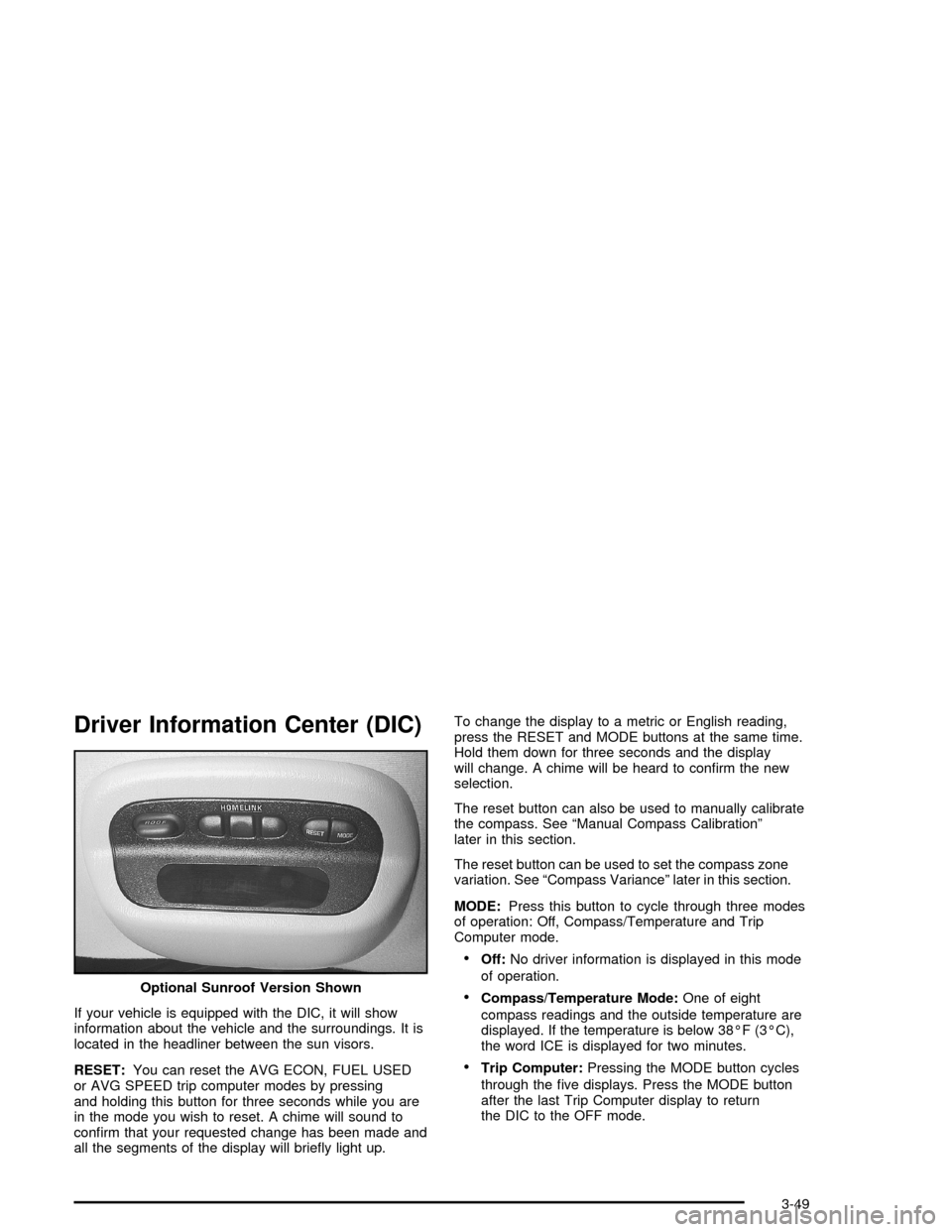
Driver Information Center (DIC)
If your vehicle is equipped with the DIC, it will show
information about the vehicle and the surroundings. It is
located in the headliner between the sun visors.
RESET:You can reset the AVG ECON, FUEL USED
or AVG SPEED trip computer modes by pressing
and holding this button for three seconds while you are
in the mode you wish to reset. A chime will sound to
conrm that your requested change has been made and
all the segments of the display will briey light up.To change the display to a metric or English reading,
press the RESET and MODE buttons at the same time.
Hold them down for three seconds and the display
will change. A chime will be heard to conrm the new
selection.
The reset button can also be used to manually calibrate
the compass. See “Manual Compass Calibration”
later in this section.
The reset button can be used to set the compass zone
variation. See “Compass Variance” later in this section.
MODE:Press this button to cycle through three modes
of operation: Off, Compass/Temperature and Trip
Computer mode.
Off:No driver information is displayed in this mode
of operation.
Compass/Temperature Mode:One of eight
compass readings and the outside temperature are
displayed. If the temperature is below 38°F (3°C),
the word ICE is displayed for two minutes.
Trip Computer:Pressing the MODE button cycles
through the ve displays. Press the MODE button
after the last Trip Computer display to return
the DIC to the OFF mode. Optional Sunroof Version Shown
3-49
Page 166 of 398

Playing the Radio
PWR (Power):Press this knob to turn the system on
and off.
VOL (Volume):Turn this knob to increase or to
decrease the volume.
DISPL (Display):Press this knob to switch the display
between the radio station frequency and the time.
When the ignition is off, press this knob to display
the time.
For RDS, press the DISPL knob to change what
appears on the display while using RDS. The display
options are station name, RDS station frequency, PTY,
and the name of the program (if available).
For XM™ (if equipped), press the DISPL knob while in
XM mode to retrieve four different categories of
information related to the current song or channel:
Artist, Song Title, Category or PTY, Channel
Number/Channel Name.
To change the default on the display, press the DISPL
knob until you see the display you want, then hold
the knob for two seconds. The radio will produce one
beep and the selected display will now be the default.AUTO VOL (Automatic Volume):With automatic
volume, the audio system adjusts automatically to make
up for road and wind noise as you drive.
Set the volume at the desired level. Press this button to
select LOW, MEDIUM, or HIGH. AVOL will appear
on the display. Each higher setting will allow for more
volume compensation at faster vehicle speeds. Then as
you drive, automatic volume increases the volume,
as necessary, to overcome noise at any speed.
The volume level should always sound the same to you
as you drive. NONE will appear on the display if the
radio cannot determine the vehicle speed. To turn
automatic volume off, press this button until OFF
appears on the display.
Finding a Station
BAND:Press this button to switch between FM1, FM2,
AM, or XM1 or XM2 (if equipped). The display will
show the selection.
TUNE:Turn this knob to select radio stations.
qSEEKr:Press the right or the left arrow to go to
the next or to the previous station and stay there.
The radio will only seek stations with a strong signal
that are in the selected band.
3-54
Page 177 of 398

Playing the Radio
PWR (Power):Press this knob to turn the system on
and off.
VOL (Volume):Turn this knob to increase or to
decrease the volume.
AUTO VOL (Automatic Volume):With automatic
volume, the audio system adjusts automatically to make
up for road and wind noise as you drive.
Set the volume at the desired level. Press this button to
select LOW, MEDIUM, or HIGH. AVOL will appear on the
display. Each higher setting will allow for more volume
compensation at faster vehicle speeds. Then, as you
drive, automatic volume increases the volume, as
necessary, to overcome noise at any speed. The volume
level should always sound the same to you as you drive.
NONE will appear on the display if the radio cannot
determine the vehicle speed. To turn automatic volume
off, press this button until OFF appears on the display.
DISPL (Display):Press this knob to switch the display
between the radio station frequency and the time. When
the ignition is off, press this knob to display the time.
For RDS, press the DISPL knob to change what appears
on the display while using RDS. The display options are
station name, RDS station frequency, PTY, and the name
of the program (if available).For XM™ (if equipped), press the DISPL knob while
in XM™ mode to retrieve four different categories
of information related to the current song or channel:
Artist, Song Title, Category or PTY, Channel
Number/Channel Name.
To change the default on the display, press the DISPL
knob until you see the display you want, then hold the
knob for two seconds. The radio will produce a beep and
the selected display will now be the default.
Finding a Station
BAND:Press this button to switch between FM1, FM2,
AM, or XM1 or XM2 (if equipped). The display will
show the selection.
TUNE:Turn this knob to select radio stations.
qSEEKr:Press the right or the left arrow to go to
the next or to the previous station and stay there.
The radio will only seek stations with a strong signal
that are in the selected band.
3-65
Page 185 of 398

6 RDM (Random):Press this pushbutton to hear the
tracks in random, rather than sequential, order. RDM ON
will appear on the display. RDM T and the track
number will appear on the display when each track
starts to play. Press RDM again to turn off random play.
RDM OFF will appear on the display.
qSEEKr:Press the left arrow to go to the start of
the current or to the previous track. Press the right
arrow to go to the start of the next track. If either arrow
is held or pressed more than once, the player will
continue moving backward or forward through the CD.
DISPL (Display):Press this knob to see how long the
current track has been playing. ET and the elapsed time
of the track will appear on the display. To change the
default on the display, track or elapsed time, press the
knob until you see the display you want, then hold the
knob for two seconds. The radio will produce one beep
and the selected display will now be the default.
BAND:Press this button to listen to the radio when a
CD is playing. The inactive CD will remain safely
inside the radio for future listening.
CD AUX (Auxiliary):Press this button to play a CD
when listening to the radio. The CD symbol will appear
on the display when a CD is loaded.
ZEJT (Eject):Press this button to eject a CD.
Eject may be activated with either the ignition or
radio off. CDs may be loaded with the ignition and radio
off if this button is pressed rst.
CD Messages
CHECK CD:If this message appears on the display
and/or the CD comes out, it could be for one of the
following reasons:
It is very hot. When the temperature returns to
normal, the CD should play.
You are driving on a very rough road. When the
road becomes smoother, the CD should play.
The CD is dirty, scratched, wet, or upside down.
The air is very humid. If so, wait about an hour
and try again.
There may have been a problem while burning
the CD.
The label may be caught in the CD player.
If the CD is not playing correctly, for any other reason,
try a known good CD.
If any error occurs repeatedly or if an error cannot be
corrected, contact your dealer. If the radio displays
an error message, write it down and provide it to your
dealer when reporting the problem.
3-73
Page 198 of 398

6 RDM (Random):Press this pushbutton to hear the
tracks in random, rather than sequential, order. RDM ON
will appear on the display. RDM T and the track
number will appear on the display when each track
starts to play. Press RDM again to turn off random play.
RDM OFF will appear on the display.
qSEEKr:Press the left arrow to go to the start of
the current or of the previous track. Press the right
arrow to go to the start of the next track. If either arrow
is held or pressed more than once, the player will
continue moving backward or forward through the CD.
DISPL (Display):Press this knob to see how long the
current track has been playing. ET and the elapsed time
of the track will appear on the display. To change the
default on the display, track or elapsed time, press the
knob until you see the display you want, then hold the
knob for two seconds. The radio will produce one beep
and the selected display will now be the default.
BAND:Press this button to listen to the radio when a
cassette tape or a CD is playing. The inactive tape
or CD will remain safely inside the radio for future
listening.
TAPE CD:Press this button to play a cassette tape or
a CD when listening to the radio. The inactive tape
or CD will remain safely inside the radio for future
listening.
ZEJT (Eject):Press this button, located next to the
CD slot, to eject a CD. Eject may be activated with either
the ignition or radio off. CDs may be loaded with the
ignition and radio off if this button is pressed rst.
CD Messages
CHECK CD:If this message appears on the radio
display and/or the CD comes out, it could be for one of
the following reasons:
You are driving on a very rough road. When the
road becomes smoother, the CD should play.
The CD is dirty, scratched, wet, or upside down.
The air is very humid. If so, wait about an hour
and try again.
There may have been a problem while burning
the CD.
The label may be caught in the CD player.
If the CD is not playing correctly, for any other reason,
try a known good CD.
If any error occurs repeatedly or if an error cannot be
corrected, contact your GM dealer. If the radio displays
an error message, write it down and provide it to
your GM dealer when reporting the problem.
3-86