fuel CHEVROLET IMPALA 2006 9.G User Guide
[x] Cancel search | Manufacturer: CHEVROLET, Model Year: 2006, Model line: IMPALA, Model: CHEVROLET IMPALA 2006 9.GPages: 394, PDF Size: 2.42 MB
Page 158 of 394
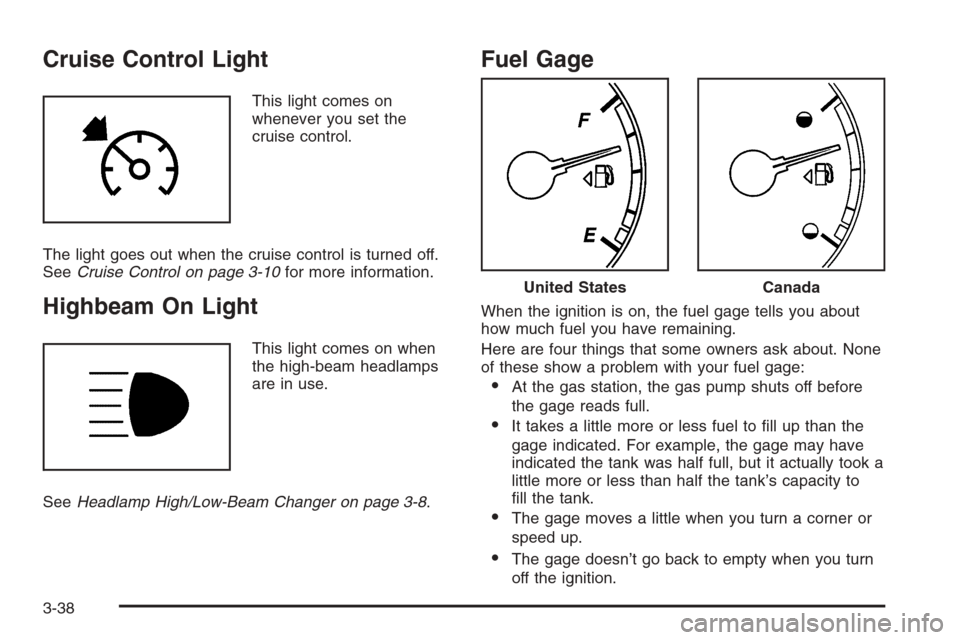
Cruise Control Light
This light comes on
whenever you set the
cruise control.
The light goes out when the cruise control is turned off.
SeeCruise Control on page 3-10for more information.
Highbeam On Light
This light comes on when
the high-beam headlamps
are in use.
SeeHeadlamp High/Low-Beam Changer on page 3-8.
Fuel Gage
When the ignition is on, the fuel gage tells you about
how much fuel you have remaining.
Here are four things that some owners ask about. None
of these show a problem with your fuel gage:
At the gas station, the gas pump shuts off before
the gage reads full.
It takes a little more or less fuel to ll up than the
gage indicated. For example, the gage may have
indicated the tank was half full, but it actually took a
little more or less than half the tank’s capacity to
ll the tank.
The gage moves a little when you turn a corner or
speed up.
The gage doesn’t go back to empty when you turn
off the ignition.
United StatesCanada
3-38
Page 159 of 394
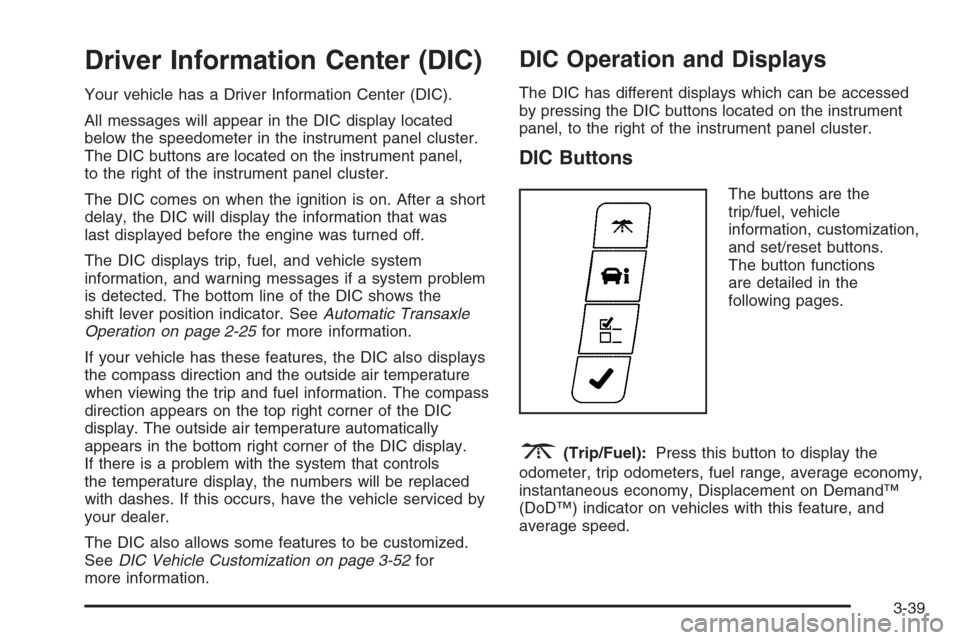
Driver Information Center (DIC)
Your vehicle has a Driver Information Center (DIC).
All messages will appear in the DIC display located
below the speedometer in the instrument panel cluster.
The DIC buttons are located on the instrument panel,
to the right of the instrument panel cluster.
The DIC comes on when the ignition is on. After a short
delay, the DIC will display the information that was
last displayed before the engine was turned off.
The DIC displays trip, fuel, and vehicle system
information, and warning messages if a system problem
is detected. The bottom line of the DIC shows the
shift lever position indicator. SeeAutomatic Transaxle
Operation on page 2-25for more information.
If your vehicle has these features, the DIC also displays
the compass direction and the outside air temperature
when viewing the trip and fuel information. The compass
direction appears on the top right corner of the DIC
display. The outside air temperature automatically
appears in the bottom right corner of the DIC display.
If there is a problem with the system that controls
the temperature display, the numbers will be replaced
with dashes. If this occurs, have the vehicle serviced by
your dealer.
The DIC also allows some features to be customized.
SeeDIC Vehicle Customization on page 3-52for
more information.
DIC Operation and Displays
The DIC has different displays which can be accessed
by pressing the DIC buttons located on the instrument
panel, to the right of the instrument panel cluster.
DIC Buttons
The buttons are the
trip/fuel, vehicle
information, customization,
and set/reset buttons.
The button functions
are detailed in the
following pages.
3(Trip/Fuel):Press this button to display the
odometer, trip odometers, fuel range, average economy,
instantaneous economy, Displacement on Demand™
(DoD™) indicator on vehicles with this feature, and
average speed.
3-39
Page 160 of 394
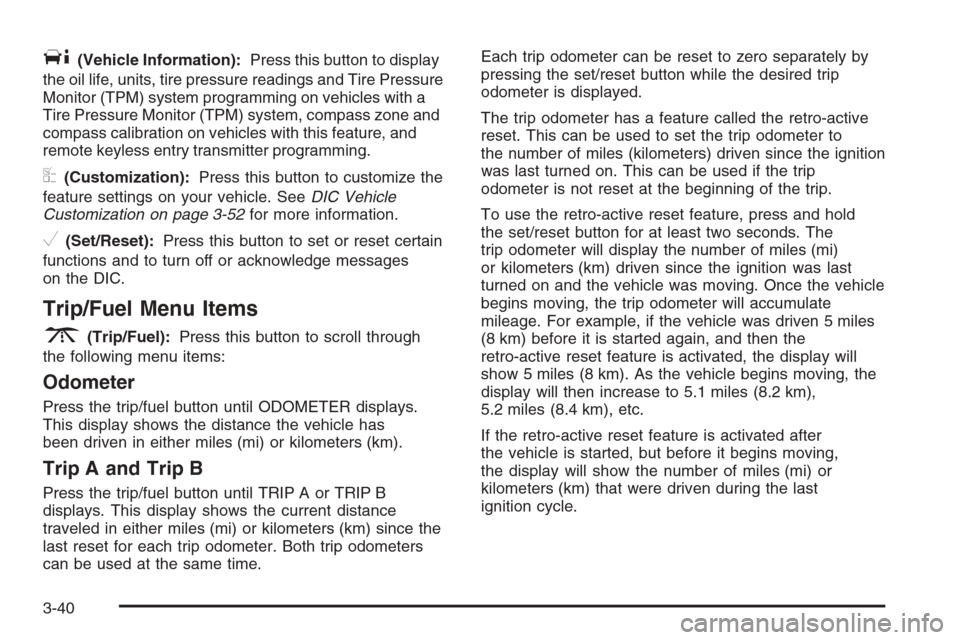
T(Vehicle Information):Press this button to display
the oil life, units, tire pressure readings and Tire Pressure
Monitor (TPM) system programming on vehicles with a
Tire Pressure Monitor (TPM) system, compass zone and
compass calibration on vehicles with this feature, and
remote keyless entry transmitter programming.
U(Customization):Press this button to customize the
feature settings on your vehicle. SeeDIC Vehicle
Customization on page 3-52for more information.
V(Set/Reset):Press this button to set or reset certain
functions and to turn off or acknowledge messages
on the DIC.
Trip/Fuel Menu Items
3
(Trip/Fuel):Press this button to scroll through
the following menu items:
Odometer
Press the trip/fuel button until ODOMETER displays.
This display shows the distance the vehicle has
been driven in either miles (mi) or kilometers (km).
Trip A and Trip B
Press the trip/fuel button until TRIP A or TRIP B
displays. This display shows the current distance
traveled in either miles (mi) or kilometers (km) since the
last reset for each trip odometer. Both trip odometers
can be used at the same time.Each trip odometer can be reset to zero separately by
pressing the set/reset button while the desired trip
odometer is displayed.
The trip odometer has a feature called the retro-active
reset. This can be used to set the trip odometer to
the number of miles (kilometers) driven since the ignition
was last turned on. This can be used if the trip
odometer is not reset at the beginning of the trip.
To use the retro-active reset feature, press and hold
the set/reset button for at least two seconds. The
trip odometer will display the number of miles (mi)
or kilometers (km) driven since the ignition was last
turned on and the vehicle was moving. Once the vehicle
begins moving, the trip odometer will accumulate
mileage. For example, if the vehicle was driven 5 miles
(8 km) before it is started again, and then the
retro-active reset feature is activated, the display will
show 5 miles (8 km). As the vehicle begins moving, the
display will then increase to 5.1 miles (8.2 km),
5.2 miles (8.4 km), etc.
If the retro-active reset feature is activated after
the vehicle is started, but before it begins moving,
the display will show the number of miles (mi) or
kilometers (km) that were driven during the last
ignition cycle.
3-40
Page 161 of 394
Fuel Range
Press the trip/fuel button until FUEL RANGE displays.
This display shows the approximate number of
remaining miles (mi) or kilometers (km) the vehicle can
be driven without refueling.
The fuel range estimate is based on an average of the
vehicle’s fuel economy over recent driving history
and the amount of fuel remaining in the fuel tank.
This estimate will change if driving conditions change.
For example, if driving in traffic and making frequent
stops, this display may read one number, but if
the vehicle is driven on a freeway, the number may
change even though the same amount of fuel is in the
fuel tank. This is because different driving conditions
produce different fuel economies. Generally, freeway
driving produces better fuel economy than city driving.
If your vehicle is low on fuel, the FUEL LEVEL LOW
message will be displayed. See “FUEL LEVEL LOW”
underDIC Warnings and Messages on page 3-45
for more information.
Average Economy
Press the trip/fuel button until AVG ECONOMY displays.
This display shows the approximate average miles per
gallon (mpg) or liters per 100 kilometers (L/100 km).
This number is calculated based on the number of mpg
(L/100 km) recorded since the last time this menu item
was reset. To reset AVG ECONOMY, press and hold the
set/reset button. The display will return to zero.
Instantaneous Economy and Displacement
on Demand™ (DoD™) Indicator
Press the trip/fuel button until INST ECONOMY displays.
If your vehicle has a V8 engine, INST ECONOMY
8CYL MODE will display. This display shows the current
fuel economy at a particular moment and will change
frequently as driving conditions change. This display
shows the instantaneous fuel economy in miles
per gallon (mpg) or liters per 100 kilometers (L/100 km).
Unlike average economy, this screen cannot be reset.
If your vehicle has a V8 engine, a Displacement on
Demand™ (DoD™) indicator will display on the right side
of the DIC, while INST ECONOMY displays on the left
side. DoD™ allows the engine to operate on either four or
eight cylinders, depending on your driving demands.
When DoD™ is active, 4CYL MODE will display on the
DIC. When DoD™ is inactive, 8CYL MODE will display.
SeeDisplacement on Demand™ (DoD™) (5.3L V8
Engine) on page 2-25for more information.
3-41
Page 162 of 394
Average Speed
Press the trip/fuel button until AVERAGE SPEED
displays. This display shows the average speed of the
vehicle in miles per hour (mph) or kilometers per
hour (km/h). This average is calculated based on the
various vehicle speeds recorded since the last reset of
this value. To reset the value, press and hold the
set/reset button. The display will return to zero.
Blank Display
This display shows no information.
Vehicle Information Menu Items
T
(Vehicle Information):Press this button to scroll
through the following menu items:
Oil Life
Press the vehicle information button until OIL LIFE
REMAINING displays. This display shows an estimate
of the oil’s remaining useful life. If you see 99% OIL LIFE
REMAINING on the display, that means 99% of the
current oil life remains. The engine oil life system
will alert you to change your oil on a schedule consistent
with your driving conditions.
When the remaining oil life is low, the CHANGE ENGINE
OIL SOON message will appear on the display. See
“CHANGE ENGINE OIL SOON” underDIC Warnings andMessages on page 3-45. You should change your oil as
soon as possible. SeeEngine Oil on page 5-17.In
addition to the engine oil life system monitoring the oil life,
additional maintenance is recommended in the
Maintenance Schedule in this manual. SeeScheduled
Maintenance on page 6-4for more information.
Remember, you must reset the OIL LIFE yourself after
each oil change. It will not reset itself. Also, be careful not
to reset the OIL LIFE accidentally at any time other than
when the oil has just been changed. It cannot be reset
accurately until the next oil change. To reset the engine
oil life system, seeEngine Oil Life System on page 5-20.
Units
Press the vehicle information button until UNITS
displays. This display allows you to select between
English or Metric units of measurement. Once in this
display, press the set/reset button to select between
ENGLISH or METRIC units.
Tire Pressure
If your vehicle has a Tire Pressure Monitor (TPM) system,
the pressure for each tire can be viewed in the DIC. The
tire pressure will be shown in either pounds per square
inch (psi) or kilopascals (kPa). Press the vehicle
information button until the DIC shows the tire pressure
for the front tires. Press the vehicle information button
again to view the pressure for the rear tires.
3-42
Page 165 of 394
3. Press the set/reset button to scroll through and
select the appropriate variance zone.
Navigate to one of the trip/fuel menu screens to
view the direction the vehicle is moving. This will be
shown in the top right corner of the DIC display.
4. If you need to calibrate the compass, use the
compass calibration procedure. See “Compass
Calibration Procedure” following.
Compass Calibration
The compass can be manually calibrated. Only calibrate
the compass in a safe location where driving the vehicle
in circles is not a problem. If “CAL” should ever appear in
the DIC display, the compass may need calibration.
To calibrate the compass, use the following procedure:
Compass Calibration Procedure
1. Before calibrating the compass, make sure the
compass zone is set to the variance zone in
which the vehicle is traveling. See “Compass
Variance Procedure” earlier in this section.
2. Press the vehicle information button until the
PRESS
VTO CALIBRATE COMPASS screen
is displayed.3. Press the set/reset button to start the compass
calibration.
4. The DIC will display CALIBRATING: DRIVE IN
CIRCLES. Drive the vehicle in circles at less
than 5 mph (8 km/h) to complete the calibration.
The DIC will display CALIBRATION COMPLETE
when the calibration is complete.
DIC Warnings and Messages
Messages are displayed on the DIC to notify the driver
that the status of the vehicle has changed and that
some action may be needed by the driver to correct the
condition. Multiple messages may appear one after
another. Some messages may not require immediate
action, but you can press the set/reset button to
acknowledge that you received the message and clear it
from the DIC display. Pressing any of the DIC buttons
will also acknowledge and clear any messages.
Some messages cannot be cleared from the DIC display
because they are more urgent. These messages
require action before they can be cleared. You should
take any messages that appear on the display seriously
and remember that clearing the messages will only
make the messages disappear, not correct the problem.
The following are the possible messages that can be
displayed and some information about them.
3-45
Page 168 of 394
ERROR
This message will display when viewing the odometer or
trip odometers if there is a problem with the instrument
panel cluster. See your GM dealer for service.
FUEL LEVEL LOW
This message will display when your vehicle is low on
fuel. You should rell the fuel tank as soon as possible.
SeeFuel Gage on page 3-38andFilling the Tank on
page 5-8for more information.
HOOD OPEN
If your vehicle has the remote start feature, this
message will display when the hood is not closed
properly. When this message appears, you should make
sure that the hood is closed completely. SeeHood
Release on page 5-11.
ICE POSSIBLE DRIVE WITH CARE
This message will display when the outside air
temperature is cold enough to create icy road conditions.
Adjust your driving accordingly.
LEFT REAR DOOR OPEN
This message will display when the driver’s side rear
door is not closed properly. When this message
appears, you should make sure that the driver’s side
rear door is closed completely.
OIL PRESSURE LOW STOP ENGINE
Notice:If you drive your vehicle while the engine
oil pressure is low, severe engine damage may
occur. If a low oil pressure warning appears on the
Driver Information Center (DIC), stop the vehicle
as soon as possible. Do not drive the vehicle until
the cause of the low oil pressure is corrected.
SeeEngine Oil on page 5-17for more information.
This message will display when the vehicle’s engine
oil pressure is low. The oil pressure light will also appear
on the instrument panel cluster. SeeOil Pressure
Light on page 3-36.
Stop the vehicle immediately, as engine damage can
result from driving a vehicle with low oil pressure. Have
the vehicle serviced by your GM dealer as soon as
possible when this message is displayed.
3-48
Page 178 of 394
DO NOT RESTORE:The customization features will
not be set to their factory default settings.
Select one of the available choices and press the set/
reset button while it is displayed on the DIC to select it.
EXIT FEATURE SETTINGS
This feature allows you to exit the FEATURE
SETTINGS menu.
Press the customization button until FEATURE
SETTINGS PRESS
VTO EXIT appears in the DIC
display. Press the set/reset button to exit the menu.
If you do not exit, pressing the customization button
again will return you to the beginning of the FEATURE
SETTINGS menu.
Exiting the Feature Settings Menu
The feature settings menu will be exited when any of
the following occurs:
The vehicle is shifted out of PARK (P).
The vehicle is no longer in RUN.
The trip/fuel or vehicle information DIC buttons are
pressed.
The end of the feature settings menu is reached
and exited.
A 40 second time period has elapsed with no
selection made.
Audio System(s)
Determine which radio your vehicle has and then read the
pages following to familiarize yourself with its features.
Driving without distraction is a necessity for a safer
driving experience. SeeDefensive Driving on page 4-2.
By taking a few moments to read this manual and
get familiar with your vehicle’s audio system, you can
use it with less effort, as well as take advantage of
its features. While your vehicle is parked, set up your
audio system by presetting your favorite radio stations,
setting the tone, and adjusting the speakers. Then,
when driving conditions permit, you can tune to
your favorite stations using the presets and steering
wheel controls if the vehicle has them.
{CAUTION:
This system provides you with a far greater
access to audio stations and song listings.
Giving extended attention to entertainment
tasks while driving can cause a crash and you
or others can be injured or killed. Always keep
your eyes on the road and your mind on the
drive — avoid engaging in extended searching
while driving.
3-58
Page 227 of 394
Before Leaving on a Long Trip
Make sure you are ready. Try to be well rested. If you
must start when you are not fresh — such as after
a day’s work — do not plan to make too many miles
that rst part of the journey. Wear comfortable clothing
and shoes you can easily drive in.
Is your vehicle ready for a long trip? If you keep it
serviced and maintained, it is ready to go. If it needs
service, have it done before starting out. Of course,
you will nd experienced and able service experts in
GM dealerships all across North America. They will be
ready and willing to help if you need it.
Here are some things you can check before a trip:
Windshield Washer Fluid:Is the reservoir full?
Are all windows clean inside and outside?
Wiper Blades:Are they in good shape?
Fuel, Engine Oil, Other Fluids:Have you checked
all levels?
Lamps:Are they all working? Are the lenses clean?
Tires:They are vitally important to a safe,
trouble-free trip. Is the tread good enough for
long-distance driving? Are the tires all inated to the
recommended pressure?
Weather Forecasts:What is the weather outlook
along your route? Should you delay your trip a
short time to avoid a major storm system?
Maps:Do you have up-to-date maps?
Highway Hypnosis
Is there actually such a condition as highway hypnosis?
Or is it just plain falling asleep at the wheel? Call it
highway hypnosis, lack of awareness, or whatever.
There is something about an easy stretch of road with
the same scenery, along with the hum of the tires on
the road, the drone of the engine, and the rush of
the wind against the vehicle that can make you sleepy.
Do not let it happen to you! If it does, your vehicle
can leave the road in less than a second, and you could
crash and be injured.
What can you do about highway hypnosis?
First, be aware that it can happen.
Then here are some tips:
Make sure your vehicle is well ventilated, with a
comfortably cool interior.
Keep your eyes moving. Scan the road ahead and
to the sides. Check your rearview mirrors and your
instruments frequently.
If you get sleepy, pull off the road into a rest,
service, or parking area and take a nap, get some
exercise, or both. For safety, treat drowsiness
on the highway as an emergency.
4-21
Page 233 of 394
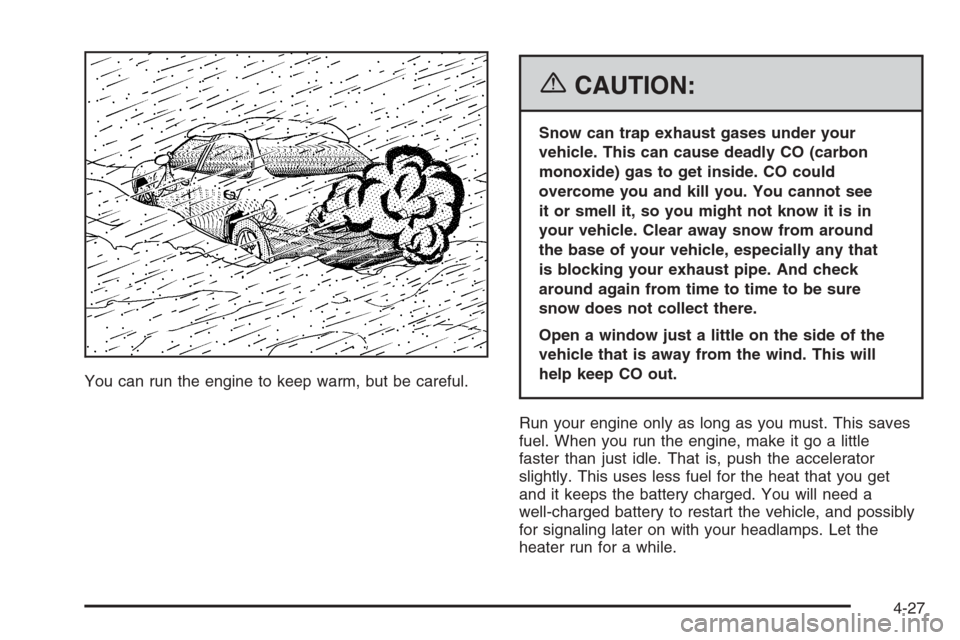
You can run the engine to keep warm, but be careful.
{CAUTION:
Snow can trap exhaust gases under your
vehicle. This can cause deadly CO (carbon
monoxide) gas to get inside. CO could
overcome you and kill you. You cannot see
it or smell it, so you might not know it is in
your vehicle. Clear away snow from around
the base of your vehicle, especially any that
is blocking your exhaust pipe. And check
around again from time to time to be sure
snow does not collect there.
Open a window just a little on the side of the
vehicle that is away from the wind. This will
help keep CO out.
Run your engine only as long as you must. This saves
fuel. When you run the engine, make it go a little
faster than just idle. That is, push the accelerator
slightly. This uses less fuel for the heat that you get
and it keeps the battery charged. You will need a
well-charged battery to restart the vehicle, and possibly
for signaling later on with your headlamps. Let the
heater run for a while.
4-27