buttons CHEVROLET IMPALA 2012 9.G User Guide
[x] Cancel search | Manufacturer: CHEVROLET, Model Year: 2012, Model line: IMPALA, Model: CHEVROLET IMPALA 2012 9.GPages: 374, PDF Size: 5.73 MB
Page 149 of 374
Black plate (47,1)Chevrolet Impala Owner Manual - 2012
Instruments and Controls 5-47
.If a switch is set between
the up and down position,
write“Middle.”
The switch settings written
down in Step 2 will now
become the button strokes
to be entered into the
Universal Home Remote in
Step 4. Be sure to enter the
switch settings written down
in Step 2, in order from left
to right, into the Universal
Home Remote, when
completing Step 4.
3. From inside your vehicle, first firmly press all three buttons at
the same time for about
three seconds. Release the
buttons to put the Universal
Home Remote into
programming mode.
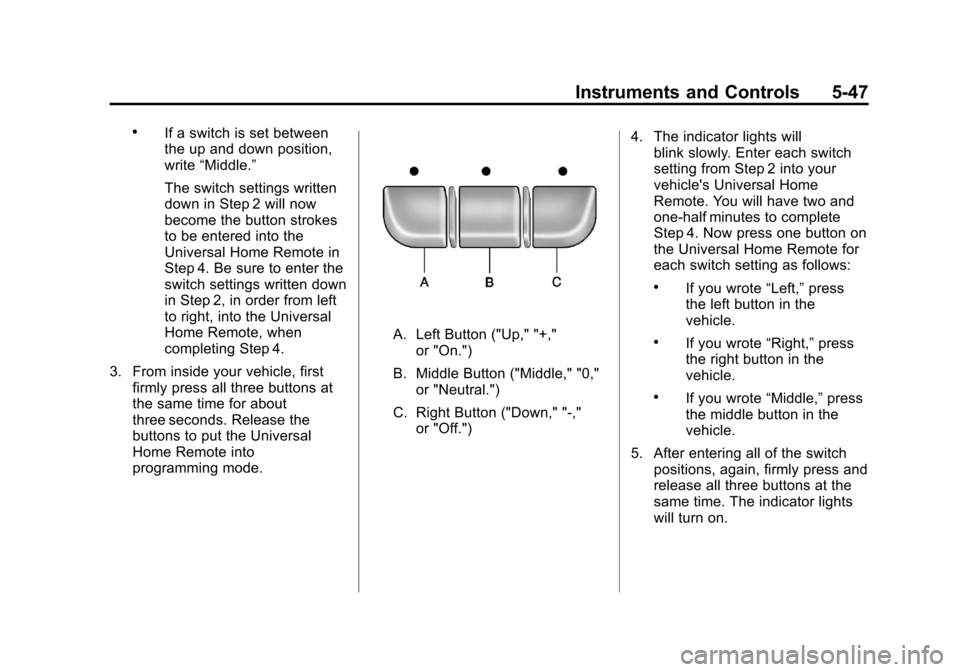
A. Left Button ("Up," "+,"or "On.")
B. Middle Button ("Middle," "0," or "Neutral.")
C. Right Button ("Down," "-," or "Off.") 4. The indicator lights will
blink slowly. Enter each switch
setting from Step 2 into your
vehicle's Universal Home
Remote. You will have two and
one-half minutes to complete
Step 4. Now press one button on
the Universal Home Remote for
each switch setting as follows:
.If you wrote “Left,”press
the left button in the
vehicle.
.If you wrote “Right,”press
the right button in the
vehicle.
.If you wrote “Middle,”press
the middle button in the
vehicle.
5. After entering all of the switch positions, again, firmly press and
release all three buttons at the
same time. The indicator lights
will turn on.
Page 150 of 374
Black plate (48,1)Chevrolet Impala Owner Manual - 2012
5-48 Instruments and Controls
6. Press and hold the button thatwill be used to control the
garage door until the garage
door moves. The indicator light
above the selected button
should slowly blink. This button
may need to be held for up to
55 seconds.
7. Immediately release the button when the garage door moves.
The indicator light will blink
rapidly until programming is
complete.
8. Press and release the same button again. The garage door
should move, confirming that
programming is successful and
complete. To program another Fixed Code
device such as an additional garage
door opener, a security device,
or home automation device, repeat
Steps 1 through 8, choosing a
different button in Step 6 than what
was used for the garage door
opener.
Universal Remote System
Operation
Press and hold the appropriate
button for at least half of a second.
The indicator light will come on
while the signal is being transmitted.
Reprogramming Universal
Home Remote Buttons
Any of the three buttons can be
reprogrammed by repeating the
instructions.
Erasing Universal Home
Remote Buttons
The programmed buttons should be
erased when the vehicle is sold or
the lease ends.
To erase either Rolling Code or
Fixed Code on the Universal Home
Remote device:
1. Press and hold the 2 outside
buttons at the same time for
approximately 20 seconds, until
the indicator lights, located
directly above the buttons, begin
to blink rapidly.
2. Once the indicator lights begin to blink, release both buttons. The
codes from all buttons will be
erased.
For help or information on the
Universal Home Remote System,
call the customer assistance phone
number under Customer Assistance
Offices on page 13‑3.
Page 165 of 374
Black plate (7,1)Chevrolet Impala Owner Manual - 2012
Infotainment System 7-7
.To scan preset stations in the
selected band, press and hold
©SEEK for four seconds until a
double beep sounds. The radio
goes to a stored preset, plays for
a few seconds, then goes to
the next stored preset. Press
©SEEK again to stop scanning
preset stations.
¨SEEK: Press to seek or scan
stations with a strong signal in the
selected band.
.To seek stations, press and
release
¨SEEK to go to the
next station and stay there.
.To scan stations, press and hold¨SEEK for a few seconds until
the radio beeps once. The radio
goes to a station, plays for a
few seconds, then goes to the
next station. Press
¨SEEK
again to stop scanning.
.To scan preset stations in the
selected band, press and hold
¨SEEK for four seconds until a
double beep sounds. The radio
goes to a stored preset, plays
for a few seconds, then goes
to the next stored preset. Press
¨SEEK again to stop scanning
preset stations.
Storing Radio Stations
Drivers are encouraged to store
radio station while the vehicle is
parked. See Defensive Driving on
page 9‑3. Tune to stored radio
stations using the presets, favorites
button, and steering wheel controls,
if the vehicle has this feature.
Radios that have a FAV button store
radio stations as favorites, up to
36 stations can be programmed as
favorites using the 6 softkeys below
the radio station frequency tabs and
by using the FAV button. Press the
FAV button to go through up to
6 pages of favorites, each having
6 favorite stations available per page. Each page of favorites can
contain any combination of AM, FM,
or XM, if equipped, stations.
Radios that do not have a FAV
button store radio stations as
presets, up to 18 stations (6 FM1,
6 FM2, and 6 AM), can be
programmed on the 6 numbered
pushbuttons.
Storing a Radio Station as a
Preset, Radio with CD (Base)
Radios that have numbered
pushbuttons store radio stations as
presets.
Up to 18 stations (6 FM1, 6 FM2,
and 6 AM), can be programmed on
the six numbered buttons.
To store preset stations:
1. Tune to a radio station.
2. Press and hold one of the
6 numbered pushbuttons for
3 seconds until a beep sounds.
3. Repeat Steps 1 and 2 to store additional radio stations.
Page 173 of 374
Black plate (15,1)Chevrolet Impala Owner Manual - 2012
Infotainment System 7-15
If the ignition or radio is turned off
when a CD is in the player, the CD
stays in the player. If the ignition or
radio is turned on when a CD is in
the player, the CD starts to play
where it stopped, if it was the last
selected audio source.
Buttons and Knobs
The buttons and knobs on the radio
control the following features.
f(Tune):Turn to select tracks on
the CD.
©SEEK: Press to go to the start of
the current track, if more than
10 seconds have played. Press and
hold or press multiple times to
continue moving backward through
the tracks on the CD.
¨SEEK: Press to go to the next
track. Press and hold or press
multiple times to continue moving
forward through the tracks on
the CD.
sREV (Reverse): Press and hold
to reverse playback quickly within a
track. Sound is heard at a reduced
volume and the elapsed time of the
track displays. Release to resume
playing the track.
\FWD (Fast Forward): Press
and hold to advance playback
quickly within a track. Sound is
heard at a reduced volume and the
elapsed time of the track displays.
Release to resume playing the
track.
4(Information): Press to display
available additional information
about the current track.
BAND: Press to listen to the radio
while a CD is playing. The CD
remains inside the CD player.
CD/AUX (CD/Auxiliary): Press to
play a CD while listening to the
radio or a portable audio device.
Press this button again and the
system automatically searches for
an auxiliary input device, such as a
portable audio player. If a portable audio player is not connected, No
Aux Input Device Found may
display.
Softkeys
The six softkeys below the radio
display are used to control functions
that display as tabs.
The softkeys below the radio display
control the following features.
RDM (Random):
Tracks can be
listened to in random, rather than
sequential order.
To use random:
1. Press the softkey below the RDM tab until Random Current
Disc displays.
2. Press the softkey again to turn off random play.
Page 175 of 374
Black plate (17,1)Chevrolet Impala Owner Manual - 2012
Infotainment System 7-17
.Play begins from the first track in
the first folder and continues
sequentially through all tracks in
each folder. When the last track
of the last folder has played,
play continues from the first
track of the first folder.
When playback starts from a new
folder, the new track name displays
unless folder mode has been
chosen as the default display, then
the new folder name displays.
Buttons and Knobs
The buttons and knobs on the radio
control the following features.
f(Tune): Turn to select MP3 files
on the disc.
©SEEK: Press to go to the start of
the track, if more than 10 seconds
have played. Press and hold or
press multiple times to continue
moving backward through tracks.
¨SEEK: Press to go to the next
track. Press and hold or press
multiple times to continue moving
forward through tracks.
sREV (Reverse): Press and hold
to reverse playback quickly. Sound
is heard at a reduced volume and
the elapsed time of the track
displays. Release
sREV to
resume playing.
\FWD (Fast Forward): Press
and hold to advance playback
quickly. Sound is heard at a reduced
volume and the elapsed time of the
track displays. Release
\FWD to
resume playing.
4(Information): Press to display
available additional information
about the current track.
BAND: Press to listen to the radio
while an MP3 disc is playing. The
MP3 disc remains inside the CD
player. CD/AUX (CD/Auxiliary):
Press to
play an MP3 disc while listening to
the radio or a portable audio device.
Press this button again and the
system automatically searches for
an auxiliary input device, such as a
portable audio player. If a portable
audio player is not connected, No
Aux Input Device Found may
display.
Softkeys
The six softkeys below the radio
display are used to control functions
that display as tabs.
The softkeys below the radio display
control the following features.S c(Previous Folder): Press
the softkey below
S cto go to the
first track in the previous folder.
cT (Next Folder): Press the
softkey below
cT to go to the first
track in the next folder.
Page 179 of 374
Black plate (21,1)Chevrolet Impala Owner Manual - 2012
Infotainment System 7-21
Voice Recognition
The Bluetooth system uses voice
recognition to interpret voice
commands to dial phone numbers
and name tags.
For additional information, say
“Help”while you are in a voice
recognition menu.
Noise: Keep interior noise levels to
a minimum. The system may not
recognize voice commands if there
is too much background noise.
When to Speak: A short tone
sounds after the system responds
indicating when it is waiting for a
voice command. Wait until the tone
and then speak.
How to Speak: Speak clearly in a
calm and natural voice.
Audio System
When using the in‐vehicle Bluetooth
system, sound comes through the
vehicle's front audio system
speakers and overrides the audio
system. Use the audio system
volume knob, during a call, to
change the volume level. The
adjusted volume level remains in
memory for later calls. To prevent
missed calls, a minimum volume
level is used if the volume is turned
down too low.
Bluetooth Controls
Use the buttons located on the
steering wheel to operate the in‐
vehicle Bluetooth system. See
Steering Wheel Controls on
page 5‑3 for more information.
b/g(Push To Talk): Press to
answer incoming calls, confirm
system information, and start
speech recognition.
c/x(Phone On Hook): Press
to end a call, reject a call, or cancel
an operation.
Pairing
A Bluetooth enabled cell phone
must be paired to the Bluetooth
system and then connected to the
vehicle before it can be used. See
the cell phone manufacturer's user
guide for Bluetooth functions before
pairing the cell phone. If a Bluetooth
phone is not connected, calls will be
made using OnStar Hands‐Free
Calling, if equipped. See OnStar
Overview on page 14‑1 for more
information.
Pairing Information
.A Bluetooth phone with MP3
capability cannot be paired to
the vehicle as a phone and an
MP3 player at the same time.
.Up to five cell phones can be
paired to the Bluetooth system.
.The pairing process is disabled
when the vehicle is moving.
Page 226 of 374
Black plate (34,1)Chevrolet Impala Owner Manual - 2012
9-34 Driving and Operating
Cruise Control
With cruise control, you can
maintain a speed of about 40 km/h
(25 mph) or more without keeping
your foot on the accelerator. Cruise
control does not work at speeds
below about 40 km/h (25 mph).
{WARNING
Cruise control can be dangerous
where you cannot drive safely at
a steady speed. So, do not use
the cruise control on winding
roads or in heavy traffic.
Cruise control can be dangerous
on slippery roads. On such roads,
fast changes in tire traction can
cause excessive wheel slip, and
you could lose control. Do not use
cruise control on slippery roads.If your vehicle has the Traction
Control System (TCS) and the
cruise control is on, TCS will begin
to limit wheel spin and the cruise
control automatically turns off . See
Traction Control System (TCS) on
page 9‑30. When road conditions
allow you to safely use it again, the
cruise control can be turned
back on.
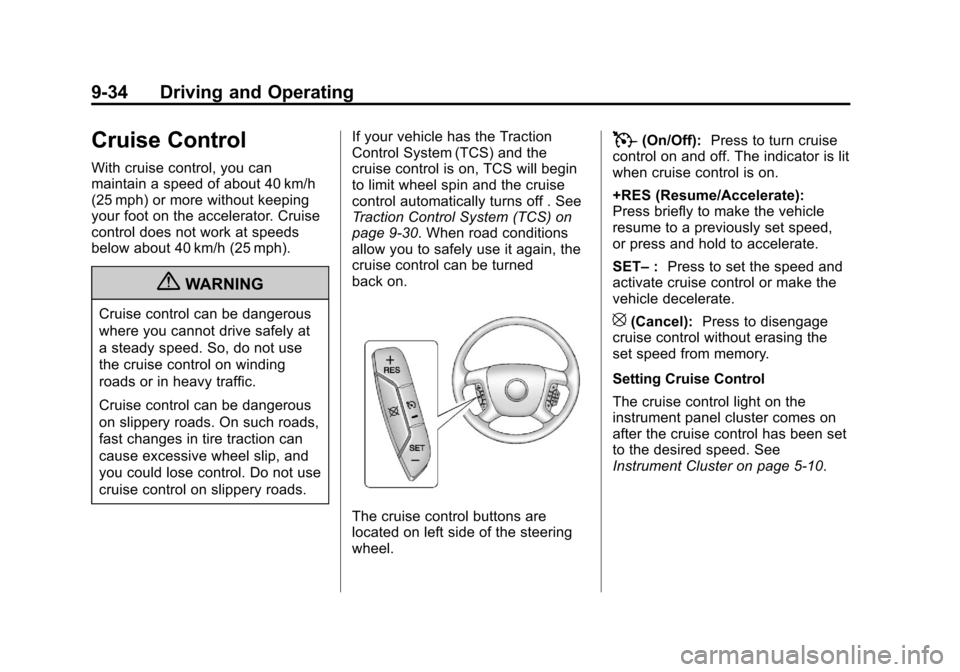
The cruise control buttons are
located on left side of the steering
wheel.
T(On/Off):
Press to turn cruise
control on and off. The indicator is lit
when cruise control is on.
+RES (Resume/Accelerate):
Press briefly to make the vehicle
resume to a previously set speed,
or press and hold to accelerate.
SET– :Press to set the speed and
activate cruise control or make the
vehicle decelerate.
[(Cancel): Press to disengage
cruise control without erasing the
set speed from memory.
Setting Cruise Control
The cruise control light on the
instrument panel cluster comes on
after the cruise control has been set
to the desired speed. See
Instrument Cluster on page 5‑10.
Page 288 of 374
Black plate (46,1)Chevrolet Impala Owner Manual - 2012
10-46 Vehicle Care
TPMS Sensor Matching
Process
Each TPMS sensor has a unique
identification code. The identification
code needs to be matched to a new
tire/wheel position after rotating the
vehicle’s tires or replacing one or
more of the TPMS sensors. Also,
the TPMS sensor matching process
should be performed after replacing
a spare tire with a road tire
containing the TPMS sensor. The
malfunction light and the DIC
message should go off at the next
ignition cycle. The sensors are
matched to the tire/wheel positions,
using a TPMS relearn tool, in the
following order: driver side front tire,
passenger side front tire, passenger
side rear tire, and driver side rear.
See your dealer for service or to
purchase a relearn tool.
There are two minutes to match the
first tire/wheel position, and
five minutes overall to match all four
tire/wheel positions. If it takes
longer, the matching process stops
and must be restarted.The TPMS sensor matching
process is:
1. Set the parking brake.
2. Turn the ignition to ON/RUN with
the engine off.
3. Press the Remote Keyless Entry (RKE) transmitter's Qand "
buttons at the same time for
approximately five seconds. The
horn sounds twice to signal the
receiver is in relearn mode and
the TIRE LEARNING ACTIVE
message displays on the DIC
screen.
4. Start with the driver side front tire.
5. Place the relearn tool against the tire sidewall, near the valve
stem. Then press the button to
activate the TPMS sensor.
A horn chirp confirms that the
sensor identification code has
been matched to this tire and
wheel position. 6. Proceed to the passenger side
front tire, and repeat the
procedure in Step 5.
7. Proceed to the passenger side rear tire, and repeat the
procedure in Step 5.
8. Proceed to the driver side rear tire, and repeat the procedure in
Step 5. The horn sounds two
times to indicate the sensor
identification code has been
matched to the driver side rear
tire, and the TPMS sensor
matching process is no longer
active. The TIRE LEARNING
ACTIVE message on the DIC
display screen goes off.
9. Turn the ignition to LOCK/OFF.
10. Set all four tires to the recommended air pressure
level as indicated on the Tire
and Loading Information label.
Page 355 of 374
Black plate (1,1)Chevrolet Impala Owner Manual - 2012
OnStar 14-1
OnStar
OnStar Overview
OnStar Overview . . . . . . . . . . . . 14-1
OnStar Services
Emergency . . . . . . . . . . . . . . . . . . 14-2
Security . . . . . . . . . . . . . . . . . . . . . . 14-2
Navigation . . . . . . . . . . . . . . . . . . . 14-2
Connections . . . . . . . . . . . . . . . . . 14-4
Diagnostics . . . . . . . . . . . . . . . . . . 14-5
OnStar Additional Information
OnStar AdditionalInformation . . . . . . . . . . . . . . . . . 14-5
OnStar Overview
If equipped, this vehicle has a
comprehensive, in-vehicle system
that can connect to a live Advisor
for Emergency, Security, Navigation,
Connection, and Diagnostic
Services. Overview
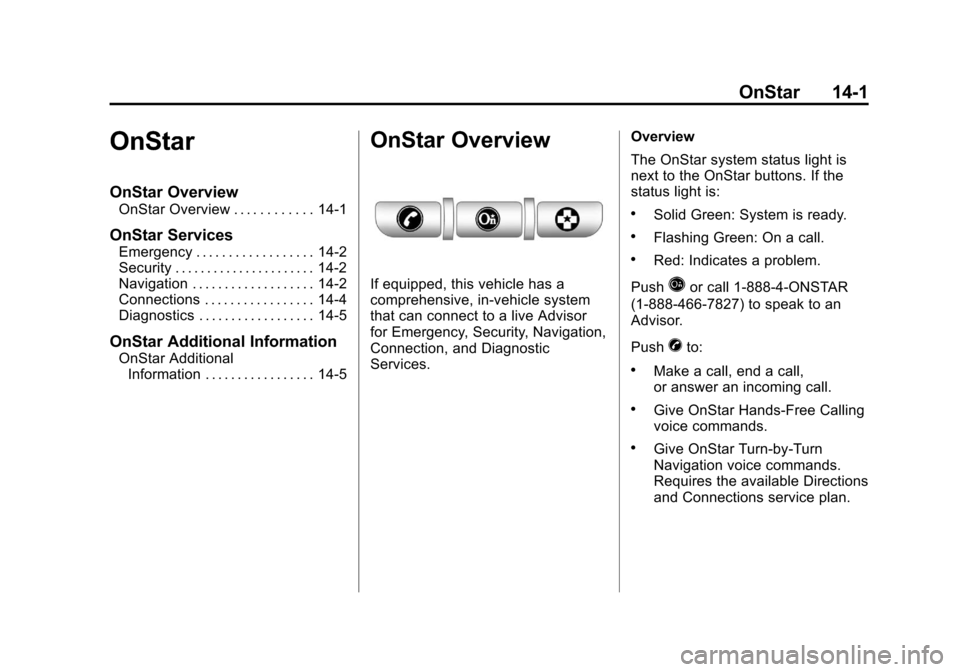
The OnStar system status light is
next to the OnStar buttons. If the
status light is:
.Solid Green: System is ready.
.Flashing Green: On a call.
.Red: Indicates a problem.
Push
Qor call 1‐888‐4‐ONSTAR
(1‐888‐466‐7827) to speak to an
Advisor.
Push
Xto:
.Make a call, end a call,
or answer an incoming call.
.Give OnStar Hands-Free Calling
voice commands.
.Give OnStar Turn-by-Turn
Navigation voice commands.
Requires the available Directions
and Connections service plan.