audio CHEVROLET IMPALA 2014 10.G Owner's Manual
[x] Cancel search | Manufacturer: CHEVROLET, Model Year: 2014, Model line: IMPALA, Model: CHEVROLET IMPALA 2014 10.GPages: 422, PDF Size: 5.62 MB
Page 182 of 422
Black plate (12,1)Chevrolet Impala Owner Manual (GMNA-Localizing-U.S./Canada-5772216) -
2014 - 2nd crc - 5/14/13
7-12 Infotainment System
Audio Players
CD Player
The CD player can be used for CD
and MP3 audio.
With the vehicle on, insert a disc
into the slot, label side up. Press the
MEDIA button to select CD as a
source.
The system is capable of playing:
.Most audio CDs
.CD-R
.CD-RW
.MP3 or unprotected WMA
formats
When playing any compatible
recordable disc, the sound quality
can be reduced due to disc quality,
the method of recording, the quality
of the music that has been
recorded, or the way the disc has
been handled. There can be increased skipping,
difficulty in finding tracks, and/or
difficulty in loading and ejecting.
If these problems occur, check the
disc for damage or try a known
good disc.
To avoid damage to the CD player:
.Do not use scratched or
damaged discs.
.Do not apply labels to discs. The
labels could get caught in the
player.
.Insert only one disc at a time.
.Keep the loading slot free of
foreign materials, liquids, and
debris.
.Use a marking pen to label the
top of the disc.
Loading and Ejecting Discs
To load a disc:
1. Turn the vehicle on.
2. Insert a disc into the slot, label
side up. The player pulls it in the
rest of the way. If the disc is damaged or improperly loaded,
there is an error and the disc
ejects.
Playing an Audio CD
Press the MEDIA button on the
faceplate until CD is selected.
On the CD main page, a track
number displays at the beginning of
each track. Song, Artist, and Album
information displays when available.
Use the following screen controls to
play the disc:
t(Seek Previous/Fast Reverse):
While on the CD main page:
.Press to seek to the beginning of
the current or previous track.
If the track has been playing for
less than five seconds, it seeks
to the previous track. If longer
than five seconds, the current
track starts from the beginning.
.Press and hold to fast reverse
through a track. Release the
button to return to playing
speed. Elapsed time displays.
Page 184 of 422
Black plate (14,1)Chevrolet Impala Owner Manual (GMNA-Localizing-U.S./Canada-5772216) -
2014 - 2nd crc - 5/14/13
7-14 Infotainment System
If Disc Player Error displays, it could
be for one of the following reasons:
.The player temperature is
too high.
.There are load or eject errors.
If the CD is not playing correctly, for
any other reason, try a known
good CD.
If any error continues, contact your
dealer.
Playing an MP3 CD
To play an MP3 CD, follow the same
instructions as “Playing an
Audio CD.”
The following guidelines must be
met when creating an MP3 disc,
otherwise the CD might not play:
.Sampling rate: 16 kHz,
22.05 kHz, 24 kHz, 32 kHz,
44.1 kHz, and 48 kHz.
.Bit rates supported: 8, 16, 24,
32, 40, 48, 56, 64, 80, 96, 112,
128, 144, 160, 192, 224, 256,
and 320 kbps.
.Maximum number of folders:
eight folders with 255 files per
folder.
.Maximum of 1,000 files on
a disc.
.Recorded on a CD-R or CD-RW.
Root Directory
The root directory is treated as a
folder. All files contained directly
under the root directory are
accessed prior to any root directory
folders.
Empty Folders
If a root directory or folder is empty
or contains only folders, the player
advances to the next folder in the
file structure that contains a
compressed audio file. The empty
folder(s) are not displayed or
numbered.
No Folder
When the CD only contains
compressed audio files without any
folders, all files are under the root
folder.
USB Port
Playing from a USB
A USB mass storage device or
Media Transfer Protocol (MTP)
device can be connected to the
USB port.
The USB port is in the center
console and if equipped with
storage behind the radio, there is a
USB port inside.
USB MP3 Player and USB Drives
.The USB MP3 players and USB
drives connected must comply
with the USB Mass Storage
Class specification (USB MSC).
.Hard disk drives are not
supported.
To play a USB device:
.Connect the USB.
.Press the MEDIA button on the
faceplate until the connected
device is shown.
Page 185 of 422
Black plate (15,1)Chevrolet Impala Owner Manual (GMNA-Localizing-U.S./Canada-5772216) -
2014 - 2nd crc - 5/14/13
Infotainment System 7-15
While the USB source is active, use
the icons on the screen to operate
USB function:
.t(Seek Previous/Fast
Reverse)
.u(Seek Next/Fast Forward)
.j/r(Play/Pause)
.Z(Shuffle)
For information on how to use the
screen icons, see “Playing an Audio
CD” previously in this section.
USB Menu
Press the MENU knob to display the
USB menu and the following may
display:
Browse: Select to display the files
and folders on the USB device.
Tone Settings: Select to adjust
Bass, Midrange, Treble, Balance,
Fade, and EQ (Equalizer). See
“Tone Settings” under“Playing an
Audio CD.” Auto Volume:
If equipped, see
“Playing an Audio CD.”
EQ (Equalizer) Settings:
If equipped, this feature adjusts the
pre-defined EQ Modes. See “EQ
(Equalizer) Settings” inAM-FM
Radio on page 7-7.
DSP Modes: If equipped, this
feature adjusts the DSP Modes.
See “DSP Modes” inAM-FM Radio
on page 7-7.
Playing from an iPod®
This feature supports the following
iPod models:
.iPod nano®(1st, 2nd, 3rd, and
4th generation)
.iPod with video (5.0 and 5.5
generation).
.iPod classic®(6th generation)
.iPod touch®(1st and 2nd
generation) There may be problems with
operation and function in the
following situations:
.When connecting an iPod on
which a more recent version of
the firmware is installed than is
supported by the infotainment
system.
.When connecting an iPod on
which firmware from other
providers is installed.
To connect and control an iPod:
1. Connect one end of the standard iPod USB cable to the iPod's
dock connector.
2. Connect the other end to the USB port in the center console.
3. Press the MEDIA button to select the source.
iPod music information displays on
the radio’s display and begins
playing through the vehicle’s audio
system.
Page 186 of 422
Black plate (16,1)Chevrolet Impala Owner Manual (GMNA-Localizing-U.S./Canada-5772216) -
2014 - 2nd crc - 5/14/13
7-16 Infotainment System
The iPod battery recharges
automatically while the vehicle is on.
When the vehicle is off while an
iPod is connected using the iPod
USB cable, the iPod battery stops
charging and the iPod automatically
turns off.
If the iPod is an unsupported model,
it can still be listened to in the
vehicle by connecting to the
auxiliary input jack using a standard
3.5 mm (1/8 in) stereo cable.
iPod Menu
Press the MENU knob to display the
iPod Menu and the following may
display:
Browse:Select to display the files
or songs on the iPod. See “Browse
iPod Media” later in this section.
Tone Settings: Select to adjust
Bass, Midrange, Treble, Balance,
Fade, and EQ (Equalizer). See
“Tone Settings” under“Playing an
Audio CD.”
Auto Volume: If equipped, see
“Playing an Audio CD.” EQ (Equalizer) Settings:
If equipped, this feature adjusts the
pre-defined EQ Modes. See
“EQ
(Equalizer) Settings” inAM-FM
Radio on page 7-7.
DSP Modes: If equipped, this
feature adjusts the DSP Modes.
See “DSP Modes” inAM-FM Radio
on page 7-7.
Browse iPod Media
Use the following to browse:
Playlists:
1. Turn the MENU knob to highlight and press to view the playlists
stored on the iPod.
2. Turn the MENU knob to highlight and press to select a playlist
name to view a list of all songs
in the playlist.
3. Turn the MENU knob to highlight and press to select the song
from the list to begin playback. Artists:
1. Turn the MENU knob to highlight
and press to view the artists
stored on the iPod.
2. Turn the MENU knob to highlight and press to select an artist
name to view a list of all albums
by the artist.
3. Turn the MENU knob to highlight and press to select the album
from the list.
4. To begin playback, select a song from the album.
Albums:
1. Turn the MENU knob to highlight and press to view the albums
stored on the iPod.
2. Turn the MENU knob to highlight and press to select an album
name to view a list of all songs
on the album.
3. Turn the MENU knob to highlight and press to select the song
from the list to begin playback.
Page 187 of 422
Black plate (17,1)Chevrolet Impala Owner Manual (GMNA-Localizing-U.S./Canada-5772216) -
2014 - 2nd crc - 5/14/13
Infotainment System 7-17
Genres:
1. Turn the MENU knob to highlightand press to view the genres
stored on the iPod.
2. Turn the MENU knob to highlight and press to select a genre
name to view a list of artists of
that genre.
3. Turn the MENU knob to highlight and press to select to view
albums by that artist.
4. Turn the MENU knob to highlight and press to select an album to
view songs.
5. Turn the MENU knob to highlight and press to select the song
from the list to begin playback.
Songs:
1. Turn the MENU knob to highlight and press to view a list of all
songs stored on the iPod. 2. Turn the MENU knob to highlight
and press to select the song
from the list to begin playback.
Playing from an iPhone®
or iPad®
This feature supports iPhone 3G,
iPhone 3GS, iPhone 4, and iPad.
Follow the same instructions as
stated earlier for using an iPod.
Auxiliary Jack
The AUX jack is in the center
console. See Center Console
Storage on page 4-2.
Possible auxiliary audio sources
include:
.Laptop computer
.Audio music player
This jack is not an audio output. Do
not plug headphones into the
auxiliary input jack. Auxiliary
devices should be set up while the
vehicle is in P (Park). Connect a 3.5 mm (1/8 in) cable
from the auxiliary device to the
auxiliary input jack.
If an auxiliary device has already
been connected, but a different
source is currently active, press the
MEDIA faceplate button repeatedly
to scroll through all of the available
audio source screens, until the AUX
source screen is shown.
Playing from the AUX Jack
An auxiliary device is played
through the audio system and
controlled through the device itself.
AUX Menu
Press the MENU knob to display the
AUX menu and the following may
display:
Tone Settings:
Select to adjust
Bass, Midrange, Treble, Balance,
Fade, and EQ (Equalizer). See
“Tone Settings” underAM-FM Radio
on page 7-7.
Page 188 of 422
Black plate (18,1)Chevrolet Impala Owner Manual (GMNA-Localizing-U.S./Canada-5772216) -
2014 - 2nd crc - 5/14/13
7-18 Infotainment System
Auto Volume:If equipped, see
“Playing an Audio CD.”
EQ (Equalizer) Settings:
If equipped, this feature adjusts the
pre-defined equalizer settings. See
“EQ (Equalizer) Settings” inAM-FM
Radio on page 7-7.Phone
Bluetooth (Overview)
Instructions for using the cell phone
may differ between infotainment
systems. For vehicles with an
uplevel radio, see the infotainment
manual.
Bluetooth-capable systems can
interact with many cell phones,
allowing:
.Placement and receipt of calls in
a hands-free mode.
.Sharing of the cell phone’s
address book or contact list with
the vehicle.
To minimize driver distraction,
before driving, and with the vehicle
parked:
.Become familiar with the
features of the cell phone.
Organize the phone book and
contact lists clearly and delete duplicate or rarely used entries.
If possible, program speed dial
or other shortcuts.
.Review the controls and
operation of the infotainment
system.
.Pair cell phone(s) to the vehicle.
The system may not work with
all cell phones. See
“Pairing”in
this section.
.If the cell phone has voice
dialing capability, learn to use
that feature to access the
address book or contact list. See
“Voice Pass-Thru” in this
section.
.See “Storing and Deleting Phone
Numbers” in this section.
{Warning
When using a cell phone, it can
be distracting to look too long or
too often at the screen of the
phone or the infotainment system.
(Continued)
Page 190 of 422
Black plate (20,1)Chevrolet Impala Owner Manual (GMNA-Localizing-U.S./Canada-5772216) -
2014 - 2nd crc - 5/14/13
7-20 Infotainment System
Audio System
When using the Bluetooth system,
sound comes through the vehicle's
front audio system speakers and
overrides the audio system. Use the
Oknob during a call to change the
volume level. The system maintains
a minimum volume level.
Bluetooth Audio Quality
Turn off the Echo and Noise
cancellation feature on your phone,
if supported, for the best hands-free
performance.
See www.gm.com/bluetooth.
Other Information
The Bluetooth®word mark and
logos are owned by the Bluetooth®
SIG, Inc. and any use of such marks
by General Motors is under license.
Other trademarks and trade names
are those of their respective owners.
Bluetooth (Infotainment
Controls)
For information about how to
navigate the menu system using the
infotainment controls, see Overview
on page 7-3.
Switching to Handset or
Hands-Free Mode
To switch between handset mode
and hands-free mode, use the
OnStar command, “transfer call.”
Pairing
A Bluetooth-enabled cell phone
must be paired to the Bluetooth
system and then connected to the
vehicle before it can be used. See
your cell phone manufacturer's user
guide for Bluetooth functions before
pairing the cell phone. If a Bluetooth
phone is not connected, calls can
be made using OnStar Hands-Free
Calling, if available. See OnStar
Overview. Pairing Information
.Up to five cell phones can be
paired to the Bluetooth system.
.The pairing process is disabled
when the vehicle is moving.
.Pairing only needs to be
completed once per phone,
unless the pairing information on
the cell phone changes or the
cell phone is deleted from the
system.
.Only one paired cell phone can
be connected to the Bluetooth
system at a time.
.If multiple paired cell phones are
within range of the system, the
system connects to the first
available paired cell phone in the
order that they were newly
paired to the system. To connect
to a different paired phone, see
“Connecting to a Different
Phone”
later in this section.
Page 197 of 422
Black plate (27,1)Chevrolet Impala Owner Manual (GMNA-Localizing-U.S./Canada-5772216) -
2014 - 2nd crc - 5/14/13
Infotainment System 7-27
Using the“Dial”or“Call”
Command
1. Press
g. The system responds
“Say a command or say help,”
followed by a tone.
2. Say “Dial”or“Call.”
3. Say the entire number without pausing or say the name tag.
Once connected, the person called
will be heard through the audio
speakers.
Calling 911 Emergency (U.S. and
Canada)
1. Press
g. The system responds
“Say a command or say help,”
followed by a tone.
2. Say “Dial”or“Call.”
3. Say “911.”
4. Say “Dial”or“Call.”
Calling 066 Emergency (Mexico)
1. Press
g. The system responds
“Say a command or say help,”
followed by a tone. 2. Say
“Dial”or“Call.”
3. Say “066.”
4. Say “Dial”or“Call.”
Using the “Digit Dial” Command
The digit dial command allows a
phone number to be dialed by
entering the digits one at a time.
After each digit is entered, the
system repeats back the digit it
heard followed by a tone.
If an unwanted number is
recognized by the system, say
“Correction” at any time to clear the
last number.
To hear all of the numbers
recognized by the system, say
“Verify” at any time.
1. Press
g. The system responds
“Say a command or say help,”
followed by a tone.
2. Say “Digit Dial.”
3. Say each digit, one at a time. After each digit is entered, the
system repeats back the digit it heard followed by a tone. After
the last digit has been entered,
say
“Dial.”
Once connected, the person called
will be heard through the audio
speakers.
Using the “Re-dial”Command
1. Press
g. The system responds
“Say a command or say help,”
followed by a tone.
2. After the tone, say “Re-dial.”The
system dials the last number
called from the connected cell
phone.
Once connected, the person called
will be heard through the audio
speakers.
Receiving a Call
When an incoming call is received,
the audio system mutes and a ring
tone is heard in the vehicle.
.Pressgto answer the call.
.Presscto ignore a call.
Page 198 of 422
Black plate (28,1)Chevrolet Impala Owner Manual (GMNA-Localizing-U.S./Canada-5772216) -
2014 - 2nd crc - 5/14/13
7-28 Infotainment System
Call Waiting
Call waiting must be supported on
the cell phone and enabled by the
wireless service carrier.
.Pressgto answer an incoming
call when another call is active.
The original call is placed
on hold.
.Pressgagain to return to the
original call.
.To ignore the incoming call, no
action is required.
.Presscto disconnect the
current call and switch to the call
on hold.
Three-Way Calling
Three-way calling must be
supported on the cell phone and
enabled by the wireless service
carrier.
1. While on a call, press
g.
2. Say “Three-way call.” 3. Use the
“Dial”or“Call” command
to dial the number of the third
party to be called.
4. Once the call is connected, press
gto link all callers
together.
Ending a Call
Presscto end a call.
Transferring a Call
Audio can be transferred between
the Bluetooth system and the cell
phone.
The cell phone must be paired and
connected with the Bluetooth
system before a call can be
transferred. The connection process
can take up to two minutes after the
ignition is turned to ON/RUN.
To Transfer Audio from the
Bluetooth System to a Cell Phone
During a call with the audio in the
vehicle:
1. Press
g. 2. Say
“Transfer Call.”
To Transfer Audio to the Bluetooth
System from a Cell Phone
During a call with the audio on the
cell phone, press
g. The audio
transfers to the vehicle. If the audio
does not transfer to the vehicle, use
the audio transfer feature on the cell
phone. See your cell phone
manufacturer's user guide for more
information.
Voice Pass-Thru
Voice pass-thru allows access to the
voice recognition commands on the
cell phone. See your cell phone
manufacturer's user guide to see if
the cell phone supports this feature.
To access contacts stored in the cell
phone:
1. Press
g. The system responds
“Say a command or say help,”
followed by a tone.
2. Say “Bluetooth.”
Page 225 of 422
Black plate (17,1)Chevrolet Impala Owner Manual (GMNA-Localizing-U.S./Canada-5772216) -
2014 - 2nd crc - 5/14/13
Driving and Operating 9-17
SeeStarting the Engine on
page 9-19. The ignition will then
remain in ON/RUN.
Service Only Mode
This power mode is available for
service and diagnostics, and to
verify the proper operation of the
malfunction indicator lamp as may
be required for emission inspection
purposes. With the vehicle off, and
the brake pedal not applied,
pressing and holding the button for
more than five seconds will place
the vehicle in Service Only Mode.
The instruments and audio systems
will operate as they do in ON/RUN,
but the vehicle will not be able to be
driven. The engine will not start in
Service Only Mode. Press the
button again to turn the vehicle off.Ignition Positions (Key
Access)
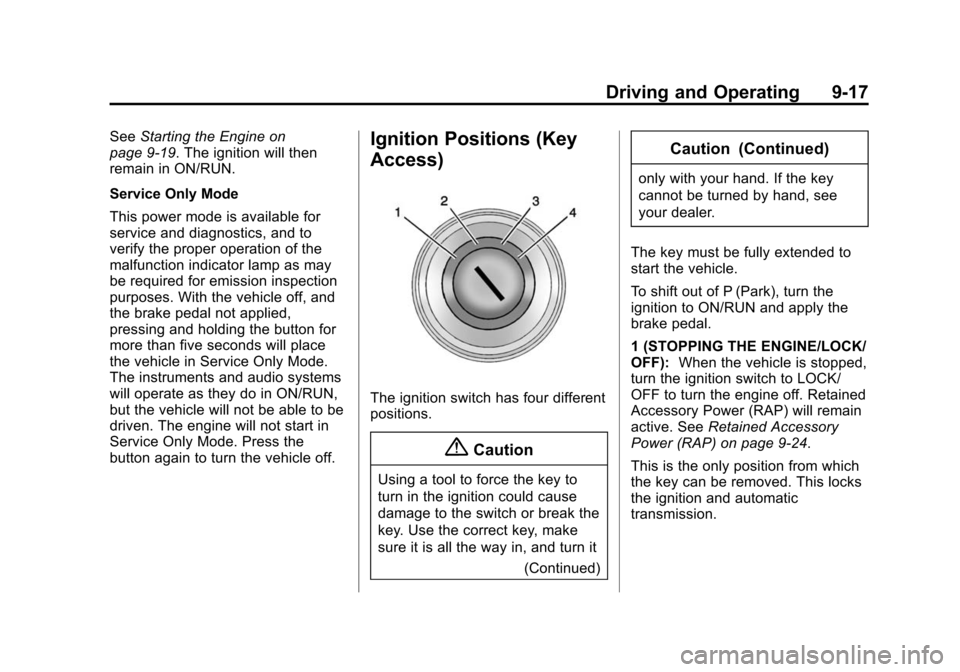
The ignition switch has four different
positions.
{Caution
Using a tool to force the key to
turn in the ignition could cause
damage to the switch or break the
key. Use the correct key, make
sure it is all the way in, and turn it
(Continued)
Caution (Continued)
only with your hand. If the key
cannot be turned by hand, see
your dealer.
The key must be fully extended to
start the vehicle.
To shift out of P (Park), turn the
ignition to ON/RUN and apply the
brake pedal.
1 (STOPPING THE ENGINE/LOCK/
OFF): When the vehicle is stopped,
turn the ignition switch to LOCK/
OFF to turn the engine off. Retained
Accessory Power (RAP) will remain
active. See Retained Accessory
Power (RAP) on page 9-24.
This is the only position from which
the key can be removed. This locks
the ignition and automatic
transmission.