audio CHEVROLET IMPALA 2015 10.G User Guide
[x] Cancel search | Manufacturer: CHEVROLET, Model Year: 2015, Model line: IMPALA, Model: CHEVROLET IMPALA 2015 10.GPages: 413, PDF Size: 5.51 MB
Page 172 of 413
Black plate (1,1)Chevrolet Impala Owner Manual (GMNA-Localizing-U.S./Canada-7576026) -
2015 - crc 2nd edition - 8/21/14
Infotainment System 7-1
Infotainment
System
Introduction
Infotainment . . . . . . . . . . . . . . . . . . . 7-1
Theft-Deterrent Feature . . . . . . . 7-2
Overview . . . . . . . . . . . . . . . . . . . . . . 7-3
Home Page . . . . . . . . . . . . . . . . . . . 7-4
Software Updates . . . . . . . . . . . . . 7-7
Radio
AM-FM Radio . . . . . . . . . . . . . . . . . 7-7
Satellite Radio . . . . . . . . . . . . . . . . 7-9
Radio Reception . . . . . . . . . . . . . 7-10
Backglass Antenna . . . . . . . . . . 7-10
Multi-Band Antenna . . . . . . . . . . 7-11
Audio Players
CD Player . . . . . . . . . . . . . . . . . . . . 7-11
USB Port . . . . . . . . . . . . . . . . . . . . 7-14
SD Card Reader . . . . . . . . . . . . . 7-17
Auxiliary Jack . . . . . . . . . . . . . . . . 7-17
Navigation
OnStar®System . . . . . . . . . . . . . 7-18
Phone
Bluetooth (Overview) . . . . . . . . 7-19
Bluetooth (InfotainmentControls - Base Radio) . . . . . 7-21
Bluetooth (Voice Recognition - Base Radio) . . . . . . . . . . . . . . . . 7-25
Trademarks and License
Agreements
Trademarks and License
Agreements . . . . . . . . . . . . . . . . 7-31
Introduction
Infotainment
Base radio information is included in
this manual. See the infotainment
manual for information on other
available infotainment systems.
Read the following pages to
become familiar with these features.
{Warning
Taking your eyes off the road for
too long or too often while using
any infotainment feature can
cause a crash. You or others
could be injured or killed. Do not
give extended attention to
infotainment tasks while driving.
Limit your glances at the vehicle
displays and focus your attention
on driving. Use voice commands
whenever possible.
Page 173 of 413
Black plate (2,1)Chevrolet Impala Owner Manual (GMNA-Localizing-U.S./Canada-7576026) -
2015 - crc 2nd edition - 8/21/14
7-2 Infotainment System
The infotainment system has built-in
features intended to help avoid
distraction by disabling some
functions when driving. These
functions may gray out when they
are unavailable. Many infotainment
features are also available through
the instrument cluster and steering
wheel controls.
Before driving:
.Become familiar with the
operation, faceplate buttons, and
screen buttons.
.Set up the audio by presetting
favorite stations, setting the
tone, and adjusting the
speakers.
.Set up phone numbers in
advance so they can be called
easily by pressing a single
button or by using a single voice
command if equipped with
Bluetooth phone capability.
See Defensive Driving on page 9-3. To play the infotainment system with
the ignition off, see
Retained
Accessory Power (RAP) on
page 9-22.
Theft-Deterrent Feature
TheftLock®is designed to
discourage theft of the vehicle's
radio by learning a portion of the
Vehicle Identification Number (VIN).
The radio does not operate if it is
stolen or moved to a different
vehicle.
Page 174 of 413
Black plate (3,1)Chevrolet Impala Owner Manual (GMNA-Localizing-U.S./Canada-7576026) -
2015 - crc 2nd edition - 8/21/14
Infotainment System 7-3
Overview
Infotainment System Overview
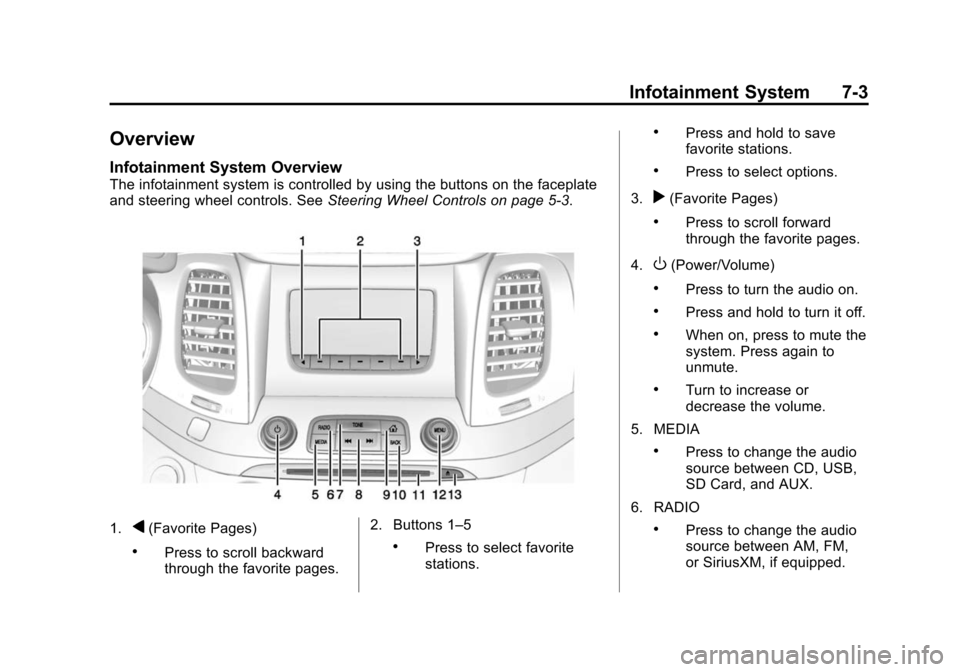
The infotainment system is controlled by using the buttons on the faceplate
and steering wheel controls. SeeSteering Wheel Controls on page 5-3.
1.q(Favorite Pages)
.Press to scroll backward
through the favorite pages.2. Buttons 1–5.Press to select favorite
stations.
.Press and hold to save
favorite stations.
.Press to select options.
3.
r(Favorite Pages)
.Press to scroll forward
through the favorite pages.
4.
O(Power/Volume)
.Press to turn the audio on.
.Press and hold to turn it off.
.When on, press to mute the
system. Press again to
unmute.
.Turn to increase or
decrease the volume.
5. MEDIA
.Press to change the audio
source between CD, USB,
SD Card, and AUX.
6. RADIO
.Press to change the audio
source between AM, FM,
or SiriusXM, if equipped.
Page 175 of 413
Black plate (4,1)Chevrolet Impala Owner Manual (GMNA-Localizing-U.S./Canada-7576026) -
2015 - crc 2nd edition - 8/21/14
7-4 Infotainment System
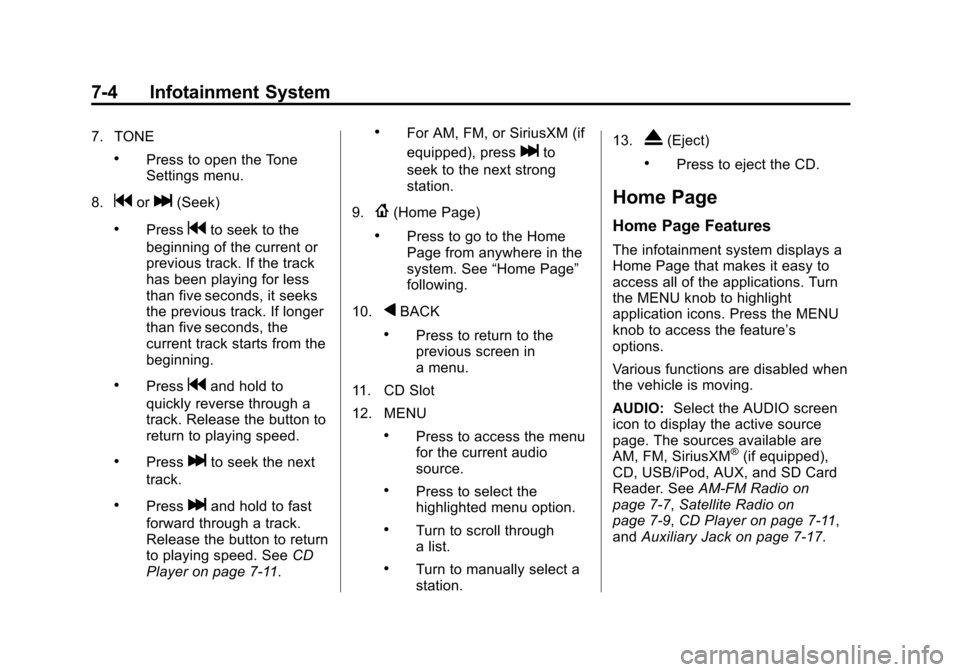
7. TONE
.Press to open the Tone
Settings menu.
8.
gorl(Seek)
.Pressgto seek to the
beginning of the current or
previous track. If the track
has been playing for less
than five seconds, it seeks
the previous track. If longer
than five seconds, the
current track starts from the
beginning.
.Pressgand hold to
quickly reverse through a
track. Release the button to
return to playing speed.
.Presslto seek the next
track.
.Pressland hold to fast
forward through a track.
Release the button to return
to playing speed. See CD
Player on page 7-11.
.For AM, FM, or SiriusXM (if
equipped), press
lto
seek to the next strong
station.
9.
{(Home Page)
.Press to go to the Home
Page from anywhere in the
system. See “Home Page”
following.
10.
qBACK
.Press to return to the
previous screen in
a menu.
11. CD Slot
12. MENU
.Press to access the menu
for the current audio
source.
.Press to select the
highlighted menu option.
.Turn to scroll through
a list.
.Turn to manually select a
station. 13.
X(Eject)
.Press to eject the CD.
Home Page
Home Page Features
The infotainment system displays a
Home Page that makes it easy to
access all of the applications. Turn
the MENU knob to highlight
application icons. Press the MENU
knob to access the feature’
s
options.
Various functions are disabled when
the vehicle is moving.
AUDIO: Select the AUDIO screen
icon to display the active source
page. The sources available are
AM, FM, SiriusXM
®(if equipped),
CD, USB/iPod, AUX, and SD Card
Reader. See AM-FM Radio on
page 7-7, Satellite Radio on
page 7-9, CD Player on page 7-11,
and Auxiliary Jack on page 7-17.
Page 177 of 413
Black plate (6,1)Chevrolet Impala Owner Manual (GMNA-Localizing-U.S./Canada-7576026) -
2015 - crc 2nd edition - 8/21/14
7-6 Infotainment System
.SelectqBACK to go back to the
previous menu.
Number of Favorites Shown: To
set the number of favorites for
display, select Auto to automatically
adjust the number of Favorites
pages shown as Favorites are
added and removed. Another way to
adjust is to select a number from 5–
25 to show that selection of
favorites.
Audible Touch Feedback: Select
Audible Touch Feedback to turn
feedback off or on.
Auto Volume (If Equipped): This
feature adjusts the volume based on
vehicle speed. The options are Off,
Low, Medium-Low, Medium,
Medium-High, or High. Select the
desired volume.
DSP Modes (If Equipped): This
feature has four modes:
.Normal: Adjusts the audio to
normal mode. This provides the
best sound quality for all seating
positions.
.Driver: Adjusts the audio to give
the driver the best possible
sound quality.
.Rear: Adjusts the audio to give
the rear seat occupants the best
possible sound quality.
.Centerpoint®: Turns on Bose
Centerpoint surround
technology.
Centerpoint creates a surround
sound from nearly any audio
source: existing CD collection,
satellite radio, and audio players.
Maximum Startup Volume: This
feature sets the maximum startup
volume. If the vehicle is started and
the volume is greater than this level,
the volume is adjusted to this level.
To set the maximum startup volume,
Turn the MENU knob to increase or
decrease startup volume. Rear Camera (If Equipped)
From the Rear Camera screen
button, the following may be
displayed:
Rear Park Assist Symbols:
This
feature will display symbols where
objects are detected by the Rear
Parking Assist system. Select Park
Assist Symbols, then select Off
or On.
See Assistance Systems for Parking
or Backing on page 9-44.
Rear Cross Traffic Alert: This
feature will display an alert icon
when cross traffic is detected.
Select Rear Cross Traffic Alert, then
select Off or On.
Page 178 of 413
Black plate (7,1)Chevrolet Impala Owner Manual (GMNA-Localizing-U.S./Canada-7576026) -
2015 - crc 2nd edition - 8/21/14
Infotainment System 7-7
Return to Factory Settings
Select Return to Factory Settings
and the following list may display:
Restore Vehicle Settings:This
option will restore factory vehicle
personalization settings. Select
Restore Vehicle Settings. A screen
displays stating all vehicle
customization settings will be
restored to the factory settings.
Select Cancel or Continue.
Clear All Private Data: This option
clears all private information from
the vehicle. Select Clear All Private
Data. Select Cancel or Continue.
Restore Radio Settings: This
option will restore factory radio
settings. Select Restore Radio
Settings. A screen displays stating
all personalized radio settings will
be restored back to the factory
settings. Select Cancel or Continue.English and Metric Unit
Conversion
To change the display units between
English and metric units, see “Units”
under “Settings” inInstrument
Cluster on page 5-9.
Software Updates
See the website for more
information.
In the U.S., see www.chevrolet.com
In Canada, see
www.chevrolet.gm.ca
Radio
AM-FM Radio
Playing the Radio
While on the audio main page,
press the RADIO or MEDIA button
repeatedly to display and scroll
through the available sources: AM,
FM, and SiriusXM
®(if equipped),
CD, USB, SD, and AUX.
The steering wheel controls can
also be used to adjust the volume.
See Steering Wheel Controls on
page 5-3.
AM, FM, SiriusXM (If Equipped)
To select AM, FM, or SiriusXM (if
equipped):
1. Press
{.
2. Turn the MENU knob to highlight the AUDIO screen icon.
3. Press the MENU knob to select.
Page 179 of 413
Black plate (8,1)Chevrolet Impala Owner Manual (GMNA-Localizing-U.S./Canada-7576026) -
2015 - crc 2nd edition - 8/21/14
7-8 Infotainment System
4. Turn the MENU knob to highlighteither AM, FM, or SiriusXM (if
equipped) and press MENU to
select.
Press the RADIO faceplate button
to display and change the radio
source. Press the MENU knob and
the following radio settings may
display:
Tone Settings:
.Bass, Midrange, and Treble:
Turn the MENU knob to
highlight. Press the MENU knob
to select. Turn the MENU knob
to adjust.
.Balance: Turn the MENU knob
to highlight. Press the MENU
knob to select. Turn the MENU
knob left for more sound from
the left speakers or right for
more sound from the right
speakers. The middle position
balances the sound between the
left and right speakers.
.Fade: Turn the MENU knob to
highlight. Press the MENU knob
to select. Turn the MENU knob
to the left for more sound from
the front speakers and to the
right for more sound from the
rear speakers. The middle
position balances the sound
between the front and rear
speakers.
.EQ (Equalizer): Turn the MENU
knob to highlight. Turn the
MENU knob to scroll through the
options. Press the MENU knob
to select. Press
qBACK button
to go to the previous menu.
Station List: Select to display a list
of AM or FM stations. Press
q
BACK to go to the previous menu.
Auto Volume: If equipped, this
feature adjusts the volume based on
the vehicle speed. Select the level
between off, low, medium-low,
medium, medium-high, and high.
Press
qBACK to go to the
previous menu. EQ (Equalizer) Settings:
If equipped with a Bose Sound
System, the available choices are
Manual and Talk.
DSP Modes:
If equipped with a
Bose Surround Sound System, it
will have the following four DSP
Modes:
.Normal: Adjusts the audio to
normal mode. This provides the
best sound quality for all seating
positions.
.Driver: Adjusts the audio to give
the driver the best possible
sound quality.
.Rear: Adjusts the audio to give
the rear seat occupants the best
possible sound quality.
.Centerpoint®: Turns on Bose
Centerpoint®surround
technology.
Centerpoint creates a surround
sound from nearly any audio
source: existing CD collection,
satellite radio, and audio players.
Page 180 of 413
Black plate (9,1)Chevrolet Impala Owner Manual (GMNA-Localizing-U.S./Canada-7576026) -
2015 - crc 2nd edition - 8/21/14
Infotainment System 7-9
Options for SiriusXM Only
XM View:XM view allows the
channel list to be viewed by channel
name, artist playing on channel,
or song playing on channel. Select
to display Channel List in XM views.
Turn the MENU knob to highlight
and press the MENU knob to select.
Press
qBACK to go to the
previous menu.
Channel List: Select to display a
list of SiriusXM channels. Turn the
MENU knob to highlight and press
the MENU knob to select. Press
q
BACK to go to the previous menu.
Also see the radio settings common
for all sources earlier in this section.
Finding a Station
Seeking a Station
Press
gorlto search for the
previous or next strongest station,
or press and hold to quickly search
through stations. Tuning a Station
Turn the MENU knob to manually
find a station.
Storing Radio Station Presets
Up to 25 preset stations from all
bands can be stored in the favorite
lists in any order. Up to five stations
can be stored in each favorite page
and the number of favorites can
be set.
AM, FM, or SiriusXM (If
Equipped):
While on the active
source main page, such as AM, FM,
and SiriusXM (if equipped), press
and hold the corresponding key.
Mixed-Audio Favorites
Favorites can be stored including
radio stations.
To display the favorites page, press
qorron the radio faceplate.
From the Settings menu, press the
MENU knob to select Manage
Favorites. The Manage Favorites
feature has the option of moving or deleting a favorite. See
“Manage
Favorites” underOverview on
page 7-3.
Satellite Radio
SiriusXM®Satellite Radio
Service
Vehicles with a SiriusXM satellite
radio tuner and a valid SiriusXM
satellite radio subscription can
receive SiriusXM programming.
SiriusXM is a satellite radio service
based in the 48 contiguous United
States and 10 Canadian provinces.
SiriusXM satellite radio has a wide
variety of programming and
commercial-free music, coast to
coast, and in digital-quality sound.
A service fee is required to receive
the SiriusXM service. See
www.siriusxmradio.com or call
1-866-635-2349 (U.S.); or see
www.xmradio.ca or call
1-877-209-0079 (Canada).
Page 182 of 413
Black plate (11,1)Chevrolet Impala Owner Manual (GMNA-Localizing-U.S./Canada-7576026) -
2015 - crc 2nd edition - 8/21/14
Infotainment System 7-11
If attaching a cell phone antenna to
the glass, attach it between the grid
lines.
{Caution
Using a razor blade or sharp
object to clear the inside rear
window can damage the rear
window antenna and/or the rear
window defogger. Repairs would
not be covered by the vehicle
warranty. Do not clear the inside
rear window with sharp objects.
{Caution
Do not apply aftermarket glass
tinting with metallic film. The
metallic film in some tinting
materials will interfere with or
distort the incoming radio
reception. Any damage caused to
the backglass antenna due to(Continued)
Caution (Continued)
metallic tinting materials will not
be covered by the vehicle
warranty.
Multi-Band Antenna
The roof antenna is for OnStar®,
SiriusXM®Satellite Radio, and GPS
(Global Positioning System). Keep
clear of obstructions for clear
reception. If the vehicle has a
sunroof, and it is open, reception
can also be affected.
Audio Players
CD Player
The CD player can be used for CD
and MP3 audio.
With the vehicle on, insert a disc
into the slot, label side up. Press the
MEDIA button to select CD as a
source.
The system is capable of playing:
.Most audio CDs
.CD-R
.CD-RW
.MP3 or unprotected WMA
formats
When playing any compatible
recordable disc, the sound quality
can be reduced due to disc quality,
the method of recording, the quality
of the music that has been
recorded, or the way the disc has
been handled.
Page 183 of 413
Black plate (12,1)Chevrolet Impala Owner Manual (GMNA-Localizing-U.S./Canada-7576026) -
2015 - crc 2nd edition - 8/21/14
7-12 Infotainment System
There can be increased skipping,
difficulty in finding tracks, and/or
difficulty in loading and ejecting.
If these problems occur, check the
disc for damage or try a known
good disc.
To avoid damage to the CD player:
.Do not use scratched or
damaged discs.
.Do not apply labels to discs. The
labels could get caught in the
player.
.Insert only one disc at a time.
.Keep the loading slot free of
foreign materials, liquids, and
debris.
.Use a marking pen to label the
top of the disc.
Loading and Ejecting Discs
To load a disc:
1. Turn the vehicle on.
2. Insert a disc into the slot, labelside up. The player pulls it in the
rest of the way. If the disc is damaged or improperly loaded,
there is an error and the disc
ejects.
Playing an Audio CD
Press the MEDIA button on the
faceplate until CD is selected.
On the CD main page, a track
number displays at the beginning of
each track. Song, Artist, and Album
information displays when available.
Use the following screen controls to
play the disc:
t(Seek Previous/Fast Reverse):
While on the CD main page:
.Press to seek to the beginning of
the current or previous track.
If the track has been playing for
less than five seconds, it seeks
to the previous track. If longer
than five seconds, the current
track starts from the beginning.
.Press and hold to fast reverse
through a track. Release the
button to return to playing
speed. Elapsed time displays.
u(Seek Next/Fast Forward):
While on the CD main page:
.Press to seek to the next track.
.Press and hold to fast forward
through a track. Release the
button to return to playing
speed. Elapsed time displays.
j/r(Pause/Play): While on the CD
main page, press to pause. Press
again to resume.
Z(Shuffle): PressZto play the
songs in random order. Press again
to turn off.
If a Blu-ray Disc
®or DVD disc is
loaded into the CD player and the
CD screen button is selected, a disc
error occurs and the disc is ejected.
CD Menu
While on the CD main page, press
the MENU knob to display the CD
menu and the following may display:
Browse: Select to display the files
or songs on the CD. See “Browse
CD Media” later in this section.