phone CHEVROLET IMPALA 2016 10.G Owner's Manual
[x] Cancel search | Manufacturer: CHEVROLET, Model Year: 2016, Model line: IMPALA, Model: CHEVROLET IMPALA 2016 10.GPages: 377, PDF Size: 5.07 MB
Page 174 of 377
Chevrolet Impala Owner Manual (GMNA-Localizing-U.S/Canada-9086448) -
2016 - CRC - 5/20/15
Infotainment System 173
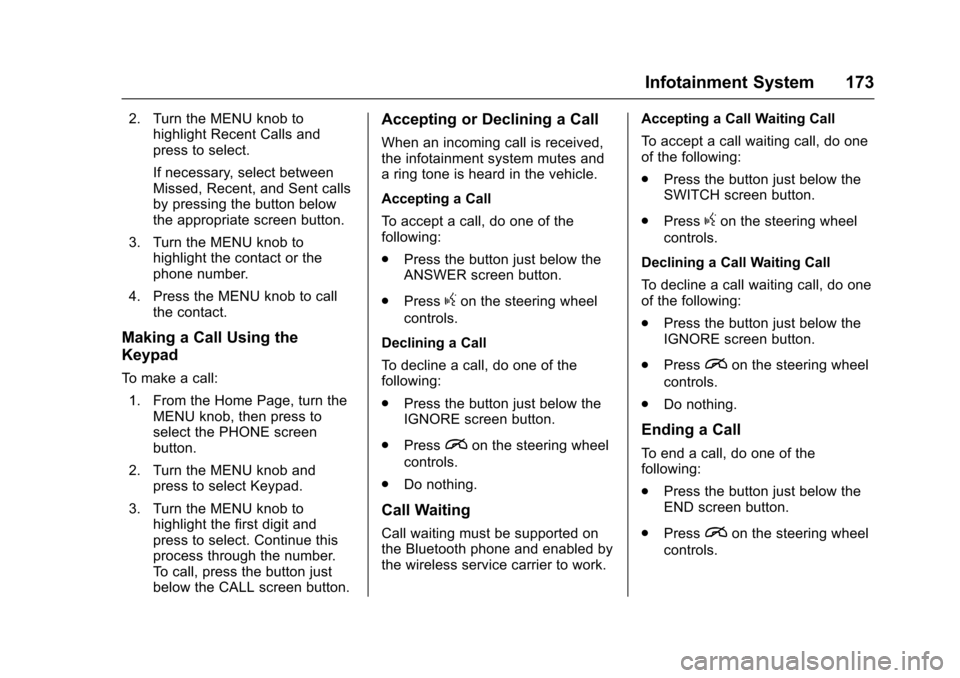
2. Turn the MENU knob tohighlight Recent Calls and
press to select.
If necessary, select between
Missed, Recent, and Sent calls
by pressing the button below
the appropriate screen button.
3. Turn the MENU knob to highlight the contact or the
phone number.
4. Press the MENU knob to call the contact.
Making a Call Using the
Keypad
To make a call:
1. From the Home Page, turn the MENU knob, then press to
select the PHONE screen
button.
2. Turn the MENU knob and press to select Keypad.
3. Turn the MENU knob to highlight the first digit and
press to select. Continue this
process through the number.
To call, press the button just
below the CALL screen button.
Accepting or Declining a Call
When an incoming call is received,
the infotainment system mutes and
a ring tone is heard in the vehicle.
Accepting a Call
To accept a call, do one of the
following:
.Press the button just below the
ANSWER screen button.
. Press
gon the steering wheel
controls.
Declining a Call
To decline a call, do one of the
following:
. Press the button just below the
IGNORE screen button.
. Press
ion the steering wheel
controls.
. Do nothing.
Call Waiting
Call waiting must be supported on
the Bluetooth phone and enabled by
the wireless service carrier to work. Accepting a Call Waiting Call
To accept a call waiting call, do one
of the following:
.
Press the button just below the
SWITCH screen button.
. Press
gon the steering wheel
controls.
Declining a Call Waiting Call
To decline a call waiting call, do one
of the following:
. Press the button just below the
IGNORE screen button.
. Press
ion the steering wheel
controls.
. Do nothing.
Ending a Call
To end a call, do one of the
following:
.Press the button just below the
END screen button.
. Press
ion the steering wheel
controls.
Page 175 of 377
Chevrolet Impala Owner Manual (GMNA-Localizing-U.S/Canada-9086448) -
2016 - CRC - 5/20/15
174 Infotainment System
Dual Tone Multi-Frequency
(DTMF) Tones
The in-vehicle Bluetooth system can
send numbers during a call. This is
used when calling a menu-driven
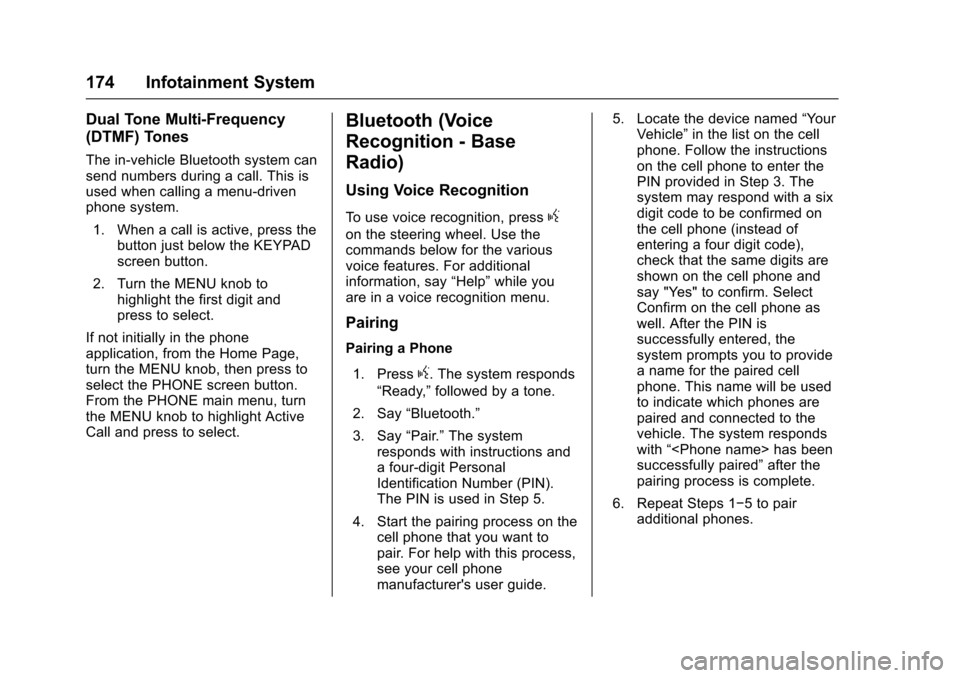
phone system.1. When a call is active, press the button just below the KEYPAD
screen button.
2. Turn the MENU knob to highlight the first digit and
press to select.
If not initially in the phone
application, from the Home Page,
turn the MENU knob, then press to
select the PHONE screen button.
From the PHONE main menu, turn
the MENU knob to highlight Active
Call and press to select.
Bluetooth (Voice
Recognition - Base
Radio)
Using Voice Recognition
To use voice recognition, pressg
on the steering wheel. Use the
commands below for the various
voice features. For additional
information, say “Help”while you
are in a voice recognition menu.
Pairing
Pairing a Phone
1. Press
g. The system responds
“Ready,” followed by a tone.
2. Say “Bluetooth.”
3. Say “Pair.”The system
responds with instructions and
a four-digit Personal
Identification Number (PIN).
The PIN is used in Step 5.
4. Start the pairing process on the cell phone that you want to
pair. For help with this process,
see your cell phone
manufacturer's user guide. 5. Locate the device named
“Your
Vehicle” in the list on the cell
phone. Follow the instructions
on the cell phone to enter the
PIN provided in Step 3. The
system may respond with a six
digit code to be confirmed on
the cell phone (instead of
entering a four digit code),
check that the same digits are
shown on the cell phone and
say "Yes" to confirm. Select
Confirm on the cell phone as
well. After the PIN is
successfully entered, the
system prompts you to provide
a name for the paired cell
phone. This name will be used
to indicate which phones are
paired and connected to the
vehicle. The system responds
with “
successfully paired” after the
pairing process is complete.
6. Repeat Steps 1−5 to pair additional phones.
Page 176 of 377
Chevrolet Impala Owner Manual (GMNA-Localizing-U.S/Canada-9086448) -
2016 - CRC - 5/20/15
Infotainment System 175
Listing All Paired and Connected
Phones
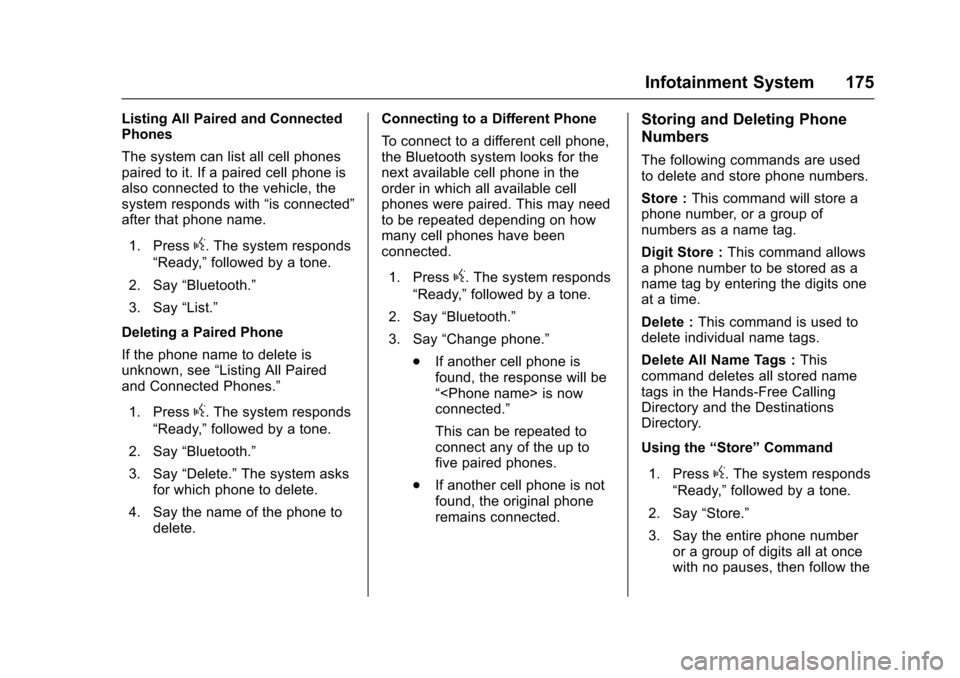
The system can list all cell phones
paired to it. If a paired cell phone is
also connected to the vehicle, the
system responds with“is connected”
after that phone name.
1. Press
g. The system responds
“Ready,” followed by a tone.
2. Say “Bluetooth.”
3. Say “List.”
Deleting a Paired Phone
If the phone name to delete is
unknown, see “Listing All Paired
and Connected Phones.”
1. Press
g. The system responds
“Ready,” followed by a tone.
2. Say “Bluetooth.”
3. Say “Delete.” The system asks
for which phone to delete.
4. Say the name of the phone to delete. Connecting to a Different Phone
To connect to a different cell phone,
the Bluetooth system looks for the
next available cell phone in the
order in which all available cell
phones were paired. This may need
to be repeated depending on how
many cell phones have been
connected.
1. Press
g. The system responds
“Ready,” followed by a tone.
2. Say “Bluetooth.”
3. Say “Change phone.”
. If another cell phone is
found, the response will be
“
connected.”
This can be repeated to
connect any of the up to
five paired phones.
. If another cell phone is not
found, the original phone
remains connected.
Storing and Deleting Phone
Numbers
The following commands are used
to delete and store phone numbers.
Store : This command will store a
phone number, or a group of
numbers as a name tag.
Digit Store : This command allows
a phone number to be stored as a
name tag by entering the digits one
at a time.
Delete : This command is used to
delete individual name tags.
Delete All Name Tags : This
command deletes all stored name
tags in the Hands-Free Calling
Directory and the Destinations
Directory.
Using the “Store”Command
1. Press
g. The system responds
“Ready,” followed by a tone.
2. Say “Store.”
3. Say the entire phone number or a group of digits all at once
with no pauses, then follow the
Page 177 of 377
Chevrolet Impala Owner Manual (GMNA-Localizing-U.S/Canada-9086448) -
2016 - CRC - 5/20/15
176 Infotainment System
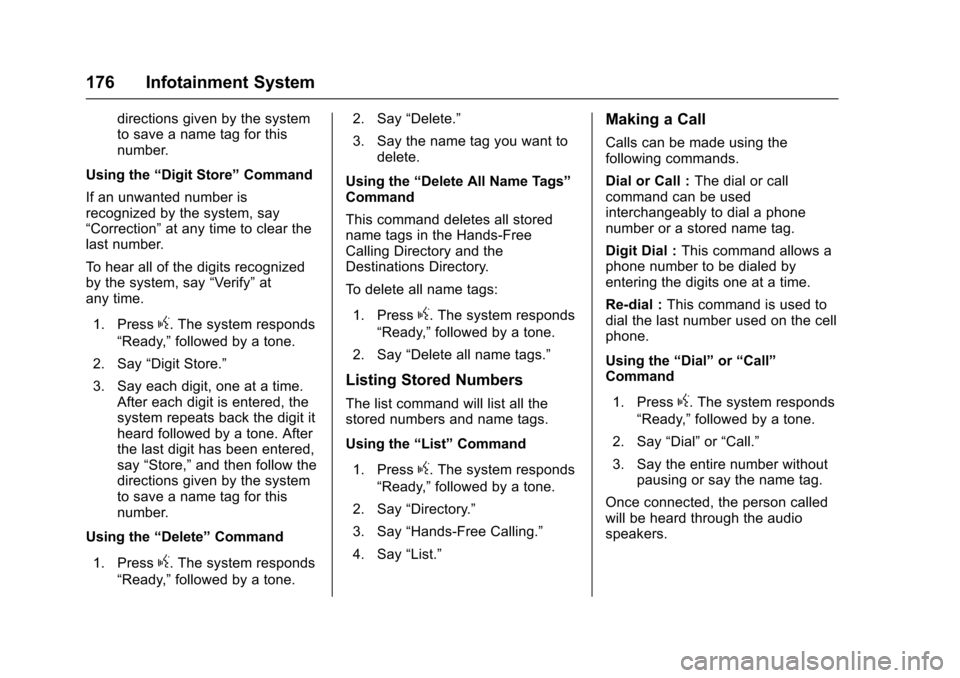
directions given by the system
to save a name tag for this
number.
Using the “Digit Store” Command
If an unwanted number is
recognized by the system, say
“Correction” at any time to clear the
last number.
To hear all of the digits recognized
by the system, say “Verify”at
any time.
1. Press
g. The system responds
“Ready,” followed by a tone.
2. Say “Digit Store.”
3. Say each digit, one at a time. After each digit is entered, the
system repeats back the digit it
heard followed by a tone. After
the last digit has been entered,
say “Store,” and then follow the
directions given by the system
to save a name tag for this
number.
Using the “Delete”Command
1. Press
g. The system responds
“Ready,” followed by a tone. 2. Say
“Delete.”
3. Say the name tag you want to delete.
Using the “Delete All Name Tags”
Command
This command deletes all stored
name tags in the Hands-Free
Calling Directory and the
Destinations Directory.
To delete all name tags:
1. Press
g. The system responds
“Ready,” followed by a tone.
2. Say “Delete all name tags.”
Listing Stored Numbers
The list command will list all the
stored numbers and name tags.
Using the “List”Command
1. Press
g. The system responds
“Ready,” followed by a tone.
2. Say “Directory.”
3. Say “Hands-Free Calling.”
4. Say “List.”
Making a Call
Calls can be made using the
following commands.
Dial or Call : The dial or call
command can be used
interchangeably to dial a phone
number or a stored name tag.
Digit Dial : This command allows a
phone number to be dialed by
entering the digits one at a time.
Re-dial : This command is used to
dial the last number used on the cell
phone.
Using the “Dial”or“Call”
Command
1. Press
g. The system responds
“Ready,” followed by a tone.
2. Say “Dial”or“Call.”
3. Say the entire number without pausing or say the name tag.
Once connected, the person called
will be heard through the audio
speakers.
Page 178 of 377
Chevrolet Impala Owner Manual (GMNA-Localizing-U.S/Canada-9086448) -
2016 - CRC - 5/20/15
Infotainment System 177
Calling 911 Emergency1. Press
g. The system responds
“Ready,” followed by a tone.
2. Say “Dial”or“Call.”
3. Say “911.”
4. Say “Dial”or“Call.”
Using the “Digit Dial” Command
The digit dial command allows a
phone number to be dialed by
entering the digits one at a time.
After each digit is entered, the
system repeats back the digit it
heard followed by a tone.
If an unwanted number is
recognized by the system, say
“Correction” at any time to clear the
last number.
To hear all of the numbers
recognized by the system, say
“Verify” at any time.
1. Press
g. The system responds
“Ready,” followed by a tone.
2. Say “Digit Dial.” 3. Say each digit, one at a time.
After each digit is entered, the
system repeats back the digit it
heard followed by a tone. After
the last digit has been entered,
say “Dial.”
Once connected, the person called
will be heard through the audio
speakers.
Using the “Re-dial”Command
1. Press
g. The system responds
“Ready,” followed by a tone.
2. After the tone, say “Re-dial.”
The system dials the last
number called from the
connected cell phone.
Once connected, the person called
will be heard through the audio
speakers.
Receiving a Call
When an incoming call is received,
the audio system mutes and a ring
tone is heard in the vehicle.
. Press
gto answer the call.
. Press
ito ignore a call.
Call Waiting
Call waiting must be supported on
the cell phone and enabled by the
wireless service carrier.
.Press
gto answer an incoming
call when another call is active.
The original call is placed
on hold.
. Press
gagain to return to the
original call.
. To ignore the incoming call, no
action is required.
. Press
ito disconnect the
current call and switch to the call
on hold.
Three-Way Calling
Three-way calling must be
supported on the cell phone and
enabled by the wireless service
carrier.
1. While on a call, press
g.
2. Say “Three-way call.”
3. Use the “Dial”or“Call”
command to dial the number of
the third party to be called.
Page 179 of 377
Chevrolet Impala Owner Manual (GMNA-Localizing-U.S/Canada-9086448) -
2016 - CRC - 5/20/15
178 Infotainment System
4. Once the call is connected,press
gto link all callers
together.
Ending a Call
Pressito end a call.
Transferring a Call
Audio can be transferred between
the Bluetooth system and the cell
phone.
The cell phone must be paired and
connected with the Bluetooth
system before a call can be
transferred. The connection process
can take up to two minutes after the
ignition is turned to ON/RUN.
To Transfer Audio from the
Bluetooth System to a Cell Phone
During a call with the audio in the
vehicle:
1. Press
g.
2. Say “Transfer Call.” To Transfer Audio to the Bluetooth
System from a Cell Phone
During a call with the audio on the
cell phone, press
g. The audio
transfers to the vehicle. If the audio
does not transfer to the vehicle, use
the audio transfer feature on the cell
phone. See your cell phone
manufacturer's user guide for more
information.
Voice Pass-Thru
Voice pass-thru allows access to the
voice recognition commands on the
cell phone. See your cell phone
manufacturer's user guide to see if
the cell phone supports this feature.
To access contacts stored in the cell
phone:
1. Press
g. The system responds
“Ready,” followed by a tone.
2. Say “Bluetooth.”
3. Say “Voice.”The system
responds “OK, accessing
messages will go through their cycle
according to the phone's operating
instructions.
Dual Tone Multi-Frequency
(DTMF) Tones
The Bluetooth system can send
numbers and the numbers stored as
name tags during a call. You can
use this feature when calling a
menu-driven phone system.
Account numbers can also be
stored for use.
Sending a Number or Name Tag
During a Call
1. Press
g. The system responds
“Ready,” followed by a tone.
2. Say “Dial.”
3. Say the number or name tag to send.
Page 180 of 377
Chevrolet Impala Owner Manual (GMNA-Localizing-U.S/Canada-9086448) -
2016 - CRC - 5/20/15
Infotainment System 179
Clearing the System
Unless information is deleted out of
the in-vehicle Bluetooth system, it
will be retained indefinitely. This
includes all phone pairing
information. For information on how
to delete this information, see
“Deleting a Paired Phone.”
Trademarks and
License Agreements
FCC Information
SeeRadio Frequency Statement
0 351.
“Made for iPod” and“Made for
iPhone” mean that an electronic
accessory has been designed to
connect specifically to iPod or
iPhone and has been certified by
the developer to meet Apple
performance standards.
iPod and iPhone are trademarks of
Apple Computer, Inc., registered in
the U.S. and other countries.
Fees and Taxes: Subscription fee,
taxes, one time activation fee, and
other fees may apply. Subscription
fee is consumer only. All fees and
programming subject to change.
Subscriptions subject to Customer
Agreement available at
www.siriusxm.com. SiriusXM
®
service only available in the
48 contiguous United States and
Canada.
In Canada: Some deterioration of
service may occur in extreme
northern latitudes. This is beyond
the control of SiriusXM
®Satellite
Radio.
It is prohibited to copy, decompile,
disassemble, reverse engineer,
hack, manipulate, or otherwise
make available any technology or
software incorporated in receivers
compatible with the SiriusXM
®
Satellite Radio System or that
Page 192 of 377
Chevrolet Impala Owner Manual (GMNA-Localizing-U.S/Canada-9086448) -
2016 - CRC - 5/20/15
Driving and Operating 191
Trailer Towing (All exceptBi-Fuel) . . . . . . . . . . . . . . . . . . . . . 244
Towing Equipment . . . . . . . . . . . . 246
Conversions and Add-Ons
Add-On Electrical Equipment . . . . . . . . . . . . . . . . . . 246
Driving Information
Distracted Driving
Distraction comes in many forms
and can take your focus from the
task of driving. Exercise good
judgment and do not let other
activities divert your attention away
from the road. Many local
governments have enacted laws
regarding driver distraction. Become
familiar with the local laws in
your area.
To avoid distracted driving, always
keep your eyes on the road, hands
on the wheel, and mind on the drive.
. Do not use a phone in
demanding driving situations.
Use a hands-free method to
place or receive necessary
phone calls.
. Watch the road. Do not read,
take notes, or look up
information on phones or other
electronic devices.
. Designate a front seat
passenger to handle potential
distractions. .
Become familiar with vehicle
features before driving, such as
programming favorite radio
stations and adjusting climate
control and seat settings.
Program all trip information into
any navigation device prior to
driving.
. Wait until the vehicle is parked
to retrieve items that have fallen
to the floor.
. Stop or park the vehicle to tend
to children.
. Keep pets in an appropriate
carrier or restraint.
. Avoid stressful conversations
while driving, whether with a
passenger or on a cell phone.
{Warning
Taking your eyes off the road too
long or too often could cause a
crash resulting in injury or death.
Focus your attention on driving.
Page 193 of 377
Chevrolet Impala Owner Manual (GMNA-Localizing-U.S/Canada-9086448) -
2016 - CRC - 5/20/15
192 Driving and Operating
Refer to the Infotainment section for
more information on using that
system, including pairing and using
a cell phone.
Defensive Driving
Defensive driving means“always
expect the unexpected.” The first
step in driving defensively is to wear
the safety belt. See Safety Belts
0 63.
. Assume that other road users
(pedestrians, bicyclists, and
other drivers) are going to be
careless and make mistakes.
Anticipate what they might do
and be ready.
. Allow enough following distance
between you and the driver in
front of you.
. Focus on the task of driving.
Drunk Driving
Death and injury associated with
drinking and driving is a global
tragedy.
{Warning
Drinking and then driving is very
dangerous. Your reflexes,
perceptions, attentiveness, and
judgment can be affected by even
a small amount of alcohol. You
can have a serious —or even
fatal —collision if you drive after
drinking.
Do not drink and drive or ride with
a driver who has been drinking.
Ride home in a cab; or if you are
with a group, designate a driver
who will not drink.
Control of a Vehicle
Braking, steering, and accelerating
are important factors in helping to
control a vehicle while driving.
Braking
Braking action involves perception
time and reaction time. Deciding to
push the brake pedal is perception
time. Actually doing it is
reaction time. Average driver reaction time is
about three-quarters of a second. In
that time, a vehicle moving at
100 km/h (60 mph) travels 20 m
(66 ft), which could be a lot of
distance in an emergency.
Helpful braking tips to keep in mind
include:
.
Keep enough distance between
you and the vehicle in front
of you.
. Avoid needless heavy braking.
. Keep pace with traffic.
If the engine ever stops while the
vehicle is being driven, brake
normally but do not pump the
brakes. Doing so could make the
pedal harder to push down. If the
engine stops, there will be some
power brake assist but it will be
used when the brake is applied.
Once the power assist is used up, it
can take longer to stop and the
brake pedal will be harder to push.
Page 241 of 377
Chevrolet Impala Owner Manual (GMNA-Localizing-U.S/Canada-9086448) -
2016 - CRC - 5/20/15
240 Driving and Operating
Warning (Continued)
.Do not use a cell phone
while refueling.
. Do not reenter the vehicle
while pumping fuel.
. Keep children away from
the fuel pump and never let
children pump fuel.
. Fuel can spray out if the fuel
cap is opened too quickly.
This spray can happen if the
tank is nearly full, and is
more likely in hot weather.
Open the fuel cap slowly
and wait for any hiss noise
to stop then unscrew the
cap all the way.
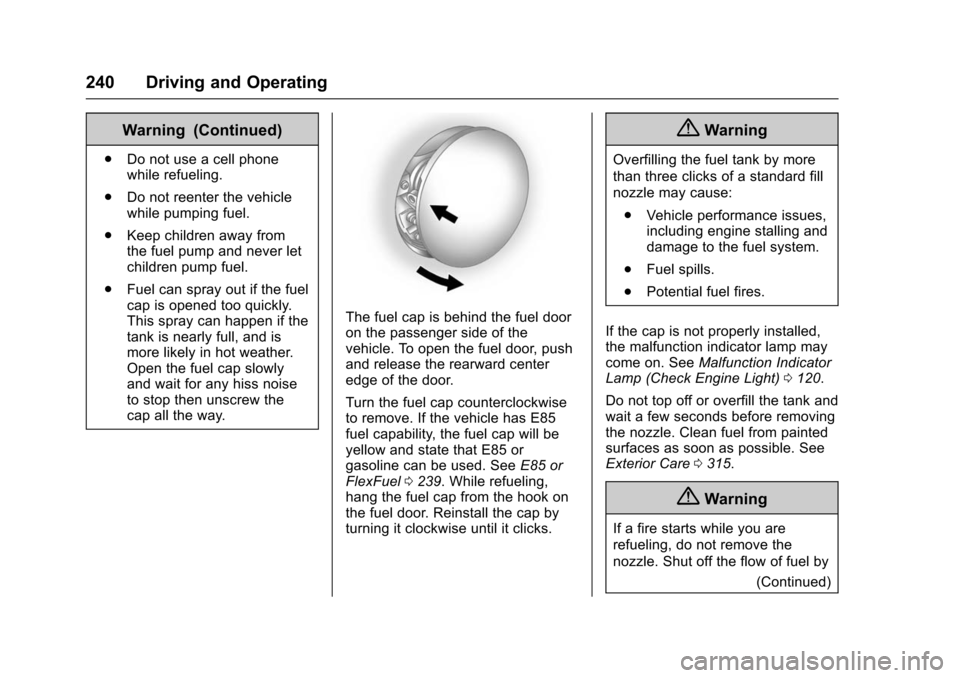
The fuel cap is behind the fuel door
on the passenger side of the
vehicle. To open the fuel door, push
and release the rearward center
edge of the door.
Turn the fuel cap counterclockwise
to remove. If the vehicle has E85
fuel capability, the fuel cap will be
yellow and state that E85 or
gasoline can be used. See E85 or
FlexFuel 0239. While refueling,
hang the fuel cap from the hook on
the fuel door. Reinstall the cap by
turning it clockwise until it clicks.
{Warning
Overfilling the fuel tank by more
than three clicks of a standard fill
nozzle may cause:
. Vehicle performance issues,
including engine stalling and
damage to the fuel system.
. Fuel spills.
. Potential fuel fires.
If the cap is not properly installed,
the malfunction indicator lamp may
come on. See Malfunction Indicator
Lamp (Check Engine Light) 0120.
Do not top off or overfill the tank and
wait a few seconds before removing
the nozzle. Clean fuel from painted
surfaces as soon as possible. See
Exterior Care 0315.
{Warning
If a fire starts while you are
refueling, do not remove the
nozzle. Shut off the flow of fuel by
(Continued)