USB CHEVROLET IMPALA 2020 Infotainment System Manual
[x] Cancel search | Manufacturer: CHEVROLET, Model Year: 2020, Model line: IMPALA, Model: CHEVROLET IMPALA 2020Pages: 97, PDF Size: 1.26 MB
Page 43 of 97
Chevrolet Impala Infotainment Manual (2.6) (GMNA-Localizing-U.S./Canada-
14402255) - 2020 - CRC - 6/5/19
42 Navigation
For example, enter the
information as:
POI Name and Location:
Worldwide Food Chicago IL
The POI keyboard search results
will display in the order in which
they were found.
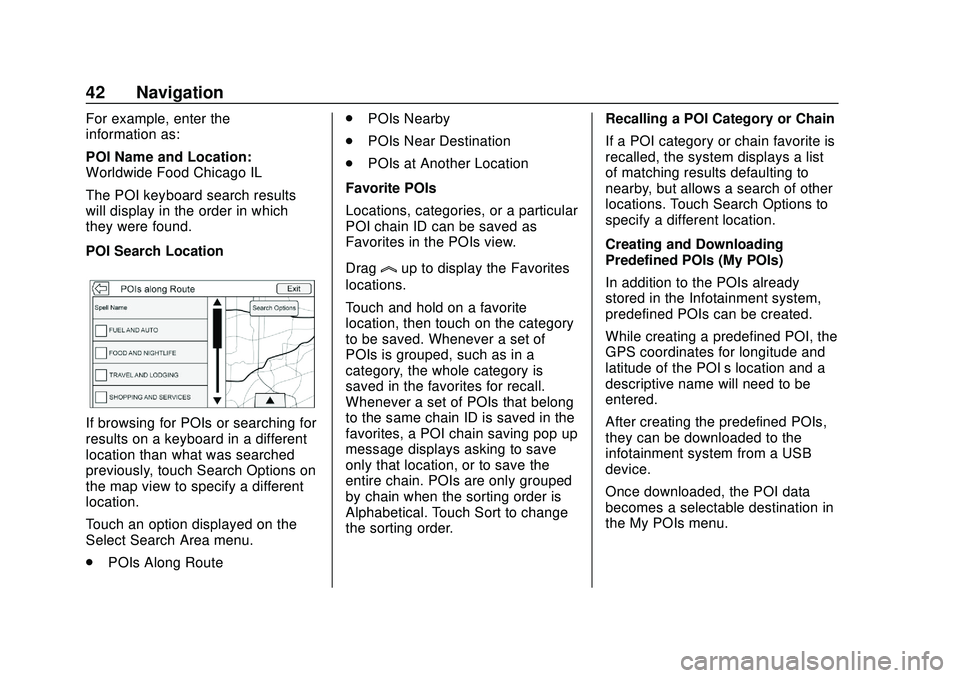
POI Search Location
If browsing for POIs or searching for
results on a keyboard in a different
location than what was searched
previously, touch Search Options on
the map view to specify a different
location.
Touch an option displayed on the
Select Search Area menu.
.POIs Along Route .
POIs Nearby
. POIs Near Destination
. POIs at Another Location
Favorite POIs
Locations, categories, or a particular
POI chain ID can be saved as
Favorites in the POIs view.
Drag
lup to display the Favorites
locations.
Touch and hold on a favorite
location, then touch on the category
to be saved. Whenever a set of
POIs is grouped, such as in a
category, the whole category is
saved in the favorites for recall.
Whenever a set of POIs that belong
to the same chain ID is saved in the
favorites, a POI chain saving pop up
message displays asking to save
only that location, or to save the
entire chain. POIs are only grouped
by chain when the sorting order is
Alphabetical. Touch Sort to change
the sorting order. Recalling a POI Category or Chain
If a POI category or chain favorite is
recalled, the system displays a list
of matching results defaulting to
nearby, but allows a search of other
locations. Touch Search Options to
specify a different location.
Creating and Downloading
Predefined POIs (My POIs)
In addition to the POIs already
stored in the Infotainment system,
predefined POIs can be created.
While creating a predefined POI, the
GPS coordinates for longitude and
latitude of the POI’s location and a
descriptive name will need to be
entered.
After creating the predefined POIs,
they can be downloaded to the
infotainment system from a USB
device.
Once downloaded, the POI data
becomes a selectable destination in
the My POIs menu.
Page 44 of 97
Chevrolet Impala Infotainment Manual (2.6) (GMNA-Localizing-U.S./Canada-
14402255) - 2020 - CRC - 6/5/19
Navigation 43
Creating a Text File with
Information
Create a text file by using a simple
text editor software. Save this file
with a name and extension of .csv,
for example,“TomsPOI.csv.”
Enter the POI information into the
text file in the following format:
. Longitude coordinate, Latitude
coordinate, “Name of POI,”
“Additional information,” “Phone
number.”
Example: 7.0350000,
50.6318040, “Michaels Home,”
“123 Maple Lane,”
“02379234567.”
. The GPS coordinates must be
expressed in decimal degrees
and can be taken from a
geographical map. The
additional information and phone
number strings are optional.
. The POI name and the
additional information string may
not exceed 60 characters. .
POI information for each
destination address must be
entered in a single separate line.
Storing the POI on a USB Device
In the root directory of a USB
device, create a folder name
“myPOIs,” for example, “F:\”is the
root directory of the USB device.
In the “myPOIs” folder, store the text
file with your POIs, for example,
“F:\myPOIs\TomsPOIs.csv.”
Downloading the POI to the
Infotainment System
Connect the USB device containing
the POI information to the USB port
of the infotainment system.
A message displays prompting
whether or not to download the POI
information from the USB device. All
POIs found are saved even if they
are in multiple folders.
Subfolders can also be created to
organize the POIs into categories,
for example, “F:\myPOIs
\Restaurants\TomsPOIs.csv.” If the message is dismissed or
ignored, no POI information is
downloaded. This prompt will not
reoccur for the current ignition cycle.
When the system is finished
downloading, a pop-up displays
asking to specify a category for the
new POIs, if desired.
Importing and Overwriting
Categories
When POIs are found on a media
device, the date of the file is
examined and compared to the date
for the files already in the system.
If the file being downloaded is
newer than the one on the system,
that particular category of POIs is
overwritten. Any other POIs that had
previously been saved in other
categories are not affected.
Address Book Download
If an Address Book is found on the
connected USB device, the same
alert is used to indicate that
locations have been found and they
can be downloaded. If there is
already content in the vehicle
Address Book, the system prompts
Page 73 of 97
Chevrolet Impala Infotainment Manual (2.6) (GMNA-Localizing-U.S./Canada-
14402255) - 2020 - CRC - 6/5/19
72 Phone
Memory Full
This message may display if there is
no more room on the phone to store
messages.
Text Settings
Text Alerts :When on, this feature
will display an alert when a new text
message has been received. Touch
to turn on or off.
Manage Predefined Messages :
Touch to add, change, or delete
predefined messages.
Apple CarPlay and
Android Auto
If equipped, Android Auto and/or
Apple CarPlay capability may be
available through a compatible
smartphone. If available,
PROJECTION will appear on the
Home Page of the infotainment
display. To use Android Auto and/or Apple
CarPlay:
1. Download the Android Auto app to your phone from the
Google Play store. No app is
required for Apple CarPlay.
2. Connect an Android phone or Apple iPhone by using the
factory-provided USB cable
and plugging into a USB data
port. For best performance, it is
highly recommended to use the
device’s factory-provided USB
cable. Aftermarket or
third-party cables may
not work.
3. When the phone is first connected to activate Apple
CarPlay or Android Auto, the
message “Device Projection
Privacy Consent” will appear.
. Touch Continue to launch
Apple CarPlay or
Android Auto. .
Touch Disable to remove
Apple CarPlay and Android
Auto capability from the
vehicle Settings menu.
Other functions may
still work.
PROJECTION on the Home Page
will change to Android Auto or Apple
CarPlay depending on the phone.
Android Auto and/or Apple CarPlay
may automatically launch upon USB
connection. If not, touch the
ANDROID AUTO and/or APPLE
CARPLAY icon on the Home Page
to launch.
Press Home on the center stack to
return to the Home Page.
Features are subject to change. For
further information on how to set up
Android Auto and Apple CarPlay in
the vehicle, see my.chevrolet.com or
“Customer Assistance” in the
owner's manual.
Page 94 of 97
Chevrolet Impala Infotainment Manual (2.6) (GMNA-Localizing-U.S./Canada-
14402255) - 2020 - CRC - 6/5/19
Index 93
Dual Tone Multi-Frequency(DTMF) Tones . . . . . . . . . . . . . . . . . . 69
E
Ending a Call . . . . . . . . . . . . . . . . . . . . 69
English and Metric UnitConversion . . . . . . . . . . . . . . . . . . . . . 77
Error Messages . . . . . . . . . . . . . . . . . 18
F
Finding a Station . . . . . . . . . . . . . . . . 11
FM . . . . . . . . . . . . . . . . . . . . . . . . . . . . . . 15
G
Global Positioning System (GPS) . . . . . . . . . . . . . . . . . . 54
Guidance Problems with the Route . . . . . . . . 55
H
HD Radio Technology . . . . . . . . . . . 13
Helpful Hints for Speaking
Commands . . . . . . . . . . . . . . . . . . . . . 58
Home Page Features . . . . . . . . . . . . . 7
I
If the System Needs Service . . . . . 55
Infotainment Display Features . . . . 8
Infotainment Gestures . . . . . . . . . . . . 8
Infotainment System . . . . . . . . . . . . . . 4 Infotainment System Settings . . . . 10
Introduction . . . . . . . . . . . . . . . . . . . . . . . 2
J
Jack
Auxiliary. . . . . . . . . . . . . . . . . . . . . . . . . 22
L
Language . . . . . . . . . . . . . . . . . . . . . . . . 74
Loading and Ejecting Discs . . . . . . 16
M
Making a Call . . . . . . . . . . . . . . . . . . . . 70
Making a Call Using Contactsand Recent Calls . . . . . . . . . . . . . . . 67
Making a Call Using the Keypad . . . . . . . . . . . . . . . . . . . . . . . . . 68
Map Adjustments . . . . . . . . . . . . . . . . 32
Map Data Updates . . . . . . . . . . . . . . . 56
Map End User License
Agreement . . . . . . . . . . . . . . . . . . . . . 86
Maps . . . . . . . . . . . . . . . . . . . . . . . . . . . . 34
Media Avoiding Untrusted Devices . . . . . 16
Messaging Text . . . . . . . . . . . . . . . . . . . . . . . . . . . . . 71
Mixed-Audio Favorites . . . . . . . . . . . 12
Mobile Device Usage . . . . . . . . . . . . 15
Multi-band Antenna . . . . . . . . . . . . . . 15
N
NAV . . . . . . . . . . . . . . . . . . . . . . . . . . . . . . 7
Navigation Destination. . . . . . . . . . . . . . . . . . . . . . 35
Using the System . . . . . . . . . . . . . . . 26
Navigation Symbols . . . . . . . . . . . . . 34
O
OnStar . . . . . . . . . . . . . . . . . . . . . . . . . . . 8
OnStar System . . . . . . . . . . . . . . 25, 53
Over-the-Air Software Updates . . . . . . . . . . . . . . . . . . . . . 9, 76
Overview . . . . . . . . . . . . . . . . . . . . . . . . . 2
P
Pairing . . . . . . . . . . . . . . . . . . . . . . . . . . . 66
Phone . . . . . . . . . . . . . . . . . . . . . . . . . . . . 7 Apple CarPlay andAndroid Auto. . . . . . . . . . . . . . . . . . . 72
Bluetooth . . . . . . . . 65, 66, 70
Playing an Audio CD . . . . . . . . . . . . 16
Playing an MP3 CD . . . . . . . . . . . . . . 18
Playing from a USB . . . . . . . . . . . . . . 19
Playing the Radio . . . . . . . . . . . . . . . . 10
Port
USB. . . . . . . . . . . . . . . . . . . . . . . . . . . . . 19
Positioning Vehicle . . . . . . . . . . . . . . . . . . . . . . . . . . 54
Page 95 of 97
Chevrolet Impala Infotainment Manual (2.6) (GMNA-Localizing-U.S./Canada-
14402255) - 2020 - CRC - 6/5/19
94 Index
Problems with RouteGuidance . . . . . . . . . . . . . . . . . . . . . . 55
Projection . . . . . . . . . . . . . . . . . . . . . . . . . 7
R
Radio . . . . . . . . . . . . . . . . . . . . . . . . . . . . 74 HD Radio Technology . . . . . . . . . . . 13
Radio Data System (RDS) . . . . . . . 14
Radio Reception . . . . . . . . . . . . . . . . . 15
Radios AM-FM Radio . . . . . . . . . . . . . . . . . . . 10
Satellite . . . . . . . . . . . . . . . . . . . . . . . . . 14
Rear Camera . . . . . . . . . . . . . . . . . . . . 76
Recognition Voice. . . . . . . . . . . . . . . . . . . . . . . . . . . . 57
Return to Factory Settings . . . . . . . 76
S
Satellite Radio . . . . . . . . . . . . . . . . . . . 14
Schedule I: Gracenote EULA . . . . 83
Scroll Features . . . . . . . . . . . . . . . . . . 33
Servicing System . . . . . . . . . . . . . . . . 55
Settings . . . . . . . . . . . . . . . . . . . . . . 74, 7
SiriusXM Menu . . . . . . . . . . . . . . . . . . 14
SiriusXM NavTraffic . . . . . . . . . . . . . 52
SiriusXM Satellite Radio Service . . . . . . . . . . . . . . . . . . . . . 14, 15
SiriusXM Travel Link Fuel Pricing . . . . . . . . . . . . . . . . . . . . . . . . . 53 SiriusXM Travel Link Movie
Listings . . . . . . . . . . . . . . . . . . . . . . . . 53
SiriusXM Travel Link Weather . . . 49
Software Updates . . . . . . . . . . . . . . . . 9
Steering Wheel Controls . . . . . . . . . . 6
Storing Media Favorites . . . . . . . . . 17
Storing Presets . . . . . . . . . . . . . . . . . . 12
Switching to Handset or Handsfree Mode . . . . . . . . . . . . . . . 67
Symbols Navigation. . . . . . . . . . . . . . . . . . . . . . . 34
System Global Positioning. . . . . . . . . . . . . . . 54
OnStar . . . . . . . . . . . . . . . . . . . . . . . . . . 53
T
Teen Driver . . . . . . . . . . . . . . . . . . . . . . 77
Text Menu . . . . . . . . . . . . . . . . . . . . . . . 71
Text Messaging . . . . . . . . . . . . . . . . . . 71
Text Settings . . . . . . . . . . . . . . . . . . . . . 72
The OnStar App . . . . . . . . . . . . . . . . . 25
Three-Way Calling . . . . . . . . . . . . . . . 69
Time and Date . . . . . . . . . . . . . . . . . . . 74
Trademarks and LicenseAgreements . . . . . . . . . . . . . . . . . . . . 81
Turn List . . . . . . . . . . . . . . . . . . . . . . . . . 47
U
Updates
Map Data . . . . . . . . . . . . . . . . . . . . . . . 56
Software . . . . . . . . . . . . . . . . . . . . . . . . . 9
USB Port . . . . . . . . . . . . . . . . . . . . . . . . 19
Using Bluetooth Voice
Recognition . . . . . . . . . . . . . . . . . . . . 70
Using the Navigation System . . . . 26
Using the System . . . . . . . . . . . . . . . . . 7
Using Voice Recognition . . . . . . . . . 57
Using Voice Recognition for List Options . . . . . . . . . . . . . . . . . . . . 59
V
Valet Mode . . . . . . . . . . . . . . . . . . . . . . 74
Vehicle Positioning . . . . . . . . . . . . . . 54
Vehicle Settings . . . . . . . . . . . . . . . . . 75
Viewing a Text Message . . . . . . . . . 71
Viewing Sender Information . . . . . 71
Voice . . . . . . . . . . . . . . . . . . . . . . . . . . . . 75
Voice Mail . . . . . . . . . . . . . . . . . . . . . . . 69
Voice Pass-Thru . . . . . . . . . . . . . . . . . 63
Voice Recognition . . . . . . . . . . . . . . . 57
Voice Recognition for AudioMyMedia . . . . . . . . . . . . . . . . . . . . . . . 61
Voice Recognition for Navigation . . . . . . . . . . . . . . . . . . . . . 62