manual radio set CHEVROLET IMPALA 2020 Infotainment System Manual
[x] Cancel search | Manufacturer: CHEVROLET, Model Year: 2020, Model line: IMPALA, Model: CHEVROLET IMPALA 2020Pages: 97, PDF Size: 1.26 MB
Page 21 of 97
Chevrolet Impala Infotainment Manual (2.6) (GMNA-Localizing-U.S./Canada-
14402255) - 2020 - CRC - 6/5/19
20 Audio Players
2. Press MEDIA on the centerstack until the connected
device is shown.
Use the following when playing an
active USB source:
r: Touch to play the current media
source.
j: Touch to pause playback of the
current media source.
g:
. Press to seek to the beginning of
the current or previous track.
. Press and hold to reverse
quickly through playback.
Release to return to playing
speed. Elapsed time displays.
d:
. Press to seek to the next track.
. Press and hold to advance
quickly through playback.
Release to return to playing
speed. Elapsed time displays. Shuffle :
Touch the shuffle icon to
play music in random order.
USB Menu
Touch the Menu icon to display the
USB menu. The following may be
available:
Shuffle : Touch to play the tracks
randomly. Touch again to stop
shuffle.
Tone : Touch + or –to adjust the
tone settings. See AM-FM Radio
0 10.
Auto Volume (If Equipped) : This
feature adjusts the volume based on
the vehicle speed. See AM-FM
Radio 010.
Bose AudioPilot Noise
Compensation Technology (If
Equipped : This feature adjusts the
volume based on the noise in the
vehicle and speed. See AM-FM
Radio 010. USB Browse Menu
When a list of songs, albums,
artists, or other types of media
displays, the up and down arrows
and A-Z appear on the left side.
Select A-Z to view a display that will
show all letters of the alphabet and
select the letter to go to.
Touch anywhere between the top
and bottom menus or touch the
Browse option on the infotainment
display to view the Browse menu
and the following options are
displayed near the bottom of the
display:
Playlists:
1. Touch to view the playlists stored on the USB.
2. Touch a playlist to view the list of all songs in that playlist.
3. Touch a song from the list to begin playback.
Supported Playlist extensions are
m3u, pls, and wpl.
Page 23 of 97
Chevrolet Impala Infotainment Manual (2.6) (GMNA-Localizing-U.S./Canada-
14402255) - 2020 - CRC - 6/5/19
22 Audio Players
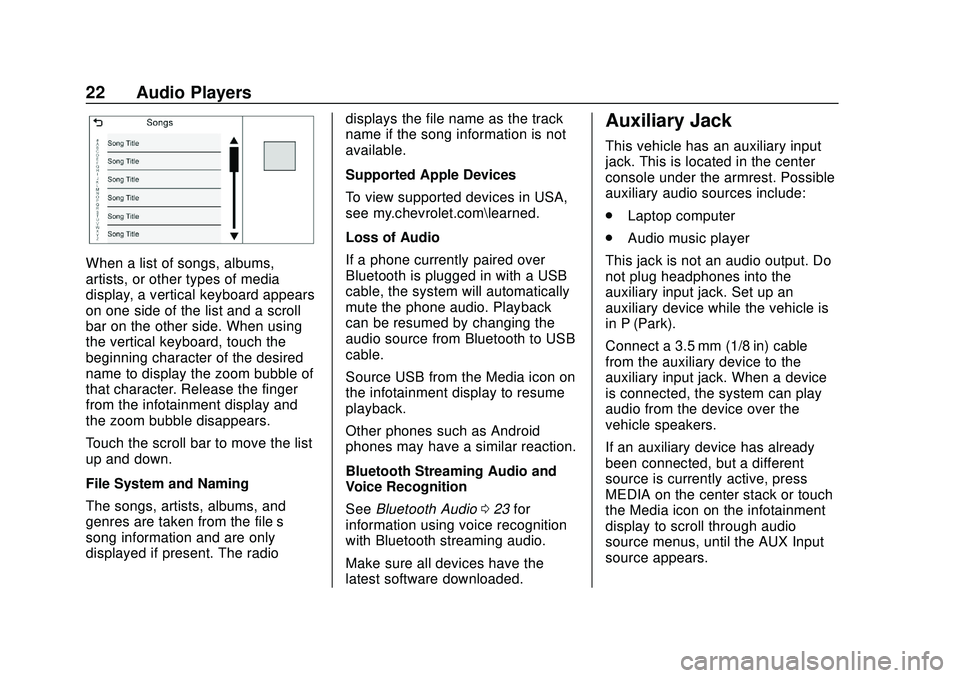
When a list of songs, albums,
artists, or other types of media
display, a vertical keyboard appears
on one side of the list and a scroll
bar on the other side. When using
the vertical keyboard, touch the
beginning character of the desired
name to display the zoom bubble of
that character. Release the finger
from the infotainment display and
the zoom bubble disappears.
Touch the scroll bar to move the list
up and down.
File System and Naming
The songs, artists, albums, and
genres are taken from the file’s
song information and are only
displayed if present. The radiodisplays the file name as the track
name if the song information is not
available.
Supported Apple Devices
To view supported devices in USA,
see my.chevrolet.com\learned.
Loss of Audio
If a phone currently paired over
Bluetooth is plugged in with a USB
cable, the system will automatically
mute the phone audio. Playback
can be resumed by changing the
audio source from Bluetooth to USB
cable.
Source USB from the Media icon on
the infotainment display to resume
playback.
Other phones such as Android
phones may have a similar reaction.
Bluetooth Streaming Audio and
Voice Recognition
See
Bluetooth Audio 023 for
information using voice recognition
with Bluetooth streaming audio.
Make sure all devices have the
latest software downloaded.
Auxiliary Jack
This vehicle has an auxiliary input
jack. This is located in the center
console under the armrest. Possible
auxiliary audio sources include:
. Laptop computer
. Audio music player
This jack is not an audio output. Do
not plug headphones into the
auxiliary input jack. Set up an
auxiliary device while the vehicle is
in P (Park).
Connect a 3.5 mm (1/8 in) cable
from the auxiliary device to the
auxiliary input jack. When a device
is connected, the system can play
audio from the device over the
vehicle speakers.
If an auxiliary device has already
been connected, but a different
source is currently active, press
MEDIA on the center stack or touch
the Media icon on the infotainment
display to scroll through audio
source menus, until the AUX Input
source appears.
Page 24 of 97
Chevrolet Impala Infotainment Manual (2.6) (GMNA-Localizing-U.S./Canada-
14402255) - 2020 - CRC - 6/5/19
Audio Players 23
Playing from the AUX Port
An auxiliary device is played
through the audio system and
controlled through the device itself.
AUX Menu
Press MENU on the center stack to
display the AUX Input menu and the
following may display:
Tone Settings :Touch to adjust
Bass, Midrange, Treble, Balance,
Fade, and EQ (Equalizer). See
AM-FM Radio 010.
Auto Volume (If Equipped) : This
feature adjusts the volume based on
the vehicle speed. See AM-FM
Radio 010.
Bose AudioPilot Noise
Compensation Technology (If
Equipped) : This feature adjusts
the volume based on the noise in
the vehicle and speed. See “Bose
AudioPilot” inAM-FM Radio 010.Bluetooth Audio
If equipped, music may be played
from a paired Bluetooth device. See
Bluetooth (Overview) 065 or
Bluetooth (Infotainment Controls)
0 66 or
Bluetooth (Voice Recognition) 070
for help pairing a device.
The music can be controlled by
either the infotainment controls or
the controls on the device.
Music can be launched by pressing
MEDIA on the center stack or go
into the audio application from the
Home Page or through the
applications tray. Touch the Media
icon until Bluetooth displays.
To play music via Bluetooth:
1. Power on the device, and pair to connect the device.
2. Once paired, go into the audio application from the Home
Page or through the
applications tray. Touch the
Media icon until Bluetooth
displays. Bluetooth Audio Menu
Touch the Menu icon on the
infotainment display or MENU on
the center stack to display the
Bluetooth Audio menu. The
following may be available:
Tone Settings :
Touch + or–to
adjust the tone settings. See AM-FM
Radio 010.
Auto Volume (If Equipped) : This
feature adjusts the volume based on
the vehicle speed. See AM-FM
Radio 010.
Bose AudioPilot Noise
Compensation Technology (If
Equipped) : This feature adjusts
the volume based on the noise in
the vehicle and speed. See AM-FM
Radio 010.
Touch the Back icon on the
infotainment display to go back to
the previous menu.
Page 75 of 97
Chevrolet Impala Infotainment Manual (2.6) (GMNA-Localizing-U.S./Canada-
14402255) - 2020 - CRC - 6/5/19
74 Settings
Settings
The Settings menu allows
adjustment of different vehicle and
radio features. The menu may
contain the following:
Time and Date
Touchlorgto increase or
decrease hours, minutes, and AM or
PM. Press 12Hr or 24Hr for 12 or
24 hour clock. Touch
lorgto
increase or decrease month, day,
or year. See “Clock”in the owner ’s
manual.
Language
This will set the display language in
the radio, instrument panel, and
voice recognition. Press Language
and select the appropriate
language. Touch the Back icon on
the infotainment display to go back
to the previous menu.
Valet Mode
If equipped, this will lock the
infotainment system and steering
wheel controls. It may also limit top
speed, power, and access to vehicle
storage locations (if equipped).
To enable valet mode:
1. Enter a four-digit code on the keypad.
2. Touch Enter to go to the confirmation screen.
3. Re-enter the four-digit code.
Touch Lock or Unlock to lock or
unlock the system. Touch the Back
icon on the infotainment display to
go back to the previous menu.
Radio
Touch to display the Radio menu
and the following may display:
. Manage Favorites: Touch to
highlight a favorite to edit. Touch
Rename to rename the favorite
or Delete to delete it. Touch and
hold the station to drag it to a
new location. Touch Done to go
back to the previous menu. .
Number of Favorites Shown:
Touch to set the number of
favorites to display. Select Auto,
5, 10, 15, 20, 25, 30, 35, 40, 45,
50, 55, or 60. Auto will adjust the
number of favorite locations that
can be seen. Touch the Back
icon on the infotainment display
to go back to the previous menu.
. Tone Settings: Touch + or –to
adjust Bass, Midrange, Treble,
or Surround. See AM-FM Radio
0 10.
. Auto Volume (If Equipped): This
feature adjusts the volume
based on the vehicle speed. See
AM-FM Radio 010.
. Bose AudioPilot Noise
Compensation Technology (If
Equipped): This feature adjusts
the volume based on the noise
in the vehicle and speed. See
AM-FM Radio 010.
. Maximum Startup Volume: This
feature sets the maximum
startup volume. If the vehicle is
started and the volume is
greater than this level, the
Page 77 of 97

Chevrolet Impala Infotainment Manual (2.6) (GMNA-Localizing-U.S./Canada-
14402255) - 2020 - CRC - 6/5/19
76 Settings
Display
From Display on the infotainment
display, the following may appear:
.Mode: Touch Auto, Day, or Night
to adjust the display. Touch the
Back icon on the infotainment
display to go to the
previous menu.
. Calibrate Touchscreen: Touch to
calibrate the infotainment display
and follow the prompts. Touch
the Back icon on the
infotainment display to go back
to the previous menu.
. Turn Display Off: Touch to turn
the display off. Touch anywhere
on the display area or any center
stack control again to turn the
display on.
Rear Camera
Touch to display the Rear Camera
menu. See “Driver Assistance
Systems” in the owner ’s manual.
Return to Factory Settings
Touching Continue restores all
factory settings. Select Return to Factory Settings
and the following list may display:
.
Restore Vehicle Settings:
Restores factory vehicle
personalization settings. Touch
Restore Vehicle Settings. Touch
Cancel or Continue. If continue
is touched, a confirmation
pop-up will appear indicating the
vehicle settings have been
restored.
. Clear All Private Data: If
available, use to erase personal
private data before loaning or
selling the vehicle. Touch Clear
All Private Data. Touch Cancel
or Continue. If Continue is
touched, a confirmation pop-up
will appear indicating all private
data has been cleared from the
system.
. Restore Radio Settings:
Restores factory radio settings.
Touch Restore Radio Settings.
Touch Cancel or Continue.
If Continue is touched, a
confirmation pop-up will appear
indicating the radio settings have
been restored. Press
oBACK on the center stack
or touch the Back icon on the
infotainment display to go back to
the main settings menu.
Over-the-Air Software Updates
If equipped, the infotainment system
can download and install select
software updates over a wireless
connection. The system will prompt
for certain updates to be
downloaded and installed. There is
also an option to check for updates
manually.
To manually check for updates,
touch SETTINGS on the Home
Page, followed by Software
Information, and then System
Update. Follow the on-screen
prompts. The steps to check for,
download and install updates may
vary by vehicle.
Downloading Over-the-Air vehicle
software updates requires Internet
connectivity, which can be accessed
through the vehicle’ s built-in 4G LTE
connection, if equipped and active.
If required, data plans are provided
by a third party. Optionally, a secure
Page 79 of 97

Chevrolet Impala Infotainment Manual (2.6) (GMNA-Localizing-U.S./Canada-
14402255) - 2020 - CRC - 6/5/19
78 Settings
3. From the Settings menu, touchTeen Driver.
4. Enter the PIN.
5. Place the Remote Keyless Entry (RKE) transmitter key in
the transmitter pocket. See
“Remote Keyless Entry (RKE)
System Operation” in the
owner's manual for transmitter
pocket location.
6. From the Teen Driver Menu, touch Key Registration.
.If the transmitter key is in
the transmitter pocket, it will
identify whether the
transmitter key is registered
or unregistered.
. If the transmitter key is not
registered, the option to
register displays. Touch
Register and a confirmation
message displays.
. If the transmitter key is
already registered, the
option to unregister
displays. If Unregister is
touched, the transmitter key is no longer registered and
a confirmation message
displays.
In vehicles with a pushbutton start
system, if a Teen Driver transmitter
key and a non-Teen Driver
transmitter key are both present at
start up, the vehicle will recognize
the non-Teen Driver transmitter key
to start the vehicle. The Teen Driver
settings will not be active.
For a keyed ignition system: 1. Start the engine.
2. For automatic transmissions, the vehicle must be in P (Park).
For manual transmissions, the
vehicle must be stopped with
the parking brake set.
3. From the Settings menu, touch Teen Driver.
4. Enter the PIN.
5. Touch Key Registration. The system displays instructions for
registering or unregistering a
key. A confirmation message
displays. Manage Settings
Audio Volume Limit :
Allows a
maximum radio volume to be set.
Turn the audio volume limit On or
Off and choose the maximum level
for the audio volume.
Teen Driver Speed Warning :
Allows for setting a visual and
audible warning when a certain
speed is exceeded. The speed
warning is selectable. The speed
warning does not limit the speed of
the vehicle.
Teen Driver Speed Limiter : Allows
the maximum speed of the vehicle
to be limited. When the speed
limiter is turned On and the vehicle
is started with a Teen Driver key, the
DIC displays a message that the top
speed is limited.
On certain vehicles, when the
Speed Limiter is turned ON, the
vehicle’s maximum acceleration will
be limited. The DIC will display a
message that the acceleration is
limited.
Page 80 of 97
Chevrolet Impala Infotainment Manual (2.6) (GMNA-Localizing-U.S./Canada-
14402255) - 2020 - CRC - 6/5/19
Settings 79
When Teen Driver is Active:
.If equipped with Buckle to Drive,
shifting out of P (Park) will be
prevented if the driver seat belt,
and in some vehicles the front
passenger seat belt, is not
buckled. See “Buckle to Drive” in
the owner ’s manual.
. The radio will mute when the
driver seat belt, and in some
vehicles the front passenger
seat belt, is not buckled. The
audio from any device paired to
the vehicle will also be muted.
. An object placed on the front
passenger seat, such as a
briefcase, handbag, grocery bag,
laptop, or other electronic
device, could cause the
passenger sensing system to
falsely sense an unbuckled front
passenger and mute the radio.
If this happens, remove the
object from the seat. See
“Passenger Sensing System” in
the owner's manual. .
Some safety systems, such as
Lane Departure Warning,
if equipped, cannot be turned
off. They may include: Park
Assist, Side Blind Zone Alert,
Lane Change Alert, Rear Cross
Traffic Alert, Forward Collision
Alert, Automatic Emergency
Braking, Pedestrian Braking,
Lane Departure Warning, Lane
Keep Assist, Daytime Running
Lamps/Automatic Light Control,
Traction Control, Stability
Control, and Antilock Brakes.
. The gap setting for the Forward
Collision Alert and Adaptive
Cruise Control, if equipped,
cannot be changed.
. When trying to change a safety
feature that is not configurable in
Teen Driver, the DIC displays a
message indicating that Teen
Driver is active and the action is
not available.
. Enhanced Low Fuel Warning (if
equipped) –When the vehicle is
low on fuel, the low fuel light on the instrument cluster flashes
and the DIC low fuel warning
cannot be dismissed.
Report Card
The vehicle owner must secure the
driver ’s consent to record certain
vehicle data when the vehicle is
driven with a registered Teen Driver
key. There is one Report Card per
vehicle. Data is not recorded when
Teen Driver is not active.
The Report Card data is collected
from the time Teen Driver is
activated or the last time the Report
Card was reset. The following items
may be recorded:
. Distance Driven –the total
distance driven.
. Maximum Speed –the maximum
vehicle speed recorded.
. Overspeed Warnings –the
number of times the speed
warning setting was exceeded.
. Wide Open Throttle –the
number of times the accelerator
pedal is pressed nearly all the
way down.
Page 94 of 97
Chevrolet Impala Infotainment Manual (2.6) (GMNA-Localizing-U.S./Canada-
14402255) - 2020 - CRC - 6/5/19
Index 93
Dual Tone Multi-Frequency(DTMF) Tones . . . . . . . . . . . . . . . . . . 69
E
Ending a Call . . . . . . . . . . . . . . . . . . . . 69
English and Metric UnitConversion . . . . . . . . . . . . . . . . . . . . . 77
Error Messages . . . . . . . . . . . . . . . . . 18
F
Finding a Station . . . . . . . . . . . . . . . . 11
FM . . . . . . . . . . . . . . . . . . . . . . . . . . . . . . 15
G
Global Positioning System (GPS) . . . . . . . . . . . . . . . . . . 54
Guidance Problems with the Route . . . . . . . . 55
H
HD Radio Technology . . . . . . . . . . . 13
Helpful Hints for Speaking
Commands . . . . . . . . . . . . . . . . . . . . . 58
Home Page Features . . . . . . . . . . . . . 7
I
If the System Needs Service . . . . . 55
Infotainment Display Features . . . . 8
Infotainment Gestures . . . . . . . . . . . . 8
Infotainment System . . . . . . . . . . . . . . 4 Infotainment System Settings . . . . 10
Introduction . . . . . . . . . . . . . . . . . . . . . . . 2
J
Jack
Auxiliary. . . . . . . . . . . . . . . . . . . . . . . . . 22
L
Language . . . . . . . . . . . . . . . . . . . . . . . . 74
Loading and Ejecting Discs . . . . . . 16
M
Making a Call . . . . . . . . . . . . . . . . . . . . 70
Making a Call Using Contactsand Recent Calls . . . . . . . . . . . . . . . 67
Making a Call Using the Keypad . . . . . . . . . . . . . . . . . . . . . . . . . 68
Map Adjustments . . . . . . . . . . . . . . . . 32
Map Data Updates . . . . . . . . . . . . . . . 56
Map End User License
Agreement . . . . . . . . . . . . . . . . . . . . . 86
Maps . . . . . . . . . . . . . . . . . . . . . . . . . . . . 34
Media Avoiding Untrusted Devices . . . . . 16
Messaging Text . . . . . . . . . . . . . . . . . . . . . . . . . . . . . 71
Mixed-Audio Favorites . . . . . . . . . . . 12
Mobile Device Usage . . . . . . . . . . . . 15
Multi-band Antenna . . . . . . . . . . . . . . 15
N
NAV . . . . . . . . . . . . . . . . . . . . . . . . . . . . . . 7
Navigation Destination. . . . . . . . . . . . . . . . . . . . . . 35
Using the System . . . . . . . . . . . . . . . 26
Navigation Symbols . . . . . . . . . . . . . 34
O
OnStar . . . . . . . . . . . . . . . . . . . . . . . . . . . 8
OnStar System . . . . . . . . . . . . . . 25, 53
Over-the-Air Software Updates . . . . . . . . . . . . . . . . . . . . . 9, 76
Overview . . . . . . . . . . . . . . . . . . . . . . . . . 2
P
Pairing . . . . . . . . . . . . . . . . . . . . . . . . . . . 66
Phone . . . . . . . . . . . . . . . . . . . . . . . . . . . . 7 Apple CarPlay andAndroid Auto. . . . . . . . . . . . . . . . . . . 72
Bluetooth . . . . . . . . 65, 66, 70
Playing an Audio CD . . . . . . . . . . . . 16
Playing an MP3 CD . . . . . . . . . . . . . . 18
Playing from a USB . . . . . . . . . . . . . . 19
Playing the Radio . . . . . . . . . . . . . . . . 10
Port
USB. . . . . . . . . . . . . . . . . . . . . . . . . . . . . 19
Positioning Vehicle . . . . . . . . . . . . . . . . . . . . . . . . . . 54
Page 95 of 97
Chevrolet Impala Infotainment Manual (2.6) (GMNA-Localizing-U.S./Canada-
14402255) - 2020 - CRC - 6/5/19
94 Index
Problems with RouteGuidance . . . . . . . . . . . . . . . . . . . . . . 55
Projection . . . . . . . . . . . . . . . . . . . . . . . . . 7
R
Radio . . . . . . . . . . . . . . . . . . . . . . . . . . . . 74 HD Radio Technology . . . . . . . . . . . 13
Radio Data System (RDS) . . . . . . . 14
Radio Reception . . . . . . . . . . . . . . . . . 15
Radios AM-FM Radio . . . . . . . . . . . . . . . . . . . 10
Satellite . . . . . . . . . . . . . . . . . . . . . . . . . 14
Rear Camera . . . . . . . . . . . . . . . . . . . . 76
Recognition Voice. . . . . . . . . . . . . . . . . . . . . . . . . . . . 57
Return to Factory Settings . . . . . . . 76
S
Satellite Radio . . . . . . . . . . . . . . . . . . . 14
Schedule I: Gracenote EULA . . . . 83
Scroll Features . . . . . . . . . . . . . . . . . . 33
Servicing System . . . . . . . . . . . . . . . . 55
Settings . . . . . . . . . . . . . . . . . . . . . . 74, 7
SiriusXM Menu . . . . . . . . . . . . . . . . . . 14
SiriusXM NavTraffic . . . . . . . . . . . . . 52
SiriusXM Satellite Radio Service . . . . . . . . . . . . . . . . . . . . . 14, 15
SiriusXM Travel Link Fuel Pricing . . . . . . . . . . . . . . . . . . . . . . . . . 53 SiriusXM Travel Link Movie
Listings . . . . . . . . . . . . . . . . . . . . . . . . 53
SiriusXM Travel Link Weather . . . 49
Software Updates . . . . . . . . . . . . . . . . 9
Steering Wheel Controls . . . . . . . . . . 6
Storing Media Favorites . . . . . . . . . 17
Storing Presets . . . . . . . . . . . . . . . . . . 12
Switching to Handset or Handsfree Mode . . . . . . . . . . . . . . . 67
Symbols Navigation. . . . . . . . . . . . . . . . . . . . . . . 34
System Global Positioning. . . . . . . . . . . . . . . 54
OnStar . . . . . . . . . . . . . . . . . . . . . . . . . . 53
T
Teen Driver . . . . . . . . . . . . . . . . . . . . . . 77
Text Menu . . . . . . . . . . . . . . . . . . . . . . . 71
Text Messaging . . . . . . . . . . . . . . . . . . 71
Text Settings . . . . . . . . . . . . . . . . . . . . . 72
The OnStar App . . . . . . . . . . . . . . . . . 25
Three-Way Calling . . . . . . . . . . . . . . . 69
Time and Date . . . . . . . . . . . . . . . . . . . 74
Trademarks and LicenseAgreements . . . . . . . . . . . . . . . . . . . . 81
Turn List . . . . . . . . . . . . . . . . . . . . . . . . . 47
U
Updates
Map Data . . . . . . . . . . . . . . . . . . . . . . . 56
Software . . . . . . . . . . . . . . . . . . . . . . . . . 9
USB Port . . . . . . . . . . . . . . . . . . . . . . . . 19
Using Bluetooth Voice
Recognition . . . . . . . . . . . . . . . . . . . . 70
Using the Navigation System . . . . 26
Using the System . . . . . . . . . . . . . . . . . 7
Using Voice Recognition . . . . . . . . . 57
Using Voice Recognition for List Options . . . . . . . . . . . . . . . . . . . . 59
V
Valet Mode . . . . . . . . . . . . . . . . . . . . . . 74
Vehicle Positioning . . . . . . . . . . . . . . 54
Vehicle Settings . . . . . . . . . . . . . . . . . 75
Viewing a Text Message . . . . . . . . . 71
Viewing Sender Information . . . . . 71
Voice . . . . . . . . . . . . . . . . . . . . . . . . . . . . 75
Voice Mail . . . . . . . . . . . . . . . . . . . . . . . 69
Voice Pass-Thru . . . . . . . . . . . . . . . . . 63
Voice Recognition . . . . . . . . . . . . . . . 57
Voice Recognition for AudioMyMedia . . . . . . . . . . . . . . . . . . . . . . . 61
Voice Recognition for Navigation . . . . . . . . . . . . . . . . . . . . . 62