phone CHEVROLET IMPALA 2020 Infotainment System Manual
[x] Cancel search | Manufacturer: CHEVROLET, Model Year: 2020, Model line: IMPALA, Model: CHEVROLET IMPALA 2020Pages: 97, PDF Size: 1.26 MB
Page 2 of 97
Chevrolet Impala Infotainment Manual (2.6) (GMNA-Localizing-U.S./Canada-
14402255) - 2020 - CRC - 6/5/19
ContentsIntroduction . . . . . . . . . . . . . . . . . . . . . 2
Radio . . . . . . . . . . . . . . . . . . . . . . . . . . 10
Audio Players . . . . . . . . . . . . . . . . . 16
OnStar System . . . . . . . . . . . . . . . . 25
Navigation . . . . . . . . . . . . . . . . . . . . . 26
Voice Recognition . . . . . . . . . . . . . 57
Phone . . . . . . . . . . . . . . . . . . . . . . . . . 65
Settings . . . . . . . . . . . . . . . . . . . . . . . 74
Trademarks and LicenseAgreements . . . . . . . . . . . . . . . . . . 81
Index . . . . . . . . . . . . . . . . . . . . 92
Page 4 of 97
Chevrolet Impala Infotainment Manual (2.6) (GMNA-Localizing-U.S./Canada-
14402255) - 2020 - CRC - 6/5/19
Introduction 3
The infotainment system has built-in
features intended to help avoid
distraction by disabling some
features when driving. These
features may gray out when they
are unavailable. Many infotainment
features are also available through
the instrument cluster and steering
wheel controls.
Before driving:
.Become familiar with the system
operation, controls on the center
stack, steering wheel controls,
and infotainment display.
. Set up the audio by presetting
favorite stations, setting the
tone, and adjusting the
speakers.
. Set up cell phone numbers in
advance so they can be called
easily by pressing a single
control or by using a single voice
command.
See “Distracted Driving” in the
owner ’s manual.
Page 8 of 97
Chevrolet Impala Infotainment Manual (2.6) (GMNA-Localizing-U.S./Canada-
14402255) - 2020 - CRC - 6/5/19
Introduction 7
1. Favorites: Press to select thenext or previous favorite radio
station. While playing media,
press to select the next or
previous track or song.
2. Volume: Press to increase or decrease the volume.
Using the System
Home Page Features
Touch the icons on the Home Page
to launch an application.
Audio
Touch the Audio icon to display the
active audio source page. Available
sources are AM, FM, SXM (if
equipped), CD (if equipped),
MyMedia, USB, Bluetooth, and AUX
Input.
Phone
Touch the Phone icon to display the
Phone main page. See Bluetooth
(Overview) 065 or
Bluetooth (Infotainment Controls)
0 66 or
Bluetooth (Voice Recognition) 070.
Projection
Touch the Projection icon to activate
Android Auto or Apple CarPlay (if
equipped) after a supported device
is connected. See Apple CarPlay
and Android Auto 072.
Apps
If equipped, in-vehicle apps are
available for download. Touch the
Apps icon on the Home Page to
begin.
Downloading and using in-vehicle
apps requires Internet connectivity
which can be accessed with a data
plan through the vehicle’s built-in
4G LTE Wi-Fi hotspot, if equipped,
or a compatible mobile device
hotspot. On most mobile devices,
activation of the Wi-Fi hotspot is in
the vehicle’ s Settings menu under
Mobile Network Sharing, Personal
Hotspot, Mobile Hotspot, or similar.
To purchase data for the in-vehicle
Wi-Fi hotspot, if equipped, touch the
myChevrolet icon on the Home
Page or contact an OnStar Advisor. The vehicle must have active
OnStar or connected service and a
payment method on file.
Availability of apps and connectivity
varies by vehicle, conditions, and
location. Data plan rates apply.
Features are subject to change. For
more information, see
my.chevrolet.com/learn.
NAV
Touch the Nav icon to display the
navigation map. See
Using the
Navigation System 026.
Settings
Touch the Settings icon to display
the Settings menu. See Settings
0 74.
Weather
If equipped, touch the Weather icon
to display the Weather main page.
See “SiriusXM Travel Link Weather”
under Destination 035.
Page 23 of 97
Chevrolet Impala Infotainment Manual (2.6) (GMNA-Localizing-U.S./Canada-
14402255) - 2020 - CRC - 6/5/19
22 Audio Players
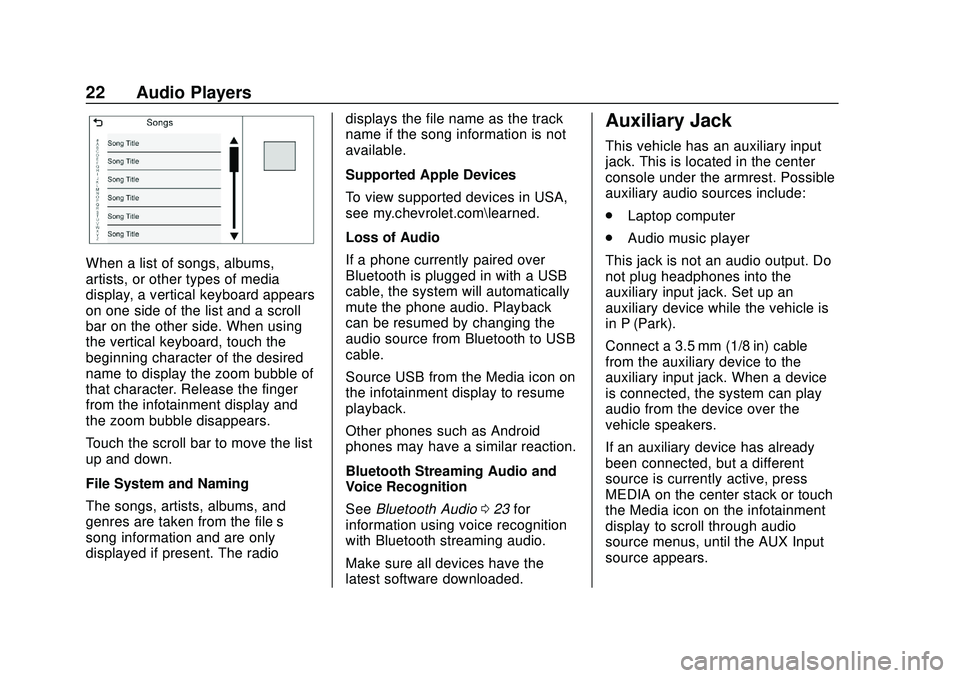
When a list of songs, albums,
artists, or other types of media
display, a vertical keyboard appears
on one side of the list and a scroll
bar on the other side. When using
the vertical keyboard, touch the
beginning character of the desired
name to display the zoom bubble of
that character. Release the finger
from the infotainment display and
the zoom bubble disappears.
Touch the scroll bar to move the list
up and down.
File System and Naming
The songs, artists, albums, and
genres are taken from the file’s
song information and are only
displayed if present. The radiodisplays the file name as the track
name if the song information is not
available.
Supported Apple Devices
To view supported devices in USA,
see my.chevrolet.com\learned.
Loss of Audio
If a phone currently paired over
Bluetooth is plugged in with a USB
cable, the system will automatically
mute the phone audio. Playback
can be resumed by changing the
audio source from Bluetooth to USB
cable.
Source USB from the Media icon on
the infotainment display to resume
playback.
Other phones such as Android
phones may have a similar reaction.
Bluetooth Streaming Audio and
Voice Recognition
See
Bluetooth Audio 023 for
information using voice recognition
with Bluetooth streaming audio.
Make sure all devices have the
latest software downloaded.
Auxiliary Jack
This vehicle has an auxiliary input
jack. This is located in the center
console under the armrest. Possible
auxiliary audio sources include:
. Laptop computer
. Audio music player
This jack is not an audio output. Do
not plug headphones into the
auxiliary input jack. Set up an
auxiliary device while the vehicle is
in P (Park).
Connect a 3.5 mm (1/8 in) cable
from the auxiliary device to the
auxiliary input jack. When a device
is connected, the system can play
audio from the device over the
vehicle speakers.
If an auxiliary device has already
been connected, but a different
source is currently active, press
MEDIA on the center stack or touch
the Media icon on the infotainment
display to scroll through audio
source menus, until the AUX Input
source appears.
Page 25 of 97
Chevrolet Impala Infotainment Manual (2.6) (GMNA-Localizing-U.S./Canada-
14402255) - 2020 - CRC - 6/5/19
24 Audio Players
Manage Bluetooth Devices :
Touch to go to the Bluetooth page to
add or delete devices.
When using the Bluetooth audio
source, the radio may not be able to
launch specific applications on your
device. Use the device to start audio
playback when it is safe to do so.
All devices launch audio differently.
When selecting Bluetooth audio as
a source, the radio may show as
paused on the display. Touch play
on the device or touch
rto begin
playback.
Some phones support sending
Bluetooth music information to
display on the radio. When the radio
receives this information, it will
check to see if any is available and
display it. For more information
about supported Bluetooth features,
see www.gm.com/bluetooth.
Page 26 of 97

Chevrolet Impala Infotainment Manual (2.6) (GMNA-Localizing-U.S./Canada-
14402255) - 2020 - CRC - 6/5/19
OnStar System 25
OnStar System
4G LTE
If equipped with 4G LTE, up to
seven devices, such as
smartphones, tablets, and laptops,
can be connected to high-speed
Internet through the vehicle’s built-in
Wi-Fi hotspot.
Call 1-888-4ONSTAR
(1-888-466-7827) to connect to an
OnStar Advisor for assistance. See
www.onstar.com for vehicle
availability, details, and system
limitations. Service and connectivity
may vary by make, model, year,
carrier, availability, and conditions.
4G LTE service is available in select
markets. 4G LTE performance is
based on industry averages and
vehicle systems design. Some
services require a data plan.
The OnStar App
If equipped, the infotainment system
has OnStar controls in the
embedded OnStar app on the Home
Page. All OnStar functions that can
be performed with the buttons can
be done using the app. To open the
app, touch the OnStar icon on the
Home Page. Features vary by
region and model. Features are
subject to change. For more
information on this feature, see
my.chevrolet.com/learn.
Page 28 of 97
Chevrolet Impala Infotainment Manual (2.6) (GMNA-Localizing-U.S./Canada-
14402255) - 2020 - CRC - 6/5/19
Navigation 27
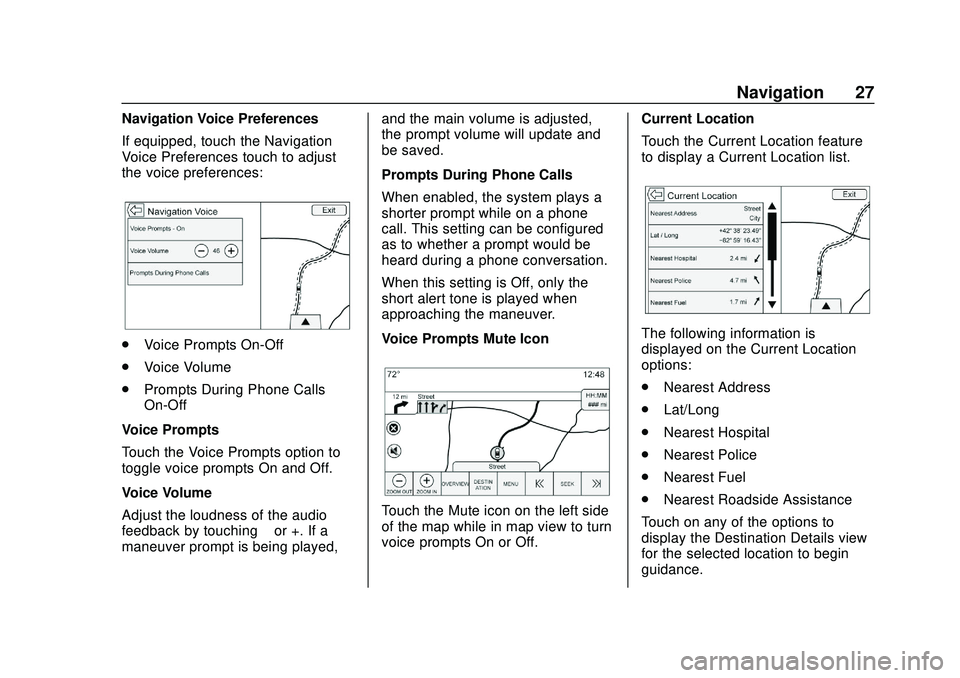
Navigation Voice Preferences
If equipped, touch the Navigation
Voice Preferences touch to adjust
the voice preferences:
.Voice Prompts On-Off
. Voice Volume
. Prompts During Phone Calls
On-Off
Voice Prompts
Touch the Voice Prompts option to
toggle voice prompts On and Off.
Voice Volume
Adjust the loudness of the audio
feedback by touching –or +. If a
maneuver prompt is being played, and the main volume is adjusted,
the prompt volume will update and
be saved.
Prompts During Phone Calls
When enabled, the system plays a
shorter prompt while on a phone
call. This setting can be configured
as to whether a prompt would be
heard during a phone conversation.
When this setting is Off, only the
short alert tone is played when
approaching the maneuver.
Voice Prompts Mute Icon
Touch the Mute icon on the left side
of the map while in map view to turn
voice prompts On or Off.
Current Location
Touch the Current Location feature
to display a Current Location list.
The following information is
displayed on the Current Location
options:
.
Nearest Address
. Lat/Long
. Nearest Hospital
. Nearest Police
. Nearest Fuel
. Nearest Roadside Assistance
Touch on any of the options to
display the Destination Details view
for the selected location to begin
guidance.
Page 39 of 97
Chevrolet Impala Infotainment Manual (2.6) (GMNA-Localizing-U.S./Canada-
14402255) - 2020 - CRC - 6/5/19
38 Navigation
.k:Select from the infotainment
display. The draw speed setting
will adjust the speed of the
character recognition feature.
The settings are: Faster, Default,
and Slower.
. Audio Feedback: Touch to turn
Audio Feedback On or Off.
Audio feedback is an audible
response to an action that has
occurred while using the
Character Recognition.
. ABC/abc: Select from the
infotainment display to view the
available character sets. Select
a character set to change.
Multiple character sets may not
be supported by some regions.
This option also displays the
sentence case of upper or lower
case characters that are
currently active in a mixed case
mode. If only one character set
is available for the desired
region, touching the character
recognition will only open and
close the character recognition
window. If mixed case character mode is
supported, the last characters of
character recognition will be
upper and lower case.
One-Shot Search
Enter a full or partial Address,
Contact, or POI into the search bar
and the system will search and
display all of the matches.
The contacts that are searched
include both connected phone’s
contacts list and the vehicle’s
contacts list.
Search Process
The process of prioritizing the
search is to help shorten the length
of time at finding the results. If there
is a 100% match found when a
search type is carried out, the
remaining searches abort.
The system conducts the search in
the following order: 1. Vehicle Contacts List
2. Connected Phone Contacts List 3. POIs
4. Addresses
The Contacts are done first because
the list will be relatively short and
can be done quickly.
POIs are done next because the
amount of time it takes to search for
the average POI is consistent. The
less deviation during a search would
mean an average of less time taken.
The Addresses are last because the
standard deviation for an address
search is very large. Some address
searches are very quick, but others
may take very long. Because of this,
the address search would not be
conducted unless a good match
could not be found in either
Contacts or POIs.
Autocomplete
The autocomplete is preloaded with
all recent destinations and POI
category names. Previous POI
name searches are remembered.
Page 40 of 97
Chevrolet Impala Infotainment Manual (2.6) (GMNA-Localizing-U.S./Canada-
14402255) - 2020 - CRC - 6/5/19
Navigation 39
If only one type of result is found,
the single type result screen is
shown. Within each group, they are
listed in confidence order. This
means the highest confidence result
will be at the top.
If multiple types of matches are
found, the result list with the highest
confidence match displays.
Address and Contact matches are
shown in full width list format. The
match results will display unique
icons for full addresses, streets,
intersections, cities, states/province,
and countries.
POIs show in a split list format with
the map on the right displaying the
locations of the matches. The brand
icon or category icon will display for
the match results.
When a list displays, the results for
a particular type can be filtered by
touching the filters along the top of
the screen. If there are no particular
results for a selected type, a
message is indicated in the list.For example:
.
For no addresses: “No
Addresses Found Within
. For no POIs: “No POIs Found
Within <75 km/50 mi/ 800 km/
500 mi>.” This distance is shown
depending on what radius is
completed and what current
units are selected.
. For no contacts: “No Contacts
Found.”
The system performs partial
searches on contacts, so typing a
first name or last name would find a
match. The entire contact name
does not need to be entered for it to
be found in a search.
Touching a contact listed on the
results list displays the standard
contact details view to select an
item, such as an address to start
routing, or a phone number to place
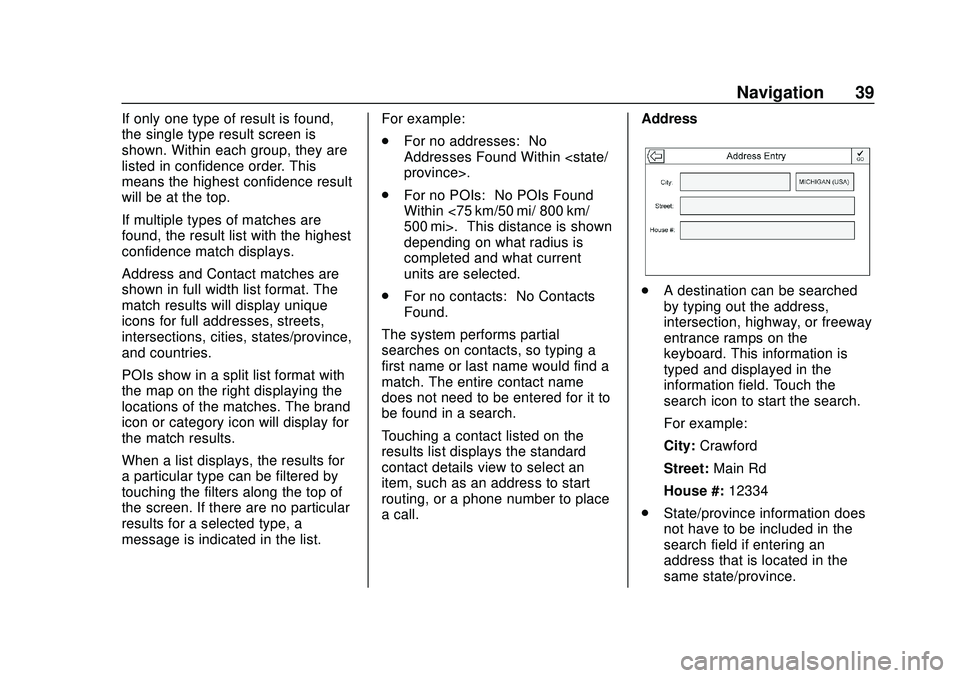
a call. Address
.
A destination can be searched
by typing out the address,
intersection, highway, or freeway
entrance ramps on the
keyboard. This information is
typed and displayed in the
information field. Touch the
search icon to start the search.
For example:
City: Crawford
Street: Main Rd
House #: 12334
. State/province information does
not have to be included in the
search field if entering an
address that is located in the
same state/province.
Page 42 of 97
Chevrolet Impala Infotainment Manual (2.6) (GMNA-Localizing-U.S./Canada-
14402255) - 2020 - CRC - 6/5/19
Navigation 41
2. Select a POI category todisplay subcategories.
3. If a selected subcategory has no results in the surrounding
area, the search is expanded
until a result is found.
4. If a high-level category is selected, such as restaurants,
the map zooms in to the region
near the vehicle’s position to
show the nearest matches.
When a list appears, it can be
filtered for a particular type by
touching the filter along the top
of the display. If there are no
particular results for a selected
filter type, it is indicated in
the list.
5. Pan or zoom the map using the finger gestures to minimize the
POI list and to interact with the
map. The icons that were
shown before continue to be
displayed and updated. The list
is also updated based on
where the map was panned or
zoomed. The search for POIs
is constrained to where the
map has been moved. 6. If the search map is touched to
recenter, the crosshairs are
shown to indicate the center of
the new search location. If a
POI icon is touched on while in
the full expanded map, a
callout for that location
appears. Touch the callout to
display the Destination
Details view.
7. Touch the map reset option to return the map to automatic
zooming and searching. It is
recentered around the vehicle’s
position, the route, the
destination, or another location
that was specified for the
search. The map Reset option
is only displayed if the map
was manually adjusted.
If multiple types of matches are
found, the All list is shown with the
results sorted by confidence order
with the highest confidence result at
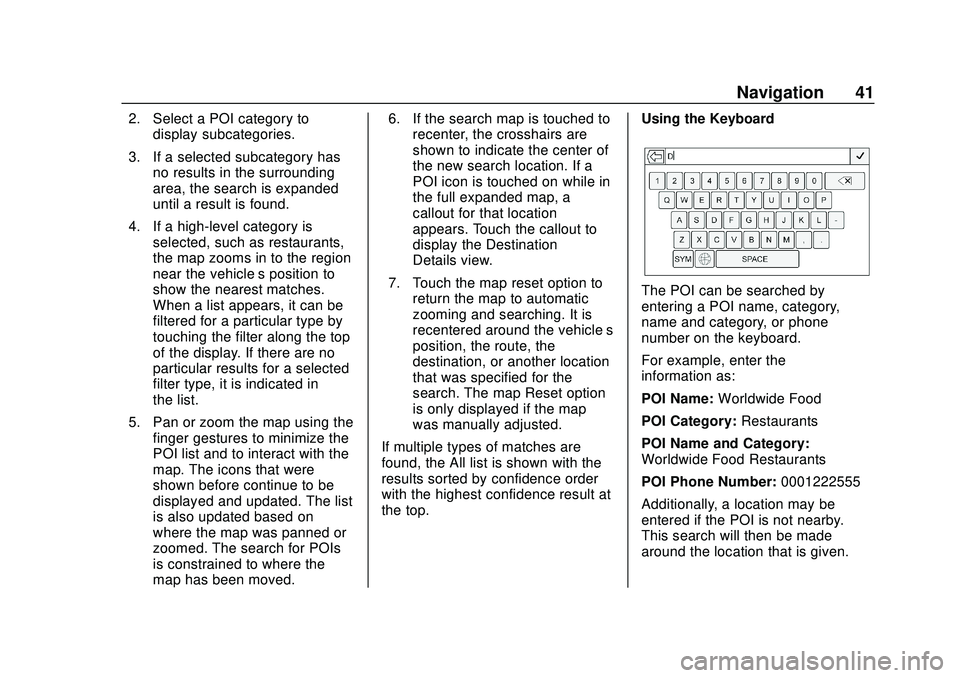
the top. Using the Keyboard
The POI can be searched by
entering a POI name, category,
name and category, or phone
number on the keyboard.
For example, enter the
information as:
POI Name:
Worldwide Food
POI Category: Restaurants
POI Name and Category:
Worldwide Food Restaurants
POI Phone Number: 0001222555
Additionally, a location may be
entered if the POI is not nearby.
This search will then be made
around the location that is given.