stop CHEVROLET IMPALA 2020 Infotainment System Manual
[x] Cancel search | Manufacturer: CHEVROLET, Model Year: 2020, Model line: IMPALA, Model: CHEVROLET IMPALA 2020Pages: 97, PDF Size: 1.26 MB
Page 19 of 97
Chevrolet Impala Infotainment Manual (2.6) (GMNA-Localizing-U.S./Canada-
14402255) - 2020 - CRC - 6/5/19
18 Audio Players
Audiobooks :Touch and hold a
preset to store the current
audiobook as a favorite. Touch a
saved favorite to recall a favorite
audiobook. The first chapter begins
to play.
Videos : Touch and hold a preset to
store the current video as a favorite.
Touch a saved favorite to recall a
favorite video. Not all formats are
supported.
Error Messages
If Disc Error displays and/or the disc
comes out, it could be for one of the
following reasons:
. The disc has an invalid or
unknown format.
. The road is very rough. Try the
disc again when the road is
smoother.
. The disc is dirty, scratched, wet,
or upside down.
. The air is very humid. Try the
disc again later.
. There was a problem while
burning the disc. .
The label is caught in the CD
player.
If Disc Player Error displays, it could
be for one of the following reasons:
. The player temperature is
too high.
. There are load or eject errors.
If the CD is not playing correctly, for
any other reason, try a known
good CD.
If any error continues, contact your
dealer.
Playing an MP3 CD
To play an MP3 CD, follow the same
instructions as “Playing an
Audio CD.”
The following guidelines must be
met when creating an MP3 disc,
otherwise the CD might not play:
. Sampling rate: 16 kHz,
22.05 kHz, 24 kHz, 32 kHz,
44.1 kHz, and 48 kHz. .
Bit rates supported: 8, 16, 24,
32, 40, 48, 56, 64, 80, 96, 112,
128, 144, 160, 192, 224, 256,
and 320 kbps.
. Recorded on a CD-R or CD-RW.
MP3 CD playback is unavailable
when both screens in the rear seat
area are in use. Turn off one of the
rear screens to allow MP3 playback.
MP3 Music Menu
Touch the Menu icon on the
infotainment display while that
source is active to access the menu.
Touch any of the following options
on the MP3 Menu:
Shuffle : Touch to play the tracks
randomly. Touch again to stop
shuffle.
Tone Settings : Touch + or–to
adjust Bass, Midrange, Treble,
or Surround. See AM-FM Radio
0 10.
Auto Volume (If Equipped) : This
feature adjusts the volume based on
vehicle speed. See AM-FM Radio
0 10.
Page 21 of 97
Chevrolet Impala Infotainment Manual (2.6) (GMNA-Localizing-U.S./Canada-
14402255) - 2020 - CRC - 6/5/19
20 Audio Players
2. Press MEDIA on the centerstack until the connected
device is shown.
Use the following when playing an
active USB source:
r: Touch to play the current media
source.
j: Touch to pause playback of the
current media source.
g:
. Press to seek to the beginning of
the current or previous track.
. Press and hold to reverse
quickly through playback.
Release to return to playing
speed. Elapsed time displays.
d:
. Press to seek to the next track.
. Press and hold to advance
quickly through playback.
Release to return to playing
speed. Elapsed time displays. Shuffle :
Touch the shuffle icon to
play music in random order.
USB Menu
Touch the Menu icon to display the
USB menu. The following may be
available:
Shuffle : Touch to play the tracks
randomly. Touch again to stop
shuffle.
Tone : Touch + or –to adjust the
tone settings. See AM-FM Radio
0 10.
Auto Volume (If Equipped) : This
feature adjusts the volume based on
the vehicle speed. See AM-FM
Radio 010.
Bose AudioPilot Noise
Compensation Technology (If
Equipped : This feature adjusts the
volume based on the noise in the
vehicle and speed. See AM-FM
Radio 010. USB Browse Menu
When a list of songs, albums,
artists, or other types of media
displays, the up and down arrows
and A-Z appear on the left side.
Select A-Z to view a display that will
show all letters of the alphabet and
select the letter to go to.
Touch anywhere between the top
and bottom menus or touch the
Browse option on the infotainment
display to view the Browse menu
and the following options are
displayed near the bottom of the
display:
Playlists:
1. Touch to view the playlists stored on the USB.
2. Touch a playlist to view the list of all songs in that playlist.
3. Touch a song from the list to begin playback.
Supported Playlist extensions are
m3u, pls, and wpl.
Page 29 of 97
Chevrolet Impala Infotainment Manual (2.6) (GMNA-Localizing-U.S./Canada-
14402255) - 2020 - CRC - 6/5/19
28 Navigation
Touch Nearest Address and then
the Save option to store the current
location to the Address Book.
Traffic (If Equipped)
Touch to browse the traffic in the
area as well as adjust the traffic
settings. Where traffic information is
available, it is displayed on the map.
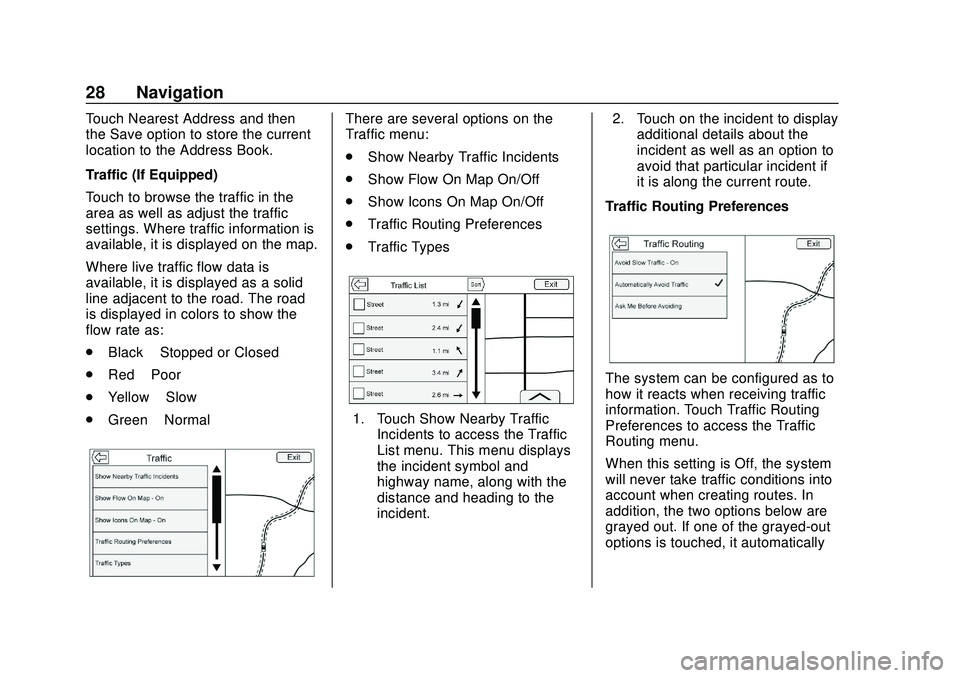
Where live traffic flow data is
available, it is displayed as a solid
line adjacent to the road. The road
is displayed in colors to show the
flow rate as:
.Black –Stopped or Closed
. Red –Poor
. Yellow –Slow
. Green –NormalThere are several options on the
Traffic menu:
.
Show Nearby Traffic Incidents
. Show Flow On Map On/Off
. Show Icons On Map On/Off
. Traffic Routing Preferences
. Traffic Types
1. Touch Show Nearby Traffic
Incidents to access the Traffic
List menu. This menu displays
the incident symbol and
highway name, along with the
distance and heading to the
incident. 2. Touch on the incident to display
additional details about the
incident as well as an option to
avoid that particular incident if
it is along the current route.
Traffic Routing Preferences
The system can be configured as to
how it reacts when receiving traffic
information. Touch Traffic Routing
Preferences to access the Traffic
Routing menu.
When this setting is Off, the system
will never take traffic conditions into
account when creating routes. In
addition, the two options below are
grayed out. If one of the grayed-out
options is touched, it automatically
Page 33 of 97
Chevrolet Impala Infotainment Manual (2.6) (GMNA-Localizing-U.S./Canada-
14402255) - 2020 - CRC - 6/5/19
32 Navigation
Contacts1. Touch Delete All Entries to delete the entire list of
contacts. A pop-up displays to
confirm.
2. Touch Edit Contacts List to display the Contacts to edit.
Recent Destinations
. Touch Delete Individual
Destinations to display a recent
destinations list. Select the
individual entry to delete.
. Touch Delete All Destinations to
delete the entire recent
destination list. A pop-up
displays asking to confirm the
deletion.
My POIs
. Touch My POIs to display a
menu of other options.
. Select Delete Individual
Categories. A My POIs category
list displays.
. Select the individual entry to
delete. .
Touch Delete All My POIs to
delete the entire list of
categories. A pop-up displays
asking to confirm the deletion.
Upload Saved Locations
Touch to upload any saved locations
such as downloaded POIs and all
entries in the vehicle address book
to the USB device.
. Touch Upload Saved Locations
to save the Vehicle Contacts list
and any MyPOIs that have been
saved to the vehicle.
. Once saved locations have been
uploaded to a USB, they can be
transferred to a different vehicle
or restored to the current
address book.
Delete Autocomplete
Touch Delete on the Delete
Autocomplete History menu to clear
personal data from the keyboard.
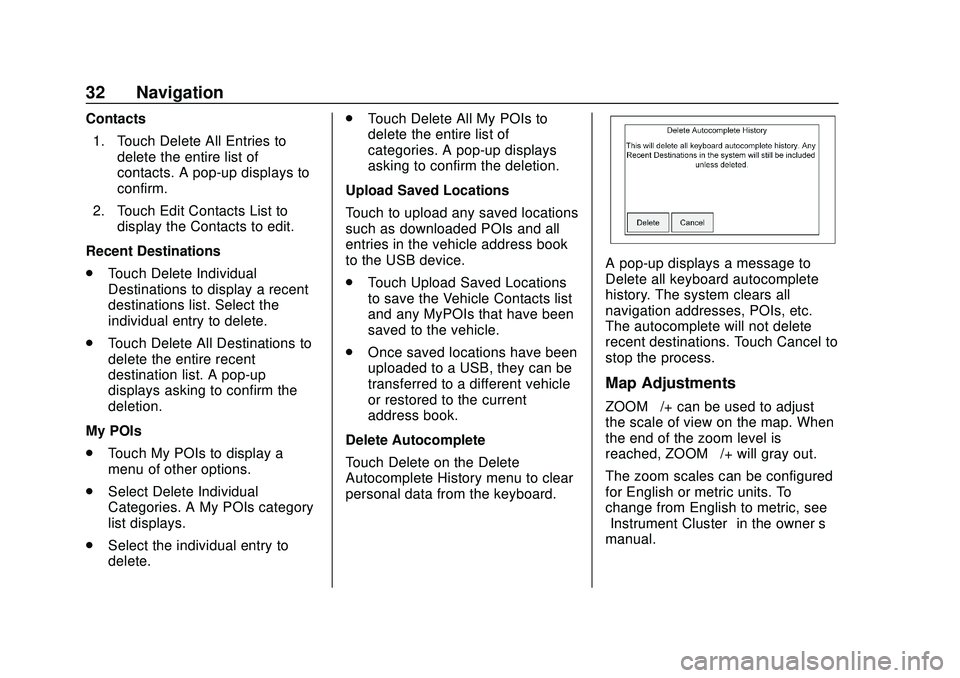
A pop-up displays a message to
Delete all keyboard autocomplete
history. The system clears all
navigation addresses, POIs, etc.
The autocomplete will not delete
recent destinations. Touch Cancel to
stop the process.
Map Adjustments
ZOOM –/+ can be used to adjust
the scale of view on the map. When
the end of the zoom level is
reached, ZOOM –/+ will gray out.
The zoom scales can be configured
for English or metric units. To
change from English to metric, see
“Instrument Cluster” in the owner’s
manual.
Page 36 of 97
Chevrolet Impala Infotainment Manual (2.6) (GMNA-Localizing-U.S./Canada-
14402255) - 2020 - CRC - 6/5/19
Navigation 35
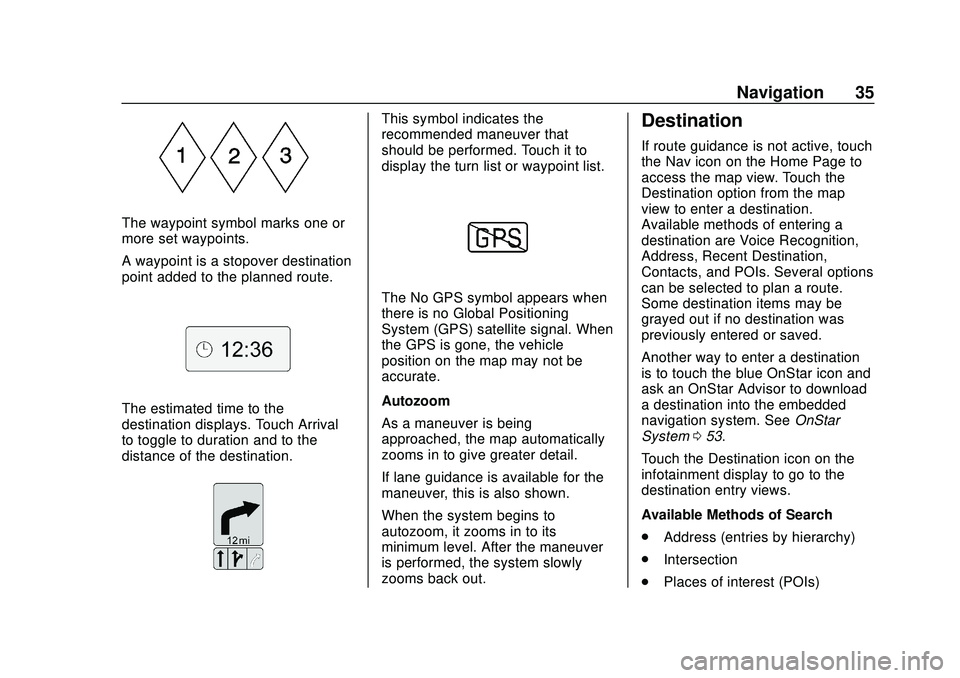
The waypoint symbol marks one or
more set waypoints.
A waypoint is a stopover destination
point added to the planned route.
The estimated time to the
destination displays. Touch Arrival
to toggle to duration and to the
distance of the destination.
This symbol indicates the
recommended maneuver that
should be performed. Touch it to
display the turn list or waypoint list.
The No GPS symbol appears when
there is no Global Positioning
System (GPS) satellite signal. When
the GPS is gone, the vehicle
position on the map may not be
accurate.
Autozoom
As a maneuver is being
approached, the map automatically
zooms in to give greater detail.
If lane guidance is available for the
maneuver, this is also shown.
When the system begins to
autozoom, it zooms in to its
minimum level. After the maneuver
is performed, the system slowly
zooms back out.
Destination
If route guidance is not active, touch
the Nav icon on the Home Page to
access the map view. Touch the
Destination option from the map
view to enter a destination.
Available methods of entering a
destination are Voice Recognition,
Address, Recent Destination,
Contacts, and POIs. Several options
can be selected to plan a route.
Some destination items may be
grayed out if no destination was
previously entered or saved.
Another way to enter a destination
is to touch the blue OnStar icon and
ask an OnStar Advisor to download
a destination into the embedded
navigation system. SeeOnStar
System 053.
Touch the Destination icon on the
infotainment display to go to the
destination entry views.
Available Methods of Search
. Address (entries by hierarchy)
. Intersection
. Places of interest (POIs)
Page 56 of 97
Chevrolet Impala Infotainment Manual (2.6) (GMNA-Localizing-U.S./Canada-
14402255) - 2020 - CRC - 6/5/19
Navigation 55
.The vehicle changes directions
more than once, or the vehicle is
turning on a turn table in a
parking lot.
. The vehicle is entering and/or
exiting a parking lot, garage, or a
lot with a roof.
. The GPS signal is not received.
. A roof carrier is installed on the
vehicle.
. Tire chains have been installed.
. The tires are replaced or worn.
. The tire pressure for the tires is
incorrect.
. This is the first navigation use
after the map data is updated.
. The 12-volt battery is
disconnected for several days.
. The vehicle is driving in heavy
traffic where driving is at low
speeds, and the vehicle is
stopped and started repeatedly.Problems with Route
Guidance
Inappropriate route guidance can
occur under one or more of the
following conditions:
.The turn was not made on the
road indicated.
. Route guidance might not be
available when using automatic
rerouting for the next right or
left turn.
. The route might not be changed
when using automatic rerouting.
. There is no route guidance when
turning at an intersection.
. Plural names of places might be
announced occasionally.
. It could take a long time to
operate automatic rerouting
during high-speed driving.
. Automatic rerouting might
display a route returning to the
set waypoint if heading for a
destination without passing
through a set waypoint. .
The route prohibits the entry of a
vehicle due to a regulation by
time or season or any other
regulation which may be given.
. Some routes might not be
searched.
. The route to the destination
might not be shown if there are
new roads, if roads have
recently changed, or if certain
roads are not listed in the map
data. See Maps034.
To recalibrate the vehicle's position
on the map, park with the vehicle
running for two to five minutes, until
the vehicle position updates. Make
sure the vehicle is parked in a
location that is safe and has a clear
view of the sky and away from large
obstructions.
If the System Needs
Service
If the navigation system needs
service and the steps listed here
have been followed but there are
still problems, see your dealer.
Page 59 of 97
Chevrolet Impala Infotainment Manual (2.6) (GMNA-Localizing-U.S./Canada-
14402255) - 2020 - CRC - 6/5/19
58 Voice Recognition
to be taking too long to finish,
press
gagain and the beep
should happen right away.
There are two voice prompt modes
supported:
. Long verbal prompts: The longer
prompts provide more
information regarding the
supported actions.
. Short prompts: The short
prompts provide simple
instructions about what can be
stated.
If a command is not spoken, the
voice recognition system says a
help prompt.
Prompts and Screen Displays
While a voice recognition session is
active, there will be corresponding
options on screens displayed.
Manual interaction in the voice
recognition session is permitted.
Interaction during a voice session
may be completed entirely using
voice commands, or some
selections may expedite a session. If a selection is made using a
manual control, the dialog will
progress in the same way as if the
selection was made through a voice
command. Once the system is able
to complete the task, or the session
is terminated, the voice recognition
dialog stops.
An example of this type of manual
intervention is touching on an entry
of a displayed number list instead of
speaking the number associated
with the entry desired.
Canceling Voice Recognition
.
Touch the voice icon. Touching
this icon will terminate a voice
recognition session which was
initiated by touching the icon on
the infotainment display.
. Touch or say “Cancel”or“Exit”
to terminate the voice
recognition session and show
the display from which voice
recognition was initiated. .
Press
ion the steering wheel
controls to terminate the voice
session and show the display
from which voice recognition
was initiated.
Helpful Hints for Speaking
Commands
Voice recognition can understand
commands that are either naturally
stated in sentence form, or direct
commands that state the application
and the task.
Most languages do not support
natural language commands in
sentence form. For those
languages, use direct commands
like the examples shown on the
display.
For best results:
. Listen for the prompt and wait
for the beep before saying a
command or reply.
. Say “Help” or look at the screen
display for example commands.
Page 61 of 97
Chevrolet Impala Infotainment Manual (2.6) (GMNA-Localizing-U.S./Canada-
14402255) - 2020 - CRC - 6/5/19
60 Voice Recognition
plays the prompt“Make your
selection from the list using the
manual controls or press
oBACK
to try again.”
If manual selection takes more than
15 seconds, the session terminates
and prompts that it has timed out.
The display returns back to where
voice recognition was initiated.
The Back Command
Say “Back” or press
oBACK to go
to the previous menu.
If in voice recognition, and “Back”is
stated all the way through to the
initial display, then “Back”is stated
one more time, the voice recognition
session will cancel.
Help
Say “Help” on any voice recognition
display and the help prompt for the
display is played. Additionally, a
pop-up displays a text version of the
help prompt. Depending on how
voice recognition was initiated, the
Help pop-up will either display on the instrument cluster or the
infotainment display. Touch Dismiss
to make the pop-up go away.
Pressing
gwhile the help prompt is
playing will terminate the prompt
and a beep will be heard. Doing this
will stop the help prompt so that a
voice command can be used.
Voice Recognition for the
Radio
Some audio displays have a voice
recognition icon (
g) to launch audio
voice recognition. If the voice icon is
touched in a radio display, the voice
commands for radio and media
features are available.
“Switch to AM” :Switch bands to
AM and tune to the last AM radio
station.
“Switch to FM” :Switch bands to
FM and tune to the last FM radio
station.
“Switch to SXM” :Switch bands to
SiriusXM and tune to the last SXM
channel. “Tune to
:
Tune to the radio station whose
frequency is identified in the
command (like “nine fifty”).
“Tune to
Tune to the radio station whose
frequency is identified in the
command (like “one o one
point one”).
If equipped, “Tune to
HD Radio station whose frequency
is identified in the command.
If equipped, “Tune to
HD Radio station whose frequency
is identified in the command.
If equipped, “Tune to
station whose frequency and HD
channel is identified in the
command.
“Tune to SXM
radio station whose channel number
is identified in the command.
Page 78 of 97

Chevrolet Impala Infotainment Manual (2.6) (GMNA-Localizing-U.S./Canada-
14402255) - 2020 - CRC - 6/5/19
Settings 77
Wi-Fi hotspot such as a compatible
mobile device hotspot, home
hotspot or public hotspot can be
used. Applicable data rates may
apply.
To connect the infotainment system
to a secured mobile device hotspot,
home hotspot, or a public hotspot,
touch SETTINGS on the Home
Page, followed by Wi-Fi, and then
Manage Wi-Fi Networks. Select the
appropriate Wi-Fi network, and
follow the on-screen prompts.
Download speeds may vary.
On most compatible mobile devices,
activation of the Wi-Fi hotspot is in
the Settings menu under Mobile
Network Sharing, Personal Hotspot,
Mobile Hotspot or similar.
Availability of Over-the-Air software
updates varies by vehicle and
country. Features are subject to
change. For more information on
this feature, see my.chevrolet.com/
learn.English and Metric Unit
Conversion
To change the display units between
English and metric units, see
“Instrument Cluster”in the owner’s
manual.
Teen Driver
If equipped, this allows multiple
keys to be registered for beginner
drivers to encourage safe driving
habits. When the vehicle is started
with a Teen Driver key, it will
automatically activate certain safety
systems, allow setting of some
features, and limit the use of others.
The Report Card will record vehicle
data about driving behavior that can
be viewed later. When the vehicle is
started with a registered key, the
Driver Information Center (DIC)
displays a message that Teen Driver
is active.
To access:
1. Touch Settings on the Home Page, then touch Teen Driver. 2. Create a Personal Identification
Number (PIN) by choosing a
four-digit PIN. Re-enter the PIN
to confirm. To change the PIN,
touch Change PIN.
The PIN is required to:
. Register or unregister keys.
. Change Teen Driver settings.
. Change or clear the Teen
Driver PIN.
. Access or delete Report
Card data.
Register keys to activate Teen
Driver:
Any vehicle key can be registered,
up to a maximum of eight keys.
Label the key to tell it apart from the
other keys.
For a pushbutton start system: 1. Start the engine.
2. For automatic transmissions, the vehicle must be in P (Park).
For manual transmissions, the
vehicle must be stopped with
the parking brake set.
Page 79 of 97

Chevrolet Impala Infotainment Manual (2.6) (GMNA-Localizing-U.S./Canada-
14402255) - 2020 - CRC - 6/5/19
78 Settings
3. From the Settings menu, touchTeen Driver.
4. Enter the PIN.
5. Place the Remote Keyless Entry (RKE) transmitter key in
the transmitter pocket. See
“Remote Keyless Entry (RKE)
System Operation” in the
owner's manual for transmitter
pocket location.
6. From the Teen Driver Menu, touch Key Registration.
.If the transmitter key is in
the transmitter pocket, it will
identify whether the
transmitter key is registered
or unregistered.
. If the transmitter key is not
registered, the option to
register displays. Touch
Register and a confirmation
message displays.
. If the transmitter key is
already registered, the
option to unregister
displays. If Unregister is
touched, the transmitter key is no longer registered and
a confirmation message
displays.
In vehicles with a pushbutton start
system, if a Teen Driver transmitter
key and a non-Teen Driver
transmitter key are both present at
start up, the vehicle will recognize
the non-Teen Driver transmitter key
to start the vehicle. The Teen Driver
settings will not be active.
For a keyed ignition system: 1. Start the engine.
2. For automatic transmissions, the vehicle must be in P (Park).
For manual transmissions, the
vehicle must be stopped with
the parking brake set.
3. From the Settings menu, touch Teen Driver.
4. Enter the PIN.
5. Touch Key Registration. The system displays instructions for
registering or unregistering a
key. A confirmation message
displays. Manage Settings
Audio Volume Limit :
Allows a
maximum radio volume to be set.
Turn the audio volume limit On or
Off and choose the maximum level
for the audio volume.
Teen Driver Speed Warning :
Allows for setting a visual and
audible warning when a certain
speed is exceeded. The speed
warning is selectable. The speed
warning does not limit the speed of
the vehicle.
Teen Driver Speed Limiter : Allows
the maximum speed of the vehicle
to be limited. When the speed
limiter is turned On and the vehicle
is started with a Teen Driver key, the
DIC displays a message that the top
speed is limited.
On certain vehicles, when the
Speed Limiter is turned ON, the
vehicle’s maximum acceleration will
be limited. The DIC will display a
message that the acceleration is
limited.