display CHEVROLET MALIBU 2006 6.G Repair Manual
[x] Cancel search | Manufacturer: CHEVROLET, Model Year: 2006, Model line: MALIBU, Model: CHEVROLET MALIBU 2006 6.GPages: 442, PDF Size: 2.61 MB
Page 228 of 442
Menu Bar
The menu bar can be displayed across the top of
the screen by pressing the DISPLAY button on the
remote control. Selecting icons from the menu bar
allows adjustments to the audio and video settings.
Use the remote control left and right arrow buttons
to scroll through the menu bar. A description of
the highlighted icon will appear at the bottom of the
screen. Use the down arrow to display the options
for the highlighted icon.
The movie may stop playing while selections are
being made.
Current Subtitle Language:The subtitle language
may be selected as Off, English, Spanish, or French.
The actual subtitle language is dependent on whether
a DVD supports the selected language.
Current Audio Language:The audio language may
be selected as Off, English, Spanish, or French.
The actual audio language is dependent on whether
a DVD supports the selected language.
Smart Color:This color setting may be selected
without changing the default from the color
settings menu.Sound Mode:This analog output may be changed
without changing the default from the analog
output menu.
Frame-by-Frame:The DVD will pause and may be
viewed frame-by-frame, in forward or reverse, by
using the remote control arrow buttons. Press play to
resume play of the DVD. DVD audio will not be available
during selection.
Slow Motion:The DVD will pause and may be
viewed in slow motion, at various speeds, in forward or
reverse, by using the remote control arrow buttons.
Press play to resume play of the DVD. DVD audio will
not be available during selection.
Scan Speeds:The DVD may be viewed in fast motion,
at various speeds, in forward or reverse, by using the
remote control arrow buttons. Press play to resume play
of the DVD. DVD audio will not be available during
selection.
Enlarge Picture:The DVD will pause and the frame
may be enlarged by using the remote control arrow
key buttons. Pressing the enter button on the remote
control allows panning of the frame using the remote
control arrow buttons. Press play to resume play of the
DVD. DVD audio will not be available during selection.
3-96
Page 229 of 442
Title:Move between DVD titles by using the remote
control arrow buttons.
Chapter:Move between DVD chapters by using the
remote control arrow buttons.
Time Search:The user can jump to different areas
of a DVD by using the remote control arrow and enter
buttons to select a specic time position.
Favorite Track Selection (FTS):You may program
the unit to play only your favorite track selections from a
DVD or Audio CD. For a DVD, FTS is accessed from
the Menu bar. For a CD, the FTS screen will appear
on the display immediately when the CD is inserted.
From the screen, choose the tracks on the CD that you
wish to store, using the remote control right and left
arrows and the ENTER button to select. The player will
remember the selections and each time the CD is
inserted in the player, only those tracks will be played,
if FTS is turned on. The player can remember
selections for up to 50 discs. To remove FTS for a
disc, the disc must be in the player and the highlighted
tracks must be de-selected. Use the right and left
arrow buttons and the ENTER button or select CLEAR
ALL on the display.Not all DVDs support all of the feature defaults in the
setup menus. In the event a feature is not supported,
defaults will be provided by the DVD media.
Exit the setup menu by pressing the return button
on the remote control. If changes are made to the setup
menu, the DVD will resume play from the beginning.
Battery Replacement
To change the remote control batteries, do the following:
1. Unclip the battery door located on the back of the
remote control.
2. Replace the two AA batteries. Make sure that they
are installed correctly, using the diagram on the
inside of the battery compartment.
3. Close the battery door.
If the remote control is to be stored for a long period of
time, remove the batteries and keep them in a cool,
dry place.
3-97
Page 230 of 442
Tips and Troubleshooting Chart
Problem Recommended Action
No power. The ignition may not be in
the on position, ACC, or
RAP. The parental control
button might have been
pressed.
Disc will not play. The system might be off.
The parental control
button might have been
pressed. The system
might be in auxiliary
source mode. Press the
AUX button to switch
between the DVD player
and the auxiliary source.
The disc is upside down
or is not compatible.
No sound. The volume on the
headphones could be too
low. Adjust the volume
on the right earpiece on
the wireless headphones.
If the DVD system is
being heard through the
vehicle speakers, adjust
the volume from the radio.
The radio must have the
RSE enabled by using
the SRCE button.
Problem Recommended Action
The picture does not
ll the screen. There
are black borders on
the top and bottom or
on both sides or it looks
stretched out.Press and release the
size control button on the
remote control. This will
ll the screen. If there are
borders on the top and
bottom, the movie may
have been made that way
for a standard screen.
I ejected the disc and
tried to take it out, but
it was pulled back into
the slot.Eject the disc again.
The language in the
audio or on the screen
is wrong.Press the main display
menu button on the
DVD player or the
remote control and
change the audio or
language selection on
the DVD menu.
The remote control does
not work.Point the remote control
directly at the transmitter
window. The batteries
could be weak or put
in wrong. The parental
control button might
have been pressed.
The remote control will
not work the RSA control,
only the RSE system.
3-98
Page 231 of 442
Problem Recommended Action
How do I get subtitles on
or off?Press the display button
on the remote control to
go to the DVDs main
menu. Then follow the
screen prompts.
After stopping the player,
I push the play button
but sometimes the DVD
starts where I left off,
and sometimes at the
beginning.Press the stop button on
the remote control to
resume where the DVD
left off. Press the stop
button twice to start the
DVD at the beginning. If
the power is off and the
DVD is still in the player,
press the play button.
The DVD is playing but
there is no picture or
sound. The auxiliary
source is running but
there is no picture or
sound.Press and release the
AUX button on the remote
control or the SRCE and
play buttons on the DVD
player to get to auxiliary
input. Check to make sure
that the auxiliary source
is connected to the inputs
properly.
The audio or video skips
or jumps.The DVD could be dirty
or scratched. Try cleaning
the DVD.Problem Recommended Action
When I return to the DVD
from the system menu,
sometimes it plays from
the beginning and
sometimes from where
it left off.If the stop button was
pressed once, it resumes
play from where it left off.
If the stop button was
pressed twice, it will start
at the beginning of the
DVD. However, if a
change was made to the
menu the DVD will start
from where it left off, even
if the stop button was
only pressed once.
The fast forward, reverse,
previous, and next
functions do not work.Some commands that
do one thing for DVDs
will not always work or
perform the same function
for audio CDs or games.
These functions may
also be disabled when
the DVD is playing the
copyright information or
the previews.
3-99
Page 233 of 442
DVD Messages
The following errors may be displayed on the video
screen:
Disc Format Error:This message will be displayed if a
disc is inserted upside down, if the disc is not readable,
or if the disc format is not compatible.
Disc Play Error:This message will be displayed if the
mechanism cannot play the disc. Scratched or
damaged discs will cause this error.
Region Code Error:This message will be displayed
if the region code of the DVD is not compatible with the
region code of the DVD player.
Load/Eject Error:This message will be displayed if
the disc is not properly loaded or ejected.
Disc Not Present:This message will be displayed
when the play or the stop button is pressed without
a disc in the player.
DVD Distortion
There may be an experience with video distortion
when operating cellular phones, scanners, CB radios,
Global Position Systems (GPS)*, two-way radios,
mobile fax, or walkie talkies.It may be necessary to turn off the DVD player when
operating one of these devices in or near the vehicle.
*Excludes the OnStar
®System.
Cleaning the DVD Player
When cleaning the outside DVD faceplate and buttons,
use only a clean cloth dampened with clean water.
Cleaning the Video Screen
When cleaning the video screen, use only a clean cloth
dampened with clean water. Use care when directly
touching or cleaning the screen, as damage may result.
Rear Seat Audio (RSA) (Without
Entertainment System)
This feature allows rear seat passengers to listen to and
control any of the sources: radio, cassette, and CDs.
An audio or radio source may be listened to but cannot
be changed from the RSE if the front seat passengers
have selected the same source from the front seat
controls. (For example, the radio station selected with
the front seat controls cannot be changed by the
rear seat control(s)).
3-101
Page 237 of 442
Theft-Deterrent Feature
THEFTLOCK®is designed to discourage theft of your
vehicle’s radio. The feature works automatically by
learning a portion of the Vehicle Identication Number
(VIN). If the radio is moved to a different vehicle, it
will not operate and LOCKED will appear on the display.
With THEFTLOCK
®activated, the radio will not
operate if stolen.
Audio Steering Wheel Controls
(Three Spoke)
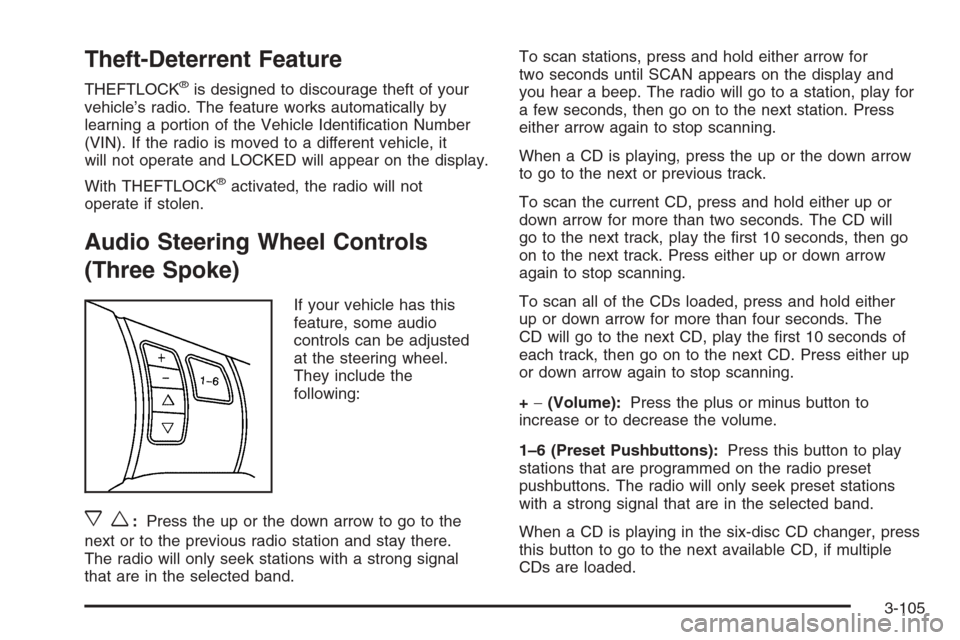
If your vehicle has this
feature, some audio
controls can be adjusted
at the steering wheel.
They include the
following:
xw:Press the up or the down arrow to go to the
next or to the previous radio station and stay there.
The radio will only seek stations with a strong signal
that are in the selected band.To scan stations, press and hold either arrow for
two seconds until SCAN appears on the display and
you hear a beep. The radio will go to a station, play for
a few seconds, then go on to the next station. Press
either arrow again to stop scanning.
When a CD is playing, press the up or the down arrow
to go to the next or previous track.
To scan the current CD, press and hold either up or
down arrow for more than two seconds. The CD will
go to the next track, play the rst 10 seconds, then go
on to the next track. Press either up or down arrow
again to stop scanning.
To scan all of the CDs loaded, press and hold either
up or down arrow for more than four seconds. The
CD will go to the next CD, play the rst 10 seconds of
each track, then go on to the next CD. Press either up
or down arrow again to stop scanning.
+−(Volume):Press the plus or minus button to
increase or to decrease the volume.
1–6 (Preset Pushbuttons):Press this button to play
stations that are programmed on the radio preset
pushbuttons. The radio will only seek preset stations
with a strong signal that are in the selected band.
When a CD is playing in the six-disc CD changer, press
this button to go to the next available CD, if multiple
CDs are loaded.
3-105
Page 239 of 442
AM
The range for most AM stations is greater than for FM,
especially at night. The longer range can cause station
frequencies to interfere with each other. For better radio
reception, most AM radio stations will boost the power
levels during the day, and then reduce these levels during
the night. Static can also occur when things like storms
and power lines interfere with radio reception. When this
happens, try reducing the treble on your radio.
FM Stereo
FM stereo will give the best sound, but FM signals will
reach only about 10 to 40 miles (16 to 65 km). Tall
buildings or hills can interfere with FM signals, causing
the sound to fade in and out.
XM™ Satellite Radio Service
XM™ Satellite Radio Service gives digital radio reception
from coast-to-coast in the 48 contiguous United States,
and in Canada (if available). Just as with FM, tall
buildings or hills can interfere with satellite radio signals,
causing the sound to fade in and out. In addition,
traveling or standing under heavy foliage, bridges,
garages, or tunnels may cause loss of the XM™ signal
for a period of time. The radio may display NO SIGNAL
to indicate interference.
Care of Your CDs and DVDs
Handle CDs carefully. Store them in their original
cases or other protective cases and away from direct
sunlight and dust. The CD player scans the bottom
surface of the disc. If the surface of a CD is damaged,
such as cracked, broken, or scratched, the CD will
not play properly or not at all. If the surface of a CD
is soiled, take a soft, lint free cloth or dampen a clean,
soft cloth in a mild, neutral detergent solution mixed
with water, and clean it. Make sure the wiping process
starts from the center to the edge.
Do not touch the bottom side of a CD while handling
it; this could damage the surface. Pick up CDs by
grasping the outer edges or the edge of the hole and
the outer edge.
Care of the CD and DVD Player
The use of CD lens cleaners for CDs is not advised, due
to the risk of contaminating the lens of the CD optics with
lubricants internal to the CD mechanism.
3-107
Page 297 of 442
{CAUTION:
If you spill fuel and then something ignites it,
you could be badly burned. Fuel can spray out
on you if you open the fuel cap too quickly.
This spray can happen if your tank is nearly
full, and is more likely in hot weather. Open
the fuel cap slowly and wait for any hiss noise
to stop. Then unscrew the cap all the way.
Be careful not to spill fuel. Do not top off or overll the
tank and wait a few seconds after you have nished
pumping before removing the nozzle. Clean fuel from
painted surfaces as soon as possible. SeeWashing Your
Vehicle on page 5-93.
When replacing the fuel cap, turn it clockwise until it
clicks. Make sure the cap is fully installed. The diagnostic
system can determine if the fuel cap has been left off or
improperly installed. This would allow fuel to evaporate
into the atmosphere. SeeMalfunction Indicator Lamp on
page 3-41.The CHECK GAS CAP message will be displayed on
the Driver Information Center (DIC) if the fuel cap is not
properly installed. SeeDIC Warnings and Messages
on page 3-50for more information.
{CAUTION:
If a re starts while you are refueling, do not
remove the nozzle. Shut off the ow of fuel by
shutting off the pump or by notifying the
station attendant. Leave the area immediately.
Notice:If you need a new fuel cap, be sure to get
the right type. Your dealer can get one for you.
If you get the wrong type, it may not t properly.
This may cause your malfunction indicator lamp to
light and may damage your fuel tank and emissions
system. SeeMalfunction Indicator Lamp on
page 3-41.
5-9
Page 309 of 442
How to Reset the Engine Oil Life
System
The Engine Oil Life System calculates when to change
your engine oil and lter based on vehicle use. Anytime
your oil is changed, reset the system so it can calculate
when the next oil change is required. If a situation occurs
where you change your oil prior to a Change Oil Soon
message being turned on, reset the system.
After changing the engine oil, reset the system by
performing the following steps:
1. Display OIL LIFE RESET on the DIC.
2. Press and hold the ENTER button for at least
one second. An ACKNOWLEDGED display
message will appear for three seconds or until
the next button is pressed. This will tell you
the system has been reset.
3. Turn the key to OFF.
If the Change Oil Soon message comes back on when
you start your vehicle, the engine oil life system has
not reset. Repeat the procedure.
What to Do with Used Oil
Used engine oil contains certain elements that may be
unhealthy for your skin and could even cause cancer.
Do not let used oil stay on your skin for very long. Clean
your skin and nails with soap and water, or a good
hand cleaner. Wash or properly dispose of clothing or
rags containing used engine oil. See the manufacturer’s
warnings about the use and disposal of oil products.
Used oil can be a threat to the environment. If you
change your own oil, be sure to drain all the oil from the
lter before disposal. Never dispose of oil by putting it in
the trash, pouring it on the ground, into sewers, or into
streams or bodies of water. Instead, recycle it by taking it
to a place that collects used oil. If you have a problem
properly disposing of your used oil, ask your dealer, a
service station or a local recycling center for help.
5-21
Page 316 of 442
Checking Coolant
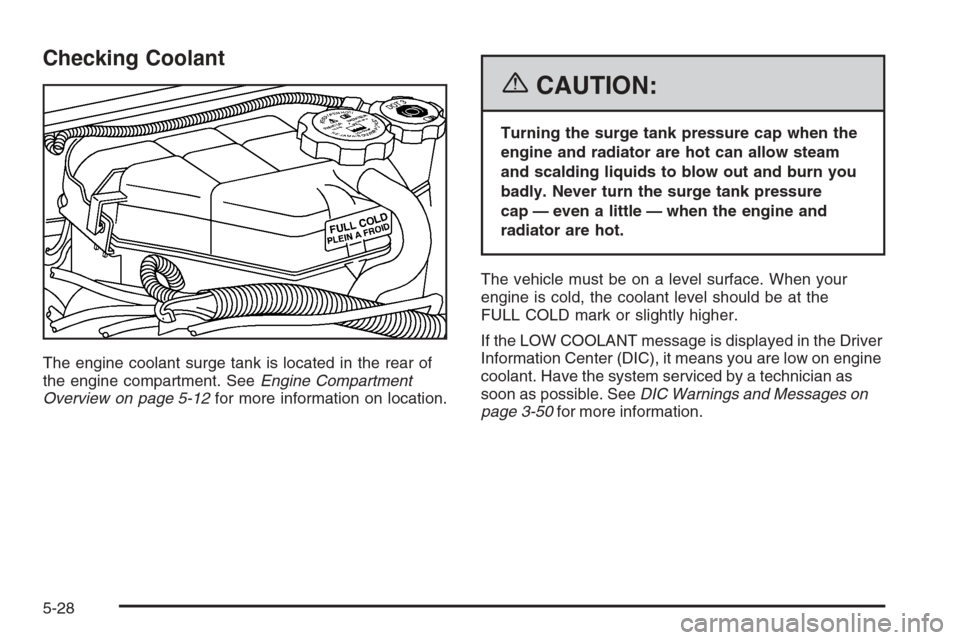
The engine coolant surge tank is located in the rear of
the engine compartment. SeeEngine Compartment
Overview on page 5-12for more information on location.
{CAUTION:
Turning the surge tank pressure cap when the
engine and radiator are hot can allow steam
and scalding liquids to blow out and burn you
badly. Never turn the surge tank pressure
cap — even a little — when the engine and
radiator are hot.
The vehicle must be on a level surface. When your
engine is cold, the coolant level should be at the
FULL COLD mark or slightly higher.
If the LOW COOLANT message is displayed in the Driver
Information Center (DIC), it means you are low on engine
coolant. Have the system serviced by a technician as
soon as possible. SeeDIC Warnings and Messages on
page 3-50for more information.
5-28