radio controls CHEVROLET MALIBU 2011 7.G Owners Manual
[x] Cancel search | Manufacturer: CHEVROLET, Model Year: 2011, Model line: MALIBU, Model: CHEVROLET MALIBU 2011 7.GPages: 382, PDF Size: 5.81 MB
Page 1 of 382

Black plate (1,1)Chevrolet Malibu Owner Manual - 2011
2011 Chevrolet Malibu Owner ManualM
In Brief. . . . . . . . . . . . . . . . . . . . . . . . 1-1
Instrument Panel . . . . . . . . . . . . . . 1-2
Initial Drive Information . . . . . . . . 1-4
Vehicle Features . . . . . . . . . . . . . 1-14
Performance and Maintenance . . . . . . . . . . . . . . . . 1-18
Keys, Doors and Windows . . . 2-1
Keys and Locks . . . . . . . . . . . . . . . 2-2
Doors . . . . . . . . . . . . . . . . . . . . . . . . 2-10
Vehicle Security . . . . . . . . . . . . . . 2-12
Exterior Mirrors . . . . . . . . . . . . . . . 2-14
Interior Mirrors . . . . . . . . . . . . . . . . 2-15
Windows . . . . . . . . . . . . . . . . . . . . . 2-16
Roof . . . . . . . . . . . . . . . . . . . . . . . . . . 2-19
Seats and Restraints . . . . . . . . . 3-1
Head Restraints . . . . . . . . . . . . . . . 3-2
Front Seats . . . . . . . . . . . . . . . . . . . . 3-3
Rear Seats . . . . . . . . . . . . . . . . . . . . 3-7
Safety Belts . . . . . . . . . . . . . . . . . . . . 3-8
Airbag System . . . . . . . . . . . . . . . . 3-23
Child Restraints . . . . . . . . . . . . . . 3-38 Storage
. . . . . . . . . . . . . . . . . . . . . . . 4-1
Storage Compartments . . . . . . . . 4-1
Additional Storage Features . . . 4-2
Instruments and Controls . . . . 5-1
Controls . . . . . . . . . . . . . . . . . . . . . . . 5-2
Warning Lights, Gauges, and
Indicators . . . . . . . . . . . . . . . . . . . . 5-9
Information Displays . . . . . . . . . . 5-23
Vehicle Messages . . . . . . . . . . . . 5-26
Vehicle Personalization . . . . . . . 5-31
Lighting . . . . . . . . . . . . . . . . . . . . . . . 6-1
Exterior Lighting . . . . . . . . . . . . . . . 6-1
Interior Lighting . . . . . . . . . . . . . . . . 6-5
Lighting Features . . . . . . . . . . . . . . 6-6
Infotainment System . . . . . . . . . 7-1
Introduction . . . . . . . . . . . . . . . . . . . . 7-1
Radio . . . . . . . . . . . . . . . . . . . . . . . . . . 7-6
Audio Players . . . . . . . . . . . . . . . . 7-14
Phone . . . . . . . . . . . . . . . . . . . . . . . . 7-23 Climate Controls
. . . . . . . . . . . . . 8-1
Climate Control Systems . . . . . . 8-1
Air Vents . . . . . . . . . . . . . . . . . . . . . . . 8-9
Driving and Operating . . . . . . . . 9-1
Driving Information . . . . . . . . . . . . . 9-2
Starting and Operating . . . . . . . 9-17
Engine Exhaust . . . . . . . . . . . . . . 9-24
Automatic Transmission . . . . . . 9-25
Brakes . . . . . . . . . . . . . . . . . . . . . . . 9-28
Ride Control Systems . . . . . . . . 9-30
Cruise Control . . . . . . . . . . . . . . . . 9-34
Fuel . . . . . . . . . . . . . . . . . . . . . . . . . . 9-37
Towing . . . . . . . . . . . . . . . . . . . . . . . 9-43
Conversions and Add-Ons . . . 9-48
Vehicle Care . . . . . . . . . . . . . . . . . 10-1
General Information . . . . . . . . . . 10-2
Vehicle Checks . . . . . . . . . . . . . . . 10-4
Headlamp Aiming . . . . . . . . . . . 10-27
Bulb Replacement . . . . . . . . . . 10-28
Electrical System . . . . . . . . . . . . 10-30
Wheels and Tires . . . . . . . . . . . 10-38
Jump Starting . . . . . . . . . . . . . . . 10-78
Towing . . . . . . . . . . . . . . . . . . . . . . 10-83
Appearance Care . . . . . . . . . . . 10-85
Page 7 of 382
Black plate (1,1)Chevrolet Malibu Owner Manual - 2011
In Brief 1-1
In Brief
Instrument Panel
Instrument Panel . . . . . . . . . . . . . . 1-2
Initial Drive Information
Initial Drive Information . . . . . . . . 1-4
Remote Keyless Entry (RKE)System . . . . . . . . . . . . . . . . . . . . . . 1-4
Remote Vehicle Start . . . . . . . . . 1-4
Door Locks . . . . . . . . . . . . . . . . . . . 1-5
Trunk Release . . . . . . . . . . . . . . . . 1-5
Windows . . . . . . . . . . . . . . . . . . . . . . 1-6
Seat Adjustment . . . . . . . . . . . . . . 1-6
Second Row Seats . . . . . . . . . . . 1-7
Heated Seats . . . . . . . . . . . . . . . . . 1-8
Head Restraint Adjustment . . . . 1-8
Safety Belt . . . . . . . . . . . . . . . . . . . . 1-8
Sensing System for Passenger Airbag . . . . . . . . . . . . . . . . . . . . . . . 1-9 Mirror Adjustment . . . . . . . . . . . . . 1-9
Steering Wheel
Adjustment . . . . . . . . . . . . . . . . . 1-10
Interior Lighting . . . . . . . . . . . . . . 1-10
Exterior Lighting . . . . . . . . . . . . . 1-11
Windshield Wiper/Washer . . . . 1-11
Climate Controls . . . . . . . . . . . . . 1-12
Transmission . . . . . . . . . . . . . . . . 1-13
Vehicle Features
Radio(s) . . . . . . . . . . . . . . . . . . . . . 1-14
Satellite Radio . . . . . . . . . . . . . . . 1-15
Portable Audio Devices (Auxiliary Input or
USB Port) . . . . . . . . . . . . . . . . . . 1-15
Bluetooth
®. . . . . . . . . . . . . . . . . . . 1-16
Steering Wheel Controls . . . . . 1-16
Cruise Control . . . . . . . . . . . . . . . 1-16
Driver Information
Center (DIC) . . . . . . . . . . . . . . . 1-17
Power Outlets . . . . . . . . . . . . . . . 1-18
Performance and Maintenance
Traction Control System (TCS) . . . . . . . . . . . . . . 1-18
Electronic Stability Control (ESC) . . . . . . . . . . . . . . 1-18
Tire Pressure Monitor . . . . . . . . 1-19
Tire Sealant and
Compressor Kit . . . . . . . . . . . . . 1-19
Engine Oil Life System . . . . . . 1-19
Fuel E85 (85% Ethanol) . . . . . 1-20
Driving for Better Fuel Economy . . . . . . . . . . . . . . . . . . . 1-20
Roadside Assistance Program . . . . . . . . . . . . . . . . . . . . 1-20
OnStar
®. . . . . . . . . . . . . . . . . . . . . 1-21
Page 9 of 382

Black plate (3,1)Chevrolet Malibu Owner Manual - 2011
In Brief 1-3
A.Air Vents on page 8‑9.
B. Turn and Lane‐Change Lever. See Turn and Lane-Change
Signals on page 6‑4.
C. Instrument Cluster
on
page 5‑10.
D. Windshield Wiper/Washer
on
page 5‑4.
E. Instrument Panel Storage
on
page 4‑1.
F. AM-FM Radio on page 7‑6.
G. Instrument Panel Illumination
Control
on page 6‑5.
H. Driver Compartment Storage. See Front Storage
on
page 4‑2. I. Hood Release. See
Hood
on
page 10‑5.
J. Cruise Control
on page 9‑34.
Driver Information Center (DIC)
Buttons. See Driver Information
Center (DIC) on page 5‑23.
K. Data Link Connector (DLC). See Malfunction Indicator Lamp
on page 5‑16.
L. Steering Wheel Adjustment
on
page 5‑2.
M. Horn on page 5‑3.
N. Steering Wheel Controls
on
page 5‑2(If Equipped).
O. Ignition Positions on page 9‑18. P.
Climate Control Systems
on
page 8‑1(If Equipped).
Automatic Climate Control
System
on page 8‑5(If Equipped) .
Q. Hazard Warning Flashers
on
page 6‑4.
R. Shift Lever. See Automatic
Transmission
on page 9‑25.
S. Front Storage
on page 4‑2.
Power Outlets on page 5‑7.
T. Passenger Sensing System
on
page 3‑31.
U. Traction Control System (TCS)
on page 9‑30.
V. Glove Box on page 4‑1.
Page 22 of 382
Black plate (16,1)Chevrolet Malibu Owner Manual - 2011
1-16 In Brief
Bluetooth®
For vehicles with a Bluetooth
system, it allows users with a
Bluetooth‐enabled cell phone to
make and receive hands-free calls
using the vehicle’s audio system
and controls.
The Bluetooth‐enabled cell phone
must be paired with the Bluetooth
system before it can be used in the
vehicle. Not all phones will support
all functions. For more information,
visit www.gm.com/bluetooth.
For more information, see Bluetooth
on page 7‑23.
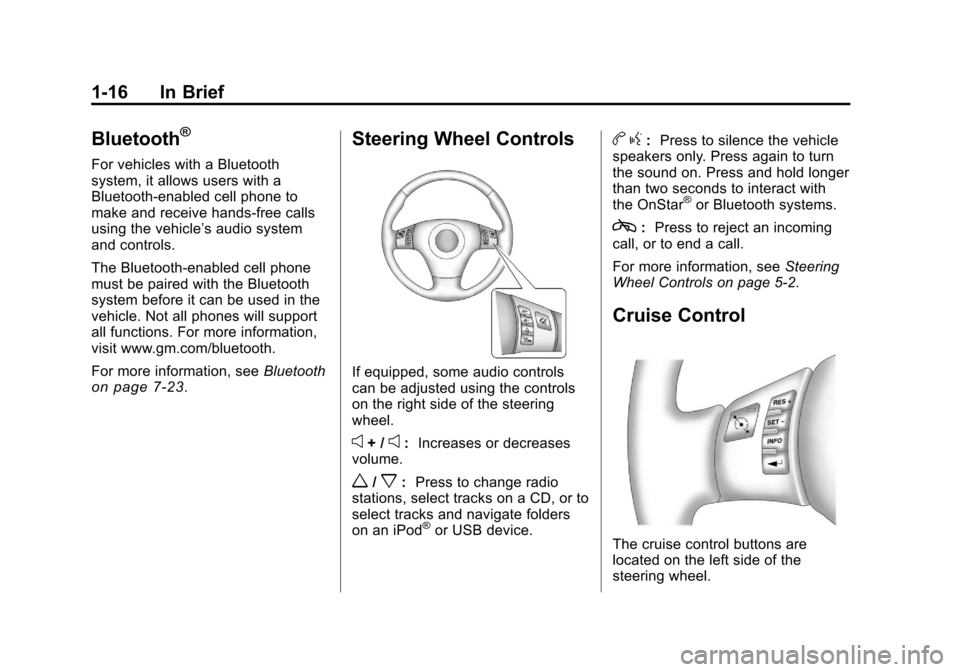
Steering Wheel Controls
If equipped, some audio controls
can be adjusted using the controls
on the right side of the steering
wheel.
e+ /e:Increases or decreases
volume.
w/x: Press to change radio
stations, select tracks on a CD, or to
select tracks and navigate folders
on an iPod
®or USB device.
b g: Press to silence the vehicle
speakers only. Press again to turn
the sound on. Press and hold longer
than two seconds to interact with
the OnStar
®or Bluetooth systems.
c: Press to reject an incoming
call, or to end a call.
For more information, see Steering
Wheel Controls on page 5‑2.
Cruise Control
The cruise control buttons are
located on the left side of the
steering wheel.
Page 28 of 382
Black plate (22,1)Chevrolet Malibu Owner Manual - 2011
1-22 In Brief
For a full description of OnStar
services and system limitations, see
the OnStar Owner's Guide in the
glove box.
OnStar service is subject to the
OnStar terms and conditions
included in the OnStar Subscriber
Information.
OnStar service requires wireless
communication networks and the
Global Positioning System (GPS)
satellite network. Not all OnStar
services are available everywhere
or on all vehicles at all times.
OnStar service can’t work unless
your vehicle is in a place where
OnStar has an agreement with a
wireless service provider for service
in that area, and the wireless
service provider has coverage,
network capacity, reception, and
technology compatible with OnStar's
service. Service involving location
information about your vehicle can’t
work unless GPS signals are
available, unobstructed, and
compatible with the OnStarhardware. The vehicle has to have
a working electrical system and
adequate battery power for the
OnStar equipment to operate.
OnStar service may not work if the
OnStar equipment isn’t properly
installed or you haven’t maintained
it and your vehicle is in good
working order and in compliance
with all government regulations.
If you try to add, connect, or modify
any equipment or software in your
vehicle, OnStar service may not
work. Other problems OnStar can’t
control may prevent service to you,
such as hills, tall buildings, tunnels,
weather, electrical system design
and architecture of your vehicle,
damage to important parts of your
vehicle in a crash, or wireless phone
network congestion or jamming.
See
Radio Frequency Statement
on
page 13‑17for information
regarding Part 15 of the Federal
Communications Commission
(FCC) rules and Industry Canada
Standards RSS-210/220/310.
OnStar Steering Wheel
Controls
This vehicle may have a Talk/Mute
button that can be used to interact
with OnStar Hands-Free calling.
See Steering Wheel Controls
on
page 5‑2for more information.
On some vehicles, the mute button
can be used to dial numbers into
voice mail systems, or to dial phone
extensions. See the OnStar Owner's
Guide for more information.
Your Responsibility
Increase the volume of the radio if
the OnStar advisor cannot be heard.
If the light next to the OnStar
buttons is red, the system may not
be functioning properly. Push the
Qbutton and request a vehicle
diagnostic. If the light appears clear
(no light appears), your OnStar
subscription has expired and all
services have been deactivated.
Push the
Qbutton to confirm that
the OnStar equipment is active.
Page 30 of 382
Black plate (2,1)Chevrolet Malibu Owner Manual - 2011
2-2 Keys, Doors and Windows
Keys and Locks
Keys
{WARNING
Leaving children in a vehicle with
the ignition key is dangerous for
many reasons. Children or others
could be badly injured or even
killed. They could operate the
power windows or other controls
or even make the vehicle move.
The windows will function with the
keys in the ignition and children
could be seriously injured or killed
if caught in the path of a closing
window. Do not leave the keys in
a vehicle with children.
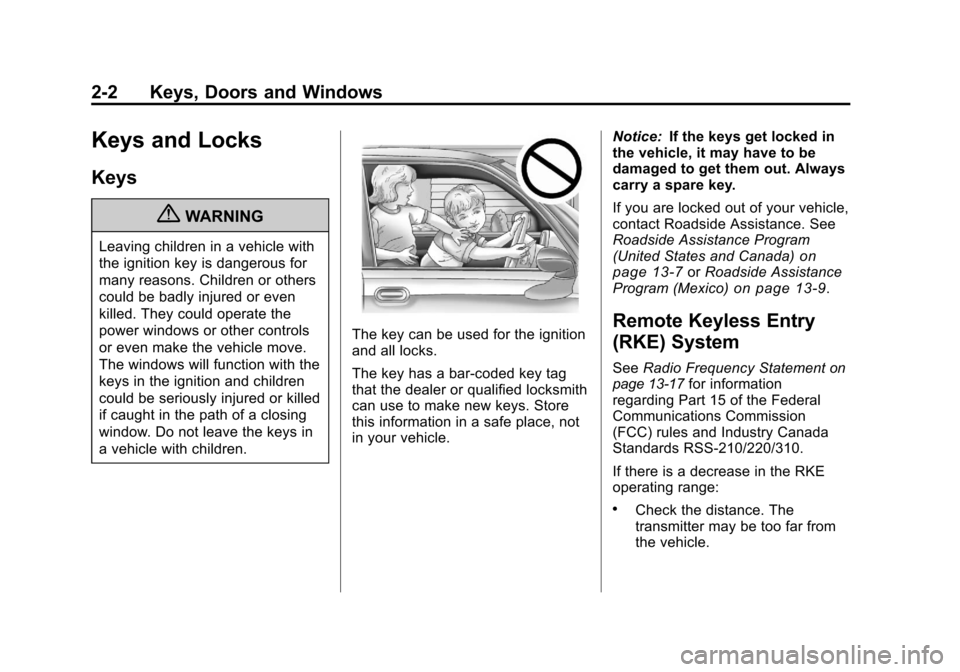
The key can be used for the ignition
and all locks.
The key has a bar-coded key tag
that the dealer or qualified locksmith
can use to make new keys. Store
this information in a safe place, not
in your vehicle.Notice:
If the keys get locked in
the vehicle, it may have to be
damaged to get them out. Always
carry a spare key.
If you are locked out of your vehicle,
contact Roadside Assistance. See
Roadside Assistance Program
(United States and Canada)
on
page 13‑7or Roadside Assistance
Program (Mexico)on page 13‑9.
Remote Keyless Entry
(RKE) System
See Radio Frequency Statementon
page 13‑17for information
regarding Part 15 of the Federal
Communications Commission
(FCC) rules and Industry Canada
Standards RSS-210/220/310.
If there is a decrease in the RKE
operating range:
.Check the distance. The
transmitter may be too far from
the vehicle.
Page 112 of 382
Black plate (2,1)Chevrolet Malibu Owner Manual - 2011
5-2 Instruments and Controls
Controls
Steering Wheel
Adjustment
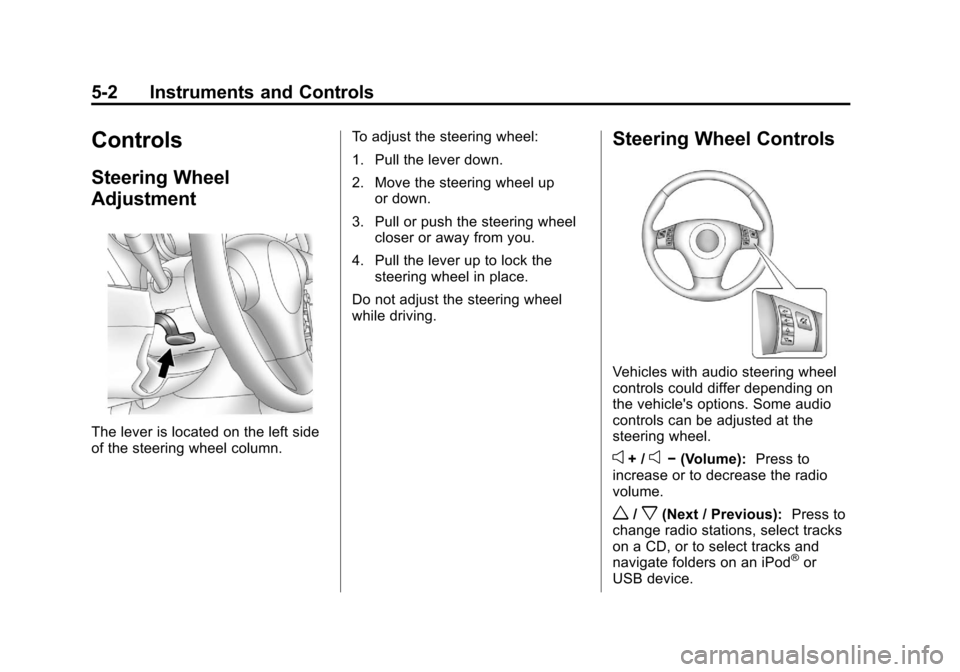
The lever is located on the left side
of the steering wheel column.To adjust the steering wheel:
1. Pull the lever down.
2. Move the steering wheel up
or down.
3. Pull or push the steering wheel closer or away from you.
4. Pull the lever up to lock the steering wheel in place.
Do not adjust the steering wheel
while driving.
Steering Wheel Controls
Vehicles with audio steering wheel
controls could differ depending on
the vehicle's options. Some audio
controls can be adjusted at the
steering wheel.
e+ /e− (Volume): Press to
increase or to decrease the radio
volume.
w/x(Next / Previous): Press to
change radio stations, select tracks
on a CD, or to select tracks and
navigate folders on an iPod
®or
USB device.
Page 113 of 382
Black plate (3,1)Chevrolet Malibu Owner Manual - 2011
Instruments and Controls 5-3
To change radio stations:
.Press and releaseworxto go
to the next or previous radio
station stored as a preset.
.Press and holdworxto go to
the next or previous radio station
in the selected band with a
strong signal.
To select tracks on a CD:
Press and release
worxto go to
the next or previous track.
To select tracks on an iPod or USB
device:
1. Press and hold
worxwhile
listening to a song until the
contents of the current folder
display on the radio display.
2. Press and release
worxto
scroll up or down the list, then
press and hold
wto play the
highlighted track. To navigate folders on an iPod or
USB device:
1. Press and hold
worxwhile
listening to a song until the
contents of the current folder
display on the radio display.
2. Press and hold
xto go back to
the previous folder list.
3. Press and release
worxto
scroll up or down the list.
.To select a folder, press
and hold
wwhen the folder
is highlighted.
.To go back further in the
folder list, press and
hold
x.
c(End): Press to reject an
incoming call, or end a current call.
b g(Mute / Voice Recognition):
Press to silence the vehicle
speakers only. Press again to turn
the sound on.
For vehicles with Bluetooth
®or
OnStar®systems press and
hold
b gfor longer than
two seconds to interact with
those systems. See Bluetooth
on
page 7‑23and the OnStar
Owner's Guide for more
information.
Horn
Press near the horn symbols or
press on the steering wheel pad to
sound the horn.
Page 116 of 382
Black plate (6,1)Chevrolet Malibu Owner Manual - 2011
5-6 Instruments and Controls
Clock
Without Date Display
AM/FM Base Radio with a Single
CD Player
To set the time:
1. Turn the ignition key to ACC/ACCESSORY or ON/RUN.
Press the
Oknob to turn the
radio on.
2. Press the
Hbutton until the hour
begins flashing on the display.
Press the
Hbutton a second
time and the minute begins
flashing on the display.
3. While either the hour or the minute numbers are flashing,
turn the
fknob to increase or
decrease the time. 4. Press the
Hbutton again until
the clock display stops flashing
to set the currently displayed
time; otherwise, the flashing
stops after five seconds and the
current time displayed is
automatically set.
To change the time default setting
from 12 hour to 24 hour, press the
Hbutton until 12H or 24H is
displayed. Once 12H or 24H is
displayed, turn the
fknob to the
desired option to select the setting.
Press the
Hbutton again to apply
the setting, or let the screen
time out.
With Date Display
Radio with CD (MP3) and USB
Port, and Radio with Single CD
(MP3) Player
To set the time and date:
1. Turn the ignition key to ACC/ ACCESSORY or ON/RUN.
Press the
Oknob to turn the
radio on.
2. Press the
Hbutton and the HR,
MIN, MM, DD, YYYY (hour,
minute, month, day, and year)
displays.
3. Press the softkey located below any one of the tabs that you
want to change.
Page 117 of 382
Black plate (7,1)Chevrolet Malibu Owner Manual - 2011
Instruments and Controls 5-7
4. To increase the time or date doone of the following:
.Press the softkey located
below the selected tab.
.Press the¨SEEK, or
\FWD button.
.Turn thefknob clockwise.
5. To decrease the time or date do one of the following:
.Press the©SEEK or
sREV button.
.Turn thefknob
counterclockwise.
The date does not automatically
display. To see the date press
Hwhile the radio is on. The date
with display times out after a few
seconds and goes back to the
normal radio and time display. To change the time default setting
from 12 hour to 24 hour or to
change the date default setting from
month/day/year to day/month/year:
1. Press the
Hbutton and then the
softkey located below the
forward arrow label. Once the
time 12H and 24H, and the date
MM/DD/YYYY (month, day, and
year) and DD/MM/YYYY (day,
month, and year) displays.
2. Press the softkey located below the desired option.
3. Press the
Hbutton again to
apply the selected default, or let
the screen time out.
Power Outlets
Accessory power outlets can be
used to plug in electrical equipment,
such as a cell phone or MP3 player.
There are two accessory power
outlets. One accessory power outlet
is located inside the storage bin below the climate controls and the
other outlet is on the rear of the
center storage console.
Remove the cover to access
and replace when not in use.
The accessory power outlet is
operational at all times.
{WARNING
Power is always supplied to the
outlets. Do not leave electrical
equipment plugged in when the
vehicle is not in use because the
vehicle could catch fire and cause
injury or death.
Notice: Leaving electrical
equipment plugged in for an
extended period of time while
the vehicle is off will drain the
battery. Always unplug electrical
equipment when not in use and
do not plug in equipment that
exceeds the maximum 20 ampere
rating.