USB CHEVROLET MALIBU 2013 8.G Owners Manual
[x] Cancel search | Manufacturer: CHEVROLET, Model Year: 2013, Model line: MALIBU, Model: CHEVROLET MALIBU 2013 8.GPages: 436, PDF Size: 7.43 MB
Page 23 of 436
Black plate (17,1)Chevrolet Malibu Owner Manual - 2013 - CRC - 6/6/12
In Brief 1-17
Vehicle Features
Radio(s)
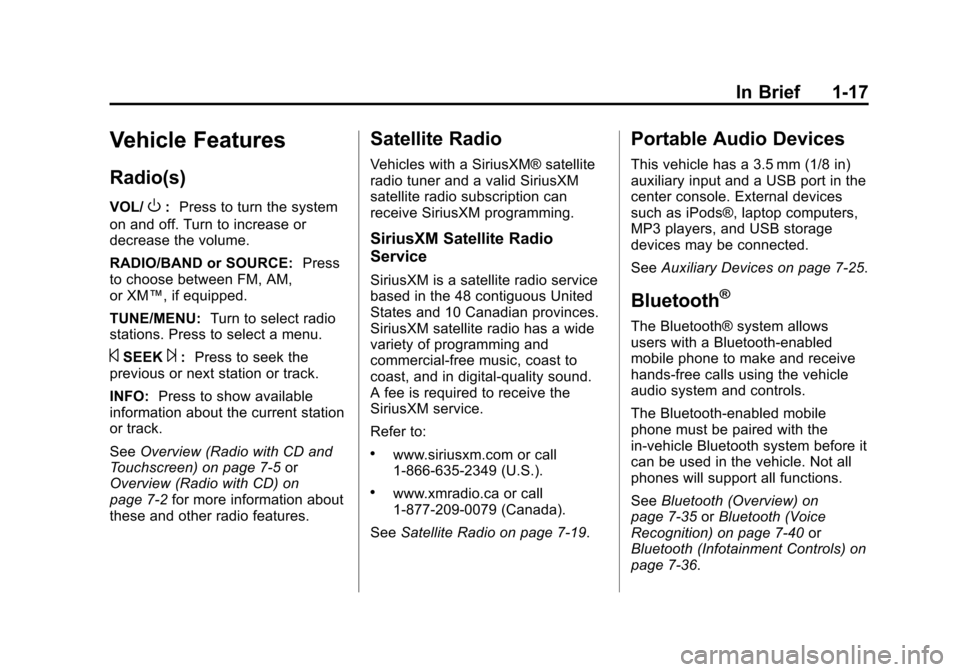
VOL/O:Press to turn the system
on and off. Turn to increase or
decrease the volume.
RADIO/BAND or SOURCE: Press
to choose between FM, AM,
or XM™, if equipped.
TUNE/MENU: Turn to select radio
stations. Press to select a menu.
©SEEK¨: Press to seek the
previous or next station or track.
INFO: Press to show available
information about the current station
or track.
See Overview (Radio with CD and
Touchscreen) on page 7‑5 or
Overview (Radio with CD) on
page 7‑2 for more information about
these and other radio features.
Satellite Radio
Vehicles with a SiriusXM® satellite
radio tuner and a valid SiriusXM
satellite radio subscription can
receive SiriusXM programming.
SiriusXM Satellite Radio
Service
SiriusXM is a satellite radio service
based in the 48 contiguous United
States and 10 Canadian provinces.
SiriusXM satellite radio has a wide
variety of programming and
commercial-free music, coast to
coast, and in digital-quality sound.
A fee is required to receive the
SiriusXM service.
Refer to:
.www.siriusxm.com or call
1-866-635-2349 (U.S.).
.www.xmradio.ca or call
1-877-209-0079 (Canada).
See Satellite Radio on page 7‑19.
Portable Audio Devices
This vehicle has a 3.5 mm (1/8 in)
auxiliary input and a USB port in the
center console. External devices
such as iPods®, laptop computers,
MP3 players, and USB storage
devices may be connected.
SeeAuxiliary Devices on page 7‑25.
Bluetooth®
The Bluetooth® system allows
users with a Bluetooth-enabled
mobile phone to make and receive
hands-free calls using the vehicle
audio system and controls.
The Bluetooth-enabled mobile
phone must be paired with the
in-vehicle Bluetooth system before it
can be used in the vehicle. Not all
phones will support all functions.
SeeBluetooth (Overview) on
page 7‑35 orBluetooth (Voice
Recognition) on page 7‑40 or
Bluetooth (Infotainment Controls) on
page 7‑36.
Page 107 of 436
Black plate (3,1)Chevrolet Malibu Owner Manual - 2013 - CRC - 6/6/12
Storage 4-3
Center Console Storage
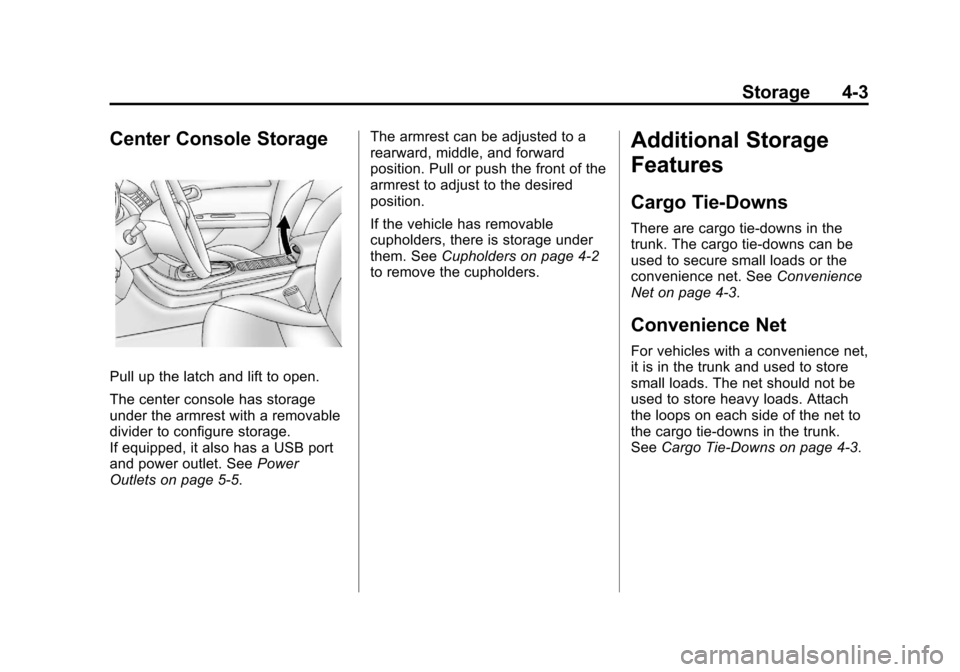
Pull up the latch and lift to open.
The center console has storage
under the armrest with a removable
divider to configure storage.
If equipped, it also has a USB port
and power outlet. SeePower
Outlets on page 5‑5. The armrest can be adjusted to a
rearward, middle, and forward
position. Pull or push the front of the
armrest to adjust to the desired
position.
If the vehicle has removable
cupholders, there is storage under
them. See
Cupholders on page 4‑2
to remove the cupholders.
Additional Storage
Features
Cargo Tie-Downs
There are cargo tie‐downs in the
trunk. The cargo tie‐downs can be
used to secure small loads or the
convenience net. See Convenience
Net on page 4‑3.
Convenience Net
For vehicles with a convenience net,
it is in the trunk and used to store
small loads. The net should not be
used to store heavy loads. Attach
the loops on each side of the net to
the cargo tie-downs in the trunk.
See Cargo Tie-Downs on page 4‑3.
Page 167 of 436
Black plate (7,1)Chevrolet Malibu Owner Manual - 2013 - CRC - 6/6/12
Infotainment System 7-7
.Release¨to return to
playing speed. See CD
Player on page 7‑22 and
MP3 on page 7‑24.
.For AM or FM, press¨to
seek to the next strong
station.
13. CONFIG (Configuration)
.Press to adjust features
for radio, display, phone,
vehicle, and time.
14. TONE
.Press to access the sound
menu screen to adjust
bass, midrange, and
treble. See AM-FM Radio
on page 7‑14.
15. INFO (Information)
.Press to scroll through
station, song, artist, and
album information when
available.
Touchscreen Buttons
Touchscreen buttons are on the
screen and highlighted when a
feature is available. Some toggle
screen buttons highlight when active
and gray out when inactive.
Home Page
The infotainment system displays a
Home Page that makes it easy to
access many of the features.
Back: If on page 2 of the Home
Page, press Back to return to page
1 of the Home Page. If on page 1,
Back serves no function.
Home: While navigating through
other menus, press to go back to
the Home Page to start a different
feature.
Fav: Press to display a page of
stored (favorite) AM or FM stations.
Keep pressing Fav to scroll through
the favorite pages.
The Home Page Menu lists the
options Customize Home Page and
Restore Home Page Defaults. Out of all available Home Page
icons, up to eight icons can be
selected and sorted for the first
Home Page screen.
Home Page Features
Various functions are disabled when
the vehicle is moving.
Press the Now Playing screen
button to display the active source
page. The sources available are
AM, FM, CD, USB/iPod, and AUX.
See
AM-FM Radio on page 7‑14,
CD Player on page 7‑22, and
Auxiliary Devices on page 7‑25.
Press the Phone screen button to
display the Phone main page. See
Bluetooth (Overview) on page 7‑35
or Bluetooth (Voice Recognition) on
page 7‑40 orBluetooth
(Infotainment Controls) on
page 7‑36.
Page 168 of 436
Black plate (8,1)Chevrolet Malibu Owner Manual - 2013 - CRC - 6/6/12
7-8 Infotainment System
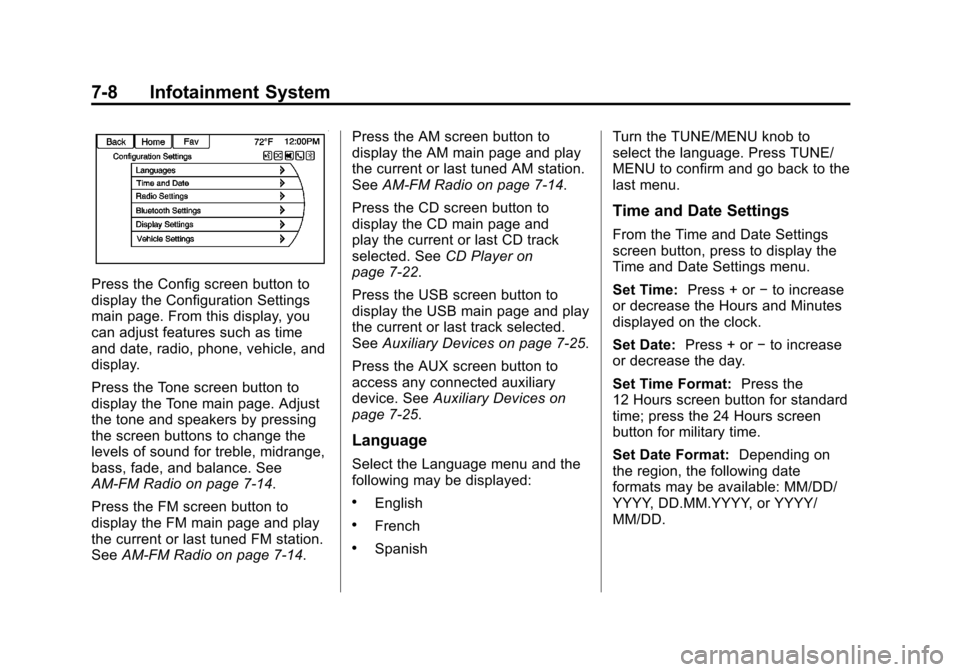
Press the Config screen button to
display the Configuration Settings
main page. From this display, you
can adjust features such as time
and date, radio, phone, vehicle, and
display.
Press the Tone screen button to
display the Tone main page. Adjust
the tone and speakers by pressing
the screen buttons to change the
levels of sound for treble, midrange,
bass, fade, and balance. See
AM-FM Radio on page 7‑14.
Press the FM screen button to
display the FM main page and play
the current or last tuned FM station.
SeeAM-FM Radio on page 7‑14. Press the AM screen button to
display the AM main page and play
the current or last tuned AM station.
See
AM-FM Radio on page 7‑14.
Press the CD screen button to
display the CD main page and
play the current or last CD track
selected. See CD Player on
page 7‑22.
Press the USB screen button to
display the USB main page and play
the current or last track selected.
See Auxiliary Devices on page 7‑25.
Press the AUX screen button to
access any connected auxiliary
device. See Auxiliary Devices on
page 7‑25.
Language
Select the Language menu and the
following may be displayed:
.English
.French
.Spanish Turn the TUNE/MENU knob to
select the language. Press TUNE/
MENU to confirm and go back to the
last menu.
Time and Date Settings
From the Time and Date Settings
screen button, press to display the
Time and Date Settings menu.
Set Time:
Press + or−to increase
or decrease the Hours and Minutes
displayed on the clock.
Set Date: Press + or−to increase
or decrease the day.
Set Time Format: Press the
12 Hours screen button for standard
time; press the 24 Hours screen
button for military time.
Set Date Format: Depending on
the region, the following date
formats may be available: MM/DD/
YYYY, DD.MM.YYYY, or YYYY/
MM/DD.
Page 176 of 436
Black plate (16,1)Chevrolet Malibu Owner Manual - 2013 - CRC - 6/6/12
7-16 Infotainment System
To cancel the station search, press
TUNE/MENU.
Storing a Station as a Favorite
Stations from all bands can be
stored in any order in the favorite
pages.
Up to six stations can be stored in
each favorite page and the number
of available favorite pages can
be set.
Storing Stations
To store the station to a position in
the list, press the corresponding
button 1 to 6 until a beep is heard.
Retrieving Stations
Press the FAV button to open a
favorite page or to switch to another
favorite page. Briefly press one of
the 1 to 6 buttons to retrieve the
station.
Playing the Radio (Radio with
CD and Touchscreen)
Audio Source
VOL/
O(Power/Volume):
.Press to turn the radio on or off.
.Turn to increase or decrease the
volume of the active source (i.e.,
current audio source, active
navigation voice guidance,
or traffic prompts).
The steering wheel controls can
also be used to adjust the volume.
See Steering Wheel Controls on
page 5‑2.
To access the radio main page,
press the SOURCE button on the
faceplate, the Now Playing screen
button, or one of the audio screen
buttons on the Home Page.
While on the audio main page,
press the SOURCE button
repeatedly to display and cycle through the available sources (AM,
FM, SiriusXM if equipped, CD, USB/
iPod, and AUX).
Infotainment System Menus
Tone Settings
To access the tone settings, press
the Home Page Tone button or the
TONE button on the faceplate.
Use the tone settings to adjust the
following features:
.Setting the tone
.Adjusting the speakers
Setting the Tone
To adjust the tone:
.Treble: Press Treble, then press
+ or −to change the level.
.Middle (Midrange): Press
Middle, then press + or −to
change the level.
.Bass: Press Bass, then press +
or −to change the level.
Page 178 of 436
Black plate (18,1)Chevrolet Malibu Owner Manual - 2013 - CRC - 6/6/12
7-18 Infotainment System
Changing the Sources
To change audio sources from any
of the audio main pages (AM, FM,
SiriusXM, CD, USB/iPod, or AUX),
press the SOURCE button on the
faceplate or the Source screen
button to display a pop-up of
available audio sources. Touch-tap
or press the SOURCE button on the
faceplate repeatedly to change the
desired source.
Storing Radio Station Presets
There are a few ways to store
presets.
Up to 36 preset stations can be
stored. AM, FM, or SiriusXM (if
equipped) can be mixed.
1. From the AM, FM, or SiriusXM (ifequipped) main page, press and
hold one of the preset screen
buttons at the bottom of the
screen. After a few seconds, a
beep will be heard and the new
preset information will display on
that screen button. 2. Touch and hold a preset button
to store the currently active
station. After a few seconds, a
beep will be heard and the new
preset information will display on
a small pop-up display at the
bottom of the screen.
3. Repeat the steps for each preset.
To change the number of preset
pages, see “Mixed-Band Presets”
following.
Recalling a Preset Station
To recall a preset station from a
FAV page:
.Press the FAV button on the
faceplate to display the FAV
pop-up. Select the desired
preset from the pop-up.
.Press the FAV screen button at
the top bar to display the preset
pop-up that appears at the
bottom of the page. Press one of
the preset screen buttons to go
to the selected preset station.
.In the AM, FM, or SiriusXM (if
equipped) main page, press one
of the preset screen buttons to
go to the selected preset station.
Mixed-Band Presets
Each page can store six preset
stations. The presets within a page
can be from different radio bands.
To scroll through the pages, press
the FAV button on the faceplate or
the FAV screen button on the top
bar. The current page number
displays above the preset buttons.
The stored stations for each FAV
page display on the preset buttons
at the bottom of the screen. The
number of FAV pages displayed can
be changed in the Radio Settings in
the Configuration Menu.
Page 186 of 436
Black plate (26,1)Chevrolet Malibu Owner Manual - 2013 - CRC - 6/6/12
7-26 Infotainment System
If an auxiliary device has already
been connected, but a different
source is currently active, press the
CD/AUX button on the radio
faceplate or the Now Playing screen
button on the Home Page, then
press SOURCE repeatedly to cycle
through all of the available audio
source screens, until the AUX
source screen is selected.
Portable devices are controlled by
using the menu system described in
Overview (Radio with CD and
Touchscreen) on page 7‑5or
Overview (Radio with CD) on
page 7‑2.
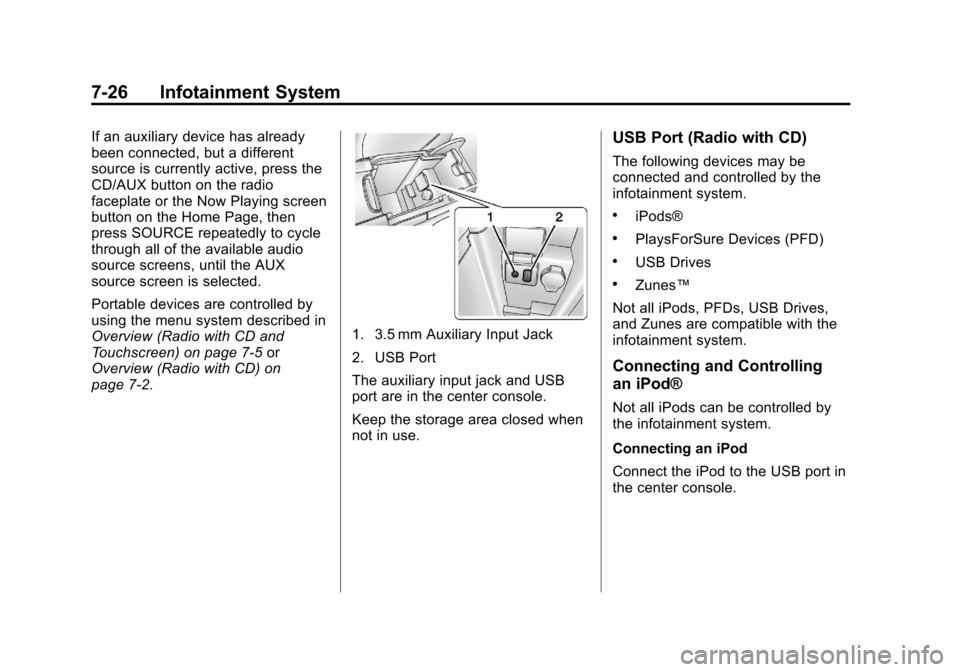
1. 3.5 mm Auxiliary Input Jack
2. USB Port
The auxiliary input jack and USB
port are in the center console.
Keep the storage area closed when
not in use.
USB Port (Radio with CD)
The following devices may be
connected and controlled by the
infotainment system.
.iPods®
.PlaysForSure Devices (PFD)
.USB Drives
.Zunes™
Not all iPods, PFDs, USB Drives,
and Zunes are compatible with the
infotainment system.
Connecting and Controlling
an iPod®
Not all iPods can be controlled by
the infotainment system.
Connecting an iPod
Connect the iPod to the USB port in
the center console.
Page 187 of 436
Black plate (27,1)Chevrolet Malibu Owner Manual - 2013 - CRC - 6/6/12
Infotainment System 7-27
Searching for a Track
Tracks can be searched for by:
.Playlists
.Artists
.Albums
.Song Titles
.Podcasts
.Genres
.Audiobooks
.Composers
To search for tracks:
1. Turn the TUNE/MENU knob.
2. Select Search.
3. Select: Playlists, Artists, Albums, Song Titles, Podcasts, Genres,
Audiobooks, or Composers.
4. Select the track. Shuffle
Turn the TUNE/MENU knob and set
Shuffle Songs (Random) to On or
Off, then press the BACK
/button
to return to the main screen.
On: Plays tracks in the current
folder in random order.
Off: Plays tracks in the current
folder in sequential order.
Repeat
Turn the TUNE/MENU knob and set
Repeat to On or Off, then press the
BACK
/button to return to the main
screen.
On: Repeats the current track.
Off: Playback starts from the
beginning of the current track after
the last track finishes.
Connecting and Controlling a
PlaysForSure Device (PFD)
or Zune™
Connecting a PFD or Zune
Connect the PFD or Zune to the
USB port in the center console.
Searching for a Track
Tracks can be searched for by:
.Playlists
.Artists
.Albums
.Song Titles
.Podcasts
.Genres
To search for tracks:
1. Turn the TUNE/MENU knob.
2. Select Search.
3. Select: Playlists, Artists, Albums, Song Titles, Podcasts,
or Genres.
4. Select the track.
Page 188 of 436
Black plate (28,1)Chevrolet Malibu Owner Manual - 2013 - CRC - 6/6/12
7-28 Infotainment System
Shuffle Functionality
Turn the TUNE/MENU knob and set
Shuffle Songs (Random) to On
or Off.
On:Plays current tracks in random
order.
Off: Plays current tracks in
sequential order.
Repeat Functionality
Turn the TUNE/MENU knob and set
Repeat to On or Off.
Repeat On: Repeats the current
track.
Repeat Off: Playback starts from
the beginning of the current track
after the last track finishes.
Connecting and Controlling a
USB Drive
The infotainment system can only
play back .mp3 and .wma files from
a USB drive.
Only the first 10,000 songs are
recognized on the device. When a device is not supported, the
message
“No supported data found.
You can safely disconnect the
device” appears.
Connecting a USB Drive
Connect the USB drive to the USB
port in the center console.
Searching for a Track
It is normal for the search feature to
take some time to display the
information after reading the device
due to the amount of information
stored.
Files that do not have any meta
data stored in the ID3 tag display as
Unknown.
Tracks can be searched for by:
.Playlists*
.Artists
.Albums
.Song Titles
.Genres
.Folder View *This only displays if a playlist is
found on the device.
To search for tracks:
1. Turn the TUNE/MENU knob.
2. Select Search.
3. Select: Playlists, Artists, Albums,
Song Titles, Genres,
or Folder View.
4. Select the track.
Shuffle Functionality
Turn the TUNE/MENU knob and set
Shuffle Songs (Random) to On
or Off.
On: Plays current tracks in random
order.
Off: Plays current tracks in
sequential order.
Repeat Functionality
Turn the TUNE/MENU knob and set
Repeat to On or Off.
Repeat On: Repeats the current
track.
Page 189 of 436
Black plate (29,1)Chevrolet Malibu Owner Manual - 2013 - CRC - 6/6/12
Infotainment System 7-29
Repeat Off:Playback starts from
the beginning of the current track
after the last track finishes.
Connecting a Bluetooth®
Device
Before a Bluetooth device can be
connected to the infotainment
system, it must first be paired to the
system. Not all Bluetooth devices
can be paired to the infotainment
system. Before pairing the Bluetooth
device, become familiar with its user
guide for Bluetooth functions. The
system only connects to Bluetooth
devices that support A2DP
(Advanced Audio Distribution
Profile) version 1.2.
A Bluetooth phone with MP3
capability cannot be paired to the
vehicle as a phone and an MP3
player at the same time.
Pairing Information:
.Up to five devices can be paired
to the system.
.The pairing process is disabled
when the vehicle is moving.
.The infotainment system
automatically links with the first
available paired device in the
order the device was paired.
.Only one paired device can be
connected to the infotainment
system at a time.
.Pairing should only need to be
completed once, unless changes
to the pairing information have
been made or the device is
deleted.
Bluetooth Setup Menu
The Bluetooth Setup menu can be
accessed with or without a device
attached to the USB port.
To select the Bluetooth Setup menu
when a device is attached to the
USB port and active:
1. Turn the TUNE/MENU knob while in the iPod, Zune, PFD,
or USB device main menu.
2. Select Bluetooth Music Setup. To select the Bluetooth Music Setup
menu when a device is not attached
to the USB port, or when a device is
attached to the USB port but not
active:
1. Press the CD/AUX button until
AUX is the active source.
2. Turn the TUNE/MENU knob.
3. Select Bluetooth Music Setup.
To select the Bluetooth Music Setup
menu when a Bluetooth device is
connected and active:
1. Turn the TUNE/MENU knob.
2. Select Bluetooth Music Setup.
Pairing a Device
1. Select Connect To New Device from the Bluetooth Music
Setup menu.
2. The system asks a series of Yes/No questions to determine
what type of device is being
paired.