navigation system CHEVROLET MALIBU 2014 8.G Owners Manual
[x] Cancel search | Manufacturer: CHEVROLET, Model Year: 2014, Model line: MALIBU, Model: CHEVROLET MALIBU 2014 8.GPages: 428, PDF Size: 5.94 MB
Page 23 of 428
Black plate (17,1)Chevrolet Malibu Owner Manual (GMNA-Localizing-U.S./Canada/Mexico-
6081487) - 2014 - CRC - 11/19/13
In Brief 1-17
Bluetooth®
The Bluetooth®system allows users
with a Bluetooth-enabled mobile
phone to make and receive
hands-free calls using the vehicle
audio system and controls.
The Bluetooth-enabled mobile
phone must be paired with the
in-vehicle Bluetooth system before it
can be used in the vehicle. Not all
phones will support all functions.
See Bluetooth (Overview) on
page 7-21 orBluetooth
(Infotainment Controls) on
page 7-23 orBluetooth (Voice
Recognition) on page 7-26.
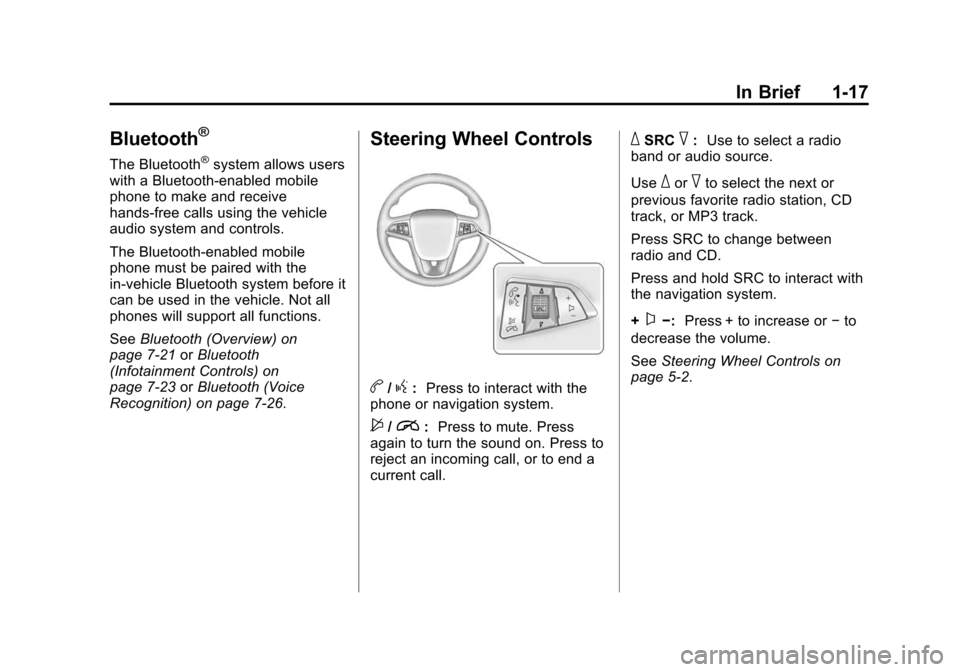
Steering Wheel Controls
b/g: Press to interact with the
phone or navigation system.
$/i: Press to mute. Press
again to turn the sound on. Press to
reject an incoming call, or to end a
current call.
_SRC^: Use to select a radio
band or audio source.
Use
_or^to select the next or
previous favorite radio station, CD
track, or MP3 track.
Press SRC to change between
radio and CD.
Press and hold SRC to interact with
the navigation system.
+
x−: Press + to increase or −to
decrease the volume.
See Steering Wheel Controls on
page 5-2.
Page 24 of 428
Black plate (18,1)Chevrolet Malibu Owner Manual (GMNA-Localizing-U.S./Canada/Mexico-
6081487) - 2014 - CRC - 11/19/13
1-18 In Brief
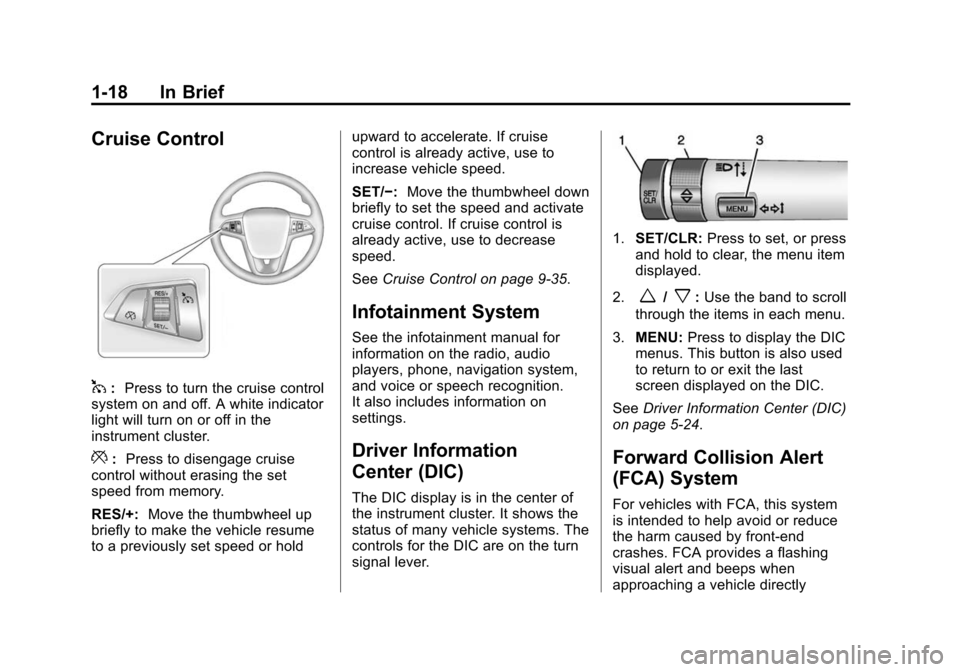
Cruise Control
1:Press to turn the cruise control
system on and off. A white indicator
light will turn on or off in the
instrument cluster.
*: Press to disengage cruise
control without erasing the set
speed from memory.
RES/+: Move the thumbwheel up
briefly to make the vehicle resume
to a previously set speed or hold upward to accelerate. If cruise
control is already active, use to
increase vehicle speed.
SET/−:
Move the thumbwheel down
briefly to set the speed and activate
cruise control. If cruise control is
already active, use to decrease
speed.
See Cruise Control on page 9-35.
Infotainment System
See the infotainment manual for
information on the radio, audio
players, phone, navigation system,
and voice or speech recognition.
It also includes information on
settings.
Driver Information
Center (DIC)
The DIC display is in the center of
the instrument cluster. It shows the
status of many vehicle systems. The
controls for the DIC are on the turn
signal lever.
1.SET/CLR: Press to set, or press
and hold to clear, the menu item
displayed.
2.
w/x: Use the band to scroll
through the items in each menu.
3. MENU: Press to display the DIC
menus. This button is also used
to return to or exit the last
screen displayed on the DIC.
See Driver Information Center (DIC)
on page 5-24.
Forward Collision Alert
(FCA) System
For vehicles with FCA, this system
is intended to help avoid or reduce
the harm caused by front-end
crashes. FCA provides a flashing
visual alert and beeps when
approaching a vehicle directly
Page 31 of 428
Black plate (25,1)Chevrolet Malibu Owner Manual (GMNA-Localizing-U.S./Canada/Mexico-
6081487) - 2014 - CRC - 11/19/13
In Brief 1-25
E85 or FlexFuel
Vehicles with a yellow fuel cap can
use either unleaded gasoline or
ethanol fuel containing up to 85%
ethanol (E85). SeeE85 or FlexFuel
on page 9-50. For all other vehicles,
use only the unleaded gasoline
described under Recommended
Fuel on page 9-48.
Driving for Better Fuel
Economy
Driving habits can affect fuel
mileage. Here are some driving tips
to get the best fuel economy
possible.
.Avoid fast starts and accelerate
smoothly.
.Brake gradually and avoid
abrupt stops.
.Avoid idling the engine for long
periods of time.
.When road and weather
conditions are appropriate, use
cruise control.
.Always follow posted speed
limits or drive more slowly when
conditions require.
.Keep vehicle tires properly
inflated.
.Combine several trips into a
single trip.
.Replace the vehicle's tires with
the same TPC Spec number
molded into the tire's sidewall
near the size.
.Follow recommended scheduled
maintenance.
Roadside Assistance
Program
U.S.: 1-800-243-8872
TTY Users (U.S. Only):
1-888-889-2438
Canada: 1-800-268-6800
New Chevrolet owners are
automatically enrolled in the
Roadside Assistance Program.
See Roadside Assistance Program
on page 13-5.
OnStar®
If equipped, this vehicle has a
comprehensive, in-vehicle system
that can connect to a live Advisor
for Emergency, Security, Navigation,
Connection, and Diagnostic
Services. See OnStar Overview on
page 14-1.
Page 113 of 428
Black plate (3,1)Chevrolet Malibu Owner Manual (GMNA-Localizing-U.S./Canada/Mexico-
6081487) - 2014 - CRC - 11/19/13
Instruments and Controls 5-3
b/g(Push to Talk):For vehicles
with an OnStar, Bluetooth,
or navigation system, press to
interact with those systems. See
Bluetooth (Overview) on page 7-21
or Bluetooth (Infotainment Controls)
on page 7-23 orBluetooth (Voice
Recognition) on page 7-26 and
OnStar Overview on page 14-1.
$/i(Mute/End Call): Press to
silence the vehicle speakers only.
Press again to turn the sound on.
For vehicles with OnStar or
Bluetooth systems, press to reject
an incoming call, or to end a
current call.
_SRC^(Thumbwheel Control):
Use this control to select a radio
band or audio source.
Use
_or^to select the next or
previous favorite radio station, CD
track or MP3 track.
Press SRC to change between
radio and CD. Press and hold SRC to interact with
the navigation system, if equipped.
+
x−
(Volume): Press + to
increase the volume; press −to
decrease the volume.
Horn
Pressaon the steering wheel pad
to sound the horn.
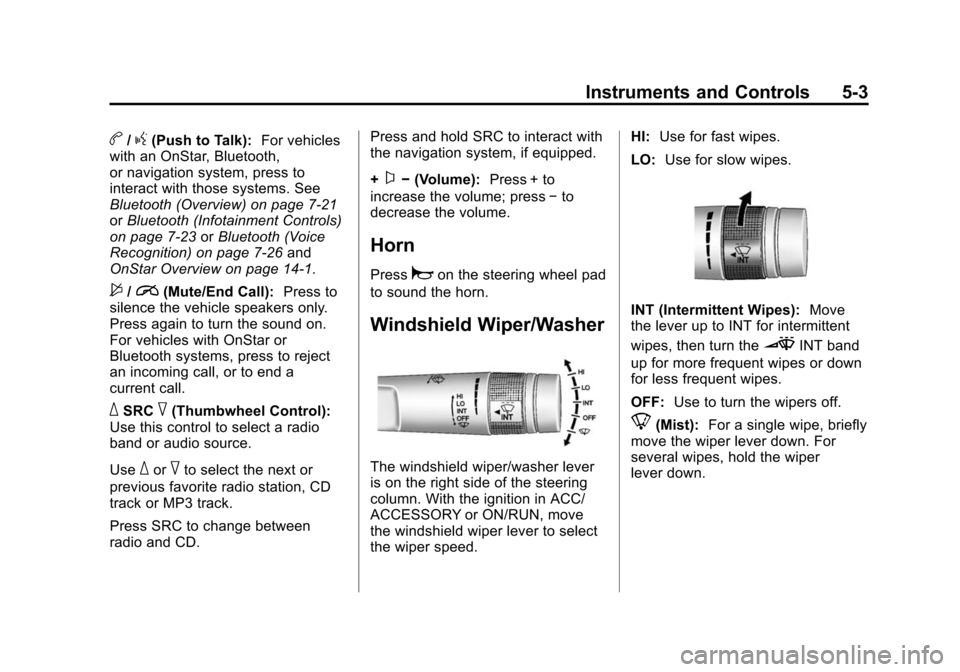
Windshield Wiper/Washer
The windshield wiper/washer lever
is on the right side of the steering
column. With the ignition in ACC/
ACCESSORY or ON/RUN, move
the windshield wiper lever to select
the wiper speed. HI:
Use for fast wipes.
LO: Use for slow wipes.
INT (Intermittent Wipes): Move
the lever up to INT for intermittent
wipes, then turn the
3INT band
up for more frequent wipes or down
for less frequent wipes.
OFF: Use to turn the wipers off.
8(Mist): For a single wipe, briefly
move the wiper lever down. For
several wipes, hold the wiper
lever down.
Page 115 of 428
Black plate (5,1)Chevrolet Malibu Owner Manual (GMNA-Localizing-U.S./Canada/Mexico-
6081487) - 2014 - CRC - 11/19/13
Instruments and Controls 5-5
information about how to use the
menu system. For vehicles with a
navigation system, see the
navigation manual.
Setting the Clock (Radio
with CD)
To set the time:
1. Press the CONFIG button andselect Time Settings.
2. Select Set Time.
3. Turn the TUNE/MENU knob to adjust the highlighted number.
4. Press the TUNE/MENU knob to select the next number.
5. To save the time and return to the Time Settings menu, press
the BACK
/button at any time
or press the TUNE/MENU knob
after adjusting the minutes.
Setting the 12/24 Hour Format
1. Press the CONFIG button and select Time Settings.
2. Highlight 12/24 Hour Format. 3. Press the TUNE/MENU knob to
select the 12 hour or 24 hour
display format.
Setting the Clock (Radios with
Touchscreen)
To set the time:
1. Press the CONFIG button to
enter the menu options. Turn the
TUNE/MENU knob to scroll
through the available setup
features. Press the TUNE/MENU
knob or press the Time screen
button to display other options
within that feature.
2. Press + or −to increase or
decrease the Hours and Minutes
displayed on the clock.
To turn Auto Set on and off, press
the Auto Set button.
If auto timing is set, the time
displayed on the clock may not
update immediately when driving
into a new time zone. 12/24 HR Format:
Press the 12 HR
screen button for standard time;
press the 24 HR screen button for
military time.
Day + or Day −:Press the Day +
or Day −display buttons to increase
or decrease the day.
Display: Press Display to turn the
display of the time on the screen on
or off.
Power Outlets
The accessory power outlets can be
used to plug in electrical equipment,
such as a cell phone or MP3 player.
There are two accessory power
outlets: one on the center stack
below the climate control system,
and one under the armrest inside
the center console storage.
The outlet is powered when the
ignition is in ON/RUN or ACC/
ACCESSORY, or until the driver
door is opened within 10 minutes of
Page 133 of 428
Black plate (23,1)Chevrolet Malibu Owner Manual (GMNA-Localizing-U.S./Canada/Mexico-
6081487) - 2014 - CRC - 11/19/13
Instruments and Controls 5-23
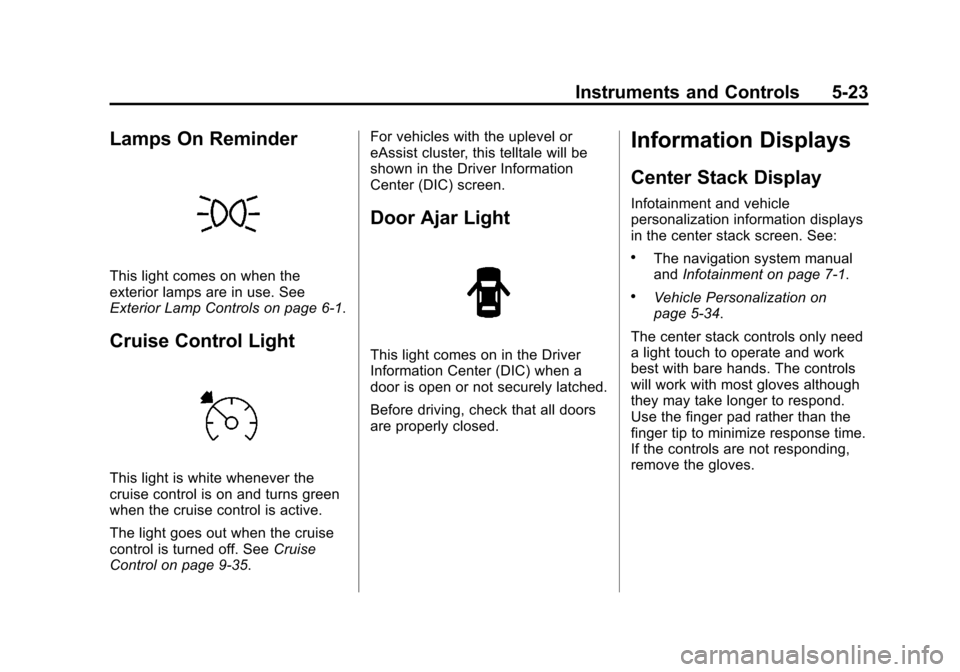
Lamps On Reminder
This light comes on when the
exterior lamps are in use. See
Exterior Lamp Controls on page 6-1.
Cruise Control Light
This light is white whenever the
cruise control is on and turns green
when the cruise control is active.
The light goes out when the cruise
control is turned off. SeeCruise
Control on page 9-35. For vehicles with the uplevel or
eAssist cluster, this telltale will be
shown in the Driver Information
Center (DIC) screen.
Door Ajar Light
This light comes on in the Driver
Information Center (DIC) when a
door is open or not securely latched.
Before driving, check that all doors
are properly closed.
Information Displays
Center Stack Display
Infotainment and vehicle
personalization information displays
in the center stack screen. See:
.The navigation system manual
and
Infotainment on page 7-1.
.Vehicle Personalization on
page 5-34.
The center stack controls only need
a light touch to operate and work
best with bare hands. The controls
will work with most gloves although
they may take longer to respond.
Use the finger pad rather than the
finger tip to minimize response time.
If the controls are not responding,
remove the gloves.
Page 134 of 428
Black plate (24,1)Chevrolet Malibu Owner Manual (GMNA-Localizing-U.S./Canada/Mexico-
6081487) - 2014 - CRC - 11/19/13
5-24 Instruments and Controls
Driver Information
Center (DIC)
The DIC displays information about
the vehicle. It also displays warning
messages if a system problem is
detected. SeeVehicle Messages on
page 5-27. All messages appear in
the DIC display in the center of the
instrument cluster.
The vehicle may also have features
that can be customized through the
controls on the radio. See Vehicle
Personalization on page 5-34.
DIC Operation and Displays
The DIC has different displays,
which can be accessed by using the
DIC buttons on the turn signal lever
to the left of the steering wheel. The
DIC displays trip, fuel, vehicle
system information, and warning
messages if a system problem is
detected. DIC Buttons
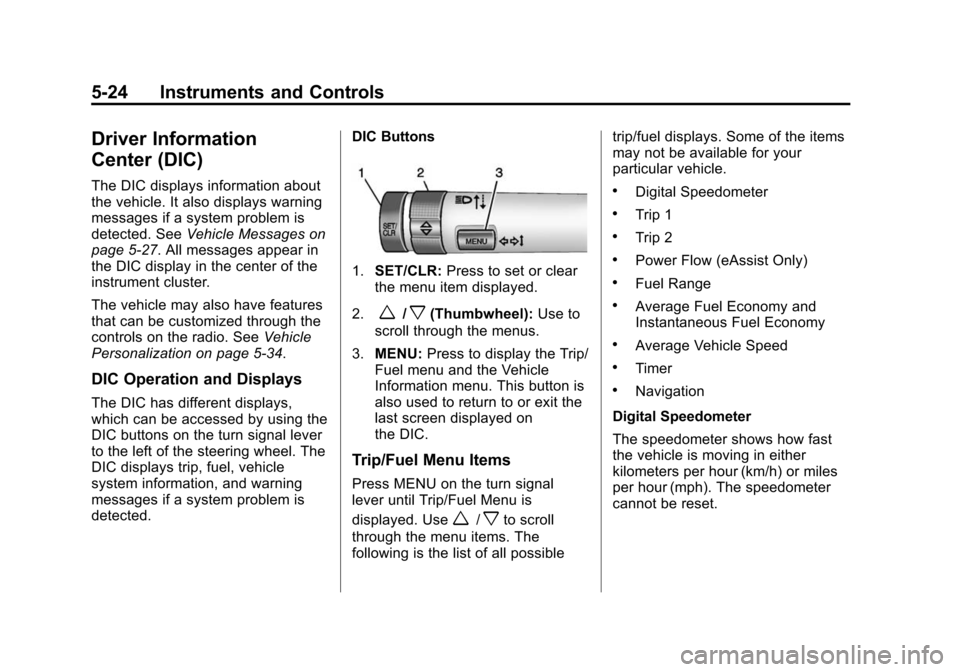
1.
SET/CLR: Press to set or clear
the menu item displayed.
2.
w/x(Thumbwheel): Use to
scroll through the menus.
3. MENU: Press to display the Trip/
Fuel menu and the Vehicle
Information menu. This button is
also used to return to or exit the
last screen displayed on
the DIC.
Trip/Fuel Menu Items
Press MENU on the turn signal
lever until Trip/Fuel Menu is
displayed. Use
w/xto scroll
through the menu items. The
following is the list of all possible trip/fuel displays. Some of the items
may not be available for your
particular vehicle.
.Digital Speedometer
.Trip 1
.Trip 2
.Power Flow (eAssist Only)
.Fuel Range
.Average Fuel Economy and
Instantaneous Fuel Economy
.Average Vehicle Speed
.Timer
.Navigation
Digital Speedometer
The speedometer shows how fast
the vehicle is moving in either
kilometers per hour (km/h) or miles
per hour (mph). The speedometer
cannot be reset.
Page 136 of 428
Black plate (26,1)Chevrolet Malibu Owner Manual (GMNA-Localizing-U.S./Canada/Mexico-
6081487) - 2014 - CRC - 11/19/13
5-26 Instruments and Controls
Navigation
This display is used for the
Turn-by-Turn Navigation,
if equipped.
Vehicle Information Menu
Items
Press MENU on the turn signal
lever until Vehicle Information menu
is displayed. Use
w/xto scroll
through the menu items. The
following is the list of all possible
vehicle information displays. Some
of the items may not be available for
your particular vehicle.
.Display Units
.Tire Pressure
.Jump Start (eAssist Only)
.Remaining Oil Life
.Battery
Display Units
Move
w/xto switch between
metric or US when the Unit display
is active. Press SET/CLR to confirm the setting. This will change the
displays on the cluster and DIC to
either metric or English (US)
measurements.
Tire Pressure
The display will show a vehicle with
the approximate pressures of all
four tires. Tire pressure is displayed
in either kilopascal (kPa) or pounds
per square inch (psi). See
Tire
Pressure Monitor System on
page 10-55 andTire Pressure
Monitor Operation on page 10-56.
Jump Start (eAssist Only)
This display allows for on-board
jump starting of the vehicle. See
"Jump Starting (On-board with
eAssist Only)."
Remaining Oil Life
This display shows an estimate of
the oil's remaining useful life.
If Remaining Oil Life 99% is
displayed, that means 99% of the
current oil life remains. When the remaining oil life is low,
the CHANGE ENGINE OIL SOON
message will appear on the display.
See
Engine Oil Messages on
page 5-29. The oil should changed
as soon as possible. See Engine Oil
on page 10-10. In addition to the
engine oil life system monitoring the
oil life, additional maintenance is
recommended. See Maintenance
Schedule on page 11-3.
Remember, the Oil Life display must
be reset after each oil change. It will
not reset itself. Also, be careful not
to reset the Oil Life display
accidentally at any time other than
when the oil has just been changed.
It cannot be reset accurately until
the next oil change. To reset the
engine oil life system, press SET/
CLR while the Oil Life display is
active. See Engine Oil Life System
on page 10-12.
Page 403 of 428
Black plate (15,1)Chevrolet Malibu Owner Manual (GMNA-Localizing-U.S./Canada/Mexico-
6081487) - 2014 - CRC - 11/19/13
Customer Information 13-15
if the vehicle is leased, with the
consent of the lessee; in response
to an official request by police or
similar government office; as part of
GM's defense of litigation through
the discovery process; or, as
required by law. Data that GM
collects or receives may also be
used for GM research needs or may
be made available to others for
research purposes, where a need is
shown and the data is not tied to a
specific vehicle or vehicle owner.
OnStar®
If the vehicle is equipped with
OnStar®and has an active
subscription, additional data may be
collected through the OnStar
system. This includes information
about the vehicle’s operation;
collisions involving the vehicle; the
use of the vehicle and its features;
and, in certain situations, the
location and approximate GPS
speed of the vehicle. Refer to the OnStar Terms and Conditions and
Privacy Statement on the OnStar
website.
Infotainment System
If the vehicle is equipped with a
navigation system as part of the
infotainment system, use of the
system may result in the storage of
destinations, addresses, telephone
numbers, and other trip information.
See the infotainment manual for
information on stored data and for
deletion instructions.
Radio Frequency
Identification (RFID)
RFID technology is used in some
vehicles for functions such as tire
pressure monitoring and ignition
system security, as well as in
connection with conveniences such
as Remote Keyless Entry (RKE)
transmitters for remote door locking/
unlocking and starting, and
in-vehicle transmitters for garage
door openers. RFID technology inGM vehicles does not use or record
personal information or link with any
other GM system containing
personal information.
Radio Frequency
Statement
This vehicle has systems that
operate on a radio frequency that
comply with Part 15 of the Federal
Communications Commission (FCC)
rules and with Industry Canada
Standards RSS‐GEN/210/220/310.
Operation is subject to the following
two conditions:
1. The device may not cause
harmful interference.
2. The device must accept any interference received, including
interference that may cause
undesired operation of the
device.
Changes or modifications to any of
these systems by other than an
authorized service facility could void
authorization to use this equipment.
Page 405 of 428
Black plate (1,1)Chevrolet Malibu Owner Manual (GMNA-Localizing-U.S./Canada/Mexico-
6081487) - 2014 - CRC - 11/19/13
OnStar 14-1
OnStar
OnStar Overview
OnStar Overview . . . . . . . . . . . . 14-1
OnStar Services
Emergency . . . . . . . . . . . . . . . . . . 14-2
Security . . . . . . . . . . . . . . . . . . . . . . 14-2
Navigation . . . . . . . . . . . . . . . . . . . 14-2
Connections . . . . . . . . . . . . . . . . . 14-3
Vehicle Diagnostics . . . . . . . . . . 14-5
OnStar Additional Information
OnStar AdditionalInformation . . . . . . . . . . . . . . . . . 14-5
OnStar Overview
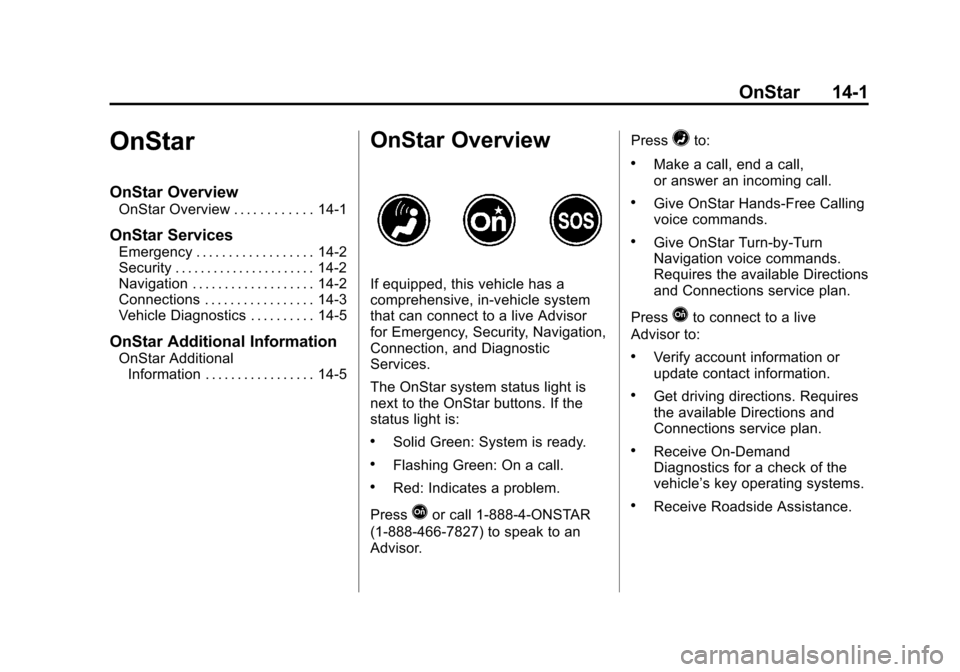
If equipped, this vehicle has a
comprehensive, in-vehicle system
that can connect to a live Advisor
for Emergency, Security, Navigation,
Connection, and Diagnostic
Services.
The OnStar system status light is
next to the OnStar buttons. If the
status light is:
.Solid Green: System is ready.
.Flashing Green: On a call.
.Red: Indicates a problem.
Press
Qor call 1-888-4-ONSTAR
(1-888-466-7827) to speak to an
Advisor. Press
=to:
.Make a call, end a call,
or answer an incoming call.
.Give OnStar Hands-Free Calling
voice commands.
.Give OnStar Turn-by-Turn
Navigation voice commands.
Requires the available Directions
and Connections service plan.
Press
Qto connect to a live
Advisor to:
.Verify account information or
update contact information.
.Get driving directions. Requires
the available Directions and
Connections service plan.
.Receive On-Demand
Diagnostics for a check of the
vehicle’s key operating systems.
.Receive Roadside Assistance.