ESP CHEVROLET MALIBU 2015 8.G Owners Manual
[x] Cancel search | Manufacturer: CHEVROLET, Model Year: 2015, Model line: MALIBU, Model: CHEVROLET MALIBU 2015 8.GPages: 399, PDF Size: 5.55 MB
Page 40 of 399
Black plate (11,1)Chevrolet Malibu Owner Manual (GMNA-Localizing-U.S./Canada/Mexico-
7575972) - 2015 - crc - 4/1/14
Keys, Doors, and Windows 2-11
Door Locks
{Warning
Unlocked doors can be
dangerous.
.Passengers, especially
children, can easily open the
doors and fall out of a moving
vehicle. When a door is
locked, the handle will not
open it. The chance of being
thrown out of the vehicle in a
crash is increased if the
doors are not locked. So, all
passengers should wear
safety belts properly and the
doors should be locked
whenever the vehicle is
driven.
.Young children who get into
unlocked vehicles may be
unable to get out. A child can
be overcome by extreme heat
and can suffer permanent(Continued)
Warning (Continued)
injuries or even death from
heat stroke. Always lock the
vehicle whenever leaving it.
.Outsiders can easily enter
through an unlocked door
when you slow down or stop
the vehicle. Locking the doors
can help prevent this from
happening.
To lock or unlock the doors from the
outside:
.PressQorKon the Remote
Keyless Entry (RKE) transmitter.
See Remote Keyless Entry
(RKE) System Operation on
page 2-3.
.Use the key in the driver door. To lock or unlock the doors from the
inside:
.Push down the manual lock
knob on the driver door to lock
all doors. Push down the manual
lock knob on a passenger door
to lock that door only.
.Pull the door handle once to
unlock the door. Pull the handle
again to unlatch it.
.PressQorKon the power door
lock switch.
Page 49 of 399
Black plate (20,1)Chevrolet Malibu Owner Manual (GMNA-Localizing-U.S./Canada/Mexico-
7575972) - 2015 - crc - 4/1/14
2-20 Keys, Doors, and Windows
Automatic Dimming
Rearview Mirror
If equipped, automatic dimming
reduces the glare of headlamps
from behind. The dimming feature
comes on when the vehicle is
started.
Windows
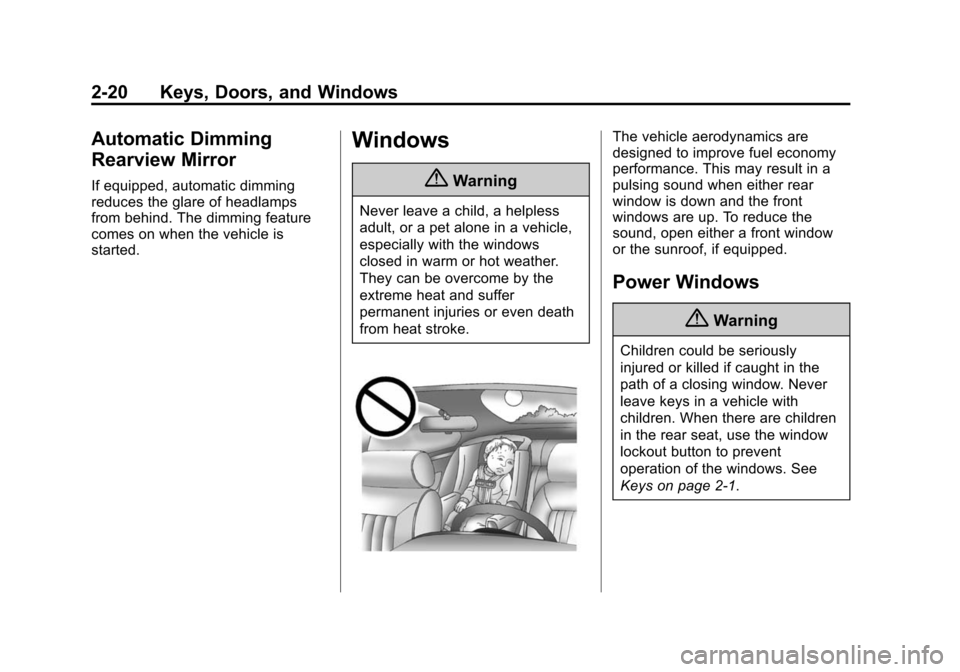
{Warning
Never leave a child, a helpless
adult, or a pet alone in a vehicle,
especially with the windows
closed in warm or hot weather.
They can be overcome by the
extreme heat and suffer
permanent injuries or even death
from heat stroke.
The vehicle aerodynamics are
designed to improve fuel economy
performance. This may result in a
pulsing sound when either rear
window is down and the front
windows are up. To reduce the
sound, open either a front window
or the sunroof, if equipped.
Power Windows
{Warning
Children could be seriously
injured or killed if caught in the
path of a closing window. Never
leave keys in a vehicle with
children. When there are children
in the rear seat, use the window
lockout button to prevent
operation of the windows. See
Keys on page 2-1.
Page 60 of 399
Black plate (7,1)Chevrolet Malibu Owner Manual (GMNA-Localizing-U.S./Canada/Mexico-
7575972) - 2015 - crc - 4/1/14
Seats and Restraints 3-7
To recall RKE Memory positions:
.On vehicles with RKE, pressK
on the RKE transmitter and open
the driver door.
.On vehicles with Keyless
Access, press the lock/unlock
button on the outside driver door
handle and open the door. The
RKE transmitter must be present
for the recall to activate.
.If the driver door is already
open, press
Kon the RKE
transmitter to activate the recall.
The driver seat and outside mirrors
will move to the previously saved
RKE Memory positions.
This feature is turned on or off using
the vehicle personalization menu.
See Vehicle Personalization on
page 5-31.
To stop recall movement, press one
of the memory, power mirror,
or power seat controls. If something has blocked the driver
seat while recalling a memory
position, the recall may stop.
Remove the obstruction; then press
and hold the appropriate manual
control for the memory item that is
not recalling for two seconds. Try
recalling the memory position again
by opening the driver door and
pressing the RKE transmitter
K
button. If the memory position is still
not recalling, see your dealer for
service.
Easy Exit Driver Seat
This feature moves the seat
rearward allowing the driver more
room to exit the vehicle.
To activate, place the ignition in
OFF and open the driver door. If the
driver door is already open, placing
the ignition in OFF will activate the
recall.
This feature is turned on or off using
the vehicle personalization menu.
See
Vehicle Personalization on
page 5-31. To stop recall movement, press one
of the memory or power seat
controls.
If something has blocked the driver
seat while recalling the exit position,
the recall may stop. Remove the
obstruction; then press and hold the
power seat control rearward for
two seconds. Try recalling the exit
position again. If the exit position is
still not recalling, see your dealer for
service.
Heated Front Seats
{Warning
If you cannot feel temperature
change or pain to the skin, the
seat heater may cause burns. To
reduce the risk of burns, people
with such a condition should use
care when using the seat heater,
especially for long periods of
time. Do not place anything on
the seat that insulates against
(Continued)
Page 128 of 399
Black plate (21,1)Chevrolet Malibu Owner Manual (GMNA-Localizing-U.S./Canada/Mexico-
7575972) - 2015 - crc - 4/1/14
Instruments and Controls 5-21
Information Displays
Center Stack Display
Infotainment and vehicle
personalization information displays
in the center stack screen. See:
.The navigation system manual
andInfotainment on page 7-1.
.Vehicle Personalization on
page 5-31.
The center stack controls only need
a light touch to operate and work
best with bare hands. The controls
will work with most gloves although
they may take longer to respond.
Use the finger pad rather than the
finger tip to minimize response time.
If the controls are not responding,
remove the gloves.
Driver Information
Center (DIC)
The DIC displays information about
the vehicle. It also displays warning
messages if a system problem is detected. See
Vehicle Messages on
page 5-24. All messages appear in
the DIC display in the center of the
instrument cluster.
The vehicle may also have features
that can be customized through the
controls on the radio. See Vehicle
Personalization on page 5-31.
DIC Operation and Displays
The DIC has different displays,
which can be accessed by using the
DIC buttons on the turn signal lever
to the left of the steering wheel. The
DIC displays trip, fuel, vehicle
system information, and warning
messages if a system problem is
detected.
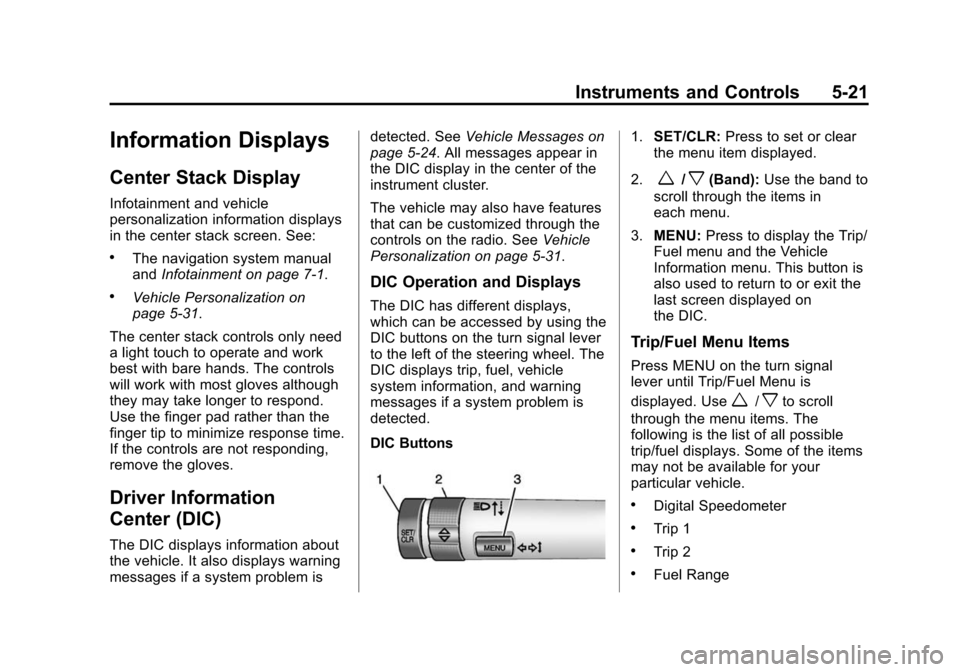
DIC Buttons
1. SET/CLR: Press to set or clear
the menu item displayed.
2.
w/x(Band): Use the band to
scroll through the items in
each menu.
3. MENU: Press to display the Trip/
Fuel menu and the Vehicle
Information menu. This button is
also used to return to or exit the
last screen displayed on
the DIC.
Trip/Fuel Menu Items
Press MENU on the turn signal
lever until Trip/Fuel Menu is
displayed. Use
w/xto scroll
through the menu items. The
following is the list of all possible
trip/fuel displays. Some of the items
may not be available for your
particular vehicle.
.Digital Speedometer
.Trip 1
.Trip 2
.Fuel Range
Page 167 of 399
Black plate (10,1)Chevrolet Malibu Owner Manual (GMNA-Localizing-U.S./Canada/Mexico-
7575972) - 2015 - crc - 4/1/14
7-10 Infotainment System
To search for a programming type
determined by station:
1. Turn the TUNE/MENU knob.
2. Select FM category list. A list ofall programming types available
displays.
3. Select the programming type. A list of stations that transmit
programming of the selected
type displays.
4. Select the station. The category lists are updated
when the station lists are
updated.
Updating Station & Category Lists
If stations stored in the station list
can no longer be received:
1. Turn the TUNE/MENU knob.
2. Select Update AM or FM Station List, if the stations stored in the
station list are no longer
received. A station search will be
completed and the first station in
the updated list will play. To cancel the station search, press
TUNE/MENU.
Storing a Station as a Favorite
Stations from all bands can be
stored in any order in the favorite
pages.
Up to six stations can be stored in
each favorite page and the number
of available favorite pages can
be set.
Storing Stations
To store the station to a position in
the list, press the corresponding
button 1 to 6 until a beep is heard.
Retrieving Stations
Press the FAV button to open a
favorite page or to switch to another
favorite page. Briefly press one of
the 1 to 6 buttons to retrieve the
station.
Satellite Radio
SiriusXM®Satellite Radio
Service
If equipped, vehicles with a
SiriusXM satellite radio tuner and a
SiriusXM satellite radio subscription
can receive SiriusXM programming.
SiriusXM is a satellite radio service
based in the 48 contiguous United
States and 10 Canadian provinces.
SiriusXM satellite radio has a wide
variety of programming and
commercial-free music, coast to
coast, and in digital-quality sound.
A service fee is required to receive
the SiriusXM service. For more
information, see www.siriusxm.com
or 1-866-635-2349 (U.S.), and
www.xmradio.ca or 1-877-209-0079
(Canada).
When SiriusXM is active, the
channel name and number,
category name, song title, and artist
display on the screen.
Page 168 of 399
Black plate (11,1)Chevrolet Malibu Owner Manual (GMNA-Localizing-U.S./Canada/Mexico-
7575972) - 2015 - crc - 4/1/14
Infotainment System 7-11
SiriusXM Categories
SiriusXM channels are organized in
categories.
To customize which SiriusXM
categories are used and displayed
in the system, see“Adding or
Removing SiriusXM Categories”
following.
Adding or Removing SiriusXM
Categories
1. Press the CONFIG button on the faceplate.
2. Select Radio Settings.
3. Select Add/Remove XM Categories.
4. From the Add/Remove XM Categories screen, select or
deselect any category to be
used in XM mode. A checkmark
will indicate that the category is
selected.
Turning SiriusXM Channel
Graphic On or Off
1. Press the CONFIG button on thefaceplate.
2. Select Radio Settings.
3. Select XM Channel Graphic to turn on or off.
Radio Reception
Frequency interference and static
can occur during normal radio
reception if items such as cell phone
chargers, vehicle convenience
accessories, and external electronic
devices are plugged into the
accessory power outlet. If there is
interference or static, unplug the
item from the accessory power
outlet.
FM
FM signals only reach about 16 to
65 km (10 to 40 mi). Although the
radio has a built-in electronic circuit
that automatically works to reduce
interference, some static can occur, especially around tall buildings or
hills, causing the sound to fade in
and out.
AM
The range for most AM stations is
greater than for FM, especially at
night. The longer range can cause
station frequencies to interfere with
each other. Static can occur when
things like storms and power lines
interfere with radio reception. When
this happens, try reducing the treble
on the radio.
SiriusXM Satellite Radio
Service
If equipped, SiriusXM Satellite
Radio Service provides digital radio
reception. Tall buildings or hills can
interfere with satellite radio signals,
causing the sound to fade in and
out. In addition, traveling or standing
under heavy foliage, bridges,
garages, or tunnels may cause loss
of the SiriusXM signal for a period
of time.
Page 176 of 399
Black plate (19,1)Chevrolet Malibu Owner Manual (GMNA-Localizing-U.S./Canada/Mexico-
7575972) - 2015 - crc - 4/1/14
Infotainment System 7-19
Changing the Default PIN
To change the default PIN:
1. Select Change Default PIN fromthe Bluetooth Music
Setup menu.
2. Select one of the pre-defined PINs, or select Other to create
a PIN.
To create a PIN:
1. Select the length of the PIN.
2. Enter the character sequence.
Messages
The following messages may
appear on the infotainment screen.
Poor Bluetooth Signal Quality:
This message displays when the
Bluetooth signal strength is low.
This Feature is Unavailable While
Vehicle is Moving: This message
displays when an action is not
allowed while the vehicle is moving.Controlling a Bluetooth Device
Bluetooth devices that support
AVRCP (Audio/Video Remote
Control Profile) version 1.0 may be
able to be controlled by the
infotainment system. Control of a
Bluetooth device by the infotainment
system may not be supported in all
vehicles.
Press and release
©or¨to skip
tracks.
Other Information
The Bluetooth®word mark and
logos are owned by the Bluetooth®
SIG, Inc. and any use of such marks
by General Motors is under license.
Other trademarks and trade names
are those of their respective owners.
Phone
Bluetooth (Overview)
For vehicles equipped with
Bluetooth capability, the system can
interact with many cell phones,
allowing:
.Placement and receipt of calls in
a hands-free mode.
.Sharing of the cell phone’s
address book or contact list with
the vehicle.
To minimize driver distraction,
before driving, and with the vehicle
parked:
.Become familiar with the
features of the cell phone.
Organize the phone book and
contact lists clearly and delete
duplicate or rarely used entries.
If possible, program speed dial
or other shortcuts.
.Review the controls and
operation of the infotainment
system.
Page 178 of 399
Black plate (21,1)Chevrolet Malibu Owner Manual (GMNA-Localizing-U.S./Canada/Mexico-
7575972) - 2015 - crc - 4/1/14
Infotainment System 7-21
VOL/Oknob during a call to
change the volume level. The
adjusted volume level remains in
memory for later calls. The system
maintains a minimum volume level.
Other Information
The Bluetooth®word mark and
logos are owned by the Bluetooth®
SIG, Inc. and any use of such marks
by General Motors is under license.
Other trademarks and trade names
are those of their respective owners.
See Radio Frequency Statement on
page 13-12.
Bluetooth (Infotainment
Controls)
To navigate the menu system using
the infotainment controls, see
Overview on page 7-2.
Pairing
If equipped, a Bluetooth-enabled
cell phone must be paired to the
Bluetooth system and then
connected to the vehicle before it can be used. See your cell phone
manufacturer's user guide for
Bluetooth functions before pairing
the cell phone. If a Bluetooth phone
is not connected, calls will be made
using OnStar Hands-Free Calling,
if available. See
OnStar Overview
on page 14-1.
Pairing Information
.A Bluetooth phone with MP3
capability cannot be paired to
the vehicle as a phone and an
MP3 player at the same time.
Pairing as a MP3 player may not
be available on all vehicles.
.Up to five cell phones can be
paired to the Bluetooth system.
.The pairing process is disabled
when the vehicle is moving.
.Pairing only needs to be
completed once, unless the
pairing information on the cell
phone changes or the cell phone
is deleted from the system.
.Only one paired cell phone can
be connected to the Bluetooth
system at a time.
.If multiple paired cell phones are
within range of the system, the
system connects to the first
available paired cell phone in the
order that they were first paired
to the system. To connect to a
different paired phone, see
“Connecting to a Different
Phone” later in this section.
Pairing a Phone
1. Press the CONFIG button.
2. Select Phone Settings or Bluetooth Settings.
3. Select Bluetooth.
4. Select Pair Device (Phone). A four-digit Personal
Identification Number (PIN)
appears on the display. The PIN
is used in Step 6.
Page 179 of 399
Black plate (22,1)Chevrolet Malibu Owner Manual (GMNA-Localizing-U.S./Canada/Mexico-
7575972) - 2015 - crc - 4/1/14
7-22 Infotainment System
5. Start the pairing process on thecell phone to be paired to the
vehicle. See the cell phone
manufacturer's user guide for
information on this process.
6. Locate the device named “Your
Vehicle” in the list on the cell
phone. Follow the instructions
on the cell phone to enter the
PIN provided in Step 4. After the
PIN is successfully entered, the
system prompts you to provide a
name for the paired cell phone.
This name will be used to
indicate which phones are
paired and connected to the
vehicle. The system responds
with “
successfully paired” after the
pairing process is complete.
7. Repeat Steps 1-6 to pair additional phones.
Listing All Paired and Connected
Phones
1. Press the CONFIG button. 2. Select Phone Settings or
Bluetooth Settings.
3. Select Bluetooth.
4. Select Device List.
Deleting a Paired Phone
1. Press the CONFIG button.
2. Select Phone Settings or Bluetooth Settings.
3. Select Bluetooth.
4. Select Device List.
5. Select the phone to delete and follow the on screen prompts.
Connecting to a Different Phone
To connect to a different phone, the
new phone must be in the vehicle
and available to be connected to the
Bluetooth system before the
process is started.
1. Press the CONFIG button.
2. Select Phone Settings or Bluetooth Settings.
3. Select Bluetooth. 4. Select Device List.
5. Select the new phone to connect
to and follow the on screen
prompts.
If delete is selected, the
highlighted phone will be
deleted.
Making a Call Using the
Phone Book
For cell phones that support the
phone book feature, the Bluetooth
system can use the contacts stored
on your cell phone to make calls.
See your cell phone manufacturer's
user guide or contact your wireless
provider to find out if this feature is
supported by your phone.
When a cell phone supports the
phone book feature, the Phone
Book and Call Lists menus are
automatically available.
The Phone Book menu allows you
to access the phone book stored in
the cell phone to make a call.
Page 182 of 399
Black plate (25,1)Chevrolet Malibu Owner Manual (GMNA-Localizing-U.S./Canada/Mexico-
7575972) - 2015 - crc - 4/1/14
Infotainment System 7-25
Pairing Information
.A Bluetooth phone with MP3
capability cannot be paired to
the vehicle as a phone and an
MP3 player at the same time.
Pairing as a MP3 player may not
be available on all vehicles.
.Up to five cell phones can be
paired to the Bluetooth system.
.The pairing process is disabled
when the vehicle is moving.
.Pairing only needs to be
completed once, unless the
pairing information on the cell
phone changes or the cell phone
is deleted from the system.
.Only one paired cell phone can
be connected to the Bluetooth
system at a time.
.If multiple paired cell phones are
within range of the system, the
system connects to the first
available paired cell phone in the
order that they were first paired
to the system. To connect to adifferent paired phone, see
“Connecting to a Different
Phone”
later in this section.
Pairing a Phone
1. Press
b/g. The system
responds “Ready,”followed by
a tone.
2. Say “Bluetooth.” This command
can be skipped.
3. Say “Pair.”The system responds
with instructions and a four-digit
Personal Identification Number
(PIN). The PIN is used in Step 5.
4. Start the pairing process on the cell phone that you want to pair.
For help with this process, see
your cell phone manufacturer's
user guide.
5. Locate the device named “Your
Vehicle” in the list on the cell
phone. Follow the instructions
on the cell phone to enter the
PIN provided in Step 3. After the
PIN is successfully entered, the
system prompts you to provide a
name for the paired cell phone. This name will be used to
indicate which phones are
paired and connected to the
vehicle. The system responds
with
“
successfully paired” after the
pairing process is complete.
6. Repeat Steps 1−5 to pair additional phones.
Listing All Paired and Connected
Phones
The system can list all cell phones
paired to it. If a paired cell phone is
also connected to the vehicle, the
system responds with “is connected”
after that phone name.
1. Press
b/g. The system
responds “Ready,”followed by
a tone.
2. Say “Bluetooth.”
3. Say “List.”