navigation system CHEVROLET MALIBU 2016 8.G Infotainment Manual
[x] Cancel search | Manufacturer: CHEVROLET, Model Year: 2016, Model line: MALIBU, Model: CHEVROLET MALIBU 2016 8.GPages: 94, PDF Size: 1.05 MB
Page 25 of 94
Chevrolet Malibu Limited/Cruze Limited MyLink Infotainment System
(GMNA-Localizing-U.S./Canada-9282853) - 2016 - crc - 4/16/15
24 Radio
Quick Info
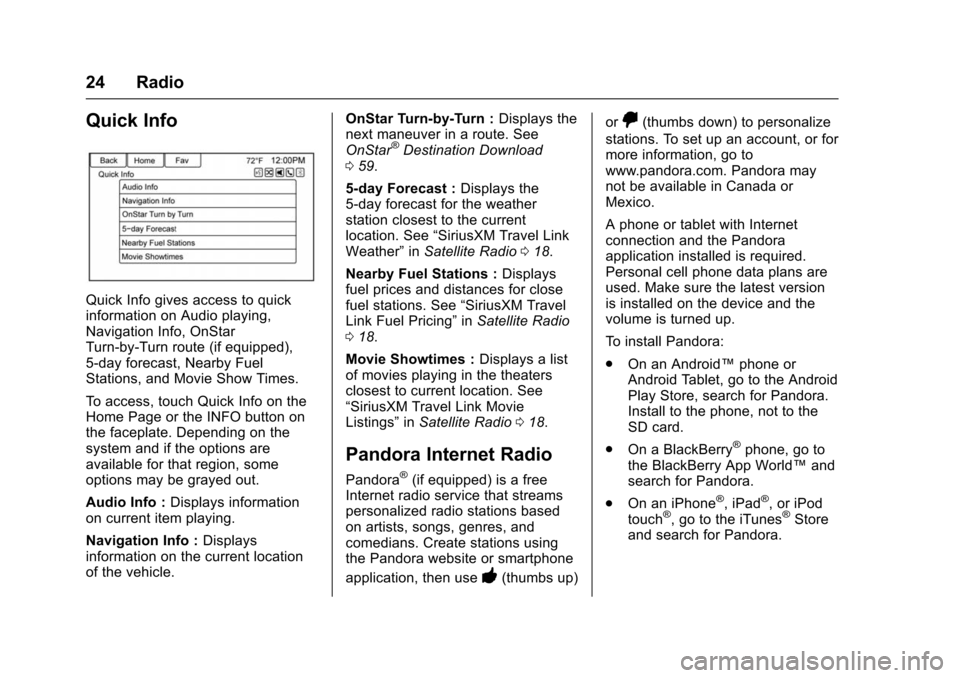
Quick Info gives access to quick
information on Audio playing,
Navigation Info, OnStar
Turn-by-Turn route (if equipped),
5-day forecast, Nearby Fuel
Stations, and Movie Show Times.
To access, touch Quick Info on the
Home Page or the INFO button on
the faceplate. Depending on the
system and if the options are
available for that region, some
options may be grayed out.
Audio Info :Displays information
on current item playing.
Navigation Info : Displays
information on the current location
of the vehicle. OnStar Turn-by-Turn :
Displays the
next maneuver in a route. See
OnStar
®Destination Download
0 59.
5-day Forecast : Displays the
5-day forecast for the weather
station closest to the current
location. See “SiriusXM Travel Link
Weather” inSatellite Radio 018.
Nearby Fuel Stations : Displays
fuel prices and distances for close
fuel stations. See “SiriusXM Travel
Link Fuel Pricing” inSatellite Radio
0 18.
Movie Showtimes : Displays a list
of movies playing in the theaters
closest to current location. See
“SiriusXM Travel Link Movie
Listings” inSatellite Radio 018.
Pandora Internet Radio
Pandora®(if equipped) is a free
Internet radio service that streams
personalized radio stations based
on artists, songs, genres, and
comedians. Create stations using
the Pandora website or smartphone
application, then use
-(thumbs up) or
,(thumbs down) to personalize
stations. To set up an account, or for
more information, go to
www.pandora.com. Pandora may
not be available in Canada or
Mexico.
A phone or tablet with Internet
connection and the Pandora
application installed is required.
Personal cell phone data plans are
used. Make sure the latest version
is installed on the device and the
volume is turned up.
To install Pandora:
. On an Android™ phone or
Android Tablet, go to the Android
Play Store, search for Pandora.
Install to the phone, not to the
SD card.
. On a BlackBerry
®phone, go to
the BlackBerry App World™ and
search for Pandora.
. On an iPhone
®, iPad®, or iPod
touch®, go to the iTunes®Store
and search for Pandora.
Page 37 of 94
Chevrolet Malibu Limited/Cruze Limited MyLink Infotainment System
(GMNA-Localizing-U.S./Canada-9282853) - 2016 - crc - 4/16/15
36 Audio Players
delivers the correct album, artist
name, genres, and cover art on the
screen. If information is missing,
Gracenote will fill it in.
Searching Music Library Using
Voice Recognition
Voice Recognition:Gracenote
improves music search and
navigation by identifying bands,
artists, and albums names that may
be hard to pronounce, irregular
spellings, and nicknames as voice
commands to access music. See
Voice Recognition 068.
Normalization: Normalization helps
to improve the voice recognition
accuracy for titles that sound similar.
It also helps group long lists of
genres into 10 common genres. For
example, there may be multiple rock
genres in the media library;
normalization will group all those
into one rock Genre. Normalization
default is off.
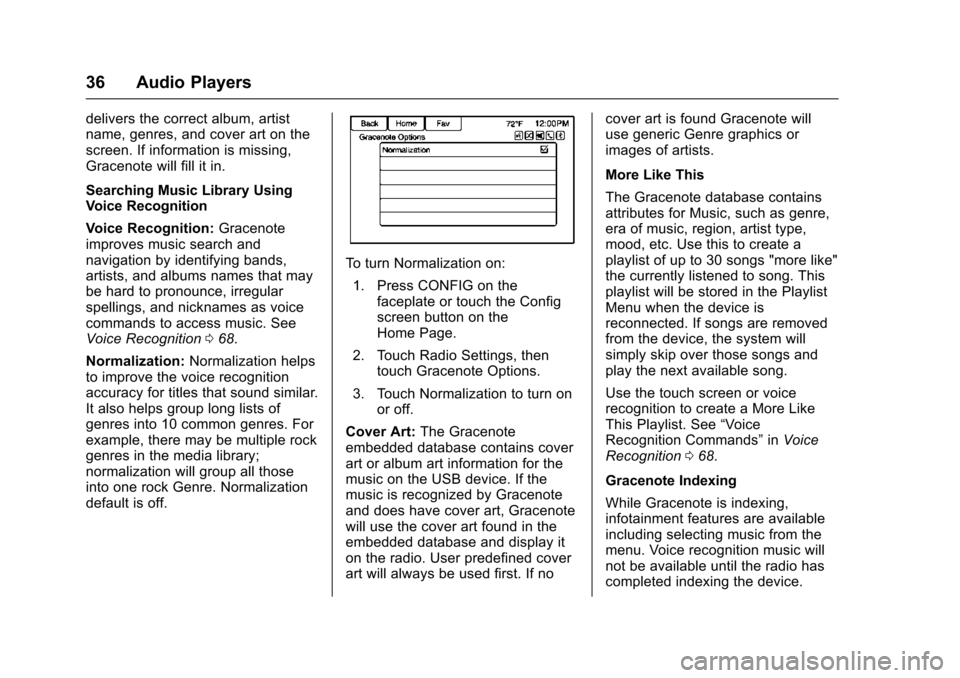
To turn Normalization on:
1. Press CONFIG on the faceplate or touch the Config
screen button on the
Home Page.
2. Touch Radio Settings, then touch Gracenote Options.
3. Touch Normalization to turn on or off.
Cover Art: The Gracenote
embedded database contains cover
art or album art information for the
music on the USB device. If the
music is recognized by Gracenote
and does have cover art, Gracenote
will use the cover art found in the
embedded database and display it
on the radio. User predefined cover
art will always be used first. If no cover art is found Gracenote will
use generic Genre graphics or
images of artists.
More Like This
The Gracenote database contains
attributes for Music, such as genre,
era of music, region, artist type,
mood, etc. Use this to create a
playlist of up to 30 songs "more like"
the currently listened to song. This
playlist will be stored in the Playlist
Menu when the device is
reconnected. If songs are removed
from the device, the system will
simply skip over those songs and
play the next available song.
Use the touch screen or voice
recognition to create a More Like
This Playlist. See
“Voice
Recognition Commands” inVoice
Recognition 068.
Gracenote Indexing
While Gracenote is indexing,
infotainment features are available
including selecting music from the
menu. Voice recognition music will
not be available until the radio has
completed indexing the device.
Page 46 of 94
Chevrolet Malibu Limited/Cruze Limited MyLink Infotainment System
(GMNA-Localizing-U.S./Canada-9282853) - 2016 - crc - 4/16/15
Navigation 45
Navigation
Using the Navigation
System
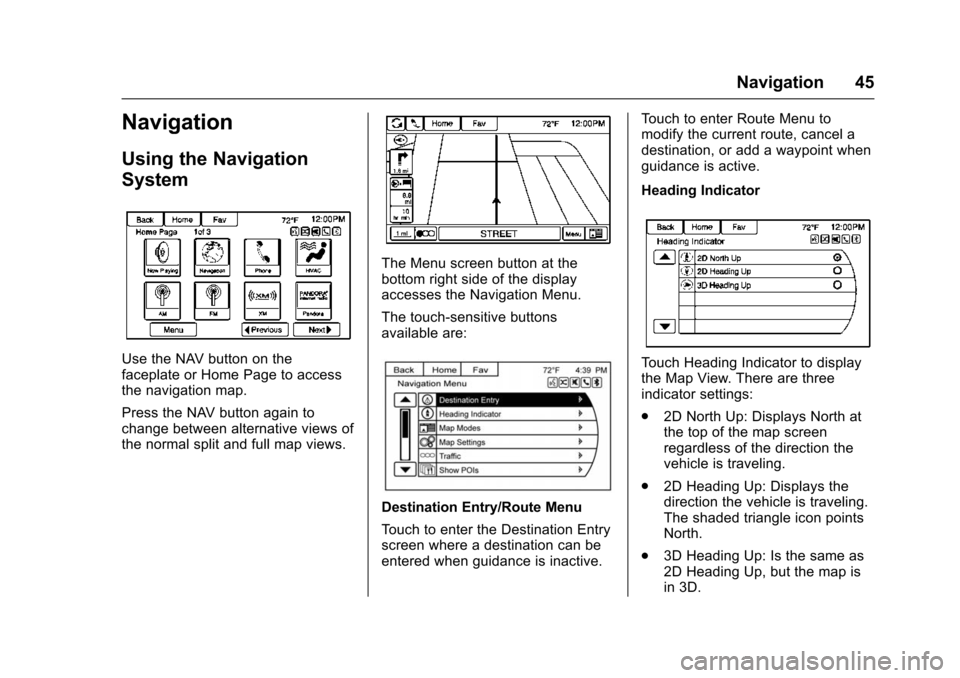
Use the NAV button on the
faceplate or Home Page to access
the navigation map.
Press the NAV button again to
change between alternative views of
the normal split and full map views.
The Menu screen button at the
bottom right side of the display
accesses the Navigation Menu.
The touch-sensitive buttons
available are:
Destination Entry/Route Menu
Touch to enter the Destination Entry
screen where a destination can be
entered when guidance is inactive.Touch to enter Route Menu to
modify the current route, cancel a
destination, or add a waypoint when
guidance is active.
Heading Indicator
Touch Heading Indicator to display
the Map View. There are three
indicator settings:
.
2D North Up: Displays North at
the top of the map screen
regardless of the direction the
vehicle is traveling.
. 2D Heading Up: Displays the
direction the vehicle is traveling.
The shaded triangle icon points
North.
. 3D Heading Up: Is the same as
2D Heading Up, but the map is
in 3D.
Page 47 of 94
Chevrolet Malibu Limited/Cruze Limited MyLink Infotainment System
(GMNA-Localizing-U.S./Canada-9282853) - 2016 - crc - 4/16/15
46 Navigation
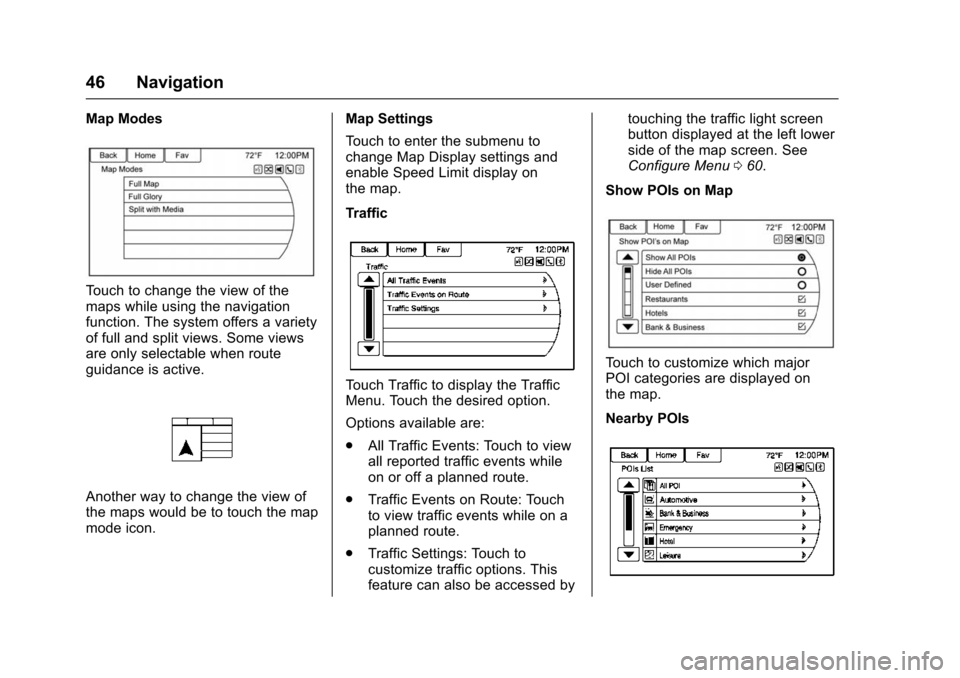
Map Modes
Touch to change the view of the
maps while using the navigation
function. The system offers a variety
of full and split views. Some views
are only selectable when route
guidance is active.
Another way to change the view of
the maps would be to touch the map
mode icon.Map Settings
Touch to enter the submenu to
change Map Display settings and
enable Speed Limit display on
the map.
Traffic
Touch Traffic to display the Traffic
Menu. Touch the desired option.
Options available are:
.
All Traffic Events: Touch to view
all reported traffic events while
on or off a planned route.
. Traffic Events on Route: Touch
to view traffic events while on a
planned route.
. Traffic Settings: Touch to
customize traffic options. This
feature can also be accessed by touching the traffic light screen
button displayed at the left lower
side of the map screen. See
Configure Menu
060.
Show POIs on Map
Touch to customize which major
POI categories are displayed on
the map.
Nearby POIs
Page 48 of 94
Chevrolet Malibu Limited/Cruze Limited MyLink Infotainment System
(GMNA-Localizing-U.S./Canada-9282853) - 2016 - crc - 4/16/15
Navigation 47
Touch to display a search list of
nearby POIs. Select the
desired POI.
POIs Along Route
Touch to display a search list of
POIs that lie along or near the route
to the destination. Select the
desired POI.
Exit List
Touch to display a list of the next
three highway exits if available.
Selecting an exit to display a list of
routable POIs associate with
that exit.
Switch Route Time/Destination
Touch to customize the arrival/travel
time and waypoint/destination
information displayed in the main
map screen.
Current Position Info
Touch to display a split screen
showing detailed information about
the vehicle position. This feature
can also be accessed by touching
the vehicle information tab on the
lower center of the display. Thelocation can be saved to the
Address Book by touching Save in
the split screen.
Destination Info
Touch to display a split map screen
showing the final destination. The
location can be saved to the
Address Book by touching Save in
the split screen.
Map Adjustments
The system lets you adjust the scale
of view on the map. Also, as you
drive, the map scrolls automatically
based on the direction of travel.
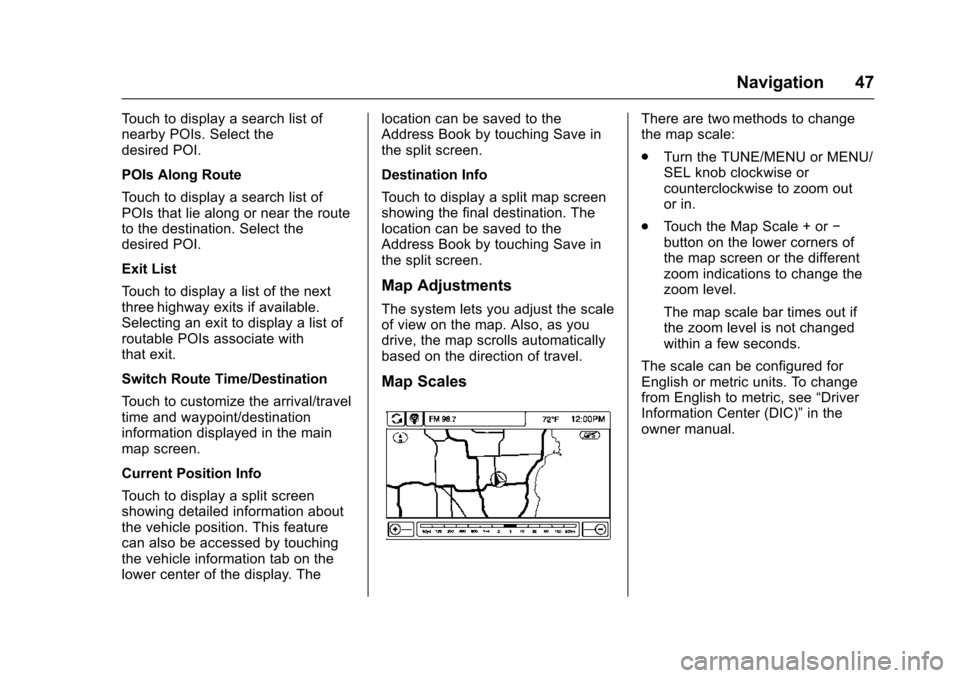
Map Scales
There are two methods to change
the map scale:
.
Turn the TUNE/MENU or MENU/
SEL knob clockwise or
counterclockwise to zoom out
or in.
. Touch the Map Scale + or −
button on the lower corners of
the map screen or the different
zoom indications to change the
zoom level.
The map scale bar times out if
the zoom level is not changed
within a few seconds.
The scale can be configured for
English or metric units. To change
from English to metric, see “Driver
Information Center (DIC)” in the
owner manual.
Page 49 of 94
Chevrolet Malibu Limited/Cruze Limited MyLink Infotainment System
(GMNA-Localizing-U.S./Canada-9282853) - 2016 - crc - 4/16/15
48 Navigation
Scroll Features
.To scroll within the map, touch
anywhere on the map screen
and the scroll symbol displays.
. Tap the map to center at that
location on the screen.
. Touch and hold the screen in
any direction outside the scroll
symbol to scroll the map in that
direction.
. Scroll speed increases when
touching closer to the edge of
the screen.
. Press NAV or BACK
/on the
faceplate to exit map scrolling
and return to the current vehicle
location on the map.
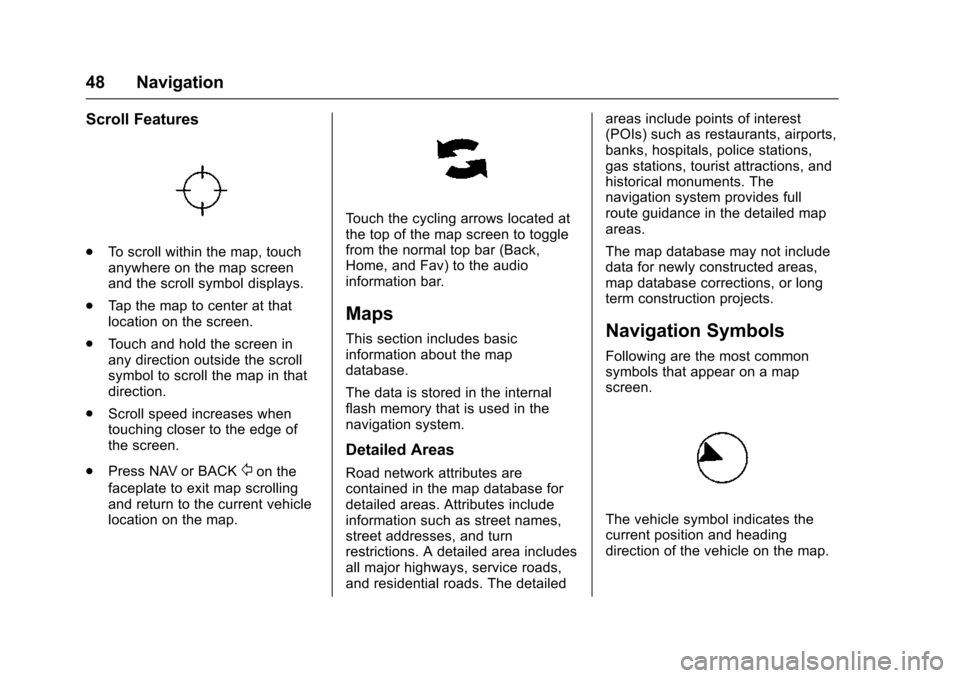
Touch the cycling arrows located at
the top of the map screen to toggle
from the normal top bar (Back,
Home, and Fav) to the audio
information bar.
Maps
This section includes basic
information about the map
database.
The data is stored in the internal
flash memory that is used in the
navigation system.
Detailed Areas
Road network attributes are
contained in the map database for
detailed areas. Attributes include
information such as street names,
street addresses, and turn
restrictions. A detailed area includes
all major highways, service roads,
and residential roads. The detailed areas include points of interest
(POIs) such as restaurants, airports,
banks, hospitals, police stations,
gas stations, tourist attractions, and
historical monuments. The
navigation system provides full
route guidance in the detailed map
areas.
The map database may not include
data for newly constructed areas,
map database corrections, or long
term construction projects.
Navigation Symbols
Following are the most common
symbols that appear on a map
screen.
The vehicle symbol indicates the
current position and heading
direction of the vehicle on the map.
Page 50 of 94
Chevrolet Malibu Limited/Cruze Limited MyLink Infotainment System
(GMNA-Localizing-U.S./Canada-9282853) - 2016 - crc - 4/16/15
Navigation 49
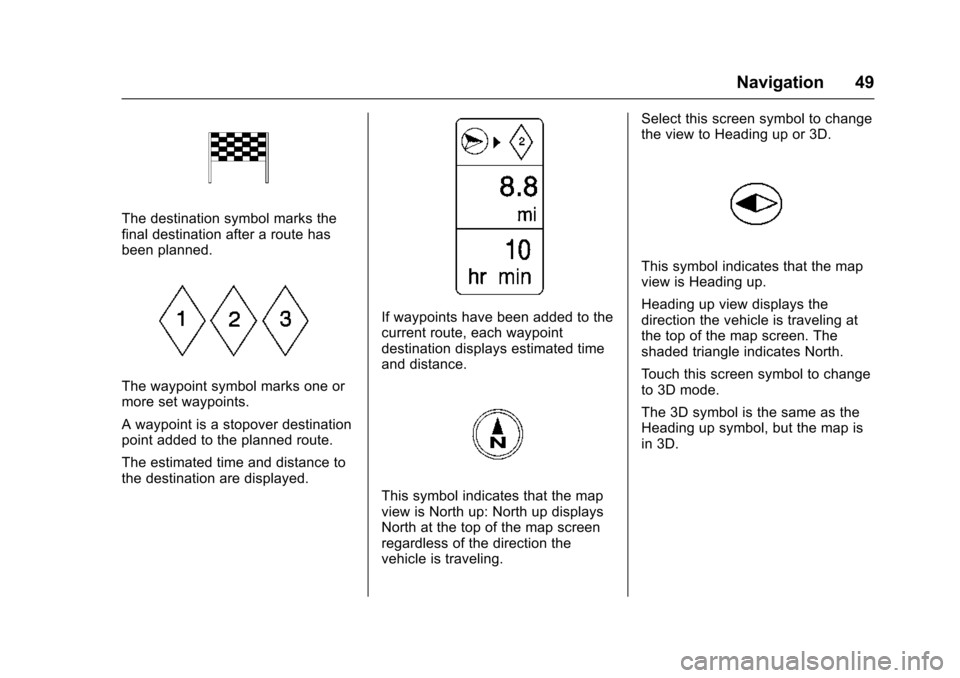
The destination symbol marks the
final destination after a route has
been planned.
The waypoint symbol marks one or
more set waypoints.
A waypoint is a stopover destination
point added to the planned route.
The estimated time and distance to
the destination are displayed.
If waypoints have been added to the
current route, each waypoint
destination displays estimated time
and distance.
This symbol indicates that the map
view is North up: North up displays
North at the top of the map screen
regardless of the direction the
vehicle is traveling.Select this screen symbol to change
the view to Heading up or 3D.
This symbol indicates that the map
view is Heading up.
Heading up view displays the
direction the vehicle is traveling at
the top of the map screen. The
shaded triangle indicates North.
Touch this screen symbol to change
to 3D mode.
The 3D symbol is the same as the
Heading up symbol, but the map is
in 3D.
Page 51 of 94
Chevrolet Malibu Limited/Cruze Limited MyLink Infotainment System
(GMNA-Localizing-U.S./Canada-9282853) - 2016 - crc - 4/16/15
50 Navigation
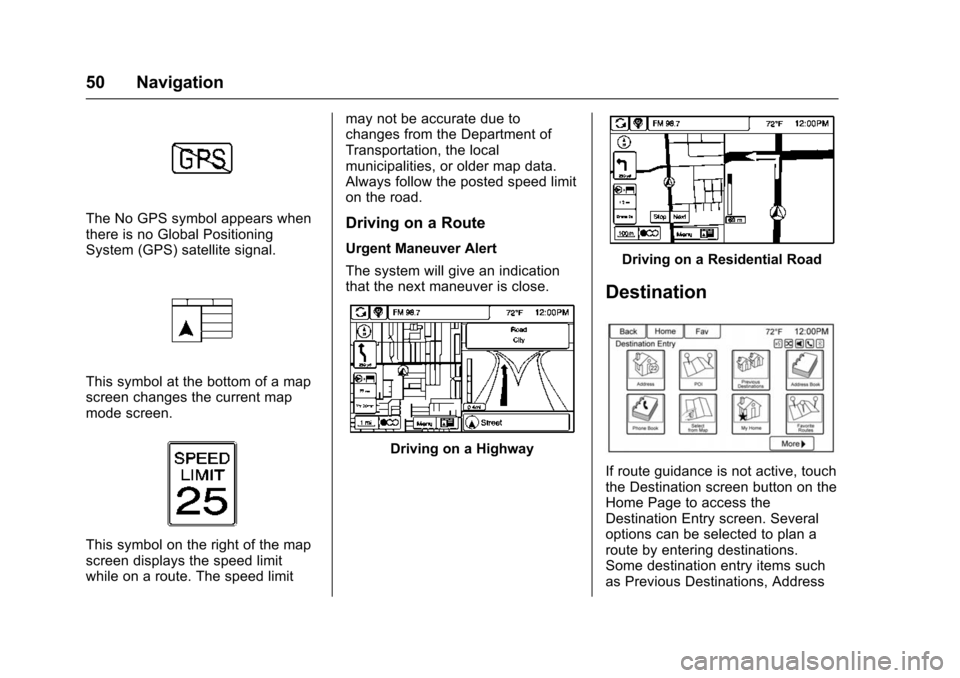
The No GPS symbol appears when
there is no Global Positioning
System (GPS) satellite signal.
This symbol at the bottom of a map
screen changes the current map
mode screen.
This symbol on the right of the map
screen displays the speed limit
while on a route. The speed limitmay not be accurate due to
changes from the Department of
Transportation, the local
municipalities, or older map data.
Always follow the posted speed limit
on the road.
Driving on a Route
Urgent Maneuver Alert
The system will give an indication
that the next maneuver is close.
Driving on a Highway
Driving on a Residential Road
Destination
If route guidance is not active, touch
the Destination screen button on the
Home Page to access the
Destination Entry screen. Several
options can be selected to plan a
route by entering destinations.
Some destination entry items such
as Previous Destinations, Address
Page 52 of 94
Chevrolet Malibu Limited/Cruze Limited MyLink Infotainment System
(GMNA-Localizing-U.S./Canada-9282853) - 2016 - crc - 4/16/15
Navigation 51
Book, and My Home may be grayed
out if no destination was previously
entered or saved.
Alpha-Numeric Keyboard
Letters of the alphabet, symbols,
punctuation, and numbers, when
available, display on the navigation
screen as alpha/numeric keyboards.
The alpha keyboard displays when
data needs to be entered.
QWERTY or ABC :Touch to toggle
between QWERTY or ABC
keyboard character layouts.
Symbols or ÄÖ : Use to select
symbols.
Space : Use to enter a space
between characters or the words of
a name.
Delete : Touch to delete an
incorrect character that has been
selected.
Last 5 : Touch to select any of the
last five cities or street names
entered if available. Address Entry
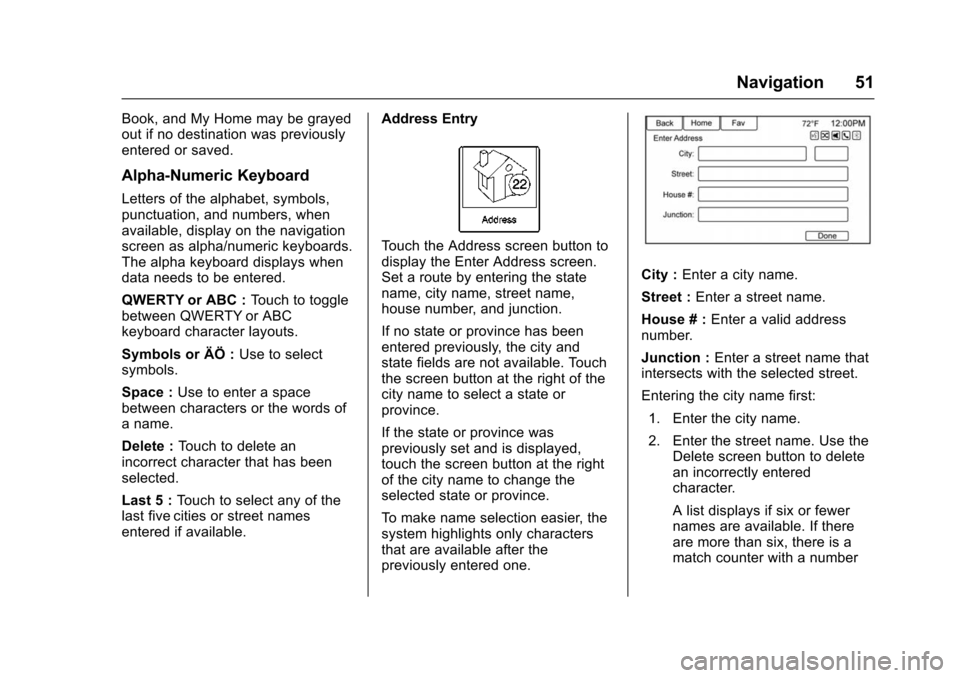
Touch the Address screen button to
display the Enter Address screen.
Set a route by entering the state
name, city name, street name,
house number, and junction.
If no state or province has been
entered previously, the city and
state fields are not available. Touch
the screen button at the right of the
city name to select a state or
province.
If the state or province was
previously set and is displayed,
touch the screen button at the right
of the city name to change the
selected state or province.
To make name selection easier, the
system highlights only characters
that are available after the
previously entered one.
City :
Enter a city name.
Street : Enter a street name.
House # : Enter a valid address
number.
Junction : Enter a street name that
intersects with the selected street.
Entering the city name first:
1. Enter the city name.
2. Enter the street name. Use the Delete screen button to delete
an incorrectly entered
character.
A list displays if six or fewer
names are available. If there
are more than six, there is a
match counter with a number
Page 53 of 94
Chevrolet Malibu Limited/Cruze Limited MyLink Infotainment System
(GMNA-Localizing-U.S./Canada-9282853) - 2016 - crc - 4/16/15
52 Navigation
of available streets. Touch to
view the list and select the
street.
3. Enter the house number.
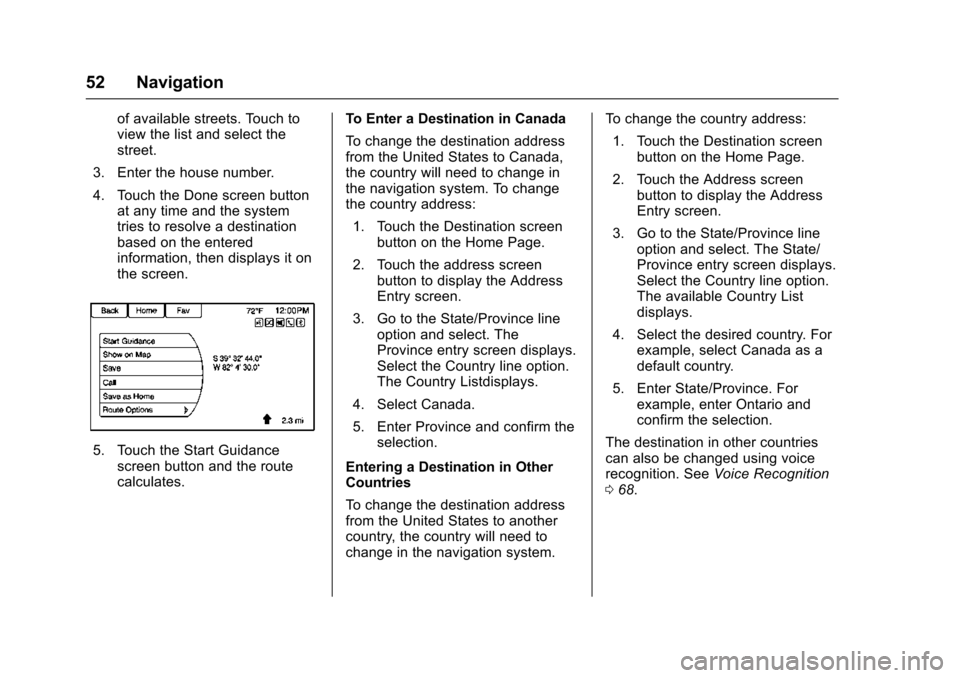
4. Touch the Done screen button at any time and the system
tries to resolve a destination
based on the entered
information, then displays it on
the screen.
5. Touch the Start Guidancescreen button and the route
calculates. To Enter a Destination in Canada
To change the destination address
from the United States to Canada,
the country will need to change in
the navigation system. To change
the country address:
1. Touch the Destination screen button on the Home Page.
2. Touch the address screen button to display the Address
Entry screen.
3. Go to the State/Province line option and select. The
Province entry screen displays.
Select the Country line option.
The Country Listdisplays.
4. Select Canada.
5. Enter Province and confirm the selection.
Entering a Destination in Other
Countries
To change the destination address
from the United States to another
country, the country will need to
change in the navigation system. To change the country address:
1. Touch the Destination screen button on the Home Page.
2. Touch the Address screen button to display the Address
Entry screen.
3. Go to the State/Province line option and select. The State/
Province entry screen displays.
Select the Country line option.
The available Country List
displays.
4. Select the desired country. For example, select Canada as a
default country.
5. Enter State/Province. For example, enter Ontario and
confirm the selection.
The destination in other countries
can also be changed using voice
recognition. See Voice Recognition
0 68.