bluetooth CHEVROLET MALIBU 2016 8.G Infotainment Manual
[x] Cancel search | Manufacturer: CHEVROLET, Model Year: 2016, Model line: MALIBU, Model: CHEVROLET MALIBU 2016 8.GPages: 94, PDF Size: 1.05 MB
Page 61 of 94
Chevrolet Malibu Limited/Cruze Limited MyLink Infotainment System
(GMNA-Localizing-U.S./Canada-9282853) - 2016 - crc - 4/16/15
60 Navigation
Show on Map :Touch to display
the Map Screen.
Save : Touch to save the
downloaded destination to the
address book.
Call : Touch to initiate a call with
Bluetooth Phone or OnStar
Hands-Free Calling (if available).
Save as Home : Touch to set an
address as a home destination.
Route Guidance Active
If an OnStar destination is
downloaded while route guidance is
already active, the system displays
a pop-up screen with the following
screen function:
. Touch Start Guidance; the
navigation system adds the
downloaded destination before
the next waypoint of the existing
route (closest to the current
vehicle position).
. All other buttons on the pop-up
screen operate as described
under “Route Guidance Not
Active.” Previous Destinations
Previously downloaded OnStar
destinations are saved under
Previous Destinations in the
navigation system, where they can
be accessed or saved to the
Address Book.
Configure Menu
The Configuration Menu is used to
adjust features and preferences,
such as Sound, Radio, Nav
(Navigation), Display, or Time
Settings.
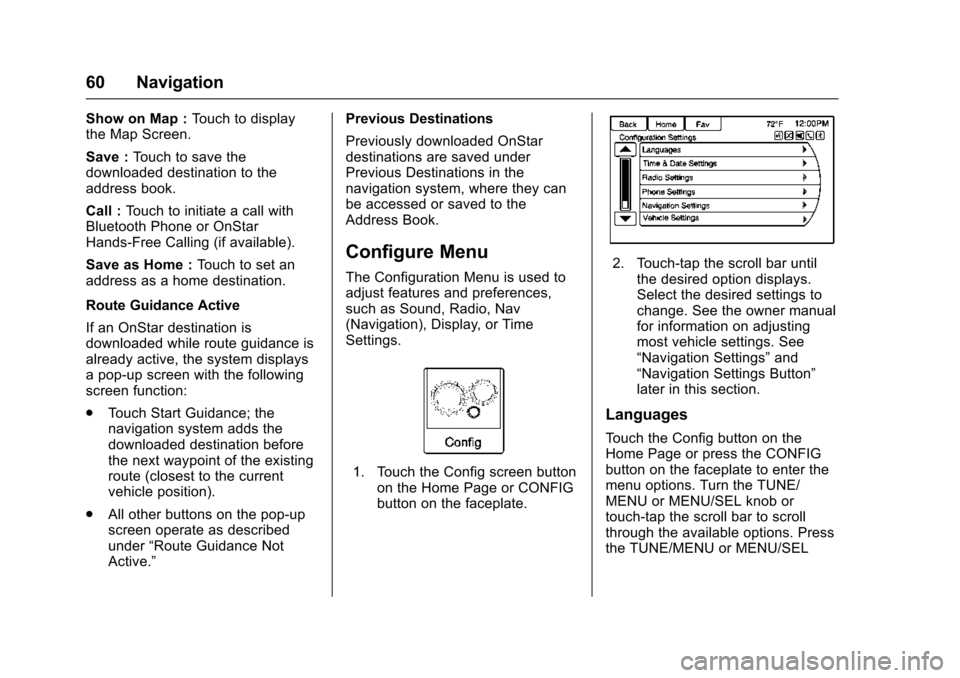
1. Touch the Config screen button
on the Home Page or CONFIG
button on the faceplate.
2. Touch-tap the scroll bar untilthe desired option displays.
Select the desired settings to
change. See the owner manual
for information on adjusting
most vehicle settings. See
“Navigation Settings” and
“Navigation Settings Button”
later in this section.
Languages
Touch the Config button on the
Home Page or press the CONFIG
button on the faceplate to enter the
menu options. Turn the TUNE/
MENU or MENU/SEL knob or
touch-tap the scroll bar to scroll
through the available options. Press
the TUNE/MENU or MENU/SEL
Page 62 of 94
Chevrolet Malibu Limited/Cruze Limited MyLink Infotainment System
(GMNA-Localizing-U.S./Canada-9282853) - 2016 - crc - 4/16/15
Navigation 61
knob or touch Languages to display
the languages. Select the desired
language.
Time and Date
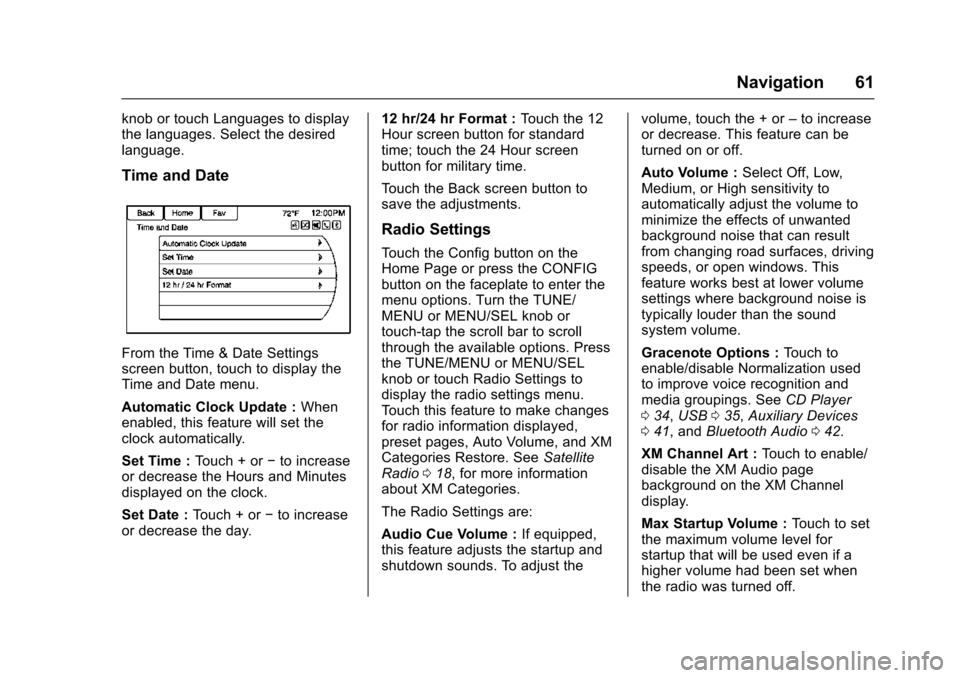
From the Time & Date Settings
screen button, touch to display the
Time and Date menu.
Automatic Clock Update :When
enabled, this feature will set the
clock automatically.
Set Time : Touch + or−to increase
or decrease the Hours and Minutes
displayed on the clock.
Set Date : Touch + or −to increase
or decrease the day. 12 hr/24 hr Format :
Touch the 12
Hour screen button for standard
time; touch the 24 Hour screen
button for military time.
Touch the Back screen button to
save the adjustments.
Radio Settings
Touch the Config button on the
Home Page or press the CONFIG
button on the faceplate to enter the
menu options. Turn the TUNE/
MENU or MENU/SEL knob or
touch-tap the scroll bar to scroll
through the available options. Press
the TUNE/MENU or MENU/SEL
knob or touch Radio Settings to
display the radio settings menu.
Touch this feature to make changes
for radio information displayed,
preset pages, Auto Volume, and XM
Categories Restore. See Satellite
Radio 018, for more information
about XM Categories.
The Radio Settings are:
Audio Cue Volume : If equipped,
this feature adjusts the startup and
shutdown sounds. To adjust the volume, touch the + or
–to increase
or decrease. This feature can be
turned on or off.
Auto Volume : Select Off, Low,
Medium, or High sensitivity to
automatically adjust the volume to
minimize the effects of unwanted
background noise that can result
from changing road surfaces, driving
speeds, or open windows. This
feature works best at lower volume
settings where background noise is
typically louder than the sound
system volume.
Gracenote Options : Touch to
enable/disable Normalization used
to improve voice recognition and
media groupings. See CD Player
0 34, USB 035, Auxiliary Devices
0 41, and Bluetooth Audio 042.
XM Channel Art : Touch to enable/
disable the XM Audio page
background on the XM Channel
display.
Max Startup Volume : Touch to set
the maximum volume level for
startup that will be used even if a
higher volume had been set when
the radio was turned off.
Page 63 of 94
Chevrolet Malibu Limited/Cruze Limited MyLink Infotainment System
(GMNA-Localizing-U.S./Canada-9282853) - 2016 - crc - 4/16/15
62 Navigation
Number of Favorite Pages :Press
to select the number of FAV pages
to be displayed.
XM Categories : Touch to
customize which available XM
Categories are used and displayed.
Software Version Information :
Touch to display information about
the system and update software if
available.
Phone Settings
See Bluetooth 075 in the “Phone”
section for more information on
phone settings.
Navigation Settings
Touch the Config button on the
Home Page to enter the setup
menu. Turn the TUNE/MENU or
MENU/SEL knob or touch-tap the
scroll bar until the Navigation
Settings option displays. Select this
feature to make changes to Voice
Prompt, Traffic Settings, Guidance
Alert, Bread Crumbs, and Delete
Saved Destinations.
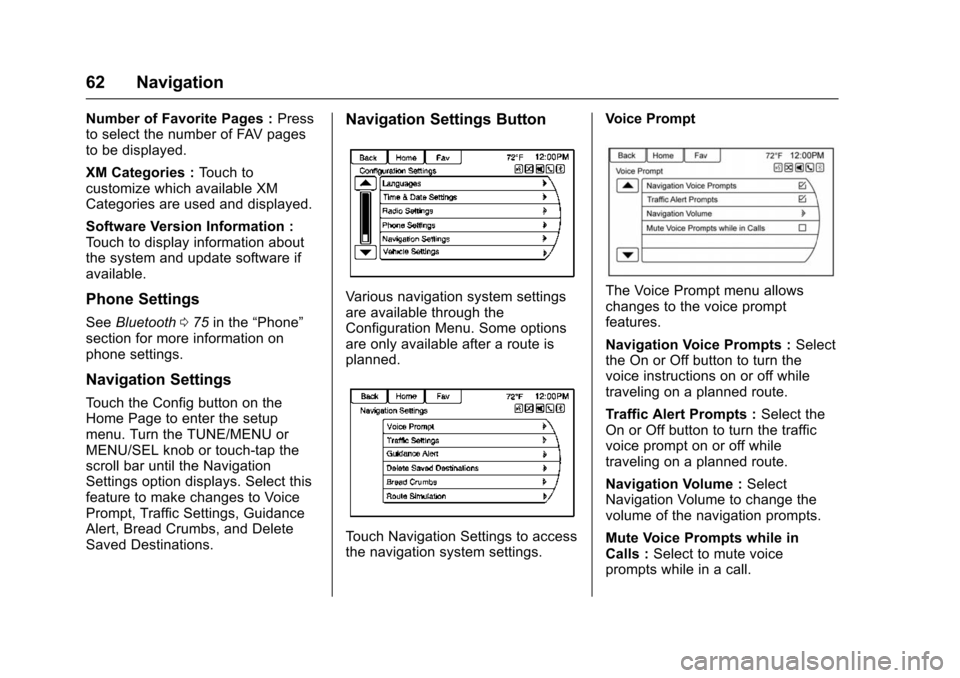
Navigation Settings Button
Various navigation system settings
are available through the
Configuration Menu. Some options
are only available after a route is
planned.
Touch Navigation Settings to access
the navigation system settings. Voice Prompt
The Voice Prompt menu allows
changes to the voice prompt
features.
Navigation Voice Prompts :
Select
the On or Off button to turn the
voice instructions on or off while
traveling on a planned route.
Traffic Alert Prompts : Select the
On or Off button to turn the traffic
voice prompt on or off while
traveling on a planned route.
Navigation Volume : Select
Navigation Volume to change the
volume of the navigation prompts.
Mute Voice Prompts while in
Calls : Select to mute voice
prompts while in a call.
Page 71 of 94
Chevrolet Malibu Limited/Cruze Limited MyLink Infotainment System
(GMNA-Localizing-U.S./Canada-9282853) - 2016 - crc - 4/16/15
70 Voice Recognition
Thumbs Up :Instructs the system
to give the current song or station a
thumbs up in Pandora or Stitcher.
Thumbs Down : Instructs the
system to give the current song or
station a thumbs down in Pandora
or Stitcher.
Phone Commands
Dial or Call (phone number or
contact) : Instructs the system to
start a phone call. For example, say
“Dial 1 248 123 4567.” To call a
phone book contact, say “Dial”or
“Call,” say the name and location,
and then say “Dial.”For example,
say “Call John at Home” or“Call
John at Work.” If a number is not
recognized, the first number in the
list will be called.
Pair or Connect : Instructs the
system to begin pairing a device.
Digit Dial : Instructs the system to
dial a phone number one digit at a
time. After saying the digits,
say “Dial.”
Redial or Redial Last Number :
Instructs the system to dial the last
phone number called. Select Device or Change Phone :
Instructs the system to switch to a
different paired device. The device
must be selected from the screen or
using the TUNE/MENU or MENU/
SEL knob.
Delete Device :
Instructs the
system to delete a paired device.
Read Text Messages or Read SMS
Messages : Instructs the system to
begin reading text messages from
paired device.
Not all devices support text
messages. Applicable where
equipped.
My Media Commands
CD, AUX, USB, or Bluetooth
Audio : Instructs the system to
change the source.
Play CD Track : Instructs the
system to play a CD. For example,
say “Play CD Track.”
The following commands only apply
to USB, iPod, and iPhone sources.
They are supported after the device
has been indexed. Play Artist (artist name) :
Instructs
the system to play songs by a
specific artist. For example, say
“Play Artist
Play Album (album title) : Instructs
the system to play a specific album.
Play Song (song title) : Instructs
the system to play a specific song.
Play Genre (genre name) :
Instructs the system to play songs
of a particular genre.
Search Artist (artist name) :
Instructs the system to show a list of
all songs by a specific artist. For
example, say "Search Artist
Search Composer (composer
name) : Instructs the system to
show a list of all songs by a specific
composer. For example, say
"Search Composer
Search Album (album name) :
Instructs the system to show a list of
all songs by a specific album. For
example, say "Search Album
Page 76 of 94
Chevrolet Malibu Limited/Cruze Limited MyLink Infotainment System
(GMNA-Localizing-U.S./Canada-9282853) - 2016 - crc - 4/16/15
Bluetooth Phone/Devices 75
Bluetooth Phone/
Devices
Bluetooth
Overview
For vehicles equipped with
Bluetooth capability, the system can
interact with many cell phones and
devices, allowing:
.Placing and receiving hands-free
calls.
. Sharing of the cell phone’s
address book or contact list with
the vehicle. The phone book will
only display when that phone is
connected.
. Placing outgoing calls by voice
recognition.
The system can be used while in
ON/RUN, ACC/ACCESSORY,
or Retained Accessory Power
(RAP). The range of the Bluetooth
system can be up to 9.1 m (30 ft).
The radio can connect to most Bluetooth-enabled phones.
Available features and functions
may be dependent on the device.
On a current phone call screen, an
image of the contact from your
phone's contact list can be
displayed. Not all phones are
compatible with this feature.
Bluetooth Controls
Use the buttons on the infotainment
system and the steering wheel to
operate the Bluetooth system.
Steering Wheel Controls
b/g(Press to Talk) :
Press to
answer incoming calls and start
voice recognition.
$/i(Mute/End Call) : Press to
end a call, decline an incoming call,
or cancel voice recognition.
+
x− (Volume) : Press + or−to
increase or decrease the volume.
Infotainment System Controls
For information about how to
navigate the menu system using the
infotainment controls, see
Overview 02.
5or5/>(Phone) : Press to enter
the Phone main menu.
Voice Recognition
The voice recognition system uses
commands to control the system
and dial phone numbers.
When using voice recognition:
. The system may not recognize
voice commands if there is too
much background noise.
. A tone sounds to indicate that
the system is ready for a voice
command. Wait for the tone and
then speak.
. Speak clearly in a calm and
natural voice.
See Voice Recognition 068.
Audio System
Sound comes through the vehicle's
front audio system speakers and
overrides the audio system. Use the
VOL/
Oknob during a call to change
the volume level. The adjusted
volume level remains in memory for
later calls. The system maintains a
minimum volume level.
Page 77 of 94
Chevrolet Malibu Limited/Cruze Limited MyLink Infotainment System
(GMNA-Localizing-U.S./Canada-9282853) - 2016 - crc - 4/16/15
76 Bluetooth Phone/Devices
SeeVoice Recognition 068.
Bluetooth Audio
See Bluetooth Audio 042.
Pairing with Infotainment
Controls
A Bluetooth-enabled cell phone
must be paired and then connected
to the vehicle before it can be used.
See your cell phone manufacturer's
user guide for Bluetooth functions
before pairing the cell phone. If a
Bluetooth phone is not connected,
calls will be made using OnStar
Hands-Free Calling, if available.
See “OnStar” in the owner manual.
Pairing Information
. A Bluetooth-enabled phone and
an audio playback device can be
paired to the system at the
same time.
. Up to five devices can be paired
to the Bluetooth system.
. The pairing process is disabled
when the vehicle is moving. .
Pairing only needs to be
completed once, unless the
pairing information on the cell
phone changes or the cell phone
is deleted from the system.
. Only one paired cell phone can
be connected to the Bluetooth
system at a time.
. If multiple paired cell phones are
within range of the system, the
radio will connect to the first
phone in the list or to the phone
that was previously connected.
Pairing a Phone/Device 1. Press the CONFIG button or
5.
2. Select Phone Settings.
3. Select Pair Device (Phone). The radio displays “Please
start Bluetooth search on your
phone. Confirm or enter
number:.” If the device
supports a four-digit Personal
Identification Number (PIN), it
will display. The PIN is used in
Step 5. 4. Start the pairing process on the
cell phone to be paired to the
vehicle. See the cell phone
manufacturer's user guide.
5. Locate and select the device named after the vehicle make
and model in the list on the cell
phone. Follow the instructions
on the cell phone to enter the
PIN provided in Step 3, or to
confirm the six-digit code
matches. The system
recognizes the new connected
phone after the pairing process
is complete.
6. If the phone prompts to accept connection or allow phone
book download, select always
accept and allow. The phone
book may not be available if
not accepted. Some phones
will put connection request or
phonebook request in a pull
down task bar at the top of the
screen. Drag down the task bar
and look for connection/
phonebook request and accept.
7. Repeat to pair additional phones.
Page 78 of 94
Chevrolet Malibu Limited/Cruze Limited MyLink Infotainment System
(GMNA-Localizing-U.S./Canada-9282853) - 2016 - crc - 4/16/15
Bluetooth Phone/Devices 77
Listing All Paired and Connected
Phones/Devices1. Press the CONFIG button.
2. Select Phone Settings.
3. Select Device List.
Deleting a Paired Phone/Device 1. Press the CONFIG button.
2. Select Phone Settings.
3. Select Device List.
4. Select the phone to delete and follow the screen prompts.
Connecting to a Different Phone
To connect to a different phone, the
new phone must be in the vehicle
and available to be connected to the
Bluetooth system before the
process is started. 1. Press the CONFIG button.
2. Select Phone Settings.
3. Select Device List.
4. Select the new phone to connect to and follow the
screen prompts.Pairing with Voice Recognition
A Bluetooth-enabled cell phone
must be paired and then connected
to the vehicle before it can be used.
See the cell phone manufacturer's
user guide for Bluetooth functions
before pairing the cell phone. If a
Bluetooth phone is not connected,
calls will be made using OnStar
Hands-Free Calling, if available.
See “OnStar” in the owner manual.
Pairing a Phone
1. Press
5or5/>. The system
responds “Please say a
command,” followed by a tone.
2. Say “Pair.”The system
responds with “Please search
for bluetooth devices on your
phone, select your vehicle,
confirm, or enter the pin.”
3. Start the pairing process on the phone to be paired.
4. Locate and select the device named after the vehicle make
and model in the list on the cell
phone. Follow the instructions
on the cell phone to enter the PIN or to confirm the six-digit
code matches. The system
responds
“successfully paired.”
5. Repeat Steps 1−4 to pair additional phones.
Listing All Paired and Connected
Phones
The system can list all cell phones
paired to it. If a paired cell phone is
also connected to the vehicle, the
system responds with “is connected”
after that phone name.
1. Press5or5/>. The system
responds “Please say a
command,” followed by a tone.
2. Say “Device List.”
Deleting a Paired Phone
If the phone name to delete is
unknown, see “Listing All Paired
and Connected Phones.”
1. Press
5or5/>. The system
responds “Please say a
command,” followed by a tone.
2. Say “Device List.”
3. Say “Delete Device.”
Page 79 of 94
Chevrolet Malibu Limited/Cruze Limited MyLink Infotainment System
(GMNA-Localizing-U.S./Canada-9282853) - 2016 - crc - 4/16/15
78 Bluetooth Phone/Devices
4. The system responds with:“To
delete a device, please select
its name on the screen.” Select
the device to delete on the
display and it will be removed.
To cancel this command, press
$/
ion the steering wheel control or
press the BACK
/button on the
radio faceplate.
Connecting to a Different Phone
or Device
To connect to a different cell phone,
the system looks for the next
available cell phone. Depending on
the cell phone to be connected, this
command may need to be repeated.
1. Press
5or5/>. The system
responds “Please say a
command,” followed by a tone.
2. Say “Change Phone.”
. To select a device, touch
the name on the display.
. If another cell phone is not
found, the original phone
remains connected.
Making a Call Using Phone
Book and Infotainment
Controls
For cell phones that support the
phone book feature, the Bluetooth
system can use the contacts stored
on the cell phone to make calls. See
the cell phone manufacturer‘s user
guide or contact the wireless
provider to find out if this feature is
supported.
When a cell phone supports the
phone book feature, the Phone
Book and Call Lists menus are
automatically available.
The Phone Book menu allows
access to the phone book stored in
the cell phone to make a call.
The Call Lists menu allows access
to the phone numbers from the
Incoming Calls, Outgoing Calls, and
Missed Calls menus on the cell
phone to make a call.
The radio will display the first 1,000
contacts and the phone numbers for
each contact including Home, Work,
Mobile, and Other. To make a call using the Phone
Book menu:
1. Press
5or5/>once on the
radio or the Phone screen
button.
2. Select Phone Book.
3. Select the letter group of the phone book entry to scroll
through the list of names/
numbers.
4. Select the name.
5. Select the number to call.
To make a call using the Call
Lists menu:
1. Press
5or5/>once on the
radio or the Phone screen
button.
2. Select Call Lists.
3. Select the Incoming Calls, Outgoing Calls, or Missed
Calls list.
4. Select the name or number to call.
Page 80 of 94
Chevrolet Malibu Limited/Cruze Limited MyLink Infotainment System
(GMNA-Localizing-U.S./Canada-9282853) - 2016 - crc - 4/16/15
Bluetooth Phone/Devices 79
Making a Call Using the
Infotainment Controls
To make a call:1. Press
5or5/>once on the
radio or the Phone screen
button.
2. Touch Enter Number.
3. Enter the phone number.
4. Select OK to start dialing the number.
5. Select Call to place the call.
To make a call using voice
recognition, see “Making a Call”
later in this section.
Accepting or Declining a Call
When an incoming call is received,
the infotainment system mutes and
a ring tone is heard in the vehicle.
Using the Infotainment Controls
Turn the TUNE/MENU or MENU/
SEL knob to “Answer”or“Decline”
and press the TUNE/MENU or
MENU/SEL knob or touch Accept or
Decline on the screen. Using Steering Wheel Controls
Press
b/gto answer or$/ito
decline the call.
Call Waiting Using the
Infotainment Controls
Call waiting must be supported on
the Bluetooth phone and enabled by
the wireless service carrier to work.
Switching Between Calls (Call
Waiting Calls Only)
To switch between calls turn and
press the TUNE/MENU or MENU/
SEL knob and select Switch Call or
touch Switch Call on the screen.
Call Waiting Using Steering
Wheel Controls
Call waiting must be supported on
the cell phone and enabled by the
wireless service carrier.
. Press
5or5/>to answer an
incoming call when another call
is active. The original call is
placed on hold.
. Press
5or5/>again to return
to the original call. .
To decline answering the
incoming call, touch Decline on
the screen or take no action.
. Press
$/ito disconnect the
current call and switch to the call
on hold.
Conference Calling Using the
Infotainment Controls
Conference calling and three-way
calling must be supported on the
Bluetooth phone and enabled by the
wireless service carrier to work. This
feature is only supported when the
vehicle is not moving.
To start a conference while in a
current call:
1. Turn and press the TUNE/ MENU or MENU/SEL knob and
touch Enter Number.
2. Enter the phone number and touch OK.
3. After the call has been placed, turn the TUNE/MENU or
MENU/SEL knob and touch
Merge Calls.
Page 81 of 94
Chevrolet Malibu Limited/Cruze Limited MyLink Infotainment System
(GMNA-Localizing-U.S./Canada-9282853) - 2016 - crc - 4/16/15
80 Bluetooth Phone/Devices
4. To add more callers to theconference call, repeat Steps 1
−3. The number of callers that
can be added is limited by your
wireless service carrier.
Ending a Call
Using the Infotainment Controls
Turn and press the TUNE/MENU or
MENU/SEL knob and select Hang
Up or touch Hang Up on the screen.
Using Steering Wheel Controls
Press
$/i.
Muting a Call
During a call, all sounds from inside
the vehicle can be muted so that the
person on the other end of the call
cannot hear them.
Using the Infotainment Controls
Turn and press the TUNE/MENU or
MENU/SEL knob and select Mute
Call. Press again to cancel mute.
Transferring a Call
Audio can be transferred between
the Bluetooth system and the cell
phone.
The cell phone must be paired and
connected with the Bluetooth
system before a call can be
transferred.
To Transfer Audio from the
Bluetooth System to a Cell Phone
During a call with the audio in the
vehicle, touch the Transfer Call
button on the screen or press and
hold the
b/gbutton on the
steering wheel.
To Transfer Audio to the Bluetooth
System from a Cell Phone
Use the audio transfer feature on
the cell phone. See your cell phone
manufacturer's user guide for more
information. Touch the Transfer Call
button on the screen or press and
hold the
b/gbutton on the
steering wheel.
Dual Tone Multi-Frequency
(DTMF) Tones
The in-vehicle Bluetooth system can
send numbers during a call. This is
used when calling a menu-driven
phone system.
Using the Infotainment Controls
1. Turn and press the TUNE/ MENU or MENU/SEL knob and
touch Enter Number.
2. Enter the phone number, or touch Enter Number on the
screen and select digits, then
touch OK.
Hands-Free Phone
Using Bluetooth Voice
Recognition
To use voice recognition, press the
b/gbutton on the steering wheel.
Use the commands below for the
various voice features. For
additional information, say “Help”
while in a voice recognition menu.
Making a Call
Calls can be made using the
following commands.