change wheel CHEVROLET MALIBU 2016 8.G Infotainment Manual
[x] Cancel search | Manufacturer: CHEVROLET, Model Year: 2016, Model line: MALIBU, Model: CHEVROLET MALIBU 2016 8.GPages: 94, PDF Size: 1.05 MB
Page 3 of 94
Chevrolet Malibu Limited/Cruze Limited MyLink Infotainment System
(GMNA-Localizing-U.S./Canada-9282853) - 2016 - crc - 4/17/15
2 Introduction
Introduction
Infotainment
The names, logos, emblems,
slogans, vehicle model names, and
vehicle body designs appearing in
this manual including, but not limited
to, GM, the GM logo, CHEVROLET,
the CHEVROLET Emblem, and the
names MALIBU, CRUZE, and
MyLink are trademarks and/or
service marks of General Motors
LLC, its subsidiaries, affiliates,
or licensors.For vehicles first sold in Canada,
substitute the name
“General
Motors of Canada Limited” for
Chevrolet Motor Division wherever it
appears in this manual.
The information in this manual
supplements the owner manual.
This manual describes features that
may or may not be on the vehicle
because of optional equipment that
was not purchased on the vehicle,
model variants, country
specifications, features/applications
that may not be available in your
region, or changes subsequent to
the printing of this manual.
Keep this manual with the owner
manual in the vehicle, so it will be
there if it is needed. If the vehicle is
sold, leave this manual in the
vehicle.
Overview
Read the following pages to
become familiar with the
infotainment system features.
{Warning
Taking your eyes off the road for
too long or too often while using
any infotainment feature can
cause a crash. You or others
could be injured or killed. Do not
give extended attention to
infotainment tasks while driving.
Limit your glances at the vehicle
displays and focus your attention
on driving. Use voice commands
whenever possible.
The infotainment system has built-in
features intended to help avoid
distraction by disabling some
functions when driving. These
functions may gray out when they
are unavailable. Many infotainment
features are also available through
the instrument cluster and steering
wheel controls.
Litho in U.S.A.
Part No. 23197785 A First Printing©2015 General Motors LLC. All Rights Reserved.
Page 16 of 94
Chevrolet Malibu Limited/Cruze Limited MyLink Infotainment System
(GMNA-Localizing-U.S./Canada-9282853) - 2016 - crc - 4/16/15
Radio 15
Radio
AM-FM Radio
Playing the Radio
OorVOL/O(Volume/Power):
. Press to turn the radio on or off.
. Turn to increase or decrease the
volume of the active source.
The steering wheel controls can
also be used to adjust the volume.
See Steering Wheel Controls 09.
Radio Operation
The radio will work when the ignition
is in ON/RUN or ACC/
ACCESSORY. When the ignition
changes from ON/RUN to LOCK/
OFF, the radio will continue to work
for 10 minutes or until the driver
door is opened.
The radio can be turned on by
pressing the power button on the
radio and will stay on for
10 minutes. Opening the driver door
will not turn the radio off when
pressing the power button. Some radios may stay on longer
and reset the time for 10 minutes if
there are any additional presses of
any radio button.
The radio can be turned off at any
time by pressing the power button.
Audio Source
Press SRCE on the faceplate or
SRC on the steering wheel controls
to display and scroll through the
available sources AM, FM, XM (if
equipped), Pandora (if equipped),
Stitcher, CD, USB, AUX, and
Bluetooth Audio.
Infotainment System Settings
Tone Settings
To access the tone settings, press
TONE on the faceplate or touch the
Tone Settings screen button on the
Home Page. Tone settings are
specific to each source.To adjust the settings:
.
Bass: Touch + or −to change
the level.
. Mid (Midrange): Touch + or −to
change the level.
. Treble: Touch + or −to change
the level.
. EQ: Press or turn the TUNE/
MENU or MENU/SEL knob to
cycle through the preset EQ
options. If the vehicle is
equipped with the Bose
®Energy
Efficient Series sound system,
EQ provides a choice of Manual
or Talk.
. Fade: Touch the F or R button
for more sound from the front or
rear speakers. The middle
position balances the sound
between the front and rear
speakers.
. Balance: Touch the L or R button
for more sound from the left or
right speakers. The middle
position balances the sound
between the left and right
speakers.
Page 27 of 94
Chevrolet Malibu Limited/Cruze Limited MyLink Infotainment System
(GMNA-Localizing-U.S./Canada-9282853) - 2016 - crc - 4/16/15
26 Radio
If the“Please unlock the phone or
restart the App and try again”
message is shown then your phone
may be locked. Unlock the phone,
close the app, and then restart the
app to ensure proper
communication.
Using a BlackBerry Phone
The phone must be unlocked. To
launch Pandora service:
1. Pair the BlackBerry phone using Bluetooth.
2. Use one of the following to launch:
.Launch the application on
the device.
. Touch Pandora on the
Home Page.
. Press
b/gand say
“Pandora” or“Tune
Pandora.”
After Pandora has been launched,
press SRCE or SRC on the steering
wheel controls to access Pandora
features. If nothing happens when the
available Pandora screen button is
touched, download the latest
Pandora application and retry.
If the
“Please See Device” message
is shown, the login screen may
display on the device.
If the “Please unlock the phone or
restart the App and try again”
message is shown, then your phone
may be locked. Unlock the phone,
close the app, then restart the app
to ensure proper communication.
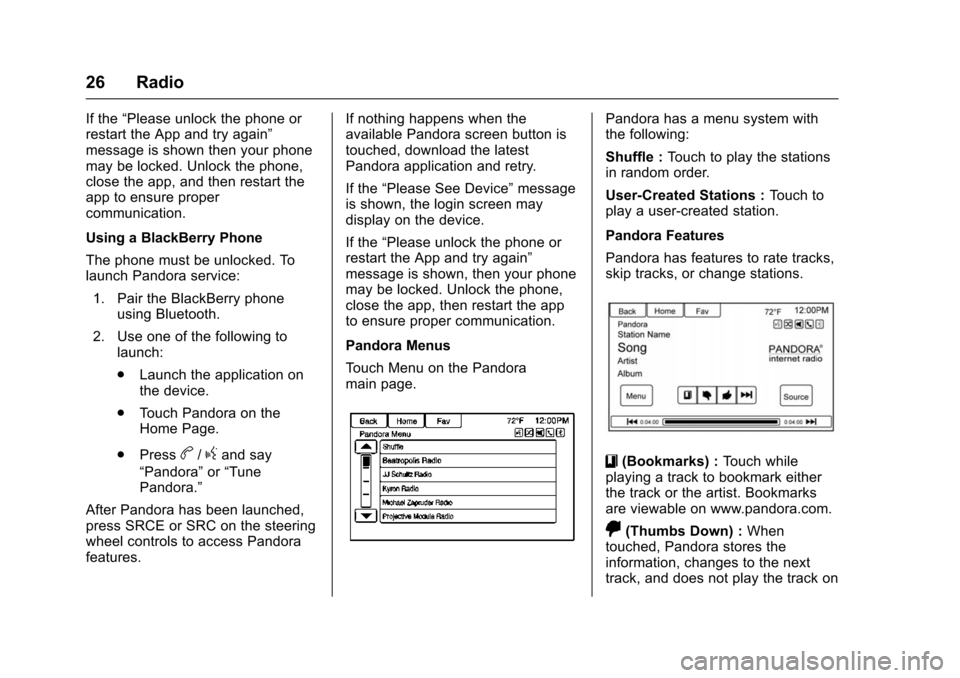
Pandora Menus
Touch Menu on the Pandora
main page.
Pandora has a menu system with
the following:
Shuffle : Touch to play the stations
in random order.
User-Created Stations : Touch to
play a user-created station.
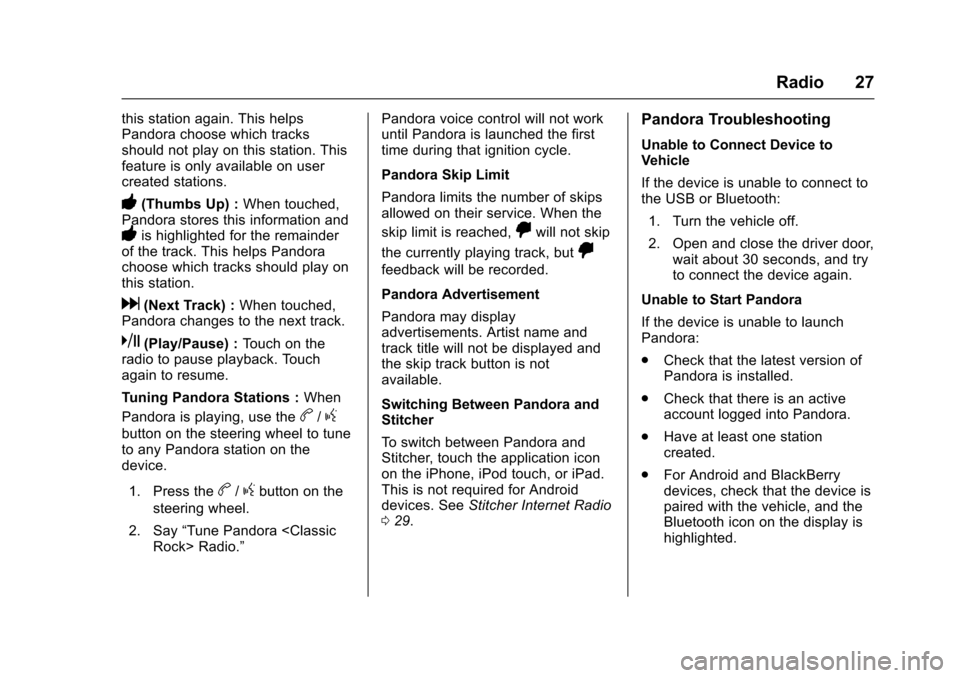
Pandora Features
Pandora has features to rate tracks,
skip tracks, or change stations.
}(Bookmarks) : Touch while
playing a track to bookmark either
the track or the artist. Bookmarks
are viewable on www.pandora.com.
,(Thumbs Down) : When
touched, Pandora stores the
information, changes to the next
track, and does not play the track on
Page 28 of 94
Chevrolet Malibu Limited/Cruze Limited MyLink Infotainment System
(GMNA-Localizing-U.S./Canada-9282853) - 2016 - crc - 4/16/15
Radio 27
this station again. This helps
Pandora choose which tracks
should not play on this station. This
feature is only available on user
created stations.
-(Thumbs Up) :When touched,
Pandora stores this information and
-is highlighted for the remainder
of the track. This helps Pandora
choose which tracks should play on
this station.
d(Next Track) : When touched,
Pandora changes to the next track.
k(Play/Pause) : Touch on the
radio to pause playback. Touch
again to resume.
Tuning Pandora Stations : When
Pandora is playing, use the
b/g
button on the steering wheel to tune
to any Pandora station on the
device.
1. Press the
b/gbutton on the
steering wheel.
2. Say “Tune Pandora
until Pandora is launched the first
time during that ignition cycle.
Pandora Skip Limit
Pandora limits the number of skips
allowed on their service. When the
skip limit is reached,
,will not skip
the currently playing track, but
,
feedback will be recorded.
Pandora Advertisement
Pandora may display
advertisements. Artist name and
track title will not be displayed and
the skip track button is not
available.
Switching Between Pandora and
Stitcher
To switch between Pandora and
Stitcher, touch the application icon
on the iPhone, iPod touch, or iPad.
This is not required for Android
devices. See Stitcher Internet Radio
0 29.
Pandora Troubleshooting
Unable to Connect Device to
Vehicle
If the device is unable to connect to
the USB or Bluetooth:
1. Turn the vehicle off.
2. Open and close the driver door, wait about 30 seconds, and try
to connect the device again.
Unable to Start Pandora
If the device is unable to launch
Pandora:
. Check that the latest version of
Pandora is installed.
. Check that there is an active
account logged into Pandora.
. Have at least one station
created.
. For Android and BlackBerry
devices, check that the device is
paired with the vehicle, and the
Bluetooth icon on the display is
highlighted.
Page 31 of 94
Chevrolet Malibu Limited/Cruze Limited MyLink Infotainment System
(GMNA-Localizing-U.S./Canada-9282853) - 2016 - crc - 4/16/15
30 Radio
close the app, then restart the app
and make sure the Home Page is
visible on the phone/device.
Using an Android Phone1. Pair the Android phone using Bluetooth.
2. Use one of the following to launch:
.Touch the application on
the device.
. Touch Stitcher on the
Home Page.
. Press
b/gand say
“Stitcher” or“Tune Stitcher.”
3. If Stitcher does not begin playing, select a category and
then a station.
After Stitcher has been launched,
press SRCE or SRC on the steering
wheel controls to access Stitcher
features.
If nothing happens when the
available Stitcher screen button is
touched, download the latest
Stitcher application and retry. If the
“Please See Device” message
is shown, the login screen may
display on the device.
If the “Please unlock the phone or
restart the App and try again”
message is shown, then your phone
may be locked. Unlock the phone,
close the app, then restart the app
to ensure proper communication.
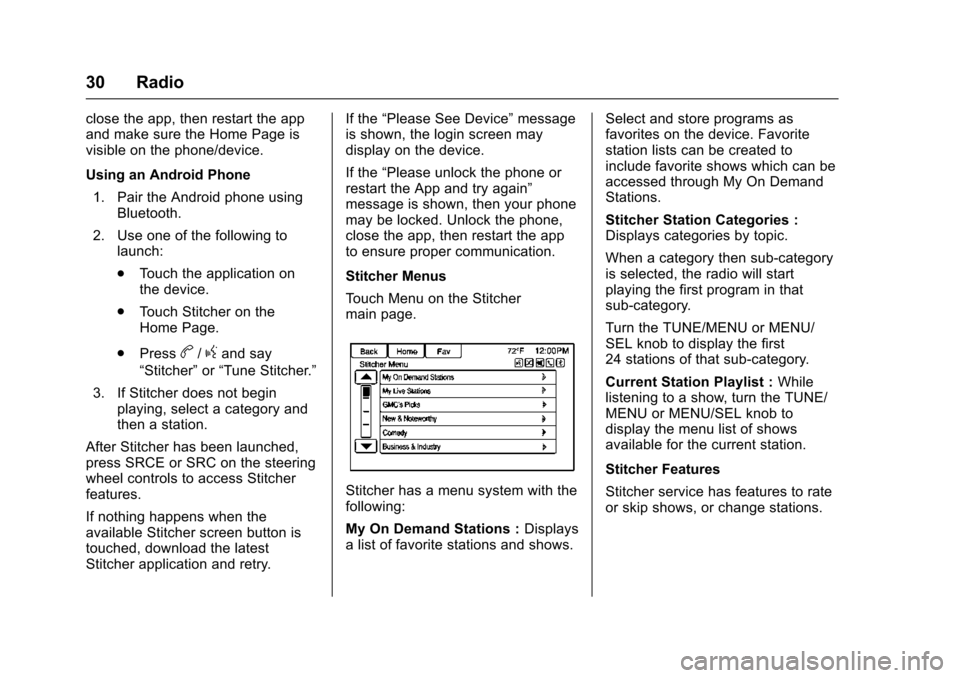
Stitcher Menus
Touch Menu on the Stitcher
main page.
Stitcher has a menu system with the
following:
My On Demand Stations : Displays
a list of favorite stations and shows. Select and store programs as
favorites on the device. Favorite
station lists can be created to
include favorite shows which can be
accessed through My On Demand
Stations.
Stitcher Station Categories :
Displays categories by topic.
When a category then sub-category
is selected, the radio will start
playing the first program in that
sub-category.
Turn the TUNE/MENU or MENU/
SEL knob to display the first
24 stations of that sub-category.
Current Station Playlist :
While
listening to a show, turn the TUNE/
MENU or MENU/SEL knob to
display the menu list of shows
available for the current station.
Stitcher Features
Stitcher service has features to rate
or skip shows, or change stations.
Page 38 of 94
Chevrolet Malibu Limited/Cruze Limited MyLink Infotainment System
(GMNA-Localizing-U.S./Canada-9282853) - 2016 - crc - 4/16/15
Audio Players 37
Devices with more music may take
longer to index. The device will
index when plugged into the radio
for the first time. When Indexing is
removed from the screen, the radio
is ready to support music search.
On the next connection or ignition
cycle, Indexing will show briefly on
the screen. The radio is searching
for changes to the device and
preparing the music list. If there are
no changes, the voice recognition
music search will be available. The
radio will index and store two
devices with up to 10,000 songs on
each device.
USB MP3 Player and USB Drives
.The USB MP3 players and USB
drives connected must comply
with the USB Mass Storage
Class specification (USB MSC).
. Hard disk drives are not
supported.
. The radio will not be able to play
back write-protected music.
. File system supported: FAT32. .
The following restrictions apply
for the data stored on a USB
MP3 player or USB device:
‐Maximum folder structure
depth: 8 levels.
‐ Maximum number of MP3/
WMA files that can be
displayed: 10,000.
‐ Playlist entries must be in the
form of relative paths.
‐ The system attribute for
folders/files that contain audio
data must not be set.
To play a USB device, do one of the
following:
. Connect the USB and it begins
to play.
. Touch the Now Playing screen
button on the Home Page.
. Press SRCE on the faceplate to
scroll until the USB source
screen is available. .
Pressb/gon the steering
wheel controls to play CD, Artist,
Album, Song Title, or Song
Genre. See Voice Recognition
0 68.
The following playlist formats are
supported:
. M3U (Standard and Extended)
. iTunes
. PLS (Standard)
. WAX
. ASX
. RMP
The radio supports plugging a cell
phone in as a USB drive as long as
the cell phone supports USB mass
storage class or has USB disc drive
support enabled.
While the USB source is active, use
the following to operate USB
function:
TUNE/MENU or MENU/SEL
Knob : Turn to scroll through the
list. Turn quickly to fast scroll
alphabetically through large lists.
Page 70 of 94
Chevrolet Malibu Limited/Cruze Limited MyLink Infotainment System
(GMNA-Localizing-U.S./Canada-9282853) - 2016 - crc - 4/16/15
Voice Recognition 69
.To increase or decrease the
voice volume during a voice
recognition session, turn the
volume knob of the radio,
or press the volume steering
wheel control. If the volume is
adjusted during a voice
recognition session, a Volume
bar appears on the screen
showing the voice volume level
as it is being adjusted. This also
changes the volume of the
guidance prompts.
. When using navigation
commands, take the time to
become familiar with the
address. Long delays when
giving the address can result in
the system not recognizing the
address or routing to different
location than intended.
. When providing the house
number portion of the address,
the system recognizes both digit
format and numerical text. An
example would be to say, “30001
or “Thirty Thousand One.” .
If the system provides
destination in another country on
several attempts, say the
“Change Country” command and
say the country of interest. The
country default is the United
States. To enter a destination in
Canada or Mexico, the country
will first have to be changed in
the system.
Voice Recognition Help
To enter the help playback session,
clearly speak one of the help
commands.
Help : The system plays back more
specific help commands such as
Radio Settings for the user to
choose from.
Radio : Use this command to learn
about how to select a band (AM,
FM, or XM), and how to change
radio stations by speaking
frequency numbers.
Phone : Use this command to learn
about how to dial, pair a device,
or delete a device. My Media :
Use this command to
learn how to play specific tracks,
artists, albums, devices connected
to the USB port, or to change
sources.
Settings : Use this command to
learn about how to turn Verbose set
to On or Verbose set to Off, or set
the language.
Voice Recognition Commands
The following list shows the voice
commands available for the
infotainment system with a brief
description of each. The commands
are listed with the optional words in
parentheses. To use the voice
commands, see the previous
instructions.
Radio Commands
Tune AM, Tune FM, Tune XM,
Tune Pandora, Tune Stitcher :
Instructs the system to go to the
specific band and the last station.
Tune AM (frequency), Tune FM
(frequency), Tune XM (channel
number), or Tune XM (channel
name) : Instructs the system to go
to the specific channel.
Page 74 of 94
Chevrolet Malibu Limited/Cruze Limited MyLink Infotainment System
(GMNA-Localizing-U.S./Canada-9282853) - 2016 - crc - 4/16/15
Voice Recognition 73
The country can also be set using
voice commands. However, the
country will change back to the
default country when the vehicle is
keyed off.1. Press
b/gon the steering
wheel.
2. Say “Navigation.”
3. Say “Change Country.”
4. Say the country name. For example, say “Canada.”
OnStar Command (If Equipped)
To activate OnStar voice
recognition, press
=on the mirror
or press
b/gon the steering
wheel and say “OnStar”after the
beep. This will activate the OnStar
voice control. See OnStar in the
owner manual.
Help Commands
. Help
. Hands-Free Calling
. Turn-by-Turn Directions
. OnStar Info After each list of help commands,
the following are available:
.
Go Back
. Repeat
. Cancel
. Help
. Goodbye
Hands-Free Calling
. Call
. Store
. Commands
‐Call
‐ Store
‐ My Number
‐ Minutes
‐ Store Last Number
‐ Digit Dial
‐ Redial
‐ Dial
‐ Number Recall
‐ Directory
‐ Digit Store Turn-by-Turn Directions
.
Directory
. Plan Route
. Commands
‐Directory
‐ Store Destination
‐ Plan Route
‐ Delete Destination
‐ Mute Directions
OnStar Info
. Messages
. Minutes
. My Number
. Commands
‐Messages
‐ Virtual Advisor
‐ My Number
‐ Minutes
‐ Number Recall
‐ Advisor Playback
. Virtual Advisor
Page 76 of 94
Chevrolet Malibu Limited/Cruze Limited MyLink Infotainment System
(GMNA-Localizing-U.S./Canada-9282853) - 2016 - crc - 4/16/15
Bluetooth Phone/Devices 75
Bluetooth Phone/
Devices
Bluetooth
Overview
For vehicles equipped with
Bluetooth capability, the system can
interact with many cell phones and
devices, allowing:
.Placing and receiving hands-free
calls.
. Sharing of the cell phone’s
address book or contact list with
the vehicle. The phone book will
only display when that phone is
connected.
. Placing outgoing calls by voice
recognition.
The system can be used while in
ON/RUN, ACC/ACCESSORY,
or Retained Accessory Power
(RAP). The range of the Bluetooth
system can be up to 9.1 m (30 ft).
The radio can connect to most Bluetooth-enabled phones.
Available features and functions
may be dependent on the device.
On a current phone call screen, an
image of the contact from your
phone's contact list can be
displayed. Not all phones are
compatible with this feature.
Bluetooth Controls
Use the buttons on the infotainment
system and the steering wheel to
operate the Bluetooth system.
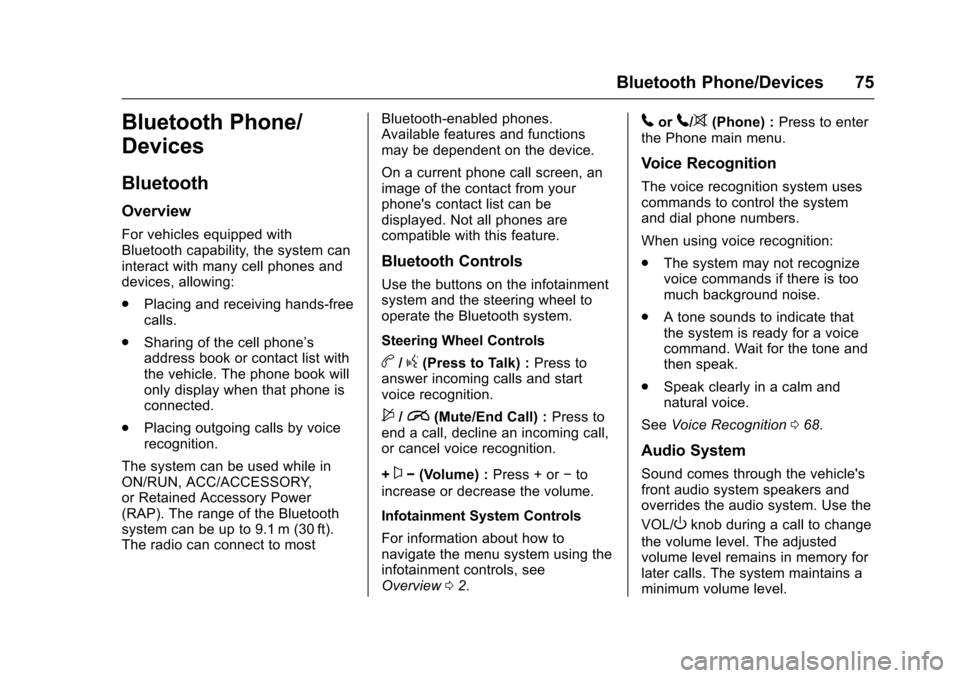
Steering Wheel Controls
b/g(Press to Talk) :
Press to
answer incoming calls and start
voice recognition.
$/i(Mute/End Call) : Press to
end a call, decline an incoming call,
or cancel voice recognition.
+
x− (Volume) : Press + or−to
increase or decrease the volume.
Infotainment System Controls
For information about how to
navigate the menu system using the
infotainment controls, see
Overview 02.
5or5/>(Phone) : Press to enter
the Phone main menu.
Voice Recognition
The voice recognition system uses
commands to control the system
and dial phone numbers.
When using voice recognition:
. The system may not recognize
voice commands if there is too
much background noise.
. A tone sounds to indicate that
the system is ready for a voice
command. Wait for the tone and
then speak.
. Speak clearly in a calm and
natural voice.
See Voice Recognition 068.
Audio System
Sound comes through the vehicle's
front audio system speakers and
overrides the audio system. Use the
VOL/
Oknob during a call to change
the volume level. The adjusted
volume level remains in memory for
later calls. The system maintains a
minimum volume level.
Page 79 of 94
Chevrolet Malibu Limited/Cruze Limited MyLink Infotainment System
(GMNA-Localizing-U.S./Canada-9282853) - 2016 - crc - 4/16/15
78 Bluetooth Phone/Devices
4. The system responds with:“To
delete a device, please select
its name on the screen.” Select
the device to delete on the
display and it will be removed.
To cancel this command, press
$/
ion the steering wheel control or
press the BACK
/button on the
radio faceplate.
Connecting to a Different Phone
or Device
To connect to a different cell phone,
the system looks for the next
available cell phone. Depending on
the cell phone to be connected, this
command may need to be repeated.
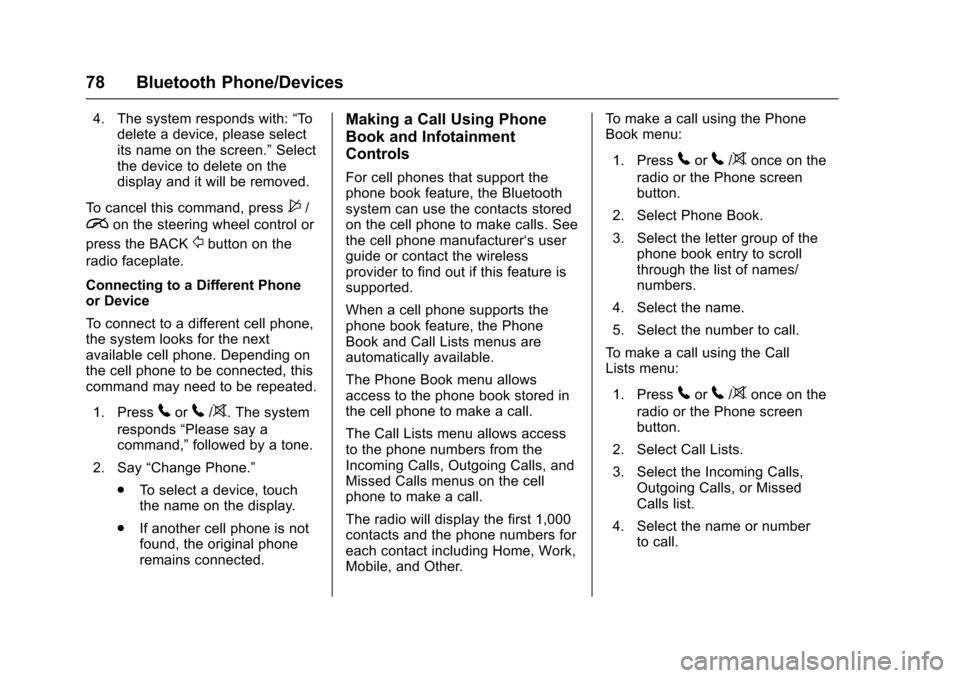
1. Press
5or5/>. The system
responds “Please say a
command,” followed by a tone.
2. Say “Change Phone.”
. To select a device, touch
the name on the display.
. If another cell phone is not
found, the original phone
remains connected.
Making a Call Using Phone
Book and Infotainment
Controls
For cell phones that support the
phone book feature, the Bluetooth
system can use the contacts stored
on the cell phone to make calls. See
the cell phone manufacturer‘s user
guide or contact the wireless
provider to find out if this feature is
supported.
When a cell phone supports the
phone book feature, the Phone
Book and Call Lists menus are
automatically available.
The Phone Book menu allows
access to the phone book stored in
the cell phone to make a call.
The Call Lists menu allows access
to the phone numbers from the
Incoming Calls, Outgoing Calls, and
Missed Calls menus on the cell
phone to make a call.
The radio will display the first 1,000
contacts and the phone numbers for
each contact including Home, Work,
Mobile, and Other. To make a call using the Phone
Book menu:
1. Press
5or5/>once on the
radio or the Phone screen
button.
2. Select Phone Book.
3. Select the letter group of the phone book entry to scroll
through the list of names/
numbers.
4. Select the name.
5. Select the number to call.
To make a call using the Call
Lists menu:
1. Press
5or5/>once on the
radio or the Phone screen
button.
2. Select Call Lists.
3. Select the Incoming Calls, Outgoing Calls, or Missed
Calls list.
4. Select the name or number to call.