lock CHEVROLET MALIBU 2016 8.G Infotainment Manual
[x] Cancel search | Manufacturer: CHEVROLET, Model Year: 2016, Model line: MALIBU, Model: CHEVROLET MALIBU 2016 8.GPages: 94, PDF Size: 1.05 MB
Page 5 of 94
Chevrolet Malibu Limited/Cruze Limited MyLink Infotainment System
(GMNA-Localizing-U.S./Canada-9282853) - 2016 - crc - 4/16/15
4 Introduction
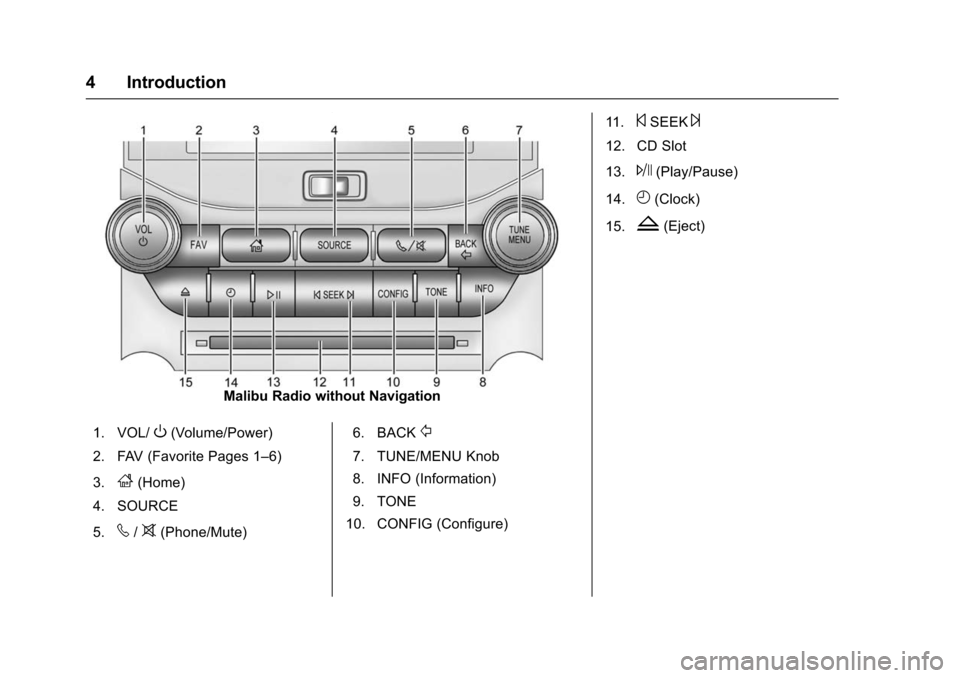
Malibu Radio without Navigation
1. VOL/
O(Volume/Power)
2. FAV (Favorite Pages 1–6)
3.
F(Home)
4. SOURCE
5.
v/>(Phone/Mute) 6. BACK
/
7. TUNE/MENU Knob
8. INFO (Information)
9. TONE
10. CONFIG (Configure) 11.
©SEEK¨
12. CD Slot
13.
J(Play/Pause)
14.
H(Clock)
15.
Z(Eject)
Page 6 of 94
Chevrolet Malibu Limited/Cruze Limited MyLink Infotainment System
(GMNA-Localizing-U.S./Canada-9282853) - 2016 - crc - 4/16/15
Introduction 5
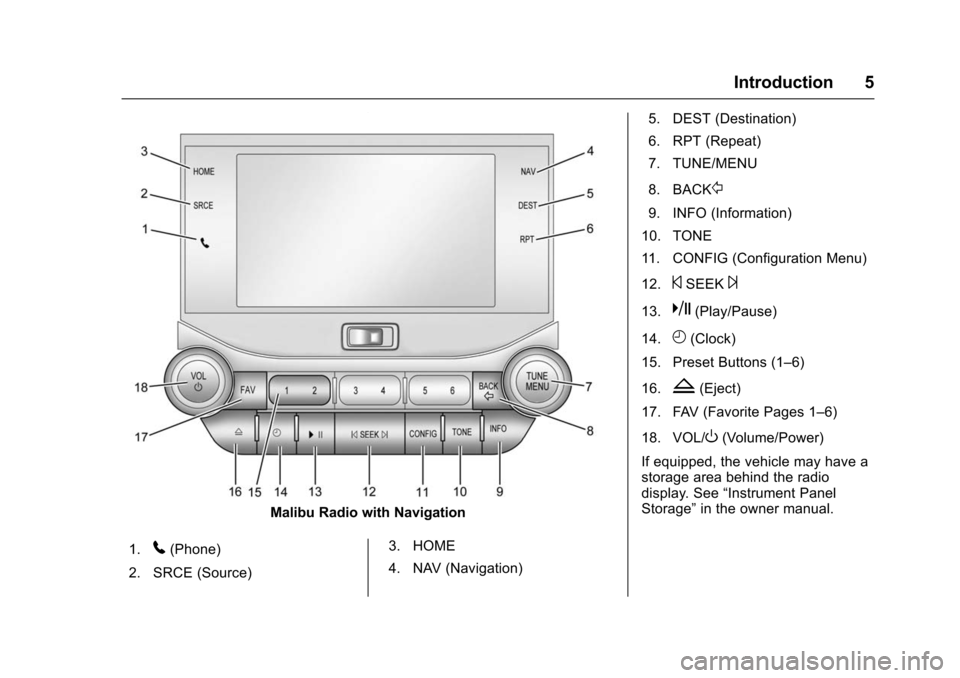
Malibu Radio with Navigation
1.
5(Phone)
2. SRCE (Source) 3. HOME
4. NAV (Navigation)5. DEST (Destination)
6. RPT (Repeat)
7. TUNE/MENU
8. BACK
/
9. INFO (Information)
10. TONE
11. CONFIG (Configuration Menu)
12.
©SEEK¨
13.k(Play/Pause)
14.
H(Clock)
15. Preset Buttons (1–6)
16.
Z(Eject)
17. FAV (Favorite Pages 1–6)
18. VOL/
O(Volume/Power)
If equipped, the vehicle may have a
storage area behind the radio
display. See “Instrument Panel
Storage” in the owner manual.
Page 7 of 94
Chevrolet Malibu Limited/Cruze Limited MyLink Infotainment System
(GMNA-Localizing-U.S./Canada-9282853) - 2016 - crc - 4/16/15
6 Introduction
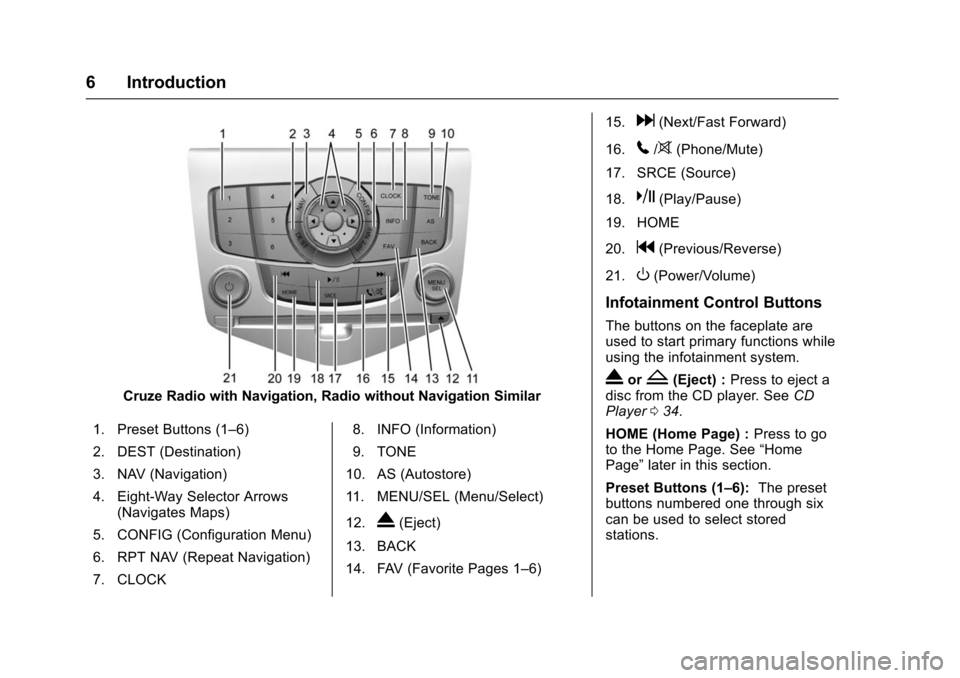
Cruze Radio with Navigation, Radio without Navigation Similar
1. Preset Buttons (1–6)
2. DEST (Destination)
3. NAV (Navigation)
4. Eight-Way Selector Arrows (Navigates Maps)
5. CONFIG (Configuration Menu)
6. RPT NAV (Repeat Navigation)
7. CLOCK 8. INFO (Information)
9. TONE
10. AS (Autostore)
11. MENU/SEL (Menu/Select)
12.
X(Eject)
13. BACK
14. FAV (Favorite Pages 1–6) 15.
d(Next/Fast Forward)
16.
5/>(Phone/Mute)
17. SRCE (Source)
18.
k(Play/Pause)
19. HOME
20.
g(Previous/Reverse)
21.
O(Power/Volume)
Infotainment Control Buttons
The buttons on the faceplate are
used to start primary functions while
using the infotainment system.
XorZ(Eject) : Press to eject a
disc from the CD player. See CD
Player 034.
HOME (Home Page) : Press to go
to the Home Page. See “Home
Page” later in this section.
Preset Buttons (1–6): The preset
buttons numbered one through six
can be used to select stored
stations.
Page 9 of 94
Chevrolet Malibu Limited/Cruze Limited MyLink Infotainment System
(GMNA-Localizing-U.S./Canada-9282853) - 2016 - crc - 4/16/15
8 Introduction
k(Play/Pause) :Press to pause
or resume playback. This feature is
unavailable for AM, FM, and XM (if
equipped). See CD Player034,
Pandora Internet Radio 024,
Stitcher Internet Radio 029, USB
0 35, or Bluetooth Audio 042.
AS (Autostore) : See“Autostore”
later in this section.
CLOCK : Press to set the time.
TONE : Press TONE or touch the
Tone Settings button on the Home
Page to adjust Bass, Mid
(Midrange), Treble, EQ, Fade, and
Balance. Tone settings are specific
to each source. See AM-FM Radio
0 15.
FAV (Favorites) : Press to display
the current favorite page number
above the preset buttons. Keep
pressing to scroll through the
favorites pages. The stored stations
for each list, display on the bottom
of the screen. To change the
number of preset Favorite Pages,
touch the CONFIG button on the
Home Page, then touch Radio
Settings, and then touch Number of
Favorite Pages. INFO (Information) :
Press to
display available source information.
Autostore
To use Autostore:
1. Press SRCE to select FM or AM.
2. Press and hold the AS button for two seconds.
3. The radio searches and automatically stores the
12 strongest stations.
Press the AS button to alternate
between the Autostore pages.
Autostore does not delete
previously stored favorite stations.
Press FAV on the faceplate to return
to the previously stored favorite
stations. When entering a new broadcast
area, press and hold the AS button
to refresh the autostore stations.
Autostore does not function with
SiriusXM radio stations.
Touch Screen Buttons
Touch screen buttons are on the
screen and highlighted when a
feature is available. Some toggle
screen buttons highlight when active
and gray out when inactive.
Page 16 of 94
Chevrolet Malibu Limited/Cruze Limited MyLink Infotainment System
(GMNA-Localizing-U.S./Canada-9282853) - 2016 - crc - 4/16/15
Radio 15
Radio
AM-FM Radio
Playing the Radio
OorVOL/O(Volume/Power):
. Press to turn the radio on or off.
. Turn to increase or decrease the
volume of the active source.
The steering wheel controls can
also be used to adjust the volume.
See Steering Wheel Controls 09.
Radio Operation
The radio will work when the ignition
is in ON/RUN or ACC/
ACCESSORY. When the ignition
changes from ON/RUN to LOCK/
OFF, the radio will continue to work
for 10 minutes or until the driver
door is opened.
The radio can be turned on by
pressing the power button on the
radio and will stay on for
10 minutes. Opening the driver door
will not turn the radio off when
pressing the power button. Some radios may stay on longer
and reset the time for 10 minutes if
there are any additional presses of
any radio button.
The radio can be turned off at any
time by pressing the power button.
Audio Source
Press SRCE on the faceplate or
SRC on the steering wheel controls
to display and scroll through the
available sources AM, FM, XM (if
equipped), Pandora (if equipped),
Stitcher, CD, USB, AUX, and
Bluetooth Audio.
Infotainment System Settings
Tone Settings
To access the tone settings, press
TONE on the faceplate or touch the
Tone Settings screen button on the
Home Page. Tone settings are
specific to each source.To adjust the settings:
.
Bass: Touch + or −to change
the level.
. Mid (Midrange): Touch + or −to
change the level.
. Treble: Touch + or −to change
the level.
. EQ: Press or turn the TUNE/
MENU or MENU/SEL knob to
cycle through the preset EQ
options. If the vehicle is
equipped with the Bose
®Energy
Efficient Series sound system,
EQ provides a choice of Manual
or Talk.
. Fade: Touch the F or R button
for more sound from the front or
rear speakers. The middle
position balances the sound
between the front and rear
speakers.
. Balance: Touch the L or R button
for more sound from the left or
right speakers. The middle
position balances the sound
between the left and right
speakers.
Page 24 of 94
Chevrolet Malibu Limited/Cruze Limited MyLink Infotainment System
(GMNA-Localizing-U.S./Canada-9282853) - 2016 - crc - 4/16/15
Radio 23
Travel Link Messages
No GPS Signal :Move the vehicle
into a position that is visible to
the sky.
Acquiring Signal : Radio is
downloading the activation
information or not receiving a good
signal. Move the vehicle to open sky
and restart the vehicle.
No XM Signal : Reception is
blocked. Move the vehicle into
open sky.
Radio Reception
Frequency interference and static
can occur during normal radio
reception if items such as cell phone
chargers, vehicle convenience
accessories, and external electronic
devices are plugged into the
accessory power outlet. If there is
interference or static, unplug the
item from the accessory power
outlet.
FM
FM signals only reach about 16 to
65 km (10 to 40 mi). Although the
radio has a built-in electronic circuit that automatically works to reduce
interference, some static can occur,
especially around tall buildings or
hills, causing the sound to fade in
and out.
AM
The range for most AM stations is
greater than for FM, especially at
night. The longer range can cause
station frequencies to interfere with
each other. Static can occur when
things like storms and power lines
interfere with radio reception. When
this happens, try reducing the treble
on the radio.
SiriusXM®Satellite Radio
Service
SiriusXM Satellite Radio Service
gives digital radio reception from
coast to coast in the 48 contiguous
United States, and in Canada. Just
as with FM, tall buildings or hills can
interfere with satellite radio signals,
causing the sound to fade in and
out. In addition, traveling or standing
under heavy foliage, bridges, garages, or tunnels may cause loss
of the SiriusXM signal for a period
of time.
Cellular Phone Usage
Cellular phone usage can cause
interference with the vehicle's radio.
Multi-Band Antenna
The roof antenna is for OnStar®and
GPS (Global Positioning System).
Keep clear of obstructions for clear
reception. Tall buildings or hills can
interfere with satellite radio signals,
causing the sound to fade in and
out. In addition, traveling or standing
under heavy foliage, bridges,
garages, or tunnels may cause loss
of signal for a period of time. If the
vehicle has a sunroof, and it is
open, reception can also be
affected.
Page 26 of 94
Chevrolet Malibu Limited/Cruze Limited MyLink Infotainment System
(GMNA-Localizing-U.S./Canada-9282853) - 2016 - crc - 4/16/15
Radio 25
Launching Pandora
Connect the iPhone, iPad, or iPod
touch to the USB port, or connect
an Android or BlackBerry through
Bluetooth. SeeAuxiliary Devices
0 41 orBluetooth 075. For first-time
use, set up stations before
connecting to the vehicle. The
Pandora icon will be available on
the Home Page and the source
pop-up displays if the latest
application is installed on the
device.
Using the iPhone, iPod touch,
or iPad
1. Plug the device into the USB port. The phone screen must
be unlocked.
2. To launch, do one of the following:
.Launch the application on
the device.
. Touch Pandora on the
Home Page.
. Press
b/gand say
“Pandora” or“Tune
Pandora.” .
Accept any notifications on
the screen of the device.
To relaunch Pandora, press SRCE
or SRC on the steering wheel
controls.
If nothing happens when the
available Pandora screen button is
touched, download the latest
Pandora application and retry.
Pandora will always be highlighted
on the Home Page when an iPhone,
iPad, or iPod touch is connected
using the USB port. To use, log into
your account.
If the “Please See Device” message
is shown, the login screen may
display on the device.
If the “Please unlock the phone or
restart the App and try again”
message is shown, then your phone
may be locked. Unlock the phone,
close the app, then restart the app
make sure the Home Page is visible
on the phone.
If Pandora is shut down on the
phone or another audio app is used,
Pandora may not start on the next ignition cycle. If iPod source is
selected, it may show iPod and then
switch to Pandora.
Using an Android Phone
1. Pair the Android phone using Bluetooth.
2. Use one of the following to launch:
.Launch the application on
the device.
. Touch Pandora on the
Home Page.
. Press
b/gand say
“Pandora” or“Tune
Pandora.”
After Pandora has been launched,
press SRCE or SRC on the steering
wheel controls to access Pandora
features.
If nothing happens when the
available Pandora screen button is
touched, download the latest
Pandora application and retry.
If the “Please See Device” message
is shown, the login screen may
display on the device.
Page 27 of 94
Chevrolet Malibu Limited/Cruze Limited MyLink Infotainment System
(GMNA-Localizing-U.S./Canada-9282853) - 2016 - crc - 4/16/15
26 Radio
If the“Please unlock the phone or
restart the App and try again”
message is shown then your phone
may be locked. Unlock the phone,
close the app, and then restart the
app to ensure proper
communication.
Using a BlackBerry Phone
The phone must be unlocked. To
launch Pandora service:
1. Pair the BlackBerry phone using Bluetooth.
2. Use one of the following to launch:
.Launch the application on
the device.
. Touch Pandora on the
Home Page.
. Press
b/gand say
“Pandora” or“Tune
Pandora.”
After Pandora has been launched,
press SRCE or SRC on the steering
wheel controls to access Pandora
features. If nothing happens when the
available Pandora screen button is
touched, download the latest
Pandora application and retry.
If the
“Please See Device” message
is shown, the login screen may
display on the device.
If the “Please unlock the phone or
restart the App and try again”
message is shown, then your phone
may be locked. Unlock the phone,
close the app, then restart the app
to ensure proper communication.
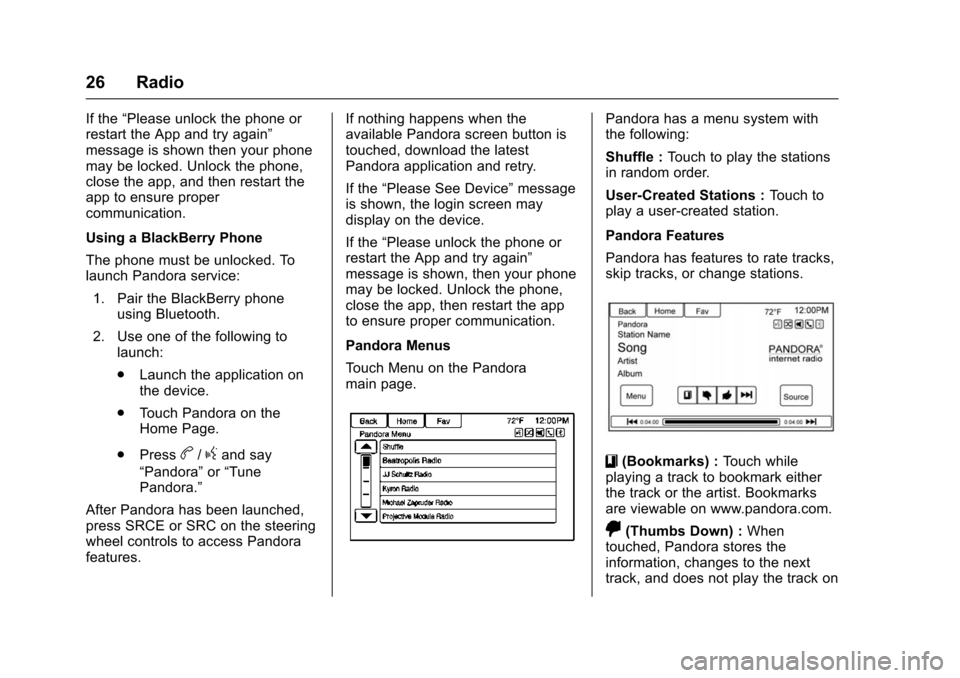
Pandora Menus
Touch Menu on the Pandora
main page.
Pandora has a menu system with
the following:
Shuffle : Touch to play the stations
in random order.
User-Created Stations : Touch to
play a user-created station.
Pandora Features
Pandora has features to rate tracks,
skip tracks, or change stations.
}(Bookmarks) : Touch while
playing a track to bookmark either
the track or the artist. Bookmarks
are viewable on www.pandora.com.
,(Thumbs Down) : When
touched, Pandora stores the
information, changes to the next
track, and does not play the track on
Page 29 of 94
Chevrolet Malibu Limited/Cruze Limited MyLink Infotainment System
(GMNA-Localizing-U.S./Canada-9282853) - 2016 - crc - 4/16/15
28 Radio
.For iPhone, iPod touch, or iPad
devices, check that the USB
cable is connected to the USB
port and the screen is unlocked.
. Close Pandora on the device
and launch again. Devices that
allow multitasking may require
an extra step to quit the Pandora
application. See the cell phone
manufacturer's user guide.
Thumbs Up or Thumbs Down
Error
If there is an error trying to rate a
track with the
,or-buttons, an
error message will display. Touch
OK to retry.
Loss of Audio
Loss of Pandora audio can happen
in different ways:
. Weak or lost data connection.
. Device needs to be charged.
. Application needs to be
relaunched.
. Connection between phone and
radio lost. .
The volume is too low. Turn up
the volume on the device.
. The battery saver and task
manager applications on the
phone can cause Pandora to
function incorrectly. Remove
those apps from the phone or
remove Pandora and Bluetooth
from the task lists.
If the connection is lost between the
application and device, a message
“Please Unlock the Phone or
Restart the App and Try Again” will
display. Touch OK to retry.
If touching OK does not clear the
issue on the phone, see "Please
unlock the phone or restart phone
App and try again” under "Common
Pandora Messages" following.
Common Pandora Messages
Please See Device : When not
logged in or when authentication
failed, see the device. Touch OK to
continue.
Paused or Audio Paused :
Playback is paused on the radio or
on the device. Touch
kor play on
the device. No Stations Found :
Logged in but
no stations have been created.
Touch OK to continue.
Please Unlock the Phone or
Restart Phone App and Try
Again : Communication failure
between the radio and the phone
application or the device is locked.
Devices that allow multitasking may
require an extra step to quit the
Pandora application. Close Pandora
on the device and launch again.
Unlock the phone and check that
Home Page is shown on the phone/
device.
See the cell phone manufacturer's
user guide.
See www.pandora.com/help for
more information. If the service will
not work, see your dealer for
assistance.
Page 30 of 94
Chevrolet Malibu Limited/Cruze Limited MyLink Infotainment System
(GMNA-Localizing-U.S./Canada-9282853) - 2016 - crc - 4/16/15
Radio 29
Stitcher Internet Radio
Stitcher SmartRadio®is an Internet
radio service that streams news,
sports, and entertainment shows
through the audio system. Create
personalized, on-demand stations or
discover new shows through
Stitcher's preset stations. To set up
an account, download the
application from the Android Market
or iTunes Store, or go to
www.stitcher.com.
A phone or tablet with Internet
connection is required for this
application. Personal cell phone
data plans are used. Make sure the
latest version is installed on the
device and the volume on the
device is turned up.
BlackBerry phones are not
supported for this application.
To install Stitcher:
. On an Android phone or Tablet
with Internet connection, go to
the Android Play Store, search
for Stitcher, and install to the
phone, not to the SD card. .
On an iPhone, iPad, or iPod
touch, go to the iTunes Store
and search for Stitcher.
Launching Stitcher
Connect the iPhone, iPad, or iPod
touch to the USB port, or connect
Android through Bluetooth. See
Auxiliary Devices 041 orBluetooth
0 75. For first-time use, set up the
stations before connecting to the
vehicle. The Stitcher icon will be
available on the Home Page and
source pop-up displays if the latest
application is installed on the
device.
Using the iPhone, iPod touch,
or iPad
1. Plug the device into the USB port. The phone screen must
be unlocked.
2. Use one of the following to launch:
.Touch the application on
the device.
. Touch Stitcher on the
Home Page. .
Press
b/gand say
“Stitcher” or“Tune Stitcher.”
. Accept any notifications on
the screen of the device.
3. If Stitcher does not begin playing, select a category and
then a station.
After Stitcher has been launched,
press SRCE or SRC on the steering
wheel controls to access Stitcher
features.
If nothing happens when the
available Stitcher screen button is
touched, download the latest
Stitcher application and retry.
Stitcher will always be highlighted
on the Home Page when an iPhone,
iPad, or iPod touch is connected
using the USB port. To use, log into
your account.
If the “Please See Device” message
is shown, the login screen may
display on the device.
If the “Please unlock the phone or
restart the App and try again”
message is shown, then the phone
may be locked. Unlock the phone,