USB CHEVROLET MALIBU 2016 8.G Owners Manual
[x] Cancel search | Manufacturer: CHEVROLET, Model Year: 2016, Model line: MALIBU, Model: CHEVROLET MALIBU 2016 8.GPages: 420, PDF Size: 7.86 MB
Page 8 of 420
Chevrolet Malibu Owner Manual (GMNA-Localizing-U.S./Canada/Mexico-
9087641) - 2016 - crc - 9/3/15
In Brief 7
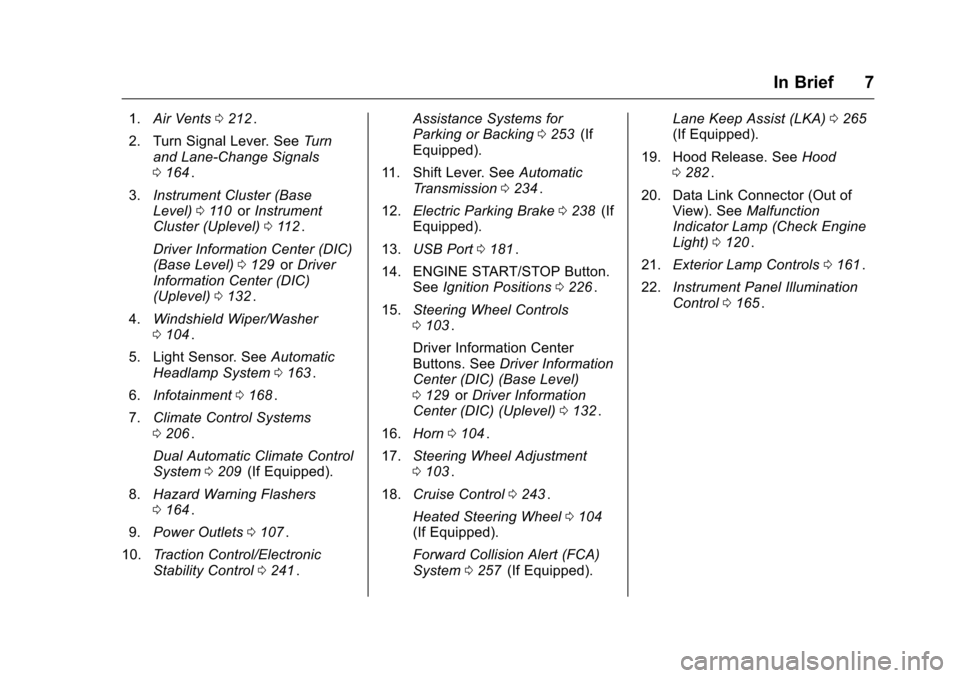
1.Air Vents 0212ii.
2. Turn Signal Lever. See Turn
and Lane-Change Signals
0 164
ii.
3. Instrument Cluster (Base
Level) 0110
iior Instrument
Cluster (Uplevel) 0112ii.
Driver Information Center (DIC)
(Base Level) 0129
iior Driver
Information Center (DIC)
(Uplevel) 0132
ii.
4. Windshield Wiper/Washer
0104
ii.
5. Light Sensor. See Automatic
Headlamp System 0163
ii.
6. Infotainment 0168
ii.
7. Climate Control Systems
0206
ii.
Dual Automatic Climate Control
System 0209
ii(If Equipped).
8. Hazard Warning Flashers
0164
ii.
9. Power Outlets 0107
ii.
10. Traction Control/Electronic
Stability Control 0241
ii. Assistance Systems for
Parking or Backing
0253
ii(If
Equipped).
11. Shift Lever. See Automatic
Transmission 0234
ii.
12. Electric Parking Brake 0238
ii(If
Equipped).
13. USB Port 0181
ii.
14. ENGINE START/STOP Button. SeeIgnition Positions 0226
ii.
15. Steering Wheel Controls
0103
ii.
Driver Information Center
Buttons. See Driver Information
Center (DIC) (Base Level)
0 129
iior Driver Information
Center (DIC) (Uplevel) 0132ii.
16. Horn 0104
ii.
17. Steering Wheel Adjustment
0103
ii.
18. Cruise Control 0243
ii.
Heated Steering Wheel 0104
ii(If Equipped).
Forward Collision Alert (FCA)
System 0257
ii(If Equipped). Lane Keep Assist (LKA)
0265
ii(If Equipped).
19. Hood Release. See Hood
0 282
ii.
20. Data Link Connector (Out of View). See Malfunction
Indicator Lamp (Check Engine
Light) 0120
ii.
21. Exterior Lamp Controls 0161
ii.
22. Instrument Panel Illumination
Control 0165
ii.
Page 21 of 420
Chevrolet Malibu Owner Manual (GMNA-Localizing-U.S./Canada/Mexico-
9087641) - 2016 - crc - 9/3/15
20 In Brief
Radio(s)
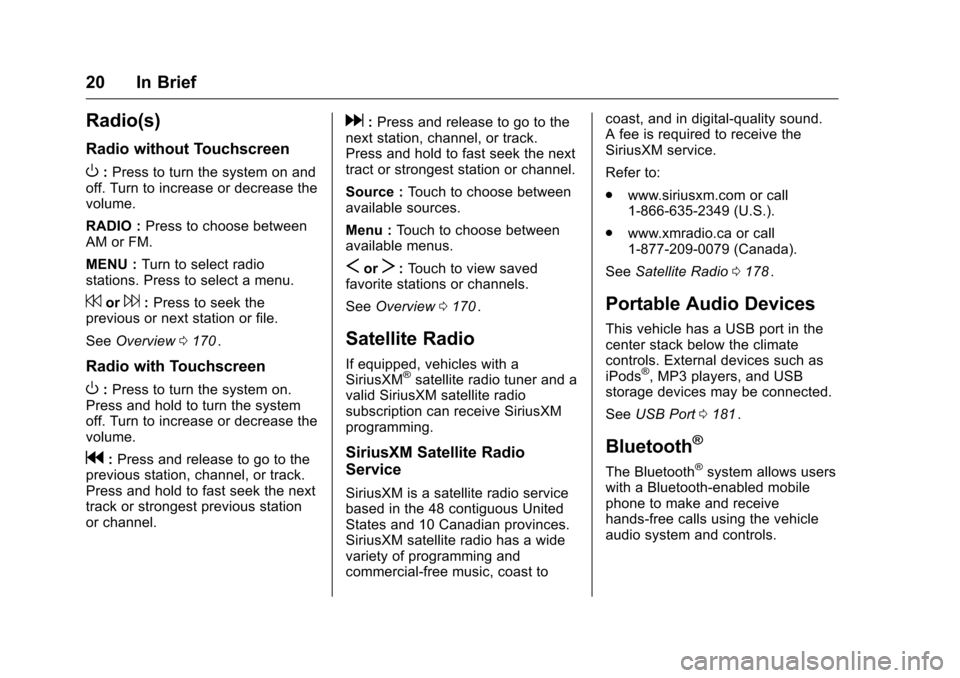
Radio without Touchscreen
O:Press to turn the system on and
off. Turn to increase or decrease the
volume.
RADIO : Press to choose between
AM or FM.
MENU : Turn to select radio
stations. Press to select a menu.
7or6: Press to seek the
previous or next station or file.
See Overview 0170
ii.
Radio with Touchscreen
O:Press to turn the system on.
Press and hold to turn the system
off. Turn to increase or decrease the
volume.
g: Press and release to go to the
previous station, channel, or track.
Press and hold to fast seek the next
track or strongest previous station
or channel.
d: Press and release to go to the
next station, channel, or track.
Press and hold to fast seek the next
tract or strongest station or channel.
Source : Touch to choose between
available sources.
Menu : Touch to choose between
available menus.
SorT: Touch to view saved
favorite stations or channels.
See Overview 0170
ii.
Satellite Radio
If equipped, vehicles with a
SiriusXM®satellite radio tuner and a
valid SiriusXM satellite radio
subscription can receive SiriusXM
programming.
SiriusXM Satellite Radio
Service
SiriusXM is a satellite radio service
based in the 48 contiguous United
States and 10 Canadian provinces.
SiriusXM satellite radio has a wide
variety of programming and
commercial-free music, coast to coast, and in digital-quality sound.
A fee is required to receive the
SiriusXM service.
Refer to:
.
www.siriusxm.com or call
1-866-635-2349 (U.S.).
. www.xmradio.ca or call
1-877-209-0079 (Canada).
See Satellite Radio 0178
ii.
Portable Audio Devices
This vehicle has a USB port in the
center stack below the climate
controls. External devices such as
iPods
®, MP3 players, and USB
storage devices may be connected.
See USB Port 0181
ii.
Bluetooth®
The Bluetooth®system allows users
with a Bluetooth-enabled mobile
phone to make and receive
hands-free calls using the vehicle
audio system and controls.
Page 115 of 420
Chevrolet Malibu Owner Manual (GMNA-Localizing-U.S./Canada/Mexico-
9087641) - 2016 - crc - 9/3/15
114 Instruments and Controls
Cluster Menu
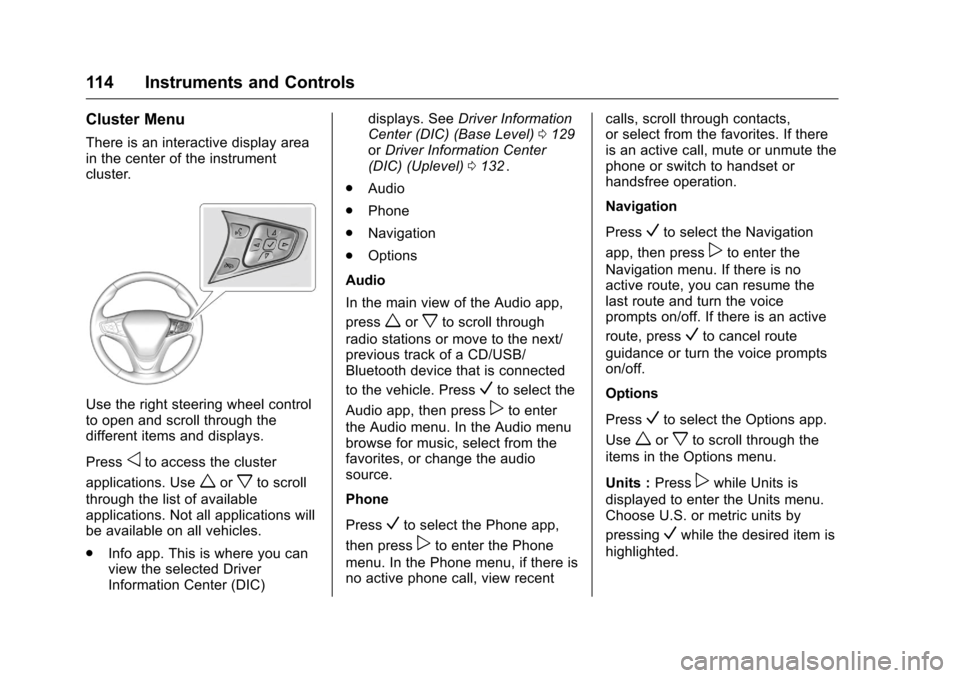
There is an interactive display area
in the center of the instrument
cluster.
Use the right steering wheel control
to open and scroll through the
different items and displays.
Press
oto access the cluster
applications. Use
worxto scroll
through the list of available
applications. Not all applications will
be available on all vehicles.
. Info app. This is where you can
view the selected Driver
Information Center (DIC) displays. See
Driver Information
Center (DIC) (Base Level) 0129
iior Driver Information Center
(DIC) (Uplevel) 0132ii.
. Audio
. Phone
. Navigation
. Options
Audio
In the main view of the Audio app,
press
worxto scroll through
radio stations or move to the next/
previous track of a CD/USB/
Bluetooth device that is connected
to the vehicle. Press
Vto select the
Audio app, then press
pto enter
the Audio menu. In the Audio menu
browse for music, select from the
favorites, or change the audio
source.
Phone
Press
Vto select the Phone app,
then press
pto enter the Phone
menu. In the Phone menu, if there is
no active phone call, view recent calls, scroll through contacts,
or select from the favorites. If there
is an active call, mute or unmute the
phone or switch to handset or
handsfree operation.
Navigation
Press
Vto select the Navigation
app, then press
pto enter the
Navigation menu. If there is no
active route, you can resume the
last route and turn the voice
prompts on/off. If there is an active
route, press
Vto cancel route
guidance or turn the voice prompts
on/off.
Options
Press
Vto select the Options app.
Use
worxto scroll through the
items in the Options menu.
Units : Press
pwhile Units is
displayed to enter the Units menu.
Choose U.S. or metric units by
pressing
Vwhile the desired item is
highlighted.
Page 146 of 420
Chevrolet Malibu Owner Manual (GMNA-Localizing-U.S./Canada/Mexico-
9087641) - 2016 - crc - 9/3/15
Instruments and Controls 145
Vehicle Reminder
Messages
ICE POSSIBLE DRIVE
WITH CARE
This message displays when ice
conditions are possible.
Window Messages
OPEN, THEN CLOSE DRIVER
WINDOW
This message is displayed when the
window needs to be reprogrammed.
If the vehicle's battery has been
recharged or disconnected, you will
need to reprogram the front window
for the express-up feature to work.
SeePower Windows 048
ii.
Vehicle
Personalization
Personalization Menu (Radio
without Touchscreen)
The audio system controls are used
to access the personalization
menus for customizing vehicle
features.
The following are all possible
personalization features. Depending
on the vehicle, some may not be
available.
MENU : Turn to scroll through the
menus or setup items. Press to
enter the menus and select the
menu items.
BACK : Press to exit or return to
the previous screen or menu.
To access a menu:
1. Press MENU.
2. Turn MENU to the desired menu.
3. Press MENU to select.
Menus and functions may vary
depending on vehicle options. Entering the Personalization
Menus
Select Settings from the home page.
The following menus may be
available:
.
Phone Connection (MTP Only)
. Time and Date
. Tone Settings
. Auto Volume Control
. Maximum Startup Volume
. Vehicle Settings
Phone Connection (MTP Only)
Select and the following may
display:
.Charging Only
. Scan Music Folder Only
. Scan All Folder
Charging Only
This feature will charge a Media
Transfer Protocol (MTP) device
when connected to the USB port.
Bluetooth
®audio will be
unavailable.
Page 147 of 420
Chevrolet Malibu Owner Manual (GMNA-Localizing-U.S./Canada/Mexico-
9087641) - 2016 - crc - 9/3/15
146 Instruments and Controls
Turn MENU to highlight, then press
to select.
Scan Music Folder Only
This feature will scan and index
music folders on an MTP device
when connected to the USB port.
Turn MENU to highlight, then press
to select.
Scan All Folder
This feature will scan and index all
folders on a MTP device when
connected to the USB port.
Turn MENU to highlight, then press
to select.
Time and Date
Select Time and Date to adjust the
clock. SeeClock0106ii.
Tone Settings
Select to set the radio tone. See
“Tone Settings” under“Radio
Controls without Touchscreen” in
Operation 0173
ii.
Auto Volume Control
This feature automatically adjusts
the radio volume based on the
speed of the vehicle.
Select the desired value.
Maximum Startup Volume
When the vehicle is started and the
radio volume is greater than this set
level, the volume is adjusted to this
level.
Select the desired value.
Vehicle Settings
Select and the following may
display:
.
Climate and Air Quality
. Comfort and Convenience
. Languages
. Lighting
. Power Door Locks
. Remote Lock, Unlock, Start
. Return to Factory Settings
. Software Information
. Valet Mode
Climate and Air Quality
Select and the following may
display:
.Auto Fan Speed
. Air Quality Sensor
. Auto Defog
. Auto Rear Defog
Auto Fan Speed
This adjusts the blower level during
automatic operation.
Select Low, Medium, or High.
Air Quality Sensor
This automatically selects
recirculate when certain gases are
detected.
Select Off, Low Sensitivity, or High
Sensitivity.
Auto Defog
This allows the climate control
system to prevent fog on the inside
of the windows. See “Auto Defog”in
Dual Automatic Climate Control
System 0209
ii.
Select Off or On.
Page 151 of 420
Chevrolet Malibu Owner Manual (GMNA-Localizing-U.S./Canada/Mexico-
9087641) - 2016 - crc - 9/3/15
150 Instruments and Controls
.Voice
. USB Auto Launch
. Turn Display Off
. Rear Camera
. Return to Factory Settings
. Software Information
Time and Date
Select Time and Date to adjust the
clock. See Clock0106ii.
Language
Select, then select from the
available language(s).
Valet Mode (If Equipped)
This will lock the infotainment
system and steering wheel controls.
It may also limit access to vehicle
storage locations (if equipped).
To enable valet mode:
1. Enter a four-digit code on the keypad.
2. Touch Enter to go to the confirmation screen.
3. Re-enter the four-digit code. Touch LOCK or UNLOCK to lock or
unlock the system. Touch Back to
go back to the previous menu.
Teen Driver (If Equipped)
Select and the following may
display:
.
View Report Card
. Manage Settings
. Change PIN
. Key Registration
. Clear All Teen Keys/PIN
View Report Card
This allows the driver ’s driving
habits to be viewed. See Teen
Driver 0195
ii.
Manage Settings
Select and the following may
display:
. Audio Volume Limit
. Teen Driver Speed Warning
Audio Volume Limit
This allows a maximum radio
volume to be set. Select Off or On.
Teen Driver Speed Warning
This allows a warning to be set
when a certain speed is exceeded.
Select Off or On. If On is selected,
select a speed between 64 km/h
(40 mph) and 120 km/h (75 mph).
Change PIN
This allows the Personal
Identification Number (PIN) to be
changed. See
Teen Driver0195
ii.
Key Registration
This allows the key to be registered.
See Teen Driver 0195
ii.
Clear All Teen Keys/PIN
This allows all Teen Driver keys and
PINs to be cleared.
Select Continue or Cancel.
Radio
Select and the following may
display:
. Manage Favorites
. Number of Favorites Shown
Page 156 of 420
Chevrolet Malibu Owner Manual (GMNA-Localizing-U.S./Canada/Mexico-
9087641) - 2016 - crc - 9/3/15
Instruments and Controls 155
Passive Door Lock
This allows passive locking to be
turned on or off and selects
feedback. SeeRemote Keyless
Entry (RKE) System Operation
0 31
ii.
Select Off, On, or On With Horn
Chirp.
Remote Left in Vehicle Alert
This feature sounds an alert when
the RKE transmitter is left in the
vehicle.
Select Off or On.
Bluetooth
Select and the following may
display:
. Discoverable
. Device Information
. Device Management
. Change Pairing PIN
. Ringtones
. Sort Order
. Voice Mail Numbers
. Text Message Alerts Discoverable
This allows the system to find a
device.
Select Off or On.
Device Information
See information about the device
name, address, and PIN code.
Device Management
Select to connect to a different
phone source, disconnect a phone,
or delete a phone.
Change Pairing PIN
Select to change the PIN of a
device.
Ringtones
Press to change the ring tone for
the specific phone. The phone does
not need to be connected to change
the ring tones.
Sort Order
Select to change the order of the
contacts list.
Select First/Last or Last/First.
Voice Mail Numbers
This feature displays the voice mail
number for all connected phones.
To change the voice mail number,
select
8or EDIT. Type a new
number, then select SAVE.
Text Message Alerts
This allows the feature to be turned
on or off.
Select Off or On.
Apple CarPlay™
Select and the following may
display:
. Apple CarPlay
. Manage Apple CarPlay Devices
Apple CarPlay
This feature allows Apple devices to
be connected to the infotainment
system through a USB port.
Select Off or On.
Manage Apple CarPlay Devices
Select to manage Apple devices.
Apple CarPlay must be on for this
feature to be accessed.
Page 157 of 420
Chevrolet Malibu Owner Manual (GMNA-Localizing-U.S./Canada/Mexico-
9087641) - 2016 - crc - 9/3/15
156 Instruments and Controls
Android Auto™
Select and the following may
display:
.Android Auto
. Manage Android Auto Devices
Android Auto
This feature allows Android devices
to be connected to the infotainment
system through a USB port.
Select Off or On.
Manage Android Auto Devices
Select to manage Android devices.
Android Auto must be on for this
feature to be accessed.
USB Auto Launch
This allows Android and Apple
CarPlay devices to automatically
connect when plugged into the
USB port.
Select Off or On.
Voice
Select and the following may
display:
. Confidence Threshold .
Prompt Length
. Audio Feedback Speed
. Display “What Can I Say?” Tips
Confidence Threshold
This feature allows the adjustment
of the sensitivity of the speech
recognition system.
Select Confirm More or
Confirm Less.
Prompt Length
This feature adjusts the voice
prompt length.
Select Short or Long.
Audio Feedback Speed
This feature adjusts the audio
feedback speed.
Select Slow, Medium, or Fast.
Display “What Can I Say?” Tips
This feature gives tips on what to
say when using voice recognition.
Select Off or On.
Turn Display Off
Select to turn the display off. Press
anywhere on the display area or any
faceplate button to turn the
display on.
Rear Camera
Select and the following may
display:
. Guidance Lines
. Rear Park Assist Symbols
Guidance Lines
Select to turn Off or On. See
Assistance Systems for Parking or
Backing 0253
ii.
Rear Park Assist Symbols
Select to turn Off or On. See
Assistance Systems for Parking or
Backing 0253
ii.
Return to Factory Settings
Select and the following may
display:
.
Restore Vehicle Settings
. Clear All Private Data
. Restore Radio Settings
Page 169 of 420
Chevrolet Malibu Owner Manual (GMNA-Localizing-U.S./Canada/Mexico-
9087641) - 2016 - crc - 9/3/15
168 Infotainment System
Infotainment
System
Introduction
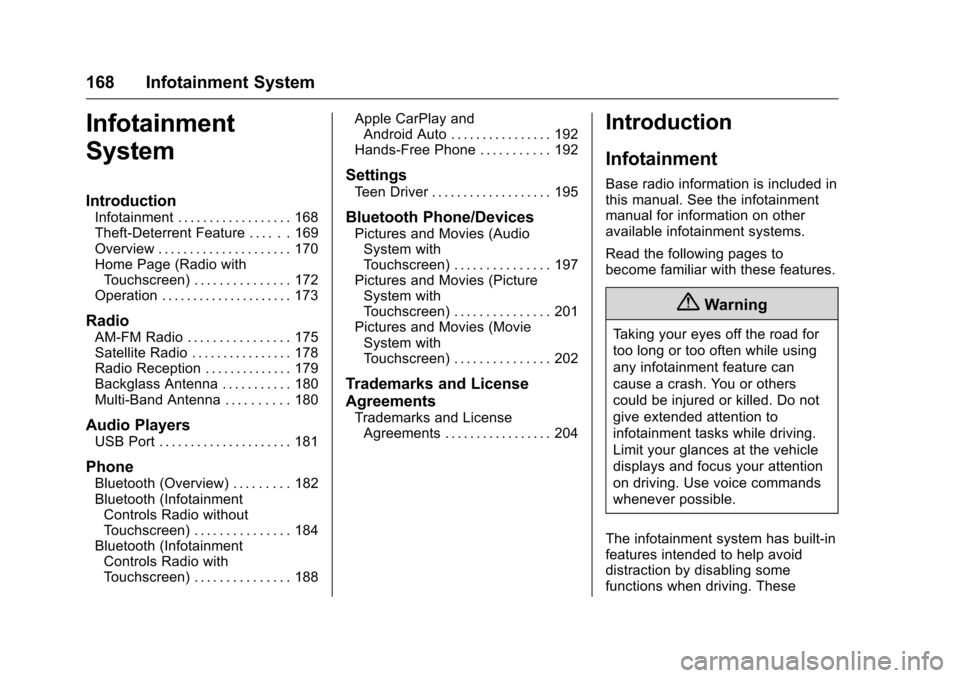
Infotainment . . . . . . . . . . . . . . . . . . 168
Theft-Deterrent Feature . . . . . . 169
Overview . . . . . . . . . . . . . . . . . . . . . 170
Home Page (Radio withTouchscreen) . . . . . . . . . . . . . . . 172
Operation . . . . . . . . . . . . . . . . . . . . . 173
Radio
AM-FM Radio . . . . . . . . . . . . . . . . 175
Satellite Radio . . . . . . . . . . . . . . . . 178
Radio Reception . . . . . . . . . . . . . . 179
Backglass Antenna . . . . . . . . . . . 180
Multi-Band Antenna . . . . . . . . . . 180
Audio Players
USB Port . . . . . . . . . . . . . . . . . . . . . 181
Phone
Bluetooth (Overview) . . . . . . . . . 182
Bluetooth (Infotainment Controls Radio without
Touchscreen) . . . . . . . . . . . . . . . 184
Bluetooth (Infotainment Controls Radio with
Touchscreen) . . . . . . . . . . . . . . . 188 Apple CarPlay and
Android Auto . . . . . . . . . . . . . . . . 192
Hands-Free Phone . . . . . . . . . . . 192
Settings
Teen Driver . . . . . . . . . . . . . . . . . . . 195
Bluetooth Phone/Devices
Pictures and Movies (Audio System with
Touchscreen) . . . . . . . . . . . . . . . 197
Pictures and Movies (Picture System with
Touchscreen) . . . . . . . . . . . . . . . 201
Pictures and Movies (Movie System with
Touchscreen) . . . . . . . . . . . . . . . 202
Trademarks and License
Agreements
Trademarks and LicenseAgreements . . . . . . . . . . . . . . . . . 204
Introduction
Infotainment
Base radio information is included in
this manual. See the infotainment
manual for information on other
available infotainment systems.
Read the following pages to
become familiar with these features.
{Warning
Taking your eyes off the road for
too long or too often while using
any infotainment feature can
cause a crash. You or others
could be injured or killed. Do not
give extended attention to
infotainment tasks while driving.
Limit your glances at the vehicle
displays and focus your attention
on driving. Use voice commands
whenever possible.
The infotainment system has built-in
features intended to help avoid
distraction by disabling some
functions when driving. These
Page 171 of 420
Chevrolet Malibu Owner Manual (GMNA-Localizing-U.S./Canada/Mexico-
9087641) - 2016 - crc - 9/3/15
170 Infotainment System
Overview
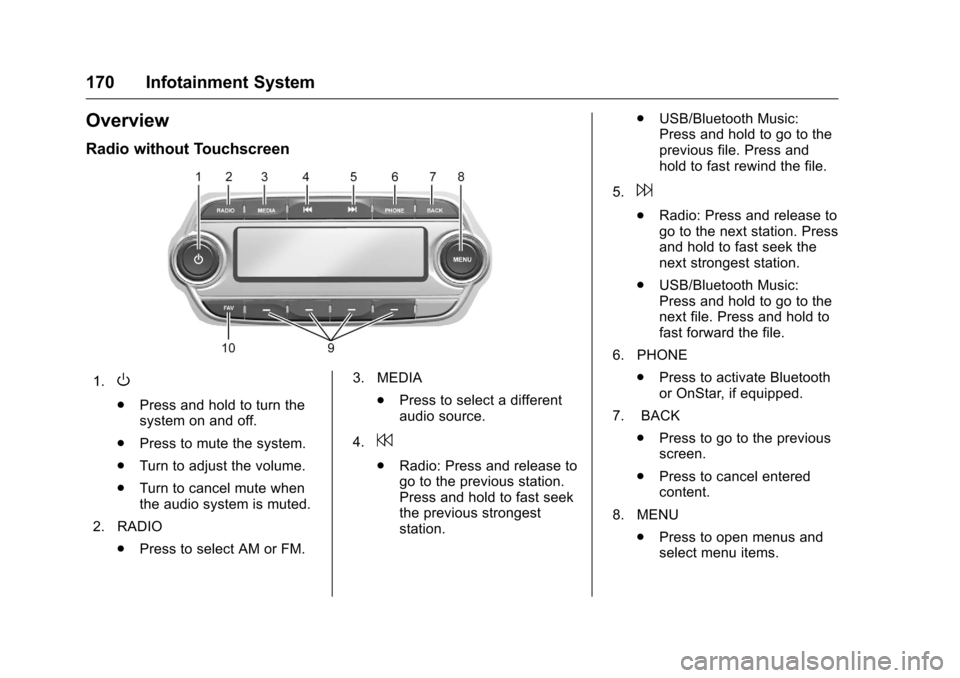
Radio without Touchscreen
1.O
.Press and hold to turn the
system on and off.
. Press to mute the system.
. Turn to adjust the volume.
. Turn to cancel mute when
the audio system is muted.
2. RADIO .Press to select AM or FM. 3. MEDIA
.Press to select a different
audio source.
4.
7
. Radio: Press and release to
go to the previous station.
Press and hold to fast seek
the previous strongest
station. .
USB/Bluetooth Music:
Press and hold to go to the
previous file. Press and
hold to fast rewind the file.
5.
6
. Radio: Press and release to
go to the next station. Press
and hold to fast seek the
next strongest station.
. USB/Bluetooth Music:
Press and hold to go to the
next file. Press and hold to
fast forward the file.
6. PHONE .Press to activate Bluetooth
or OnStar, if equipped.
7. BACK .Press to go to the previous
screen.
. Press to cancel entered
content.
8. MENU .Press to open menus and
select menu items.