radio controls CHEVROLET MALIBU 2023 Owners Manual
[x] Cancel search | Manufacturer: CHEVROLET, Model Year: 2023, Model line: MALIBU, Model: CHEVROLET MALIBU 2023Pages: 332, PDF Size: 6.2 MB
Page 79 of 332
Chevrolet Malibu Owner Manual (GMNA-Localizing-U.S./Canada-
16273584) - 2023 - CRC - 9/28/22
78 Instruments and Controls
SeeHigh Voltage Devices and Wiring 0242.
Wireless Charging
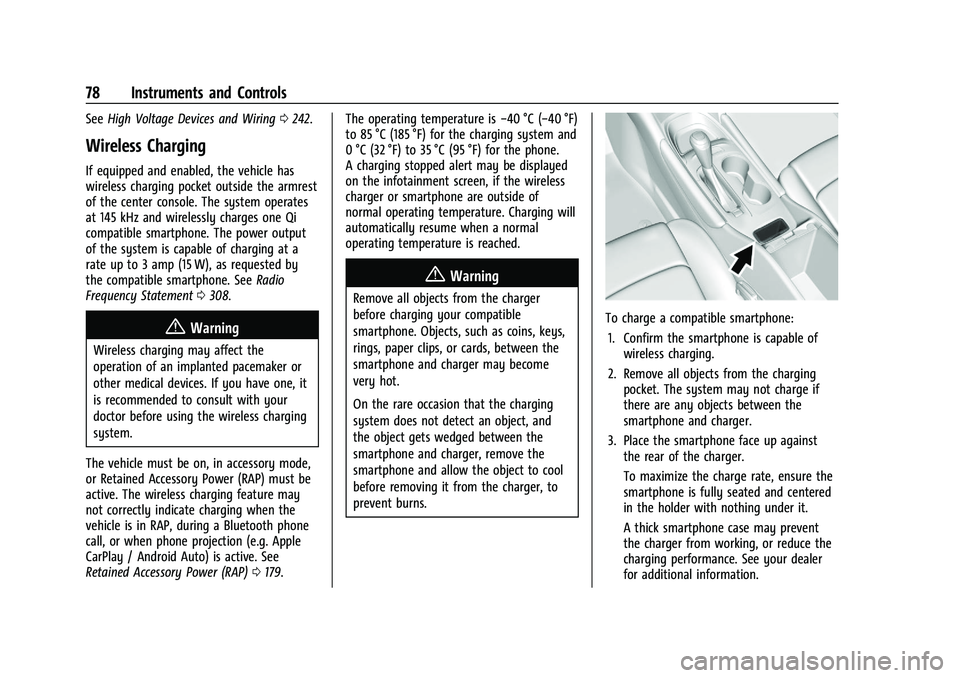
If equipped and enabled, the vehicle has
wireless charging pocket outside the armrest
of the center console. The system operates
at 145 kHz and wirelessly charges one Qi
compatible smartphone. The power output
of the system is capable of charging at a
rate up to 3 amp (15 W), as requested by
the compatible smartphone. See Radio
Frequency Statement 0308.
{Warning
Wireless charging may affect the
operation of an implanted pacemaker or
other medical devices. If you have one, it
is recommended to consult with your
doctor before using the wireless charging
system.
The vehicle must be on, in accessory mode,
or Retained Accessory Power (RAP) must be
active. The wireless charging feature may
not correctly indicate charging when the
vehicle is in RAP, during a Bluetooth phone
call, or when phone projection (e.g. Apple
CarPlay / Android Auto) is active. See
Retained Accessory Power (RAP) 0179. The operating temperature is
−40 °C (−40 °F)
to 85 °C (185 °F) for the charging system and
0 °C (32 °F) to 35 °C (95 °F) for the phone.
A charging stopped alert may be displayed
on the infotainment screen, if the wireless
charger or smartphone are outside of
normal operating temperature. Charging will
automatically resume when a normal
operating temperature is reached.
{Warning
Remove all objects from the charger
before charging your compatible
smartphone. Objects, such as coins, keys,
rings, paper clips, or cards, between the
smartphone and charger may become
very hot.
On the rare occasion that the charging
system does not detect an object, and
the object gets wedged between the
smartphone and charger, remove the
smartphone and allow the object to cool
before removing it from the charger, to
prevent burns.
To charge a compatible smartphone:
1. Confirm the smartphone is capable of wireless charging.
2. Remove all objects from the charging pocket. The system may not charge if
there are any objects between the
smartphone and charger.
3. Place the smartphone face up against the rear of the charger.
To maximize the charge rate, ensure the
smartphone is fully seated and centered
in the holder with nothing under it.
A thick smartphone case may prevent
the charger from working, or reduce the
charging performance. See your dealer
for additional information.
Page 83 of 332
Chevrolet Malibu Owner Manual (GMNA-Localizing-U.S./Canada-
16273584) - 2023 - CRC - 9/28/22
82 Instruments and Controls
.Info app. This is where you can view the
selected Driver Information Center (DIC)
displays. SeeDriver Information Center
(DIC) (Base Level) 095 or
Driver Information Center (DIC) (Uplevel)
0 98.
.Audio
.Phone
.Navigation
.Options
Audio
In the main view of the Audio app, press
w
orxto scroll through radio stations or
move to the next/previous track of a
CD/USB/Bluetooth device that is connected
to the vehicle. Press
Vto select the Audio
app, then press
pto enter the Audio menu.
In the Audio menu browse for music, select
from the favorites, or change the audio
source.
Phone
Press
Vto select the Phone app, then press
pto enter the Phone menu. In the Phone
menu, if there is no active phone call, view
recent calls, scroll through contacts, or select from the favorites. If there is an active call,
mute or unmute the phone or switch to
handset or handsfree operation.
Navigation
Press
Vto select the Navigation app, then
press
pto enter the Navigation menu.
If there is an active route, press
Vto cancel
or resume route guidance or turn the voice
prompts on/off.
Options
Press
Vto select the Options app. Usew
orxto scroll through the items in the
Options menu.
Units : Press
pwhile Units is displayed to
enter the Units menu. Choose U.S. or metric
units by pressing
Vwhile the desired item
is highlighted.
Display Themes : Press
pwhile Display
Themes is displayed to enter the menu.
Choose Sport or Touring by pressing
V
while the desired item is highlighted.
Pocket Gauges : Press
pwhile Pocket
Gauges is displayed to enter the menu and
select gauges that can be displayed on the left or right of the display area. If equipped,
choose battery voltage, fuel range, or fuel
economy.
Info Pages :
Press
pwhile Info Pages is
displayed to enter the Info Pages menu and
select the items to be displayed in the Info
app. See Driver Information Center (DIC)
(Base Level) 095 or
Driver Information Center (DIC) (Uplevel)
0 98.
Speed Warning : The Speed Warning display
allows the driver to set a speed that they
do not want to exceed. To set the Speed
Warning, press
pwhen Speed Warning is
displayed. Press
worxto adjust the
value. Press
Vto set the speed. Once the
speed is set, this feature can be turned off
by pressing
Vwhile viewing this page.
If the selected speed limit is exceeded, a
pop-up warning is displayed with a chime.
Speedometer
The speedometer shows the vehicle speed in
either kilometers per hour (km/h) or miles
per hour (mph).
Page 86 of 332
Chevrolet Malibu Owner Manual (GMNA-Localizing-U.S./Canada-
16273584) - 2023 - CRC - 9/28/22
Instruments and Controls 85
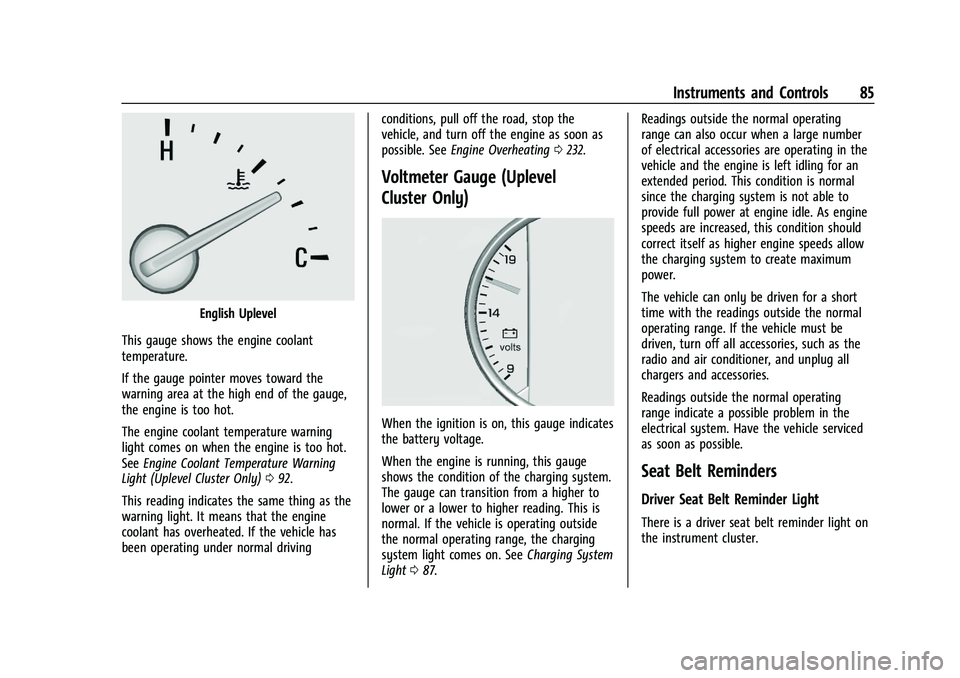
English Uplevel
This gauge shows the engine coolant
temperature.
If the gauge pointer moves toward the
warning area at the high end of the gauge,
the engine is too hot.
The engine coolant temperature warning
light comes on when the engine is too hot.
See Engine Coolant Temperature Warning
Light (Uplevel Cluster Only) 092.
This reading indicates the same thing as the
warning light. It means that the engine
coolant has overheated. If the vehicle has
been operating under normal driving conditions, pull off the road, stop the
vehicle, and turn off the engine as soon as
possible. See
Engine Overheating 0232.
Voltmeter Gauge (Uplevel
Cluster Only)
When the ignition is on, this gauge indicates
the battery voltage.
When the engine is running, this gauge
shows the condition of the charging system.
The gauge can transition from a higher to
lower or a lower to higher reading. This is
normal. If the vehicle is operating outside
the normal operating range, the charging
system light comes on. See Charging System
Light 087. Readings outside the normal operating
range can also occur when a large number
of electrical accessories are operating in the
vehicle and the engine is left idling for an
extended period. This condition is normal
since the charging system is not able to
provide full power at engine idle. As engine
speeds are increased, this condition should
correct itself as higher engine speeds allow
the charging system to create maximum
power.
The vehicle can only be driven for a short
time with the readings outside the normal
operating range. If the vehicle must be
driven, turn off all accessories, such as the
radio and air conditioner, and unplug all
chargers and accessories.
Readings outside the normal operating
range indicate a possible problem in the
electrical system. Have the vehicle serviced
as soon as possible.
Seat Belt Reminders
Driver Seat Belt Reminder Light
There is a driver seat belt reminder light on
the instrument cluster.
Page 88 of 332
Chevrolet Malibu Owner Manual (GMNA-Localizing-U.S./Canada-
16273584) - 2023 - CRC - 9/28/22
Instruments and Controls 87
Passenger Airbag Status Indicator
The vehicle has a passenger sensing system.
SeePassenger Sensing System 050 for
important safety information. The overhead
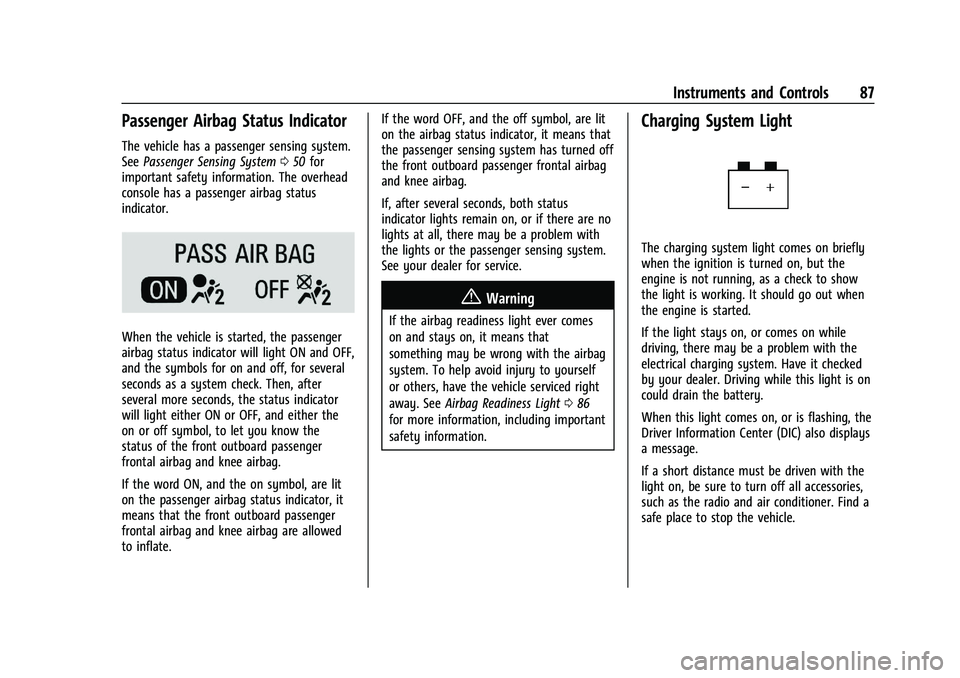
console has a passenger airbag status
indicator.
When the vehicle is started, the passenger
airbag status indicator will light ON and OFF,
and the symbols for on and off, for several
seconds as a system check. Then, after
several more seconds, the status indicator
will light either ON or OFF, and either the
on or off symbol, to let you know the
status of the front outboard passenger
frontal airbag and knee airbag.
If the word ON, and the on symbol, are lit
on the passenger airbag status indicator, it
means that the front outboard passenger
frontal airbag and knee airbag are allowed
to inflate. If the word OFF, and the off symbol, are lit
on the airbag status indicator, it means that
the passenger sensing system has turned off
the front outboard passenger frontal airbag
and knee airbag.
If, after several seconds, both status
indicator lights remain on, or if there are no
lights at all, there may be a problem with
the lights or the passenger sensing system.
See your dealer for service.
{Warning
If the airbag readiness light ever comes
on and stays on, it means that
something may be wrong with the airbag
system. To help avoid injury to yourself
or others, have the vehicle serviced right
away. See
Airbag Readiness Light 086
for more information, including important
safety information.
Charging System Light
The charging system light comes on briefly
when the ignition is turned on, but the
engine is not running, as a check to show
the light is working. It should go out when
the engine is started.
If the light stays on, or comes on while
driving, there may be a problem with the
electrical charging system. Have it checked
by your dealer. Driving while this light is on
could drain the battery.
When this light comes on, or is flashing, the
Driver Information Center (DIC) also displays
a message.
If a short distance must be driven with the
light on, be sure to turn off all accessories,
such as the radio and air conditioner. Find a
safe place to stop the vehicle.
Page 110 of 332
Chevrolet Malibu Owner Manual (GMNA-Localizing-U.S./Canada-
16273584) - 2023 - CRC - 9/28/22
Infotainment System 109
Infotainment System
Introduction
Introduction . . . . . . . . . . . . . . . . . . . . . . . . . . . 109
Overview . . . . . . . . . . . . . . . . . . . . . . . . . . . . . . 110
Steering Wheel Controls . . . . . . . . . . . . . . . . 111
Using the System . . . . . . . . . . . . . . . . . . . . . . 112
Software Updates . . . . . . . . . . . . . . . . . . . . . . 115
Radio
AM-FM Radio . . . . . . . . . . . . . . . . . . . . . . . . . . 115
Radio Data System (RDS) . . . . . . . . . . . . . . 116
Satellite Radio . . . . . . . . . . . . . . . . . . . . . . . . . . 117
Radio Reception . . . . . . . . . . . . . . . . . . . . . . . . 117
Backglass Antenna . . . . . . . . . . . . . . . . . . . . . 118
Multi-Band Antenna . . . . . . . . . . . . . . . . . . . . 118
Audio Players
Avoiding Untrusted Media Devices . . . . . 118
USB Port . . . . . . . . . . . . . . . . . . . . . . . . . . . . . . . 118
Auxiliary Jack . . . . . . . . . . . . . . . . . . . . . . . . . . 121
Bluetooth Audio . . . . . . . . . . . . . . . . . . . . . . . 121
Navigation
Using the Navigation System . . . . . . . . . . 122
Maps . . . . . . . . . . . . . . . . . . . . . . . . . . . . . . . . . . 125
Navigation Symbols . . . . . . . . . . . . . . . . . . . . 125
Destination . . . . . . . . . . . . . . . . . . . . . . . . . . . . 126Global Positioning System (GPS) . . . . . . . 131
Vehicle Positioning . . . . . . . . . . . . . . . . . . . . . 132
Problems with Route Guidance . . . . . . . . 132
If the System Needs Service . . . . . . . . . . . 132
Map Data Updates . . . . . . . . . . . . . . . . . . . . . 133
Database Coverage Explanations . . . . . . . 133
Voice Recognition
Voice Recognition . . . . . . . . . . . . . . . . . . . . . . 133
Phone
Bluetooth (Overview) . . . . . . . . . . . . . . . . . . 138
Bluetooth (Pairing and Using a
Phone) . . . . . . . . . . . . . . . . . . . . . . . . . . . . . . . 139
Apple CarPlay and Android Auto . . . . . . . 142
Settings
Settings . . . . . . . . . . . . . . . . . . . . . . . . . . . . . . . 144
Teen Driver . . . . . . . . . . . . . . . . . . . . . . . . . . . . 147
Trademarks and License Agreements
Trademarks and License Agreements . . . . . . . . . . . . . . . . . . . . . . . . . . 150
Introduction
Read the following pages to become familiar
with the features.
{Warning
Taking your eyes off the road for too
long or too often while using any
infotainment feature can cause a crash.
You or others could be injured or killed.
Do not give extended attention to
infotainment tasks while driving. Limit
your glances at the vehicle displays and
focus your attention on driving. Use voice
commands whenever possible.
The infotainment system has built-in
features intended to help avoid distraction
by disabling some features when driving.
These features may gray out when they are
unavailable. Many infotainment features are
also available through the instrument cluster
and steering wheel controls.
Page 111 of 332
Chevrolet Malibu Owner Manual (GMNA-Localizing-U.S./Canada-
16273584) - 2023 - CRC - 9/28/22
110 Infotainment System
Before driving:
.Become familiar with the operation,
center stack controls, steering wheel
controls, and infotainment display.
.Set up the audio by presetting favorite
stations, setting the tone, and adjusting
the speakers.
.Set up phone numbers in advance so they
can be called easily by pressing a single
control or by using a single voice
command.
See Distracted Driving 0166.
Active Noise Cancellation (ANC)
If equipped, ANC reduces engine noise in the
vehicle’s interior. ANC requires the
factory-installed audio system, radio,
speakers, amplifier (if equipped), induction
system, and exhaust system to work
properly. Deactivation is required by your
dealer if related aftermarket equipment is
installed.
Overview
Infotainment System
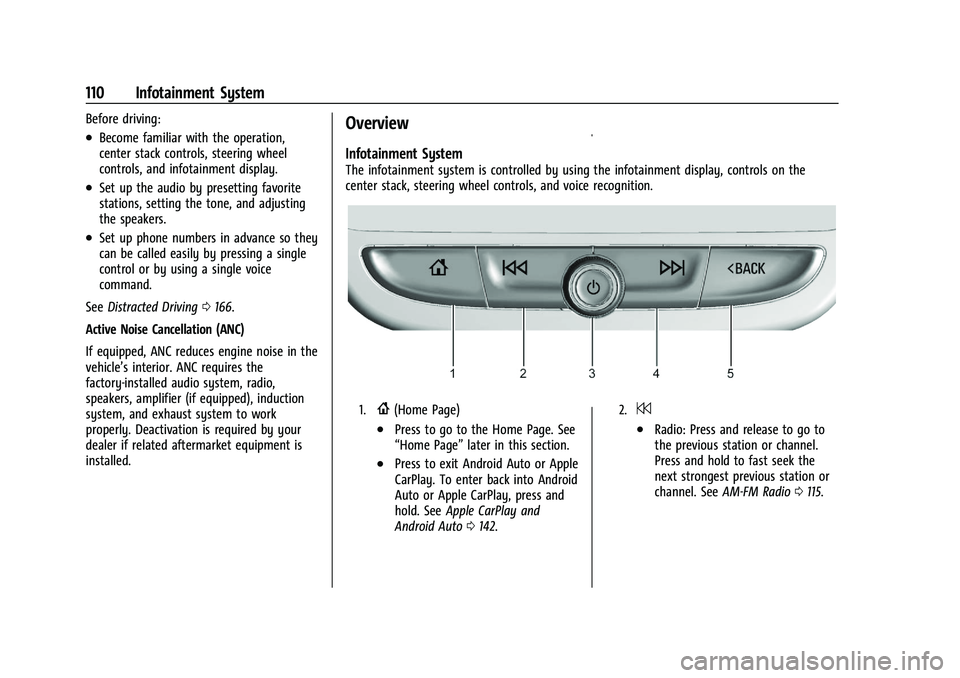
The infotainment system is controlled by using the infotainment display, controls on the
center stack, steering wheel controls, and voice recognition.
1.{(Home Page)
.Press to go to the Home Page. See
“Home Page” later in this section.
.Press to exit Android Auto or Apple
CarPlay. To enter back into Android
Auto or Apple CarPlay, press and
hold. SeeApple CarPlay and
Android Auto 0142.
2.7
.Radio: Press and release to go to
the previous station or channel.
Press and hold to fast seek the
next strongest previous station or
channel. See AM-FM Radio 0115.
Page 112 of 332
Chevrolet Malibu Owner Manual (GMNA-Localizing-U.S./Canada-
16273584) - 2023 - CRC - 9/28/22
Infotainment System 111
.USB/Bluetooth: Press to seek to
the beginning of the current or
previous track. Press and hold to
quickly reverse through a track.
Release to return to playing speed.
SeeUSB Port 0118 or
Bluetooth Audio 0121.
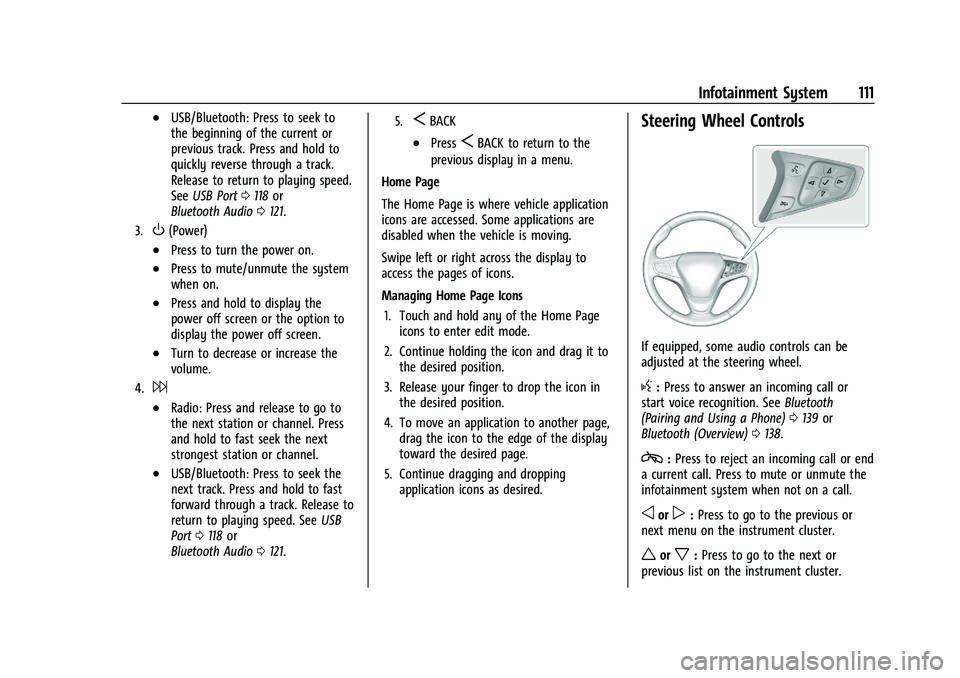
3.O(Power)
.Press to turn the power on.
.Press to mute/unmute the system
when on.
.Press and hold to display the
power off screen or the option to
display the power off screen.
.Turn to decrease or increase the
volume.
4.6
.Radio: Press and release to go to
the next station or channel. Press
and hold to fast seek the next
strongest station or channel.
.USB/Bluetooth: Press to seek the
next track. Press and hold to fast
forward through a track. Release to
return to playing speed. See USB
Port 0118 or
Bluetooth Audio 0121.
5.SBACK
.PressSBACK to return to the
previous display in a menu.
Home Page
The Home Page is where vehicle application
icons are accessed. Some applications are
disabled when the vehicle is moving.
Swipe left or right across the display to
access the pages of icons.
Managing Home Page Icons 1. Touch and hold any of the Home Page icons to enter edit mode.
2. Continue holding the icon and drag it to the desired position.
3. Release your finger to drop the icon in the desired position.
4. To move an application to another page, drag the icon to the edge of the display
toward the desired page.
5. Continue dragging and dropping application icons as desired.
Steering Wheel Controls
If equipped, some audio controls can be
adjusted at the steering wheel.
g:Press to answer an incoming call or
start voice recognition. See Bluetooth
(Pairing and Using a Phone) 0139 or
Bluetooth (Overview) 0138.
c:Press to reject an incoming call or end
a current call. Press to mute or unmute the
infotainment system when not on a call.
oorp: Press to go to the previous or
next menu on the instrument cluster.
worx: Press to go to the next or
previous list on the instrument cluster.
Page 116 of 332
Chevrolet Malibu Owner Manual (GMNA-Localizing-U.S./Canada-
16273584) - 2023 - CRC - 9/28/22
Infotainment System 115
Software Updates
Over-the-Air Software Updates
If equipped, see“Updates”underSettings
0 144 for details on software updates.
Radio
AM-FM Radio
Playing the Radio
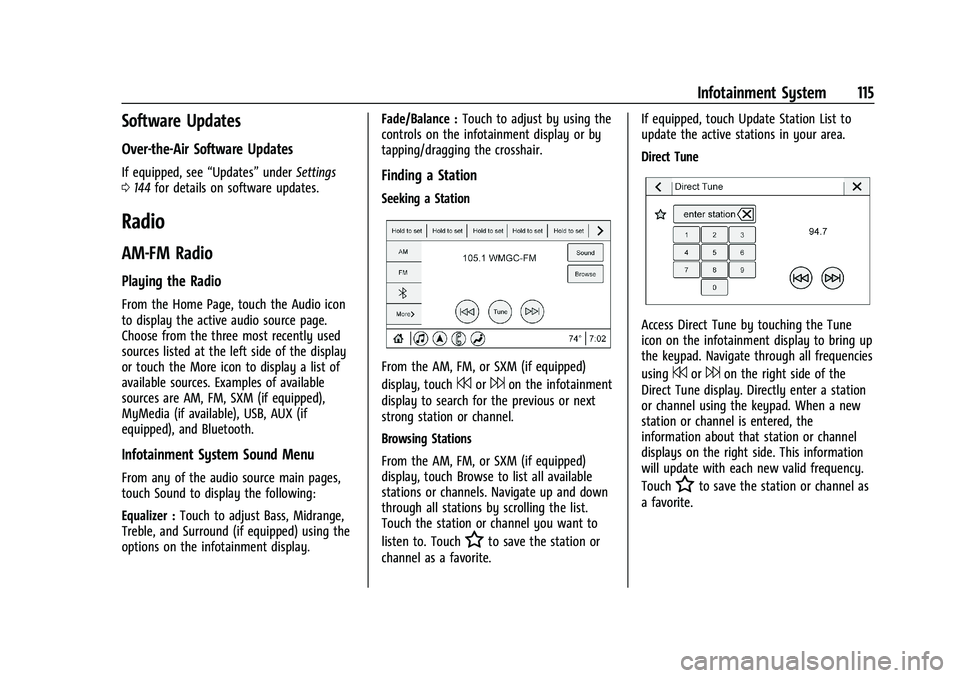
From the Home Page, touch the Audio icon
to display the active audio source page.
Choose from the three most recently used
sources listed at the left side of the display
or touch the More icon to display a list of
available sources. Examples of available
sources are AM, FM, SXM (if equipped),
MyMedia (if available), USB, AUX (if
equipped), and Bluetooth.
Infotainment System Sound Menu
From any of the audio source main pages,
touch Sound to display the following:
Equalizer : Touch to adjust Bass, Midrange,
Treble, and Surround (if equipped) using the
options on the infotainment display. Fade/Balance :
Touch to adjust by using the
controls on the infotainment display or by
tapping/dragging the crosshair.
Finding a Station
Seeking a Station
From the AM, FM, or SXM (if equipped)
display, touch
7or6on the infotainment
display to search for the previous or next
strong station or channel.
Browsing Stations
From the AM, FM, or SXM (if equipped)
display, touch Browse to list all available
stations or channels. Navigate up and down
through all stations by scrolling the list.
Touch the station or channel you want to
listen to. Touch
Hto save the station or
channel as a favorite. If equipped, touch Update Station List to
update the active stations in your area.
Direct Tune
Access Direct Tune by touching the Tune
icon on the infotainment display to bring up
the keypad. Navigate through all frequencies
using
7or6on the right side of the
Direct Tune display. Directly enter a station
or channel using the keypad. When a new
station or channel is entered, the
information about that station or channel
displays on the right side. This information
will update with each new valid frequency.
Touch
Hto save the station or channel as
a favorite.
Page 122 of 332
Chevrolet Malibu Owner Manual (GMNA-Localizing-U.S./Canada-
16273584) - 2023 - CRC - 9/28/22
Infotainment System 121
Songs :TouchHnext to any song to store
the song as a favorite. Touch a saved
favorite to recall a favorite song.
Albums : Touch
Hnext to any album to
store the album as a favorite. Touch a saved
favorite to recall a favorite album. The first
song in the album list begins to play.
Genres : Touch
Hnext to any genre to
store the genre as a favorite. Touch a saved
favorite to recall a favorite genre. The first
song of the genre begins to play.
Podcasts : Touch
Hnext to any podcast to
store the podcast as a favorite. Touch a
saved favorite to recall a favorite podcast.
The podcast begins to play.
Audiobooks : Touch
Hnext to any
audiobook to store the audiobook as a
favorite. Touch a saved favorite to recall a
favorite audiobook. The first chapter in the
audiobook begins to play.
Media Playback and Mute
USB playback will be paused if the system is
muted. If the steering wheel mute control is
pressed again, playback will resume.
If the source is changed while in mute,
playback resumes and audio will unmute.
Auxiliary Jack
This vehicle may have an auxiliary input
jack. Possible auxiliary audio sources include:
.Laptop computer
.Audio music player
This jack is not an audio output. Do not
plug headphones into the auxiliary input
jack. Set up an auxiliary device while the
vehicle is in P (Park).
Connect a 3.5 mm (1/8 in) cable from the
auxiliary device to the auxiliary input jack.
When a device is connected, the system can
play audio from the device over the vehicle
speakers.
If an auxiliary device has already been
connected, but a different source is currently
active, touch More and then touch AUX to
make the source active.
Shuffle and Browse are not available in the
AUX source menu.
Bluetooth Audio
Music may be played from a paired
Bluetooth device. See Bluetooth (Pairing and
Using a Phone) 0139 or
Bluetooth (Overview) 0138 for help pairing
a device. Volume and song selection may be
controlled by using the infotainment
controls or the mobile device. If Bluetooth is
selected and no volume is present, check the
volume setting on the infotainment system.
Music can be launched by touching
Bluetooth from the recent sources list on
the left of the display or by touching the
More option and then touching the
Bluetooth device.
To play music via Bluetooth:
1. Power on the device, and pair to connect the device.
2. Once paired, touch Audio from the Home Page, then touch Bluetooth from the
recent sources list on the left of the
display.
Bluetooth Sound Menu
See “Infotainment System Sound Menu”
under AM-FM Radio 0115.
Manage Bluetooth Devices
From the Home Page: 1. Touch Audio.
2. Touch Devices to add or delete devices.
Page 135 of 332
Chevrolet Malibu Owner Manual (GMNA-Localizing-U.S./Canada-
16273584) - 2023 - CRC - 9/28/22
134 Infotainment System
3. Clearly speak one of the commandsdescribed in this section.
A voice recognition system prompt can
be interrupted while it is playing by
pressing
gagain.
Once voice recognition is started, both the
infotainment display and instrument cluster
show the selections and visual dialog
content. These displays can be turned on or
off in the Tutorial Mode under Settings
0 144.
There are three voice prompt modes
supported:
.Informative verbal prompts: This type of
prompt will provide more information
regarding the supported actions.
.Short prompts: This type of prompt will
provide simple instructions about what
can be stated.
.Auto informative prompts: This type of
prompt plays during the first few speech
sessions, then automatically switches to
the short prompt after some experience
has been gained through using the
system.
If a command is not spoken, the voice
recognition system says a help prompt. Prompts and Infotainment Displays
While a voice recognition session is active,
there may be corresponding options
showing on the displays. A selection can be
made by manually touching the option,
or by speaking the number for the option to
select. Manual interaction in the voice
recognition session is permitted. Interaction
during a voice session may be completed
entirely using voice commands while some
manual commands may expedite a task. If a
selection is made using a manual control,
the voice recognition dialog will progress in
the same way as if the selection were made
using a voice command. Once the system
completes the task, or the session is
terminated, the voice recognition dialog
stops.
An example of this type of manual
intervention is touching an entry of a
displayed number list instead of speaking
the number associated with the entry
desired.
Canceling Voice Recognition
.Touch or say
“Cancel”or“Exit” to
terminate the voice recognition session
and show the display where voice
recognition was initiated.
.Pression the steering wheel controls
to terminate the voice recognition session
and show the display where voice
recognition was initiated.
Natural Language Commands
Most languages do not support natural
language commands in sentence form. For
those languages, use direct commands like
the examples shown on the display.
Helpful Hints for Speaking Commands
Voice recognition can understand commands
that are naturally stated in sentence form or
direct commands that state the application
and the task.
For best results:
.Listen for the prompt before saying a
command or reply.
.Speak the command naturally, not too
fast, not too slow.
.Use direct commands without a lot of
extra words. For example, “Call
at work,” “Play” followed by the artist or
song name, or “Tune”followed by the
radio station number.