esp CHEVROLET SILVERADO 1500 2014 User Guide
[x] Cancel search | Manufacturer: CHEVROLET, Model Year: 2014, Model line: SILVERADO 1500, Model: CHEVROLET SILVERADO 1500 2014Pages: 542, PDF Size: 7.09 MB
Page 241 of 542
Black plate (39,1)Chevrolet Silverado Owner Manual (GMNA-Localizing-U.S./Canada/Mexico-
5853506) - 2014 - CRC 3rd Edition - 8/28/13
Infotainment System 7-39
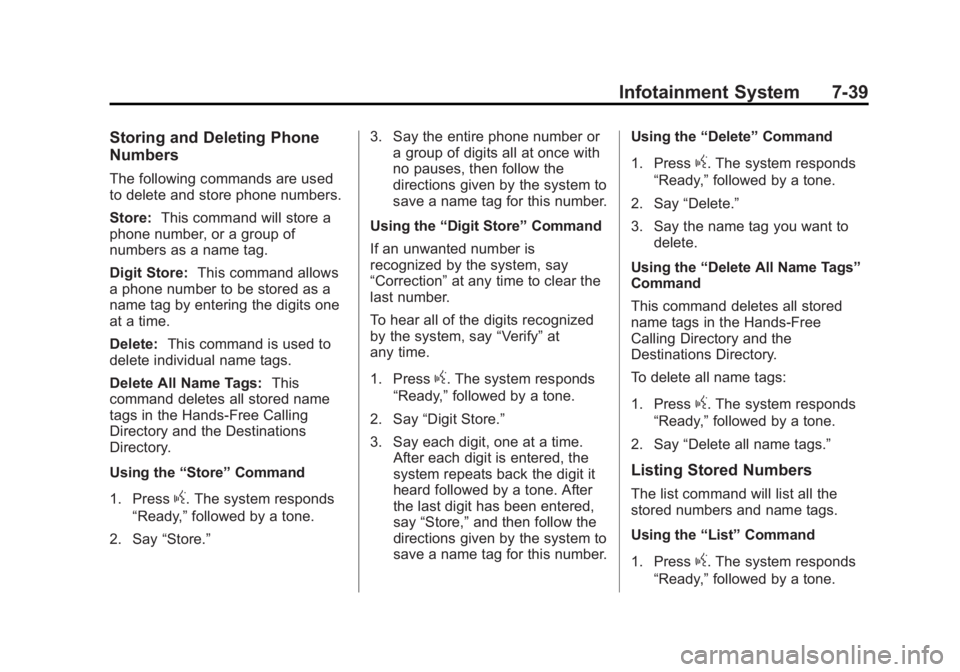
Storing and Deleting Phone
Numbers
The following commands are used
to delete and store phone numbers.
Store:This command will store a
phone number, or a group of
numbers as a name tag.
Digit Store: This command allows
a phone number to be stored as a
name tag by entering the digits one
at a time.
Delete: This command is used to
delete individual name tags.
Delete All Name Tags: This
command deletes all stored name
tags in the Hands-Free Calling
Directory and the Destinations
Directory.
Using the “Store”Command
1. Press
g. The system responds
“Ready,” followed by a tone.
2. Say “Store.” 3. Say the entire phone number or
a group of digits all at once with
no pauses, then follow the
directions given by the system to
save a name tag for this number.
Using the “Digit Store” Command
If an unwanted number is
recognized by the system, say
“Correction” at any time to clear the
last number.
To hear all of the digits recognized
by the system, say “Verify”at
any time.
1. Press
g. The system responds
“Ready,” followed by a tone.
2. Say “Digit Store.”
3. Say each digit, one at a time. After each digit is entered, the
system repeats back the digit it
heard followed by a tone. After
the last digit has been entered,
say “Store,” and then follow the
directions given by the system to
save a name tag for this number. Using the
“Delete”Command
1. Press
g. The system responds
“Ready,” followed by a tone.
2. Say “Delete.”
3. Say the name tag you want to delete.
Using the “Delete All Name Tags”
Command
This command deletes all stored
name tags in the Hands-Free
Calling Directory and the
Destinations Directory.
To delete all name tags:
1. Press
g. The system responds
“Ready,” followed by a tone.
2. Say “Delete all name tags.”
Listing Stored Numbers
The list command will list all the
stored numbers and name tags.
Using the “List”Command
1. Press
g. The system responds
“Ready,” followed by a tone.
Page 242 of 542
Black plate (40,1)Chevrolet Silverado Owner Manual (GMNA-Localizing-U.S./Canada/Mexico-
5853506) - 2014 - CRC 3rd Edition - 8/28/13
7-40 Infotainment System
2. Say“Directory.”
3. Say “Hands-Free Calling.”
4. Say “List.”
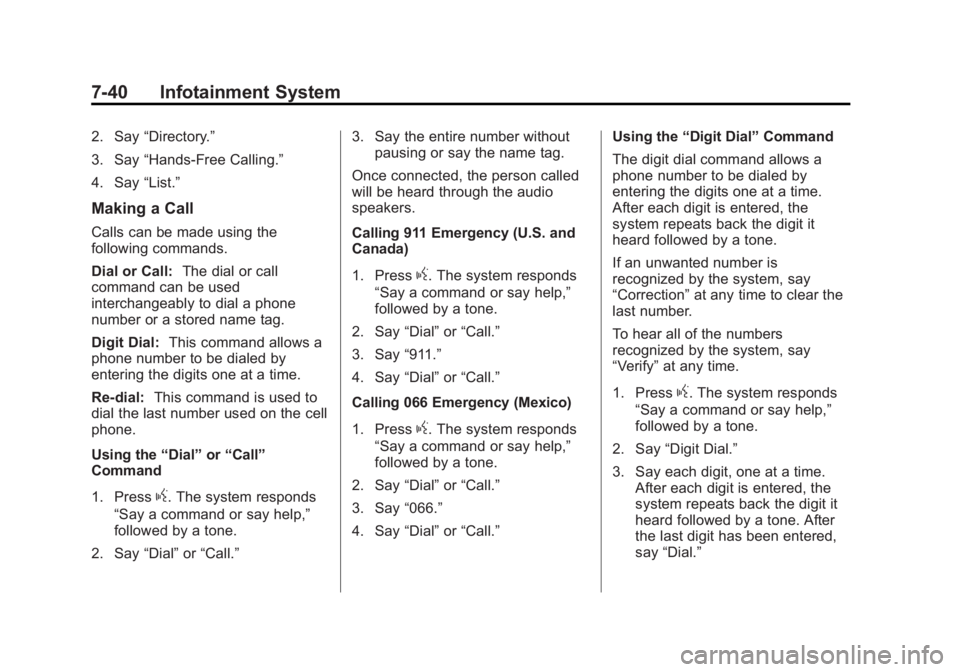
Making a Call
Calls can be made using the
following commands.
Dial or Call: The dial or call
command can be used
interchangeably to dial a phone
number or a stored name tag.
Digit Dial: This command allows a
phone number to be dialed by
entering the digits one at a time.
Re-dial: This command is used to
dial the last number used on the cell
phone.
Using the “Dial”or“Call”
Command
1. Press
g. The system responds
“Say a command or say help,”
followed by a tone.
2. Say “Dial”or“Call.” 3. Say the entire number without
pausing or say the name tag.
Once connected, the person called
will be heard through the audio
speakers.
Calling 911 Emergency (U.S. and
Canada)
1. Press
g. The system responds
“Say a command or say help,”
followed by a tone.
2. Say “Dial”or“Call.”
3. Say “911.”
4. Say “Dial”or“Call.”
Calling 066 Emergency (Mexico)
1. Press
g. The system responds
“Say a command or say help,”
followed by a tone.
2. Say “Dial”or“Call.”
3. Say “066.”
4. Say “Dial”or“Call.” Using the
“Digit Dial” Command
The digit dial command allows a
phone number to be dialed by
entering the digits one at a time.
After each digit is entered, the
system repeats back the digit it
heard followed by a tone.
If an unwanted number is
recognized by the system, say
“Correction” at any time to clear the
last number.
To hear all of the numbers
recognized by the system, say
“Verify” at any time.
1. Press
g. The system responds
“Say a command or say help,”
followed by a tone.
2. Say “Digit Dial.”
3. Say each digit, one at a time. After each digit is entered, the
system repeats back the digit it
heard followed by a tone. After
the last digit has been entered,
say “Dial.”
Page 243 of 542
Black plate (41,1)Chevrolet Silverado Owner Manual (GMNA-Localizing-U.S./Canada/Mexico-
5853506) - 2014 - CRC 3rd Edition - 8/28/13
Infotainment System 7-41
Once connected, the person called
will be heard through the audio
speakers.
Using the“Re-dial”Command
1. Press
g. The system responds
“Say a command or say help,”
followed by a tone.
2. After the tone, say “Re-dial.”The
system dials the last number
called from the connected cell
phone.
Once connected, the person called
will be heard through the audio
speakers.
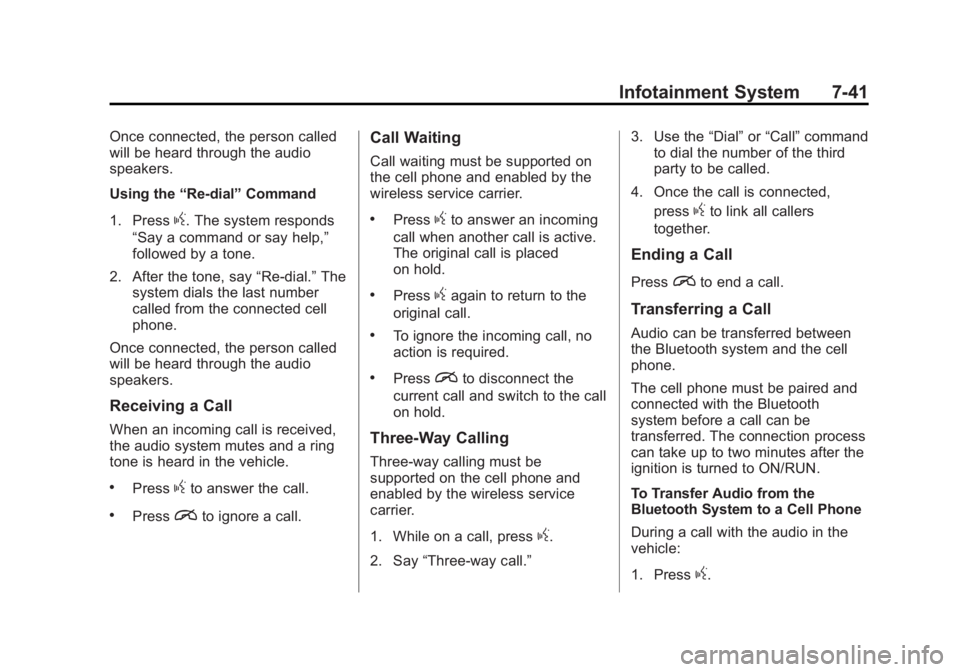
Receiving a Call
When an incoming call is received,
the audio system mutes and a ring
tone is heard in the vehicle.
.Pressgto answer the call.
.Pressito ignore a call.
Call Waiting
Call waiting must be supported on
the cell phone and enabled by the
wireless service carrier.
.Pressgto answer an incoming
call when another call is active.
The original call is placed
on hold.
.Pressgagain to return to the
original call.
.To ignore the incoming call, no
action is required.
.Pressito disconnect the
current call and switch to the call
on hold.
Three-Way Calling
Three-way calling must be
supported on the cell phone and
enabled by the wireless service
carrier.
1. While on a call, press
g.
2. Say “Three-way call.” 3. Use the
“Dial”or“Call” command
to dial the number of the third
party to be called.
4. Once the call is connected, press
gto link all callers
together.
Ending a Call
Pressito end a call.
Transferring a Call
Audio can be transferred between
the Bluetooth system and the cell
phone.
The cell phone must be paired and
connected with the Bluetooth
system before a call can be
transferred. The connection process
can take up to two minutes after the
ignition is turned to ON/RUN.
To Transfer Audio from the
Bluetooth System to a Cell Phone
During a call with the audio in the
vehicle:
1. Press
g.
Page 244 of 542
Black plate (42,1)Chevrolet Silverado Owner Manual (GMNA-Localizing-U.S./Canada/Mexico-
5853506) - 2014 - CRC 3rd Edition - 8/28/13
7-42 Infotainment System
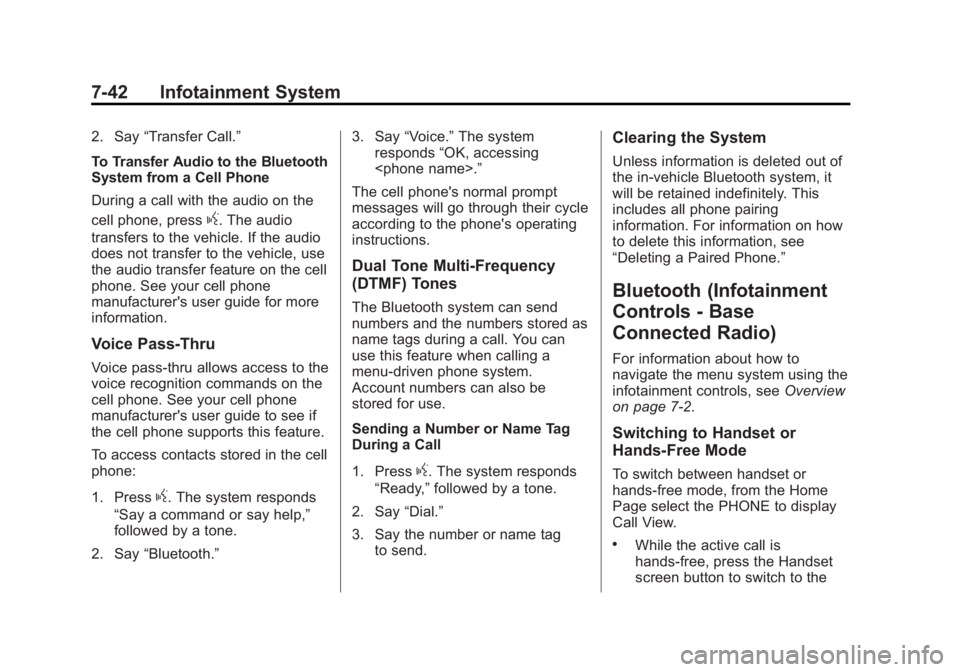
2. Say“Transfer Call.”
To Transfer Audio to the Bluetooth
System from a Cell Phone
During a call with the audio on the
cell phone, press
g. The audio
transfers to the vehicle. If the audio
does not transfer to the vehicle, use
the audio transfer feature on the cell
phone. See your cell phone
manufacturer's user guide for more
information.
Voice Pass-Thru
Voice pass-thru allows access to the
voice recognition commands on the
cell phone. See your cell phone
manufacturer's user guide to see if
the cell phone supports this feature.
To access contacts stored in the cell
phone:
1. Press
g. The system responds
“Say a command or say help,”
followed by a tone.
2. Say “Bluetooth.” 3. Say
“Voice.” The system
responds “OK, accessing
The cell phone's normal prompt
messages will go through their cycle
according to the phone's operating
instructions.
Dual Tone Multi-Frequency
(DTMF) Tones
The Bluetooth system can send
numbers and the numbers stored as
name tags during a call. You can
use this feature when calling a
menu-driven phone system.
Account numbers can also be
stored for use.
Sending a Number or Name Tag
During a Call
1. Press
g. The system responds
“Ready,” followed by a tone.
2. Say “Dial.”
3. Say the number or name tag to send.
Clearing the System
Unless information is deleted out of
the in-vehicle Bluetooth system, it
will be retained indefinitely. This
includes all phone pairing
information. For information on how
to delete this information, see
“Deleting a Paired Phone.”
Bluetooth (Infotainment
Controls - Base
Connected Radio)
For information about how to
navigate the menu system using the
infotainment controls, see Overview
on page 7-2.
Switching to Handset or
Hands-Free Mode
To switch between handset or
hands-free mode, from the Home
Page select the PHONE to display
Call View.
.While the active call is
hands-free, press the Handset
screen button to switch to the
Page 246 of 542
Black plate (44,1)Chevrolet Silverado Owner Manual (GMNA-Localizing-U.S./Canada/Mexico-
5853506) - 2014 - CRC 3rd Edition - 8/28/13
7-44 Infotainment System
enter the PIN provided in Step 3
or confirm the six-digit code
shown on the display. After the
PIN is successfully entered or
the code is confirmed, the
system responds with“
paired” when the pairing process
is complete.
6. If “Chevrolet MyLink” does not
appear, turn the phone off or
remove the phone battery and
retry.
7. If the phone prompts to accept connection or allow phone book
download, select always accept
and allow. The phone book my
not be available if not accepted.
8. Repeat Steps 1−7 to pair additional phones.
Listing All Paired and Connected
Phones
1. To list all paired devices, from the Home Page turn the MENU
knob, then press to select the
PHONE screen button. 2. Turn the MENU knob and press
to select Manage Phones.
Deleting a Paired Phone
1. From the Home Page, turn the MENU knob, then press to
select the PHONE screen
button.
2. Turn the MENU knob and press to select Manage Phones.
3. Turn the MENU knob to highlight the phone to be deleted.
4. Press the button below the DROP screen button to
disconnect the highlighted
device.
5. Press the button below the DELETE screen button to delete
the highlighted device.
6. A confirmation screen is displayed. Press the button just
below the DELETE screen
button to confirm deletion. Connecting to a Different Phone
1. From the Home Page, turn the
MENU knob, then press to
select the PHONE screen button
or press the PHONE button on
the faceplate.
2. Turn the MENU knob and press to select Manage Phones.
3. Turn the MENU knob to highlight the phone to be connected.
4. Press the button just below the CONNECT screen button to
connect to the highlighted
device.
Phone Menu
Once a phone is connected and
selected, the following may display:
Recent Calls: Turn the MENU
knob to highlight Recent Calls and
press to select.
Contacts: Turn the MENU knob to
highlight Contacts and press to
select.
Page 249 of 542
Black plate (47,1)Chevrolet Silverado Owner Manual (GMNA-Localizing-U.S./Canada/Mexico-
5853506) - 2014 - CRC 3rd Edition - 8/28/13
Infotainment System 7-47
1. When a call is active, press thebutton just below the KEYPAD
screen button.
2. Turn the MENU knob to highlight the first digit and press to select.
If not initially in the phone
application, from the Home Page,
turn the MENU knob, then press to
select the PHONE screen button.
From the PHONE main menu, turn
the MENU knob to highlight Active
Call and press to select.
Bluetooth (Voice
Recognition - Base
Connected Radio)
Using Bluetooth Voice
Recognition
To use voice recognition, press thegbutton on the steering wheel. Use
the commands below for the various
voice features. For additional
information, say “Help”while in a
voice recognition menu. See Voice
Recognition on page 7-25 for help
using voice recognition commands.
Making a Call
Calls can be made using the
following commands.
Using the “Dial”or“Call”
Command
To call a number:
1. Press
g. The system responds
“Command Please,” followed by
a tone.
2. Say “Dial”or“Call” followed by
the complete phone number.
Use the “Voice Keypad” command
for international numbers or special
numbers which include * or #.
Once connected, the person called
will be heard through the audio
speakers.
To call using a contact from your
phone book:
1. Press
g. The system responds
“Command Please,” followed by
a tone. 2. Say
“Dial”or“Call” and then say
the contact name. For example
“Call John at Work.”
Once connected, the person called
will be heard through the audio
speakers.
Calling 911 Emergency (U.S. and
Canada)
1. Press
g. The system responds
“Command Please,” followed by
a tone.
2. Say “Dial”or“Call.”
3. Say “911.”
4. Say “Dial”or“Call.”
Calling 066 Emergency (Mexico)
1. Press
g. The system responds
“Command Please,” followed by
a tone.
2. Say “Dial”or“Call.”
3. Say “066.”
4. Say “Dial”or“Call.”
Page 250 of 542
Black plate (48,1)Chevrolet Silverado Owner Manual (GMNA-Localizing-U.S./Canada/Mexico-
5853506) - 2014 - CRC 3rd Edition - 8/28/13
7-48 Infotainment System
Once connected, the person called
will be heard through the audio
speakers.
Using the“Switch Phone”
Command
1. Press
g. The system responds
“Command Please,” followed by
a tone.
2. After the tone, say “Switch
Phone.” The system displays a
list of phones to select.
Using the “Voice Keypad”
Command
1. Press
g. The system responds
“Command Please,” followed by
a tone.
2. After the tone, say “Voice
Keypad.” The system allows
entry of special numbers and
characters. Using the
“Voice mail” Command
1. Press
g. The system responds
“Command Please,” followed by
a tone.
2. After the tone, say “Voice mail.”
The system dials the voice mail
number of the connected phone.
Clearing the System
Unless information is deleted out of
the vehicle Bluetooth system, it will
be retained. This includes phone
pairing information. For directions
on how to delete this information,
see “Deleting a Paired Phone.”
Trademarks and
License Agreements
FCC Information
See Radio Frequency Statement on
page 13-15.
"Made for iPod," and "Made for
iPhone," mean that an electronic
accessory has been designed to
connect specifically to iPod or
iPhone and has been certified by
the developer to meet Apple
performance standards. Apple is not
responsible for the operation of this
device or its compliance with safety
and regulatory standards. Please
note that the use of this accessory
with iPod or iPhone may affect
wireless performance. iPhone
®,
iPod®, iPod classic®, iPod nano®,
Page 252 of 542
Black plate (50,1)Chevrolet Silverado Owner Manual (GMNA-Localizing-U.S./Canada/Mexico-
5853506) - 2014 - CRC 3rd Edition - 8/28/13
7-50 Infotainment System
HD Radio Technology
HD Radio Technology manufactured
under license from iBiquity Digital
Corporation. U.S. and Foreign
patents. HD Radio™and the HD,
HD Radio, and “Arc”logos are
proprietary trademarks of iBiquity
Digital Corp.
Other Information
The Bluetooth®word mark and
logos are owned by the Bluetooth®
SIG, Inc. and any use of such marks
by General Motors is under license.
Other trademarks and trade names
are those of their respective owners.
Schedule I: Gracenote EULA
Music recognition technology and
related data are provided by
Gracenote
®. Gracenote is the
industry standard in music
recognition technology and related
content delivery. For more
information visit
www.gracenote.com.
Music-related data from Gracenote,
Inc., copyright © 2000 to present
Gracenote. Gracenote Software,
copyright © 2000 to present
Gracenote. One or more patents
owned by Gracenote may apply to
this product and service. See the
Gracenote website for a
non-exhaustive list of applicable
Gracenote patents. Gracenote,
CDDB, MusicID, MediaVOCS, the Gracenote logo and logotype, and
the "Powered by Gracenote" logo
are either registered trademarks or
trademarks of Gracenote in the
United States and/or other
countries.
Gracenote Terms of Use
This application or device contains
software from Gracenote, Inc. of
Emeryville, California ("Gracenote").
The software from Gracenote (the
"Gracenote Software") enables this
application to do disc or file
identification and obtain
music-related information, including
name, artist, track, and title
information ("Gracenote Data") from
online servers or embedded
databases (collectively, "Gracenote
Servers") and to perform other
functions. You may use Gracenote
Data only by means of the intended
End-User functions of this
application or device.
This application or device may
contain content belonging to
Gracenote’s providers. If so, all of
Page 253 of 542
Black plate (51,1)Chevrolet Silverado Owner Manual (GMNA-Localizing-U.S./Canada/Mexico-
5853506) - 2014 - CRC 3rd Edition - 8/28/13
Infotainment System 7-51
the restrictions set forth herein with
respect to Gracenote Data shall
also apply to such content and such
content providers shall be entitled to
all of the benefits and protections
set forth herein that are available to
Gracenote.
You agree that you will use
Gracenote Data, the Gracenote
Software, and Gracenote Servers
for your own personal
non-commercial use only. You agree
not to assign, copy, transfer or
transmit the Gracenote Software or
any Gracenote Data to any third
party. YOU AGREE NOT TO USE
OR EXPLOIT GRACENOTE DATA,
THE GRACENOTE SOFTWARE,
OR GRACENOTE SERVERS,
EXCEPT AS EXPRESSLY
PERMITTED HEREIN.
You agree that your non-exclusive
license to use the Gracenote Data,
the Gracenote Software, and
Gracenote Servers will terminate if
you violate these restrictions. If your
license terminates, you agree to
cease any and all use of theGracenote Data, the Gracenote
Software, and Gracenote Servers.
Gracenote reserves all rights in
Gracenote Data, the Gracenote
Software, and the Gracenote
Servers, including all ownership
rights. Under no circumstances will
Gracenote become liable for any
payment to you for any information
that you provide. You agree that
Gracenote may enforce its rights
under this Agreement against you
directly in its own name.
The Gracenote service uses a
unique identifier to track queries for
statistical purposes. The purpose of
a randomly assigned numeric
identifier is to allow the Gracenote
service to count queries without
knowing anything about who you
are. For more information, see the
web page for the Gracenote Privacy
Policy for the Gracenote service.
The Gracenote Software and each
item of Gracenote Data are licensed
to you "AS IS." Gracenote makes no
representations or warranties,
express or implied, regarding theaccuracy of any Gracenote Data.
Gracenote reserves the right to
delete data from the Gracenote
Servers or to change data
categories for any cause that
Gracenote deems sufficient. No
warranty is made that the Gracenote
Software or Gracenote Servers are
error-free or that functioning of
Gracenote Software or Gracenote
Servers will be uninterrupted.
Gracenote is not obligated to
provide you with new enhanced or
additional data types or categories
that Gracenote may provide in the
future and is free to discontinue its
services at any time.
GRACENOTE DISCLAIMS ALL
WARRANTIES EXPRESS OR
IMPLIED, INCLUDING, BUT NOT
LIMITED TO, IMPLIED
WARRANTIES OF
MERCHANTABILITY, FITNESS
FOR A PARTICULAR PURPOSE,
TITLE, AND NON-INFRINGEMENT.
GRACENOTE DOES NOT
WARRANT THE RESULTS THAT
WILL BE OBTAINED BY YOUR
Page 256 of 542
Black plate (54,1)Chevrolet Silverado Owner Manual (GMNA-Localizing-U.S./Canada/Mexico-
5853506) - 2014 - CRC 3rd Edition - 8/28/13
7-54 Infotainment System
such technology outside of this
product is prohibited without a
license from Microsoft.
For more information on the
Software, including any open source
software license terms (and
available source code) as well as
copyright attributions applicable to
the Runtime Configuration indicated
above, please contact the
Manufacturer or contact QSSC at
175 Terence Matthews Crescent,
Kanata, Ontario, Canada K2M 1W8
([email protected]).END USER NOTICE
The marks of companies displayed
by this product to indicate business
locations are the marks of their
respective owners. The use of such
marks in this product does not imply
any sponsorship, approval,
or endorsement by such companies
of this product.