steering CHEVROLET SILVERADO 1500 2014 Owner's Guide
[x] Cancel search | Manufacturer: CHEVROLET, Model Year: 2014, Model line: SILVERADO 1500, Model: CHEVROLET SILVERADO 1500 2014Pages: 542, PDF Size: 7.09 MB
Page 210 of 542
Black plate (8,1)Chevrolet Silverado Owner Manual (GMNA-Localizing-U.S./Canada/Mexico-
5853506) - 2014 - CRC 3rd Edition - 8/28/13
7-8 Infotainment System
Clear All Private Data (If
Equipped):This option clears all
private information from the vehicle.
Select Clear All Private Data. Select
Cancel or Confirm.
Restore Radio Settings: This
option will restore factory radio
settings. Select Restore Radio
Settings. A screen displays stating
all personalized radio settings will
be restored back to the factory
settings. Select Cancel or Confirm.English and Metric Unit
Conversion
To change the display units between
English and metric units, see Driver
Information Center (DIC) (Base
Level) on page 5-30 orDriver
Information Center (DIC) (Uplevel)
on page 5-32.
Software Updates
See the website for more
information.
Website Information
In the U.S., see www.chevrolet.com
In Canada, see
www.chevrolet.gm.ca
In Mexico, see
www.chevrolet.com.mx
Radio
AM-FM Radio
Playing the Radio
While on the audio main page,
press the RADIO button repeatedly
to cycle through the available
sources AM, FM, and SiriusXM
®(if
equipped) or press the MEDIA
button repeatedly to cycle through
the available sources Bluetooth
®
Audio (if equipped), CD, USB, SD,
and AUX.
The steering wheel controls can
also be used to adjust the volume.
See Steering Wheel Controls on
page 5-3.
AM, FM, or SiriusXM (If Equipped)
To select AM, FM, or SiriusXM (if
equipped), press the RADIO button
to toggle to the desired broadcast
source.
Page 227 of 542
Black plate (25,1)Chevrolet Silverado Owner Manual (GMNA-Localizing-U.S./Canada/Mexico-
5853506) - 2014 - CRC 3rd Edition - 8/28/13
Infotainment System 7-25
Canceling a Turn-by-Turn Route
If a route is in progress using
OnStar Turn-by-Turn navigation,
and a route is requested using the
vehicle navigation system, a pop-up
is displayed confirming that the
Turn-by-Turn route should be
cancelled.
OnStar Canceling an Embedded
Navigation
OnStar is able to remotely cancel
the vehicle navigation system
routes. If, while connected to
OnStar, an Advisor is requested, all
active vehicle navigation routes in
the vehicle will be cancelled.Voice Recognition
If equipped, voice recognition allows
for hands-free operation within the
audio and phone applications. This
feature can be started by pressing
either the
gbutton on the steering
wheel or select the
gon the screen
display.
However, not all features within
these areas are supported by voice
commands. Generally, only complex
tasks that require multiple manual
interactions to complete are
supported by voice commands.
For example, tasks that take more
than one or two button presses such
as selecting a song or artist to play
from a media device would be
supported by voice commands.
Other tasks, like adjusting the
volume or seeking up or down are
audio features that are easily
performed by pressing one or two
buttons, and are not supported by
voice commands. In general there are flexible ways to
speak commands for completing the
tasks. Most of them, except
destination entry and voice keypad,
can be completed in a single
command. If the task takes more
than one command to complete, the
first command would be to indicate
the kind of task that is to be
performed. The system replies with
prompts that lead through a dialog
to enter the necessary information.
Voice recognition can be used when
the ignition is on or when Retained
Accessory Power (RAP) is active.
See
Retained Accessory Power
(RAP) on page 9-29.
Using Voice Recognition
Voice recognition becomes available
once the system has been
initialized. This begins when the
ignition is turned on. Initialization
may take a few moments.
Page 228 of 542
Black plate (26,1)Chevrolet Silverado Owner Manual (GMNA-Localizing-U.S./Canada/Mexico-
5853506) - 2014 - CRC 3rd Edition - 8/28/13
7-26 Infotainment System
1. Pressgon the steering wheel
control to activate voice
recognition, or select the
gon
the infotainment screen on the
center stack.
.If voice recognition is
started from the steering
wheel control, the
instrument cluster displays
the selections and visual
dialog content.
.If voice recognition is
started from the
infotainment screen on the
center stack, the selections
and visual dialog content
are displayed on both the
center stack display and the
instrument cluster display.
2. The audio system mutes and the system plays a prompt followed
by a beep. 3. Wait until after the beep
completes, then clearly speak
one of the commands described
in this section.
Press
gto interrupt any voice
recognition system prompt. For
example, if the prompt seems to
be taking too long to finish,
press
gagain and the beep
should happen right away.
There are two voice prompt modes
supported:
.Long verbal prompts: The longer
prompts provide more
information regarding the
supported actions.
.Short prompts: The short
prompts provide simple
instructions about what can be
stated.
If a command is not spoken, the
voice recognition system says a
help prompt. Prompts and Screen Displays
While a voice recognition session is
active, there will be corresponding
buttons on screens displayed.
Manual interaction in the voice
recognition session is permitted.
Interaction during a voice session
may be completed entirely using
voice commands, or some
selections may expedite a session.
If a selection is made using a
manual control, the dialog will
progress in the same way as if the
selection was made through a voice
command. Once the system is able
to complete the task, or the session
is terminated, the voice recognition
dialog stops.
An example of this type of manual
intervention is pressing on an entry
of a displayed number list instead of
speaking the number associated
with the entry desired.
Canceling Voice Recognition
.Press the Home screen button.
This will terminate the voice
recognition session.
Page 229 of 542
Black plate (27,1)Chevrolet Silverado Owner Manual (GMNA-Localizing-U.S./Canada/Mexico-
5853506) - 2014 - CRC 3rd Edition - 8/28/13
Infotainment System 7-27
.Press or say“Cancel”or“Exit” to
terminate the voice recognition
session and display the screen
from which voice recognition
was initiated.
.Pression the steering wheel
controls to terminate the voice
session and display the screen
from which voice recognition
was initiated.
Helpful Hints for Speaking
Commands
Voice recognition can understand
commands that are either naturally
stated in sentence form (English
only), or direct commands that state
the application and the task.
For languages that do not support
natural language commands in
sentence form, use the direct
commands shown as examples on
the display screen.
For best results:
.Listen for the prompt and wait
for the beep before saying a
command or reply.
.Say “Help” or look at the screen
display for commands.
.Voice recognition system prompt
can be interrupted during a
prompt by pressing
gagain.
For example, if the prompt
seems to be taking too long to
finish, or if what is being
prompted causes a need for an
immediate reply, press
gagain
and wait for the beep.
.Speak the command naturally,
not too fast, not too slow. Use
direct commands without a lot of
extra words.
.Usually Phone and Audio
commands can be spoken in a
single command.
For example, “Call David Smith
at work,” “Play” followed by the
artist or song name, or “Tune”
followed by the radio station
number.
There is no need to memorize
specific command words. Direct
commands might be more clearly understood by the system. An
example of a direct command would
be
“Call 555-1212.” Examples of
these direct commands are
displayed on most of the screens
while a voice session is active.
If “Phone” or“Phone Commands,” is
stated, the system understands that
a phone call is requested and will
respond with questions until enough
details are gathered.
If the phone number has been
saved with a name and a place, the
direct command should include
both, for example “Call David Smith
at work.”Using Voice Recognition for
List Options
When a list is displayed, a voice
prompt will ask to confirm or select
an option from that list. A selection
can be made by manually selecting
the item, or by speaking the line
number for the item to select.
When a screen contains a list, there
may be options that are available
but not displayed. The list on a
Page 234 of 542
Black plate (32,1)Chevrolet Silverado Owner Manual (GMNA-Localizing-U.S./Canada/Mexico-
5853506) - 2014 - CRC 3rd Edition - 8/28/13
7-32 Infotainment System
duplicate or rarely used entries.
If possible, program speed dial
or other shortcuts.
.Review the controls and
operation of the infotainment
system.
.Pair cell phone(s) to the vehicle.
The system may not work with
all cell phones. See“Pairing”in
this section.
.If the cell phone has voice
dialing capability, learn to use
that feature to access the
address book or contact list. See
“Voice Pass-Thru” in this
section.
.See “Storing and Deleting Phone
Numbers” in this section.
{Warning
When using a cell phone, it can
be distracting to look too long or
too often at the screen of the
phone or the infotainment system.
(Continued)
Warning (Continued)
Taking your eyes off the road too
long or too often could cause a
crash resulting in injury or death.
Focus your attention on driving.
Vehicles with a Bluetooth system
can use a Bluetooth-capable cell
phone with a Hands-Free Profile to
make and receive phone calls. The
infotainment system and voice
recognition are used to control the
system. The system can be used
while in ON/RUN or ACC/
ACCESSORY. The range of the
Bluetooth system can be up to 9.1 m
(30 ft). Not all phones support all
functions and not all phones work
with the Bluetooth system. See
www.gm.com/bluetooth for more
information about compatible
phones.
Bluetooth Controls
Use the buttons on the instrument
panel, faceplate, and the steering
wheel to operate the Bluetooth
system.
Steering Wheel Controls
g(Push to Talk): Press to answer
incoming calls, confirm system
information, and start voice
recognition.
i(End Call): Press to end a call,
reject a call, or cancel an operation.
Press to mute or unmute the
infotainment system.
Infotainment System Controls
For information about how to
navigate the menu system using the
infotainment controls, see Overview
on page 7-2.
MENU: Turn to scroll through a list.
Press to select the highlighted list
option.
{(Home Page): Press to go to the
Home Page. See Home Page on
page 7-5.
Page 238 of 542
Black plate (36,1)Chevrolet Silverado Owner Manual (GMNA-Localizing-U.S./Canada/Mexico-
5853506) - 2014 - CRC 3rd Edition - 8/28/13
7-36 Infotainment System
3. Turn the MENU knob to highlightthe letter group and press to
select.
4. Turn the MENU knob to highlight the contact and press to select.
5. Turn the MENU knob to highlight the desired number, then press
the MENU knob to call the
contact.
To make a call using the Recent
Calls menu:
1. From the Home Page, turn the MENU knob, then press to
select the PHONE screen
button.
2. Turn the MENU knob to highlight Recent Calls and press to
select.
If necessary, select between
Missed, Recent, and Sent calls
by pressing the button below the
appropriate screen button.
3. Turn the MENU knob to highlight the contact or the phone
number. 4. Press the MENU knob to call the
contact.
Making a Call Using the
Keypad
To make a call:
1. From the Home Page, turn the
MENU knob, then press to
select the PHONE screen
button.
2. Turn the MENU knob and press to select Keypad.
3. Turn the MENU knob to highlight the first digit and press to select.
Continue this process through
the number. To call, press the
button just below the CALL
screen button.
Accepting or Declining a Call
When an incoming call is received,
the infotainment system mutes and
a ring tone is heard in the vehicle. Accepting a Call
To accept a call, do one of the
following:
.Press the button just below the
ANSWER screen button.
.Pressgon the steering wheel
controls.
Declining a Call
To decline a call, do one of the
following:
.Press the button just below the
IGNORE screen button.
.Pression the steering wheel
controls.
.Do nothing.
Call Waiting
Call waiting must be supported on
the Bluetooth phone and enabled by
the wireless service carrier to work.
Page 239 of 542
Black plate (37,1)Chevrolet Silverado Owner Manual (GMNA-Localizing-U.S./Canada/Mexico-
5853506) - 2014 - CRC 3rd Edition - 8/28/13
Infotainment System 7-37
Accepting a Call Waiting Call
To accept a call waiting call, do one
of the following:
.Press the button just below the
SWITCH screen button.
.Pressgon the steering wheel
controls.
Declining a Call Waiting Call
To decline a call waiting call, do one
of the following:
.Press the button just below the
IGNORE screen button.
.Pression the steering wheel
controls.
.Do nothing.
Ending a Call
To end a call, do one of the
following:
.Press the button just below the
END screen button.
.Pression the steering wheel
controls.
Dual Tone Multi-Frequency
(DTMF) Tones
The in-vehicle Bluetooth system can
send numbers during a call. This is
used when calling a menu-driven
phone system.
1. When a call is active, press the button just below the KEYPAD
screen button.
2. Turn the MENU knob to highlight the first digit and press to select.
If not initially in the phone
application, from the Home Page,
turn the MENU knob, then press to
select the PHONE screen button.
From the PHONE main menu, turn
the MENU knob to highlight Active
Call and press to select.
Bluetooth (Voice
Recognition - Base
Radio)
Using Voice Recognition
To use voice recognition, pressg
on the steering wheel. Use the
commands below for the various
voice features. For additional
information, say “Help”while you
are in a voice recognition menu.
Pairing
Pairing a Phone
1. Press
g. The system responds
“Ready,” followed by a tone.
2. Say “Bluetooth.”
3. Say “Pair.”The system responds
with instructions and a four-digit
Personal Identification Number
(PIN). The PIN is used in Step 5.
Page 248 of 542
Black plate (46,1)Chevrolet Silverado Owner Manual (GMNA-Localizing-U.S./Canada/Mexico-
5853506) - 2014 - CRC 3rd Edition - 8/28/13
7-46 Infotainment System
2. Turn the MENU knob and pressto select Keypad.
3. Turn the MENU knob to highlight the first digit and press to select.
Continue this process through
the number. To call, press the
button just below the CALL
screen button.
Accepting or Declining a Call
When an incoming call is received,
the infotainment system mutes and
a ring tone is heard in the vehicle.
Accepting a Call
To accept a call, do one of the
following:
.Press the button just below the
ANSWER screen button.
.Pressgon the steering wheel
controls. Declining a Call
To decline a call, do one of the
following:
.Press the button just below the
IGNORE screen button.
.Pression the steering wheel
controls.
.Do nothing.
Call Waiting
Call waiting must be supported on
the Bluetooth phone and enabled by
the wireless service carrier to work.
Accepting a Call Waiting Call
To accept a call waiting call, do one
of the following:
.Press the button just below the
SWITCH screen button.
.Pressgon the steering wheel
controls. Declining a Call Waiting Call
To decline a call waiting call, do one
of the following:
.Press the button just below the
IGNORE screen button.
.Pression the steering wheel
controls.
.Do nothing.
Ending a Call
To end a call, do one of the
following:
.Press the button just below the
END screen button.
.Pression the steering wheel
controls.
Dual Tone Multi-Frequency
(DTMF) Tones
The in-vehicle Bluetooth system can
send numbers during a call. This is
used when calling a menu-driven
phone system.
Page 249 of 542
Black plate (47,1)Chevrolet Silverado Owner Manual (GMNA-Localizing-U.S./Canada/Mexico-
5853506) - 2014 - CRC 3rd Edition - 8/28/13
Infotainment System 7-47
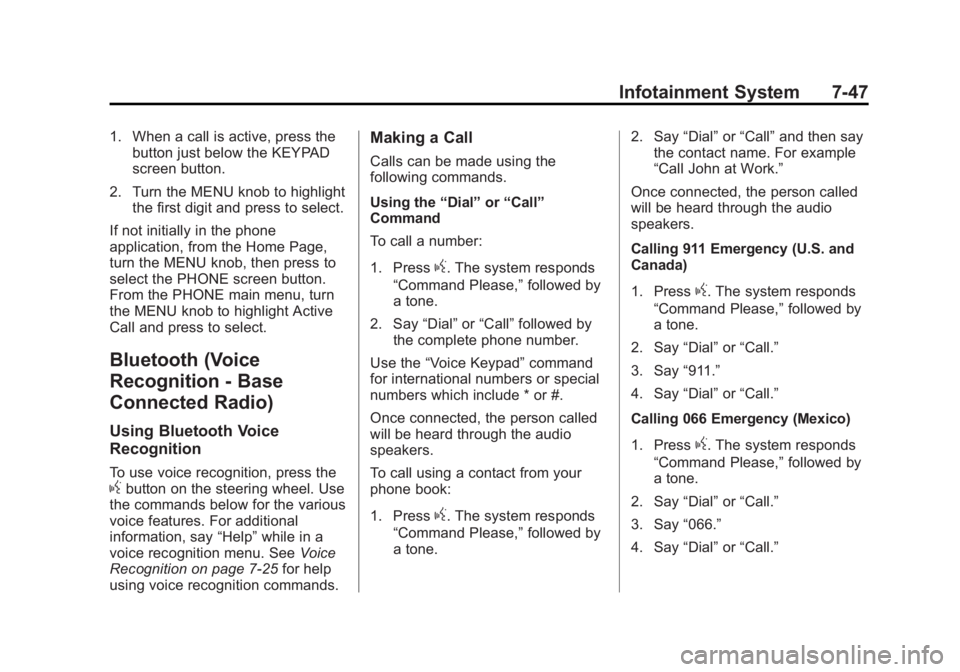
1. When a call is active, press thebutton just below the KEYPAD
screen button.
2. Turn the MENU knob to highlight the first digit and press to select.
If not initially in the phone
application, from the Home Page,
turn the MENU knob, then press to
select the PHONE screen button.
From the PHONE main menu, turn
the MENU knob to highlight Active
Call and press to select.
Bluetooth (Voice
Recognition - Base
Connected Radio)
Using Bluetooth Voice
Recognition
To use voice recognition, press thegbutton on the steering wheel. Use
the commands below for the various
voice features. For additional
information, say “Help”while in a
voice recognition menu. See Voice
Recognition on page 7-25 for help
using voice recognition commands.
Making a Call
Calls can be made using the
following commands.
Using the “Dial”or“Call”
Command
To call a number:
1. Press
g. The system responds
“Command Please,” followed by
a tone.
2. Say “Dial”or“Call” followed by
the complete phone number.
Use the “Voice Keypad” command
for international numbers or special
numbers which include * or #.
Once connected, the person called
will be heard through the audio
speakers.
To call using a contact from your
phone book:
1. Press
g. The system responds
“Command Please,” followed by
a tone. 2. Say
“Dial”or“Call” and then say
the contact name. For example
“Call John at Work.”
Once connected, the person called
will be heard through the audio
speakers.
Calling 911 Emergency (U.S. and
Canada)
1. Press
g. The system responds
“Command Please,” followed by
a tone.
2. Say “Dial”or“Call.”
3. Say “911.”
4. Say “Dial”or“Call.”
Calling 066 Emergency (Mexico)
1. Press
g. The system responds
“Command Please,” followed by
a tone.
2. Say “Dial”or“Call.”
3. Say “066.”
4. Say “Dial”or“Call.”
Page 267 of 542
Black plate (1,1)Chevrolet Silverado Owner Manual (GMNA-Localizing-U.S./Canada/Mexico-
5853506) - 2014 - CRC 3rd Edition - 8/28/13
Driving and Operating 9-1
Driving and
Operating
Driving Information
Distracted Driving . . . . . . . . . . . . . 9-2
Defensive Driving . . . . . . . . . . . . . 9-3
Drunk Driving . . . . . . . . . . . . . . . . . 9-3
Control of a Vehicle . . . . . . . . . . . 9-3
Braking . . . . . . . . . . . . . . . . . . . . . . . 9-3
Steering . . . . . . . . . . . . . . . . . . . . . . . 9-4
Off-Road Recovery . . . . . . . . . . . . 9-5
Loss of Control . . . . . . . . . . . . . . . . 9-5
Off-Road Driving . . . . . . . . . . . . . . 9-6
Driving on Wet Roads . . . . . . . . 9-11
Highway Hypnosis . . . . . . . . . . . 9-11
Hill and Mountain Roads . . . . . 9-12
Winter Driving . . . . . . . . . . . . . . . 9-12
If the Vehicle Is Stuck . . . . . . . . 9-14
Vehicle Load Limits . . . . . . . . . . 9-15
Truck-Camper LoadingInformation . . . . . . . . . . . . . . . . . 9-21
Starting and Operating
New Vehicle Break-In . . . . . . . . 9-23
Adjustable Throttle and BrakePedal . . . . . . . . . . . . . . . . . . . . . . . 9-24
Ignition Positions . . . . . . . . . . . . 9-24 Starting the Engine . . . . . . . . . . 9-26
Fast Idle System . . . . . . . . . . . . . 9-28
Retained Accessory
Power (RAP) . . . . . . . . . . . . . . . 9-29
Engine Coolant Heater . . . . . . . 9-29
Shifting Into Park . . . . . . . . . . . . 9-30
Shifting out of Park . . . . . . . . . . 9-31
Parking (Manual
Transmission) . . . . . . . . . . . . . . 9-32
Parking over Things That Burn . . . . . . . . . . . . . . . . . . 9-32
Active Fuel Management
®. . . 9-32
Engine Exhaust
Engine Exhaust . . . . . . . . . . . . . . 9-33
Running the Vehicle While Parked . . . . . . . . . . . . . . . . . . . . . 9-33
Automatic Transmission
Automatic Transmission . . . . . 9-34
Manual Mode . . . . . . . . . . . . . . . . 9-37
Tow/Haul Mode . . . . . . . . . . . . . . 9-38
Manual Transmission
Manual Transmission . . . . . . . . 9-39
Drive Systems
Four-Wheel Drive . . . . . . . . . . . . 9-41
Brakes
Antilock Brake
System (ABS) . . . . . . . . . . . . . . 9-53
Parking Brake . . . . . . . . . . . . . . . 9-54
Brake Assist . . . . . . . . . . . . . . . . . 9-55
Hill Start Assist (HSA) . . . . . . . 9-56
Ride Control Systems
Traction Control/Electronic Stability Control . . . . . . . . . . . . 9-56
Hill Descent Control (HDC) . . . . . . . . . . . . . . 9-58
Locking Rear Axle . . . . . . . . . . . 9-59
Cruise Control
Cruise Control . . . . . . . . . . . . . . . 9-59
Driver Assistance Systems
Driver Assistance Systems . . . . . . . . . . . . . . . . . . . . 9-62
Assistance Systems for Parking or Backing . . . . . . . . . 9-63
Assistance Systems for Driving . . . . . . . . . . . . . . . . . . . . . 9-66
Forward Collision Alert (FCA) System . . . . . . . . . . . . . . . . . . . . . 9-66
Lane Departure Warning (LDW) . . . . . . . . . . . . . 9-68