CD player CHEVROLET SILVERADO 1500 2014 Owners Manual
[x] Cancel search | Manufacturer: CHEVROLET, Model Year: 2014, Model line: SILVERADO 1500, Model: CHEVROLET SILVERADO 1500 2014Pages: 542, PDF Size: 7.09 MB
Page 1 of 542
Black plate (1,1)Chevrolet Silverado Owner Manual (GMNA-Localizing-U.S./Canada/Mexico-
5853506) - 2014 - CRC 3rd Edition - 8/29/13
2014 Chevrolet Silverado Owner ManualM
In Brief. . . . . . . . . . . . . . . . . . . . . . . . 1-1
Instrument Panel . . . . . . . . . . . . . . 1-2
Initial Drive Information . . . . . . . . 1-4
Vehicle Features . . . . . . . . . . . . . 1-21
Performance and Maintenance . . . . . . . . . . . . . . . . 1-27
Keys, Doors, and Windows . . . . . . . . . . . . . . . . . . . . 2-1
Keys and Locks . . . . . . . . . . . . . . . 2-1
Doors . . . . . . . . . . . . . . . . . . . . . . . . 2-10
Vehicle Security . . . . . . . . . . . . . . 2-11
Exterior Mirrors . . . . . . . . . . . . . . . 2-13
Interior Mirrors . . . . . . . . . . . . . . . . 2-18
Windows . . . . . . . . . . . . . . . . . . . . . 2-18
Roof . . . . . . . . . . . . . . . . . . . . . . . . . . 2-22
Seats and Restraints . . . . . . . . . 3-1
Head Restraints . . . . . . . . . . . . . . . 3-2
Front Seats . . . . . . . . . . . . . . . . . . . . 3-3
Rear Seats . . . . . . . . . . . . . . . . . . . 3-10
Safety Belts . . . . . . . . . . . . . . . . . . 3-12
Airbag System . . . . . . . . . . . . . . . . 3-21
Child Restraints . . . . . . . . . . . . . . 3-37 Storage
. . . . . . . . . . . . . . . . . . . . . . . 4-1
Storage Compartments . . . . . . . . 4-1
Additional Storage Features . . . 4-4
Instruments and Controls . . . . 5-1
Controls . . . . . . . . . . . . . . . . . . . . . . . 5-2
Warning Lights, Gauges, and
Indicators . . . . . . . . . . . . . . . . . . . . 5-9
Information Displays . . . . . . . . . . 5-30
Vehicle Messages . . . . . . . . . . . . 5-35
Vehicle Personalization . . . . . . . 5-45
Universal Remote System . . . . 5-52
Lighting . . . . . . . . . . . . . . . . . . . . . . . 6-1
Exterior Lighting . . . . . . . . . . . . . . . 6-1
Interior Lighting . . . . . . . . . . . . . . . . 6-6
Lighting Features . . . . . . . . . . . . . . 6-8
Infotainment System . . . . . . . . . 7-1
Introduction . . . . . . . . . . . . . . . . . . . . 7-1
Radio . . . . . . . . . . . . . . . . . . . . . . . . . . 7-8
Audio Players . . . . . . . . . . . . . . . . 7-15
Navigation . . . . . . . . . . . . . . . . . . . . 7-23
Voice Recognition . . . . . . . . . . . . 7-25
Phone . . . . . . . . . . . . . . . . . . . . . . . . 7-31 Trademarks and License
Agreements . . . . . . . . . . . . . . . . . 7-48
Climate Controls . . . . . . . . . . . . . 8-1
Climate Control Systems . . . . . . 8-1
Air Vents . . . . . . . . . . . . . . . . . . . . . . . 8-8
Maintenance . . . . . . . . . . . . . . . . . . . 8-9
Driving and Operating . . . . . . . . 9-1
Driving Information . . . . . . . . . . . . . 9-2
Starting and Operating . . . . . . . 9-23
Engine Exhaust . . . . . . . . . . . . . . 9-33
Automatic Transmission . . . . . . 9-34
Manual Transmission . . . . . . . . . 9-39
Drive Systems . . . . . . . . . . . . . . . . 9-41
Brakes . . . . . . . . . . . . . . . . . . . . . . . 9-53
Ride Control Systems . . . . . . . . 9-56
Cruise Control . . . . . . . . . . . . . . . . 9-59
Driver Assistance Systems . . . 9-62
Fuel . . . . . . . . . . . . . . . . . . . . . . . . . . 9-70
Trailer Towing . . . . . . . . . . . . . . . . 9-75
Conversions and Add-Ons . . . 9-99
Page 28 of 542
Black plate (22,1)Chevrolet Silverado Owner Manual (GMNA-Localizing-U.S./Canada/Mexico-
5853506) - 2014 - CRC 3rd Edition - 8/28/13
1-22 In Brief
Storing Radio Station Presets
Up to 25 preset stations from all
bands can be stored in the favorite
lists in any order. Up to five stations
can be stored in each favorite page
and the number of favorite pages
can be set.
To store the station to a position in
the list, while on the active source
main page, such as AM, FM,
or SiriusXM (if equipped), press and
hold a Favorites/Soft Key button on
the faceplate.
See“Storing Radio Station Presets”
under AM-FM Radio on page 7-8.
Setting the Clock
SeeClock on page 5-5.
Satellite Radio
Vehicles with a SiriusXM®satellite
radio tuner and a valid SiriusXM
satellite radio subscription can
receive SiriusXM programming.
SiriusXM Satellite Radio
Service
SiriusXM is a satellite radio service
based in the 48 contiguous United
States and 10 Canadian provinces.
SiriusXM satellite radio has a wide
variety of programming and
commercial-free music, coast to
coast, and in digital-quality sound.
A fee is required to receive the
SiriusXM service.
For more information refer to:
.www.siriusxm.com or call
1-866-635-2349 (U.S.).
.www.xmradio.ca or call
1-877-209-0079 (Canada).
See Satellite Radio on page 7-10.
Portable Audio Devices
This vehicle has a 3.5 mm (1/8 in)
auxiliary input jack, SD card reader,
and USB ports in the center
console. External devices such as
iPods
®, laptop computers, MP3
players, CD changers, and USB
storage devices may be connected,
depending on the audio system.
See USB Port on page 7-18, SD
Card Reader on page 7-20,
Auxiliary Jack on page 7-21.
Bluetooth®
The Bluetooth®system allows users
with a Bluetooth-enabled cell phone
to make and receive hands-free
calls using the vehicle audio system
and controls.
The Bluetooth-enabled cell phone
must be paired with the in-vehicle
Bluetooth system before it can be
used in the vehicle. Not all phones
will support all functions.
Page 30 of 542
Black plate (24,1)Chevrolet Silverado Owner Manual (GMNA-Localizing-U.S./Canada/Mexico-
5853506) - 2014 - CRC 3rd Edition - 8/28/13
1-24 In Brief
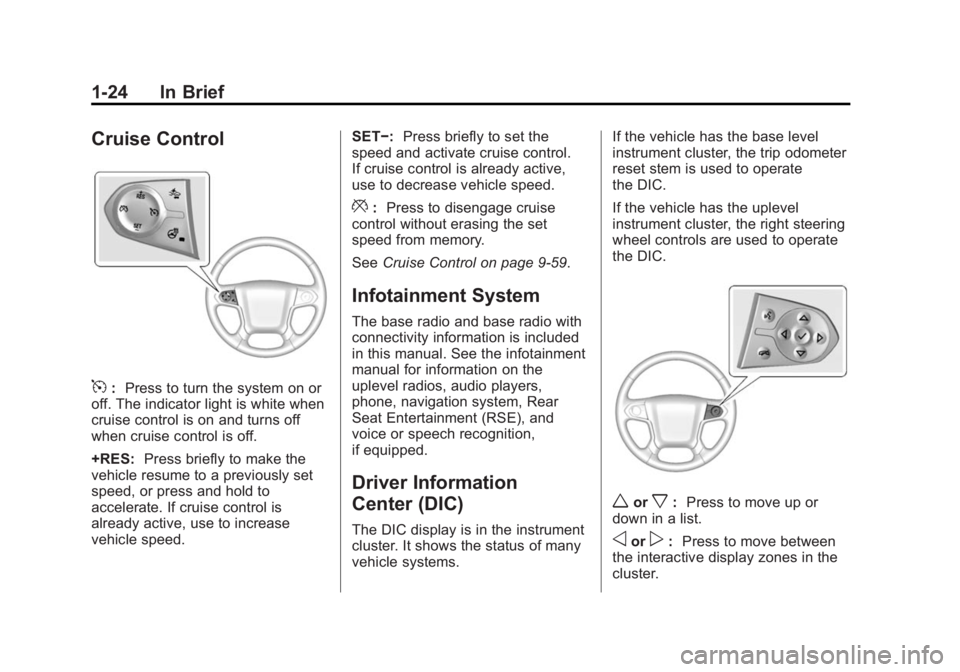
Cruise Control
5:Press to turn the system on or
off. The indicator light is white when
cruise control is on and turns off
when cruise control is off.
+RES: Press briefly to make the
vehicle resume to a previously set
speed, or press and hold to
accelerate. If cruise control is
already active, use to increase
vehicle speed. SET−:
Press briefly to set the
speed and activate cruise control.
If cruise control is already active,
use to decrease vehicle speed.
*: Press to disengage cruise
control without erasing the set
speed from memory.
See Cruise Control on page 9-59.
Infotainment System
The base radio and base radio with
connectivity information is included
in this manual. See the infotainment
manual for information on the
uplevel radios, audio players,
phone, navigation system, Rear
Seat Entertainment (RSE), and
voice or speech recognition,
if equipped.
Driver Information
Center (DIC)
The DIC display is in the instrument
cluster. It shows the status of many
vehicle systems. If the vehicle has the base level
instrument cluster, the trip odometer
reset stem is used to operate
the DIC.
If the vehicle has the uplevel
instrument cluster, the right steering
wheel controls are used to operate
the DIC.
worx:
Press to move up or
down in a list.
oorp: Press to move between
the interactive display zones in the
cluster.
Page 31 of 542
Black plate (25,1)Chevrolet Silverado Owner Manual (GMNA-Localizing-U.S./Canada/Mexico-
5853506) - 2014 - CRC 3rd Edition - 8/28/13
In Brief 1-25
V:Press to open a menu or select
a menu item. Press and hold to
reset values on certain screens.
See Driver Information Center (DIC)
(Base Level) on page 5-29 orDriver
Information Center (DIC) (Uplevel)
on page 5-31.
Forward Collision Alert
(FCA) System
If equipped, FCA may help avoid or
reduce the harm caused by
front-end crashes. FCA provides a
green indicator when a vehicle is
detected directly ahead. This
indicator displays amber if you
follow another vehicle much too
closely. When approaching a vehicle
ahead too quickly, FCA provides a
red flashing alert on the windshield
and rapidly beeps or pulses the
driver seat.
See Forward Collision Alert (FCA)
System on page 9-66.
Lane Departure
Warning (LDW)
If equipped, LDW is intended to help
avoid unintentional lane departures
at speeds of 56 km/h (35 mph) or
greater. LDW uses a camera sensor
to detect the lane markings. The
LDW indicator,
@, appears green if
a lane marking is detected. If the
vehicle departs the lane, the
indicator will change to amber and
flash. In addition, the driver seat will
pulse or beeps will sound.
See Lane Departure Warning (LDW)
on page 9-68.
Rear Vision
Camera (RVC)
If equipped, the RVC displays a
view of the area behind the vehicle,
on the center stack display, when
the vehicle is shifted into
R (Reverse).
See Assistance Systems for Parking
or Backing on page 9-63.
Ultrasonic Parking Assist
If equipped, Ultrasonic Rear Parking
Assist (URPA) uses sensors on the
rear bumper to assist with parking
and avoiding objects while in
R (Reverse). It operates at speeds
less than 8 km/h (5 mph). URPA
may display a warning triangle on
the Rear Vision Camera screen and
a graphic on the instrument cluster
to provide the object distance. In
addition, multiple beeps or seat
pulses may occur if very close to an
object.
The vehicle may also have the Front
Parking Assist system.
See Assistance Systems for Parking
or Backing on page 9-63.
Power Outlets
Accessory power outlets can be
used to plug in electrical equipment,
such as a cell phone, MP3
player, etc.
The vehicle may have up to four
accessory power outlets.
Page 134 of 542
Black plate (4,1)Chevrolet Silverado Owner Manual (GMNA-Localizing-U.S./Canada/Mexico-
5853506) - 2014 - CRC 3rd Edition - 8/28/13
4-4 Storage
7. High Voltage Power Outlet(HVPO) (if equipped)
8. SD Card Reader
9. Auxiliary Input Jack
10. Latch
11. Rear Seat Audio (RSA)
Press the latch (10) and lift the
armrest to access the main storage
compartment.
There is an open storage
compartment on the rear of the
center console.
See Cupholders on page 4-2, Power
Outlets on page 5-6, USB Port on
page 7-18, Auxiliary Jack on
page 7-21, and SD Card Reader on
page 7-20. If equipped with the
uplevel radio, see “Audio Players”in
the infotainment manual.Floor Console Storage
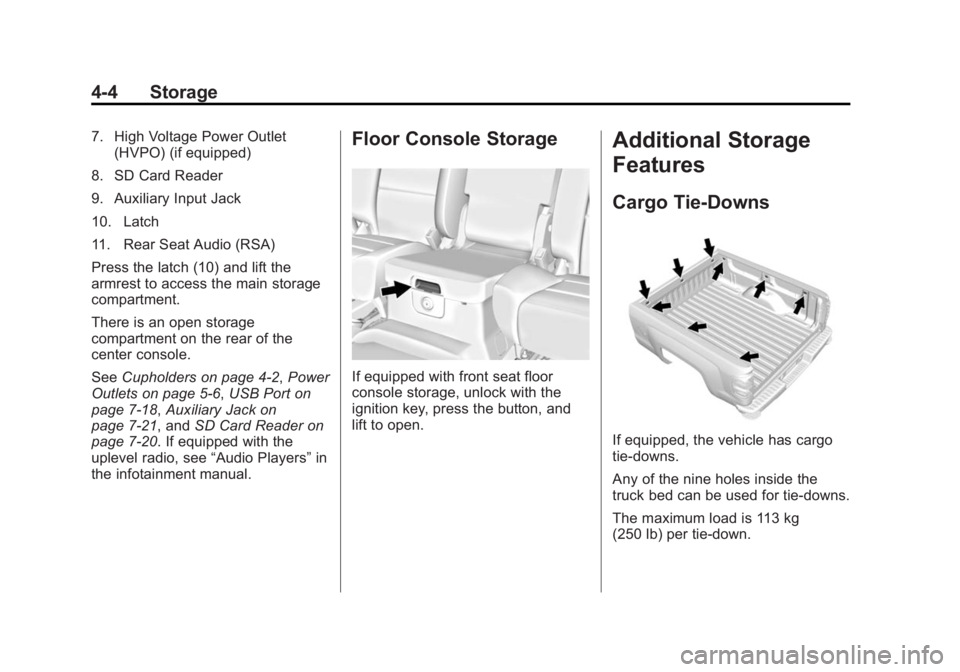
If equipped with front seat floor
console storage, unlock with the
ignition key, press the button, and
lift to open.
Additional Storage
Features
Cargo Tie-Downs
If equipped, the vehicle has cargo
tie-downs.
Any of the nine holes inside the
truck bed can be used for tie-downs.
The maximum load is 113 kg
(250 lb) per tie-down.
Page 142 of 542
Black plate (6,1)Chevrolet Silverado Owner Manual (GMNA-Localizing-U.S./Canada/Mexico-
5853506) - 2014 - CRC 3rd Edition - 8/28/13
5-6 Instruments and Controls
To set the clock display:
1. Select SETTINGS from theHome Page, then select Time
and Date.
2. Select Clock Display.
3. Turn the MENU knob to Off or On.
4. Press the MENU knob to select.
Press
oBACK to go to the last
menu and save the changes.
Setting the Time and Date with
Touchscreen Controls
To set the time:
1. Press the SETTINGS screen button from the Home Page,
then press Time and Date.
2. Press Set Time and press
«or
ªto increase or decrease
hours, minutes, and AM or PM.
Press 12–24 Hr for 12 or
24 hour clock.
3. Press the
}screen button to go
back to the previous menu. If auto timing is set, the time
displayed on the clock may not
update immediately when driving
into a new time zone.
To set the date:
1. Press the SETTINGS screen
button from the Home Page,
then press Time and Date.
2. Press Set Date and press
«or
ªto increase or decrease
month, day, or year.
3. Press the
}screen button to go
back to the previous menu.
To set the clock display:
1. Press the SETTINGS screen button and press Time and Date.
2. Press Clock Display and press OFF or ON to turn the clock
display off or on.
3. Press the
}screen button to go
back to the previous menu.
Power Outlets
Accessory power outlets can be
used to plug in electrical equipment,
such as a cell phone, MP3
player, etc.
The vehicle may have up to four
accessory power outlets.
Vehicles with a Center Console
.One or two in front of the
cupholders on the center
console.
.One inside the center storage
console.
.One on the rear of the center
storage console.
Vehicles with Bench Seats
.One on the center stack below
the climate control system.
.One or two in the storage area
on the bench seat.
Lift the cover to access and replace
when not in use.
Page 203 of 542
Black plate (1,1)Chevrolet Silverado Owner Manual (GMNA-Localizing-U.S./Canada/Mexico-
5853506) - 2014 - CRC 3rd Edition - 8/28/13
Infotainment System 7-1
Infotainment
System
Introduction
Infotainment . . . . . . . . . . . . . . . . . . . 7-1
Theft-Deterrent Feature . . . . . . . 7-2
Overview . . . . . . . . . . . . . . . . . . . . . . 7-2
Home Page . . . . . . . . . . . . . . . . . . . 7-5
Software Updates . . . . . . . . . . . . . 7-8
Radio
AM-FM Radio . . . . . . . . . . . . . . . . . 7-8
Satellite Radio . . . . . . . . . . . . . . . 7-10
Radio Reception . . . . . . . . . . . . . 7-11
Fixed Mast Antenna . . . . . . . . . 7-12
Multi-Band Antenna . . . . . . . . . . 7-12
Pandora Internet Radio . . . . . . 7-12
Audio Players
CD Player . . . . . . . . . . . . . . . . . . . 7-15
USB Port . . . . . . . . . . . . . . . . . . . . 7-18
SD Card Reader . . . . . . . . . . . . . 7-21
Auxiliary Jack . . . . . . . . . . . . . . . . 7-21
Bluetooth Audio . . . . . . . . . . . . . . 7-22
Navigation
OnStar®System . . . . . . . . . . . . . 7-23
Voice Recognition
Voice Recognition . . . . . . . . . . . 7-25
Phone
Bluetooth (Overview) . . . . . . . . 7-31
Bluetooth (InfotainmentControls - Base Radio) . . . . . 7-33
Bluetooth (Voice Recognition - Base Radio) . . . . . . . . . . . . . . . . 7-37
Bluetooth (Infotainment Controls - Base Connected
Radio) . . . . . . . . . . . . . . . . . . . . . . 7-42
Bluetooth (Voice Recognition - Base Connected Radio) . . . . 7-47
Trademarks and License
Agreements
Trademarks and LicenseAgreements . . . . . . . . . . . . . . . . 7-48
Introduction
Infotainment
Read the following pages to
become familiar with the
infotainment system featured in this
owner manual.
{Warning
Taking your eyes off the road for
too long or too often while using
any infotainment features can
cause a crash resulting in injury
or death. Do not give extended
attention to infotainment tasks
while driving. Focus your attention
on driving and limit glances to the
instrument cluster or center stack
screens. Use voice guidance
whenever possible.
The infotainment system has built-in
features intended to help with this
by disabling some functions when
Page 204 of 542
Black plate (2,1)Chevrolet Silverado Owner Manual (GMNA-Localizing-U.S./Canada/Mexico-
5853506) - 2014 - CRC 3rd Edition - 8/28/13
7-2 Infotainment System
driving. Some functions may gray
out when the vehicle is moving,
indicating they are unavailable.
All functions are available when the
vehicle is parked. Before driving:
.Become familiar with the
infotainment system operation
and buttons on the faceplate.
.Set up the audio by presetting
favorite stations, setting the
tone, and adjusting the
speakers.
.Set up phone numbers in
advance so they can be called
easily by pressing a single
button or by using a single voice
command for vehicles equipped
with phone capability.See
Defensive Driving on page 9-3.
The vehicle has Retained
Accessory Power (RAP). With RAP,
the audio system can be played
even after the ignition is turned off.
See Retained Accessory Power
(RAP) on page 9-29.
The base radio and base radio with
connectivity information is included
in this manual. See the infotainment
manual for information on the
uplevel radios, audio players,
phone, navigation system, Rear
Seat Entertainment (RSE), and
voice or speech recognition,
if equipped.
Theft-Deterrent Feature
TheftLock®is designed to
discourage theft of the vehicle's
radio by learning a portion of the
Vehicle Identification Number (VIN).
The radio does not operate if it is
stolen or moved to a different
vehicle.
Overview
Infotainment System Overview
The infotainment system is
controlled by using the buttons on
the faceplate and steering wheel
controls, if equipped. See Steering
Wheel Controls on page 5-3.
Page 208 of 542
Black plate (6,1)Chevrolet Silverado Owner Manual (GMNA-Localizing-U.S./Canada/Mexico-
5853506) - 2014 - CRC 3rd Edition - 8/28/13
7-6 Infotainment System
CD (if equipped), USB/iPod, AUX
Input, SD card reader (if equipped),
and Bluetooth Audio (if equipped).
SeeAM-FM Radio on page 7-8,
Satellite Radio on page 7-10, CD
Player on page 7-15, Auxiliary Jack
on page 7-21, and Bluetooth Audio
on page 7-22.
PHONE: Select the PHONE screen
icon to display the Phone main
page. See Bluetooth (Infotainment
Controls - Base Radio) on
page 7-33 orBluetooth (Voice
Recognition - Base Radio) on
page 7-37 orBluetooth (Overview)
on page 7-31 orBluetooth
(Infotainment Controls - Base
Connected Radio) on page 7-42 or
Bluetooth (Voice Recognition - Base
Connected Radio) on page 7-47.
NAV (Navigation, If Equipped):
Select the NAV screen icon to
display the OnStar Turn-by-Turn
Navigation. See “OnStar Overview”
in OnStar, if equipped. SETTINGS:
Select the SETTINGS
screen icon to display the Settings
main page. See “Setting Radio
Preferences” following.
Pandora (If Equipped)
Select the PANDORA icon to begin
Pandora. See Pandora Internet
Radio on page 7-12.
Setting Radio Preferences
Select the SETTINGS screen icon
to display the Settings menu and
the following may display:
Time and Date: SeeClock on
page 5-5.
Language (Current Language):
This will set the display language in
the radio and instrument cluster.
Select to display a list of languages.
Select
oBACK to go back to the
previous menu. Valet Mode:
Using the circular numeric keypad,
enter a four-digit code:
1. Turn the MENU knob to highlight
a number.
2. Press the MENU knob to select it. Do this for each one of the
four digits. Select Enter to go to
the confirmation screen.
3. Re-enter the four-digit code. Select LOCK to lock the system.
4. Enter the four-digit code to unlock the system. Select
oBACK to go back to the
previous menu.
Radio: See“Radio Setup” later in
this section.
Vehicle: SeeVehicle
Personalization on page 5-45.
Display: Press the MENU knob to
turn the display on or off.
Return to Factory Settings: See
“Return to Factory Settings” later in
this section.
Page 217 of 542
Black plate (15,1)Chevrolet Silverado Owner Manual (GMNA-Localizing-U.S./Canada/Mexico-
5853506) - 2014 - CRC 3rd Edition - 8/28/13
Infotainment System 7-15
.Device needs to be charged.
.Application needs to be
relaunched.
.Connection between phone and
radio lost.
.An iPhone is connected to both
Bluetooth and the USB port.
Playback can be resumed from
a loss of audio by double
tapping on the iPhone home
button then scrolling through the
icons to find an icon that allows
a change of flow between
Bluetooth and USB cable.
Volume and song selection may
be controlled using the
Infotainment controls or on the
phone/device. If Pandora is
selected and nothing is heard,
check the volume setting on
both phone/device and the
Infotainment system.
Common Pandora Messages
Pandora Error/Please Check
Device: Not signed in or Pandora
is down for maintenance. No Stations Available:
No stations
are available on the Pandora server
through the connected device.
Action Unavailable. Please Check
Device Connection: A few
conditions for loss of Internet
connection are:
.The connected device loses its
cellular connection.
.The device does not support
Internet connectivity.
.The device is not in the vehicle.
.The Bluetooth signal is lost.
No skips remaining for this
station or permitted during
advertisements:
.The maximum Pandora skip limit
has been reached according to
the plan that was obtained.
.Skipping an advertisement was
tried.
See www.pandora.com/help. If the
service will not work, see a dealer
for assistance.
Audio Players
CD Player
If the vehicle is equipped with a CD
player, it can be used for CD and
MP3 audio.
With the vehicle on, insert a disc
into the slot, label side up. Press the
MEDIA button to select CD as a
source.
The system is capable of
playing most:
.Audio CDs
.CD-R
.CD-RW
.MP3 or unprotected WMA
formats
When playing any compatible
recordable disc, the sound quality
can be reduced due to disc quality,
the method of recording, the quality
of the music that has been
recorded, or the way the disc has
been handled.