manual radio set CHEVROLET SILVERADO 1500 2015 Owner's Manual
[x] Cancel search | Manufacturer: CHEVROLET, Model Year: 2015, Model line: SILVERADO 1500, Model: CHEVROLET SILVERADO 1500 2015Pages: 551, PDF Size: 6.87 MB
Page 223 of 551
Black plate (16,1)Chevrolet 2015i Silverado Owner Manual (GMNA-Localizing-U.S./Canada/
Mexico-8425172) - 2015 - CRC - 6/20/14
7-16 Infotainment System
damaged or improperly loaded,
there is an error and the disc
ejects.
Playing an Audio CD
Press the MEDIA button on the
faceplate until CD is selected.
On the CD main page, either a track
number displays at the beginning of
each track, or Song, Artist, and
Album information displays when
available.
Use the following screen controls to
play the disc:
t(Seek Previous/Fast Reverse):
While on the CD main page:
.Press to seek to the beginning of
the current or previous track.
If the track has been playing for
less than five seconds, it seeks
to the previous track. If longer
than five seconds, the current
track starts from the beginning.
.Press and hold to fast reverse
through a track. Release the
button to return to playing
speed. Elapsed time displays.
u(Seek Next/Fast Forward):
While on the CD main page:
.Press to seek to the next track.
.Press and hold to fast forward
through a track. Release the
button to return to playing
speed. Elapsed time displays.
j/r(Pause/Play): While on the CD
main page, press to pause. Press
again to resume.
Z(Shuffle): PressZto play the
songs in random order. Press again
to turn off.
If a Blu-ray Disc
®or DVD disc is
loaded into the disc player and the
CD screen button is selected, a
message comes on the screen to
use the Video application. The
Video application is only available
on vehicles with Rear Seat
Entertainment (RSE). CD Menu
While on the CD main page, press
the MENU knob to display the CD
menu and the following may display:
Browse:
Select to display the files
or songs on the CD.
Tone Settings: Select to adjust
Bass, Midrange, Treble, Balance,
Fade, and EQ (Equalizer). See
“Tone Settings” underAM-FM Radio
on page 7-8.
Auto Volume: If equipped, this
feature adjusts the volume based on
the vehicle speed. Select the level
between Off, Low, Medium-Low,
Medium, Medium-High, and High.
Press BACK to go to the
previous menu.
DSP: If equipped, this feature
adjusts the pre-defined settings.
See “DSP” inAM-FM Radio on
page 7-8.
EQ (Equalizer): If equipped, this
feature adjusts the equalizer
settings. See “EQ (Equalizer)” in
AM-FM Radio on page 7-8.
Page 225 of 551
Black plate (18,1)Chevrolet 2015i Silverado Owner Manual (GMNA-Localizing-U.S./Canada/
Mexico-8425172) - 2015 - CRC - 6/20/14
7-18 Infotainment System
USB Port
Playing from a USB
A USB mass storage device or
Media Transfer Protocol (MTP)
device can be connected to the
USB port.
The vehicle may have USB ports in
the center console, armrest, or one
in the upper glove box. SeeCenter
Console Storage on page 4-3 and
Glove Box on page 4-2.
USB MP3 Player and USB Drives
.The USB MP3 players and USB
drives connected must comply
with the USB Mass Storage
Class specification (USB MSC).
.Hard disk drives are not
supported.
.Supported file system is FAT32.
To play a USB device:
.Connect the USB.
.Press the MEDIA button on the
faceplate until the connected
device is shown. While the USB source is active,
press the corresponding faceplate
button for the icons on the screen to
operate USB function:
.t(Seek Previous/Fast
Reverse)
.u(Seek Next/Fast Forward)
.j/r(Play/Pause)
.Z(Shuffle)
For information on how to use the
screen icons, see “Playing an
Audio CD.”
USB Menu
Press the MENU knob to display the
USB menu and the following may
display:
Browse: Select to display the files
and folders on the USB device.
Tone Settings: Select to adjust
Bass, Midrange, Treble, Balance,
Fade, and EQ (Equalizer). See “Tone Settings”
under“Playing an
Audio CD” inCD Player on
page 7-15.
Auto Volume: If equipped, see
“Playing an Audio CD” inCD Player
on page 7-15.
EQ (Equalizer): If equipped, this
feature adjusts the equalizer
settings. See “EQ (Equalizer)
Settings” inAM-FM Radio on
page 7-8.
Playing from an iPod®/iPad®/
iPhone®
This feature supports the following
devices:
.iPod nano®(1st, 2nd, 3rd, and
4th generation)
.iPod with video (5.0 and
5.5 generation)
.iPod classic®(6th generation)
.iPod touch®(1st and 2nd
generation)
.iPad
Page 226 of 551
Black plate (19,1)Chevrolet 2015i Silverado Owner Manual (GMNA-Localizing-U.S./Canada/
Mexico-8425172) - 2015 - CRC - 6/20/14
Infotainment System 7-19
.iPhone 3G, iPhone 3GS,
iPhone 4
There may be problems with
operation and function in the
following situations:
.When connecting a device with
a more recent version of the
firmware installed than is
supported by the infotainment
system.
.When connecting a device on
which firmware from other
providers is installed.
To connect and control a device:
1. Connect one end of the standard USB cable to the device's dock
connector.
2. Connect the other end to a USB port in the center console. See
Center Console Storage on
page 4-3.
3. Press the MEDIA button to select the source. The music information displays on
the radio’s display and begins
playing through the vehicle’s audio
system.
The device battery recharges
automatically while the vehicle is on.
When the vehicle is off while a
device is connected using the USB
cable, the device battery stops
charging and the device will
automatically turn off.
If the device is an unsupported
model, it can still be listened to in
the vehicle by connecting to the
auxiliary input jack using a standard
3.5 mm (1/8 in) stereo cable.
Menu
Press the MENU knob to display the
device Menu and the following may
display:
Browse:
Select to display the files
or songs on the device. See
“Browse Device Media” later in this
section. Tone Settings:
Select to adjust
Bass, Midrange, Treble, Balance,
Fade, and EQ (Equalizer). See
“Tone Settings” under“Playing an
Audio CD” inCD Player on
page 7-15.
Auto Volume: If equipped, see
“Playing an Audio CD” inCD Player
on page 7-15.
EQ (Equalizer): If equipped, this
feature adjusts the Equalizer
settings. See “EQ (Equalizer)” in
AM-FM Radio on page 7-8.
Browse Device Media
Use the following to browse:
Playlists:
1. Turn the MENU knob to highlight and press to view the playlists
stored on the device.
2. Turn the MENU knob to highlight and press to select a playlist
name to view a list of all songs
in the playlist.
Page 228 of 551
Black plate (21,1)Chevrolet 2015i Silverado Owner Manual (GMNA-Localizing-U.S./Canada/
Mexico-8425172) - 2015 - CRC - 6/20/14
Infotainment System 7-21
Playing Music from the SD Card
An SD card is played the same way
a USB device is played. SeeUSB
Port on page 7-18.
Auxiliary Jack
This vehicle may have an AUX jack
in the center console or armrest.
See Center Console Storage on
page 4-3.
Possible auxiliary audio sources
include:
.Laptop computer
.Audio music player
This jack is not an audio output. Do
not plug headphones into the
auxiliary input jack. Auxiliary
devices should be set up while the
vehicle is in P (Park).
Connect a 3.5 mm (1/8 in) cable
from the auxiliary device to the
auxiliary input jack. If an auxiliary device has already
been connected, but a different
source is currently active, press the
MEDIA faceplate button repeatedly
to scroll through all of the available
audio source screens, until the AUX
source screen is shown.
Playing from the AUX Jack
An auxiliary device is played
through the audio system and
controlled through the device itself.
AUX Menu
Press the MENU knob to display the
AUX menu and the following may
display:
Tone Settings:
Select to adjust
Bass, Midrange, Treble, Balance,
Fade, and EQ (Equalizer). See
“Tone Settings” underAM-FM Radio
on page 7-8.
Auto Volume: If equipped, see
“Playing an Audio CD.” DSP:
If equipped, this feature
adjusts the pre-defined settings.
See “DSP” inAM-FM Radio on
page 7-8.
EQ (Equalizer): If equipped, this
feature adjusts the pre-defined
equalizer settings. See “EQ
(Equalizer)” inAM-FM Radio on
page 7-8.
Bluetooth Audio
If equipped, music may be played
from a paired Bluetooth device. See
“Pairing” in“Information Controls”
under “Bluetooth” for help pairing a
device.
Volume and song selection may be
controlled by using the infotainment
controls or the phone/device.
If Bluetooth Audio is selected and
nothing is heard, check the volume
setting on both the phone/device
and the infotainment system.
Launch music by pressing the
MEDIA screen button on the
Home Page.
Page 229 of 551
Black plate (22,1)Chevrolet 2015i Silverado Owner Manual (GMNA-Localizing-U.S./Canada/
Mexico-8425172) - 2015 - CRC - 6/20/14
7-22 Infotainment System
To play music via Bluetooth:
1. Power on the device, and pair toconnect the device.
2. Once paired, go into the audio application from the Home Page
or via the application tray. Select
MEDIA until Bluetooth displays.
Bluetooth Audio Menu
Press the MENU screen button to
display the Bluetooth Audio menu.
The following may be available:
Tone: Turn the MENU knob to
adjust the tone settings.
Press
oBACK to go back to the
previous menu. Manage Bluetooth Devices:
Select
to go to the Bluetooth page to add
or delete devices.
When selecting Bluetooth Audio, the
radio may not be able to launch the
audio player on the connected
device to start playing. When the
vehicle is not moving, use the
phone to begin playback.
All devices launch audio differently.
When selecting Bluetooth Audio as
a source, the radio may show as
paused on the screen. Press play
on the device or press
rto begin
playback.
Some phones support sending
Bluetooth music information to
display on the radio. When the radio
receives this information, it will
check to see if any is available and
display it. For more information
about supported Bluetooth features,
see www.gm.com/bluetooth.
OnStar System
An OnStar®subscriber has the
ability to connect to the OnStar
system (if equipped) and ask an
OnStar Advisor to download a
destination into the vehicle. OnStar
will send address information and
location coordinates of the
destination into the vehicle.
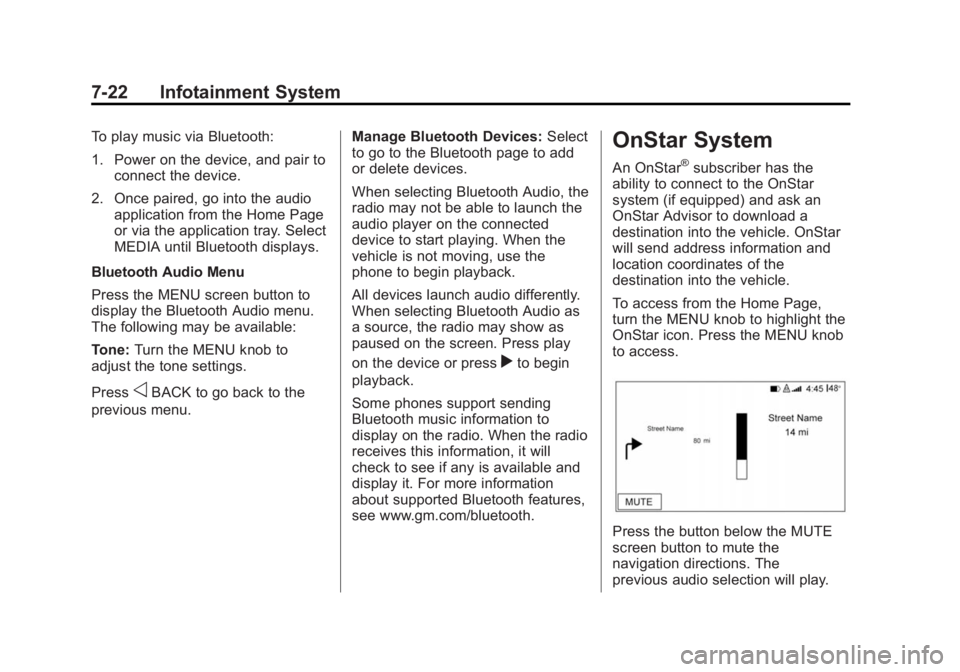
To access from the Home Page,
turn the MENU knob to highlight the
OnStar icon. Press the MENU knob
to access.
Press the button below the MUTE
screen button to mute the
navigation directions. The
previous audio selection will play.
Page 249 of 551
Black plate (42,1)Chevrolet 2015i Silverado Owner Manual (GMNA-Localizing-U.S./Canada/
Mexico-8425172) - 2015 - CRC - 6/20/14
7-42 Infotainment System
Sending a Number or Name Tag
During a Call
1. Press
g. The system responds
“Ready,” followed by a tone.
2. Say “Dial.”
3. Say the number or name tag to send.
Clearing the System
Unless information is deleted out of
the in-vehicle Bluetooth system, it
will be retained indefinitely. This
includes all phone pairing
information. For information on how
to delete this information, see
“Deleting a Paired Phone.”
Bluetooth (Infotainment
Controls - Base
Connected Radio)
For information about how to
navigate the menu system using the
infotainment controls, see Overview
on page 7-3.
Switching to Handset or
Hands-Free Mode
To switch between handset or
hands-free mode, from the Home
Page select the PHONE to display
Call View.
.While the active call is
hands-free, press the Handset
screen button to switch to the
handset mode. The screen
button changes to Hands-Free
once the Bluetooth device
confirms it is operating as
handset.
.While the active call is handset,
select the Hands-Free screen
button to switch to the
hands-free mode. The screen
button changes to Handset once
the Bluetooth device confirms it
is operating as hands-free.
Pairing
A Bluetooth-enabled cell phone
must be paired to the Bluetooth
system and then connected to the
vehicle before it can be used. See
your cell phone manufacturer's user
guide for Bluetooth functions before
pairing the cell phone. If a Bluetooth
phone is not connected, calls can
be made using OnStar Hands-Free
Calling, if available. See OnStar
Overview on page 14-1.
Pairing Information
.Up to 10 cell phones can be
paired to the Bluetooth system.
.The pairing process is disabled
when the vehicle is moving.
.Pairing only needs to be
completed once per phone,
unless the pairing information on
the cell phone changes or the
cell phone is deleted from the
system.
.Only one paired cell phone can
be connected to the Bluetooth
system at a time.
Page 256 of 551
Black plate (49,1)Chevrolet 2015i Silverado Owner Manual (GMNA-Localizing-U.S./Canada/
Mexico-8425172) - 2015 - CRC - 6/20/14
Infotainment System 7-49
For Ignition keyed system:
.If the key is not registered,
select Register and follow the
instructions. A message displays
to confirm successful
registration.
.If the key is already registered,
the option to unregister displays.
If Unregister is selected, the key
is no longer registered and a
confirmation displays.
For Pushbutton start system:
Once Key Registration is selected,
the system detects whether there is
a transmitter key in the transmitter
pocket, which is in the center
console storage area or on the side
of the steering wheel column. See
Remote Keyless Entry (RKE)
System Operation on page 2-4.
.If no transmitter key is detected,
a message displays indicating to
place the transmitter key in the
transmitter pocket.
.If the transmitter key is in the
pocket in the transmitter pocket,
it will identify whether the
transmitter key is registered or
unregistered.
.If the transmitter key is not
registered, a message
displays requesting
confirmation to register.
Select Register and follow
the instructions. A message
displays to confirm
successful registration.
.If the transmitter key is
already registered, the
option to unregister
displays. If Unregister is
selected, the transmitter
key is no longer registered
and a confirmation displays. In vehicles with a Pushbutton start
system, if a Teen Driver transmitter
key and a non-Teen Driver
transmitter key are both present at
start up, the vehicle will recognize
the non-Teen Driver transmitter key
to start the vehicle. The Teen Driver
settings will not be active.
Manage Settings
The PIN can be used to change
these settings:
Audio Volume Limit:
Allows a
maximum radio volume to be set.
Teen Driver Speed Warning:
Allows a warning to be set when a
selected speed is exceeded.
Teen Driver Speed Limiter:
If equipped, this allows the
maximum speed limit of the vehicle
to be set.
Page 257 of 551
Black plate (50,1)Chevrolet 2015i Silverado Owner Manual (GMNA-Localizing-U.S./Canada/
Mexico-8425172) - 2015 - CRC - 6/20/14
7-50 Infotainment System
The following cannot be changed:
.The radio will mute when the
driver safety belt is not fastened,
and in some vehicles, when the
safety belt of a front outboard
passenger is not fastened.
.Other vehicle features, such as
Park Assist, if equipped, cannot
be turned off when the Teen
Driver setting is in use.
Delete Report Card Data
The Report Card continues to save
data for all trips until the data is
deleted using the PIN.
To delete Report Card data:
.Select Reset from the Report
Card screen.
.Select Clear All Teen Keys/PIN
from the Teen Driver menu.
Forgotten PIN
See your dealer to reset the PIN.
Trademarks and
License Agreements
FCC Information
See Radio Frequency Statement on
page 13-12.
"Made for iPod" and "Made for
iPhone" mean that an electronic
accessory has been designed to
connect specifically to iPod or
iPhone and has been certified by
the developer to meet Apple
performance standards. Apple is not
responsible for the operation of this
device or its compliance with safety
and regulatory standards. Please
note that the use of this accessory
with iPod or iPhone may affect
wireless performance. iPhone
®,
iPod®, iPod classic®, iPod nano®, iPod shuffle
®, and iPod touch®are
trademarks of Apple Inc., registered
in the U.S. and other countries.
Fees and Taxes: Subscription fee,
taxes, one time activation fee, and
other fees may apply. Subscription
fee is consumer only. All fees and
programming subject to change.
Subscriptions subject to Customer
Agreement available at
www.siriusxm.com. SiriusXM
®
service only available in the
48 contiguous United States and
Canada.
In Canada: Some deterioration of
service may occur in extreme
northern latitudes. This is beyond
the control of SiriusXM
®Satellite
Radio.
Page 275 of 551
Black plate (2,1)Chevrolet 2015i Silverado Owner Manual (GMNA-Localizing-U.S./Canada/
Mexico-8425172) - 2015 - CRC - 6/20/14
9-2 Driving and Operating
Fuel
Fuel . . . . . . . . . . . . . . . . . . . . . . . . . 9-67
California FuelRequirements . . . . . . . . . . . . . . 9-69
Fuels in Foreign Countries . . . 9-69
Fuel Additives . . . . . . . . . . . . . . . 9-69
E85 or FlexFuel . . . . . . . . . . . . . . 9-69
Filling the Tank . . . . . . . . . . . . . . 9-70
Filling a Portable Fuel Container . . . . . . . . . . . . . . . . . . . 9-72
Trailer Towing
General TowingInformation . . . . . . . . . . . . . . . . . 9-73
Driving Characteristics and Towing Tips . . . . . . . . . . . . . . . . 9-73
Trailer Towing . . . . . . . . . . . . . . . . 9-76
Towing Equipment . . . . . . . . . . . 9-90
Trailer Sway Control (TSC) . . . . . . . . . . . . . 9-100
Conversions and Add-Ons
Add-On ElectricalEquipment . . . . . . . . . . . . . . . . 9-100
Adding a Snow Plow or Similar Equipment . . . . . . . . 9-101
Pickup Conversion to Chassis Cab . . . . . . . . . . . . . . 9-104
Driving Information
Distracted Driving
Distraction comes in many forms
and can take your focus from the
task of driving. Exercise good
judgment and do not let other
activities divert your attention away
from the road. Many local
governments have enacted laws
regarding driver distraction. Become
familiar with the local laws in
your area.
To avoid distracted driving, always
keep your eyes on the road, hands
on the wheel, and mind on the drive.
.Do not use a phone in
demanding driving situations.
Use a hands-free method to
place or receive necessary
phone calls.
.Watch the road. Do not read,
take notes, or look up
information on phones or other
electronic devices.
.Designate a front seat
passenger to handle potential
distractions.
.Become familiar with vehicle
features before driving, such as
programming favorite radio
stations and adjusting climate
control and seat settings.
Program all trip information into
any navigation device prior to
driving.
.Wait until the vehicle is parked
to retrieve items that have fallen
to the floor.
.Stop or park the vehicle to tend
to children.
.Keep pets in an appropriate
carrier or restraint.
.Avoid stressful conversations
while driving, whether with a
passenger or on a cell phone.
Page 298 of 551
Black plate (25,1)Chevrolet 2015i Silverado Owner Manual (GMNA-Localizing-U.S./Canada/
Mexico-8425172) - 2015 - CRC - 6/20/14
Driving and Operating 9-25
Do not turn the engine off when the
vehicle is moving. This will cause a
loss of power assist in the brake
and steering systems and disable
the airbags.
If the vehicle must be shut off in an
emergency:
1. Brake using a firm and steadypressure. Do not pump the
brakes repeatedly. This may
deplete power assist, requiring
increased brake pedal force.
2. Shift the vehicle to neutral. This can be done while the vehicle is
moving. After shifting to neutral,
continue to firmly apply the
brakes and steer the vehicle to a
safe location.
3. Come to a complete stop. Shift to P (Park) with an automatic
transmission, or Neutral with a
manual transmission. Turn the
ignition to LOCK/OFF.
4. Set the parking brake. See Parking Brake on page 9-51.{Warning
Turning off the vehicle while
moving may cause loss of power
assist in the brake and steering
systems and disable the airbags.
While driving, only shut the
vehicle off in an emergency.
If the vehicle cannot be pulled over,
and must be shut off while driving,
turn the ignition to ACC/
ACCESSORY.
On vehicles with an automatic
transmission, the shift lever must be
in P (Park) to turn the ignition switch
to LOCK/OFF.
{Caution
Using a tool to force the key to
turn in the ignition could cause
damage to the switch or break the
key. Use the correct key, make
sure it is all the way in, and turn it (Continued)
Caution (Continued)
only with your hand. If the key
cannot be turned by hand, see
your dealer.
2 (ACC/ACCESSORY): This
position lets things like the radio
and the windshield wipers operate
while the engine is off. It also
unlocks the steering wheel. Use this
position if the vehicle must be
pushed or towed.
3 (ON/RUN): This position can be
used to operate the electrical
accessories and to display some
instrument cluster warning and
indicator lights. This position can
also be used for service and
diagnostics, and to verify the proper
operation of the malfunction
indicator lamp as may be required
for emission inspection purposes.
The switch stays in this position
when the engine is running.