instrument cluster CHEVROLET SILVERADO 1500 2022 User Guide
[x] Cancel search | Manufacturer: CHEVROLET, Model Year: 2022, Model line: SILVERADO 1500, Model: CHEVROLET SILVERADO 1500 2022Pages: 461, PDF Size: 11.09 MB
Page 125 of 461
Chevrolet Silverado 1500 Owner Manual (GMNA-Localizing-U.S./Canada/
Mexico/Paraguay-14632303) - 2021 - CRC - 11/9/20
124 Instruments and Controls
Door Ajar Light
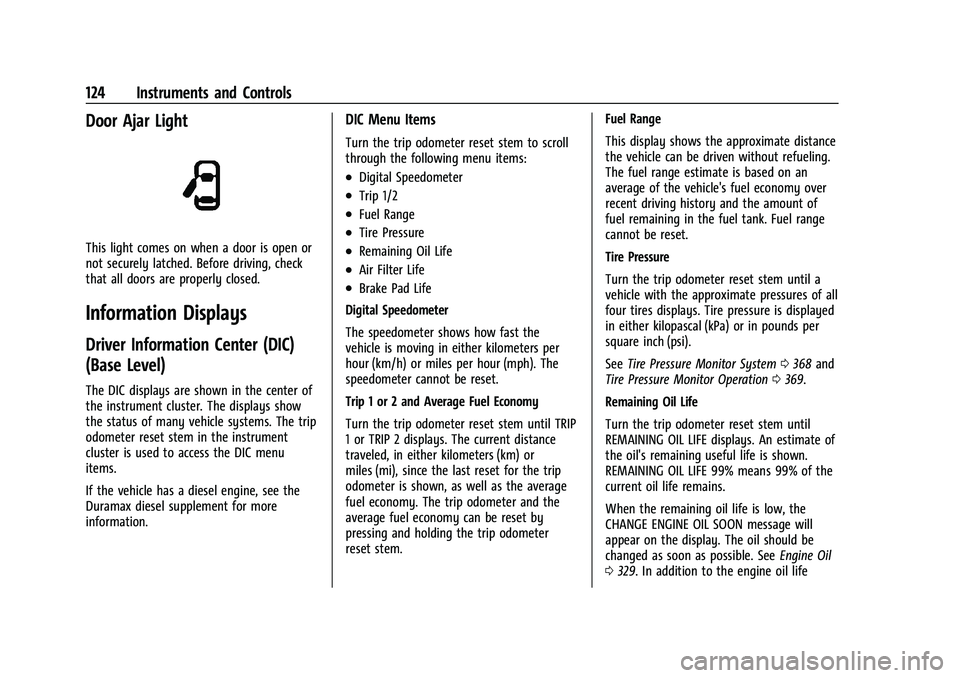
This light comes on when a door is open or
not securely latched. Before driving, check
that all doors are properly closed.
Information Displays
Driver Information Center (DIC)
(Base Level)
The DIC displays are shown in the center of
the instrument cluster. The displays show
the status of many vehicle systems. The trip
odometer reset stem in the instrument
cluster is used to access the DIC menu
items.
If the vehicle has a diesel engine, see the
Duramax diesel supplement for more
information.
DIC Menu Items
Turn the trip odometer reset stem to scroll
through the following menu items:
.Digital Speedometer
.Trip 1/2
.Fuel Range
.Tire Pressure
.Remaining Oil Life
.Air Filter Life
.Brake Pad Life
Digital Speedometer
The speedometer shows how fast the
vehicle is moving in either kilometers per
hour (km/h) or miles per hour (mph). The
speedometer cannot be reset.
Trip 1 or 2 and Average Fuel Economy
Turn the trip odometer reset stem until TRIP
1 or TRIP 2 displays. The current distance
traveled, in either kilometers (km) or
miles (mi), since the last reset for the trip
odometer is shown, as well as the average
fuel economy. The trip odometer and the
average fuel economy can be reset by
pressing and holding the trip odometer
reset stem. Fuel Range
This display shows the approximate distance
the vehicle can be driven without refueling.
The fuel range estimate is based on an
average of the vehicle's fuel economy over
recent driving history and the amount of
fuel remaining in the fuel tank. Fuel range
cannot be reset.
Tire Pressure
Turn the trip odometer reset stem until a
vehicle with the approximate pressures of all
four tires displays. Tire pressure is displayed
in either kilopascal (kPa) or in pounds per
square inch (psi).
See
Tire Pressure Monitor System 0368 and
Tire Pressure Monitor Operation 0369.
Remaining Oil Life
Turn the trip odometer reset stem until
REMAINING OIL LIFE displays. An estimate of
the oil's remaining useful life is shown.
REMAINING OIL LIFE 99% means 99% of the
current oil life remains.
When the remaining oil life is low, the
CHANGE ENGINE OIL SOON message will
appear on the display. The oil should be
changed as soon as possible. See Engine Oil
0 329. In addition to the engine oil life
Page 126 of 461
Chevrolet Silverado 1500 Owner Manual (GMNA-Localizing-U.S./Canada/
Mexico/Paraguay-14632303) - 2021 - CRC - 11/9/20
Instruments and Controls 125
system monitoring the oil life, additional
maintenance is recommended. See
Maintenance Schedule0409.
The Oil Life display must be reset after each
oil change. It will not reset itself. Do not
reset the Oil Life display at any time other
than when the oil has just been changed.
It cannot be reset accurately until the next
oil change. To reset, see Engine Oil Life
System 0331.
Air Filter Life
Turn the trip odometer reset stem until AIR
FILTER LIFE displays. This displays an
estimate of the engine air filter’s remaining
useful life and the state of the system.
Engine Air Filter Life 95% means 95% of the
current air filter life remains. Messages will
display based on the engine air filter life
and the state of the system.
When the REPLACE AT NEXT OIL CHANGE
message displays, the engine air filter
should be replaced at the time of the next
oil change. When the REPLACE SOON
message displays, the engine air filter
should be replaced at the earliest
convenience. The Air Filter Life display must be reset after
the engine air filter replacement. To reset,
see
Engine Air Filter Life System 0332.
Brake Pad Life
This displays an estimate of the remaining
life of the front and rear brake pads.
Messages will display based on brake pad
wear and the state of the system. Reset the
Brake Pad Life display after replacing the
brake pads. See Brake Pad Life System 0341.
Driver Information Center (DIC)
(Midlevel and Uplevel)
The DIC displays are shown in the center of
the instrument cluster in the Info app. See
Instrument Cluster 0106. The displays show
the status of many vehicle systems.
If the vehicle has a diesel engine, see the
Duramax diesel supplement.
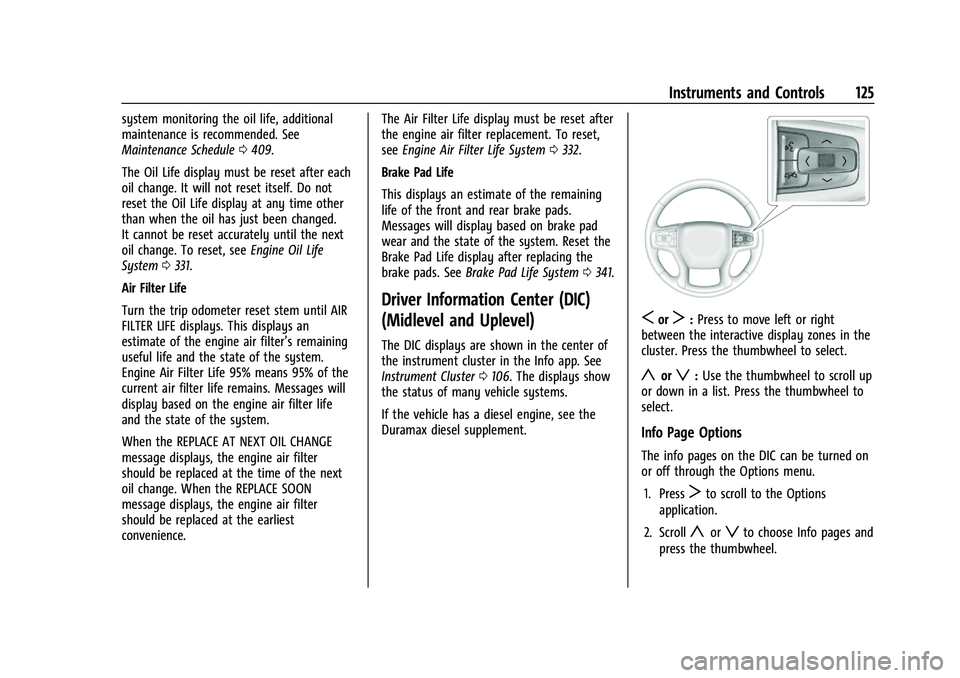
SorT: Press to move left or right
between the interactive display zones in the
cluster. Press the thumbwheel to select.
yorz: Use the thumbwheel to scroll up
or down in a list. Press the thumbwheel to
select.
Info Page Options
The info pages on the DIC can be turned on
or off through the Options menu.
1. Press
Tto scroll to the Options
application.
2. Scroll
yorzto choose Info pages and
press the thumbwheel.
Page 129 of 461
Chevrolet Silverado 1500 Owner Manual (GMNA-Localizing-U.S./Canada/
Mexico/Paraguay-14632303) - 2021 - CRC - 11/9/20
128 Instruments and Controls
Head-Up Display (HUD)
{Warning
If the HUD image is too bright or too
high in your field of view, it may take
you more time to see things you need to
see when it is dark outside. Be sure to
keep the HUD image dim and placed low
in your field of view.
If equipped with HUD, some information
about the operation of the vehicle is
projected onto the windshield. The image is
projected through the HUD lens on top of
the instrument panel. The information
appears as an image focused out toward the
front of the vehicle.
Caution
If you try to use the HUD image as a
parking aid, you may misjudge the
distance and damage your vehicle. Do not
use the HUD image as a parking aid.
The HUD information can be displayed in
various languages. The speedometer reading
and other numerical values can be displayed
in either English or metric units. The language selection is changed through
the radio, and the units of measurement is
changed through the instrument cluster. See
Settings
0186 and “Options” under
Instrument Cluster 0106.
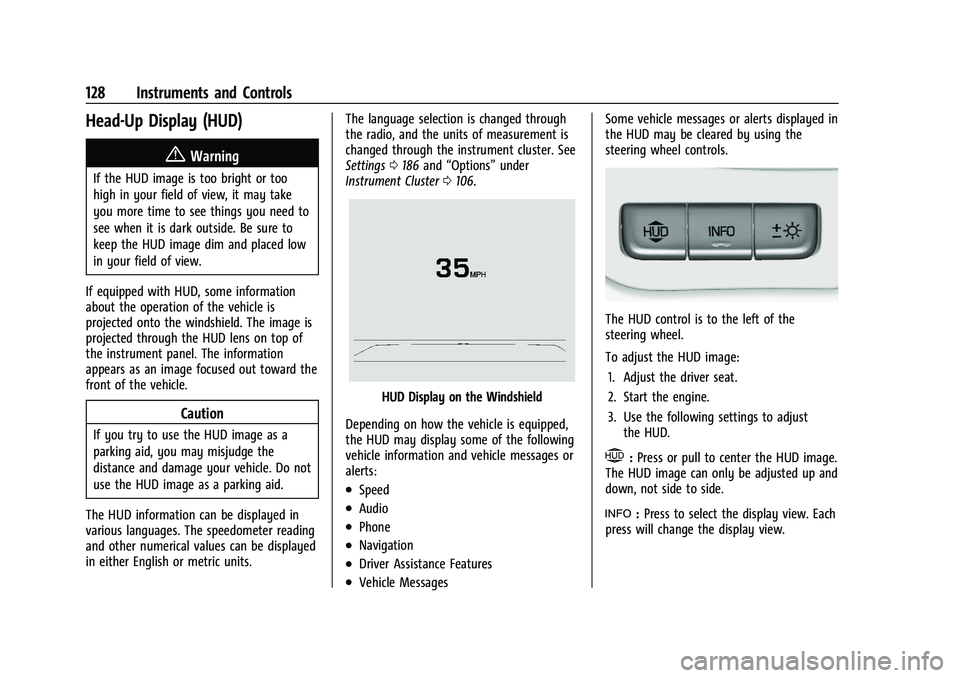
HUD Display on the Windshield
Depending on how the vehicle is equipped,
the HUD may display some of the following
vehicle information and vehicle messages or
alerts:
.Speed
.Audio
.Phone
.Navigation
.Driver Assistance Features
.Vehicle Messages Some vehicle messages or alerts displayed in
the HUD may be cleared by using the
steering wheel controls.
The HUD control is to the left of the
steering wheel.
To adjust the HUD image:
1. Adjust the driver seat.
2. Start the engine.
3. Use the following settings to adjust the HUD.
$:Press or pull to center the HUD image.
The HUD image can only be adjusted up and
down, not side to side.
!: Press to select the display view. Each
press will change the display view.
Page 130 of 461
Chevrolet Silverado 1500 Owner Manual (GMNA-Localizing-U.S./Canada/
Mexico/Paraguay-14632303) - 2021 - CRC - 11/9/20
Instruments and Controls 129
D:Pull and hold to brighten the display.
Press and hold to dim the display. Continue
to hold to turn the display off.
The HUD image will automatically dim and
brighten to compensate for outside lighting.
Use
Dto adjust as needed.
The HUD image can temporarily light up
depending on the angle and position of
sunlight on the HUD display. This is normal.
Polarized sunglasses could make the HUD
image harder to see.
Head-Up Display (HUD) Rotation Option
If equipped, this feature under the Options
menu of the instrument cluster allows for
adjusting the angle of the HUD image and
changing or turning off the Speed
Limit Sign.
HUD Rotation: Press the thumbwheel while
Adjust Rotation is highlighted to enter
Adjust Mode. Scroll to adjust the angle of
the HUD display. Press the thumbwheel to
confirm and save the setting. This feature
may only be available in P (Park). Speed Limit Style Adjustment
If equipped, the speed limit style can be
changed to a speed limit bar or speed limit
sign from the Options menu in the
instrument cluster. Press the thumbwheel
while Speed Limit Style is highlighted to
change the speed sign style or to turn it off.
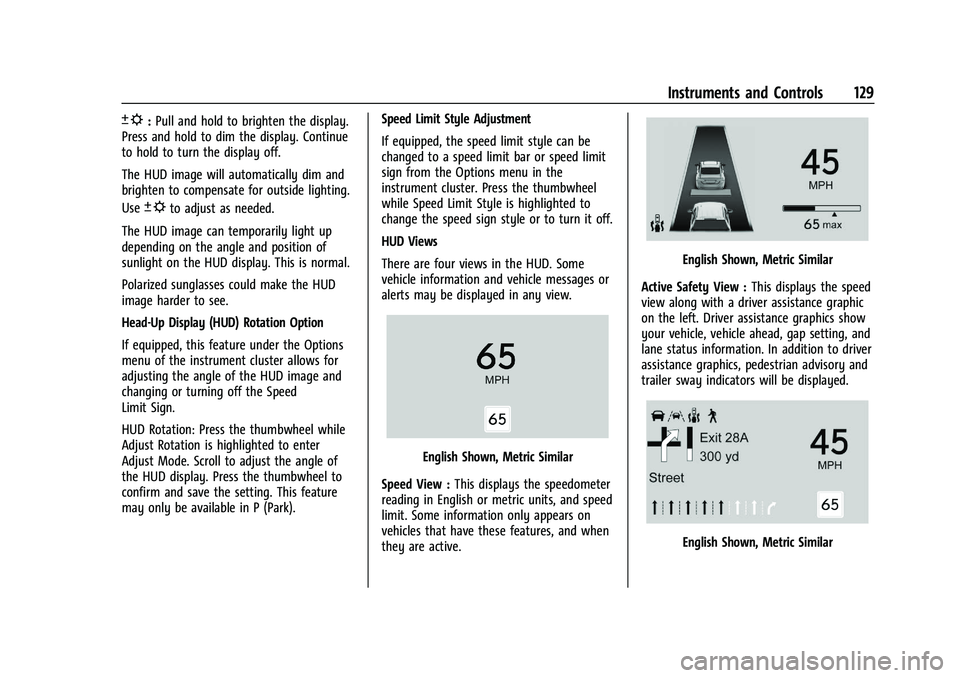
HUD Views
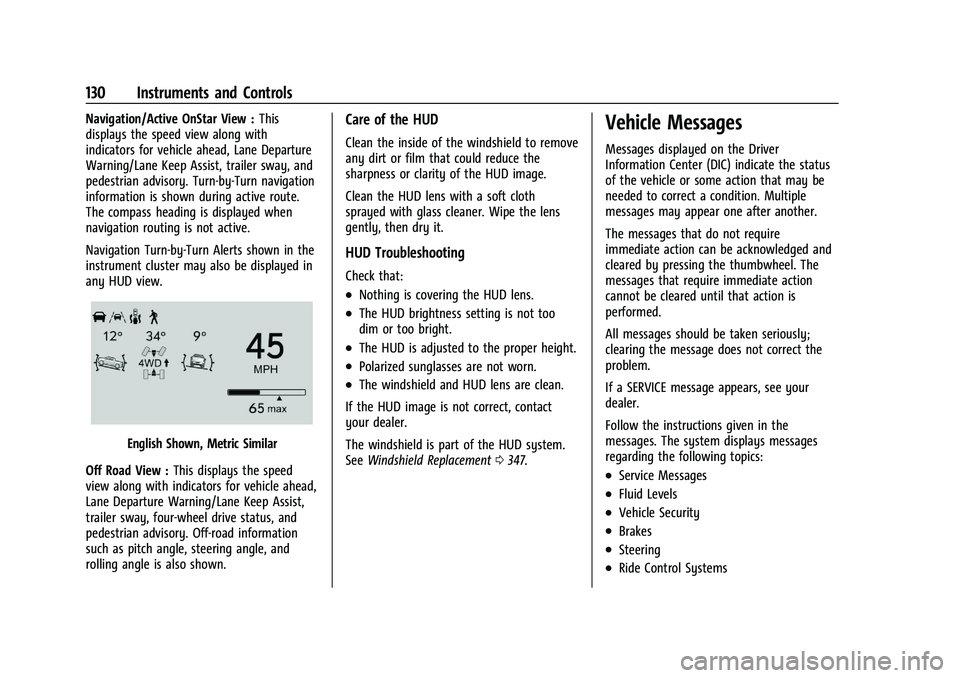
There are four views in the HUD. Some
vehicle information and vehicle messages or
alerts may be displayed in any view.
English Shown, Metric Similar
Speed View : This displays the speedometer
reading in English or metric units, and speed
limit. Some information only appears on
vehicles that have these features, and when
they are active.
English Shown, Metric Similar
Active Safety View : This displays the speed
view along with a driver assistance graphic
on the left. Driver assistance graphics show
your vehicle, vehicle ahead, gap setting, and
lane status information. In addition to driver
assistance graphics, pedestrian advisory and
trailer sway indicators will be displayed.
English Shown, Metric Similar
Page 131 of 461
Chevrolet Silverado 1500 Owner Manual (GMNA-Localizing-U.S./Canada/
Mexico/Paraguay-14632303) - 2021 - CRC - 11/9/20
130 Instruments and Controls
Navigation/Active OnStar View :This
displays the speed view along with
indicators for vehicle ahead, Lane Departure
Warning/Lane Keep Assist, trailer sway, and
pedestrian advisory. Turn-by-Turn navigation
information is shown during active route.
The compass heading is displayed when
navigation routing is not active.
Navigation Turn-by-Turn Alerts shown in the
instrument cluster may also be displayed in
any HUD view.
English Shown, Metric Similar
Off Road View : This displays the speed
view along with indicators for vehicle ahead,
Lane Departure Warning/Lane Keep Assist,
trailer sway, four-wheel drive status, and
pedestrian advisory. Off-road information
such as pitch angle, steering angle, and
rolling angle is also shown.
Care of the HUD
Clean the inside of the windshield to remove
any dirt or film that could reduce the
sharpness or clarity of the HUD image.
Clean the HUD lens with a soft cloth
sprayed with glass cleaner. Wipe the lens
gently, then dry it.
HUD Troubleshooting
Check that:
.Nothing is covering the HUD lens.
.The HUD brightness setting is not too
dim or too bright.
.The HUD is adjusted to the proper height.
.Polarized sunglasses are not worn.
.The windshield and HUD lens are clean.
If the HUD image is not correct, contact
your dealer.
The windshield is part of the HUD system.
See Windshield Replacement 0347.
Vehicle Messages
Messages displayed on the Driver
Information Center (DIC) indicate the status
of the vehicle or some action that may be
needed to correct a condition. Multiple
messages may appear one after another.
The messages that do not require
immediate action can be acknowledged and
cleared by pressing the thumbwheel. The
messages that require immediate action
cannot be cleared until that action is
performed.
All messages should be taken seriously;
clearing the message does not correct the
problem.
If a SERVICE message appears, see your
dealer.
Follow the instructions given in the
messages. The system displays messages
regarding the following topics:
.Service Messages
.Fluid Levels
.Vehicle Security
.Brakes
.Steering
.Ride Control Systems
Page 141 of 461
Chevrolet Silverado 1500 Owner Manual (GMNA-Localizing-U.S./Canada/
Mexico/Paraguay-14632303) - 2021 - CRC - 11/9/20
140 Lighting
for an additional 10 minutes. To keep the
lamps on for more than 10 minutes, the
ignition must be on or in ACC/ACCESSORY.
K:If equipped, turns on the task
lighting. See Task Lighting 0144.
IntelliBeam System
If equipped, this system turns the vehicle's
high-beam headlamps on and off according
to surrounding traffic conditions.
The system turns the high-beam headlamps
on when it is dark enough and there is no
other traffic present.
This light
bcomes on in the instrument
cluster when the IntelliBeam system is
enabled.
Turning On and Enabling IntelliBeam
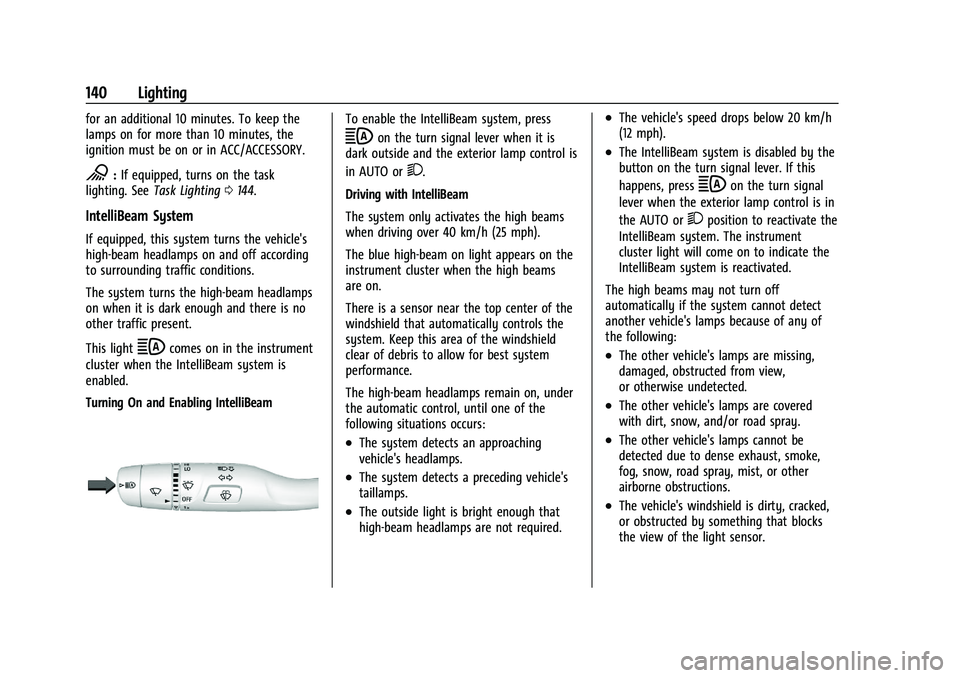
To enable the IntelliBeam system, press
bon the turn signal lever when it is
dark outside and the exterior lamp control is
in AUTO or
2.
Driving with IntelliBeam
The system only activates the high beams
when driving over 40 km/h (25 mph).
The blue high-beam on light appears on the
instrument cluster when the high beams
are on.
There is a sensor near the top center of the
windshield that automatically controls the
system. Keep this area of the windshield
clear of debris to allow for best system
performance.
The high-beam headlamps remain on, under
the automatic control, until one of the
following situations occurs:
.The system detects an approaching
vehicle's headlamps.
.The system detects a preceding vehicle's
taillamps.
.The outside light is bright enough that
high-beam headlamps are not required.
.The vehicle's speed drops below 20 km/h
(12 mph).
.The IntelliBeam system is disabled by the
button on the turn signal lever. If this
happens, press
bon the turn signal
lever when the exterior lamp control is in
the AUTO or
2position to reactivate the
IntelliBeam system. The instrument
cluster light will come on to indicate the
IntelliBeam system is reactivated.
The high beams may not turn off
automatically if the system cannot detect
another vehicle's lamps because of any of
the following:
.The other vehicle's lamps are missing,
damaged, obstructed from view,
or otherwise undetected.
.The other vehicle's lamps are covered
with dirt, snow, and/or road spray.
.The other vehicle's lamps cannot be
detected due to dense exhaust, smoke,
fog, snow, road spray, mist, or other
airborne obstructions.
.The vehicle's windshield is dirty, cracked,
or obstructed by something that blocks
the view of the light sensor.
Page 142 of 461
Chevrolet Silverado 1500 Owner Manual (GMNA-Localizing-U.S./Canada/
Mexico/Paraguay-14632303) - 2021 - CRC - 11/9/20
Lighting 141
.The vehicle is loaded such that the front
end points upward, causing the light
sensor to aim high and not detect
headlamps and taillamps.
.Driving on winding or hilly roads.
The automatic high-beam headlamps may
need to be disabled if any of the above
conditions exist.
Exterior Lamps Off Reminder
A reminder chime sounds when the
headlamps or parking lamps are manually
turned on, the ignition is off, and a door is
open. To disable the chime, turn the
lamps off.
Headlamp High/Low-Beam
Changer
Push the turn signal lever toward the
instrument panel to change the headlamps
from low to high beam.
Pull or push the turn signal lever to return
to low-beam headlamps.
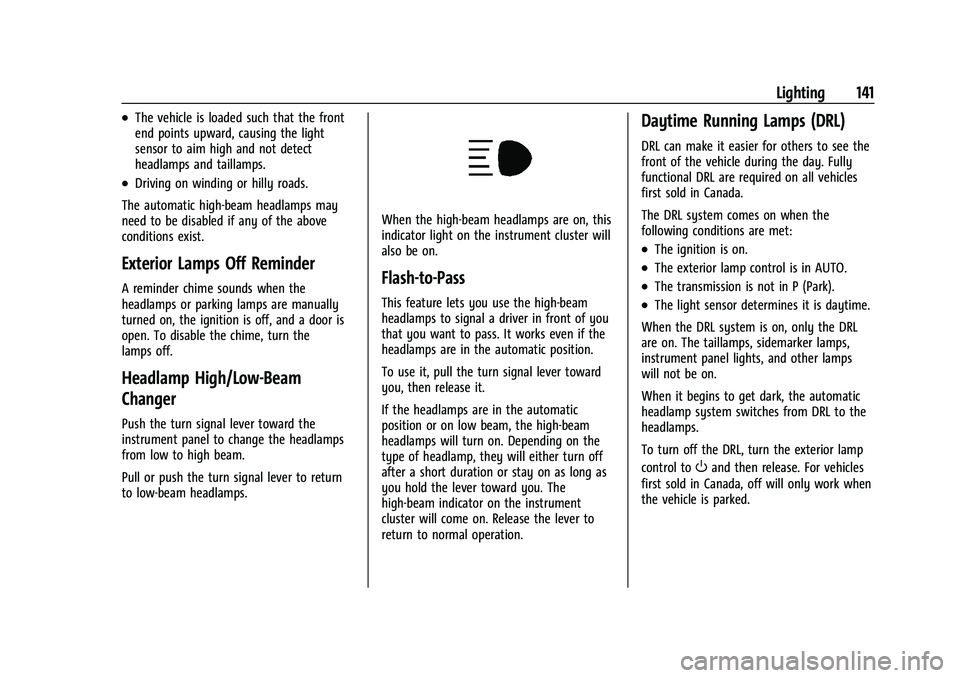
When the high-beam headlamps are on, this
indicator light on the instrument cluster will
also be on.
Flash-to-Pass
This feature lets you use the high-beam
headlamps to signal a driver in front of you
that you want to pass. It works even if the
headlamps are in the automatic position.
To use it, pull the turn signal lever toward
you, then release it.
If the headlamps are in the automatic
position or on low beam, the high-beam
headlamps will turn on. Depending on the
type of headlamp, they will either turn off
after a short duration or stay on as long as
you hold the lever toward you. The
high-beam indicator on the instrument
cluster will come on. Release the lever to
return to normal operation.
Daytime Running Lamps (DRL)
DRL can make it easier for others to see the
front of the vehicle during the day. Fully
functional DRL are required on all vehicles
first sold in Canada.
The DRL system comes on when the
following conditions are met:
.The ignition is on.
.The exterior lamp control is in AUTO.
.The transmission is not in P (Park).
.The light sensor determines it is daytime.
When the DRL system is on, only the DRL
are on. The taillamps, sidemarker lamps,
instrument panel lights, and other lamps
will not be on.
When it begins to get dark, the automatic
headlamp system switches from DRL to the
headlamps.
To turn off the DRL, turn the exterior lamp
control to
Oand then release. For vehicles
first sold in Canada, off will only work when
the vehicle is parked.
Page 143 of 461
Chevrolet Silverado 1500 Owner Manual (GMNA-Localizing-U.S./Canada/
Mexico/Paraguay-14632303) - 2021 - CRC - 11/9/20
142 Lighting
Automatic Headlamp System
When the exterior lamp control is set to
AUTO and it is dark enough outside, the
headlamps come on automatically.
There is a light sensor on top of the
instrument panel. Do not cover the sensor,
otherwise the headlamps will come on when
they are not needed.
The system may also turn on the headlamps
when driving through a parking garage or
tunnel.
If the vehicle is started in a dark garage, the
automatic headlamp system comes on
immediately. If it is light outside when the
vehicle leaves the garage, there is a slightdelay before the automatic headlamp
system changes to the Daytime Running
Lamps (DRL). During that delay, the
instrument cluster may not be as bright as
usual. Make sure the instrument panel
illumination control is in the full bright
position. See
Instrument Panel Illumination
Control 0145.
When it is bright enough outside, the
headlamps will turn off or may change
to DRL.
The automatic headlamp system turns off
when the exterior lamp control is turned to
Oor the ignition is off.
Lights On with Wipers
If the windshield wipers are activated in
daylight with the engine on, and the
exterior lamp control is in AUTO, the
headlamps, parking lamps, and other
exterior lamps come on. The transition time
for the lamps coming on varies based on
wiper speed. When the wipers are not
operating, these lamps turn off. Move the
exterior lamp control to
Oor;to disable
this feature.
Hazard Warning Flashers
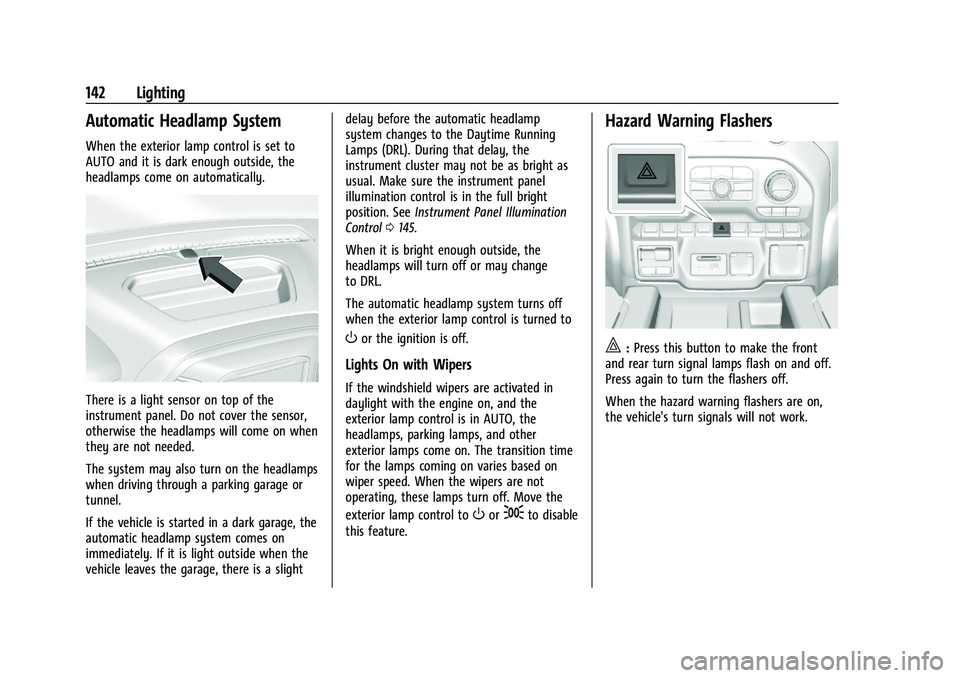
|: Press this button to make the front
and rear turn signal lamps flash on and off.
Press again to turn the flashers off.
When the hazard warning flashers are on,
the vehicle's turn signals will not work.
Page 144 of 461
Chevrolet Silverado 1500 Owner Manual (GMNA-Localizing-U.S./Canada/
Mexico/Paraguay-14632303) - 2021 - CRC - 11/9/20
Lighting 143
Turn and Lane-Change Signals
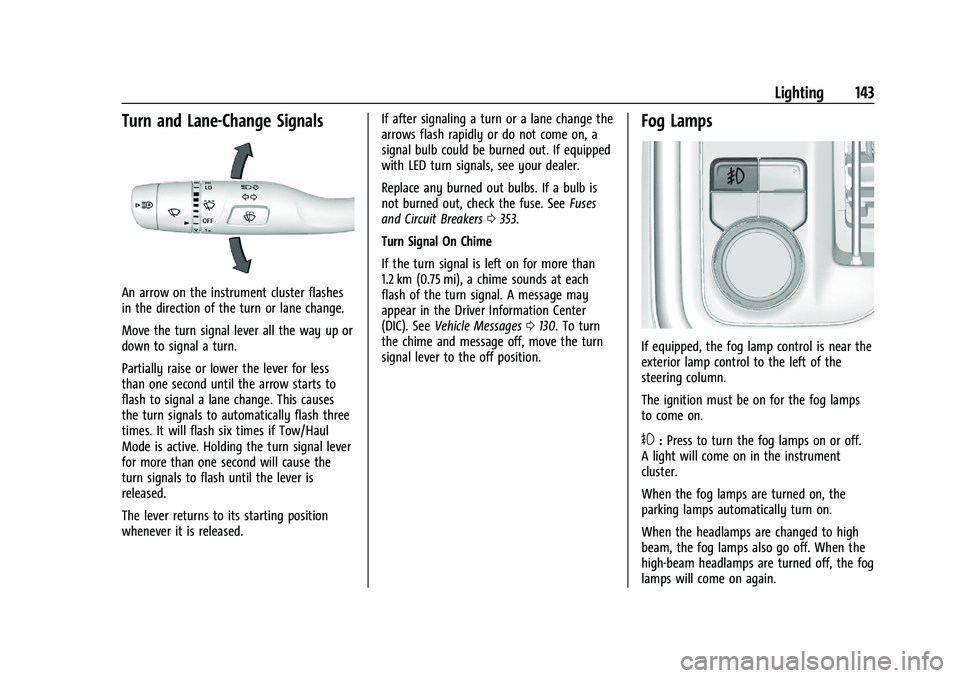
An arrow on the instrument cluster flashes
in the direction of the turn or lane change.
Move the turn signal lever all the way up or
down to signal a turn.
Partially raise or lower the lever for less
than one second until the arrow starts to
flash to signal a lane change. This causes
the turn signals to automatically flash three
times. It will flash six times if Tow/Haul
Mode is active. Holding the turn signal lever
for more than one second will cause the
turn signals to flash until the lever is
released.
The lever returns to its starting position
whenever it is released.If after signaling a turn or a lane change the
arrows flash rapidly or do not come on, a
signal bulb could be burned out. If equipped
with LED turn signals, see your dealer.
Replace any burned out bulbs. If a bulb is
not burned out, check the fuse. See
Fuses
and Circuit Breakers 0353.
Turn Signal On Chime
If the turn signal is left on for more than
1.2 km (0.75 mi), a chime sounds at each
flash of the turn signal. A message may
appear in the Driver Information Center
(DIC). See Vehicle Messages 0130. To turn
the chime and message off, move the turn
signal lever to the off position.
Fog Lamps
If equipped, the fog lamp control is near the
exterior lamp control to the left of the
steering column.
The ignition must be on for the fog lamps
to come on.
#: Press to turn the fog lamps on or off.
A light will come on in the instrument
cluster.
When the fog lamps are turned on, the
parking lamps automatically turn on.
When the headlamps are changed to high
beam, the fog lamps also go off. When the
high-beam headlamps are turned off, the fog
lamps will come on again.
Page 149 of 461
Chevrolet Silverado 1500 Owner Manual (GMNA-Localizing-U.S./Canada/
Mexico/Paraguay-14632303) - 2021 - CRC - 11/9/20
148 Infotainment System
Infotainment System
Introduction
Introduction . . . . . . . . . . . . . . . . . . . . . . . . . . . 148
Overview . . . . . . . . . . . . . . . . . . . . . . . . . . . . . . 149
Steering Wheel Controls . . . . . . . . . . . . . . . 151
Using the System . . . . . . . . . . . . . . . . . . . . . . 152
Software Updates . . . . . . . . . . . . . . . . . . . . . . 155
Radio
AM-FM Radio . . . . . . . . . . . . . . . . . . . . . . . . . . 155
HD Radio Technology . . . . . . . . . . . . . . . . . . 156
Radio Data System (RDS) . . . . . . . . . . . . . . 157
Satellite Radio . . . . . . . . . . . . . . . . . . . . . . . . . 157
Radio Reception . . . . . . . . . . . . . . . . . . . . . . . 158
Fixed Mast Antenna . . . . . . . . . . . . . . . . . . . 158
Multi-Band Antenna . . . . . . . . . . . . . . . . . . . 158
Audio Players
Avoiding Untrusted Media Devices . . . . . 158
USB Port . . . . . . . . . . . . . . . . . . . . . . . . . . . . . . . 158
Auxiliary Jack . . . . . . . . . . . . . . . . . . . . . . . . . . 161
Bluetooth Audio . . . . . . . . . . . . . . . . . . . . . . . 162
OnStar System
OnStar System . . . . . . . . . . . . . . . . . . . . . . . . 162
Navigation
Using the Navigation System . . . . . . . . . . 163
Maps . . . . . . . . . . . . . . . . . . . . . . . . . . . . . . . . . . 166
Navigation Symbols . . . . . . . . . . . . . . . . . . . 167Destination . . . . . . . . . . . . . . . . . . . . . . . . . . . . 167
OnStar System . . . . . . . . . . . . . . . . . . . . . . . . . 173
Global Positioning System (GPS) . . . . . . . 174
Vehicle Positioning . . . . . . . . . . . . . . . . . . . . 174
Problems with Route Guidance . . . . . . . . 174
If the System Needs Service . . . . . . . . . . . 175
Map Data Updates . . . . . . . . . . . . . . . . . . . . . 175
Database Coverage Explanations . . . . . . . 175
Voice Recognition
Voice Recognition . . . . . . . . . . . . . . . . . . . . . . 175
Phone
Bluetooth (Overview) . . . . . . . . . . . . . . . . . . 180
Bluetooth (Pairing and Using a
Phone) . . . . . . . . . . . . . . . . . . . . . . . . . . . . . . . 181
Apple CarPlay and Android Auto . . . . . . . 185
Settings
Settings . . . . . . . . . . . . . . . . . . . . . . . . . . . . . . . 186
Teen Driver . . . . . . . . . . . . . . . . . . . . . . . . . . . . 192
Trademarks and License Agreements
Trademarks and License Agreements . . . . . . . . . . . . . . . . . . . . . . . . . . 195
Introduction
Read the following pages to become familiar
with the features.
{Warning
Taking your eyes off the road for too
long or too often while using any
infotainment feature can cause a crash.
You or others could be injured or killed.
Do not give extended attention to
infotainment tasks while driving. Limit
your glances at the vehicle displays and
focus your attention on driving. Use voice
commands whenever possible.
The infotainment system has built-in
features intended to help avoid distraction
by disabling some features when driving.
These features may gray out when they are
unavailable. Many infotainment features are
also available through the instrument cluster
and steering wheel controls.
Before driving:
.Become familiar with the operation,
center stack controls, steering wheel
controls, and infotainment display.