key CHEVROLET SILVERADO 1500 2022 Workshop Manual
[x] Cancel search | Manufacturer: CHEVROLET, Model Year: 2022, Model line: SILVERADO 1500, Model: CHEVROLET SILVERADO 1500 2022Pages: 461, PDF Size: 11.09 MB
Page 146 of 461
Chevrolet Silverado 1500 Owner Manual (GMNA-Localizing-U.S./Canada/
Mexico/Paraguay-14632303) - 2021 - CRC - 11/9/20
Lighting 145
If the vehicle is in P (Park), R (Reverse),
or N (Neutral) the Cargo Lamp Switch causes
the lights to cycle through the following
states for each button press:
- Initial Press:
- CHMSL/Cargo Bed Lights - On
- Cargo Mirror Lights - On
- Cargo Switch Indicator (if equipped) - On
- Next Press: (if with in 5 seconds of the
previous button press):
- CHMSL/Cargo Bed Lights - On
- Cargo Mirror Lights - Off
- Cargo Switch Indicator (if equipped) - On
- Next Press:
- CHMSL/Cargo Bed Lights - Off
- Cargo Mirror Lights - Off
- Cargo Switch Indicator (if equipped) - Off
Become familiar with and follow all state
and local laws that apply to cargo lamp
operation.Interior Lighting
Instrument Panel Illumination
Control
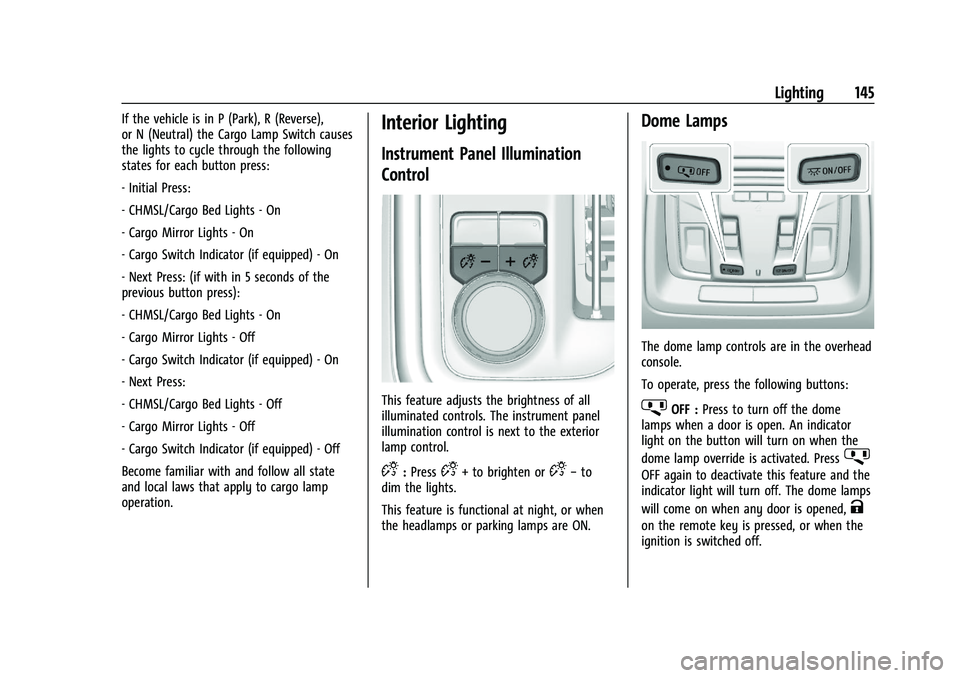
This feature adjusts the brightness of all
illuminated controls. The instrument panel
illumination control is next to the exterior
lamp control.
D:PressD+ to brighten orD− to
dim the lights.
This feature is functional at night, or when
the headlamps or parking lamps are ON.
Dome Lamps
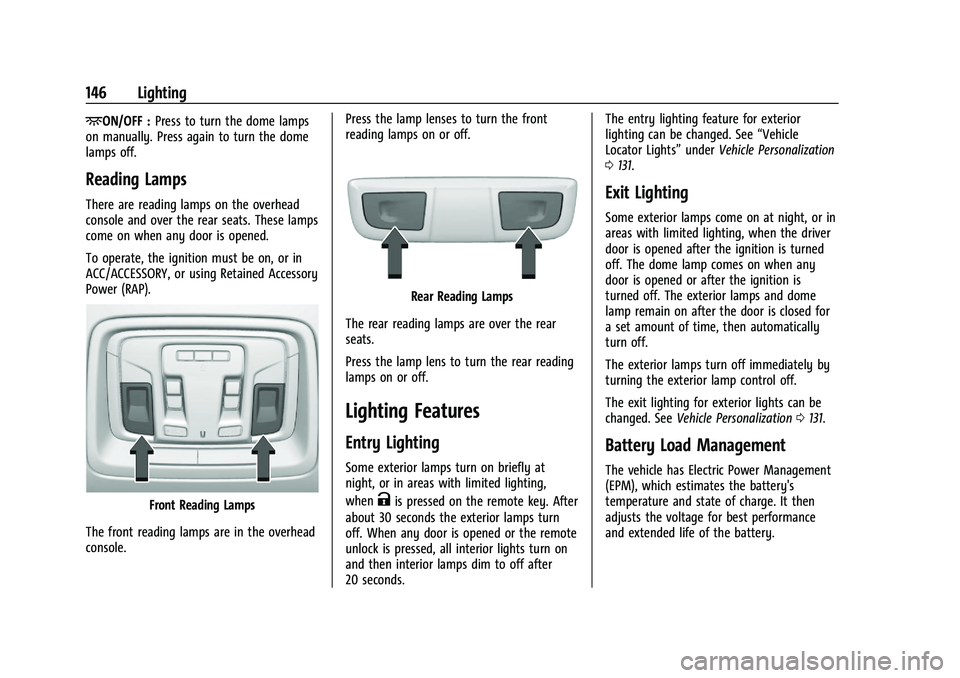
The dome lamp controls are in the overhead
console.
To operate, press the following buttons:
jOFF : Press to turn off the dome
lamps when a door is open. An indicator
light on the button will turn on when the
dome lamp override is activated. Press
j
OFF again to deactivate this feature and the
indicator light will turn off. The dome lamps
will come on when any door is opened,
K
on the remote key is pressed, or when the
ignition is switched off.
Page 147 of 461
Chevrolet Silverado 1500 Owner Manual (GMNA-Localizing-U.S./Canada/
Mexico/Paraguay-14632303) - 2021 - CRC - 11/9/20
146 Lighting
+ON/OFF :Press to turn the dome lamps
on manually. Press again to turn the dome
lamps off.
Reading Lamps
There are reading lamps on the overhead
console and over the rear seats. These lamps
come on when any door is opened.
To operate, the ignition must be on, or in
ACC/ACCESSORY, or using Retained Accessory
Power (RAP).
Front Reading Lamps
The front reading lamps are in the overhead
console. Press the lamp lenses to turn the front
reading lamps on or off.
Rear Reading Lamps
The rear reading lamps are over the rear
seats.
Press the lamp lens to turn the rear reading
lamps on or off.
Lighting Features
Entry Lighting
Some exterior lamps turn on briefly at
night, or in areas with limited lighting,
when
Kis pressed on the remote key. After
about 30 seconds the exterior lamps turn
off. When any door is opened or the remote
unlock is pressed, all interior lights turn on
and then interior lamps dim to off after
20 seconds. The entry lighting feature for exterior
lighting can be changed. See
“Vehicle
Locator Lights” underVehicle Personalization
0 131.
Exit Lighting
Some exterior lamps come on at night, or in
areas with limited lighting, when the driver
door is opened after the ignition is turned
off. The dome lamp comes on when any
door is opened or after the ignition is
turned off. The exterior lamps and dome
lamp remain on after the door is closed for
a set amount of time, then automatically
turn off.
The exterior lamps turn off immediately by
turning the exterior lamp control off.
The exit lighting for exterior lights can be
changed. See Vehicle Personalization 0131.
Battery Load Management
The vehicle has Electric Power Management
(EPM), which estimates the battery's
temperature and state of charge. It then
adjusts the voltage for best performance
and extended life of the battery.
Page 156 of 461
Chevrolet Silverado 1500 Owner Manual (GMNA-Localizing-U.S./Canada/
Mexico/Paraguay-14632303) - 2021 - CRC - 11/9/20
Infotainment System 155
Software Updates
Over-the-Air Software Updates
If equipped, see“Updates”underSettings
0 186 for details on software updates.
Radio
AM-FM Radio
Playing the Radio
From the Home Page, touch the Audio icon
to display the active audio source page.
Choose from the three most recently used
sources listed at the left side of the display
or touch the More option to display a list of
available sources. Examples of available
sources may include AM, FM, SXM (if
equipped), USB, AUX (if equipped), and
Bluetooth.
Infotainment System Sound Menu
From any of the audio source main pages,
touch Sound to display the following:
Equalizer : Touch to adjust Bass, Midrange,
Treble, and Surround (if equipped) using the
options on the infotainment display. Fade/Balance :
Touch to adjust by using the
controls on the infotainment display or by
tapping/dragging the crosshair.
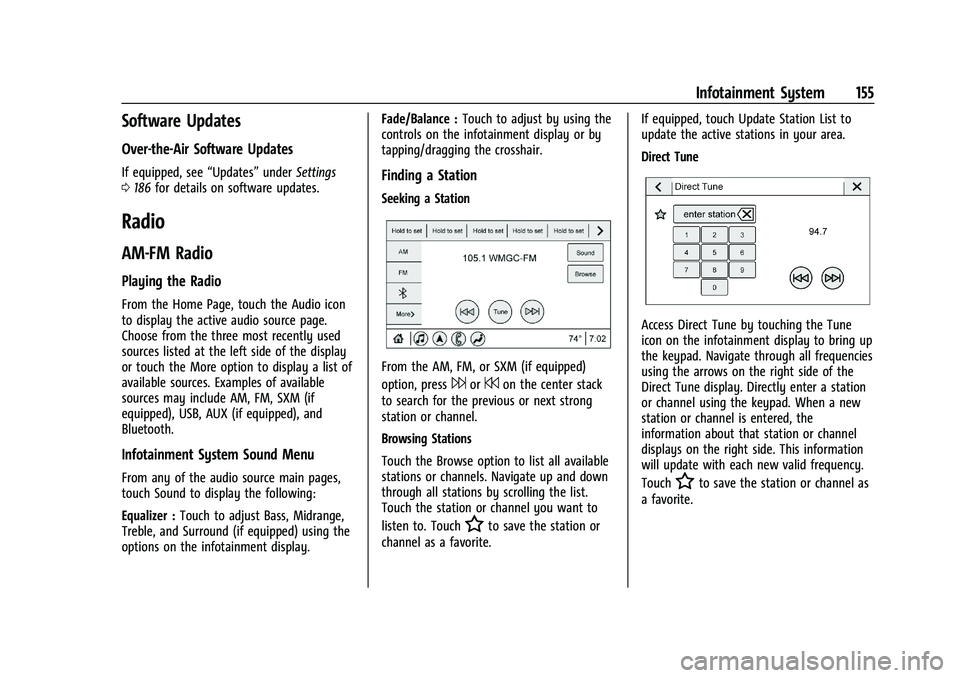
Finding a Station
Seeking a Station
From the AM, FM, or SXM (if equipped)
option, press
6or7on the center stack
to search for the previous or next strong
station or channel.
Browsing Stations
Touch the Browse option to list all available
stations or channels. Navigate up and down
through all stations by scrolling the list.
Touch the station or channel you want to
listen to. Touch
Hto save the station or
channel as a favorite. If equipped, touch Update Station List to
update the active stations in your area.
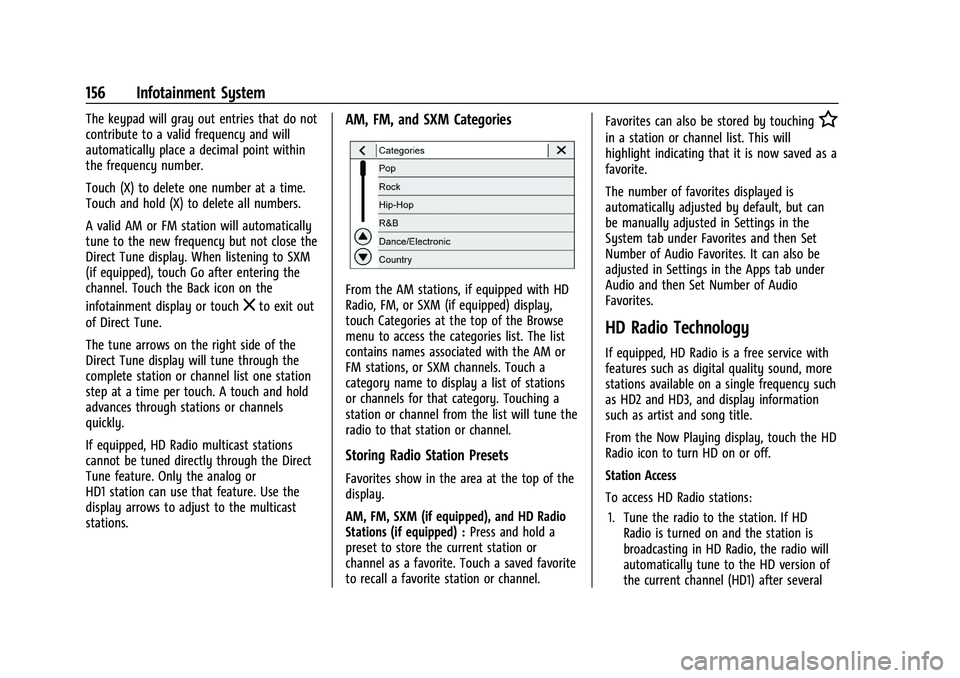
Direct Tune
Access Direct Tune by touching the Tune
icon on the infotainment display to bring up
the keypad. Navigate through all frequencies
using the arrows on the right side of the
Direct Tune display. Directly enter a station
or channel using the keypad. When a new
station or channel is entered, the
information about that station or channel
displays on the right side. This information
will update with each new valid frequency.
Touch
Hto save the station or channel as
a favorite.
Page 157 of 461
Chevrolet Silverado 1500 Owner Manual (GMNA-Localizing-U.S./Canada/
Mexico/Paraguay-14632303) - 2021 - CRC - 11/9/20
156 Infotainment System
The keypad will gray out entries that do not
contribute to a valid frequency and will
automatically place a decimal point within
the frequency number.
Touch (X) to delete one number at a time.
Touch and hold (X) to delete all numbers.
A valid AM or FM station will automatically
tune to the new frequency but not close the
Direct Tune display. When listening to SXM
(if equipped), touch Go after entering the
channel. Touch the Back icon on the
infotainment display or touch
zto exit out
of Direct Tune.
The tune arrows on the right side of the
Direct Tune display will tune through the
complete station or channel list one station
step at a time per touch. A touch and hold
advances through stations or channels
quickly.
If equipped, HD Radio multicast stations
cannot be tuned directly through the Direct
Tune feature. Only the analog or
HD1 station can use that feature. Use the
display arrows to adjust to the multicast
stations.
AM, FM, and SXM Categories
From the AM stations, if equipped with HD
Radio, FM, or SXM (if equipped) display,
touch Categories at the top of the Browse
menu to access the categories list. The list
contains names associated with the AM or
FM stations, or SXM channels. Touch a
category name to display a list of stations
or channels for that category. Touching a
station or channel from the list will tune the
radio to that station or channel.
Storing Radio Station Presets
Favorites show in the area at the top of the
display.
AM, FM, SXM (if equipped), and HD Radio
Stations (if equipped) : Press and hold a
preset to store the current station or
channel as a favorite. Touch a saved favorite
to recall a favorite station or channel. Favorites can also be stored by touching
H
in a station or channel list. This will
highlight indicating that it is now saved as a
favorite.
The number of favorites displayed is
automatically adjusted by default, but can
be manually adjusted in Settings in the
System tab under Favorites and then Set
Number of Audio Favorites. It can also be
adjusted in Settings in the Apps tab under
Audio and then Set Number of Audio
Favorites.
HD Radio Technology
If equipped, HD Radio is a free service with
features such as digital quality sound, more
stations available on a single frequency such
as HD2 and HD3, and display information
such as artist and song title.
From the Now Playing display, touch the HD
Radio icon to turn HD on or off.
Station Access
To access HD Radio stations:
1. Tune the radio to the station. If HD Radio is turned on and the station is
broadcasting in HD Radio, the radio will
automatically tune to the HD version of
the current channel (HD1) after several
Page 162 of 461
Chevrolet Silverado 1500 Owner Manual (GMNA-Localizing-U.S./Canada/
Mexico/Paraguay-14632303) - 2021 - CRC - 11/9/20
Infotainment System 161
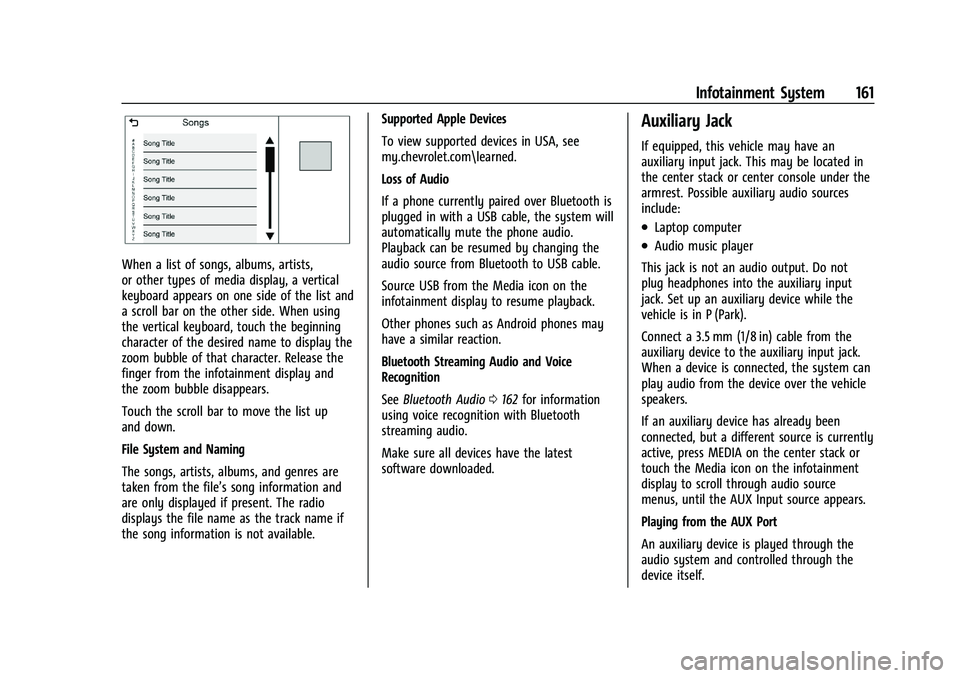
When a list of songs, albums, artists,
or other types of media display, a vertical
keyboard appears on one side of the list and
a scroll bar on the other side. When using
the vertical keyboard, touch the beginning
character of the desired name to display the
zoom bubble of that character. Release the
finger from the infotainment display and
the zoom bubble disappears.
Touch the scroll bar to move the list up
and down.
File System and Naming
The songs, artists, albums, and genres are
taken from the file’s song information and
are only displayed if present. The radio
displays the file name as the track name if
the song information is not available.Supported Apple Devices
To view supported devices in USA, see
my.chevrolet.com\learned.
Loss of Audio
If a phone currently paired over Bluetooth is
plugged in with a USB cable, the system will
automatically mute the phone audio.
Playback can be resumed by changing the
audio source from Bluetooth to USB cable.
Source USB from the Media icon on the
infotainment display to resume playback.
Other phones such as Android phones may
have a similar reaction.
Bluetooth Streaming Audio and Voice
Recognition
See
Bluetooth Audio 0162 for information
using voice recognition with Bluetooth
streaming audio.
Make sure all devices have the latest
software downloaded.
Auxiliary Jack
If equipped, this vehicle may have an
auxiliary input jack. This may be located in
the center stack or center console under the
armrest. Possible auxiliary audio sources
include:
.Laptop computer
.Audio music player
This jack is not an audio output. Do not
plug headphones into the auxiliary input
jack. Set up an auxiliary device while the
vehicle is in P (Park).
Connect a 3.5 mm (1/8 in) cable from the
auxiliary device to the auxiliary input jack.
When a device is connected, the system can
play audio from the device over the vehicle
speakers.
If an auxiliary device has already been
connected, but a different source is currently
active, press MEDIA on the center stack or
touch the Media icon on the infotainment
display to scroll through audio source
menus, until the AUX Input source appears.
Playing from the AUX Port
An auxiliary device is played through the
audio system and controlled through the
device itself.
Page 173 of 461
Chevrolet Silverado 1500 Owner Manual (GMNA-Localizing-U.S./Canada/
Mexico/Paraguay-14632303) - 2021 - CRC - 11/9/20
172 Infotainment System
Recents
TouchHto access a list of recent
destinations.
Recenter Position Icon
Touch the Recenter Position arrow in the
middle of the map view to reset the map to
the current location.
Last Parked Location
The Last Parked Location is the last location
the vehicle engine was turned off. That
location is displayed in the first row of the
Recents list. Touching the last Parked
Location shows the Address Details view to
either save the address or drive to it. The
Last Parked Location can be deleted by
entering the Edit display. Once the Last
Parked Location is deleted, it no longer
appears in the Recents list, unless the
vehicle is started at that location again.
Show POI Icons
To see the POI categories, touch Options,
then touch Show on Map. Up to eight
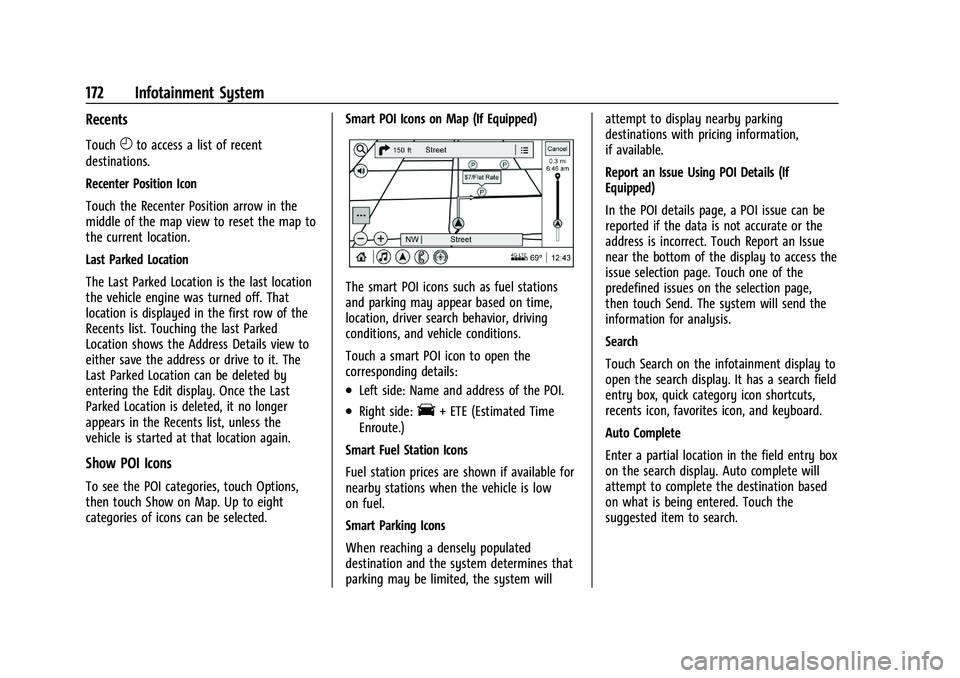
categories of icons can be selected. Smart POI Icons on Map (If Equipped)
The smart POI icons such as fuel stations
and parking may appear based on time,
location, driver search behavior, driving
conditions, and vehicle conditions.
Touch a smart POI icon to open the
corresponding details:
.Left side: Name and address of the POI.
.Right side:E+ ETE (Estimated Time
Enroute.)
Smart Fuel Station Icons
Fuel station prices are shown if available for
nearby stations when the vehicle is low
on fuel.
Smart Parking Icons
When reaching a densely populated
destination and the system determines that
parking may be limited, the system will attempt to display nearby parking
destinations with pricing information,
if available.
Report an Issue Using POI Details (If
Equipped)
In the POI details page, a POI issue can be
reported if the data is not accurate or the
address is incorrect. Touch Report an Issue
near the bottom of the display to access the
issue selection page. Touch one of the
predefined issues on the selection page,
then touch Send. The system will send the
information for analysis.
Search
Touch Search on the infotainment display to
open the search display. It has a search field
entry box, quick category icon shortcuts,
recents icon, favorites icon, and keyboard.
Auto Complete
Enter a partial location in the field entry box
on the search display. Auto complete will
attempt to complete the destination based
on what is being entered. Touch the
suggested item to search.
Page 174 of 461
Chevrolet Silverado 1500 Owner Manual (GMNA-Localizing-U.S./Canada/
Mexico/Paraguay-14632303) - 2021 - CRC - 11/9/20
Infotainment System 173
Search While in Motion with No Front Seat
Passenger Present
The search display will not allow changes or
text input with the keyboard when the
vehicle is in motion. As a result, a display
showing three rows of the most commonly
used categories appears. Touching the search
box will activate speech recognition.
Search While in Motion with Front Seat
Passenger Present
If the system detects that the front seat
passenger is present with both driver and
passenger seat belts buckled, touching the
search icon will display an alert message
that allows the passenger to search for a
destination as if the vehicle were stopped.
Connected Navigation
Connected Navigation is a subscription
service that enables certain capabilities
within the navigation system, such as
Traffic, Smart Search/Routing, and Predictive
Navigation capabilities. The system will
show an alert when the subscription is
expiring and will ask to renew the plan.
OnStar System
With a connected plan, an OnStar Advisor
can download a destination to the vehicle or
into the built-in navigation system.
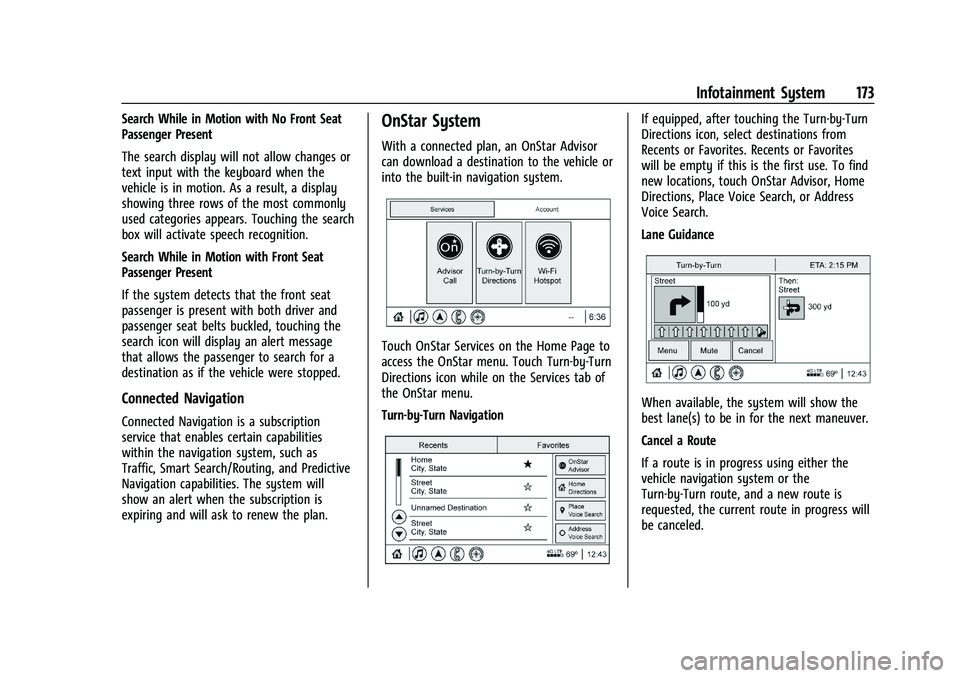
Touch OnStar Services on the Home Page to
access the OnStar menu. Touch Turn-by-Turn
Directions icon while on the Services tab of
the OnStar menu.
Turn-by-Turn Navigation
If equipped, after touching the Turn-by-Turn
Directions icon, select destinations from
Recents or Favorites. Recents or Favorites
will be empty if this is the first use. To find
new locations, touch OnStar Advisor, Home
Directions, Place Voice Search, or Address
Voice Search.
Lane Guidance
When available, the system will show the
best lane(s) to be in for the next maneuver.
Cancel a Route
If a route is in progress using either the
vehicle navigation system or the
Turn-by-Turn route, and a new route is
requested, the current route in progress will
be canceled.
Page 178 of 461
Chevrolet Silverado 1500 Owner Manual (GMNA-Localizing-U.S./Canada/
Mexico/Paraguay-14632303) - 2021 - CRC - 11/9/20
Infotainment System 177
Natural Language Commands
Most languages do not support natural
language commands in sentence form. For
those languages, use direct commands like
the examples shown on the display.
Helpful Hints for Speaking Commands
Voice recognition can understand commands
that are naturally stated in sentence form or
direct commands that state the application
and the task.
For best results:
.Listen for the prompt before saying a
command or reply.
.Speak the command naturally, not too
fast, not too slow.
.Use direct commands without a lot of
extra words. For example,“Call
at work,” “Play” followed by the artist or
song name, or “Tune”followed by the
radio station number.
.Navigation destinations can be made in a
single command using keywords. A few
examples are: “I want directions to an
address,” “I need to find a place of
interest or (POI),” or“Find contact.” The system responds by requesting more
details. For other POIs, say the name of a
category like
“Restaurants,” “Shopping
Malls,” or“Hospitals.”
.Navigating to a destination outside of the
current country takes more than one
command. The first command is to tell
the system where the navigation will take
place, such as an Address, Intersection,
POI, or Contact. If Address or Intersection
is selected, the second command is to
say, “Change Country.” Once the system
responds, say the country before saying
the rest of the address and/or
intersection.
If POI is asked for, say “Change Location,”
then “Change Country.”
Direct commands might be more clearly
understood by the system. An example of a
direct command would be “Call
Examples of these direct commands are
displayed on most of the screens while a
voice session is active. If “Phone”or“Phone
Commands,” is spoken, the system
understands that a phone call is requested
and will respond with questions until
enough details are gathered to make a call. If a cell phone number has been saved with
a name and a place, the direct command
should include both, for example
“Call
When a list is displayed, a voice prompt will
ask to confirm or select an option from
that list.
When a display contains a list, there may be
options that are available but not displayed.
The list on a voice recognition screen
functions the same as a list on other
displays. Scrolling or flinging can be used to
help display other entries from the list.
Manually scrolling or paging the list on a
display during a voice recognition session
suspends the current voice recognition event
and plays the prompt “Please select
manually or touch the Back icon on the
infotainment display to try again.”
If manual selection takes more than
15 seconds, the session terminates and
prompts that it has timed out. The display
returns to the display where voice
recognition was initiated.
Page 181 of 461
Chevrolet Silverado 1500 Owner Manual (GMNA-Localizing-U.S./Canada/
Mexico/Paraguay-14632303) - 2021 - CRC - 11/9/20
180 Infotainment System
“Address”:Begin a dialog to enter a
specific destination address, which includes
the entire address consisting of the house
number, street name, city, state/province,
and country. Do not include the ZIP code.
“Place of Interest” :Begin a dialog to enter
a destination Place of Interest category or
major brand name.
The name must be precisely spoken.
Nicknames or short names for the
businesses will not likely be found. Lesser
known businesses might have to be located
by category, such as fast food, hotels,
or banks.
“Navigate to Contact” :Begin a dialog to
enter a specific destination contact name.
“Cancel Route” :End route guidance.
“Take Me Home” :Create a route to a
stored home location.
Voice Recognition for the Phone
“Call
stored contact. The command may include
location if the contact has location numbers
stored. “Call
Mobile,”
or“On Other” :Initiate a call to a
stored contact and location at home, at
work, on mobile device, or on another
phone.
“Call
to a cell phone number of seven digits, 10
digits, or three digit emergency numbers.
“Pair Phone” :Begin the Bluetooth pairing
process. Follow the instructions on the
infotainment display.
“Redial” :Initiate a call to the last dialed
number.
“Switch Phone” :Select a different
connected cell phone for outgoing calls.
“Voice Keypad” :Begin a dialog to enter
special numbers like international numbers.
The numbers can be entered in groups of
digits with each group of digits being
repeated back by the system. If the group
of digits is not correct, the command
“Delete” will remove the last group of digits
and allow them to be re-entered. Once the
entire number has been entered, the
command “Call”will start dialing the
number.
Phone Assistant Voice Recognition
Press and holdgon the steering wheel
controls to pass through and launch Google
phone assistant or Siri.
For the low radio, whether connected by
Bluetooth or phone projection, the only
available voice recognition is either Siri
(iPhone) or the Google Assistant (Android).
Phone
Bluetooth (Overview)
The Bluetooth-capable system can interact
with many mobile devices, allowing:
.Placement and receipt of calls in a
hands-free mode.
.Sharing of the device’s address book or
contact list with the vehicle.
To minimize driver distraction, before
driving, and with the vehicle parked:
.Become familiar with the features of the
mobile device. Organize the phone book
and contact lists clearly and delete
duplicate or rarely used entries.
If possible, program speed dial or other
shortcuts.
Page 185 of 461
Chevrolet Silverado 1500 Owner Manual (GMNA-Localizing-U.S./Canada/
Mexico/Paraguay-14632303) - 2021 - CRC - 11/9/20
184 Infotainment System
To make a call using the Recents menu:1. Touch Phone on the Home Page.
2. Touch Recents.
3. Touch the name or number to call.
Making a Call Using the Keypad
To make a call by dialing the numbers:1. Touch the Phone icon on the Home Page.
2. Touch Keypad and enter a phone number.
3. Touch
#on the infotainment display to
start dialing the number.
Searching Contacts Using the Keypad
To search for contacts using the keypad:
1. Touch the Phone icon on the Home Page.
2. Touch Keypad and enter partial phone numbers or contact names using the
digits on the keypad to search.
Results will show on the right side of the
display. Touch one to place a call.
Accepting or Declining a Call
When an incoming call is received, the
infotainment system mutes and a ring tone
is heard in the vehicle. Accepting a Call
There are two ways to accept a call:
.Pressgon the steering wheel controls.
.Touch Answer on the infotainment
display.
Declining a Call
There are two ways to decline a call:
.Pression the steering wheel controls.
.Touch Ignore on the infotainment display.
Call Waiting
Call waiting must be supported on the
Bluetooth cell phone and enabled by the
wireless service carrier to work.
Accepting a Call
Press
gto answer, then touch Switch on
the infotainment display.
Declining a Call
Press
ito decline, then touch Ignore on
the infotainment display Switching Between Calls (Call Waiting
Calls Only)
To switch between calls, touch Phone on the
Home Page to display Call View. While in
Call View, touch the call information of the
call on hold to change calls.
Three-Way Calling
Three-way calling must be supported on the
Bluetooth cell phone and enabled by the
wireless service carrier to work.
To start a three-way call while in a
current call:
1. In the Call View, touch Add Call to add another call.
2. Initiate the second call by selecting from Recents, Contacts, or Keypad.
3. When the second call is active, touch the merge icon to conference the three-way
call together.
Ending a Call
.Pression the steering wheel controls.
.Touch#on the infotainment display,
next to a call, to end only that call.