Vehicle data CHEVROLET SILVERADO 1500 2023 User Guide
[x] Cancel search | Manufacturer: CHEVROLET, Model Year: 2023, Model line: SILVERADO 1500, Model: CHEVROLET SILVERADO 1500 2023Pages: 463, PDF Size: 19.26 MB
Page 174 of 463
Chevrolet Silverado 1500 Owner Manual (GMNA-Localizing-U.S./Canada/
Mexico/Paraguay-16515119) - 2023 - CRC - 6/2/22
Infotainment System 173
significant wear to maintain
connection quality. Aftermarket or
third-party cables may not work.
.Connecting the phone over Bluetooth.
SeeBluetooth (Pairing and Using a
Phone for Uplevel Radio) 0165 or
Bluetooth (Pairing and Using a Phone
for Base Radio) 0168 or
Bluetooth (Overview) 0164.
3. Make sure wireless is turned on the phone for wireless projection to work.
4. When the phone is first connected to activate Apple CarPlay or Android Auto,
agree to the terms and conditions on
both the infotainment system and the
phone.
5. Follow the instructions on the phone.
The Android Auto and Apple CarPlay icons
on the Home Page will illuminate depending
on the smartphone. Android Auto and/or
Apple CarPlay may automatically launch
upon wireless connection. If not, touch the
Android Auto or Apple CarPlay icon on the
Home Page to launch.
Wireless Carplay and/or Wireless Android
Auto may experience occasional service
disruption due to outside Wi-Fi interference. To disconnect the phones wireless
projection:
1. Select Settings from the Home Page.
2. Select Phones
3. Touch
4or the pencil icon next to the
phone to be disconnected.
4. Turn off Apple CarPlay or Android Auto.
Press
{on the center stack to return to the
Home Page.
Features are subject to change. For further
information on how to set up Android Auto
and Apple CarPlay in the vehicle, visit your
brand website. See Online Account0432 for
details.
Android Auto is provided by Google and is
subject to Google’s terms and privacy policy.
Apple CarPlay is provided by Apple and is
subject to Apple’s terms and privacy policy.
Data plan rates apply. For Android Auto
support and to see if your phone is
compatible, see https://support.google.com/
androidauto. For Apple CarPlay support and
to see if your phone is compatible, see
www.apple.com/ios/carplay/. Apple or
Google may change or suspend availability
at any time. Android Auto, Android, Google, Google Play, and other marks are
trademarks of Google Inc.; Apple CarPlay is a
trademark of Apple Inc.
Press
{on the center stack to exit Android
Auto or Apple CarPlay. To enter back into
Android Auto or Apple CarPlay, press and
hold
{on the center stack.
Apple CarPlay and Android Auto can be
disabled from the infotainment system. To
do this, touch Home, Settings, and then
touch the Apps tab along the top of the
display. Use the On/Off toggled to turn off
Apple CarPlay or Android Auto.
Apple CarPlay and Android Auto
(Uplevel Radio)
If equipped, Android Auto and/or Apple
CarPlay capability may be available through
a compatible smartphone. If available, the
Android Auto and Apple CarPlay icons will
change from gray to color on the Home
Page of the infotainment display.
Page 176 of 463
Chevrolet Silverado 1500 Owner Manual (GMNA-Localizing-U.S./Canada/
Mexico/Paraguay-16515119) - 2023 - CRC - 6/2/22
Infotainment System 175
3. Touch Phones.
4. Touch Option on the phone card to showthe cell phone’s or mobile device’s
settings.
5. Turn off Apple CarPlay or Android Auto.
Press
{on the center stack to return to the
Home Page.
Features are subject to change. For further
information on how to set up Android Auto
and Apple CarPlay in the vehicle, visit your
brand website. See Online Account0432 for
details.
Android Auto is provided by Google and is
subject to Google’s terms and privacy policy.
Apple CarPlay is provided by Apple and is
subject to Apple’s terms and privacy policy.
Data plan rates apply. For Android Auto
support and to see if your phone is
compatible, see https:/www.android.com/
auto/compatability. For Apple CarPlay
support and to see if your phone is
compatible, see www.apple.com/ios/carplay/
. Apple or Google may change or suspend
availability at any time. Google, Android,
Android Auto, Google Maps, and other
marks are trademarks of Google LLC. Apple
CarPlay is a trademark of Apple Inc. Press
{on the center stack to exit Android
Auto or Apple CarPlay. To enter back into
Android Auto or Apple CarPlay, press and
hold
{on the center stack.
Settings
Settings (Base Radio)
The settings menu may be organized into
three categories. Select the desired category
by touching System, Apps, or Vehicle.
To access the menus:
1. Touch Settings on the Home Page on the infotainment display.
2. Touch the desired category to display a list of available options.
3. Touch to select the desired feature setting.
4. Touch the options on the infotainment display to disable or enable a feature.
5. Touch
zto go to the top level of the
Settings menu.
System
The menu may contain the following:
Time / Date
Allows setting of the clock.
Language
Sets the display language used on the
infotainment display. It may also use the
selected language for voice recognition and
audio feedback.
Phones
Allows connecting to a different cell phone
or mobile device source, disconnect a cell
phone or media device, or delete a cell
phone or media device.
Wi-Fi Networks
Shows connected and available Wi-Fi
networks.
If a 4G LTE data package is not active on the
vehicle, the infotainment system can be
connected to an external protected Wi-Fi
network, such as a mobile device or home
hotspot, to utilize connected services.
Wi-Fi Hotspot
Allows adjustment of different Wi-Fi
features.
Page 180 of 463
Chevrolet Silverado 1500 Owner Manual (GMNA-Localizing-U.S./Canada/
Mexico/Paraguay-16515119) - 2023 - CRC - 6/2/22
Infotainment System 179
Legal Information
Touch to view legal and license information.
Updates
This menu allows adjustment of the vehicle
update settings.
Google
This menu allows adjustment of the Google
settings.
Teen Driver
If equipped, this allows multiple keys to be
registered for beginner drivers to encourage
safe driving habits. When the vehicle is
started with a Teen Driver key, it will
automatically activate certain safety
systems, allow setting of some features, and
limit the use of others. The Report Card will
record vehicle data about driving behavior
that can be viewed later. When the vehicle
is started with a registered key, the Driver
Information Center (DIC) displays a message
that Teen Driver is active.
To access:1. Touch Settings on the Home Page, then touch Vehicle, and then Teen Driver. 2. Create a Personal Identification Number
(PIN) by choosing a four-digit PIN.
Re-enter the PIN to confirm. To change
the PIN, touch Change PIN.
The PIN is required to:
.Set up/Add or remove keys.
.Change Teen Driver settings.
.Change or clear the Teen Driver PIN.
.Access or delete Report Card data.
Set up/Add keys to activate Teen Driver and
assign restrictions to the key:
Any vehicle key can be registered, up to a
maximum of eight keys. Label the key to
tell it apart from the other keys.
For a pushbutton start system: 1. Start the vehicle.
2. For automatic transmissions, the vehicle must be in P (Park). For manual
transmissions, the vehicle must be
stopped with the parking brake set.
3. From the Settings menu, touch Vehicle and then Teen Driver.
4. Enter the PIN.
5. Place the remote key you wish to register in the transmitter pocket. The
key does not need to be the one that started the vehicle. See
Remote Key
Operation 012 for transmitter pocket
location.
6. From the Teen Driver menu, touch Setup Keys or Add/Remove Teen Driver Keys.
.If the remote key has not previously
been registered, the option to add
the key displays. Touch Add and a
confirmation message displays. Teen
Driver restrictions will be applied
whenever this remote key is used to
operate the vehicle.
.If the remote key has already been
registered, the option to remove the
key displays. If Remove is touched,
the remote key is no longer
registered. A confirmation message
displays, and Teen Driver restrictions
will not be applied if this remote key
is used to operate the vehicle.
In vehicles with a pushbutton start system,
if a Teen Driver and a non-Teen Driver key
are both present at start up, the vehicle will
recognize the non-Teen Driver key to start
the vehicle. The Teen Driver settings will not
be active.
For a keyed ignition system: 1. Start the vehicle.
Page 182 of 463
Chevrolet Silverado 1500 Owner Manual (GMNA-Localizing-U.S./Canada/
Mexico/Paraguay-16515119) - 2023 - CRC - 6/2/22
Infotainment System 181
.The gap setting for Adaptive Cruise
Control and alert timing for Forward
Collision Alert, if equipped, cannot be
changed.
.When trying to change a safety feature
that is not configurable in Teen Driver,
the feature may be grayed out or
removed from the infotainment menu,
or the DIC will display a message
indicating that Teen Driver is active and
the action is not available.
.Super Cruise, if equipped, is not available.
.Enhanced Low Fuel Warning (if equipped)
–When the vehicle is low on fuel, the
low fuel light on the instrument cluster
flashes and the DIC low fuel warning
cannot be dismissed.
.Do not tow a trailer if equipped with
Automatic Emergency Braking.
Report Card
The vehicle owner must secure the driver’s
consent to record certain vehicle data when
the vehicle is driven with a registered Teen
Driver key. There is one Report Card per
vehicle. Data is only recorded when a
registered Teen Driver key is used to
operate the vehicle. The Report Card data is collected from the
time Teen Driver is activated or the last
time the Report Card was reset. The
following items may be recorded:
.Distance Driven
–the total distance
driven.
.Maximum Speed –the maximum vehicle
speed detected.
.Overspeed Warnings –the number of
times the speed warning setting was
exceeded.
.Wide Open Throttle –the number of
times the accelerator pedal was pressed
nearly all the way down.
.Forward Collision Alerts (if equipped) –
the number of times the driver was
notified when approaching a vehicle
ahead too quickly and at potential risk for
a crash.
.Forward Automatic Braking, also called
Automatic Emergency Braking (if
equipped) –the number of times the
vehicle detected that a forward collision
was imminent and applied the brakes.
.Reverse Automatic Braking (if equipped) –
the number of times the vehicle detected
that a rearward collision was imminent
and applied the brakes.
.Traction Control –the number of times
the Traction Control System activated to
reduce wheel spin or loss of traction.
.Stability Control –the number of events
which required the use of electronic
stability control.
.Antilock Braking System Active –The
number of Antilock Brake System
activations.
.Tailgating Alerts (if equipped)– the
number of times the driver was alerted
for following a vehicle ahead too closely.
Report Card Data
Cumulative Data is saved for all trips until
the Report Card is reset or until the
maximum count is exceeded. If the
maximum count is exceeded for a Report
Card line item, that item will no longer be
updated in the Report Card until it is reset.
Each item will report a maximum of
1,000 counts. The distance driven will report
a maximum of 64 374 km (40,000 mi).
To delete Report Card data, do one of the
following:
.From the Report Card display, touch
Reset.
Page 259 of 463
Chevrolet Silverado 1500 Owner Manual (GMNA-Localizing-U.S./Canada/
Mexico/Paraguay-16515119) - 2023 - CRC - 6/2/22
258 Driving and Operating
Cleaning the Sensing System
The camera sensor on the windshield behind
the rearview mirror can become blocked by
snow, ice, dirt, mud, or debris. This area
needs to be cleaned for ACC to operate
properly.
If equipped with Super Cruise, the radar
sensors on the front of the vehicle can also
become blocked by snow, ice, dirt, mud,
or debris. These areas need to be cleaned
for ACC to operate properly.
The vehicle headlamps may need to be
cleaned due to dirt, snow, or ice. Objects
that are not illuminated correctly may be
difficult to detect.
If ACC will not operate, regular cruise control
may be available. See“Switching Between
ACC and Regular Cruise Control” previously
in this section. Always consider driving
conditions before using either cruise control
system.
For cleaning instructions, see “Washing the
Vehicle” underExterior Care 0407.Super Cruise
If equipped, Super Cruise can steer to
maintain lane position under certain
conditions on Super Cruise-enabled roads
that are separated from opposing traffic.
Super Cruise can also steer to perform a
lane change under certain conditions on
Super Cruise-enabled roads.
A lane change can be initiated by the driver
using the turn signal lever.
The Super Cruise System may initiate a lane
change maneuver in following scenarios:
.to pass slower traffic
.when the current lane is ending ahead
.to return to the initial lane
See “Super Cruise Lane Change” later in this
section and Turn and Lane-Change Signals
0 141.
{Warning
Super Cruise can only assist to maintain
lane position, or steer to change lanes,
when driving on compatible roads. You
must supervise the driving task and
monitor the road conditions. You may
(Continued)
Warning (Continued)
need to respond to traffic events by
steering, braking, or accelerating. See
Defensive Driving.
Super Cruise is:
.Not a self-driving system
.Not a crash avoidance or warning
system
.Not a substitute for proper supervision
of the driving task.
Super Cruise uses the following to detect
the current lane position and lane markings
ahead on compatible roads under certain
conditions:
.Cameras
.Global Positioning System (GPS) sensing
.A high-precision map
.GPS-enhancement data downloaded
through OnStar
Super Cruise works with Adaptive Cruise
Control (ACC), which controls acceleration
and braking while Super Cruise is enabled
and operating. Review and understand both
Page 273 of 463
Chevrolet Silverado 1500 Owner Manual (GMNA-Localizing-U.S./Canada/
Mexico/Paraguay-16515119) - 2023 - CRC - 6/2/22
272 Driving and Operating
Map Updates
Super Cruise map information must be
periodically updated at least once every
seven months to determine whether Super
Cruise is available on certain roads.
See the following website for Super Cruise
map open source compliance documentation,
including the license information:
https://oss.veoneer.com/
Data Download
If the vehicle is equipped with OnStar and
has an active service plan, additional data
may be collected through the OnStar
system. This includes information about: the
vehicle’s operation; a crash involving the
vehicle; the use of the vehicle and its
features; and, in certain situations, the
location and approximate GPS speed of the
vehicle. Refer to the OnStar Terms and
Conditions and Privacy Statement on the
OnStar website.
Location Services
This setting enables or disables sharing of
vehicle location outside the vehicle for
certain purposes. Even if the Location
Services setting is disabled, vehicle locationinformation will continue to be shared for
emergency services and Super Cruise,
if equipped.
System Care
The camera on the steering column has a
lens cover that may become dirty over time
and affect camera performance. Clean the
lens cover with a soft cloth sprayed with
glass cleaner. Wipe the lens gently, then dry
it. Never use abrasive cloths/cleaners or
corrosive chemicals of any kind on the lens
cover.
Super Cruise uses the front radar, front
camera, and 360 degree cameras for its
operation. Clean surfaces are required for
Super Cruise operation. See
Adaptive Cruise
Control (Camera) 0247, “Surround Vision
Camera” underAssistance Systems for
Parking or Backing 0274, and Lane Keep
Assist (LKA) 0292 for care information.
Caution
The Super Cruise system is a highly
sophisticated system and should only be
serviced by technicians with the proper
training, tools, and safety instructions,
(Continued)
Caution (Continued)
which your dealer has. Without proper
training and tools the vehicle may
become damaged.
Driver Assistance Systems
This vehicle may have features that work
together to help avoid crashes or reduce
crash damage while driving, backing, and
parking. Read this entire section before
using these systems.
{Warning
Do not rely on the Driver Assistance
Systems. These systems do not replace
the need for paying attention and driving
safely. You may not hear or feel alerts or
warnings provided by these systems.
Failure to use proper care when driving
may result in injury, death, or vehicle
damage. See Defensive Driving 0195.
Under many conditions, these systems
will not:
.Detect children, pedestrians, bicyclists,
or animals. (Continued)
Page 305 of 463
Chevrolet Silverado 1500 Owner Manual (GMNA-Localizing-U.S./Canada/
Mexico/Paraguay-16515119) - 2023 - CRC - 6/2/22
304 Driving and Operating
the GCWR for your vehicle. The GCWR for
the vehicle is on the Trailering Information
Label.
To check that the weight of the vehicle and
trailer are within the GCWR for the vehicle,
follow these steps:1. Start with the "curb weight" from the Trailering Information Label.
2. Add the weight of the trailer loaded with cargo and ready for the trip.
3. Add the weight of all passengers.
4. Add the weight of all cargo in the vehicle.
5. Add the weight of hitch hardware such as a draw bar, ball, load equalizer bars,
or sway bars.
6. Add the weight of any accessories or aftermarket equipment added to the
vehicle.
The resulting weight cannot exceed the
GCWR value on the Trailering Information
Label.
The GCWR can also be confirmed by
weighing the truck and trailer on a public
scale. The truck and trailer should be loaded
for the trip with passengers and cargo.
Gross Combined Weight (GCW) Alert
If equipped, the GCW Alert can display a
message in the Driver Information Center
(DIC), indicating that the estimated
combined weight of the vehicle and trailer
may exceed the vehicle’s GCWR, under
certain circumstances. See “Gross Combined
Weight Rating” above. The vehicle does not
actually measure the loaded weight of your
vehicle or trailer. It uses vehicle data to
estimate these weights after you begin
a trip.
The alert will not activate unless:
.The feature is turned on in the trailering
application. See Trailering App0318.
.The vehicle-trailer combination have been
used enough together for the software to
estimate the combined vehicle and trailer
weight.
.The estimated weight could exceed the
vehicle’s maximum GCWR.
If the GCW alert message is displayed, stop
the vehicle when it is safe and check the
vehicle and trailer weight using a scale. See
“Maximum Trailer Weight” below.
{Warning
Always determine the actual weights of
the loaded vehicle and trailer using a
vehicle scale before beginning a trip.
Never use the GCW Alert to determine
whether the vehicle and trailer are
properly loaded or overloaded. Do not
drive with an overloaded vehicle or
trailer. Death, serious injury, or property
damage could occur.
GCWR is only one of the maximum weight
ratings applicable to your vehicle and trailer.
The GCW Alert does not estimate whether
the vehicle alone exceeds the GVWR, the
rear-axle weight exceeds GAWR-RR, the
trailer exceeds the Maximum Trailer Weight
Rating or the trailer tongue weight exceeds
Page 329 of 463
Chevrolet Silverado 1500 Owner Manual (GMNA-Localizing-U.S./Canada/
Mexico/Paraguay-16515119) - 2023 - CRC - 6/2/22
328 Driving and Operating
If Tow/Haul Mode is on and this setting is
on for a Trailer Profile, the reminder will not
appear when the Trailer Profile is active.
Conversions and Add-Ons
Add-On Electrical Equipment
{Warning
The Data Link Connector (DLC) is used for
vehicle service and Emission Inspection/
Maintenance testing. SeeMalfunction
Indicator Lamp (Check Engine Light) 0116.
A device connected to the DLC —such as
an aftermarket fleet or driver-behavior
tracking device —may interfere with
vehicle systems. This could affect vehicle
operation and cause a crash. Such devices
may also access information stored in the
vehicle’s systems.
Caution
Some electrical equipment can damage
the vehicle or cause components to not
work and would not be covered by the
vehicle warranty. Always check with your
dealer before adding electrical equipment. Add-on equipment can drain the vehicle's
12-volt battery, even if the vehicle is not
operating.
The vehicle has an airbag system. Before
attempting to add anything electrical to the
vehicle, see
Servicing the Airbag-Equipped
Vehicle 068 and
Adding Equipment to the Airbag-Equipped
Vehicle 068.
For information on wiring auxiliary switches,
see www.gmupfitter.com or contact your
dealer.
Adding a Snow Plow or Similar
Equipment
Caution
Do not exceed 72 km/h (45 mph) with a
snow plow mounted to the vehicle. The
vehicle could overheat and be damaged.
Before installing a snow plow on the vehicle,
follow these guidelines:
Caution
If the vehicle does not have the snow
plow prep package, RPO VYU, adding a
plow can damage the vehicle, and the
repairs would not be covered by the
vehicle warranty. Unless the vehicle was
built to carry a snow plow, do not add
one to the vehicle. If the vehicle has RPO
VYU, then the payload the vehicle can
carry will be reduced when a snow plow
is installed. The vehicle can be damaged
if either the front or rear axle ratings or
the Gross Vehicle Weight Rating (GVWR)
are exceeded.
The plow the vehicle can carry depends on
many things, such as:
.The options the vehicle came with, and
the weight of those options.
.The weight and number of passengers to
be carried.
.The weight of items added to the vehicle,
like a tool box or truck cap.
.The total weight of any additional cargo
to be carried.
Page 367 of 463
Chevrolet Silverado 1500 Owner Manual (GMNA-Localizing-U.S./Canada/
Mexico/Paraguay-16515119) - 2023 - CRC - 6/2/22
366 Vehicle Care
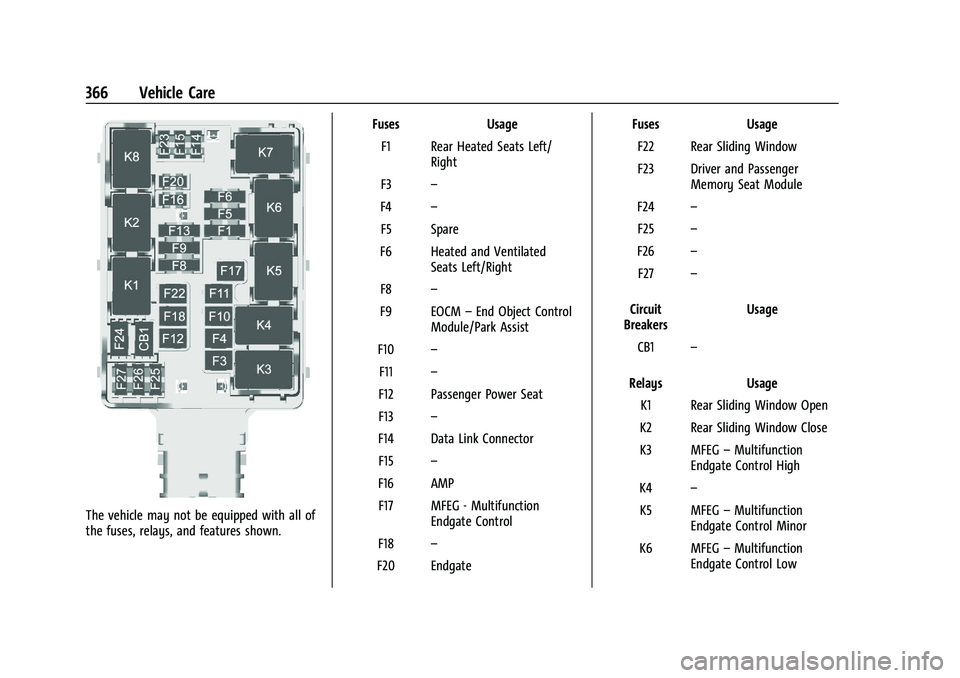
The vehicle may not be equipped with all of
the fuses, relays, and features shown.Fuses Usage
F1 Rear Heated Seats Left/ Right
F3 –
F4 –
F5 Spare
F6 Heated and Ventilated Seats Left/Right
F8 –
F9 EOCM –End Object Control
Module/Park Assist
F10 –
F11 –
F12 Passenger Power Seat
F13 –
F14 Data Link Connector F15 –
F16 AMP F17 MFEG - Multifunction Endgate Control
F18 –
F20 Endgate Fuses Usage
F22 Rear Sliding Window
F23 Driver and Passenger Memory Seat Module
F24 –
F25 –
F26 –
F27 –
Circuit
Breakers Usage
CB1 –
Relays Usage K1 Rear Sliding Window Open
K2 Rear Sliding Window Close
K3 MFEG –Multifunction
Endgate Control High
K4 –
K5 MFEG –Multifunction
Endgate Control Minor
K6 MFEG –Multifunction
Endgate Control Low
Page 426 of 463
Chevrolet Silverado 1500 Owner Manual (GMNA-Localizing-U.S./Canada/
Mexico/Paraguay-16515119) - 2023 - CRC - 6/2/22
Technical Data 425
Technical Data
Vehicle Identification
Vehicle Identification Number (VIN) . . . 425
Service Parts Identification . . . . . . . . . . . . 425
Vehicle Data
Capacities and Specifications . . . . . . . . . . 426
Engine Drive Belt Routing . . . . . . . . . . . . . 429
Vehicle Identification
Vehicle Identification
Number (VIN)
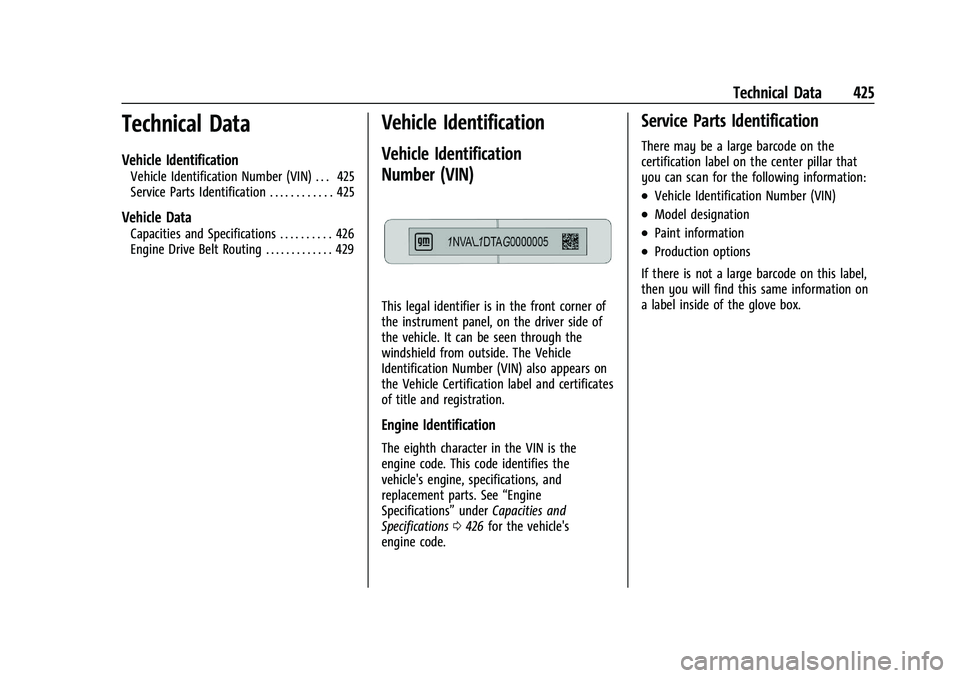
This legal identifier is in the front corner of
the instrument panel, on the driver side of
the vehicle. It can be seen through the
windshield from outside. The Vehicle
Identification Number (VIN) also appears on
the Vehicle Certification label and certificates
of title and registration.
Engine Identification
The eighth character in the VIN is the
engine code. This code identifies the
vehicle's engine, specifications, and
replacement parts. See“Engine
Specifications” underCapacities and
Specifications 0426 for the vehicle's
engine code.
Service Parts Identification
There may be a large barcode on the
certification label on the center pillar that
you can scan for the following information:
.Vehicle Identification Number (VIN)
.Model designation
.Paint information
.Production options
If there is not a large barcode on this label,
then you will find this same information on
a label inside of the glove box.