stop start CHEVROLET SILVERADO 1500 2023 User Guide
[x] Cancel search | Manufacturer: CHEVROLET, Model Year: 2023, Model line: SILVERADO 1500, Model: CHEVROLET SILVERADO 1500 2023Pages: 463, PDF Size: 19.26 MB
Page 124 of 463
Chevrolet Silverado 1500 Owner Manual (GMNA-Localizing-U.S./Canada/
Mexico/Paraguay-16515119) - 2023 - CRC - 6/2/22
Instruments and Controls 123
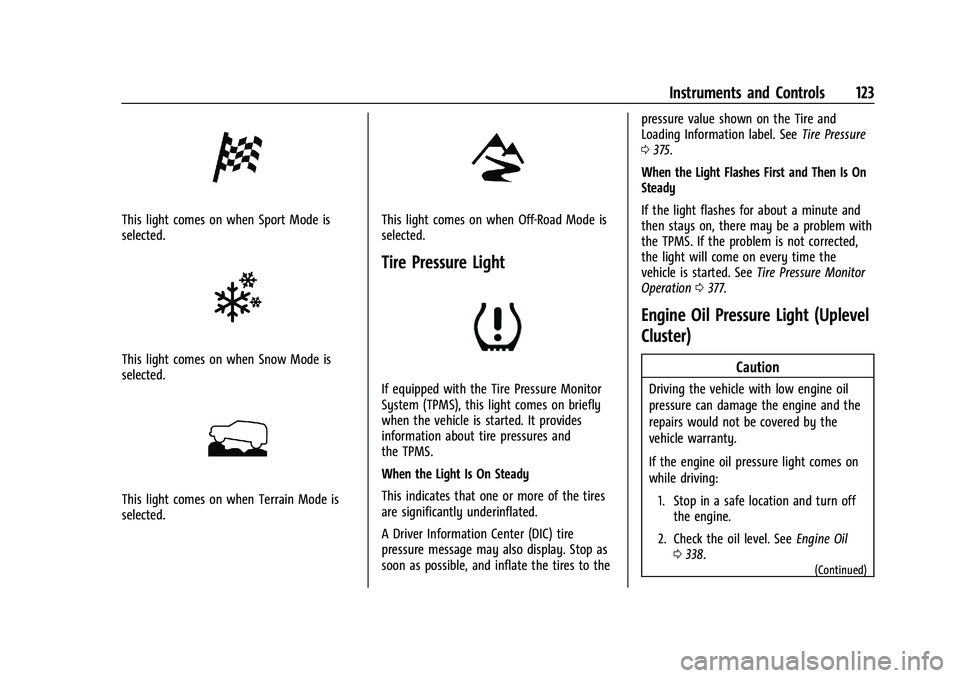
This light comes on when Sport Mode is
selected.
This light comes on when Snow Mode is
selected.
This light comes on when Terrain Mode is
selected.
This light comes on when Off-Road Mode is
selected.
Tire Pressure Light
If equipped with the Tire Pressure Monitor
System (TPMS), this light comes on briefly
when the vehicle is started. It provides
information about tire pressures and
the TPMS.
When the Light Is On Steady
This indicates that one or more of the tires
are significantly underinflated.
A Driver Information Center (DIC) tire
pressure message may also display. Stop as
soon as possible, and inflate the tires to thepressure value shown on the Tire and
Loading Information label. See
Tire Pressure
0 375.
When the Light Flashes First and Then Is On
Steady
If the light flashes for about a minute and
then stays on, there may be a problem with
the TPMS. If the problem is not corrected,
the light will come on every time the
vehicle is started. See Tire Pressure Monitor
Operation 0377.
Engine Oil Pressure Light (Uplevel
Cluster)
Caution
Driving the vehicle with low engine oil
pressure can damage the engine and the
repairs would not be covered by the
vehicle warranty.
If the engine oil pressure light comes on
while driving:
1. Stop in a safe location and turn off the engine.
2. Check the oil level. See Engine Oil
0 338.
(Continued)
Page 129 of 463
Chevrolet Silverado 1500 Owner Manual (GMNA-Localizing-U.S./Canada/
Mexico/Paraguay-16515119) - 2023 - CRC - 6/2/22
128 Instruments and Controls
3. Scrollworxto move through the list
of possible information displays.
4. Press the thumbwheel, while an item is highlighted, to select or deselect
that item.
The info pages can also be turned on or off
through the DIC page Info Page Options.
Info Pages
The following is the list of all possible DIC
info page displays. Some may not be
available for your particular vehicle. Some
items may not be turned on by default but
can be turned on through the Options app.
See “Info Page Options” earlier in this
section.
Speed : Shows the vehicle speed in either
kilometers per hour (km/h) or miles per
hour (mph).
Drive Summary : Displays the current
distance traveled, in either kilometers (km)
or miles (mi).
It also includes the Average Fuel Economy.
Average Fuel Economy shows the
approximate average liters per
100 kilometers (L/100 km), kilometers per
liter (km/L), or miles per gallon (mpg). This
number only reflects the approximate Average Fuel Economy that the vehicle has
at that moment, and changes as driving
conditions change.
The timer shows the time in the current
drive cycle.
All values in the Drive Summary are
automatically reset each time the vehicle is
started.
Trip 1 or Trip 2, Average Fuel Economy, and
Average Speed :
Shows the current distance
traveled, in either kilometers (km) or
miles (mi), since the trip odometer was last
reset.
The Average Fuel Economy display shows
the approximate average liters per
100 kilometers (L/100 km), kilometers per
liter (km/L), or miles per gallon (mpg). This
number is calculated based on the value
recorded since the last time this menu item
was reset. This number reflects only the
approximate average fuel economy that the
vehicle has at that moment, and changes as
driving conditions change.
Average Speed shows the average speed of
the vehicle in kilometers per hour (km/h) or
miles per hour (mph). This average is
calculated based on various vehicle speeds
recorded since the last reset of this value. Press the thumbwheel while this display is
active to reset the values.
Timer :
To start the timer, press the
thumbwheel while this display is active. The
display will show the amount of time that
has passed since the timer was last reset. To
stop the timer, press the thumbwheel
briefly while this display is active and the
timer is running.
Press the thumbwheel while this display is
active to reset the timer.
Tire Pressure : Shows the approximate
pressures of all four tires. Tire pressure is
displayed in either kilopascal (kPa) or in
pounds per square inch (psi). If the pressure
is low, the value for that tire is shown in
amber. See Tire Pressure Monitor System
0 377 and
Tire Pressure Monitor Operation 0377.
Fuel Economy : Displays average fuel
economy, the best fuel economy over the
selected distance, and a bar graph showing
instantaneous fuel economy.
Press the thumbwheel to change the
selected distance. This display can be reset
by selecting Reset in the menu.
Page 135 of 463
Chevrolet Silverado 1500 Owner Manual (GMNA-Localizing-U.S./Canada/
Mexico/Paraguay-16515119) - 2023 - CRC - 6/2/22
134 Instruments and Controls
message stays on, or displays repeatedly,
the vehicle should be taken to your dealer
for service as soon as possible.
Under certain operating conditions,
propulsion will be disabled. Try restarting
after the ignition has been off for
two minutes.
Vehicle Speed Messages
SPEED LIMITED TO XXX KM/H (MPH)
This message shows that the vehicle speed
has been limited to the speed displayed. The
limited speed is a protection for various
propulsion and vehicle systems, such as
lubrication, thermal, brakes, suspension,
Teen Driver if equipped, or tires.
(If equipped with a diesel engine, see the
Duramax Diesel supplement.)–For Diesel
Universal Remote System
See Radio Frequency Statement 0438.
Universal Remote System
Programming
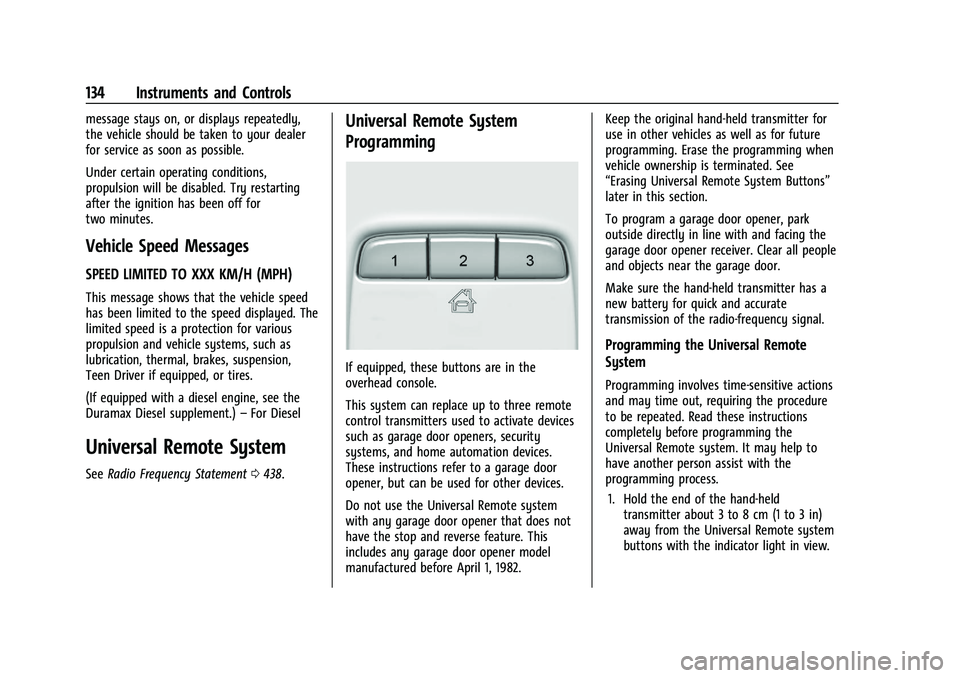
If equipped, these buttons are in the
overhead console.
This system can replace up to three remote
control transmitters used to activate devices
such as garage door openers, security
systems, and home automation devices.
These instructions refer to a garage door
opener, but can be used for other devices.
Do not use the Universal Remote system
with any garage door opener that does not
have the stop and reverse feature. This
includes any garage door opener model
manufactured before April 1, 1982. Keep the original hand-held transmitter for
use in other vehicles as well as for future
programming. Erase the programming when
vehicle ownership is terminated. See
“Erasing Universal Remote System Buttons”
later in this section.
To program a garage door opener, park
outside directly in line with and facing the
garage door opener receiver. Clear all people
and objects near the garage door.
Make sure the hand-held transmitter has a
new battery for quick and accurate
transmission of the radio-frequency signal.
Programming the Universal Remote
System
Programming involves time-sensitive actions
and may time out, requiring the procedure
to be repeated. Read these instructions
completely before programming the
Universal Remote system. It may help to
have another person assist with the
programming process.
1. Hold the end of the hand-held transmitter about 3 to 8 cm (1 to 3 in)
away from the Universal Remote system
buttons with the indicator light in view.
Page 162 of 463
Chevrolet Silverado 1500 Owner Manual (GMNA-Localizing-U.S./Canada/
Mexico/Paraguay-16515119) - 2023 - CRC - 6/2/22
Infotainment System 161
4. Touch Start.
Alternate Routes
Alternate routes are displayed as separate
lines. While in either turn-by-turn navigation
or on the route overview, touch the
suggested alternate route.
Adding a Stop on Route by Voice 1. While in turn-by-turn navigation, touch the Search icon at the bottom.
2. Touch the Google Assistant mic icon and say the destination to search by voice.
3. Select the desired search result from the list.
4. Touch Add stop.
Adding a Stop on Route by Category 1. While in turn-by-turn navigation, touch the Search icon at the bottom.
2. Select a category.
3. Select the desired search result from the list.
4. Touch Add stop. Adding a Home or Work Address
To edit a home or work address, an account
must be logged in. See Accounts under
Settings (Uplevel Radio)
0177 or
Settings (Base Radio) 0175.
1. Open Google Maps.
2. Touch Settings and then touch Edit home or work.
3. Enter the address.
Search by Category
Destinations can be searched by category,
such as restaurant or grocery store. 1. Open Google Maps.
2. Touch the search bar.
3. Touch Categories, then select a category.
4. Touch the desired location, then touch Start.
Avoid Tolls, Highways, or Ferries 1. Open Google Maps.
2. Touch Settings.
3. Select Route options.
4. Select the desired options and then touch close. An Alternative Way for General Route
Options
1. During active route guidance, touch Route Overview.
2. Select Route options.
3. Select the desired option and then touch close.
Traffic Layers 1. Open Google Maps.
2. Touch Settings.
3. Toggle between Traffic on or off.
Global Positioning System (GPS)
The current position of the vehicle is
determined by using satellite signals and
various vehicle signals.
At times, other interference such as the
satellite condition, road configuration,
condition of the vehicle, and/or other
circumstances can affect the navigation
system's ability to determine the accurate
position of the vehicle.
This system might not be available or
interference can occur if any of the
following are true:
.Signals are obstructed by tall buildings,
trees, large trucks, or a tunnel.
Page 163 of 463
Chevrolet Silverado 1500 Owner Manual (GMNA-Localizing-U.S./Canada/
Mexico/Paraguay-16515119) - 2023 - CRC - 6/2/22
162 Infotainment System
.Satellites are being repaired or improved.
For more information if the GPS is not
functioning properly, see Problems with
Route Guidance 0162.
Vehicle Positioning
At times, the position of the vehicle on the
map could be inaccurate due to one or more
of the following reasons:
.The road system has changed.
.The vehicle is driving on slippery road
surfaces such as sand, gravel, or snow.
.The vehicle is traveling on winding roads
or long, straight roads.
.The vehicle is approaching a tall building
or a large vehicle.
.The surface streets run parallel to a
freeway.
.The vehicle has been transferred by a
vehicle carrier or a ferry.
.The current position calibration is set
incorrectly.
.The vehicle is traveling at high speed.
.The vehicle changes directions more than
once, or the vehicle is turning on a turn
table in a parking lot.
.The vehicle is entering and/or exiting a
parking lot, garage, or a lot with a roof.
.The GPS signal is not received.
.A roof carrier is installed on the vehicle.
.Tire chains are installed on the vehicle.
.The tires are replaced or worn.
.The tire pressure for the tires is incorrect.
.This is the first navigation use after the
map data is updated.
.The 12-volt battery has been disconnected
for several days.
.The vehicle is driving in heavy traffic
where driving is at low speeds, and the
vehicle is stopped and started repeatedly.
Problems with Route Guidance
Inappropriate route guidance can occur
under one or more of the following
conditions:
.The turn was not made on the road
indicated.
.Route guidance might not be available
when using automatic rerouting for the
next right or left turn.
.The route might not be changed when
using automatic rerouting.
.There is no route guidance when turning
at an intersection.
.Automatic rerouting might display a route
returning to the set waypoint if heading
for a destination without passing through
a set waypoint.
.The route prohibits the entry of a vehicle
due to a regulation by time or season or
any other regulation which may be given.
.Some routes might not be searched.
.The route to the destination might not be
shown if there are new roads, if roads
have recently changed, or if certain roads
are not listed in Maps.
To recalibrate the vehicle's position on the
map, park with the vehicle running for two
to five minutes, until the vehicle position
updates. Make sure the vehicle is parked in
a location that is safe and has a clear view
of the sky and away from large
obstructions.
Voice Recognition
If equipped, Google Assistant allows for
hands-free use of media and messaging,
navigation and climate control functionality
in the vehicle. This feature can be started by
pressing
gon the steering wheel, touching
Page 180 of 463
Chevrolet Silverado 1500 Owner Manual (GMNA-Localizing-U.S./Canada/
Mexico/Paraguay-16515119) - 2023 - CRC - 6/2/22
Infotainment System 179
Legal Information
Touch to view legal and license information.
Updates
This menu allows adjustment of the vehicle
update settings.
Google
This menu allows adjustment of the Google
settings.
Teen Driver
If equipped, this allows multiple keys to be
registered for beginner drivers to encourage
safe driving habits. When the vehicle is
started with a Teen Driver key, it will
automatically activate certain safety
systems, allow setting of some features, and
limit the use of others. The Report Card will
record vehicle data about driving behavior
that can be viewed later. When the vehicle
is started with a registered key, the Driver
Information Center (DIC) displays a message
that Teen Driver is active.
To access:1. Touch Settings on the Home Page, then touch Vehicle, and then Teen Driver. 2. Create a Personal Identification Number
(PIN) by choosing a four-digit PIN.
Re-enter the PIN to confirm. To change
the PIN, touch Change PIN.
The PIN is required to:
.Set up/Add or remove keys.
.Change Teen Driver settings.
.Change or clear the Teen Driver PIN.
.Access or delete Report Card data.
Set up/Add keys to activate Teen Driver and
assign restrictions to the key:
Any vehicle key can be registered, up to a
maximum of eight keys. Label the key to
tell it apart from the other keys.
For a pushbutton start system: 1. Start the vehicle.
2. For automatic transmissions, the vehicle must be in P (Park). For manual
transmissions, the vehicle must be
stopped with the parking brake set.
3. From the Settings menu, touch Vehicle and then Teen Driver.
4. Enter the PIN.
5. Place the remote key you wish to register in the transmitter pocket. The
key does not need to be the one that started the vehicle. See
Remote Key
Operation 012 for transmitter pocket
location.
6. From the Teen Driver menu, touch Setup Keys or Add/Remove Teen Driver Keys.
.If the remote key has not previously
been registered, the option to add
the key displays. Touch Add and a
confirmation message displays. Teen
Driver restrictions will be applied
whenever this remote key is used to
operate the vehicle.
.If the remote key has already been
registered, the option to remove the
key displays. If Remove is touched,
the remote key is no longer
registered. A confirmation message
displays, and Teen Driver restrictions
will not be applied if this remote key
is used to operate the vehicle.
In vehicles with a pushbutton start system,
if a Teen Driver and a non-Teen Driver key
are both present at start up, the vehicle will
recognize the non-Teen Driver key to start
the vehicle. The Teen Driver settings will not
be active.
For a keyed ignition system: 1. Start the vehicle.
Page 181 of 463
Chevrolet Silverado 1500 Owner Manual (GMNA-Localizing-U.S./Canada/
Mexico/Paraguay-16515119) - 2023 - CRC - 6/2/22
180 Infotainment System
2. For automatic transmissions, the vehiclemust be in P (Park). For manual
transmissions, the vehicle must be
stopped with the parking brake set.
3. From the Settings menu, touch Vehicle and then Teen Driver.
4. Enter the PIN.
5. Touch Setup Keys or Add/Remove Teen Driver Keys. The system displays
instructions for registering or
unregistering a key. A confirmation
message displays.
Manage Settings or Teen Driver Settings
Depending on the options of your vehicle,
the following menu items may be displayed:
Buckle to Drive : When turned ON, Buckle to
Drive prevents the driver from shifting out
of P (Park) for a period of time after the
brake pedal is pressed if the driver, or on
some vehicles the detected passenger, has
not buckled their seat belt. On some
vehicles, Buckle to Drive is always ON when
Teen Driver is active and is not configurable.
See Buckle To Drive 053.
Audio Volume Limit : Allows a maximum
audio volume to be set. Turn the audio
volume limit on or off. Use the arrows to
choose the maximum allowable level for the audio volume. On some infotainment
systems, touch Set Audio Volume Limit to
choose the maximum allowable audio
volume level.
Set Audio Volume Limit :
Use the arrows to
choose the maximum allowable level for the
audio volume.
Teen Driver Speed Limiter : Limits the
maximum speed of the vehicle. When the
speed limiter is turned on and the vehicle is
started with a Teen Driver key, the DIC
displays a message that the top speed is
limited.
On certain vehicles, when the Speed Limiter
is turned ON, the vehicle’s maximum
acceleration will be limited. The DIC will
display a message that the acceleration is
limited.
Teen Driver Speed Warning : Displays a
warning in the DIC when exceeding a
selectable speed. Turn the speed warning on
or off and choose the desired speed warning
level. The speed warning does not limit the
speed of the vehicle. On some infotainment
systems, touch Set Teen Driver Speed
Warning to set the warning speed. Set Teen Driver Speed Warning :
Choose the
desired speed warning level. The speed
warning does not limit the speed of the
vehicle.
SiriusXM Explicit Content Filter : Allows the
SiriusXM Explicit Content Filter to be turned
ON or OFF. When ON, the teen driver will
not be able to listen to SiriusXM stations
that contain explicit content, and the Explicit
Content Filter selection in the Audio Settings
will be unavailable for change.
When Teen Driver is Active:
.If equipped, the radio will mute when the
driver seat belt, and in some vehicles the
front passenger seat belt, is not buckled.
The audio from any device paired to the
vehicle will also be muted.
.An object placed on the front passenger
seat, such as a briefcase, handbag,
grocery bag, laptop, or other electronic
device, could cause the passenger sensing
system to falsely sense an unbuckled
front passenger and mute the radio.
If this happens, remove the object from
the seat. See Passenger Sensing System
0 64.
.Some safety systems, such as Automatic
Emergency Braking, if equipped, cannot
be turned off.
Page 194 of 463
Chevrolet Silverado 1500 Owner Manual (GMNA-Localizing-U.S./Canada/
Mexico/Paraguay-16515119) - 2023 - CRC - 6/2/22
Driving and Operating 193
Driving and Operating
Driving Information
Driving for Better Fuel Economy . . . . . . . 194
Distracted Driving . . . . . . . . . . . . . . . . . . . . . 195
Defensive Driving . . . . . . . . . . . . . . . . . . . . . . 195
Impaired Driving . . . . . . . . . . . . . . . . . . . . . . . 195
Control of a Vehicle . . . . . . . . . . . . . . . . . . . 196
Braking . . . . . . . . . . . . . . . . . . . . . . . . . . . . . . . . 196
Steering . . . . . . . . . . . . . . . . . . . . . . . . . . . . . . . 196
Off-Road Recovery . . . . . . . . . . . . . . . . . . . . . 197
Loss of Control . . . . . . . . . . . . . . . . . . . . . . . . 197
Off-Road Driving . . . . . . . . . . . . . . . . . . . . . . . 197
Driving on Wet Roads . . . . . . . . . . . . . . . . . 201
Hill and Mountain Roads . . . . . . . . . . . . . . 202
Winter Driving . . . . . . . . . . . . . . . . . . . . . . . . 202
If the Vehicle Is Stuck . . . . . . . . . . . . . . . . . 203
Vehicle Load Limits . . . . . . . . . . . . . . . . . . . . 204
Truck-Camper Loading Information . . . . 209
Starting and Operating
New Vehicle Break-In . . . . . . . . . . . . . . . . . . 210
Ignition Positions . . . . . . . . . . . . . . . . . . . . . . 211
Starting the Engine . . . . . . . . . . . . . . . . . . . . 213
Stop/Start System . . . . . . . . . . . . . . . . . . . . . 213
Engine Heater . . . . . . . . . . . . . . . . . . . . . . . . . 214
Retained Accessory Power (RAP) . . . . . . . 216
Shifting Into Park (MechanicalShifter) . . . . . . . . . . . . . . . . . . . . . . . . . . . . . . 216
Shifting Into Park (Electronic Shifter) . . . 217 Shifting out of Park (Mechanical
Shifter) . . . . . . . . . . . . . . . . . . . . . . . . . . . . . . 218
Shifting out of Park (Electronic Shifter) . . . . . . . . . . . . . . . . . . . . . . . . . . . . . . 218
Parking over Things That Burn . . . . . . . . . 219
Active Fuel Management . . . . . . . . . . . . . . 219
Extended Parking . . . . . . . . . . . . . . . . . . . . . . 219
Engine Exhaust
Engine Exhaust . . . . . . . . . . . . . . . . . . . . . . . . 220
Running the Vehicle While Parked . . . . . 220
Automatic Transmission
Automatic Transmission (Mechanical
Shifter) . . . . . . . . . . . . . . . . . . . . . . . . . . . . . . 220
Automatic Transmission (Electronic Shifter) . . . . . . . . . . . . . . . . . . . . . . . . . . . . . . 223
Manual Mode (Mechanical Shifter) . . . . 227
Manual Mode (Electronic Shifter) . . . . . . 229
Tow/Haul Mode . . . . . . . . . . . . . . . . . . . . . . . 229
Drive Systems
Four-Wheel Drive . . . . . . . . . . . . . . . . . . . . . . 230
Brakes
Electric Brake Boost . . . . . . . . . . . . . . . . . . . 234
Antilock Brake System (ABS) . . . . . . . . . . 234
Electric Parking Brake . . . . . . . . . . . . . . . . . . 235
Brake Assist . . . . . . . . . . . . . . . . . . . . . . . . . . . 236
Hill Start Assist (HSA) . . . . . . . . . . . . . . . . . 236
Ride Control Systems
Traction Control/Electronic Stability Control . . . . . . . . . . . . . . . . . . . . . . . . . . . . . . 237
Hill Descent Control (HDC) . . . . . . . . . . . . 239
Driver Mode Control . . . . . . . . . . . . . . . . . . 240
Limited-Slip Differential . . . . . . . . . . . . . . . . 243
Locking Rear Axle . . . . . . . . . . . . . . . . . . . . . 244
Locking Front Axle . . . . . . . . . . . . . . . . . . . . 244
Cruise Control
Cruise Control . . . . . . . . . . . . . . . . . . . . . . . . . 245
Adaptive Cruise Control (Camera) . . . . . . 247
Super Cruise . . . . . . . . . . . . . . . . . . . . . . . . . . . 258
Driver Assistance Systems
Driver Assistance Systems . . . . . . . . . . . . . 272
Assistance Systems for Parking or Backing . . . . . . . . . . . . . . . . . . . . . . . . . . . . . . 274
Rear Vision Camera (RVC) . . . . . . . . . . . . . 274
Surround Vision System . . . . . . . . . . . . . . . 275
Park Assist . . . . . . . . . . . . . . . . . . . . . . . . . . . . 282
Rear Pedestrian Alert . . . . . . . . . . . . . . . . . . 283
Rear Cross Traffic Alert (RCTA) System . . . . . . . . . . . . . . . . . . . . . . . . . . . . . . 284
Assistance Systems for Driving . . . . . . . . 284
Forward Collision Alert (FCA) System . . . . . . . . . . . . . . . . . . . . . . . . . . . . . . 284
Automatic Emergency Braking (AEB) . . . . . . . . . . . . . . . . . . . . . . . . 286
Front Pedestrian Braking (FPB)
System . . . . . . . . . . . . . . . . . . . . . . . . . . . . . . 288
Page 195 of 463
Chevrolet Silverado 1500 Owner Manual (GMNA-Localizing-U.S./Canada/
Mexico/Paraguay-16515119) - 2023 - CRC - 6/2/22
194 Driving and Operating
Side Blind Zone Alert (SBZA) . . . . . . . . . . 289
Lane Change Alert (LCA) . . . . . . . . . . . . . . 290
Lane Keep Assist (LKA) . . . . . . . . . . . . . . . . 292
Fuel
Top Tier Fuel . . . . . . . . . . . . . . . . . . . . . . . . . . 294
Recommended Fuel (2.7L L4 and 5.3LV8 Engines) . . . . . . . . . . . . . . . . . . . . . . . . . 294
Recommended Fuel (6.2L V8 Engine) . . . . . . . . . . . . . . . . . . . . . . . . . . 294
Prohibited Fuels . . . . . . . . . . . . . . . . . . . . . . . 295
Fuels in Foreign Countries . . . . . . . . . . . . . 295
Fuel Additives . . . . . . . . . . . . . . . . . . . . . . . . . 295
Filling the Tank (Pickup Model) . . . . . . . . 295
Filling the Tank (Chassis Cab Model) . . . . . . . . . . . . . . . . . . . . . . . . . . . . . . 297
Filling a Portable Fuel Container . . . . . . 298
Trailer Towing
General Towing Information . . . . . . . . . . 298
Driving Characteristics and
Towing Tips . . . . . . . . . . . . . . . . . . . . . . . . . 299
Trailer Towing . . . . . . . . . . . . . . . . . . . . . . . . . 302
Towing Equipment . . . . . . . . . . . . . . . . . . . . 307
Trailer Sway Control (TSC) . . . . . . . . . . . . . 316
Trailering App . . . . . . . . . . . . . . . . . . . . . . . . . 318
Conversions and Add-Ons
Add-On Electrical Equipment . . . . . . . . . . . 328
Adding a Snow Plow or Similar Equipment . . . . . . . . . . . . . . . . . . . . . . . . . . . 328
Pickup Conversion to Chassis Cab . . . . . 330Driving Information
Driving for Better Fuel Economy
Driving habits can affect fuel mileage. Here
are some driving tips to get the best fuel
economy possible:
.Set the climate controls to the desired
temperature after the engine is started,
or turn them off when not required.
.Avoid fast starts and accelerate smoothly.
.Brake gradually and avoid abrupt stops.
.Avoid idling the engine for long periods
of time.
.When road and weather conditions are
appropriate, use cruise control.
.Always follow posted speed limits or
drive more slowly when conditions
require.
.Keep vehicle tires properly inflated.
.Combine several trips into a single trip.
.Replace the vehicle's tires with the same
TPC Spec number molded into the tire's
sidewall near the size.
.Follow recommended scheduled
maintenance.
Page 198 of 463
Chevrolet Silverado 1500 Owner Manual (GMNA-Localizing-U.S./Canada/
Mexico/Paraguay-16515119) - 2023 - CRC - 6/2/22
Driving and Operating 197
.Holding both sides of the steering wheel
allows you to turn 180 degrees without
removing a hand.
.The Antilock Brake System (ABS) allows
steering while braking.
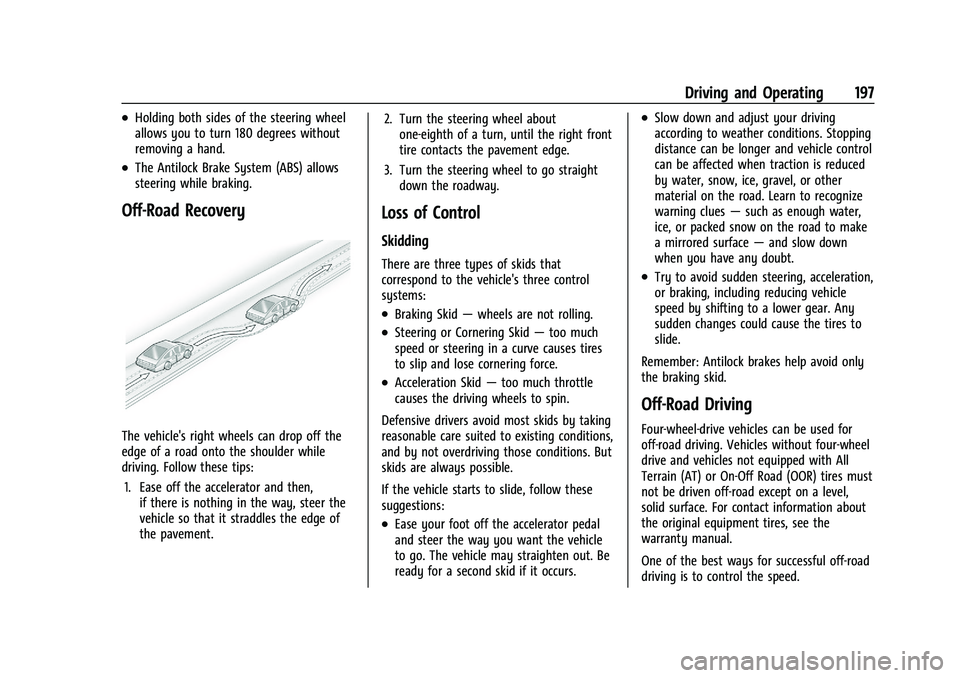
Off-Road Recovery
The vehicle's right wheels can drop off the
edge of a road onto the shoulder while
driving. Follow these tips:1. Ease off the accelerator and then, if there is nothing in the way, steer the
vehicle so that it straddles the edge of
the pavement. 2. Turn the steering wheel about
one-eighth of a turn, until the right front
tire contacts the pavement edge.
3. Turn the steering wheel to go straight down the roadway.
Loss of Control
Skidding
There are three types of skids that
correspond to the vehicle's three control
systems:
.Braking Skid —wheels are not rolling.
.Steering or Cornering Skid —too much
speed or steering in a curve causes tires
to slip and lose cornering force.
.Acceleration Skid —too much throttle
causes the driving wheels to spin.
Defensive drivers avoid most skids by taking
reasonable care suited to existing conditions,
and by not overdriving those conditions. But
skids are always possible.
If the vehicle starts to slide, follow these
suggestions:
.Ease your foot off the accelerator pedal
and steer the way you want the vehicle
to go. The vehicle may straighten out. Be
ready for a second skid if it occurs.
.Slow down and adjust your driving
according to weather conditions. Stopping
distance can be longer and vehicle control
can be affected when traction is reduced
by water, snow, ice, gravel, or other
material on the road. Learn to recognize
warning clues —such as enough water,
ice, or packed snow on the road to make
a mirrored surface —and slow down
when you have any doubt.
.Try to avoid sudden steering, acceleration,
or braking, including reducing vehicle
speed by shifting to a lower gear. Any
sudden changes could cause the tires to
slide.
Remember: Antilock brakes help avoid only
the braking skid.
Off-Road Driving
Four-wheel-drive vehicles can be used for
off-road driving. Vehicles without four-wheel
drive and vehicles not equipped with All
Terrain (AT) or On-Off Road (OOR) tires must
not be driven off-road except on a level,
solid surface. For contact information about
the original equipment tires, see the
warranty manual.
One of the best ways for successful off-road
driving is to control the speed.