ad blue CHEVROLET SILVERADO 1500 2023 Owner's Manual
[x] Cancel search | Manufacturer: CHEVROLET, Model Year: 2023, Model line: SILVERADO 1500, Model: CHEVROLET SILVERADO 1500 2023Pages: 463, PDF Size: 19.26 MB
Page 173 of 463
Chevrolet Silverado 1500 Owner Manual (GMNA-Localizing-U.S./Canada/
Mexico/Paraguay-16515119) - 2023 - CRC - 6/2/22
172 Infotainment System
Three-Way Calling
Three-way calling must be supported on the
Bluetooth phone and enabled by the
wireless service carrier to work.
To start a three-way call while in a
current call:1. In the Call View, select Add Call to add another call.
2. Initiate the second call by selecting from Recents, Contacts, or Keypad.
3. When the second call is active, press the merge icon to conference the three-way
call together.
Ending a Call
.Pression the steering wheel controls.
.Touchbnext to a call to end only
that call.
.Select End on the instrument cluster using
the select control.
Dual Tone Multi-Frequency (DTMF) Tones
The in-vehicle Bluetooth system can send
numbers during a call. This is used when
calling a menu-driven phone system. Use the
Keypad to enter the number.
Apple CarPlay and Android Auto
(Base Radio)
If equipped, Android Auto and/or Apple
CarPlay capability may be available through
a compatible smartphone. If available, the
Android Auto and Apple CarPlay icons will
change from gray to color on the Home
Page of the infotainment display.
To use Android Auto and/or Apple CarPlay:
For Wired Phone Projection
1. Download the Android Auto app to your smartphone from the Google Play store.
There is no app required for Apple
CarPlay.
2. Connect your Android phone or Apple iPhone by using the factory-provided
phone USB cable and plugging into a
USB data port. For best performance, it is
highly recommended to use the device’s
factory-provided USB cable, which should
be replaced after significant wear to
maintain connection quality. Aftermarket
or third-party cables may not work.
3. When the phone is first connected to activate Apple CarPlay or Android Auto,
accept the terms and conditions on both
the infotainment system and the phone. 4. Follow the instructions on the phone.
The Android Auto and Apple CarPlay icons
on the Home Page will illuminate depending
on the smartphone. Android Auto and/or
Apple CarPlay may automatically launch
upon USB connection. If not, touch the
Android Auto or Apple CarPlay icon on the
Home Page to launch.
Press
{on the center stack to return to the
Home Page.
For Wireless Phone Projection
If equipped, verify your phone is wireless
compatible by visiting the Google Android
Auto or Apple CarPlay support page.
1. Download the Android Auto app to your smartphone from the Google Play store.
There is no app required for Apple
CarPlay.
2. For first time connection, there are two ways to set up wireless projection:
.Connect your Android phone or Apple
iPhone by using the factory-provided
phone USB cable and plugging into a
USB data port. For best performance,
it is highly recommended to use the
device’s factory-provided USB cable,
which should be replaced after
Page 174 of 463
Chevrolet Silverado 1500 Owner Manual (GMNA-Localizing-U.S./Canada/
Mexico/Paraguay-16515119) - 2023 - CRC - 6/2/22
Infotainment System 173
significant wear to maintain
connection quality. Aftermarket or
third-party cables may not work.
.Connecting the phone over Bluetooth.
SeeBluetooth (Pairing and Using a
Phone for Uplevel Radio) 0165 or
Bluetooth (Pairing and Using a Phone
for Base Radio) 0168 or
Bluetooth (Overview) 0164.
3. Make sure wireless is turned on the phone for wireless projection to work.
4. When the phone is first connected to activate Apple CarPlay or Android Auto,
agree to the terms and conditions on
both the infotainment system and the
phone.
5. Follow the instructions on the phone.
The Android Auto and Apple CarPlay icons
on the Home Page will illuminate depending
on the smartphone. Android Auto and/or
Apple CarPlay may automatically launch
upon wireless connection. If not, touch the
Android Auto or Apple CarPlay icon on the
Home Page to launch.
Wireless Carplay and/or Wireless Android
Auto may experience occasional service
disruption due to outside Wi-Fi interference. To disconnect the phones wireless
projection:
1. Select Settings from the Home Page.
2. Select Phones
3. Touch
4or the pencil icon next to the
phone to be disconnected.
4. Turn off Apple CarPlay or Android Auto.
Press
{on the center stack to return to the
Home Page.
Features are subject to change. For further
information on how to set up Android Auto
and Apple CarPlay in the vehicle, visit your
brand website. See Online Account0432 for
details.
Android Auto is provided by Google and is
subject to Google’s terms and privacy policy.
Apple CarPlay is provided by Apple and is
subject to Apple’s terms and privacy policy.
Data plan rates apply. For Android Auto
support and to see if your phone is
compatible, see https://support.google.com/
androidauto. For Apple CarPlay support and
to see if your phone is compatible, see
www.apple.com/ios/carplay/. Apple or
Google may change or suspend availability
at any time. Android Auto, Android, Google, Google Play, and other marks are
trademarks of Google Inc.; Apple CarPlay is a
trademark of Apple Inc.
Press
{on the center stack to exit Android
Auto or Apple CarPlay. To enter back into
Android Auto or Apple CarPlay, press and
hold
{on the center stack.
Apple CarPlay and Android Auto can be
disabled from the infotainment system. To
do this, touch Home, Settings, and then
touch the Apps tab along the top of the
display. Use the On/Off toggled to turn off
Apple CarPlay or Android Auto.
Apple CarPlay and Android Auto
(Uplevel Radio)
If equipped, Android Auto and/or Apple
CarPlay capability may be available through
a compatible smartphone. If available, the
Android Auto and Apple CarPlay icons will
change from gray to color on the Home
Page of the infotainment display.
Page 175 of 463
Chevrolet Silverado 1500 Owner Manual (GMNA-Localizing-U.S./Canada/
Mexico/Paraguay-16515119) - 2023 - CRC - 6/2/22
174 Infotainment System
To use Android Auto and/or Apple CarPlay:
For Wired Phone Projection1. Download the Android Auto app to your smartphone from Google Play for phones
running Android 9 and below. There is
no app required for Apple CarPlay or
newer versions of Android.
2. Connect your Android phone or Apple iPhone by using the factory-provided
phone USB cable and plugging into a
USB data port. For best performance, it is
highly recommended to use the device’s
factory-provided USB cable, which should
be replaced after significant wear to
maintain connection quality. Aftermarket
or third-party cables may not work.
3. When the phone is first connected to activate Apple CarPlay or Android Auto,
accept the terms and conditions on both
the infotainment system and the phone.
4. Follow the instructions on the phone.
The Android Auto and Apple CarPlay icons
on the Home Page will illuminate depending
on the smartphone. Android Auto and/or
Apple CarPlay may automatically launch the
next time the USB is connected. If not,
touch the Android Auto or Apple CarPlay
icon on the Home Page to launch. Press{on the center stack to return to the
Home Page.
For Wireless Phone Projection
Verify your phone is wireless compatible by
visiting the Android Auto or Apple CarPlay
support page.
1. Download the Android Auto app to your smartphone from Google Play for phones
running Android 9 and below. There is
no app required for Apple CarPlay or
newer versions of Android.
2. For first time connection, there are two ways to set up wireless projection:
.Connect your Android phone or Apple
iPhone by using the factory-provided
phone USB cable and plugging into a
USB data port. For best performance,
it is highly recommended to use the
device’s factory-provided USB cable,
which should be replaced after
significant wear to maintain
connection quality. Aftermarket or
third-party cables may not work.
.Connecting the phone over Bluetooth.
See Bluetooth (Pairing and Using a
Phone for Uplevel Radio) 0165 or Bluetooth (Pairing and Using a Phone
for Base Radio)
0168 or
Bluetooth (Overview) 0164.
3. Make sure Wi-Fi and Bluetooth is turned on the phone for wireless projection
to work.
4. When the phone is first connected to activate Apple CarPlay or Android Auto,
agree to the terms and conditions on
both the infotainment system and the
phone.
5. Follow the instructions on the phone.
The Android Auto and Apple CarPlay icons
on the Home Page will illuminate depending
on the smartphone. Android Auto and/or
Apple CarPlay may automatically launch
upon wireless connection. If not, touch the
Android Auto or Apple CarPlay icon on the
Home Page to launch.
Wireless CarPlay and/or Wireless Android
Auto may experience occasional service
disruption due to outside Wi-Fi interference.
To disconnect the phones wireless
projection: 1. Select the Settings icon from the Home Page or the Settings icon on the shortcut
tray near the left of the display.
2. Select Connections.
Page 184 of 463
Chevrolet Silverado 1500 Owner Manual (GMNA-Localizing-U.S./Canada/
Mexico/Paraguay-16515119) - 2023 - CRC - 6/2/22
Infotainment System 183
It is prohibited to copy, decompile,
disassemble, reverse engineer, hack,
manipulate, or otherwise make available any
technology or software incorporated in
receivers compatible with the SiriusXM
Satellite Radio System or that support the
SiriusXM website, the Online Service or any
of its content.
General Requirements:1. A License Agreement from SiriusXM is required for any product that
incorporates SiriusXM Technology and/or
for use of any of the SiriusXM marks to
be manufactured, distributed,
or marketed in the SiriusXM
Service Area.
2. For products to be distributed, marketed, and/or sold in Canada, a separate
agreement is required with Sirius XM
Canada Inc.TouchSense Technology and TouchSense
System 1000 Series Licensed from
Immersion Corporation. TouchSense System
1000 is protected under one or more of the
U.S. Patents at the following address
www.immersion.com/patent-marking.html
and other patents pending.
Bose
Bose AudioPilot and Bose Centerpoint
surround are registered trademarks of Bose
Corporation in the U.S. and other countries.
Bluetooth
The Bluetooth word mark and logos are
owned by the Bluetooth SIG, Inc. and any
use of such marks by General Motors is
under license. Other trademarks and trade
names are those of their respective owners.
Java
Java is a registered trademark of Oracle
and/or its affiliates.
MPEG4–AVC (H.264)
THIS PRODUCT IS LICENSED UNDER THE AVC
PATENT PORTFOLIO LICENSE FOR THE
PERSONAL AND NON-COMMERCIAL USE OF A
CONSUMER TO (i) ENCODE VIDEO IN
COMPLIANCE WITH THE AVC STANDARD
(“AVC VIDEO”) AND/OR (ii) DECODE AVC VIDEO THAT WAS ENCODED BY A
CONSUMER ENGAGED IN A PERSONAL AND
NON-COMMERCIAL ACTIVITY AND/OR WAS
OBTAINED FROM A VIDEO PROVIDER
LICENSED TO PROVIDE AVC VIDEO. NO
LICENSE IS GRANTED OR SHALL BE IMPLIED
FOR ANY OTHER USE. ADDITIONAL
INFORMATION MAY BE OBTAINED FROM
MPEG LA, LLC. SEE HTTPS://
WWW.MPEGLA.COM.
VC-1
THIS PRODUCT IS LICENSED UNDER THE VC-1
PATENT PORTFOLIO LICENSE FOR THE
PERSONAL AND NON-COMMERCIAL USE OF A
CONSUMER TO (i) ENCODE VIDEO IN
COMPLIANCE WITH THE VC-1 STANDARD
(“VC-1 VIDEO”) AND/OR (ii) DECODE VC-1
VIDEO THAT WAS ENCODED BY A
CONSUMER ENGAGED IN A PERSONAL AND
NON-COMMERCIAL ACTIVITY AND/OR WAS
OBTAINED FROM A VIDEO PROVIDER
LICENSED TO PROVIDE VC-1 VIDEO. NO
LICENSE IS GRANTED OR SHALL BE IMPLIED
FOR ANY OTHER USE. ADDITIONAL
INFORMATION MAY BE OBTAINED FROM
MPEG LA, LLC. SEE HTTPS://
WWW.MPEGLA.COM.
Page 251 of 463
Chevrolet Silverado 1500 Owner Manual (GMNA-Localizing-U.S./Canada/
Mexico/Paraguay-16515119) - 2023 - CRC - 6/2/22
250 Driving and Operating
While the vehicle is moving, ACC will not set
at a speed below a minimum speed,
although it can be resumed. If equipped
with Super Cruise, this minimum speed is
5 km/h (3 mph), otherwise, it is 25 km/h
(15 mph). The minimum allowable set speed
is 25 km/h (15 mph).
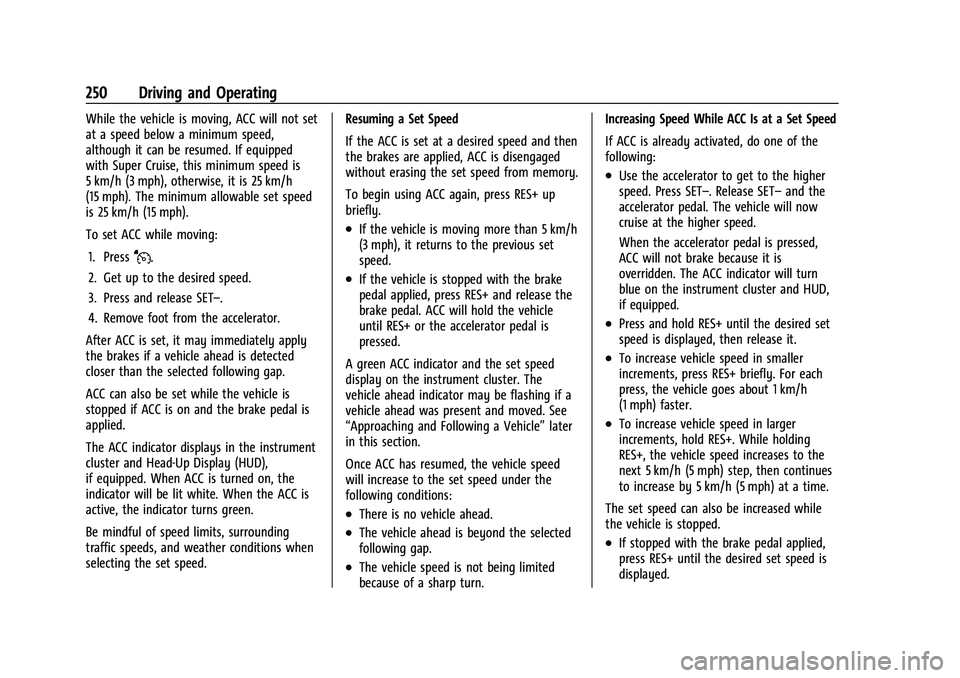
To set ACC while moving:1. Press
J.
2. Get up to the desired speed.
3. Press and release SET–.
4. Remove foot from the accelerator.
After ACC is set, it may immediately apply
the brakes if a vehicle ahead is detected
closer than the selected following gap.
ACC can also be set while the vehicle is
stopped if ACC is on and the brake pedal is
applied.
The ACC indicator displays in the instrument
cluster and Head-Up Display (HUD),
if equipped. When ACC is turned on, the
indicator will be lit white. When the ACC is
active, the indicator turns green.
Be mindful of speed limits, surrounding
traffic speeds, and weather conditions when
selecting the set speed. Resuming a Set Speed
If the ACC is set at a desired speed and then
the brakes are applied, ACC is disengaged
without erasing the set speed from memory.
To begin using ACC again, press RES+ up
briefly.
.If the vehicle is moving more than 5 km/h
(3 mph), it returns to the previous set
speed.
.If the vehicle is stopped with the brake
pedal applied, press RES+ and release the
brake pedal. ACC will hold the vehicle
until RES+ or the accelerator pedal is
pressed.
A green ACC indicator and the set speed
display on the instrument cluster. The
vehicle ahead indicator may be flashing if a
vehicle ahead was present and moved. See
“Approaching and Following a Vehicle” later
in this section.
Once ACC has resumed, the vehicle speed
will increase to the set speed under the
following conditions:
.There is no vehicle ahead.
.The vehicle ahead is beyond the selected
following gap.
.The vehicle speed is not being limited
because of a sharp turn. Increasing Speed While ACC Is at a Set Speed
If ACC is already activated, do one of the
following:
.Use the accelerator to get to the higher
speed. Press SET–. Release SET–
and the
accelerator pedal. The vehicle will now
cruise at the higher speed.
When the accelerator pedal is pressed,
ACC will not brake because it is
overridden. The ACC indicator will turn
blue on the instrument cluster and HUD,
if equipped.
.Press and hold RES+ until the desired set
speed is displayed, then release it.
.To increase vehicle speed in smaller
increments, press RES+ briefly. For each
press, the vehicle goes about 1 km/h
(1 mph) faster.
.To increase vehicle speed in larger
increments, hold RES+. While holding
RES+, the vehicle speed increases to the
next 5 km/h (5 mph) step, then continues
to increase by 5 km/h (5 mph) at a time.
The set speed can also be increased while
the vehicle is stopped.
.If stopped with the brake pedal applied,
press RES+ until the desired set speed is
displayed.
Page 256 of 463
Chevrolet Silverado 1500 Owner Manual (GMNA-Localizing-U.S./Canada/
Mexico/Paraguay-16515119) - 2023 - CRC - 6/2/22
Driving and Operating 255
automatically applies the Electric Parking
Brake (EPB) to hold the vehicle. The EPB
status light will turn on. SeeElectric Parking
Brake 0235. To release the EPB, press the
accelerator pedal.
A DIC warning message may display
indicating to shift to P (Park) before exiting
the vehicle. See Vehicle Messages 0133.
{Warning
If ACC has stopped the vehicle, and if ACC
is disengaged, turned off, or canceled, the
vehicle will no longer be held at a stop.
The vehicle can move. When ACC is
holding the vehicle at a stop, always be
prepared to manually apply the brakes.
{Warning
Leaving the vehicle without placing it in
P (Park) can be dangerous. Do not leave
the vehicle while it is being held at a
stop by ACC. Always place the vehicle in
P (Park) and turn off the ignition before
leaving the vehicle. ACC Override
If using the accelerator pedal while ACC is
active, the ACC indicator turns blue on the
instrument cluster and in the HUD,
if equipped, to indicate that automatic
braking will not occur. ACC will resume
operation when the accelerator pedal is not
being pressed.
{Warning
The ACC will not automatically apply the
brakes if your foot is resting on the
accelerator pedal. You could crash into a
vehicle ahead of you.
Curves in the Road
{Warning
On curves, ACC may not detect a vehicle
ahead in your lane. You could be startled
if the vehicle accelerates up to the set
speed, especially when following a vehicle
exiting or entering exit ramps. You could
lose control of the vehicle or crash. Do
not use ACC while driving on an entrance
or exit ramp. Always be ready to use the
brakes if necessary.
{Warning
On curves, ACC may respond to a vehicle
in another lane, or may not have time to
react to a vehicle in your lane. You could
crash into a vehicle ahead of you, or lose
control of your vehicle. Give extra
attention in curves and be ready to use
the brakes if necessary. Select an
appropriate speed while driving in curves.
ACC may operate differently in a sharp
curve. It may reduce the vehicle speed if the
curve is too sharp.
If equipped, the curve speed control
indicator
bmay illuminate green when
ACC is actively controlling the vehicle speed
and detects a sharp curve on the road
ahead.
ACC automatically slows the vehicle down
while navigating the curve and may increase
speed out of the curve, but will not exceed
the set speed.
Page 262 of 463
Chevrolet Silverado 1500 Owner Manual (GMNA-Localizing-U.S./Canada/
Mexico/Paraguay-16515119) - 2023 - CRC - 6/2/22
Driving and Operating 261
Using Super Cruise
{Warning
Super Cruise may not begin steering
immediately, even when Super Cruise is
available and
]has been pressed. To
prevent serious injury or death, only
remove your hands from the steering
wheel if the steering wheel light bar,
^,
and
\are green.
To engage:
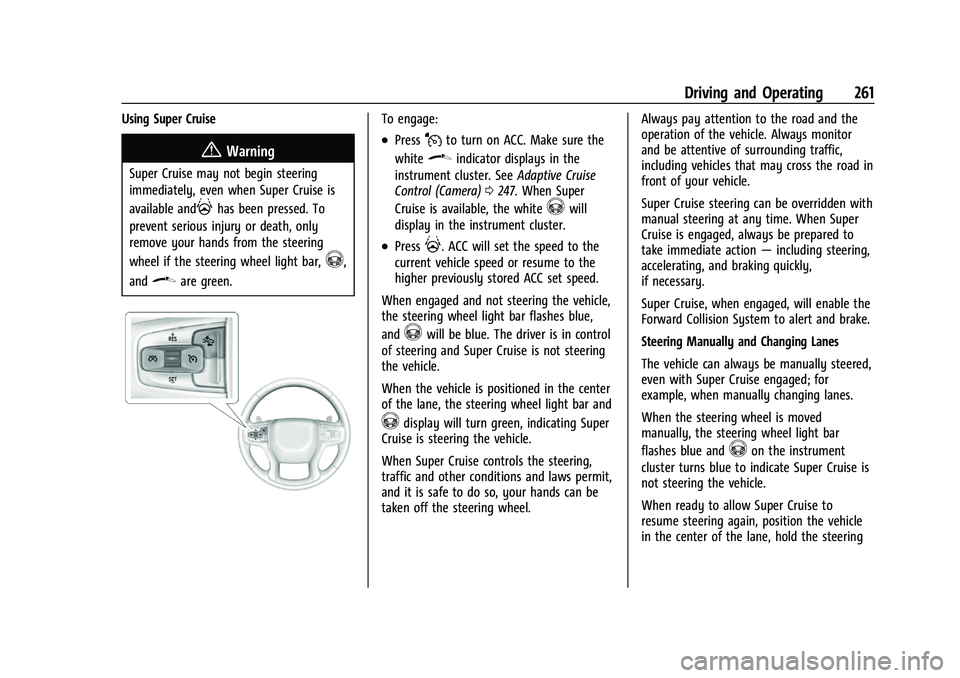
.PressJto turn on ACC. Make sure the
white
\indicator displays in the
instrument cluster. See Adaptive Cruise
Control (Camera) 0247. When Super
Cruise is available, the white
^will
display in the instrument cluster.
.Press]. ACC will set the speed to the
current vehicle speed or resume to the
higher previously stored ACC set speed.
When engaged and not steering the vehicle,
the steering wheel light bar flashes blue,
and
^will be blue. The driver is in control
of steering and Super Cruise is not steering
the vehicle.
When the vehicle is positioned in the center
of the lane, the steering wheel light bar and
^display will turn green, indicating Super
Cruise is steering the vehicle.
When Super Cruise controls the steering,
traffic and other conditions and laws permit,
and it is safe to do so, your hands can be
taken off the steering wheel. Always pay attention to the road and the
operation of the vehicle. Always monitor
and be attentive of surrounding traffic,
including vehicles that may cross the road in
front of your vehicle.
Super Cruise steering can be overridden with
manual steering at any time. When Super
Cruise is engaged, always be prepared to
take immediate action
—including steering,
accelerating, and braking quickly,
if necessary.
Super Cruise, when engaged, will enable the
Forward Collision System to alert and brake.
Steering Manually and Changing Lanes
The vehicle can always be manually steered,
even with Super Cruise engaged; for
example, when manually changing lanes.
When the steering wheel is moved
manually, the steering wheel light bar
flashes blue and
^on the instrument
cluster turns blue to indicate Super Cruise is
not steering the vehicle.
When ready to allow Super Cruise to
resume steering again, position the vehicle
in the center of the lane, hold the steering
Page 269 of 463
Chevrolet Silverado 1500 Owner Manual (GMNA-Localizing-U.S./Canada/
Mexico/Paraguay-16515119) - 2023 - CRC - 6/2/22
268 Driving and Operating
Steering Wheel Light Bar Instrument Cluster LightSuper Cruise Description
Off OffSuper Cruise is off. There is no automatic steering. Operate the vehicle
manually.
Off WhiteSuper Cruise is available and can be engaged.
Solid Green Solid GreenSuper Cruise is steering. Pay attention to the road and vehicle
operation.
Flashing Blue Solid BlueSuper Cruise is not steering. Operate the vehicle manually. See
“Steering Manually and Changing Lanes”
previously in this section.
Flashing Green Solid GreenSuper Cruise has detected you are not paying sufficiently close
attention to the road. Pay attention to the road. See
“Attention to the
Road” previously in this section.
Flashing Red Solid RedTake over steering immediately. Super Cruise will disengage. See
“Take
Over Alert” previously in this section.
Disengaging Super Cruise
There are two ways to disengage Super
Cruise:
.Press]while your hands are on the
steering wheel. The Super Cruise steering
will disengage.
.Press the brake pedal while your hands
are on the steering wheel. Both Super
Cruise steering and Adaptive Cruise
Control will disengage. Super Cruise Messages
If
^does not appear,]can be pressed
to display a DIC message as to why the
system is unavailable.
Immediately after a disengagement,
pressing the
]within 10 seconds will
display a DIC message with the reason for
Super Cruise disengagement.
Page 270 of 463
Chevrolet Silverado 1500 Owner Manual (GMNA-Localizing-U.S./Canada/
Mexico/Paraguay-16515119) - 2023 - CRC - 6/2/22
Driving and Operating 269
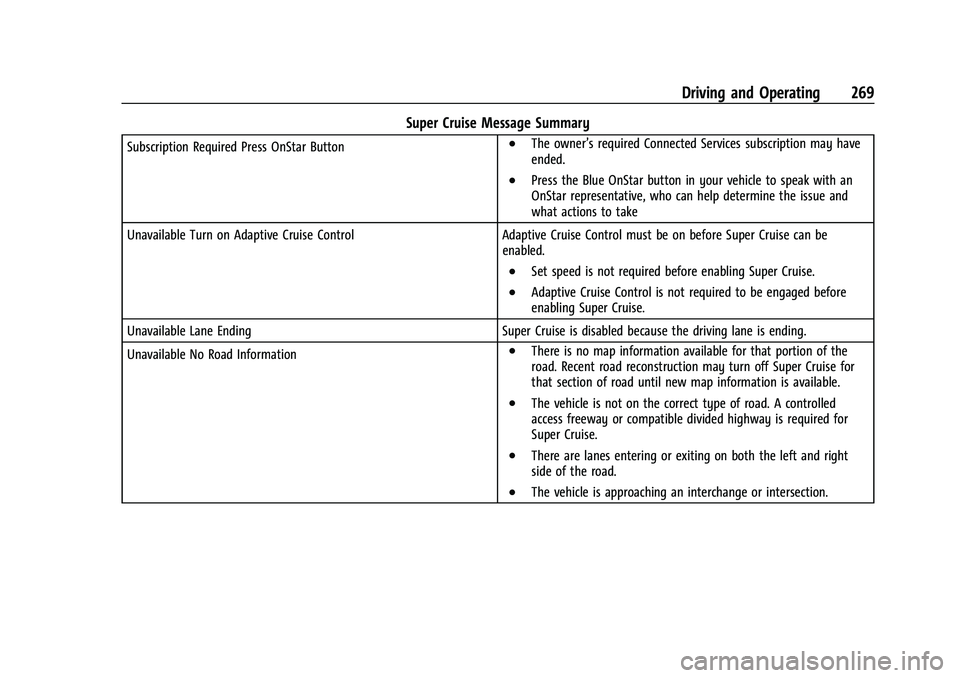
Super Cruise Message Summary
Subscription Required Press OnStar Button.The owner’s required Connected Services subscription may have
ended.
.Press the Blue OnStar button in your vehicle to speak with an
OnStar representative, who can help determine the issue and
what actions to take
Unavailable Turn on Adaptive Cruise Control Adaptive Cruise Control must be on before Super Cruise can be enabled.
.Set speed is not required before enabling Super Cruise.
.Adaptive Cruise Control is not required to be engaged before
enabling Super Cruise.
Unavailable Lane Ending Super Cruise is disabled because the driving lane is ending.
Unavailable No Road Information
.There is no map information available for that portion of the
road. Recent road reconstruction may turn off Super Cruise for
that section of road until new map information is available.
.The vehicle is not on the correct type of road. A controlled
access freeway or compatible divided highway is required for
Super Cruise.
.There are lanes entering or exiting on both the left and right
side of the road.
.The vehicle is approaching an interchange or intersection.
Page 278 of 463
Chevrolet Silverado 1500 Owner Manual (GMNA-Localizing-U.S./Canada/
Mexico/Paraguay-16515119) - 2023 - CRC - 6/2/22
Driving and Operating 277
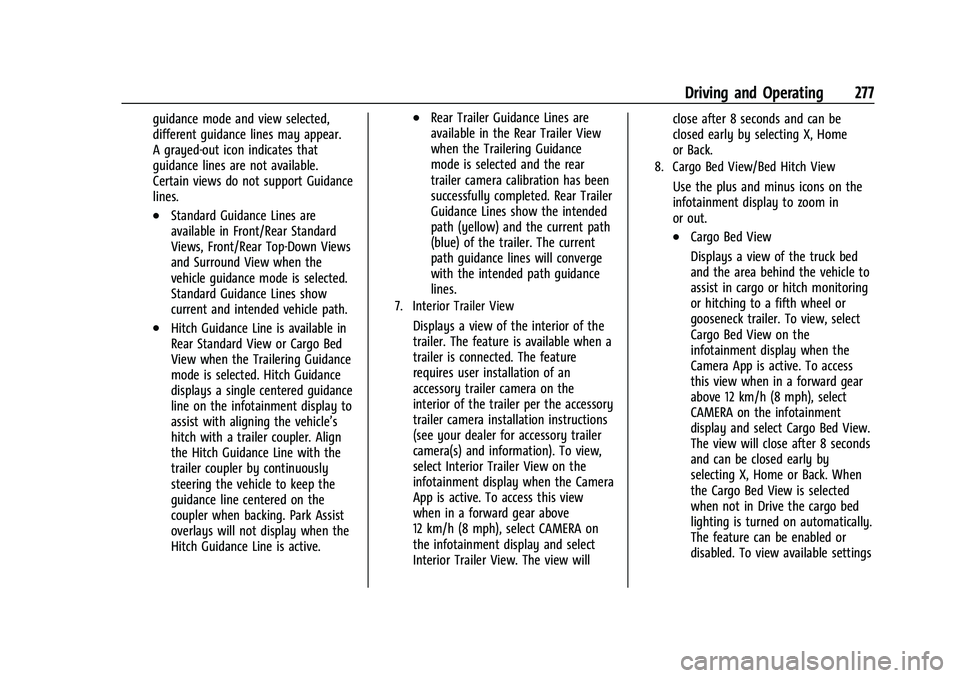
guidance mode and view selected,
different guidance lines may appear.
A grayed-out icon indicates that
guidance lines are not available.
Certain views do not support Guidance
lines.
.Standard Guidance Lines are
available in Front/Rear Standard
Views, Front/Rear Top-Down Views
and Surround View when the
vehicle guidance mode is selected.
Standard Guidance Lines show
current and intended vehicle path.
.Hitch Guidance Line is available in
Rear Standard View or Cargo Bed
View when the Trailering Guidance
mode is selected. Hitch Guidance
displays a single centered guidance
line on the infotainment display to
assist with aligning the vehicle’s
hitch with a trailer coupler. Align
the Hitch Guidance Line with the
trailer coupler by continuously
steering the vehicle to keep the
guidance line centered on the
coupler when backing. Park Assist
overlays will not display when the
Hitch Guidance Line is active.
.Rear Trailer Guidance Lines are
available in the Rear Trailer View
when the Trailering Guidance
mode is selected and the rear
trailer camera calibration has been
successfully completed. Rear Trailer
Guidance Lines show the intended
path (yellow) and the current path
(blue) of the trailer. The current
path guidance lines will converge
with the intended path guidance
lines.
7. Interior Trailer View
Displays a view of the interior of the
trailer. The feature is available when a
trailer is connected. The feature
requires user installation of an
accessory trailer camera on the
interior of the trailer per the accessory
trailer camera installation instructions
(see your dealer for accessory trailer
camera(s) and information). To view,
select Interior Trailer View on the
infotainment display when the Camera
App is active. To access this view
when in a forward gear above
12 km/h (8 mph), select CAMERA on
the infotainment display and select
Interior Trailer View. The view willclose after 8 seconds and can be
closed early by selecting X, Home
or Back.
8. Cargo Bed View/Bed Hitch View
Use the plus and minus icons on the
infotainment display to zoom in
or out.
.Cargo Bed View
Displays a view of the truck bed
and the area behind the vehicle to
assist in cargo or hitch monitoring
or hitching to a fifth wheel or
gooseneck trailer. To view, select
Cargo Bed View on the
infotainment display when the
Camera App is active. To access
this view when in a forward gear
above 12 km/h (8 mph), select
CAMERA on the infotainment
display and select Cargo Bed View.
The view will close after 8 seconds
and can be closed early by
selecting X, Home or Back. When
the Cargo Bed View is selected
when not in Drive the cargo bed
lighting is turned on automatically.
The feature can be enabled or
disabled. To view available settings