remote start CHEVROLET SILVERADO 2007 1.G User Guide
[x] Cancel search | Manufacturer: CHEVROLET, Model Year: 2007, Model line: SILVERADO, Model: CHEVROLET SILVERADO 2007 1.GPages: 684, PDF Size: 3.4 MB
Page 286 of 684
PARK ASSIST OFF
If your vehicle has the Ultrasonic Rear Parking
Assist (URPA) system, after the vehicle has been
started, this message displays to remind the
driver that the URPA system has been turned off.
Press the set/reset button or the trip odometer
reset stem to acknowledge this message and clear
it from the DIC display. To turn the URPA
system back on, seeUltrasonic Rear Parking
Assist (URPA) on page 230.
PASSENGER DOOR OPEN
This message displays and a chime sounds if the
passenger’s door is not fully closed and the
vehicle is in a drive gear. Stop and turn off the
vehicle, check the door for obstructions, and close
the door again. Check to see if the message
still appears on the DIC.
REMOTE KEY LEARNING ACTIVE
This message displays while you are matching a
Remote Keyless Entry (RKE) transmitter to
your vehicle. See “Matching Transmitter(s) to Your
Vehicle” underRemote Keyless Entry (RKE)
System Operation on page 113andDIC Operation
and Displays (With DIC Buttons) on page 270or
DIC Operation and Displays (Without DIC Buttons)
on page 277for more information.
REPLACE BATTERY IN REMOTE KEY
This message displays if a Remote Keyless
Entry (RKE) transmitter battery is low. The battery
needs to be replaced in the transmitter. See
“Battery Replacement” underRemote Keyless
Entry (RKE) System Operation on page 113.
RIGHT REAR DOOR OPEN (Crew Cab)
This message displays and a chime sounds if
the passenger’s side rear door is not fully closed
and the vehicle is in a drive gear. Stop and
turn off the vehicle, check the door for
obstructions, and close the door again. Check to
see if the message still appears on the DIC.
286
Page 300 of 684
ON:The driver’s seat and, on some vehicles, the
outside mirrors will automatically move to the
stored driving position when the unlock button on
the Remote Keyless Entry (RKE) transmitter is
pressed. On some vehicles with the adjustable
throttle and brake pedal feature, the pedals
will also automatically move. See “Relearn Remote
Key” underDIC Operation and Displays (With
DIC Buttons) on page 270orDIC Operation and
Displays (Without DIC Buttons) on page 277
for more information on matching transmitters to
driver ID numbers.
NO CHANGE:No change will be made to this
feature. The current setting will remain.
Choose one of the available settings and press
the set/reset button while it is displayed on the
DIC to select it.REMOTE START
If your vehicle has this feature, it allows you to
turn the remote start off or on. The remote
start feature allows you to start the engine from
outside of the vehicle using your Remote Keyless
Entry (RKE) transmitter. See″Remote Vehicle
Start″underRemote Keyless Entry (RKE) System
Operation on page 113for more information.
Press the customization button until REMOTE
START appears on the DIC display. Press
the set/reset button once to access the settings for
this feature. Then press the customization
button to scroll through the following settings:
OFF:The remote start feature will be disabled.
ON (default):The remote start feature will
be enabled.
NO CHANGE:No change will be made to this
feature. The current setting will remain.
Choose one of the available settings and press
the set/reset button while it is displayed on the
DIC to select it.
300
Page 335 of 684

Playing a DVD
DVD/CD AUX (Auxiliary):Press this button to
cycle through DVD, CD, or Auxiliary when listening
to the radio. The DVD/CD text label and a
message showing track or chapter number
displays when a disc is in either slot. Press this
button again and the system automatically
searches for an auxiliary input device, such as a
portable audio player. If a portable audio player is
not connected, “No Aux Input Device” displays.
If a disc is in both the DVD slot and the CD slot the
DVD/CD AUX button cycles between the two
sources and not indicate “No Aux Input Device”. If
a front auxiliary device is connected, the
DVD/CD AUX button cycles through all available
options, such as: DVD slot, CD slot, Front
Auxiliary, and Rear Auxiliary (if available). See
“Using the Auxiliary Input Jack(s)” later in
this section, or “Audio/Video (A/V) Jacks” under,
Rear Seat Entertainment System on page 357
for more information.
O(Power):Press this knob to turn the radio on or
off. Turn this knob clockwise or counterclockwise to
increase or decrease the volume. Press and hold
the knob for more than two seconds to turn off the
entire radio and Rear Seat Entertainment (RSE)
system and to start the parental control feature.
Parental control prevents the rear seat occupant
from operating the Rear Seat Audio (RSA) system
or remote control.
A lock symbol appears next to the clock display.
The parental control feature remains on until this
button is pressed and held for more than
two seconds again, or until the driver turns the
ignition off and exits the vehicle.
f(Tune):Turn this knob to change tracks on a
CD or DVD, to manually tune a radio station, or to
change clock or date settings, while in the clock
or date setting mode. See the information
given earlier in this section specic to the radio,
CD, and the DVD. Also, see “Setting the Time” in
the index, for setting the clock and date.
335
Page 336 of 684
©SEEK (Previous Track/Chapter):Press this
button to return to the start of the current track
or chapter. Press this button again to go to
the previous track or chapter. This button might
not work when the DVD is playing the copyright
information or the previews.
SEEK
¨(Next Track/Chapter):Press this
button to go to the next track or chapter. This
button might not work when the DVD is playing the
copyright information or the previews.
sREV (Reverse):Press this button to quickly
reverse the CD or DVD at ve times the normal
speed. The radio displays the elapsed time while in
fast reverse. To stop fast reversing, press this
button again. This button might not work when the
DVD is playing the copyright information or the
previews.
\FWD (Fast Forward):Press this button to
fast forward the CD or DVD. The radio displays the
elapsed time and fast forwards ve times the
normal speed. To stop fast forwarding, press this
button again. This button might not work when
the DVD is playing the copyright information or the
previews.
Z(Eject):Press this button to eject a CD or
DVD. If a CD or DVD is ejected, but not removed,
the player automatically pulls it back in after
15 seconds.
If loading and reading of a CD cannot be
completed, because of an unknown format, etc.,
and the disc fails to eject, press and hold the
CD eject button for more than ve seconds to force
the disc to eject.
DVD-V (Video) Display Buttons
Once a DVD-V is inserted, the radio display menu
shows several tag options for DVD playing.
Press the pushbuttons located under any desired
tag option during DVD playback. See the tag
options listed below for more information.
The rear seat passenger can navigate the DVD-V
menus and controls through the remote control.
See “Remote Control”, underRear Seat
Entertainment System on page 357for more
information. The Video Screen automatically turns
on when the DVD-V is inserted into the DVD slot.
336
Page 338 of 684
The rear seat operator can navigate the DVD-A
menus and controls through the remote control.
See “Remote Control”, underRear Seat
Entertainment System on page 357for more
information. The Video Screen does not
automatically power on when the DVD-A is
inserted into the DVD slot. It must be manually
turned on by the rear seat occupant through
the remote control power button.
r/j(Play/Pause):Press either the play or
pause icon displays on the radio system, to toggle
between pausing or restarting playback of a
DVD. If the forward arrow is showing on display,
the system is in pause mode. If the pause
icon is showing on display, the system is in
playback mode.
qGroupr:Press this button to cycle through
musical groupings on the DVD-A disc.
Nav (Navigate):Press this button to
display directional arrows for navigating
through the menus.
e(Audio Stream):Press this button to cycle
through audio stream formats located on the
DVD-A disc. There is not any type of notication
for the customer to see through the radio
display, but VSM has a text eld that shows audio
stream changing.
Inserting a Disc
To play a disc, gently insert the disc, with the label
side up, into the loading slot. The DVD player
might not accept some paper labeled media. The
player starts loading the disc into the system
and show “Loading Disc” on the radio display. At
the same time, the radio displays a softkey
menu of option(s). Some discs automatically play
the movie while others default to the softkey
menu display, which requires the Play, Enter, or
Navigation softkeys to be pressed; either by
softkey or by the rear seat passenger using the
remote control.
Loading a disc into the system, depending
on media type and format, ranges from
5 to 20 seconds for a CD, and up to
30 seconds for a DVD.
338
Page 363 of 684
Remote Control
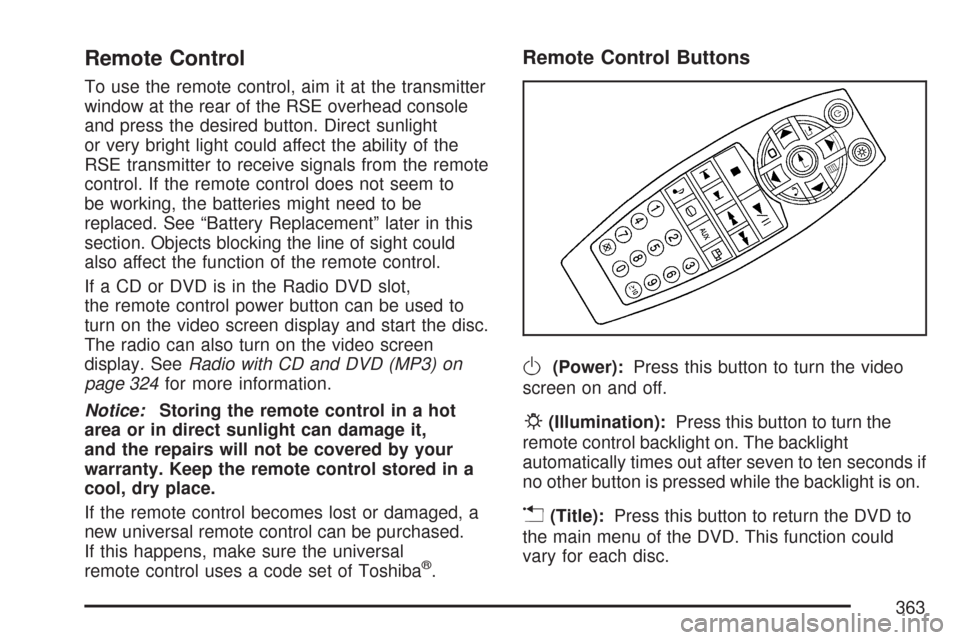
To use the remote control, aim it at the transmitter
window at the rear of the RSE overhead console
and press the desired button. Direct sunlight
or very bright light could affect the ability of the
RSE transmitter to receive signals from the remote
control. If the remote control does not seem to
be working, the batteries might need to be
replaced. See “Battery Replacement” later in this
section. Objects blocking the line of sight could
also affect the function of the remote control.
If a CD or DVD is in the Radio DVD slot,
the remote control power button can be used to
turn on the video screen display and start the disc.
The radio can also turn on the video screen
display. SeeRadio with CD and DVD (MP3) on
page 324for more information.
Notice:Storing the remote control in a hot
area or in direct sunlight can damage it,
and the repairs will not be covered by your
warranty. Keep the remote control stored in a
cool, dry place.
If the remote control becomes lost or damaged, a
new universal remote control can be purchased.
If this happens, make sure the universal
remote control uses a code set of Toshiba
®.
Remote Control Buttons
O(Power):Press this button to turn the video
screen on and off.
P(Illumination):Press this button to turn the
remote control backlight on. The backlight
automatically times out after seven to ten seconds if
no other button is pressed while the backlight is on.
v(Title):Press this button to return the DVD to
the main menu of the DVD. This function could
vary for each disc.
363
Page 366 of 684
Battery Replacement
To change the remote control batteries, do the
following:
1. Slide the rear cover back on the remote
control.
2. Replace the two batteries in the compartment.
Make sure they are installed correctly using
the diagram on the inside of the remote
control.
3. Replace the battery cover.
If the remote control is to be stored for a long
period of time, remove the batteries and keep them
in a cool, dry place.
Problem Recommended Action
No power. The ignition might not be
turned on or in accessory.
The picture does not ll
the screen. There are
black borders on the top
and bottom or on both
sides or it looks stretched
out.Check the display mode
settings in the setup menu
by pressing the display
menu button on the
remote control.
In auxiliary mode, the
picture moves or scrolls.Check the auxiliary input
connections at both
devices.
The remote control does
not work.Check to make sure there
is no obstruction between
the remote control and the
transmitter window.
Check the batteries to
make sure they are not
dead or installed
incorrectly.
After stopping the player,
I push Play but sometimes
the DVD starts where I left
off and sometimes at the
beginning.If the stop button was
pressed one time, the
DVD player resumes
playing where the DVD
was stopped. If the stop
button was pressed two
times the DVD player
begins to play from the
beginning of the DVD.
366
Page 501 of 684
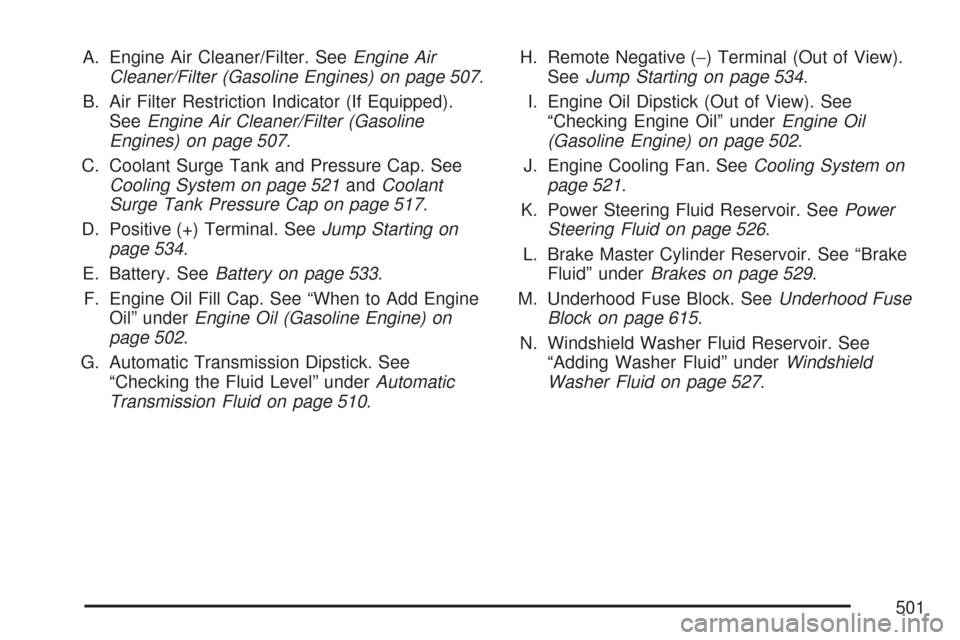
A. Engine Air Cleaner/Filter. SeeEngine Air
Cleaner/Filter (Gasoline Engines) on page 507.
B. Air Filter Restriction Indicator (If Equipped).
SeeEngine Air Cleaner/Filter (Gasoline
Engines) on page 507.
C. Coolant Surge Tank and Pressure Cap. See
Cooling System on page 521andCoolant
Surge Tank Pressure Cap on page 517.
D. Positive (+) Terminal. SeeJump Starting on
page 534.
E. Battery. SeeBattery on page 533.
F. Engine Oil Fill Cap. See “When to Add Engine
Oil” underEngine Oil (Gasoline Engine) on
page 502.
G. Automatic Transmission Dipstick. See
“Checking the Fluid Level” underAutomatic
Transmission Fluid on page 510.H. Remote Negative (−) Terminal (Out of View).
SeeJump Starting on page 534.
I. Engine Oil Dipstick (Out of View). See
“Checking Engine Oil” underEngine Oil
(Gasoline Engine) on page 502.
J. Engine Cooling Fan. SeeCooling System on
page 521.
K. Power Steering Fluid Reservoir. SeePower
Steering Fluid on page 526.
L. Brake Master Cylinder Reservoir. See “Brake
Fluid” underBrakes on page 529.
M. Underhood Fuse Block. SeeUnderhood Fuse
Block on page 615.
N. Windshield Washer Fluid Reservoir. See
“Adding Washer Fluid” underWindshield
Washer Fluid on page 527.
501
Page 536 of 684
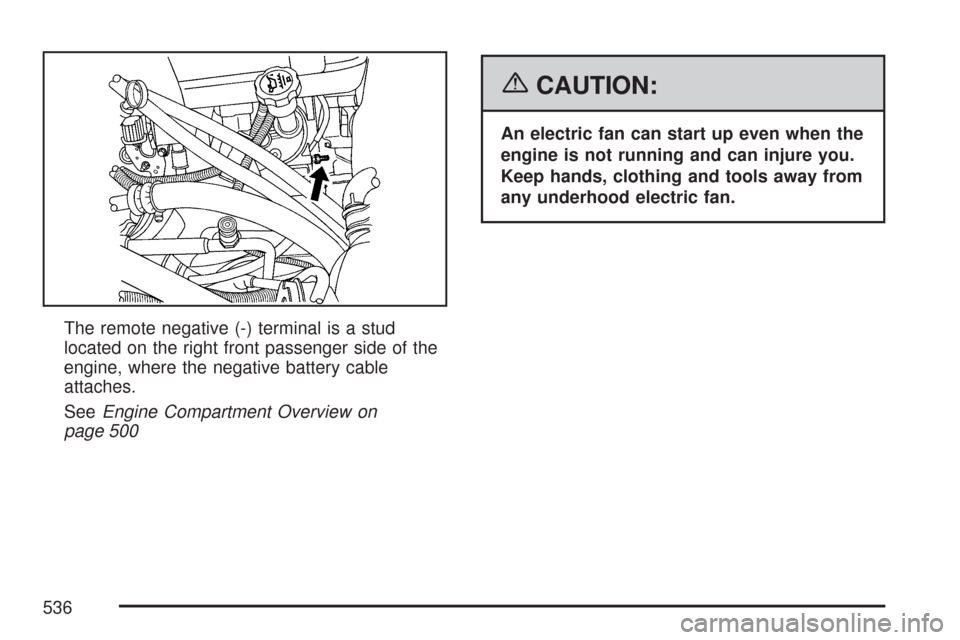
The remote negative (-) terminal is a stud
located on the right front passenger side of the
engine, where the negative battery cable
attaches.
SeeEngine Compartment Overview on
page 500
{CAUTION:
An electric fan can start up even when the
engine is not running and can injure you.
Keep hands, clothing and tools away from
any underhood electric fan.
536
Page 538 of 684
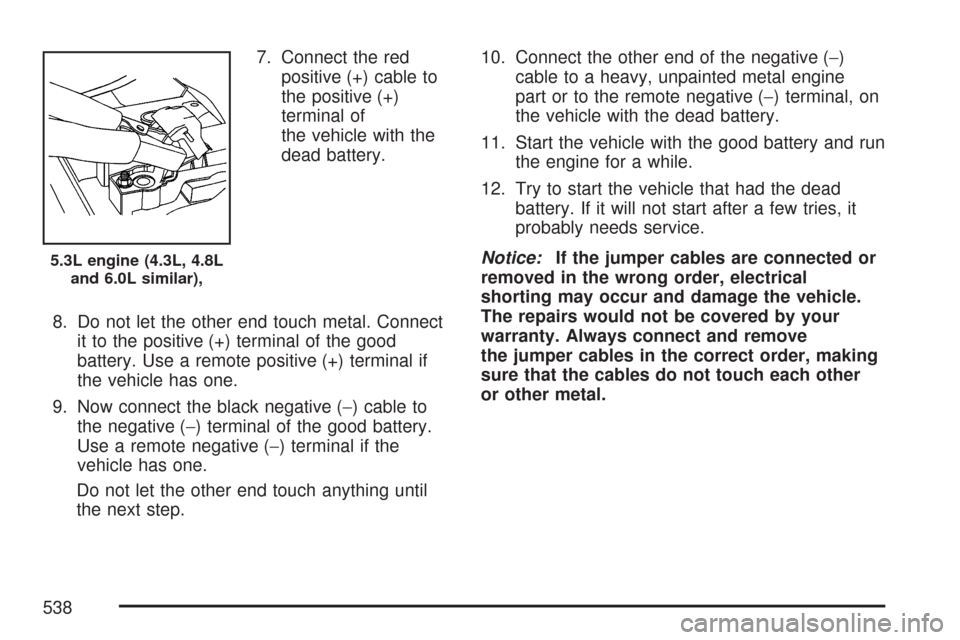
7. Connect the red
positive (+) cable to
the positive (+)
terminal of
the vehicle with the
dead battery.
8. Do not let the other end touch metal. Connect
it to the positive (+) terminal of the good
battery. Use a remote positive (+) terminal if
the vehicle has one.
9. Now connect the black negative (−) cable to
the negative (−) terminal of the good battery.
Use a remote negative (−) terminal if the
vehicle has one.
Do not let the other end touch anything until
the next step.10. Connect the other end of the negative (−)
cable to a heavy, unpainted metal engine
part or to the remote negative (−) terminal, on
the vehicle with the dead battery.
11. Start the vehicle with the good battery and run
the engine for a while.
12. Try to start the vehicle that had the dead
battery. If it will not start after a few tries, it
probably needs service.
Notice:If the jumper cables are connected or
removed in the wrong order, electrical
shorting may occur and damage the vehicle.
The repairs would not be covered by your
warranty. Always connect and remove
the jumper cables in the correct order, making
sure that the cables do not touch each other
or other metal.
5.3L engine (4.3L, 4.8L
and 6.0L similar),
538