steering CHEVROLET SILVERADO 2007 1.G Owner's Manual
[x] Cancel search | Manufacturer: CHEVROLET, Model Year: 2007, Model line: SILVERADO, Model: CHEVROLET SILVERADO 2007 1.GPages: 684, PDF Size: 3.4 MB
Page 223 of 684
Erasing Speed Memory
When you turn off the cruise control or the ignition,
the cruise control set speed memory is erased.
Exterior Lamps
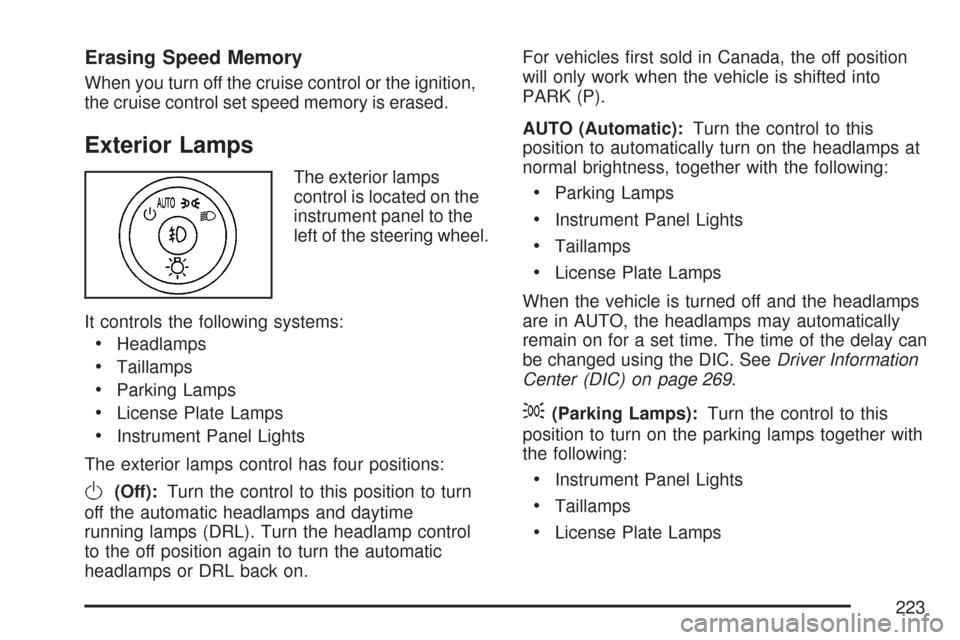
The exterior lamps
control is located on the
instrument panel to the
left of the steering wheel.
It controls the following systems:
Headlamps
Taillamps
Parking Lamps
License Plate Lamps
Instrument Panel Lights
The exterior lamps control has four positions:
O(Off):Turn the control to this position to turn
off the automatic headlamps and daytime
running lamps (DRL). Turn the headlamp control
to the off position again to turn the automatic
headlamps or DRL back on.For vehicles rst sold in Canada, the off position
will only work when the vehicle is shifted into
PARK (P).
AUTO (Automatic):Turn the control to this
position to automatically turn on the headlamps at
normal brightness, together with the following:
Parking Lamps
Instrument Panel Lights
Taillamps
License Plate Lamps
When the vehicle is turned off and the headlamps
are in AUTO, the headlamps may automatically
remain on for a set time. The time of the delay can
be changed using the DIC. SeeDriver Information
Center (DIC) on page 269.
;(Parking Lamps):Turn the control to this
position to turn on the parking lamps together with
the following:
Instrument Panel Lights
Taillamps
License Plate Lamps
223
Page 226 of 684
To idle your vehicle with the automatic headlamp
system off, turn the control to the off position.
You may be able to turn off your Automatic
Headlamp System. SeeDaytime Running Lamps
(DRL) on page 224for more information.
Your headlamps will also stay on after you exit the
vehicle. You can program this feature using the
Driver Information Center (DIC). SeeDIC Vehicle
Customization (With DIC Buttons) on page 291.
As with any vehicle, you should turn on the regular
headlamp system when needed.
Puddle Lamps
Your vehicle may have puddle lamps, that come
on when it is dark outside to help you see the area
near the base of the front doors. The puddle
lamps will come on when a door is opened, or
when you press the unlock button on the Remote
Keyless Entry Transmitter. The lamps will time
out or turn off once the engine is started.
Fog Lamps
-(Fog Lamps):If your vehicle has fog lamps,
the button is located on the instrument panel
to the left of the steering column and below the
dome lamp override button.
The ignition must be in RUN and the parking
lamps must be on for the fog lamps to work.
To turn the fog lamps on, press the fog lamps
button. A light comes on in the instrument
panel cluster to let you know that the fog lamps
are on. Press the button again to turn the fog
lamps off.
When the fog lamps are turned on, the low-beam
headlamps automatically turn on.
The fog lamps turn off while you change to
high-beam headlamps. When the high-beam
headlamps go off, the fog lamps will come
on again.
Fog lamps should only be used in foggy conditions
since they could be distracting to oncoming
drivers in clear weather conditions.
Some localities have laws that require the
headlamps to be on along with the fog lamps.
226
Page 270 of 684
DIC Operation and Displays
(With DIC Buttons)
If your vehicle has DIC buttons, the information
below explains the operation of this system.
The DIC has different displays which can be
accessed by pressing the DIC buttons located on
the instrument panel, next to the steering
wheel.
The DIC displays trip, fuel, and vehicle system
information, and warning messages if a system
problem is detected.
The DIC also allows some features to be
customized. SeeDIC Vehicle Customization (With
DIC Buttons) on page 291for more information.
If your vehicle has DIC buttons, you can also use
the trip odometer reset stem to view some of
the DIC displays. See “DIC Operation and Displays
(Without DIC Buttons)” later in this section.
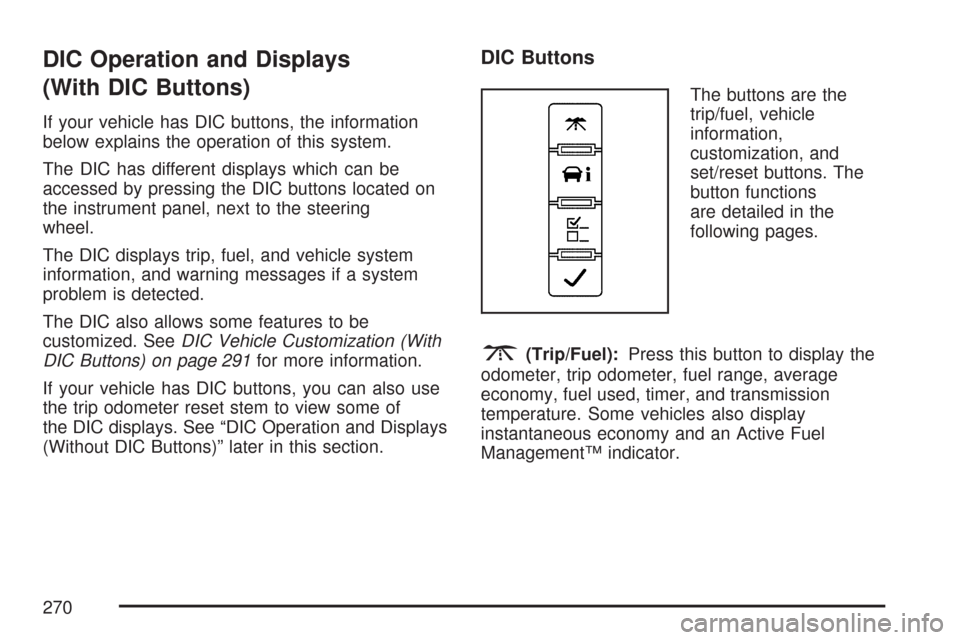
DIC Buttons
The buttons are the
trip/fuel, vehicle
information,
customization, and
set/reset buttons. The
button functions
are detailed in the
following pages.
3(Trip/Fuel):Press this button to display the
odometer, trip odometer, fuel range, average
economy, fuel used, timer, and transmission
temperature. Some vehicles also display
instantaneous economy and an Active Fuel
Management™ indicator.
270
Page 302 of 684
Audio System(s)
Determine which radio your vehicle has and then
read the pages following to familiarize yourself
with its features.
Driving without distraction is a necessity for a
safer driving experience. SeeDefensive Driving on
page 376. By taking a few moments to read this
manual and get familiar with your vehicle’s
audio system, you can use it with less effort, as
well as take advantage of its features. While your
vehicle is parked, set up your audio system by
presetting your favorite radio stations, setting the
tone and adjusting the speakers. Then, when
driving conditions permit, you can tune to
your favorite stations using the presets and
steering wheel controls if the vehicle has them.{CAUTION:
This system provides you with a far greater
access to audio stations and song listings.
Giving extended attention to entertainment
tasks while driving can cause a crash and
you or others can be injured or killed.
Always keep your eyes on the road and
your mind on the drive — avoid engaging
in extended searching while driving.
Keeping your mind on the drive is important for
safe driving. Here are some ways in which you can
help avoid distraction while driving.
While your vehicle is parked:
Familiarize yourself with all of its controls.
Familiarize yourself with its operation.
302
Page 303 of 684
Set up your audio system by presetting your
favorite radio stations, setting the tone, and
adjusting the speakers. Then, when driving
conditions permit, you can tune to your favorite
radio stations using the presets and steering
wheel controls if the vehicle has them.
Notice:Before adding any sound equipment to
your vehicle, such as an audio system, CD
player, CB radio, mobile telephone, or two-way
radio, make sure that it can be added by
checking with your dealer/retailer. Also, check
federal rules covering mobile radio and
telephone units. If sound equipment can be
added, it is very important to do it properly.
Added sound equipment can interfere with the
operation of your vehicle’s engine, radio, or
other systems, and even damage them. Your
vehicle’s systems can interfere with the
operation of sound equipment that has
been added.
Your vehicle has a feature called Retained
Accessory Power (RAP). With RAP, the audio
system can be played even after the ignition
is turned off. SeeRetained Accessory Power
(RAP) on page 136for more information.Setting the Time
AM-FM Radio with Optional CD Player
If your vehicle has an AM/FM radio with an
optional CD player, it has a clock button for setting
the time. With these types of radios, the clock
can be set with either the radio turned on or off.
Set the time by following these steps:
1. Press the clock button until the hour numbers
begin ashing on the display. Press the clock
button a second time and the minute
numbers begin ashing on the display. Press
the clock button a third time and the 12HR
or 24HR time format begins ashing.
2. While either the hour or the minute numbers
are ashing, turn the tune knob, located on
the upper right side of the radio faceplate,
clockwise or counterclockwise to increase or
decrease the time. While the 12HR or
24HR time format is ashing, turn the tune
knob clockwise or counterclockwise to select
the default time settings.
3. Press the clock button again until the clock
display stops ashing to set the currently
displayed time; otherwise, the ashing stops
after ve seconds and the current time
displayed will be automatically set.
303
Page 316 of 684
4(Information) (XM™ Satellite Radio Service,
MP3, and RDS Features):Press the information
button to display additional text information
related to the current FM-RDS or XM™ station, or
MP3 song. A choice of additional information
such as: Channel, Song, Artist, and CAT
(category) might appear. Continue pressing the
information button to highlight the desired label, or
press the pushbutton positioned under any one
of the labels and the information about that
label displays.
When information is not available, No Info
displays.
Storing a Radio Station as a Favorite
Drivers are encouraged to set up their radio station
favorites while the vehicle is parked. Tune to
your favorite stations using the presets, favorites
button, and steering wheel controls, if the
vehicle has this feature. SeeDefensive Driving on
page 376.FAV (Favorites):A maximum of 36 stations can
be programmed as favorites using the
six pushbuttons positioned below the radio station
frequency labels and by using the radio favorites
page button (FAV button). Press the FAV button to
go through up to six pages of favorites, each
having six favorite stations available per page.
Each page of favorites can contain any
combination of AM, FM, or XM™ (if equipped)
stations. To store a station as a favorite, perform
the following steps:
1. Tune to the desired radio station.
2. Press the FAV button to display the page
where you want the station stored.
3. Press and hold one of the six pushbuttons
until a beep sounds. Whenever that
pushbutton is pressed and released, the
station that was set, returns.
4. Repeat the steps for each pushbutton radio
station you want stored as a favorite.
316
Page 326 of 684
Finding a Station
BAND:Press this button to switch between AM,
FM, or XM™ (if equipped). The display shows
the selection.
f(Tune):Turn this knob to select radio stations.
©SEEK¨:Press the left or right SEEK
arrow to go to the next or to the previous station
and stay there.
To scan stations, press and hold either SEEK
arrow for a few seconds until a beep sounds. The
radio goes to a station, plays for a few seconds,
then goes to the next station. Press either
SEEK arrow again to stop scanning.
The radio seeks and scans stations only with a
strong signal that are in the selected band.
4(Information) (XM™ Satellite Radio Service,
MP3, and RDS Features):Press the information
button to display additional text information related
to the current FM-RDS or XM™ station, or MP3
song. A choice of additional information such as:
Channel, Song, Artist, and CAT (category) could
appear. Continue pressing the information button to
highlight the desired label, or press the pushbutton
positioned under any one of the labels and the
information about that label is displayed.
When information is not available, No Info displays.
Storing a Radio Station as a Favorite
Drivers are encouraged to set up their radio station
favorites while the vehicle is parked. Tune to your
favorite stations using the presets, favorites button,
and steering wheel controls, if the vehicle has them.
SeeDefensive Driving on page 376.
326
Page 370 of 684
PROG (Program):Press this button to go to the
next preset radio station or channel set on the
main radio. This function is inactive, with
some radios, if the front seat passengers are
listening to the radio.
While a CD or DVD audio is playing, press this
button to go to the beginning of the CD or
DVD audio. This function is inactive, with some
radios, if the front seat passengers are listening to
the CD or DVD audio.
While a disc is playing in the CD or DVD changer,
press this button to select the next disc, if
multiple discs are loaded. This function is inactive,
with some radios, if the front seat passengers
are listening to the disc.
While a DVD video menu is being displayed,
press the PROG button to perform the menu
function, Enter.Theft-Deterrent Feature
THEFTLOCK®is designed to discourage theft of
your vehicle’s radio. The feature works
automatically by learning a portion of the Vehicle
Identication Number (VIN). If the radio is
moved to a different vehicle, it does not operate
and LOCKED displays.
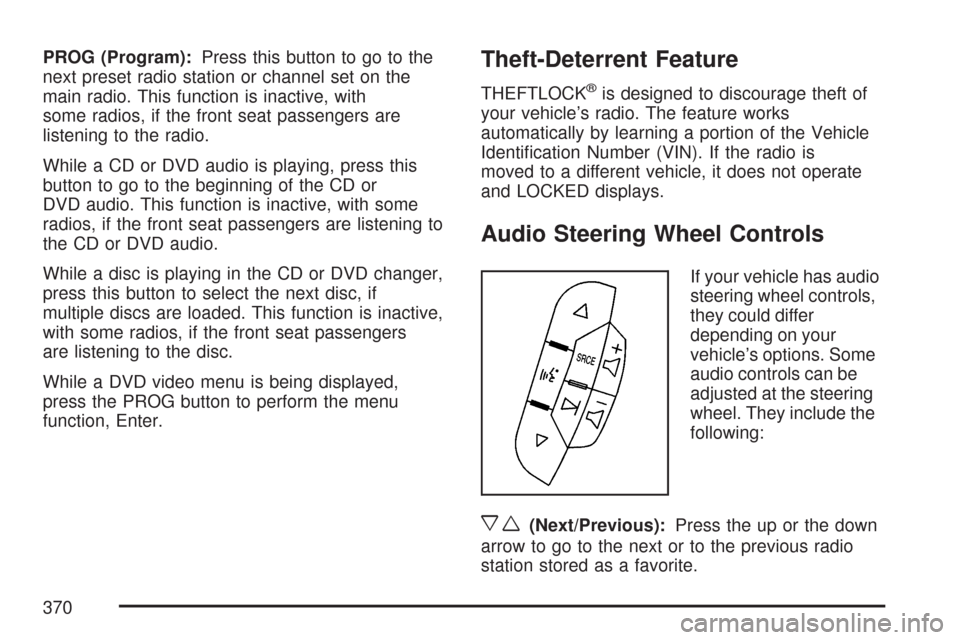
Audio Steering Wheel Controls
If your vehicle has audio
steering wheel controls,
they could differ
depending on your
vehicle’s options. Some
audio controls can be
adjusted at the steering
wheel. They include the
following:
xw(Next/Previous):Press the up or the down
arrow to go to the next or to the previous radio
station stored as a favorite.
370
Page 375 of 684
Your Driving, the Road, and Your
Vehicle..................................................... 376
Defensive Driving...................................... 376
Drunken Driving........................................ 377
Control of a Vehicle.................................. 380
Braking...................................................... 380
Anti-Lock Brake System (ABS).................. 381
Braking in Emergencies............................. 383
Locking Rear Axle..................................... 383
StabiliTrak
®System................................... 384
Steering.................................................... 387
Off-Road Recovery.................................... 389
Passing..................................................... 389
Loss of Control.......................................... 391
Off-Road Driving........................................ 392
Driving at Night......................................... 409
Driving in Rain and on Wet Roads............ 410
City Driving............................................... 414
Freeway Driving........................................ 415Before Leaving on a Long Trip.................. 416
Highway Hypnosis..................................... 417
Hill and Mountain Roads........................... 418
Winter Driving........................................... 420
If Your Vehicle is Stuck in Sand, Mud,
Ice, or Snow.......................................... 424
Rocking Your Vehicle to Get It Out........... 425
Recovery Hooks (Except SS Model).......... 426
Loading Your Vehicle................................ 427
Adding a Snow Plow or Similar
Equipment.............................................. 434
Truck-Camper Loading Information............ 438
Pickup Conversion to Chassis Cab.............. 441
Towing........................................................ 441
Towing Your Vehicle................................. 441
Recreational Vehicle Towing...................... 442
Towing a Trailer........................................ 447
Trailer Recommendations.......................... 484
Section 4 Driving Your Vehicle
375
Page 380 of 684
Control of a Vehicle
You have three systems that make your vehicle go
where you want it to go. They are the brakes, the
steering, and the accelerator. All three systems
have to do their work at the places where the tires
meet the road.
Sometimes, as when you are driving on snow
or ice, it is easy to ask more of those control
systems than the tires and road can provide.
That means you can lose control of your vehicle.
SeeStabiliTrak
®System on page 384.
Adding non-GM accessories can affect your
vehicle’s performance. SeeAccessories and
Modications on page 488.
Braking
SeeBrake System Warning Light on page 258.
Braking action involves perception time and
reaction time.
First, you have to decide to push on the brake
pedal. That is perception time. Then you have to
bring up your foot and do it. That is reaction time.
Average reaction time is about three-fourths of a
second. But that is only an average. It might
be less with one driver and as long as two or
three seconds or more with another. Age, physical
condition, alertness, coordination, and eyesight
all play a part. So do alcohol, drugs, and
frustration. But even in three-fourths of a second,
a vehicle moving at 60 mph (100 km/h) travels
66 feet (20 m). That could be a lot of distance in an
emergency, so keeping enough space between
your vehicle and others is important.
And, of course, actual stopping distances vary
greatly with the surface of the road, whether it is
pavement or gravel; the condition of the road,
whether it is wet, dry, or icy; tire tread; the
condition of the brakes; the weight of the vehicle;
and the amount of brake force applied.
380