battery CHEVROLET SILVERADO 2008 2.G Owner's Manual
[x] Cancel search | Manufacturer: CHEVROLET, Model Year: 2008, Model line: SILVERADO, Model: CHEVROLET SILVERADO 2008 2.GPages: 596, PDF Size: 3.12 MB
Page 285 of 596
DVD Radio Error Messages
Player Error:This message displays when there are
disc load or eject problems.
Disc Format Error:This message displays, if the disc
is inserted with the disc label wrong side up, or if
the disc is damaged.
Disc Region Error:This message displays, if the disc
is not from a correct region.
No Disc Inserted:This message displays, if no disc is
present when the
Zor DVD/CD AUX button is
pressed on the radio.
Using the Auxiliary Input Jack
The radio system has an auxiliary input jack located on
the lower right side of the faceplate. This is not an
audio output; do not plug the headphone set into the
front auxiliary input jack. An external audio device such
as an iPod, laptop computer, MP3 player, CD player,
etc. can be connected to the auxiliary input jack for use
as another source for audio listening.Drivers are encouraged to set up any auxiliary device
while the vehicle is in P (Park). SeeDefensive Driving
on page 4-2for more information on driver distraction.
To use a portable audio player, connect a 3.5 mm
(1/8 inch) cable to the radio’s front auxiliary input jack.
When a device is connected, press the radio CD/AUX
button to begin playing audio from the device over
the vehicle speakers.
For optimal sound quality, increase the portable audio
device’s volume to the loudest level.
It is always best to power the portable audio device
through its own battery while playing.
O(Power/Volume):Turn clockwise or
counterclockwise to increase or decrease the volume of
the portable player. Additional volume adjustments
might have to be made from the portable device if the
volume is not loud or soft enough.
BAND:Press to listen to the radio when a portable
audio device is playing. The portable audio device
continues playing.
3-107
Page 300 of 596
Headphones
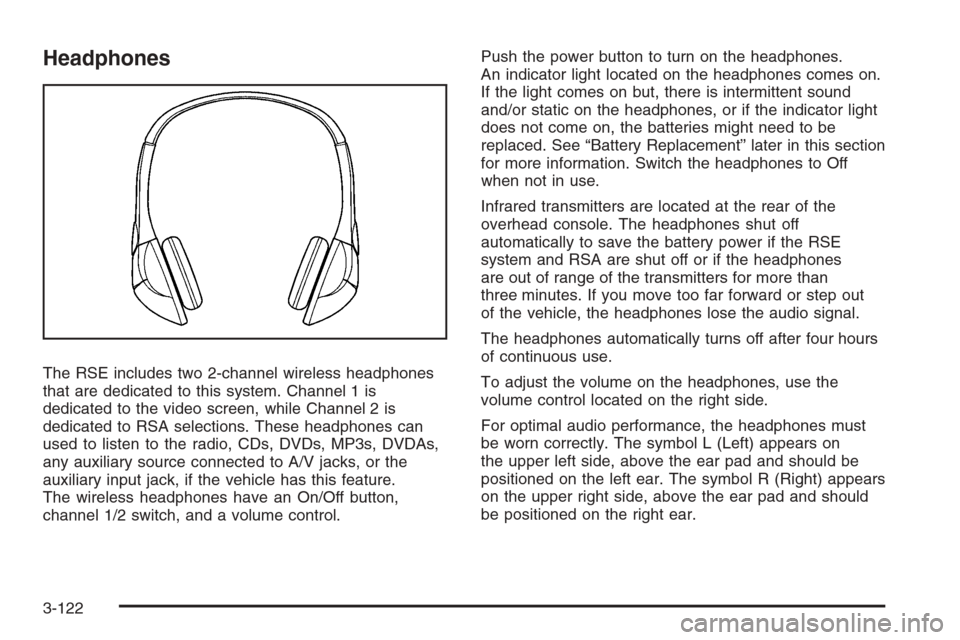
The RSE includes two 2-channel wireless headphones
that are dedicated to this system. Channel 1 is
dedicated to the video screen, while Channel 2 is
dedicated to RSA selections. These headphones can
used to listen to the radio, CDs, DVDs, MP3s, DVDAs,
any auxiliary source connected to A/V jacks, or the
auxiliary input jack, if the vehicle has this feature.
The wireless headphones have an On/Off button,
channel 1/2 switch, and a volume control.Push the power button to turn on the headphones.
An indicator light located on the headphones comes on.
If the light comes on but, there is intermittent sound
and/or static on the headphones, or if the indicator light
does not come on, the batteries might need to be
replaced. See “Battery Replacement” later in this section
for more information. Switch the headphones to Off
when not in use.
Infrared transmitters are located at the rear of the
overhead console. The headphones shut off
automatically to save the battery power if the RSE
system and RSA are shut off or if the headphones
are out of range of the transmitters for more than
three minutes. If you move too far forward or step out
of the vehicle, the headphones lose the audio signal.
The headphones automatically turns off after four hours
of continuous use.
To adjust the volume on the headphones, use the
volume control located on the right side.
For optimal audio performance, the headphones must
be worn correctly. The symbol L (Left) appears on
the upper left side, above the ear pad and should be
positioned on the left ear. The symbol R (Right) appears
on the upper right side, above the ear pad and should
be positioned on the right ear.
3-122
Page 301 of 596
Notice:Do not store the headphones in heat or
direct sunlight. This could damage the headphones
and repairs will not be covered by your warranty.
Storage in extreme cold can weaken the batteries.
Keep the headphones stored in a cool, dry place.
If the foam ear pads attached to the headphones
become worn or damaged, the pads can be replaced
separately from the headphone set. Refer to your
dealer/retailer for more information.
Battery Replacement
To change the batteries on the headphones, do the
following:
1. Turn the screw to loosen the battery door located
on the left side of the headphones. Slide the
battery door open.
2. Replace the two batteries in the compartment.
Make sure that they are installed correctly, using
the diagram on the inside of the battery
compartment.
3. Replace the battery door and tighten the door screw.
If the headphones are to be stored for a long period of
time, remove the batteries and keep them in a cool, dry
place.
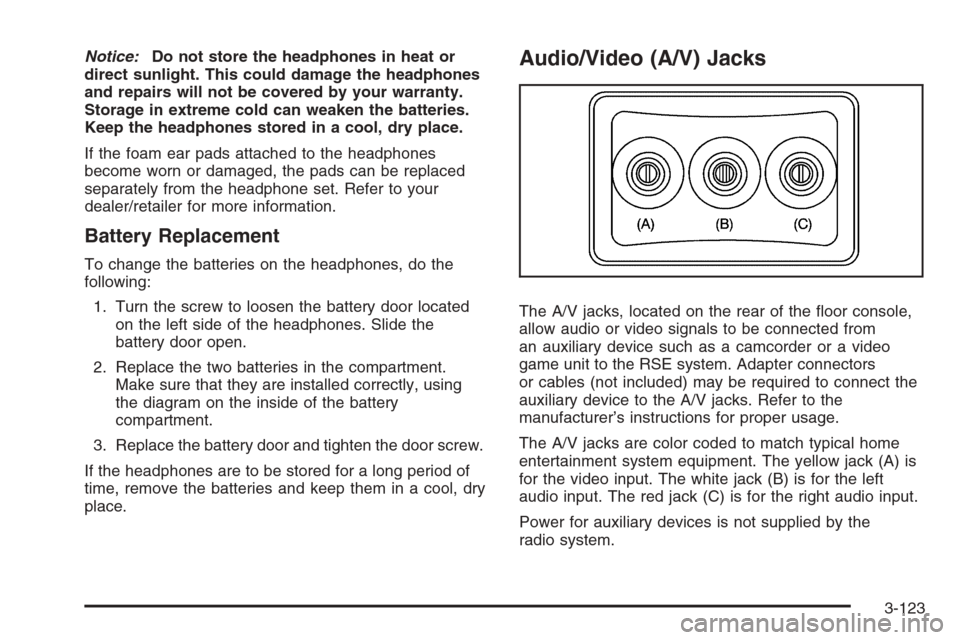
Audio/Video (A/V) Jacks
The A/V jacks, located on the rear of the oor console,
allow audio or video signals to be connected from
an auxiliary device such as a camcorder or a video
game unit to the RSE system. Adapter connectors
or cables (not included) may be required to connect the
auxiliary device to the A/V jacks. Refer to the
manufacturer’s instructions for proper usage.
The A/V jacks are color coded to match typical home
entertainment system equipment. The yellow jack (A) is
for the video input. The white jack (B) is for the left
audio input. The red jack (C) is for the right audio input.
Power for auxiliary devices is not supplied by the
radio system.
3-123
Page 303 of 596
Video Screen
The video screen is located in the overhead console.
To use the video screen, do the following:
1. Push the release button located on the overhead
console.
2. Move the screen to the desired position.
When the video screen is not in use, push it up into its
locked position.
If a DVD is playing and the screen is raised to its locked
position, the screen remains on. This is normal, and
the DVD continues to play through the previous audio
source. Use the remote control power button or eject the
disc to turn off the screen.
The overhead console contains the infrared transmitters
for the wireless headphones and the infrared receivers
for the remote control. They are located at the rear
of the console.
Notice:Avoid directly touching the video screen,
as damage may occur. See “Cleaning the Video
Screen” later in this section for more information.
Remote Control
To use the remote control, aim it at the transmitter
window at the rear of the RSE overhead console and
press the desired button. Direct sunlight or very
bright light could affect the ability of the RSE transmitter
to receive signals from the remote control. If the
remote control does not seem to be working, the
batteries might need to be replaced. See “Battery
Replacement” later in this section. Objects blocking the
line of sight could also affect the function of the
remote control.
If a CD or DVD is in the Radio DVD slot, the remote
control
O(power) button can be used to turn on the
video screen display and start the disc. The radio
can also turn on the video screen display. SeeRadio(s)
on page 3-88for more information.
Notice:Storing the remote control in a hot area or
in direct sunlight can damage it, and the repairs
will not be covered by your warranty. Storage
in extreme cold can weaken the batteries. Keep the
remote control stored in a cool, dry place.
If the remote control becomes lost or damaged, a new
universal remote control can be purchased. If this
happens, make sure the universal remote control uses
a code set of Toshiba
®.
3-125
Page 306 of 596
Battery Replacement
To change the remote control batteries, do the following:
1. Slide the rear cover back on the remote control.
2. Replace the two batteries in the compartment.
Make sure they are installed correctly using the
diagram on the inside of the remote control.
3. Replace the battery cover.
If the remote control is to be stored for a long period of
time, remove the batteries and keep them in a cool,
dry place.
Problem Recommended Action
No power. The ignition might not be
turned ON/RUN or in
ACC/ACCESSORY.
The picture does not ll
the screen. There are
black borders on the
top and bottom or on
both sides or it looks
stretched out.Check the display mode
settings in the setup menu
by pressing the display
menu button on the
remote control.
In auxiliary mode, the
picture moves or scrolls.Check the auxiliary input
connections at both
devices.
Problem Recommended Action
The remote control does
not work.Check to make sure there
is no obstruction between
the remote control and
the transmitter window.
Check the batteries to
make sure they are not
dead or installed
incorrectly.
After stopping the player,
I push Play but sometimes
the DVD starts where I left
off and sometimes at the
beginning.If the stop button was
pressed one time, the
DVD player resumes
playing where the DVD
was stopped. If the stop
button was pressed two
times the DVD player
begins to play from the
beginning of the DVD.
The auxiliary source is
running but there is no
picture or sound.Check that the RSE video
screen is in the auxiliary
source mode.
Check the auxiliary input
connections at both
devices.
3-128
Page 345 of 596
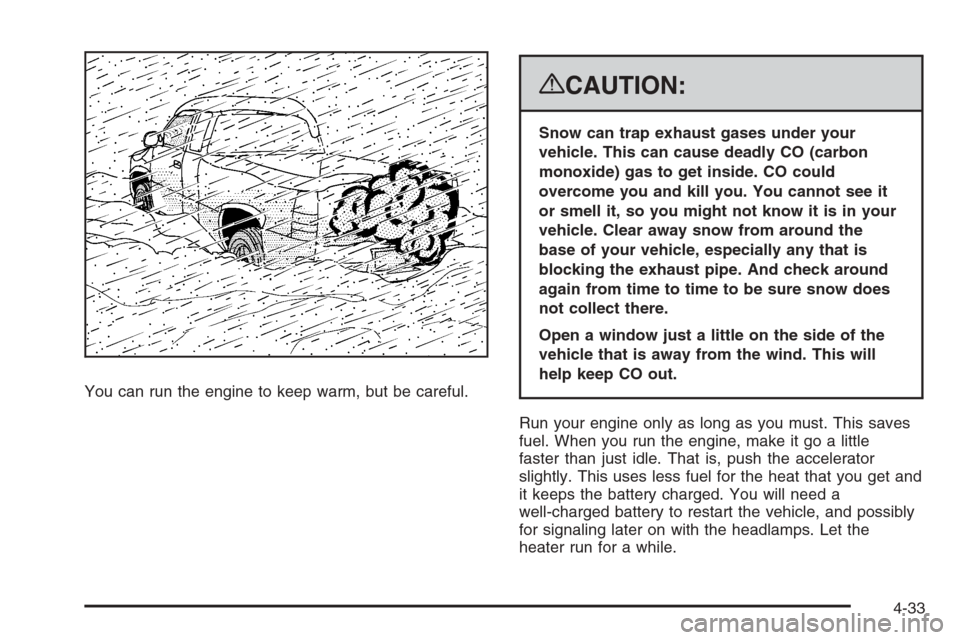
You can run the engine to keep warm, but be careful.
{CAUTION:
Snow can trap exhaust gases under your
vehicle. This can cause deadly CO (carbon
monoxide) gas to get inside. CO could
overcome you and kill you. You cannot see it
or smell it, so you might not know it is in your
vehicle. Clear away snow from around the
base of your vehicle, especially any that is
blocking the exhaust pipe. And check around
again from time to time to be sure snow does
not collect there.
Open a window just a little on the side of the
vehicle that is away from the wind. This will
help keep CO out.
Run your engine only as long as you must. This saves
fuel. When you run the engine, make it go a little
faster than just idle. That is, push the accelerator
slightly. This uses less fuel for the heat that you get and
it keeps the battery charged. You will need a
well-charged battery to restart the vehicle, and possibly
for signaling later on with the headlamps. Let the
heater run for a while.
4-33
Page 403 of 596
Heavy-Duty Trailer Wiring Harness
Package
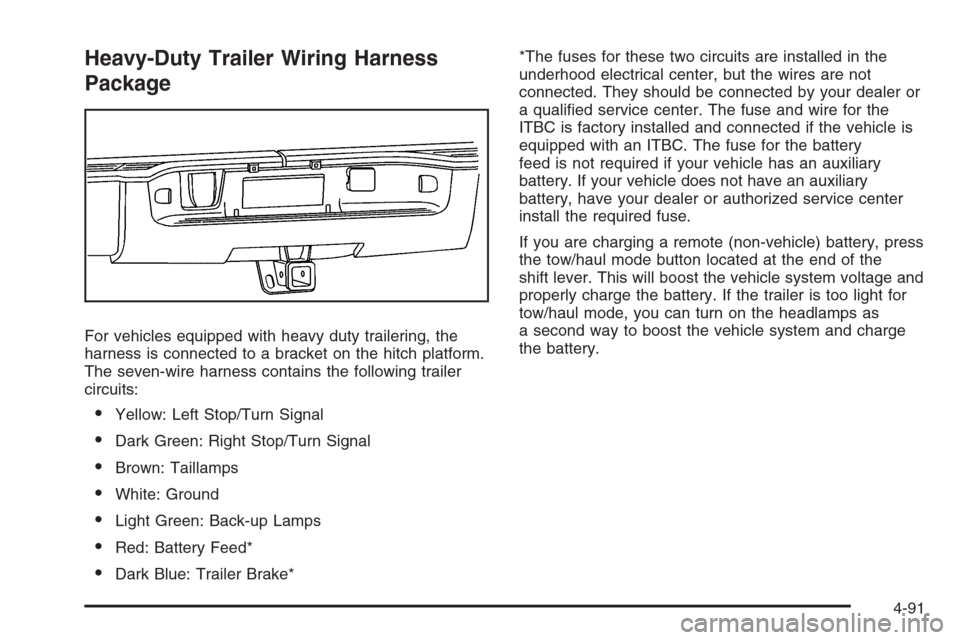
For vehicles equipped with heavy duty trailering, the
harness is connected to a bracket on the hitch platform.
The seven-wire harness contains the following trailer
circuits:
Yellow: Left Stop/Turn Signal
Dark Green: Right Stop/Turn Signal
Brown: Taillamps
White: Ground
Light Green: Back-up Lamps
Red: Battery Feed*
Dark Blue: Trailer Brake**The fuses for these two circuits are installed in the
underhood electrical center, but the wires are not
connected. They should be connected by your dealer or
a qualied service center. The fuse and wire for the
ITBC is factory installed and connected if the vehicle is
equipped with an ITBC. The fuse for the battery
feed is not required if your vehicle has an auxiliary
battery. If your vehicle does not have an auxiliary
battery, have your dealer or authorized service center
install the required fuse.
If you are charging a remote (non-vehicle) battery, press
the tow/haul mode button located at the end of the
shift lever. This will boost the vehicle system voltage and
properly charge the battery. If the trailer is too light for
tow/haul mode, you can turn on the headlamps as
a second way to boost the vehicle system and charge
the battery.
4-91
Page 404 of 596
Camper/Fifth-Wheel Trailer Wiring Package
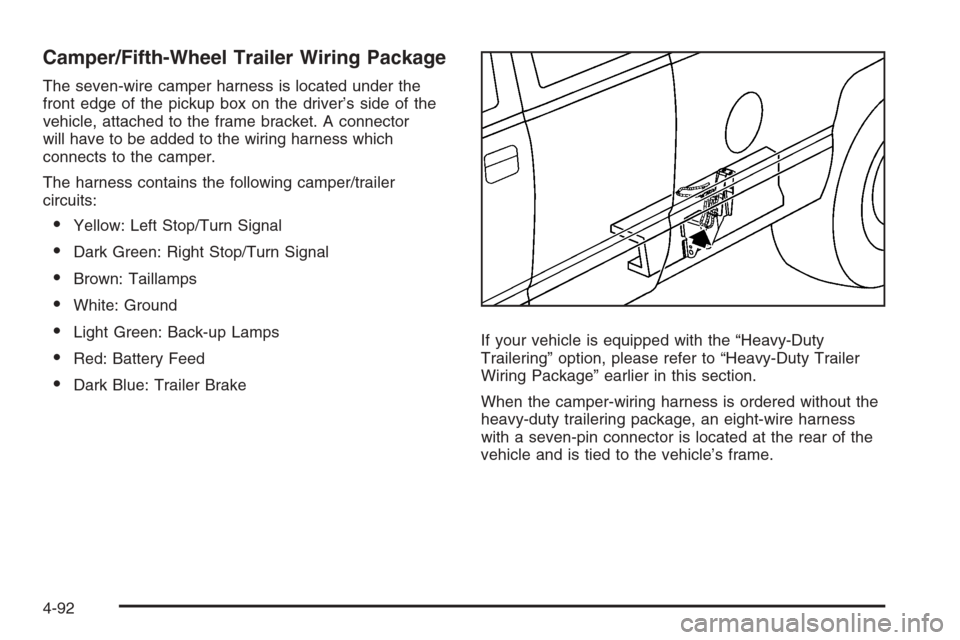
The seven-wire camper harness is located under the
front edge of the pickup box on the driver’s side of the
vehicle, attached to the frame bracket. A connector
will have to be added to the wiring harness which
connects to the camper.
The harness contains the following camper/trailer
circuits:
Yellow: Left Stop/Turn Signal
Dark Green: Right Stop/Turn Signal
Brown: Taillamps
White: Ground
Light Green: Back-up Lamps
Red: Battery Feed
Dark Blue: Trailer BrakeIf your vehicle is equipped with the “Heavy-Duty
Trailering” option, please refer to “Heavy-Duty Trailer
Wiring Package” earlier in this section.
When the camper-wiring harness is ordered without the
heavy-duty trailering package, an eight-wire harness
with a seven-pin connector is located at the rear of the
vehicle and is tied to the vehicle’s frame.
4-92
Page 405 of 596
Electric Brake Control Wiring
Provisions
These wiring provisions are included with your vehicle
as part of the trailer wiring package. These provisions
are for an electric brake controller. The instrument panel
contains blunt cut wires near the data link connector
for the trailer brake controller. The harness contains the
following wires:
Dark Blue: Brake Signal to Trailer Connector
Red/Black: Battery
Light Blue/White: Brake Switch
White: Ground
It should be installed by your dealer or a qualied
service center.
If your vehicle is equipped with an ITBC, the blunt cuts
exist, but are not connected further in the harness. If
you install an aftermarket trailer brake controller,
the ITBC must be disconnected. Do not power both
ITBC and aftermarket controllers to control the trailer
brakes at the same time.
Auxiliary Battery
The auxiliary battery provision can be used to supply
electrical power to additional equipment that you may
choose to add, such as a slide-in camper. If your vehicle
has this provision, this relay will be located on the driver’s
side of the vehicle, next to the underhood electrical
center.
Be sure to follow the proper installation instructions that
are included with any electrical equipment that you install.
Notice:Leaving electrical equipment on for
extended periods will drain the battery. Always turn
off electrical equipment when not in use and do
not use equipment that exceeds the maximum
amperage rating for the auxiliary battery provision.
Trailer Recommendations
You must subtract your hitch loads from the CWR for
your vehicle. Weigh your vehicle with the trailer
attached, so that you won’t go over the GVWR or
GAWR. If you are using a weight-distributing hitch,
weigh the vehicle without the spring bars in place.
You’ll get the best performance if you spread out the
weight of your load the right way, and if you choose the
correct hitch and trailer brakes.
For more information, seeTowing a Trailer on
page 4-55.
4-93
Page 407 of 596
Service............................................................5-4
Accessories and Modications..........................5-4
California Proposition 65 Warning.....................5-4
California Perchlorate Materials Requirements.....5-5
Doing Your Own Service Work.........................5-5
Adding Equipment to the Outside of
Your Vehicle..............................................5-5
Fuel................................................................5-6
Gasoline Octane............................................5-6
Gasoline Specications....................................5-6
California Fuel...............................................5-7
Additives.......................................................5-7
Fuel E85 (85% Ethanol)..................................5-8
Fuels in Foreign Countries...............................5-9
Filling the Tank............................................5-10
Filling a Portable Fuel Container.....................5-12
Checking Things Under the Hood....................5-12
Hood Release..............................................5-13
Engine Compartment Overview.......................5-14
Engine Oil (Gasoline Engine)..........................5-15
Engine Oil Life System..................................5-18
Engine Air Cleaner/Filter (Gasoline Engines).....5-20
Automatic Transmission Fluid
(6-Speed Transmission)..............................5-22Automatic Transmission Fluid
(4-Speed Transmission)..............................5-26
Engine Coolant.............................................5-29
Coolant Surge Tank Pressure Cap..................5-32
Engine Overheating.......................................5-32
Overheated Engine Protection
Operating Mode (V8 Engines Only)..............5-34
Cooling System............................................5-35
Engine Fan Noise.........................................5-40
Power Steering Fluid.....................................5-41
Windshield Washer Fluid................................5-42
Brakes........................................................5-43
Battery........................................................5-46
Jump Starting...............................................5-47
Rear Axle.......................................................5-52
Four-Wheel Drive............................................5-54
Front Axle......................................................5-56
Noise Control System.....................................5-57
Tampering with Noise Control System
Prohibited.................................................5-57
Headlamp Aiming...........................................5-58
Section 5 Service and Appearance Care
5-1