display CHEVROLET SILVERADO 2009 2.G Owners Manual
[x] Cancel search | Manufacturer: CHEVROLET, Model Year: 2009, Model line: SILVERADO, Model: CHEVROLET SILVERADO 2009 2.GPages: 600, PDF Size: 3.24 MB
Page 321 of 600
y(Main Menu):Press this button to access the DVD
menu. The DVD menu is different on every DVD.
Use the navigation arrows to move the cursor around
the DVD menu. After making a selection press the enter
button. This button only operates when using a DVD.
n,q,p,o(Menu Navigation Arrows):Use the
arrow buttons to navigate through a menu.
r(Enter):Press this button to select the choice that
is highlighted in any menu.
z(Display Menu):Press this button to adjust the
brightness, screen display mode (normal, full, or zoom),
and display the language menu.
q(Return):Press this button to exit the current active
menu and return to the previous menu. This button
operates only when the display menu or a DVD menu
is active.
c(Stop):Press this button to stop playing, fast
reversing, or fast forwarding a DVD. Press this button
twice to return to the beginning of the DVD.
s(Play/Pause):Press this button to start playing a
DVD. Press this button while a DVD is playing to
pause it. Press it again to continue playing the DVD.
While the DVD is playing, the DVD can be played slowly
by pressing the play/pause button then pressing the
fast forward button. The DVD continues playing in a slowplay mode. Also, reverse can be played slowly by
pressing the play/pause button and then pressing the
fast reverse button. To cancel slow play mode,
press the play/pause button.
t(Previous Track/Chapter):Press this button to
return to the start of the current track or chapter.
Press this button again to go to the previous track or
chapter. This button might not work when the DVD
is playing the copyright information or the previews.
u(Next Track/Chapter):Press this button to go to the
beginning of the next chapter or track. This button
might not work while the DVD is playing the copyright
information or the previews.
r(Fast Reverse):Press this button to quickly reverse
the DVD or CD. To stop fast reversing a DVD video,
press the play/pause button. To stop fast reversing
a DVD audio or CD, release the fast reverse button.
This button might not work when the DVD is playing the
copyright information or the previews.
[(Fast Forward):Press this button to fast forward
the DVD or CD. To stop fast forwarding a DVD video,
press the play/pause button. To stop fast forwarding
a DVD audio or CD, release the fast forward button.
This button might not work while the DVD is playing the
copyright information or the previews.
3-135
Page 322 of 600
e(Audio):Press this button to change audio tracks on
DVDs that have this feature when the DVD is playing.
The format and content of this function vary for each disc.
{(Subtitles):Press this button to turn ON/OFF
subtitles and to move through subtitle options when a
DVD is playing. The format and content of this function
vary for each disc.
AUX (Auxiliary):Press this button to switch the system
between the DVD player and an auxiliary source.
d(Camera):Press this button to change camera
angles on DVDs that have this feature while a DVD is
playing. The format and content of this function vary for
each disc.
1 through 0 (Numeric Keypad):The numeric keypad
provides the capability of direct chapter or track
number selection.
\(Clear):Press this button within three seconds after
entering a numeric selection, to clear all numerical inputs.
}10 (Double Digit Entries):Press this button to
select chapter or track numbers greater than nine.
Press this button before entering the number.
Battery Replacement
To change the remote control batteries, do the following:
1. Slide the rear cover back on the remote control.
2. Replace the two batteries in the compartment.
Make sure they are installed correctly using the
diagram on the inside of the remote control.
3. Replace the battery cover.
If the remote control is to be stored for a long period of
time, remove the batteries and keep them in a cool,
dry place.
Problem Recommended Action
No power. The ignition might not be
turned ON/RUN or in
ACC/ACCESSORY.
The picture does not ll
the screen. There are
black borders on the
top and bottom or on
both sides or it looks
stretched out.Check the display mode
settings in the setup menu
by pressing the display
menu button on the
remote control.
In auxiliary mode, the
picture moves or scrolls.Check the auxiliary input
connections at both
devices.
3-136
Page 324 of 600
DVD Display Error Messages
The DVD display error message depends on the radio
that is in the vehicle. The video screen can display
one of the following:
Disc Load/Eject Error:This message displays when
there are disc load or eject problems.
Disc Format Error:This message displays, if the disc
is inserted with the disc label wrong side up, or if
the disc is damaged.
Disc Region Error:This message displays, if the disc
is not from a correct region.
No Disc Inserted:This message displays, if no disc
is present when EJECT or DVD AUX is pressed on
the radio.
DVD Distortion
Video distortion can occur when operating cellular
phones, scanners, CB radios, Global Position Systems
(GPS)*, two-way radios, mobile fax, or walkie talkies.
It might be necessary to turn off the DVD player when
operating one of these devices in or near the vehicle.
*Excludes the OnStar
®System.
Cleaning the RSE Overhead Console
When cleaning the RSE overhead console surface, use
only a clean cloth dampened with clean water.
Cleaning the Video Screen
When cleaning the video screen, use only a clean cloth
dampened with clean water. Use care when directly
touching or cleaning the screen, as damage could result.
3-138
Page 325 of 600
Rear Seat Audio (RSA)
Vehicles with this feature allow the rear seat passengers
to listen to and control any of the music sources:
radio, CDs, DVDs, or other auxiliary sources. However,
the rear seat passengers can only control the music
sources the front seat passengers are not listening to
(except on some radios where dual control is allowed).
For example, rear seat passengers can control and
listen to a CD through the headphones, while the
driver listens to the radio through the front speakers.
The rear seat passengers have control of the volume for
each set of headphones.
The RSA functions can be used even while the main
radio is off. The front audio system will display the
headphone icon when the RSA is on, and will disappear
from the display when it is off.
Audio can be heard through wired headphones (not
included) plugged into the jacks on the RSA. If the
vehicle has this feature, audio can also be heard on
Channel 2 of the wireless headphones.
Depending on the audio system, the rear speakers may
continue to play when the RSA audio is active through
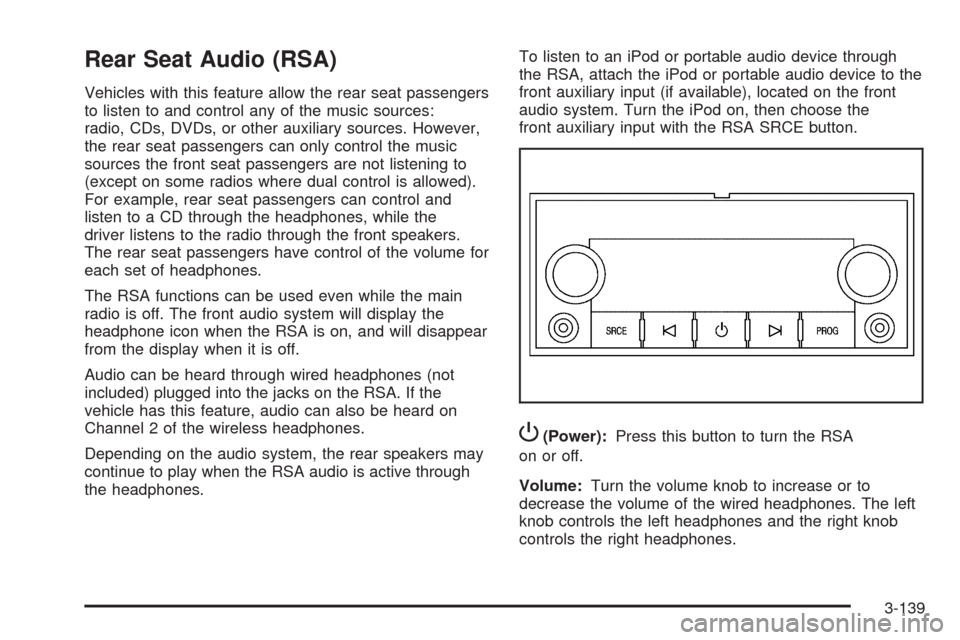
the headphones.To listen to an iPod or portable audio device through
the RSA, attach the iPod or portable audio device to the
front auxiliary input (if available), located on the front
audio system. Turn the iPod on, then choose the
front auxiliary input with the RSA SRCE button.
P(Power):Press this button to turn the RSA
on or off.
Volume:Turn the volume knob to increase or to
decrease the volume of the wired headphones. The left
knob controls the left headphones and the right knob
controls the right headphones.
3-139
Page 326 of 600
SRCE (Source):Press this button to switch between
the radio (AM/FM), XM™ (if equipped), CD, and if
the vehicle has these features, DVD, front auxiliary,
and rear auxiliary.
©¨(Seek):When listening to FM, AM, or XM™
(if equipped), press the seek arrows to go to the
previous or to the next station or channels and stay
there. This function is inactive, with some radios,
if the front seat passengers are listening to the radio.
Press and hold either seek arrow until the display
ashes, to tune to an individual station. The display
stops ashing after the buttons have not been pushed
for more than two seconds. This function is inactive, with
some radios, if the front seat passengers are listening
to the radio.
While listening to a disc, press the left seek arrow to go
back to the start of the current track or chapter
(if more than ten seconds have played). Press the right
seek arrow to go the next track or chapter on the
disc. This function is inactive, with some radios, if the
front seat passengers are listening to the disc.
While a DVD video menu is being displayed, press
either seek arrow to perform a cursor up or down on the
menu. Hold either seek arrow to perform a cursor left
or right on the menu.PROG (Program):Press this button to go to the next
preset radio station or channel set on the main
radio. This function is inactive, with some radios, if the
front seat passengers are listening to the radio.
While a CD or DVD audio disc is playing, press this
button to go to the beginning of the CD or DVD audio.
This function is inactive, with some radios, if the
front seat passengers are listening to the CD or DVD
audio.
While a disc is playing in the CD or DVD changer, press
this button to select the next disc, if multiple discs are
loaded. This function is inactive, with some radios, if the
front seat passengers are listening to the disc.
While a DVD video menu is being displayed, press the
PROG button to perform the menu function, Enter.
Theft-Deterrent Feature
THEFTLOCK®is designed to discourage theft of the
vehicle’s radio by learning a portion of the Vehicle
Identication Number (VIN). The radio does not operate
if it is stolen or moved to a different vehicle.
3-140
Page 335 of 600
If the system fails to turn on or activate, the
StabiliTrak light along with one of the following
messages will be displayed on the Driver Information
Center (DIC): TRACTION CONTROL OFF, SERVICE
TRACTION CONTROL, STABILITRAK OFF, SERVICE
STABILITRAK. If these DIC messages appear, make
sure the StabiliTrak system has not been turned
off using the StabiliTrak on/off button. Then turn
the steering wheel clockwise from the nine o’clock
position to the three o’clock position. If this clears the
message(s), the vehicle does not need servicing. If this
does not clear the message(s), then turn the vehicle
off, wait 15 seconds, and then turn it back on again to
reset the system. If any of these messages still
appear on the DIC, the vehicle should be taken in for
service. For more information on the DIC messages, see
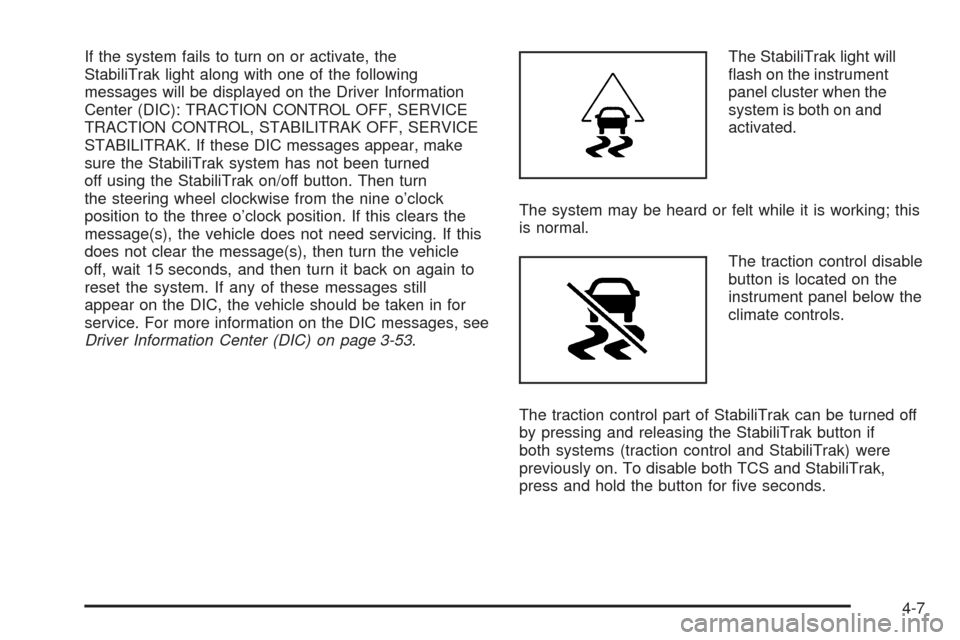
Driver Information Center (DIC) on page 3-53.The StabiliTrak light will
ash on the instrument
panel cluster when the
system is both on and
activated.
The system may be heard or felt while it is working; this
is normal.
The traction control disable
button is located on the
instrument panel below the
climate controls.
The traction control part of StabiliTrak can be turned off
by pressing and releasing the StabiliTrak button if
both systems (traction control and StabiliTrak) were
previously on. To disable both TCS and StabiliTrak,
press and hold the button for ve seconds.
4-7
Page 336 of 600
TCS and StabiliTrak can be turned on by pressing and
releasing the StabiliTrak button if not automatically
shut off for any other reason.
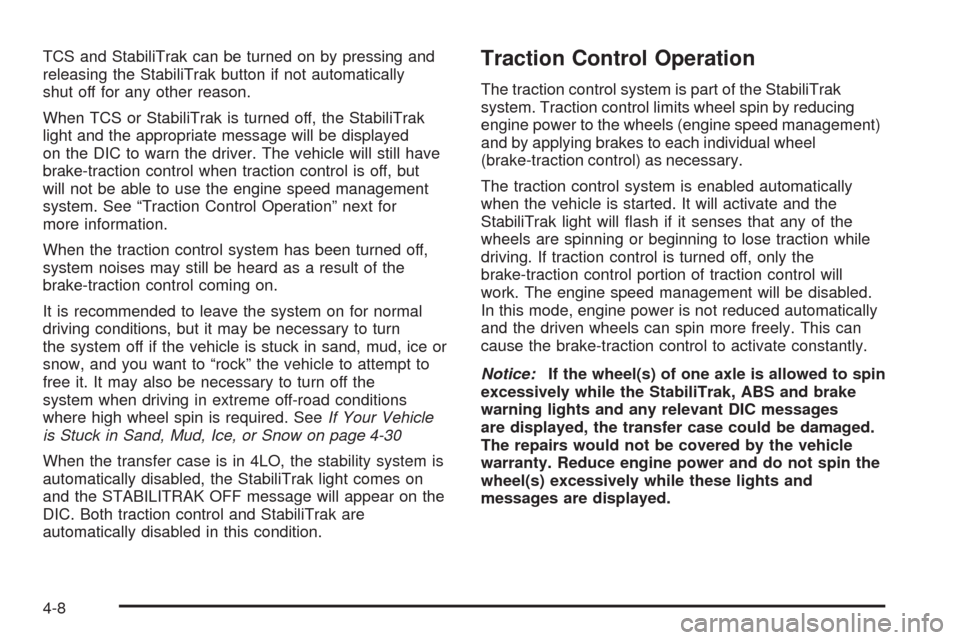
When TCS or StabiliTrak is turned off, the StabiliTrak
light and the appropriate message will be displayed
on the DIC to warn the driver. The vehicle will still have
brake-traction control when traction control is off, but
will not be able to use the engine speed management
system. See “Traction Control Operation” next for
more information.
When the traction control system has been turned off,
system noises may still be heard as a result of the
brake-traction control coming on.
It is recommended to leave the system on for normal
driving conditions, but it may be necessary to turn
the system off if the vehicle is stuck in sand, mud, ice or
snow, and you want to “rock” the vehicle to attempt to
free it. It may also be necessary to turn off the
system when driving in extreme off-road conditions
where high wheel spin is required. SeeIf Your Vehicle
is Stuck in Sand, Mud, Ice, or Snow on page 4-30
When the transfer case is in 4LO, the stability system is
automatically disabled, the StabiliTrak light comes on
and the STABILITRAK OFF message will appear on the
DIC. Both traction control and StabiliTrak are
automatically disabled in this condition.Traction Control Operation
The traction control system is part of the StabiliTrak
system. Traction control limits wheel spin by reducing
engine power to the wheels (engine speed management)
and by applying brakes to each individual wheel
(brake-traction control) as necessary.
The traction control system is enabled automatically
when the vehicle is started. It will activate and the
StabiliTrak light will ash if it senses that any of the
wheels are spinning or beginning to lose traction while
driving. If traction control is turned off, only the
brake-traction control portion of traction control will
work. The engine speed management will be disabled.
In this mode, engine power is not reduced automatically
and the driven wheels can spin more freely. This can
cause the brake-traction control to activate constantly.
Notice:If the wheel(s) of one axle is allowed to spin
excessively while the StabiliTrak, ABS and brake
warning lights and any relevant DIC messages
are displayed, the transfer case could be damaged.
The repairs would not be covered by the vehicle
warranty. Reduce engine power and do not spin the
wheel(s) excessively while these lights and
messages are displayed.
4-8
Page 399 of 600
The ITBC system is a factory installed item.
Out-of-factory installation of this system should not be
attempted. GM is not responsible for warranty or
performance of the system resulting from out-of-factory
installation.
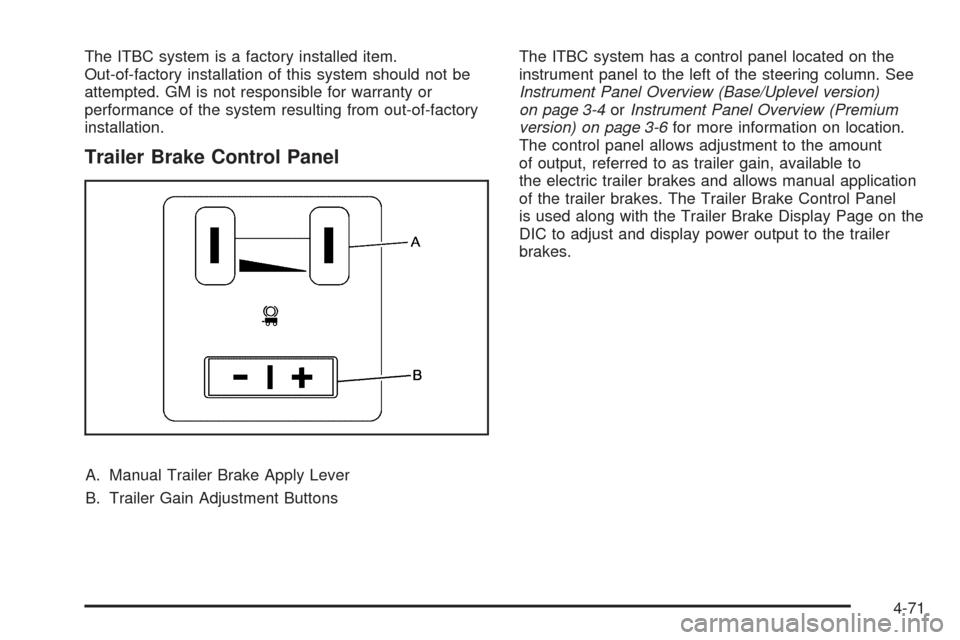
Trailer Brake Control Panel
A. Manual Trailer Brake Apply Lever
B. Trailer Gain Adjustment ButtonsThe ITBC system has a control panel located on the
instrument panel to the left of the steering column. See
Instrument Panel Overview (Base/Uplevel version)
on page 3-4orInstrument Panel Overview (Premium
version) on page 3-6for more information on location.
The control panel allows adjustment to the amount
of output, referred to as trailer gain, available to
the electric trailer brakes and allows manual application
of the trailer brakes. The Trailer Brake Control Panel
is used along with the Trailer Brake Display Page on the
DIC to adjust and display power output to the trailer
brakes.
4-71
Page 400 of 600
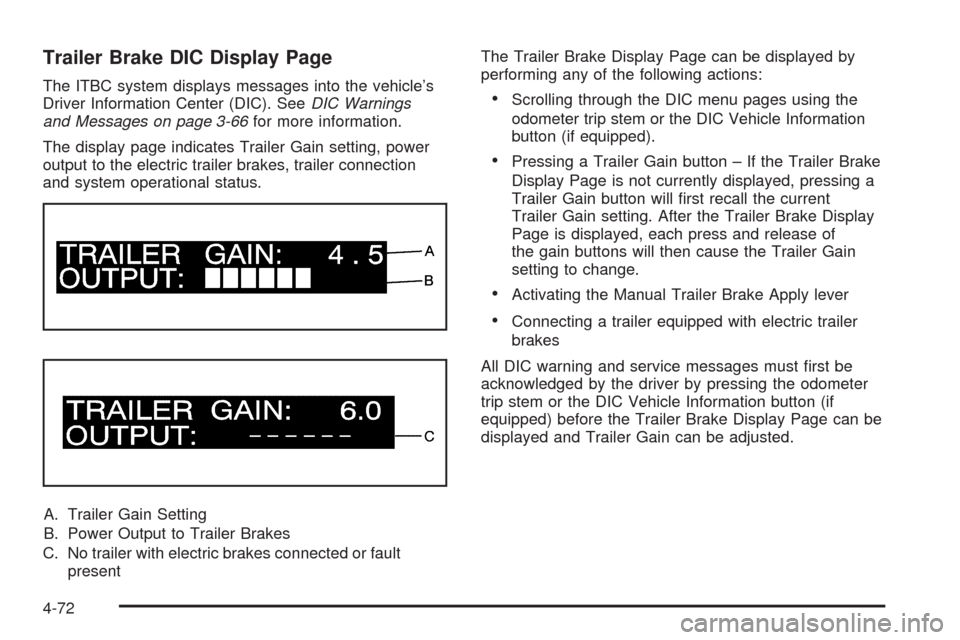
Trailer Brake DIC Display Page
The ITBC system displays messages into the vehicle’s
Driver Information Center (DIC). SeeDIC Warnings
and Messages on page 3-66for more information.
The display page indicates Trailer Gain setting, power
output to the electric trailer brakes, trailer connection
and system operational status.
A. Trailer Gain Setting
B. Power Output to Trailer Brakes
C. No trailer with electric brakes connected or fault
presentThe Trailer Brake Display Page can be displayed by
performing any of the following actions:Scrolling through the DIC menu pages using the
odometer trip stem or the DIC Vehicle Information
button (if equipped).
Pressing a Trailer Gain button – If the Trailer Brake
Display Page is not currently displayed, pressing a
Trailer Gain button will rst recall the current
Trailer Gain setting. After the Trailer Brake Display
Page is displayed, each press and release of
the gain buttons will then cause the Trailer Gain
setting to change.
Activating the Manual Trailer Brake Apply lever
Connecting a trailer equipped with electric trailer
brakes
All DIC warning and service messages must rst be
acknowledged by the driver by pressing the odometer
trip stem or the DIC Vehicle Information button (if
equipped) before the Trailer Brake Display Page can be
displayed and Trailer Gain can be adjusted.
4-72
Page 401 of 600
TRAILER GAIN – This setting is displayed anytime the
Trailer Brake Display Page is active. This setting
can be adjusted from 0.0 to 10.0 with either a trailer
connected or disconnected. To adjust the Trailer Gain,
press one of the Trailer Gain adjustment buttons
located on the Trailer Brake Control Panel. Press and
hold a gain button to cause the Trailer Gain to
continuously adjust. To turn the output to the trailer off,
adjust the Trailer Gain setting to 0.0 (zero).
0.0 (zero) gain is the factory default setting. To properly
adjust trailer gain, see the Trailer Gain Adjustment
Procedure later in this section.
TRAILER OUTPUT – This is displayed any time a trailer
with electric brakes is connected. Output to the electric
brakes is based on the amount of vehicle braking
present and relative to the Trailer Gain setting. Output is
displayed from 0 to 10 bars for each gain setting.
The Trailer Output will indicate “------“ontheTrailer
Brake Display Page whenever the following occur:
No trailer is connected.
A trailer without electric brakes is connected
(no DIC message is displayed).
A trailer with electric brakes has become
disconnected (a CHECK TRAILER WIRING
message will also be displayed on the DIC).
There is a fault present in the wiring to the electric
trailer brakes (a CHECK TRAILER WIRING
message will also be displayed on the DIC).
There is a fault in the ITBC system (a SERVICE
TRAILER BRAKE SYSTEM message will also
be displayed in the DIC).
Manual Trailer Brake Apply
The Manual Trailer Brake Apply Lever is located on the
Trailer Brake Control Panel and is used to apply the
trailer’s electric brakes independent of the vehicle’s
brakes. This lever is used in the Trailer Gain Adjustment
Procedure to properly adjust the power output to the
trailer brakes. Sliding the lever to the left will apply only
the trailer brakes. The power output to the trailer is
indicated in the Trailer Brake Display Page in the DIC. If
the vehicle’s service brakes are applied while using
the Manual Trailer Brake Apply Lever, the trailer output
power will be the greater of the two.
The trailer and the vehicle’s brake lamps will come on
when either vehicle braking or manual trailer brakes are
applied.
4-73