stop start CHEVROLET SILVERADO 2009 2.G Owner's Manual
[x] Cancel search | Manufacturer: CHEVROLET, Model Year: 2009, Model line: SILVERADO, Model: CHEVROLET SILVERADO 2009 2.GPages: 600, PDF Size: 3.24 MB
Page 283 of 600
If the ignition or radio is turned off with a CD in the
player it stays in the player. When the ignition or radio
is turned on, the CD starts to play where it stopped, if it
was the last selected audio source.
When the CD is inserted, the CD symbol displays.
As each new track starts to play, the track number
displays.
The CD player can play the smaller 3 inch (8 cm)
single CDs with an adapter ring. Full-size CDs and the
smaller CDs are loaded in the same manner.
Playing a CD (In Either the DVD or
CD Slot)
Insert a CD partway into the slot, label side up.
The player pulls it in and the CD should begin playing
(loading a disc into the system, depending on media
type and format ranges from 5 to 20 seconds for a CD,
and up to 30 seconds for a DVD to begin playing).
If the ignition or radio is turned off, with a CD in
the player, it stays in the player. When the ignition or
radio is turned on, the CD starts playing where it
stopped, if it was the last selected audio source.
The CD is controlled by the buttons on the radio
faceplate or by the RSA unit. SeeRear Seat Audio
(RSA) on page 3-139for more information. The DVD/CD
decks, (upper slot is the DVD deck and the lower slot
is the CD deck) of the radio are compatible with
most audio CDs, CD-R, CD-RW, and MP3s.When a CD is inserted, the text label DVD or CD
symbol displays on the left side of the radio display.
As each new track starts to play, the track number
displays.
The CD player can play the smaller 3 inch (8 cm)
single CDs with an adapter ring. Full-size CDs and
the smaller CDs are loaded in the same manner.
Care of CDs
If playing a CD-R, the sound quality can be reduced
due to CD-R or CD-RW quality, the method of recording,
the quality of the music that has been recorded, and
the way the CD-R or CD-RW has been handled. Handle
them carefully. Store CD-R(s) or CD-RW(s) in their
original cases or other protective cases and away from
direct sunlight and dust. The CD or DVD player scans
the bottom surface of the disc. If the surface of a CD is
damaged, such as cracked, broken, or scratched,
the CD does not play properly or not at all. Do not touch
the bottom side of a CD while handling it; this could
damage the surface. Pick up CDs by grasping the outer
edges or the edge of the hole and the outer edge.
If the surface of a CD is soiled, take a soft, lint free cloth
or dampen a clean, soft cloth in a mild, neutral
detergent solution mixed with water, and clean it.
Make sure the wiping process starts from the center
to the edge.
3-97
Page 289 of 600
A lock symbol displays next to the clock display.
The parental control feature remains on until the knob is
pressed and held for more than two seconds again,
or until the driver turns the ignition off and exits
the vehicle.
f(Tune):Turn to change tracks on a CD or DVD, to
manually tune a radio station, or to change clock or date
settings, while in the clock or date setting mode. See
the information given earlier in this section specic to the
radio, CD, and the DVD. Also, see “Setting the Time”
in the index, for setting the clock and date.
©SEEK (Previous Track/Chapter):Press the
left arrow to return to the start of the current track or
chapter. Press the left arrow again to go to the previous
track or chapter. This button might not work when the
DVD is playing the copyright information or the previews.
SEEK
¨(Next Track/Chapter):Press the right arrow
to go to the next track or chapter. This button might
not work when the DVD is playing the copyright
information or the previews.
sREV (Fast Reverse):Press to quickly reverse the
CD or DVD at ve times the normal speed. The radio
displays the elapsed time while in fast reverse. To stop
fast reversing, press again. This button might not work
when the DVD is playing the copyright information or the
previews.
\FWD (Fast Forward):Press to fast forward the
CD or DVD. The radio displays the elapsed time and
fast forwards ve times the normal speed. To stop fast
forwarding, press again. This button might not work
when the DVD is playing the copyright information or
the previews.
Z(Eject):Press to eject a CD or DVD. If a CD or
DVD is ejected, but not removed, the player
automatically pulls it back in after 15 seconds.
If loading and reading of a CD cannot be completed,
because of an unknown format, etc., and the disc fails
to eject, press and hold for more than ve seconds
to force the disc to eject.
3-103
Page 290 of 600
DVD-V (Video) Display Buttons
Once a DVD-V is inserted, the radio display menu
shows several tag options for DVD playing. Press the
pushbuttons located under any desired tag option
during DVD playback. See the tag options listed after,
for more information.
The rear seat passenger can navigate the DVD-V
menus and controls through the remote control. See
“Remote Control”, underRear Seat Entertainment (RSE)
System on page 3-129for more information. The Video
Screen automatically turns on when the DVD-V is
inserted into the DVD slot.
r/j(Play/Pause):Press either the play or pause
icon displayed on the radio system, to toggle between
pausing or restarting playback of a DVD. If the
forward arrow is showing on display, the system is in
pause mode. If the pause icon is showing on display, the
system is in playback mode. If the DVD screen is off,
press the play button to turn the screen on.
Some DVDs begin playing after the previews have
nished, although there could be a delay of up to
30 seconds. If the DVD does not begin playing themovie automatically, press the pushbutton located
under the play/pause symbol tag displayed on the radio.
If the DVD still does not play, refer to the on-screen
instructions, if available.
c(Stop):Press to stop playing, rewinding, or fast
forwarding a DVD.
r(Enter):Press to select the choices that are
highlighted in any menu.
y(Menu):Press to access the DVD menu. The DVD
menu is different on every DVD. Use the pushbuttons
located under the navigation arrows to navigate
the cursor through the DVD menu. After making a
selection press this button. This button only operates
when using a DVD.
Nav (Navigate):Press to display directional arrows for
navigating through the menus.
q(Return):Press to exit the current active menu
and return to the previous menu. This button operates
only when a DVD is playing and a menu is active.
3-104
Page 296 of 600
When play enters a new folder, the display does not
automatically show the new folder name unless
the folder mode has been chosen as the default display.
The new track name displays.
File System and Naming
The song name that displays is the song name that is
contained in the ID3 tag. If the song name is not present
in the ID3 tag, then the radio displays the le name
without the extension (such as .mp3) as the track name.
Track names longer than 32 characters or four pages
are shortened. Parts of words on the last page of
text and the extension of the lename does not display.
Preprogrammed Playlists
Preprogrammed playlists that were created using
WinAmp™, MusicMatch™, or Real Jukebox™ software
can be accessed, however, they cannot be edited
using the radio. These playlists are treated as special
folders containing compressed audio song les.
Playing an MP3
Insert a CD-R or CD-RW partway into the slot
(Single CD Player), or press the load button and wait
for the message to insert disc (Six-Disc CD Player),
label side up. The player pulls it in, and the CD-R
or CD-RW should begin playing.
If the ignition or radio is turned off with a CD-R or
CD-RW in the player it stays in the player. When the
ignition or radio is turned on, the CD-R or CD-RW starts
to play where it stopped, if it was the last selected
audio source.
As each new track starts to play, the track number and
song title displays.
ZEJECT:Press this button to eject CD-R(s) or
CD-RW(s). To eject the CD-R or CD-RW that is currently
playing, press and release this button. A beep sounds
and Ejecting Disc displays. Once the disc is ejected,
Remove Disc displays. The CD-R or CD-RW can
be removed. If the CD-R or CD-RW is not removed,
after several seconds, the CD-R or CD-RW
automatically pulls back into the player and begins
playing. For the Six-Disc CD player, press and hold this
button for two seconds to eject all discs.
3-110
Page 301 of 600
Preprogrammed Playlists
Preprogrammed playlists that were created using
WinAmp™, MusicMatch™, or Real Jukebox™ software
can be accessed, however, they cannot be edited
using the radio. These playlists are treated as special
folders containing compressed audio song les.
Playing an MP3/WMA
(In Either the DVD or CD Slot)
Insert a CD-R or CD-RW partway into either the top or
bottom slot, label side up. The player pulls it in, and
the CD-R or CD-RW should begin playing.
Depending on the format of the disc, a softkey menu
appears and allows navigation of the disc. The menu
reads left to right as RDM (Randomize song play order),
a Folder icon with left and right arrows (to move up or
down through available folders), a PL tag if the disc has
a Playlist available, and a Music Navigator tag. If a
Playlist tag is shown, toggling this key brings up a Folder
softkey only or the menu as previously described.
If the ignition or radio is turned off with a CD-R or
CD-RW in the player it stays in the player. When the
ignition or radio is turned back on, the CD-R starts
to play where it stopped, if it was the last selected
audio source.
As each new track starts to play, the track number and
song title displays.
ZCD (Eject):Press and release this button to eject
the CD-R or CD-RW that is currently playing in the
bottom slot. A beep sounds and Ejecting Disc displays.
Once the disc is ejected, Remove Disc displays.
The CD-R or CD-RW can be removed. If the CD-R or
CD-RW is not removed, after several seconds, the CD-R
or CD-RW automatically pulls back into the player.
If loading and reading of a CD cannot be completed,
such as unknown format, etc., and the disc fails to eject,
press and hold this button for more than ve seconds
to force the disc to eject.
ZDVD (Eject):Press and release this button to eject
the CD-R or CD-RW that is currently playing in the
top slot. A beep sounds and Ejecting Disc displays.
Once the disc is ejected, Remove Disc displays.
The CD-R or CD-RW can be removed. If the CD-R or
CD-RW is not removed, after several seconds, the CD-R
automatically pulls back into the player. If loading and
reading of a CD cannot be completed, such as unknown
format, etc., and the disc fails to eject, press and hold
this button for more than ve seconds to force the disc
to eject.
f(Tune):Turn this knob to select MP3/WMA les on
the CD-R or CD-RW that is currently playing.
3-115
Page 316 of 600
Parental Control
The RSE system may have a Parental Control feature,
depending on which radio the vehicle has. To start
Parental Control, press and hold the radio power button
for more than two seconds to stop all system features
such as: radio, video screen, RSA, DVD and/or CD.
While Parental Control is on, a padlock icon displays.
The radio can be turned back on with a single press of
the power button, but the RSE system will remain
under Parental Control.
To turn Parental Control off, press and hold the radio
power button for more than two seconds. The RSE
returns from where it was previously left and the padlock
icon disappears from the radio display.
Parental Control can also be turned off by inserting or
ejecting any disc, pressing the play icon on the
radio DVD display menu, or changing an ignition
position.
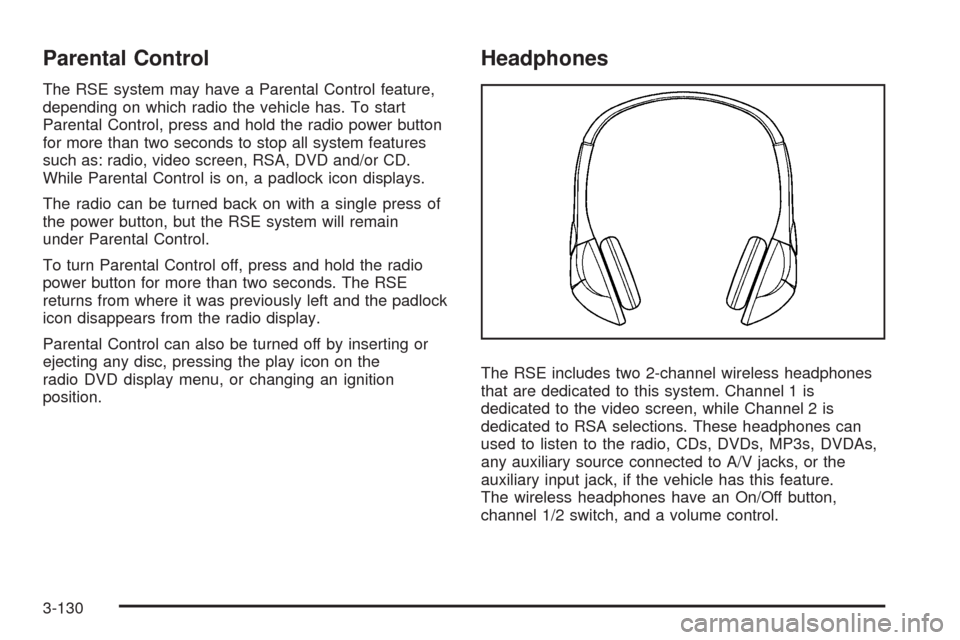
Headphones
The RSE includes two 2-channel wireless headphones
that are dedicated to this system. Channel 1 is
dedicated to the video screen, while Channel 2 is
dedicated to RSA selections. These headphones can
used to listen to the radio, CDs, DVDs, MP3s, DVDAs,
any auxiliary source connected to A/V jacks, or the
auxiliary input jack, if the vehicle has this feature.
The wireless headphones have an On/Off button,
channel 1/2 switch, and a volume control.
3-130
Page 321 of 600
y(Main Menu):Press this button to access the DVD
menu. The DVD menu is different on every DVD.
Use the navigation arrows to move the cursor around
the DVD menu. After making a selection press the enter
button. This button only operates when using a DVD.
n,q,p,o(Menu Navigation Arrows):Use the
arrow buttons to navigate through a menu.
r(Enter):Press this button to select the choice that
is highlighted in any menu.
z(Display Menu):Press this button to adjust the
brightness, screen display mode (normal, full, or zoom),
and display the language menu.
q(Return):Press this button to exit the current active
menu and return to the previous menu. This button
operates only when the display menu or a DVD menu
is active.
c(Stop):Press this button to stop playing, fast
reversing, or fast forwarding a DVD. Press this button
twice to return to the beginning of the DVD.
s(Play/Pause):Press this button to start playing a
DVD. Press this button while a DVD is playing to
pause it. Press it again to continue playing the DVD.
While the DVD is playing, the DVD can be played slowly
by pressing the play/pause button then pressing the
fast forward button. The DVD continues playing in a slowplay mode. Also, reverse can be played slowly by
pressing the play/pause button and then pressing the
fast reverse button. To cancel slow play mode,
press the play/pause button.
t(Previous Track/Chapter):Press this button to
return to the start of the current track or chapter.
Press this button again to go to the previous track or
chapter. This button might not work when the DVD
is playing the copyright information or the previews.
u(Next Track/Chapter):Press this button to go to the
beginning of the next chapter or track. This button
might not work while the DVD is playing the copyright
information or the previews.
r(Fast Reverse):Press this button to quickly reverse
the DVD or CD. To stop fast reversing a DVD video,
press the play/pause button. To stop fast reversing
a DVD audio or CD, release the fast reverse button.
This button might not work when the DVD is playing the
copyright information or the previews.
[(Fast Forward):Press this button to fast forward
the DVD or CD. To stop fast forwarding a DVD video,
press the play/pause button. To stop fast forwarding
a DVD audio or CD, release the fast forward button.
This button might not work while the DVD is playing the
copyright information or the previews.
3-135
Page 323 of 600
Problem Recommended Action
The remote control
does not work.Check to make sure there
is no obstruction between
the remote control and
the transmitter window.
Check the batteries to
make sure they are
not dead or installed
incorrectly.
After stopping the player,
I push Play but sometimes
the DVD starts where I left
off and sometimes at the
beginning.If the stop button was
pressed one time, the
DVD player resumes
playing where the DVD
was stopped. If the stop
button was pressed two
times the DVD player
begins to play from the
beginning of the DVD.
The auxiliary source is
running but there is no
picture or sound.Check that the RSE
video screen is in the
auxiliary source mode.
Check the auxiliary input
connections at both
devices.Problem Recommended Action
Sometimes the wireless
headphone audio cuts out
or buzzes.Check for obstructions,
low batteries, reception
range, and interference
from cellular telephone
towers or by using a
cellular telephone in
the vehicle.
Check that the
headphones are on
correctly using the L (left)
and R (right) on the
headphones.
I lost the remote and/or
the headphones.See your dealer/retailer
for assistance.
The DVD is playing, but
there is no picture or
sound.Check that the RSE video
screen is sourced to the
DVD player.
3-137
Page 326 of 600
SRCE (Source):Press this button to switch between
the radio (AM/FM), XM™ (if equipped), CD, and if
the vehicle has these features, DVD, front auxiliary,
and rear auxiliary.
©¨(Seek):When listening to FM, AM, or XM™
(if equipped), press the seek arrows to go to the
previous or to the next station or channels and stay
there. This function is inactive, with some radios,
if the front seat passengers are listening to the radio.
Press and hold either seek arrow until the display
ashes, to tune to an individual station. The display
stops ashing after the buttons have not been pushed
for more than two seconds. This function is inactive, with
some radios, if the front seat passengers are listening
to the radio.
While listening to a disc, press the left seek arrow to go
back to the start of the current track or chapter
(if more than ten seconds have played). Press the right
seek arrow to go the next track or chapter on the
disc. This function is inactive, with some radios, if the
front seat passengers are listening to the disc.
While a DVD video menu is being displayed, press
either seek arrow to perform a cursor up or down on the
menu. Hold either seek arrow to perform a cursor left
or right on the menu.PROG (Program):Press this button to go to the next
preset radio station or channel set on the main
radio. This function is inactive, with some radios, if the
front seat passengers are listening to the radio.
While a CD or DVD audio disc is playing, press this
button to go to the beginning of the CD or DVD audio.
This function is inactive, with some radios, if the
front seat passengers are listening to the CD or DVD
audio.
While a disc is playing in the CD or DVD changer, press
this button to select the next disc, if multiple discs are
loaded. This function is inactive, with some radios, if the
front seat passengers are listening to the disc.
While a DVD video menu is being displayed, press the
PROG button to perform the menu function, Enter.
Theft-Deterrent Feature
THEFTLOCK®is designed to discourage theft of the
vehicle’s radio by learning a portion of the Vehicle
Identication Number (VIN). The radio does not operate
if it is stolen or moved to a different vehicle.
3-140
Page 330 of 600
Your Driving, the Road, and
the Vehicle
Driving for Better Fuel Economy
Driving habits can affect fuel mileage. Here are some
driving tips to get the best fuel economy possible.
Avoid fast starts and accelerate smoothly.
Brake gradually and avoid abrupt stops.
Avoid idling the engine for long periods of time.
When road and weather conditions are appropriate,
use cruise control, if equipped.
Always follow posted speed limits or drive more
slowly when conditions require.
Keep vehicle tires properly inated.
Combine several trips into a single trip.
Replace the vehicle’s tires with the same TPC Spec
number molded into the tire’s sidewall near the size.
Follow recommended scheduled maintenance.
Defensive Driving
Defensive driving means “always expect the
unexpected.” The rst step in driving defensively is to
wear your safety belt — SeeSafety Belts: They Are for
Everyone on page 1-16.
{CAUTION:
Assume that other road users (pedestrians,
bicyclists, and other drivers) are going to be
careless and make mistakes. Anticipate what they
might do and be ready. In addition:
Allow enough following distance between you
and the driver in front of you.
Focus on the task of driving.
Driver distraction can cause collisions resulting in
injury or possible death. These simple defensive
driving techniques could save your life.
4-2