buttons CHEVROLET SILVERADO 2009 2.G Workshop Manual
[x] Cancel search | Manufacturer: CHEVROLET, Model Year: 2009, Model line: SILVERADO, Model: CHEVROLET SILVERADO 2009 2.GPages: 600, PDF Size: 3.24 MB
Page 306 of 600
Bluetooth Controls
Use the buttons located on the steering wheel to
operate the in-vehicle Bluetooth system. SeeAudio
Steering Wheel Controls on page 3-141for more
information.
bg(Push To Talk):Press to answer incoming calls,
to conrm system information, and to start speech
recognition.
cx(Phone On Hook):Press to end a call, reject a
call, or to cancel an operation.
Pairing
A Bluetooth enabled cell phone must be paired to the
in-vehicle Bluetooth system rst and then connected to
the vehicle before it can be used. See the cell phone
manufacturers user guide for Bluetooth functions before
pairing the cell phone. If a Bluetooth phone is not
connected, calls will be made using OnStar
®
Hands-Free Calling, if available. Refer to the OnStar
owner’s guide for more information.Pairing Information:
Up to ve cell phones can be paired to the in-vehicle
Bluetooth system.
The pairing process is disabled when the vehicle is
moving.
The in-vehicle Bluetooth system automatically links
with the rst available paired cell phone in the
order the phone was paired.
Only one paired cell phone can be connected to the
in-vehicle Bluetooth system at a time.
Pairing should only need to be completed once,
unless changes to the pairing information have
been made or the phone is deleted.
To link to a different paired phone, see Linking to a
Different Phone later in this section.
Pairing a Phone
1. Press and holdbgfor two seconds. The system
responds with “Ready” followed by a tone.
2. Say “Bluetooth”. The system responds with
“Bluetooth ready” followed by a tone.
3. Say “Pair”. The system responds with instructions
and a four digit PIN number. The PIN number will
be used in Step 4.
3-120
Page 320 of 600
Remote Control
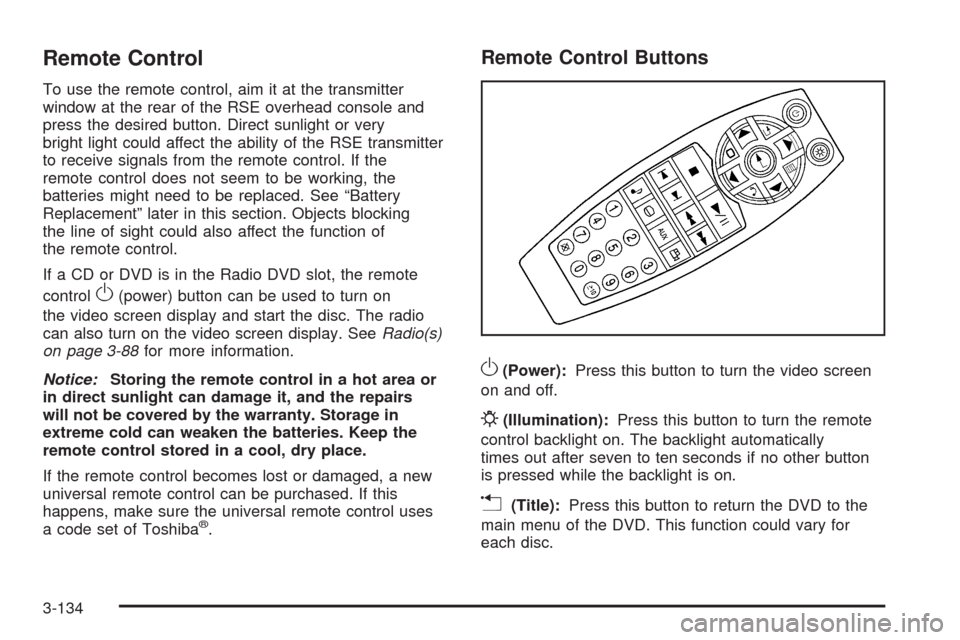
To use the remote control, aim it at the transmitter
window at the rear of the RSE overhead console and
press the desired button. Direct sunlight or very
bright light could affect the ability of the RSE transmitter
to receive signals from the remote control. If the
remote control does not seem to be working, the
batteries might need to be replaced. See “Battery
Replacement” later in this section. Objects blocking
the line of sight could also affect the function of
the remote control.
If a CD or DVD is in the Radio DVD slot, the remote
control
O(power) button can be used to turn on
the video screen display and start the disc. The radio
can also turn on the video screen display. SeeRadio(s)
on page 3-88for more information.
Notice:Storing the remote control in a hot area or
in direct sunlight can damage it, and the repairs
will not be covered by the warranty. Storage in
extreme cold can weaken the batteries. Keep the
remote control stored in a cool, dry place.
If the remote control becomes lost or damaged, a new
universal remote control can be purchased. If this
happens, make sure the universal remote control uses
a code set of Toshiba
®.
Remote Control Buttons
O(Power):Press this button to turn the video screen
on and off.
P(Illumination):Press this button to turn the remote
control backlight on. The backlight automatically
times out after seven to ten seconds if no other button
is pressed while the backlight is on.
v(Title):Press this button to return the DVD to the
main menu of the DVD. This function could vary for
each disc.
3-134
Page 321 of 600
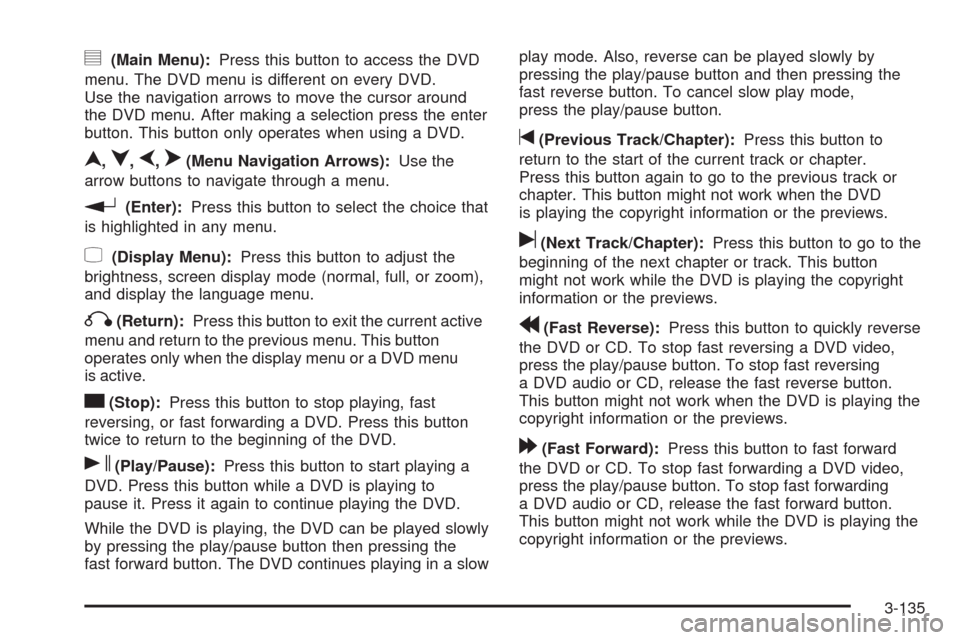
y(Main Menu):Press this button to access the DVD
menu. The DVD menu is different on every DVD.
Use the navigation arrows to move the cursor around
the DVD menu. After making a selection press the enter
button. This button only operates when using a DVD.
n,q,p,o(Menu Navigation Arrows):Use the
arrow buttons to navigate through a menu.
r(Enter):Press this button to select the choice that
is highlighted in any menu.
z(Display Menu):Press this button to adjust the
brightness, screen display mode (normal, full, or zoom),
and display the language menu.
q(Return):Press this button to exit the current active
menu and return to the previous menu. This button
operates only when the display menu or a DVD menu
is active.
c(Stop):Press this button to stop playing, fast
reversing, or fast forwarding a DVD. Press this button
twice to return to the beginning of the DVD.
s(Play/Pause):Press this button to start playing a
DVD. Press this button while a DVD is playing to
pause it. Press it again to continue playing the DVD.
While the DVD is playing, the DVD can be played slowly
by pressing the play/pause button then pressing the
fast forward button. The DVD continues playing in a slowplay mode. Also, reverse can be played slowly by
pressing the play/pause button and then pressing the
fast reverse button. To cancel slow play mode,
press the play/pause button.
t(Previous Track/Chapter):Press this button to
return to the start of the current track or chapter.
Press this button again to go to the previous track or
chapter. This button might not work when the DVD
is playing the copyright information or the previews.
u(Next Track/Chapter):Press this button to go to the
beginning of the next chapter or track. This button
might not work while the DVD is playing the copyright
information or the previews.
r(Fast Reverse):Press this button to quickly reverse
the DVD or CD. To stop fast reversing a DVD video,
press the play/pause button. To stop fast reversing
a DVD audio or CD, release the fast reverse button.
This button might not work when the DVD is playing the
copyright information or the previews.
[(Fast Forward):Press this button to fast forward
the DVD or CD. To stop fast forwarding a DVD video,
press the play/pause button. To stop fast forwarding
a DVD audio or CD, release the fast forward button.
This button might not work while the DVD is playing the
copyright information or the previews.
3-135
Page 326 of 600
SRCE (Source):Press this button to switch between
the radio (AM/FM), XM™ (if equipped), CD, and if
the vehicle has these features, DVD, front auxiliary,
and rear auxiliary.
©¨(Seek):When listening to FM, AM, or XM™
(if equipped), press the seek arrows to go to the
previous or to the next station or channels and stay
there. This function is inactive, with some radios,
if the front seat passengers are listening to the radio.
Press and hold either seek arrow until the display
ashes, to tune to an individual station. The display
stops ashing after the buttons have not been pushed
for more than two seconds. This function is inactive, with
some radios, if the front seat passengers are listening
to the radio.
While listening to a disc, press the left seek arrow to go
back to the start of the current track or chapter
(if more than ten seconds have played). Press the right
seek arrow to go the next track or chapter on the
disc. This function is inactive, with some radios, if the
front seat passengers are listening to the disc.
While a DVD video menu is being displayed, press
either seek arrow to perform a cursor up or down on the
menu. Hold either seek arrow to perform a cursor left
or right on the menu.PROG (Program):Press this button to go to the next
preset radio station or channel set on the main
radio. This function is inactive, with some radios, if the
front seat passengers are listening to the radio.
While a CD or DVD audio disc is playing, press this
button to go to the beginning of the CD or DVD audio.
This function is inactive, with some radios, if the
front seat passengers are listening to the CD or DVD
audio.
While a disc is playing in the CD or DVD changer, press
this button to select the next disc, if multiple discs are
loaded. This function is inactive, with some radios, if the
front seat passengers are listening to the disc.
While a DVD video menu is being displayed, press the
PROG button to perform the menu function, Enter.
Theft-Deterrent Feature
THEFTLOCK®is designed to discourage theft of the
vehicle’s radio by learning a portion of the Vehicle
Identication Number (VIN). The radio does not operate
if it is stolen or moved to a different vehicle.
3-140
Page 399 of 600
The ITBC system is a factory installed item.
Out-of-factory installation of this system should not be
attempted. GM is not responsible for warranty or
performance of the system resulting from out-of-factory
installation.
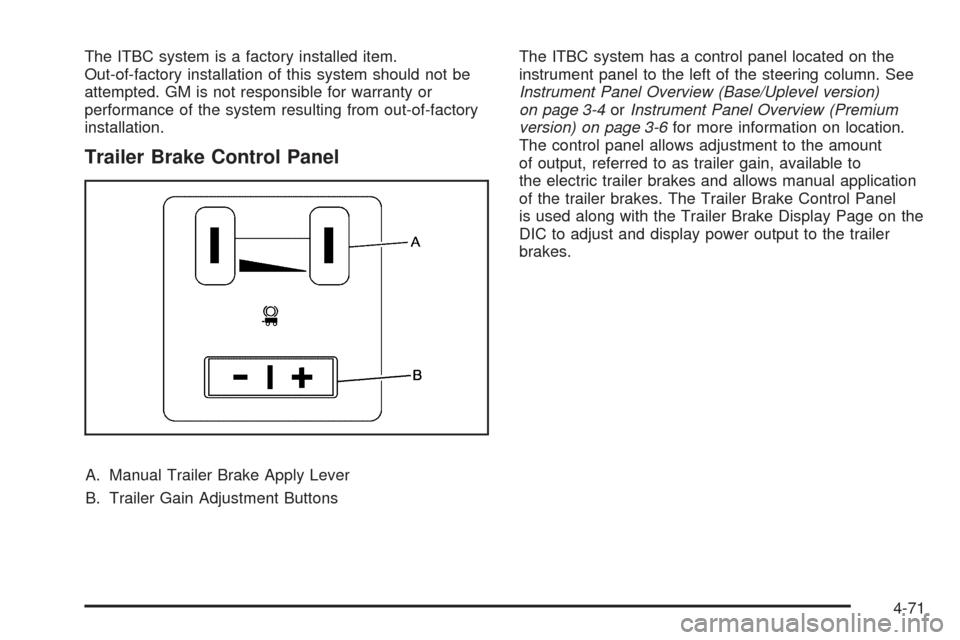
Trailer Brake Control Panel
A. Manual Trailer Brake Apply Lever
B. Trailer Gain Adjustment ButtonsThe ITBC system has a control panel located on the
instrument panel to the left of the steering column. See
Instrument Panel Overview (Base/Uplevel version)
on page 3-4orInstrument Panel Overview (Premium
version) on page 3-6for more information on location.
The control panel allows adjustment to the amount
of output, referred to as trailer gain, available to
the electric trailer brakes and allows manual application
of the trailer brakes. The Trailer Brake Control Panel
is used along with the Trailer Brake Display Page on the
DIC to adjust and display power output to the trailer
brakes.
4-71
Page 400 of 600
Trailer Brake DIC Display Page
The ITBC system displays messages into the vehicle’s
Driver Information Center (DIC). SeeDIC Warnings
and Messages on page 3-66for more information.
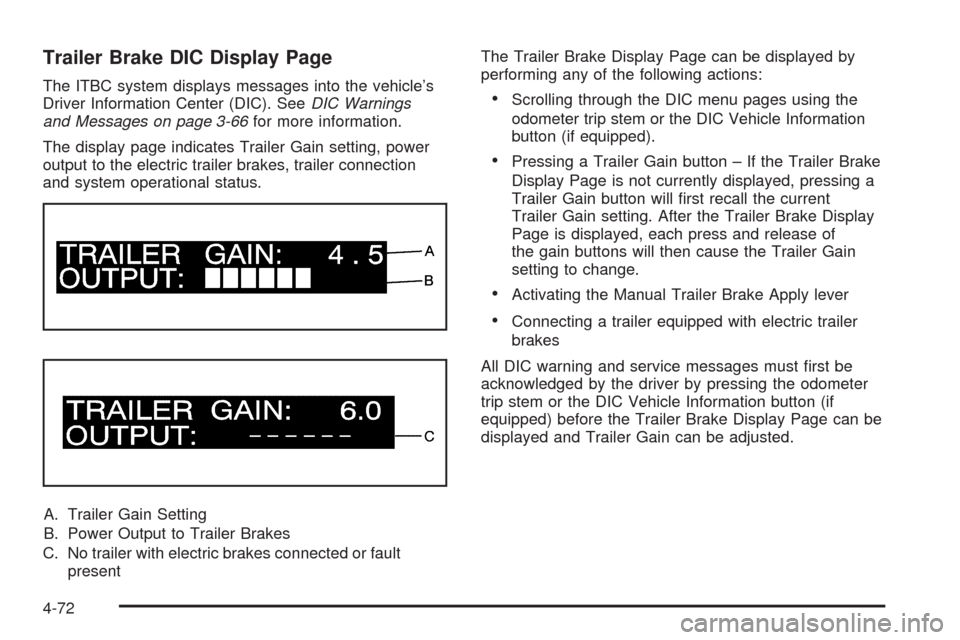
The display page indicates Trailer Gain setting, power
output to the electric trailer brakes, trailer connection
and system operational status.
A. Trailer Gain Setting
B. Power Output to Trailer Brakes
C. No trailer with electric brakes connected or fault
presentThe Trailer Brake Display Page can be displayed by
performing any of the following actions:Scrolling through the DIC menu pages using the
odometer trip stem or the DIC Vehicle Information
button (if equipped).
Pressing a Trailer Gain button – If the Trailer Brake
Display Page is not currently displayed, pressing a
Trailer Gain button will rst recall the current
Trailer Gain setting. After the Trailer Brake Display
Page is displayed, each press and release of
the gain buttons will then cause the Trailer Gain
setting to change.
Activating the Manual Trailer Brake Apply lever
Connecting a trailer equipped with electric trailer
brakes
All DIC warning and service messages must rst be
acknowledged by the driver by pressing the odometer
trip stem or the DIC Vehicle Information button (if
equipped) before the Trailer Brake Display Page can be
displayed and Trailer Gain can be adjusted.
4-72
Page 401 of 600
TRAILER GAIN – This setting is displayed anytime the
Trailer Brake Display Page is active. This setting
can be adjusted from 0.0 to 10.0 with either a trailer
connected or disconnected. To adjust the Trailer Gain,
press one of the Trailer Gain adjustment buttons
located on the Trailer Brake Control Panel. Press and
hold a gain button to cause the Trailer Gain to
continuously adjust. To turn the output to the trailer off,
adjust the Trailer Gain setting to 0.0 (zero).
0.0 (zero) gain is the factory default setting. To properly
adjust trailer gain, see the Trailer Gain Adjustment
Procedure later in this section.
TRAILER OUTPUT – This is displayed any time a trailer
with electric brakes is connected. Output to the electric
brakes is based on the amount of vehicle braking
present and relative to the Trailer Gain setting. Output is
displayed from 0 to 10 bars for each gain setting.
The Trailer Output will indicate “------“ontheTrailer
Brake Display Page whenever the following occur:
No trailer is connected.
A trailer without electric brakes is connected
(no DIC message is displayed).
A trailer with electric brakes has become
disconnected (a CHECK TRAILER WIRING
message will also be displayed on the DIC).
There is a fault present in the wiring to the electric
trailer brakes (a CHECK TRAILER WIRING
message will also be displayed on the DIC).
There is a fault in the ITBC system (a SERVICE
TRAILER BRAKE SYSTEM message will also
be displayed in the DIC).
Manual Trailer Brake Apply
The Manual Trailer Brake Apply Lever is located on the
Trailer Brake Control Panel and is used to apply the
trailer’s electric brakes independent of the vehicle’s
brakes. This lever is used in the Trailer Gain Adjustment
Procedure to properly adjust the power output to the
trailer brakes. Sliding the lever to the left will apply only
the trailer brakes. The power output to the trailer is
indicated in the Trailer Brake Display Page in the DIC. If
the vehicle’s service brakes are applied while using
the Manual Trailer Brake Apply Lever, the trailer output
power will be the greater of the two.
The trailer and the vehicle’s brake lamps will come on
when either vehicle braking or manual trailer brakes are
applied.
4-73
Page 402 of 600
Trailer Gain Adjustment Procedure
Trailer Gain should be set for a specic trailering
condition and must be adjusted any time vehicle loading,
trailer loading or road surface conditions change.
Setting the Trailer Gain properly is needed for the
best trailer stopping performance. A trailer that is
over-gained may result in locked trailer brakes. A trailer
that is under-gained may result in not enough trailer
braking. Both of these conditions may result in poorer
stopping and stability of the vehicle and trailer.
Use the following procedure to correctly adjust Trailer
Gain for each towing condition:
1. Make sure the trailer brakes are in proper working
condition.
2. Connect a properly loaded trailer to the vehicle and
make all necessary mechanical and electrical
connections. SeeLoading the Vehicle on page 4-32
for more information.
3. After the electrical connection is made to a trailer
equipped with electric brakes:
A TRAILER CONNECTED message will be
briey displayed on the DIC display.
The Trailer Brake Display Page will appear on
the DIC showing TRAILER GAIN and TRAILER
OUTPUT.
In the Trailer Output display on the DIC,
“------’’will disappear if there is no error
present. Connecting a trailer without electric
brakes will not clear the six dashed lines.
4. Adjust the Trailer Gain by using the gain adjustment
(+ / -) buttons on the Trailer Brake Control Panel.
5. Drive the vehicle with the trailer attached on a level
road surface representative of the towing condition
and free of traffic at about 20 to 25 mph (32 to
40 km/h) and fully apply the Manual Trailer Brake
Apply lever.
Adjusting trailer gain at speeds lower than 20 to
25 mph (32 to 40 km/h) may result in an incorrect
gain setting.
6. Adjust the Trailer Gain to just below the point of
trailer wheel lock-up, indicated by trailer wheel
squeal or tire smoke when a trailer wheel locks.
Trailer wheel lock-up may not occur if towing
a heavily loaded trailer. In this case, adjust the
Trailer Gain to the highest allowable setting for the
towing condition.
7. Re-adjust Trailer Gain any time vehicle loading,
trailer loading or road surface conditions change
or if trailer wheel lock-up is noticed at any time while
towing.
4-74
Page 431 of 600
How to Reset the Engine Oil Life
System
The Engine Oil Life System calculates when to change
the engine oil and lter based on vehicle use. Whenever
the oil is changed, reset the system so it can calculate
when the next oil change is required. If a situation occurs
where the oil is changed prior to a CHANGE ENGINE OIL
SOON message coming on, reset the system.
Always reset the engine oil life to 100% after every oil
change. It will not reset itself. To reset the Engine Oil Life
System:
1. Display the OIL LIFE REMAINING on the DIC.
If the vehicle does not have DIC buttons, the
vehicle must be in P (Park) to access this display.
SeeDIC Operation and Displays (With DIC
Buttons) on page 3-53orDIC Operation and
Displays (Without DIC Buttons) on page 3-59.
2. Press and hold the SET/RESET button on the DIC,
or the trip odometer reset stem if the vehicle does
not have DIC buttons, for more than ve seconds.
The oil life will change to 100%.
If the CHANGE ENGINE OIL SOON message comes
back on when the vehicle is started, the Engine Oil Life
System has not reset. Repeat the procedure.
What to Do with Used Oil
Used engine oil contains certain elements that can be
unhealthy for your skin and could even cause cancer.
Do not let used oil stay on your skin for very long. Clean
your skin and nails with soap and water, or a good
hand cleaner. Wash or properly dispose of clothing or
rags containing used engine oil. See the manufacturer’s
warnings about the use and disposal of oil products.
Used oil can be a threat to the environment. If you
change your own oil, be sure to drain all the oil from the
lter before disposal. Never dispose of oil by putting it
in the trash, pouring it on the ground, into sewers, or into
streams or bodies of water. Recycle it by taking it to a
place that collects used oil.
Engine Air Cleaner/Filter
If the vehicle has a diesel engine, see “Pickup Models”
under “Engine Air Cleaner/Filter” in the DURAMAX®
Diesel Supplement for the correct inspection and
replacement procedures.
SeeEngine Compartment Overview on page 5-14for
the location of the engine air cleaner/lter.
5-19
Page 490 of 600
If your vehicle has DIC buttons, tire pressure levels can
be viewed by the driver. For additional information and
details about the DIC operation and displays seeDIC
Operation and Displays (With DIC Buttons) on page 3-53
orDIC Operation and Displays (Without DIC Buttons) on
page 3-59andDIC Warnings and Messages on
page 3-66.
The low tire pressure warning light may come on in cool
weather when the vehicle is rst started, and then
turn off as you start to drive. This could be an early
indicator that the air pressure in the tire(s) are getting
low and need to be inated to the proper pressure.
A Tire and Loading Information label, attached to your
vehicle, shows the size of your vehicle’s original
equipment tires and the correct ination pressure for your
vehicle’s tires when they are cold. SeeLoading the
Vehicle on page 4-32, for an example of the Tire and
Loading Information label and its location on your vehicle.
Also seeInflation - Tire Pressure on page 5-73.
Your vehicle’s TPMS can warn you about a low tire
pressure condition but it does not replace normal
tire maintenance. SeeTire Inspection and Rotation on
page 5-81andTires on page 5-65.
Notice:Liquid tire sealants could damage the Tire
Pressure Monitor System (TPMS) sensors. Sensor
damage caused by using a tire sealant is not covered
by your warranty. Do not use liquid tire sealants.TPMS Malfunction Light and Message
The TPMS will not function properly if one or more of the
TPMS sensors are missing or inoperable. When the
system detects a malfunction, the low tire warning light
ashes for about one minute and then stays on for the
remainder of the ignition cycle. A DIC warning message
is also displayed. The low tire warning light and DIC
warning message come on at each ignition cycle until the
problem is corrected. Some of the conditions that can
cause the malfunction light and DIC message to come
on are:
One of the road tires has been replaced with the
spare tire. The spare tire does not have a TPMS
sensor. The TPMS malfunction light and DIC
message should go off once you re-install the road
tire containing the TPMS sensor.
The TPMS sensor matching process was started but
not completed or not completed successfully after
rotating the vehicle’s tires. The DIC message and
TPMS malfunction light should go off once the TPMS
sensor matching process is performed successfully.
See “TPMS Sensor Matching Process” later in this
section.
5-78