key CHEVROLET SILVERADO 2009 2.G Workshop Manual
[x] Cancel search | Manufacturer: CHEVROLET, Model Year: 2009, Model line: SILVERADO, Model: CHEVROLET SILVERADO 2009 2.GPages: 600, PDF Size: 3.24 MB
Page 268 of 600
EASY EXIT RECALL
If your vehicle has this feature, it allows you to select
your preference for the automatic easy exit seat feature.
SeeMemory Seat, Mirrors, and Pedals on page 1-8
for more information.
Press the customization button until EASY EXIT
RECALL appears on the DIC display. Press the set/reset
button once to access the settings for this feature.
Then press the customization button to scroll through
the following settings:
DOOR BUTTON ONLY:No automatic seat exit recall
will occur. The recall will only occur after pressing
the easy exit seat button.
BUTTON & KEY OUT (default):If the features are
enabled through the EASY EXIT SETUP menu, the
driver’s seat will move back when the key is removed from
the ignition or after pressing the easy exit seat button.
The automatic easy exit seat movement will only occur
one time after the key is removed from the ignition. If the
automatic movement has already occurred, and you put
the key back in the ignition and remove it again, the seat
will stay in the original exit position, unless a memory
recall took place prior to removing the key again.
NO CHANGE:No change will be made to this feature.
The current setting will remain.
To select a setting, press the set/reset button while the
desired setting is displayed on the DIC.
EASY EXIT SETUP
If your vehicle has this feature, it allows you to select
which areas will recall with the automatic easy exit seat
feature. It also allows you to turn off the automatic
easy exit feature. SeeMemory Seat, Mirrors, and Pedals
on page 1-8and “EASY EXIT RECALL” earlier for
more information.
Press the customization button until EASY EXIT
SETUP appears on the DIC display. Press the set/reset
button once to access the settings for this feature.
Then press the menu up/down button to scroll through
the following settings:
OFF:No automatic seat exit will recall.
SEAT ONLY (Default):The driver’s seat will recall.
NO CHANGE:No change will be made to this feature.
The current setting will remain.
To select a setting, press the set/reset button while the
desired setting is displayed on the DIC.
3-82
Page 269 of 600
MEMORY SEAT RECALL
If your vehicle has this feature, it allows you to select
your preference for the remote memory seat recall
feature. SeeMemory Seat, Mirrors, and Pedals
on page 1-8for more information.
Press the customization button until MEMORY SEAT
RECALL appears on the DIC display. Press the set/reset
button once to access the settings for this feature.
Then press the customization button to scroll through
the following settings:
OFF (default):No remote memory seat recall will occur.
ON:The driver’s seat and, on some vehicles, the
outside mirrors will automatically move to the stored
driving position when the unlock button on the Remote
Keyless Entry (RKE) transmitter is pressed. On some
vehicles with the adjustable throttle and brake pedal
feature, the pedals will also automatically move.
See “Relearn Remote Key” underDIC Operation and
Displays (With DIC Buttons) on page 3-53orDIC
Operation and Displays (Without DIC Buttons) on
page 3-59for more information on matching transmitters
to driver ID numbers.
NO CHANGE:No change will be made to this feature.
The current setting will remain.
To select a setting, press the set/reset button while the
desired setting is displayed on the DIC.
REMOTE START
If your vehicle has this feature, it allows you to turn the
remote start off or on. The remote start feature allows
you to start the engine from outside of the vehicle using
the Remote Keyless Entry (RKE) transmitter. See
Remote Vehicle Start on page 2-7for more information.
Press the customization button until REMOTE START
appears on the DIC display. Press the set/reset
button once to access the settings for this feature.
Then press the customization button to scroll through
the following settings:
OFF:The remote start feature will be disabled.
ON (default):The remote start feature will be enabled.
NO CHANGE:No change will be made to this
feature. The current setting will remain.
To select a setting, press the set/reset button while the
desired setting is displayed on the DIC.
3-83
Page 291 of 600
DVD-A (Audio) Display Buttons
Once a DVD-A is inserted, radio display menu shows
several tag options for DVD playing. Press the
pushbuttons located under any desired tag option
during DVD playback. See the tag options listed after,
for more information.
The rear seat operator can navigate the DVD-A menus
and controls through the remote control. See “Remote
Control”, underRear Seat Entertainment (RSE) System
on page 3-129for more information. The Video Screen
does not automatically power on when the DVD-A
is inserted into the DVD slot. It must be manually turned
on by the rear seat occupant through the remote
control power button.
r/j(Play/Pause):Press either the play or pause
icon displayed on the radio system, to toggle between
pausing or restarting playback of a DVD. If the forward
arrow is showing on the display, the system is in pause
mode. If the pause icon is showing on the display,
the system is in playback mode.
qGroupr:Press to cycle through musical groupings
on the DVD-A disc.Nav (Navigate):Press to display directional arrows for
navigating through the menus.
e(Audio Stream):Press to cycle through audio stream
formats located on the DVD-A disc. The video screen
shows the audio stream changing.
Inserting a Disc
To play a disc, gently insert the disc, with the label side
up, into the loading slot. The DVD player might not
accept some paper labeled media. The player starts
loading the disc into the system and show “Loading
Disc” on the radio display. At the same time, the radio
displays a softkey menu of option(s). Some discs
automatically play the movie while others default to the
softkey menu display, which requires the Play, Enter,
or Navigation softkeys to be pressed; either by softkey
or by the rear seat passenger using the remote control.
Loading a disc into the system, depending on media
type and format, ranges from 5 to 20 seconds for a CD,
and up to 30 seconds for a DVD.
3-105
Page 301 of 600
Preprogrammed Playlists
Preprogrammed playlists that were created using
WinAmp™, MusicMatch™, or Real Jukebox™ software
can be accessed, however, they cannot be edited
using the radio. These playlists are treated as special
folders containing compressed audio song les.
Playing an MP3/WMA
(In Either the DVD or CD Slot)
Insert a CD-R or CD-RW partway into either the top or
bottom slot, label side up. The player pulls it in, and
the CD-R or CD-RW should begin playing.
Depending on the format of the disc, a softkey menu
appears and allows navigation of the disc. The menu
reads left to right as RDM (Randomize song play order),
a Folder icon with left and right arrows (to move up or
down through available folders), a PL tag if the disc has
a Playlist available, and a Music Navigator tag. If a
Playlist tag is shown, toggling this key brings up a Folder
softkey only or the menu as previously described.
If the ignition or radio is turned off with a CD-R or
CD-RW in the player it stays in the player. When the
ignition or radio is turned back on, the CD-R starts
to play where it stopped, if it was the last selected
audio source.
As each new track starts to play, the track number and
song title displays.
ZCD (Eject):Press and release this button to eject
the CD-R or CD-RW that is currently playing in the
bottom slot. A beep sounds and Ejecting Disc displays.
Once the disc is ejected, Remove Disc displays.
The CD-R or CD-RW can be removed. If the CD-R or
CD-RW is not removed, after several seconds, the CD-R
or CD-RW automatically pulls back into the player.
If loading and reading of a CD cannot be completed,
such as unknown format, etc., and the disc fails to eject,
press and hold this button for more than ve seconds
to force the disc to eject.
ZDVD (Eject):Press and release this button to eject
the CD-R or CD-RW that is currently playing in the
top slot. A beep sounds and Ejecting Disc displays.
Once the disc is ejected, Remove Disc displays.
The CD-R or CD-RW can be removed. If the CD-R or
CD-RW is not removed, after several seconds, the CD-R
automatically pulls back into the player. If loading and
reading of a CD cannot be completed, such as unknown
format, etc., and the disc fails to eject, press and hold
this button for more than ve seconds to force the disc
to eject.
f(Tune):Turn this knob to select MP3/WMA les on
the CD-R or CD-RW that is currently playing.
3-115
Page 305 of 600
Unknown:If this message is received when tuned to
channel 0, there could be a receiver fault. Consult
with your dealer/retailer.
Check XM Receivr:If this message does not clear
within a short period of time, the receiver could have a
fault. Consult with your dealer/retailer.
XM Not Available:If this message does not clear
within a short period of time, the receiver could have a
fault. Consult with your dealer/retailer.
Navigation/Radio System
For vehicles with a navigation radio system, see the
separate Navigation System manual.
Bluetooth®
Vehicles with a Bluetooth system can use a Bluetooth
capable cell phone with a Hands Free Prole to make
and receive phone calls. The system can be used while
the key is in ON/RUN or ACC/ACCESSORY position.
The range of the Bluetooth system can be up to
30 ft. (9.1 m). Not all phones support all functions,
and not all phones are guaranteed to work with the
in-vehicle Bluetooth system. See gm.com/bluetooth for
more information on compatible phones.
Voice Recognition
The Bluetooth system uses voice recognition to interpret
voice commands to dial phone numbers and name tags.
Noise:Keep interior noise levels to a minimum.
The system may not recognize voice commands if there
is too much background noise.
When to Speak:A short tone sounds after the system
responds indicating when it is waiting for a voice
command. Wait until the tone and then speak.
How to Speak:Speak clearly in a calm and natural
voice.
Audio System
When using the in-vehicle Bluetooth system, sound
comes through the vehicle’s front audio system speakers
and overrides the audio system. Use the audio system
volume knob, during a call, to change the volume
level. The adjusted volume level remains in memory
for later calls. To prevent missed calls, a minimum
volume level is used if the volume is turned down
too low.
3-119
Page 313 of 600
To Mute a call
1. Pressbg. The system responds with “Ready”
followed by a tone.
2. Say “Mute Call”. The system responds with
“Call muted”.
To Cancel Mute
1. Pressbg. The system responds with “Ready”
followed by a tone.
2. After the tone, say “Mute Call”. The system
responds with “Resuming call”.
Transferring a Call
Audio can be transferred between the in-vehicle
Bluetooth system and the cell phone.
To Transfer Audio to the Cell Phone
During a call with the audio in the vehicle:
1. Press
bg. The system responds with “Ready”
followed by a tone.
2. Say “Transfer Call.” The system responds with
“Transferring call” and the audio will switch from
the vehicle to the cell phone.
To Transfer Audio to the In-Vehicle
Bluetooth System
The cellular phone must be paired and connected with
the Bluetooth system before a call can be transferred.
The connection process can take up to two minutes after
the key is turned to the ON/RUN or ACC/ACCESSORY
position.
During a call with the audio on the cell phone, press
bg
for more than two seconds. The audio switches from the
cell phone to the vehicle.
Voice Pass-Thru
Voice Pass-Thru allows access to the voice recognition
commands on the cell phone. See the cell phone
manufacturers user guide to see if the cell phone
supports this feature. This feature can be used to
verbally access contacts stored in the cell phone.
1. Press and hold
bgfor two seconds. The system
responds with “Ready” followed by a tone.
2. Say “Bluetooth”. The system responds with
“Bluetooth ready” followed by a tone.
3. Say “Voice”. The system responds with “OK,
accessing
The cell phone’s normal prompt messages will
go through its cycle according to the phone’s
operating instructions.
3-127
Page 322 of 600
e(Audio):Press this button to change audio tracks on
DVDs that have this feature when the DVD is playing.
The format and content of this function vary for each disc.
{(Subtitles):Press this button to turn ON/OFF
subtitles and to move through subtitle options when a
DVD is playing. The format and content of this function
vary for each disc.
AUX (Auxiliary):Press this button to switch the system
between the DVD player and an auxiliary source.
d(Camera):Press this button to change camera
angles on DVDs that have this feature while a DVD is
playing. The format and content of this function vary for
each disc.
1 through 0 (Numeric Keypad):The numeric keypad
provides the capability of direct chapter or track
number selection.
\(Clear):Press this button within three seconds after
entering a numeric selection, to clear all numerical inputs.
}10 (Double Digit Entries):Press this button to
select chapter or track numbers greater than nine.
Press this button before entering the number.
Battery Replacement
To change the remote control batteries, do the following:
1. Slide the rear cover back on the remote control.
2. Replace the two batteries in the compartment.
Make sure they are installed correctly using the
diagram on the inside of the remote control.
3. Replace the battery cover.
If the remote control is to be stored for a long period of
time, remove the batteries and keep them in a cool,
dry place.
Problem Recommended Action
No power. The ignition might not be
turned ON/RUN or in
ACC/ACCESSORY.
The picture does not ll
the screen. There are
black borders on the
top and bottom or on
both sides or it looks
stretched out.Check the display mode
settings in the setup menu
by pressing the display
menu button on the
remote control.
In auxiliary mode, the
picture moves or scrolls.Check the auxiliary input
connections at both
devices.
3-136
Page 344 of 600
Getting Familiar with Off-Road Driving
It is a good idea to practice in an area that is safe
and close to home before you go into the wilderness.
Off-roading requires some new and different skills.
Tune your senses to different kinds of signals. Your eyes
need to constantly sweep the terrain for unexpected
obstacles. Your ears need to listen for unusual tire
or engine sounds. Use your arms, hands, feet, and body
to respond to vibrations and vehicle bounce.
Controlling the vehicle is the key to successful off-road
driving. One of the best ways to control the vehicle
is to control the speed. At higher speeds:
You approach things faster and have less time
to react.
There is less time to scan the terrain for obstacles.
The vehicle has more bounce when driving over
obstacles.
More braking distance is needed, especially on an
unpaved surface.
{CAUTION:
When you are driving off-road, bouncing and quick
changes in direction can easily throw you out of
position. This could cause you to lose control and
crash. So, whether you are driving on or off the
road, you and your passengers should wear safety
belts.
Scanning the Terrain
Off-road driving can take you over many different kinds
of terrain. Be familiar with the terrain and its many
different features.
Surface Conditions:Off-roading surfaces can be
hard-packed dirt, gravel, rocks, grass, sand, mud, snow,
or ice. Each of these surfaces affects the vehicle’s
steering, acceleration, and braking in different ways.
Depending on the surface, slipping, sliding, wheel
spinning, delayed acceleration, poor traction, and longer
braking distances can occur.
4-16
Page 375 of 600
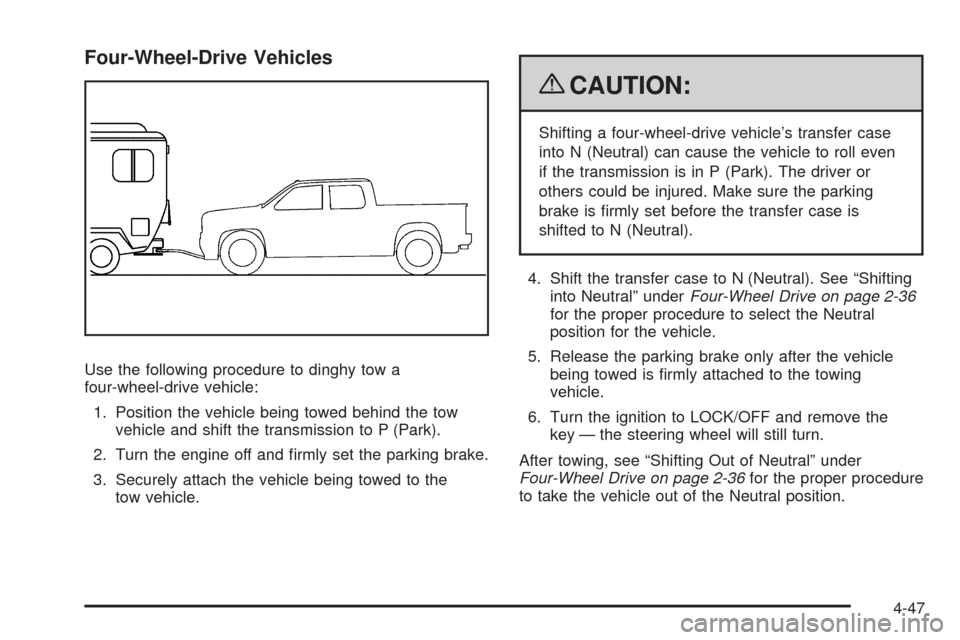
Four-Wheel-Drive Vehicles
Use the following procedure to dinghy tow a
four-wheel-drive vehicle:
1. Position the vehicle being towed behind the tow
vehicle and shift the transmission to P (Park).
2. Turn the engine off and rmly set the parking brake.
3. Securely attach the vehicle being towed to the
tow vehicle.
{CAUTION:
Shifting a four-wheel-drive vehicle’s transfer case
into N (Neutral) can cause the vehicle to roll even
if the transmission is in P (Park). The driver or
others could be injured. Make sure the parking
brake is rmly set before the transfer case is
shifted to N (Neutral).
4. Shift the transfer case to N (Neutral). See “Shifting
into Neutral” underFour-Wheel Drive on page 2-36
for the proper procedure to select the Neutral
position for the vehicle.
5. Release the parking brake only after the vehicle
being towed is rmly attached to the towing
vehicle.
6. Turn the ignition to LOCK/OFF and remove the
key — the steering wheel will still turn.
After towing, see “Shifting Out of Neutral” under
Four-Wheel Drive on page 2-36for the proper procedure
to take the vehicle out of the Neutral position.
4-47
Page 417 of 600
California Proposition 65 Warning
Most motor vehicles, including this one, contain and/or
emit chemicals known to the State of California to cause
cancer and birth defects or other reproductive harm.
Engine exhaust, many parts and systems (including
some inside the vehicle), many uids, and some
component wear by-products contain and/or emit
these chemicals.
California Perchlorate Materials
Requirements
Certain types of automotive applications, such as airbag
initiators, seat belt pretensioners, and lithium batteries
contained in remote keyless transmitters, may contain
perchlorate materials. Special handling may be
necessary. For additional information, see
www.dtsc.ca.gov/hazardouswaste/perchlorate.
Doing Your Own Service Work
If this vehicle is a Two-mode Hybrid, see the
Two-mode Hybrid manual for more information.
{CAUTION:
You can be injured and the vehicle could be
damaged if you try to do service work on a vehicle
without knowing enough about it.
Be sure you have sufficient knowledge,
experience, the proper replacement parts, and
tools before attempting any vehicle
maintenance task.
Be sure to use the proper nuts, bolts, and
other fasteners. English and metric fasteners
can be easily confused. If the wrong fasteners
are used, parts can later break or fall off. You
could be hurt.
If doing some of your own service work, use the proper
service manual. It tells you much more about how to
service the vehicle than this manual can. To order
the proper service manual, seeService Publications
Ordering Information on page 7-15.
5-5