ECO mode CHEVROLET SILVERADO 2010 2.G Owner's Manual
[x] Cancel search | Manufacturer: CHEVROLET, Model Year: 2010, Model line: SILVERADO, Model: CHEVROLET SILVERADO 2010 2.GPages: 626, PDF Size: 4.8 MB
Page 248 of 626
Speedometer and Odometer
The speedometer shows the vehicle speed in both
miles per hour (mph) and kilometers per hour (km/h).
The odometer shows how far the vehicle has been
driven, in either miles (used in the United States) or
kilometers (used in Canada).
Engine Hour Meter Display
The Driver Information Center (DIC) can also display
the number of hours the engine has run. To display the
engine hours, turn the ignition off, press and hold the
reset button for at least four seconds. The hour meter
displays for up to 30 seconds, or until the ignition is
turned on. SeeDIC Operation and Displays (With DIC
Buttons)
on page 4‑49or DIC Operation and Displays
(Without DIC Buttons)on page 4‑56for more
information.
Trip Odometer
The trip odometer shows how far the vehicle has been
driven since the trip odometer was last set to zero.
Press the reset button, located on the instrument panel
cluster next to the voltmeter, to toggle between the trip
odometer and the regular odometer. Holding the reset
button for approximately one second while the trip
odometer is displayed will reset it.
To display the odometer reading with the ignition off,
press the reset button.
See DIC Operation and Displays (With DIC Buttons)
on
page 4‑49or DIC Operation and Displays (Without DIC
Buttons)on page 4‑56for more information.
Tachometer
The tachometer displays the engine speed in
revolutions per minute (rpm). For a description of how
Grade Braking affects vehicle speed while the Tow/Haul
Mode is activated, see “Grade Braking (Allison
Transmission
®)” under Tow/Haul Modeon page 3‑34for more information.
4-30
Page 254 of 626
Charging System Light
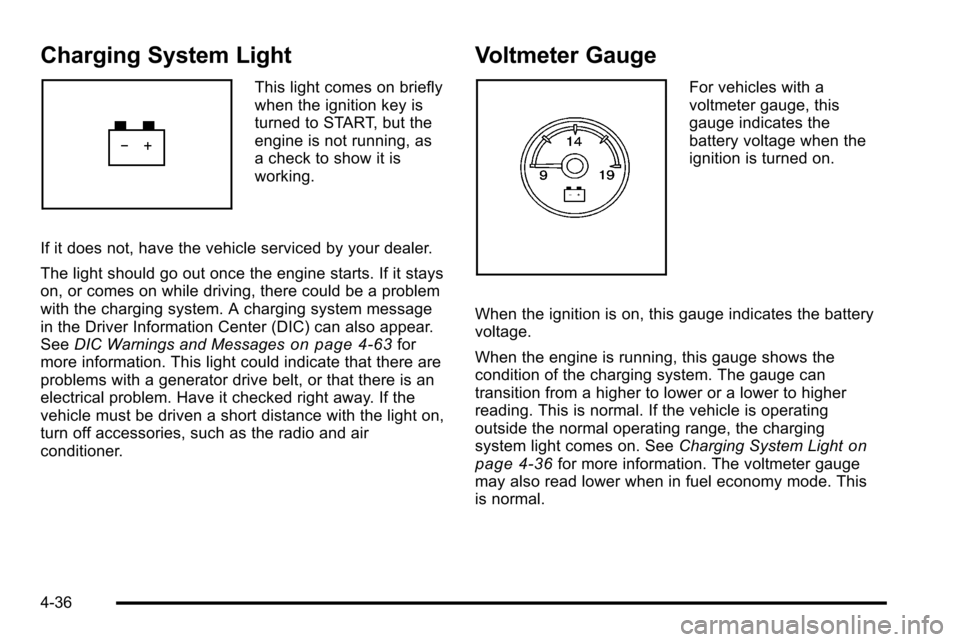
This light comes on briefly
when the ignition key is
turned to START, but the
engine is not running, as
a check to show it is
working.
If it does not, have the vehicle serviced by your dealer.
The light should go out once the engine starts. If it stays
on, or comes on while driving, there could be a problem
with the charging system. A charging system message
in the Driver Information Center (DIC) can also appear.
See DIC Warnings and Messages
on page 4‑63for
more information. This light could indicate that there are
problems with a generator drive belt, or that there is an
electrical problem. Have it checked right away. If the
vehicle must be driven a short distance with the light on,
turn off accessories, such as the radio and air
conditioner.
Voltmeter Gauge
For vehicles with a
voltmeter gauge, this
gauge indicates the
battery voltage when the
ignition is turned on.
When the ignition is on, this gauge indicates the battery
voltage.
When the engine is running, this gauge shows the
condition of the charging system. The gauge can
transition from a higher to lower or a lower to higher
reading. This is normal. If the vehicle is operating
outside the normal operating range, the charging
system light comes on. See Charging System Light
on
page 4‑36for more information. The voltmeter gauge
may also read lower when in fuel economy mode. This
is normal.
4-36
Page 272 of 626
If the tire pressure display shows dashes instead of a
value, there may be a problem with your vehicle. If this
consistently occurs, see your dealer for service.
Trailer Gain and Output
On vehicles with the Integrated Trailer Brake Control
(ITBC) system, the trailer brake display appears in the
DIC. Press the vehicle information button until TRAILER
GAIN and OUTPUT display.
TRAILER GAIN shows the trailer gain setting. This
setting can be adjusted from 0.0 to 10.0 with either a
trailer connected or disconnected. To adjust this setting,
see“Integrated Trailer Brake Control System” under
Towing a Trailer
on page 5‑51for more information.
OUTPUT shows the power output to the trailer anytime
a trailer with electric brakes is connected. Output is
displayed in 0 to 10 bars. Dashes may appear in the
OUTPUT display. See “Integrated Trailer Brake Control
System” underTowing a Trailer
on page 5‑51for more
information.
Engine Hours
Press the vehicle information button until ENGINE
HOURS displays. This display shows the total number
of hours the engine has run.
Relearn Remote Key
This display allows you to match Remote Keyless Entry
(RKE) transmitters to your vehicle. This procedure will
erase all previously learned transmitters. Therefore,
they must be relearned as additional transmitters.
To match an RKE transmitter to your vehicle:
1. Press the vehicle information button until PRESS
VTO RELEARN REMOTE KEY displays.
2. Press the set/reset button until REMOTE KEY LEARNING ACTIVE is displayed.
3. Press and hold the lock and unlock buttons on the first transmitter at the same time for about
15 seconds.
On vehicles with memory recall seats, the first
transmitter learned will match driver 1 and the
second will match driver 2.
A chime will sound indicating that the transmitter is
matched.
4. To match additional transmitters at this time, repeat Step 3.
Each vehicle can have a maximum of eight
transmitters matched to it.
5. To exit the programming mode, you must cycle the key to LOCK/OFF.
4-54
Page 277 of 626
Remember, you must reset the OIL LIFE display
yourself after each oil change. It will not reset itself.
Also, be careful not to reset the OIL LIFE display
accidentally at any time other than when the oil has just
been changed. It cannot be reset accurately until the
next oil change. To reset the engine oil life system, see
Engine Oil Life System on page 6‑20.
Relearn Tire Positions
Your vehicle may have this display. To access this
display, the vehicle must be in P (Park). If your vehicle
has the Tire Pressure Monitor System (TPMS), after
rotating the tires or after replacing a tire or sensor, the
system must re-learn the tire positions. To re-learn the
tire positions, seeTire Pressure Monitor System
on
page 6‑75. See Tire Inspection and Rotationon
page 6‑80and DIC Warnings and Messageson
page 4‑63for more information.
Relearn Remote Key
To access this display, the vehicle must be in P (Park).
This display allows you to match Remote Keyless Entry
(RKE) transmitters to your vehicle. This procedure will
erase all previously learned transmitters. Therefore,
they must be relearned as additional transmitters. To match an RKE transmitter to your vehicle:
1. Press the trip odometer reset stem until RELEARN REMOTE KEY displays.
2. Press and hold the trip odometer reset stem for three seconds.
The message REMOTE KEY LEARNING ACTIVE
will display.
3. Press and hold the lock and unlock buttons on the first transmitter at the same time for about
15 seconds.
On vehicles with memory recall seats, the first
transmitter learned will match driver 1 and the
second will match driver 2.
A chime will sound indicating that the transmitter is
matched.
4. To match additional transmitters at this time, repeat Step 3.
Each vehicle can have a maximum of eight
transmitters matched to it.
5. To exit the programming mode, you must cycle the key to LOCK/OFF.
4-59
Page 306 of 626
Finding a Station
BAND:Press to switch between AM, FM, or XM™,
if equipped.
f(Tune): Turn to select radio stations.
©SEEK¨:Press either arrow to go to the previous
or to the next station and stay there. The radio only
seeks and scans stations with a strong signal that are in
the selected band.
To scan stations, press and hold either arrow for a
few seconds until a beep sounds. The radio goes to a
station, plays for a few seconds, then goes to the next
station.
Press either arrow again to stop scanning.
For the AM-FM Radio, the station frequency flashes
while the radio is in the scan mode.
For the AM-FM Radio, scan presets within the current
selected band by pressing and holding either seek
arrow for four seconds until a double beep sounds. The
radio goes to a stored preset, plays for a few seconds if
a strong signal is present, then goes to the next stored
preset. The station frequency flashes while the radio is
in the scan mode.
4(Information) (XM Satellite Radio Service, MP3, and
RDS Features): Press to switch the display between
the radio station frequency and the time. When the
ignition is in the OFF position, press
4to display the
time. For vehicles with XM, MP3, WMA or RDS
features, press
4to display additional text information
related to the current FM-RDS or XM station; or CD,
MP3 or WMA song. If information is available during
XM, CD, MP3 or WMA playback, the song title
information displays on the top line of the display and
artist information displays on the bottom line. When
information is not available, “NO INFO”displays.
Setting Preset Stations
If the radio does not have a FAV button, up to
18 stations (six FM1, six FM2, and six AM), can be
programmed on the six numbered pushbuttons. To
program presets:
1. Turn the radio on.
2. Press BAND to select FM1, FM2, or AM.
3. Tune in the desired station.
4. Press and hold one of the six numbered pushbuttons for three seconds until a beep sounds.
Whenever that pushbutton is pressed and
released, the station that was set, returns.
5. Repeat the Steps 2 through 4 for each pushbutton.
4-88
Page 309 of 626
Adjusting the Speakers (Balance/Fade)
BAL/FADE (Balance/Fade):To adjust balance or fade
on radios without a
`button, press thefknob until
the speaker control tabs display. Continue pressing to
highlight the desired tab, or press the softkey under the
desired tab. Turn the
fknob clockwise or
counterclockwise to adjust the highlighted setting,
or adjust the highlighted setting by pressing either
SEEK arrow,
\FWD, orsREV button until the
desired levels are obtained.
To quickly adjust balance or fade to the middle position,
press the softkey positioned under the BAL or FADE tab
for more than two seconds. A beep sounds and the
level adjusts to the middle position.
To quickly adjust all speaker and tone controls to the
middle position, press the
fknob for more than
two seconds.
If the Rear Seat Audio (RSA) is turned on, the radio
disables FADE and mutes the rear speakers.
`(Balance/Fade): To adjust the balance or fade for
radios with a
`button, press this button or the tune
knob until the desired speaker control tab displays. Turn
the tune knob clockwise or counterclockwise to adjust
the setting.
The setting can also be adjusted by pressing the seek
arrows.
Finding a Category (CAT) Station
CAT (Category): The CAT button is used to find XM
stations when the radio is in the XM mode. To find XM
channels within a desired category:
1. Press the BAND button until the XM frequency displays. Press the CAT button to display the
category tabs. Continue pressing the CAT button
until the desired category name displays.
.Radios with CD and DVD can also navigate the
category list by pressing the
\FWD or the
sREV button.
2. Press either of the two buttons below the desired category tab to immediately tune to the first XM
station associated with that category.
4-91
Page 318 of 626
Playing a DVD
DVD/CD AUX (Auxiliary):Press this button to cycle
through DVD, CD, or Auxiliary when listening to the
radio. The DVD/CD text tab and a message showing
track or chapter number displays when a disc is in
either slot. Press this button again and the system
automatically searches for an auxiliary input device,
such as a portable audio player. If a portable audio
player is not connected, “No Aux Input Device”displays.
If a disc is in both the DVD slot and the CD slot the
DVD/CD AUX button cycles between the two sources
and not indicate “No Aux Input Device”. If a front
auxiliary device is connected, the DVD/CD AUX button
cycles through all available options, such as: DVD slot,
CD slot, Front Auxiliary, and Rear Auxiliary (if available).
See “Using the Auxiliary Input Jack(s)” later in this
section, or “Audio/Video (A/V) Jacks” under,Rear Seat
Entertainment (RSE) System
on page 4‑132for more
information.
O(Power): Press to turn the radio on or off. Turn this
knob clockwise or counterclockwise to increase or
decrease the volume. Press and hold for more than
two seconds to turn off the entire radio and Rear Seat
Entertainment (RSE) system and to start the parental
control feature. Parental control prevents the rear seat
occupant from operating the Rear Seat Audio (RSA)
system or remote control. A lock symbol displays next to the clock display. The
parental control feature remains on until the knob is
pressed and held for more than two seconds again,
or until the driver turns the ignition off and exits the
vehicle.
f(Tune):
Turn to change tracks on a CD or DVD, to
manually tune a radio station, or to change clock or
date settings, while in the clock or date setting mode.
See the information given earlier in this section specific
to the radio, CD, and the DVD. Also, see “Setting the
Time” in the index, for setting the clock and date.
©SEEK (Previous Track/Chapter): Press the left
arrow to return to the start of the current track or
chapter. Press the left arrow again to go to the previous
track or chapter. This button might not work when the
DVD is playing the copyright information or the
previews.
SEEK
¨(Next Track/Chapter): Press the right arrow
to go to the next track or chapter. This button might not
work when the DVD is playing the copyright information
or the previews.
sREV (Fast Reverse): Press to quickly reverse the
CD or DVD at five times the normal speed. The radio
displays the elapsed time while in fast reverse. To stop
fast reversing, press again. This button might not work
when the DVD is playing the copyright information or
the previews.
4-100
Page 319 of 626
\FWD (Fast Forward):Press to fast forward the CD
or DVD. The radio displays the elapsed time and fast
forwards five times the normal speed. To stop fast
forwarding, press again. This button might not work
when the DVD is playing the copyright information or
the previews.
Z(Eject): Press to eject a CD or DVD. If a CD or
DVD is ejected, but not removed, the player
automatically pulls it back in after 15 seconds.
If loading and reading of a CD cannot be completed,
because of an unknown format, etc., and the disc fails
to eject, press and hold for more than five seconds to
force the disc to eject.
DVD-V (Video) Display Buttons
Once a DVD-V is inserted, the radio display menu
shows several tag options for DVD playing. Press the
softkey located under any desired tag option during
DVD playback. See the tag options listed after, for more
information.
The rear seat passenger can navigate the DVD-V
menus and controls through the remote control. See
“Remote Control”, under Rear Seat Entertainment
(RSE) System
on page 4‑132for more information. The
Video Screen automatically turns on when the DVD-V is
inserted into the DVD slot.
r/j(Play/Pause): Press either the play or pause
icon displayed on the radio system, to toggle between
pausing or restarting playback of a DVD. If the forward
arrow is showing on display, the system is in pause
mode. If the pause icon is showing on display, the
system is in playback mode. If the DVD screen is off,
press the play button to turn the screen on.
Some DVDs begin playing after the previews have
finished, although there could be a delay of up to
30 seconds. If the DVD does not begin playing the
movie automatically, press the softkey located under the
play/pause symbol tag displayed on the radio. If the
DVD still does not play, refer to the on-screen
instructions, if available.
c(Stop): Press to stop playing, rewinding, or fast
forwarding a DVD.
r(Enter): Press to select the choices that are
highlighted in any menu.
y(Menu): Press to access the DVD menu. The DVD
menu is different on every DVD. Use the softkeys
located under the navigation arrows to navigate the
cursor through the DVD menu. After making a selection
press this button. This button only operates when using
a DVD.
4-101
Page 320 of 626
Nav (Navigate):Press to display directional arrows for
navigating through the menus.
q(Return): Press to exit the current active menu and
return to the previous menu. This button operates only
when a DVD is playing and a menu is active.
DVD-A (Audio) Display Buttons
Once a DVD-A is inserted, radio display menu shows
several tag options for DVD playing. Press the softkeys
located under any desired tag option during DVD
playback. See the tag options listed after, for more
information.
The rear seat operator can navigate the DVD-A menus
and controls through the remote control. See “Remote
Control”, under Rear Seat Entertainment (RSE) System
on page 4‑132for more information. The Video Screen
does not automatically power on when the DVD-A is
inserted into the DVD slot. It must be manually turned
on by the rear seat occupant through the remote control
power button.
r/j(Play/Pause): Press either the play or pause
icon displayed on the radio system, to toggle between
pausing or restarting playback of a DVD. If the forward
arrow is showing on the display, the system is in pause
mode. If the pause icon is showing on the display, the
system is in playback mode.
qGroupr: Press to cycle through musical
groupings on the DVD-A disc.
Nav (Navigate): Press to display directional arrows for
navigating through the menus.
e(Audio Stream): Press to cycle through audio
stream formats located on the DVD-A disc. The video
screen shows the audio stream changing.
Inserting a Disc
To play a disc, gently insert the disc, with the label side
up, into the loading slot. The DVD player might not
accept some paper labeled media. The player starts
loading the disc into the system and show “Loading
Disc” on the radio display. At the same time, the radio
displays a softkey menu of option(s). Some discs
automatically play the movie while others default to the
softkey menu display, which requires the Play, Enter,
or Navigation softkeys to be pressed; either by softkey
or by the rear seat passenger using the remote control.
Loading a disc into the system, depending on media
type and format, ranges from 5 to 20 seconds for a CD,
and up to 30 seconds for a DVD.
4-102
Page 323 of 626
USB Support
The USB connector is located on the dashboard or in
the center console, and uses the USB 2.0 standard.
USB Supported Devices
.USB Flash Drives
.Portable USB Hard Drives
.Fifth generation or later iPod
.iPod nanos
.iPod touch
.iPod classic
Not all iPods and USB Drives are compatible with the
USB port.
Make sure the iPod has the latest firmware from Apple
®
for proper operation. iPod firmware can be updated
using the latest iTunes®application. See
www.apple.com/itunes.
For help with identifying your iPod, go to
www.apple.com/support.
Using an MP3 (Radios with CD)
Format
Radios that have the capability of playing MP3s can
play .mp3 or .wma files that were recorded onto a CD-R
or CD-RW disc. The files can be recorded with the
following fixed bit rates: 32 kbps, 40 kbps, 56 kbps,
64 kbps, 80 kbps, 96 kbps, 112 kbps, 128 kbps,
160 kbps, 192 kbps, 224 kbps, 256 kbps, and 320 kbps
or a variable bit rate.
Radios that have a USB port can play .mp3 and .wma
files that are stored on a USB storage device as well as
AAC files that are stored on an iPod
®.
Compressed Audio or Mixed Mode Discs
The radio can play discs that contain both
uncompressed CD audio and MP3 files. If both formats
are on the disc, the radio reads all MP3 files first, then
the uncompressed CD audio files.
4-105